- Name Video Converter‘
- Category Photo & video
- Developer Video Converter
- Available on PC, Mobile, Xbox console, Surface Hub, HoloLens
- OS Windows 10 version 14393.0 or higher
- languages Arabic, Chinese (Simplified), Dutch, English (United States), French, German, Italian, Japanese, Korean, Portuguese, Russian, Spanish
Transform Your Video Experience with Video Converter for Windows
In the vast universe of multimedia tools, finding a reliable and user-friendly video converter can feel akin to discovering a hidden gem. Video Converter for Windows by FS Tech Media aims to be just that—your go-to solution for seamless video transformation. Whether you're a casual content creator, a professional videographer, or simply someone who likes to tweak videos for personal projects, this app promises to streamline your workflow without sacrificing quality.
Clean, Intuitive Interface Designed for Every User
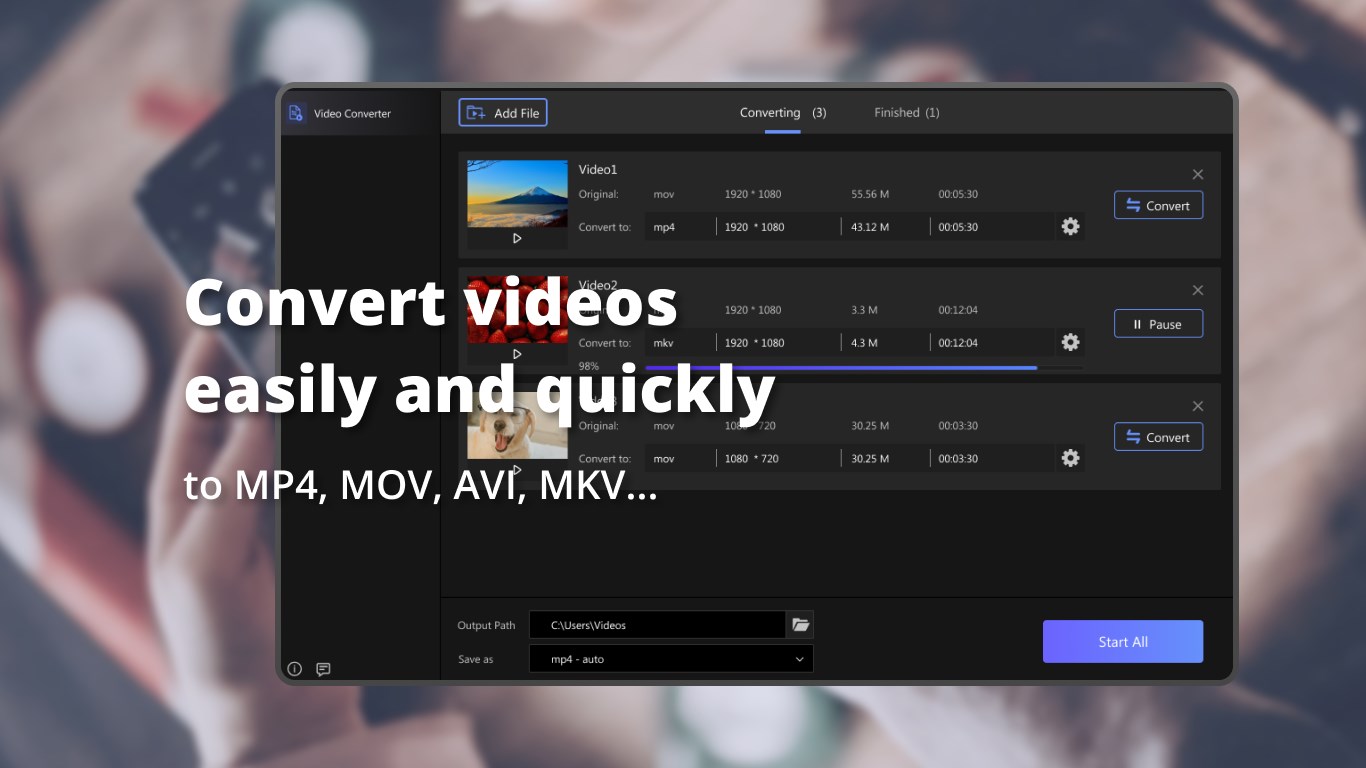
From the moment you open Video Converter, you're greeted with a sleek, modern interface that's as friendly as a trusted assistant. Navigating through options feels natural, with clearly labeled buttons and an organized layout that minimizes overwhelm, even for newcomers. The app's design emphasizes simplicity—no clutter, just a straightforward path from input to output—making tasks like converting, trimming, or adjusting formats feel almost effortless.
Operation flow is smooth as silk; dragging and dropping files is as intuitive as placing a book on a shelf, and the loading times are minimal. The learning curve is gentle, so first-time users won't find themselves lost in a maze of options. Instead, they'll quickly discover that performing basic conversions or exploring advanced settings is as easy as pie, encouraging experimentation and confidence in their editing journey.
Powerful Core Features: Flexibility Meets Efficiency
1. High-Quality Video Format Conversion
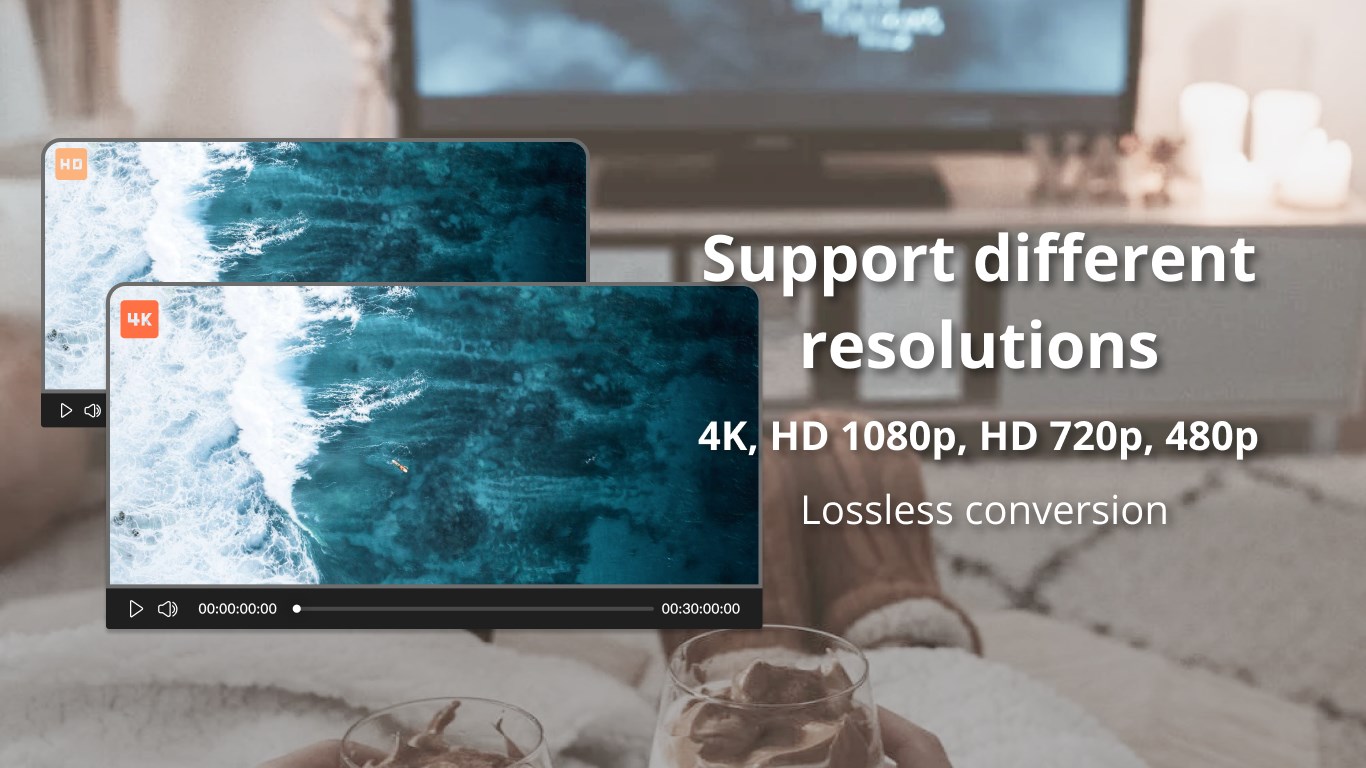
At its core, Video Converter excels in transforming videos into a multitude of formats—MP4, AVI, MKV, MOV, and more—without compromising quality. This feature is especially valuable for users needing compatibility across different devices or platforms, akin to a multilingual translator bridging gaps between diverse video ecosystems. The app leverages optimized encoding algorithms that ensure your videos retain their clarity and resolution, whether you're molding a 4K cinematic masterpiece or a quick social media clip.
2. Batch Processing & Custom Presets
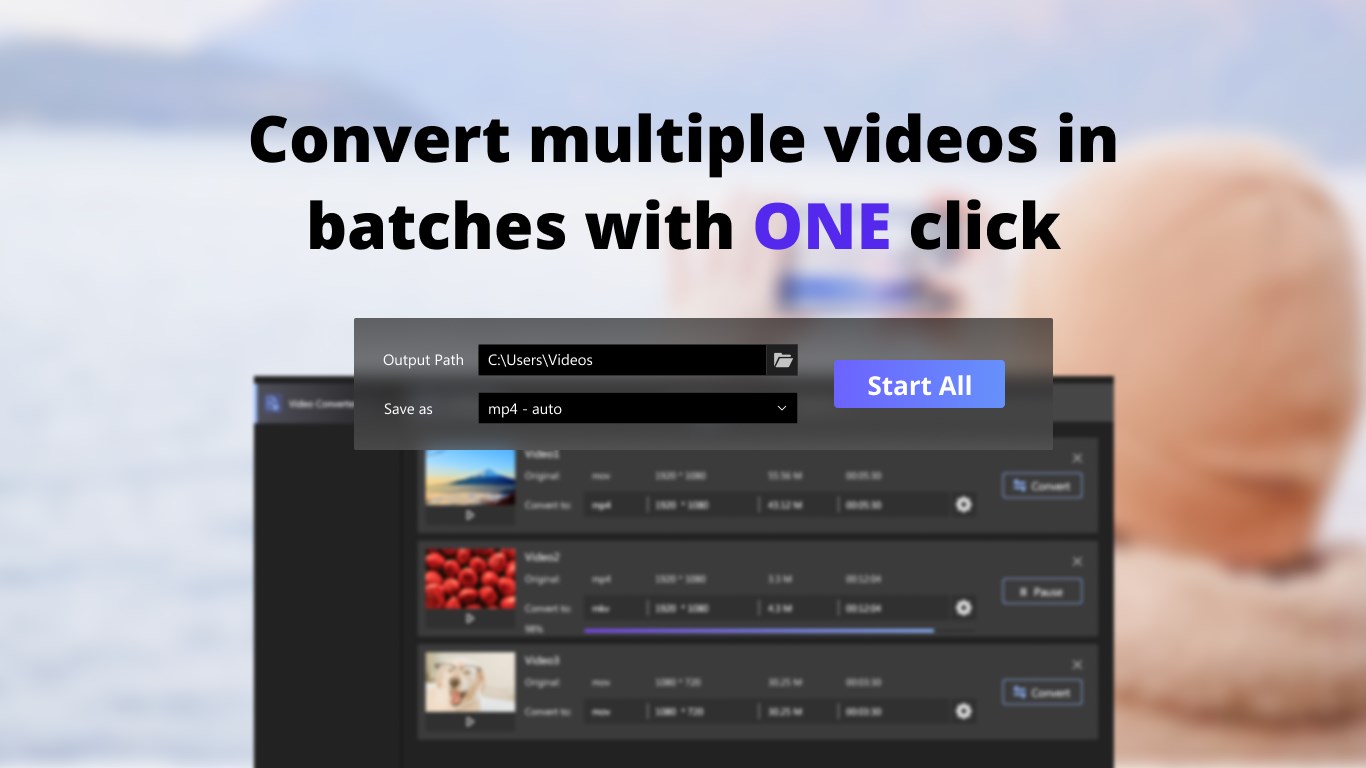
Ever felt frustrated by having to convert files one by one? Not here. The app's batch processing capability allows users to load multiple videos simultaneously, saving precious time—imagine a busy chef preparing several dishes rather than one at a time. Additionally, customizable presets help streamline repetitive conversions, so you can set your preferred resolution, format, and quality once, and let the app do the heavy lifting in the background.
3. Advanced Editing and Compression Tools
Beyond simple conversions, Video Converter offers functionalities like trimming, cropping, and adding watermarks—akin to giving your videos a professional touch. Its compression features are especially noteworthy; it reduces file sizes without significant quality loss, making sharing and storage a breeze. This sets it apart from many basic converters that often overlook the importance of balancing quality with size, positioning Video Converter as a versatile tool for both editing novices and seasoned creators.
Enhanced User Experience & Unique Selling Points
The app's interface is not only user-friendly but also responsive, with minimal lag during intensive tasks—think of it as a sports car that accelerates smoothly. The learning curve is shallow; users can master basic functions within minutes while exploring advanced features at their own pace, making it appealing for beginners and experts alike.
Compared to other multimedia apps, Video Converter's standout features are its balance between quality and efficiency, and its strong emphasis on batch processing and customizable presets. These aspects empower users to handle multiple videos effortlessly and tailor processes according to their unique needs—like having a personalized workshop rather than a generic toolkit.
Final Verdict: A Reliable Ally for Video Transformation
Overall, I'd recommend Video Converter for Windows as a practical, no-nonsense solution for anyone looking to convert videos with ease and confidence. Its intuitive design combined with powerful features makes it an ideal choice for daily use or more demanding projects. Whether you're converting videos for playback on various devices, preparing content for social sharing, or performing basic editing tasks, this app covers all these bases effectively.
For users seeking a straightforward yet capable tool, especially with a focus on batch processing and quality retention, Video Converter stands out as a trustworthy companion. It's not just a converter; it's a comprehensive toolkit designed to meet the evolving needs of today's multimedia creators. Say goodbye to complicated workflows—this app simplifies every step, turning what used to be a chore into a seamless experience. Consider giving it a try; your videos will thank you.
Pros
- User-Friendly Interface
- Wide Format Support
- Fast Conversion Speed
- Batch Conversion Capability
- Basic Editing Features
Cons
- Limited Advanced Features
- Occasional Conversion Failures
- Watermark in Free Version
- Limited Output Resolution Options
- No Built-in Video Preview