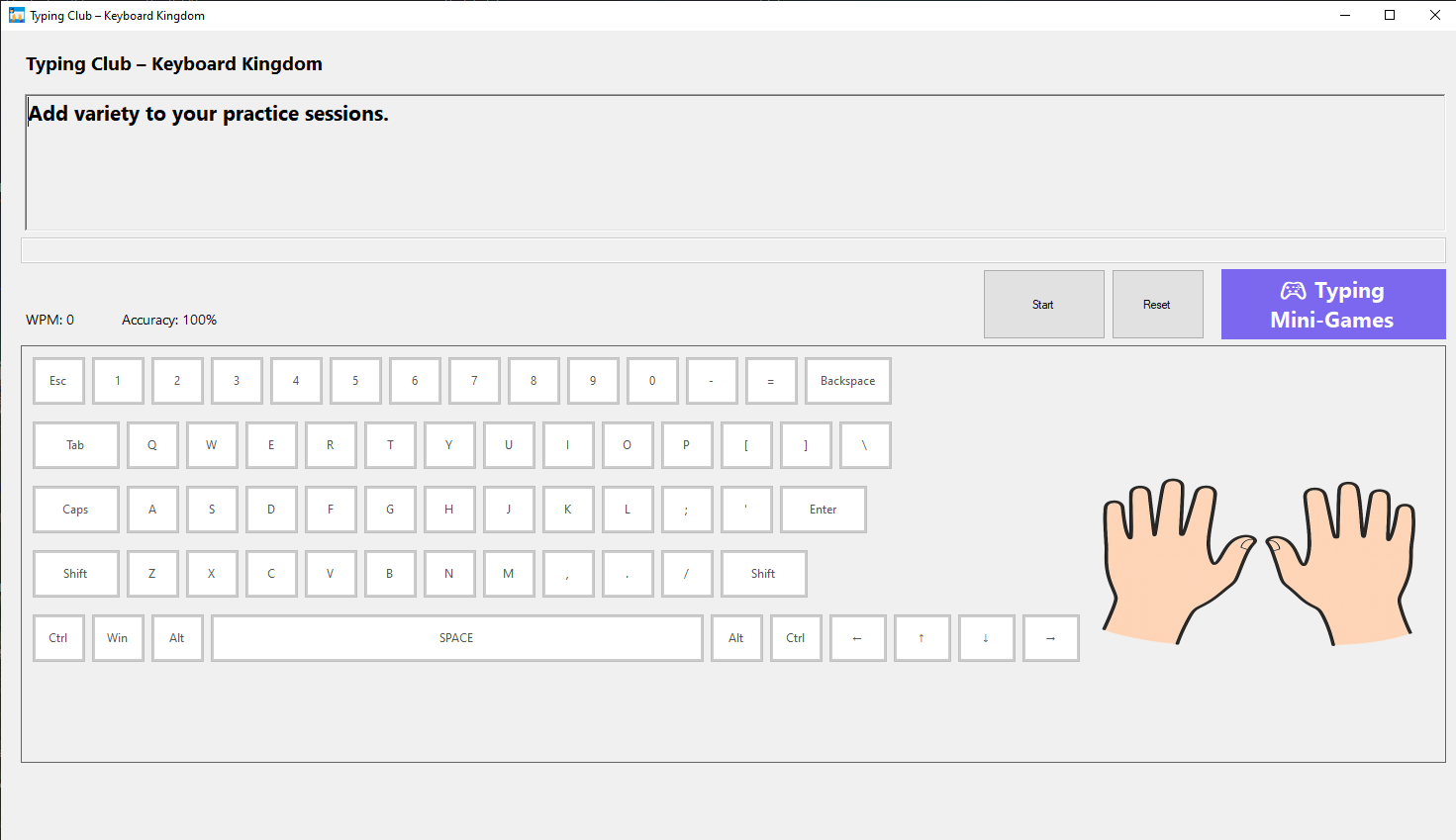
- Name Typing Club – Keyboard Kingdom
- Category Education
- Developer Silamia2025
- Available on PC, Mobile, Surface Hub, HoloLens
- OS Windows 10 version 17763.0 or higher
- languages English (United States)
Introducing Typing Club – Keyboard Kingdom for Windows
Imagine stepping into a vibrant realm where learning to type is as exciting as embarking on a grand adventure—that's what Typing Club's Keyboard Kingdom offers. Designed as an engaging educational tool, this app transforms the often mundane task of keyboard training into a playful and rewarding experience, perfect for learners of all ages eager to master touch typing.
Developed by Silamia2025 with a Focus on Fun and Skill
Produced by Silamia2025, a developer committed to educational innovation, Keyboard Kingdom blends user-friendly design with effective learning strategies. The core aim is to provide an interactive platform that not only teaches proper typing techniques but also keeps users motivated through gamification and personalized progress tracking.
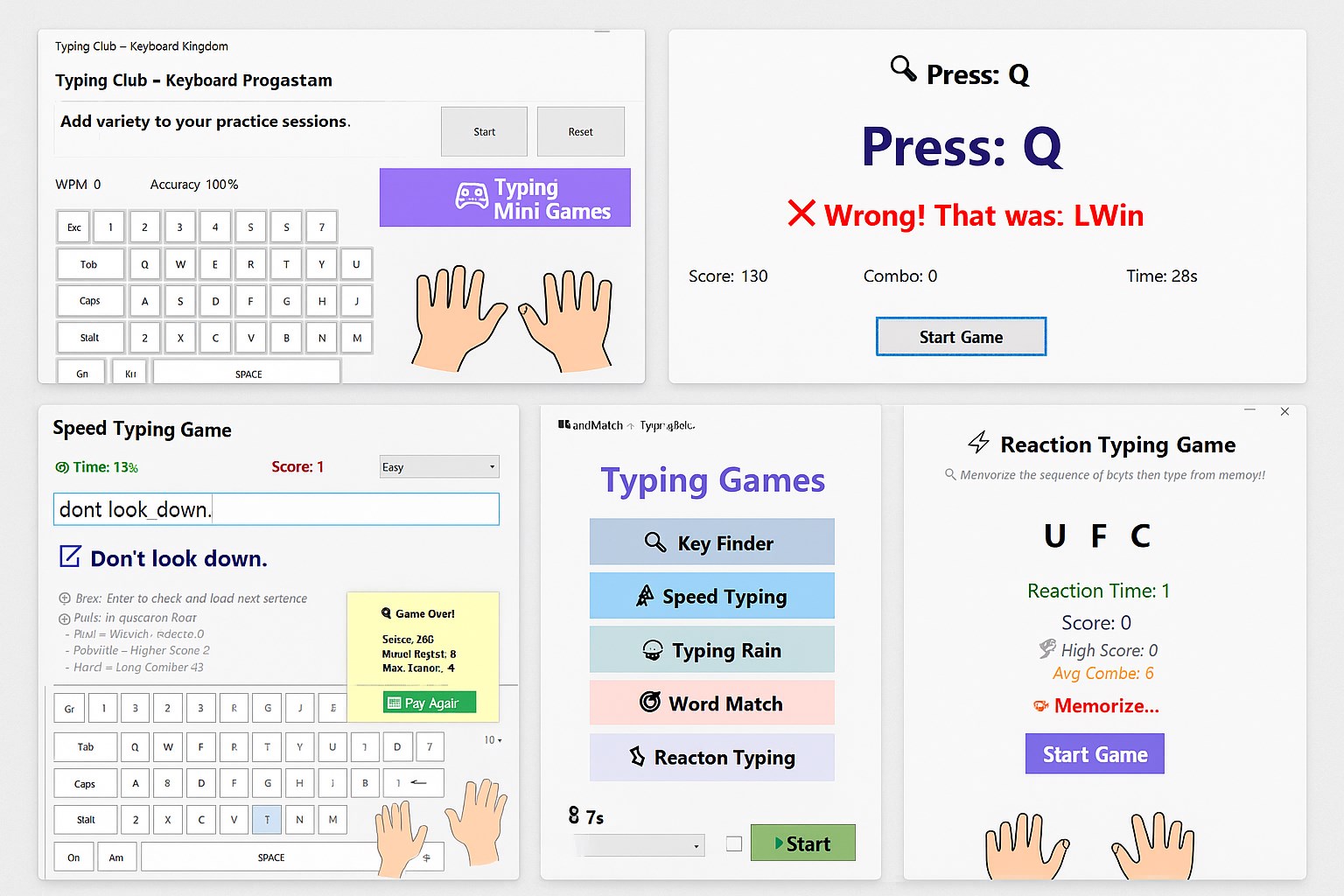
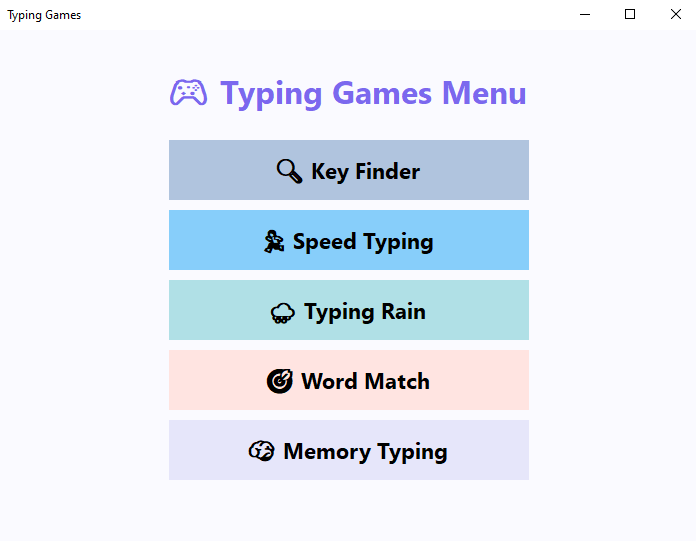
Its standout features include a colorful and intuitive interface, adaptive learning pathways tailored to individual progress, and real-time feedback to help users correct mistakes promptly. These features come together to create an immersive learning environment, making keyboard training less of a chore and more of a captivating quest.
Core Features That Make It a Unique Learning Companion
An Adventure in Typing: The Keyboard Kingdom World
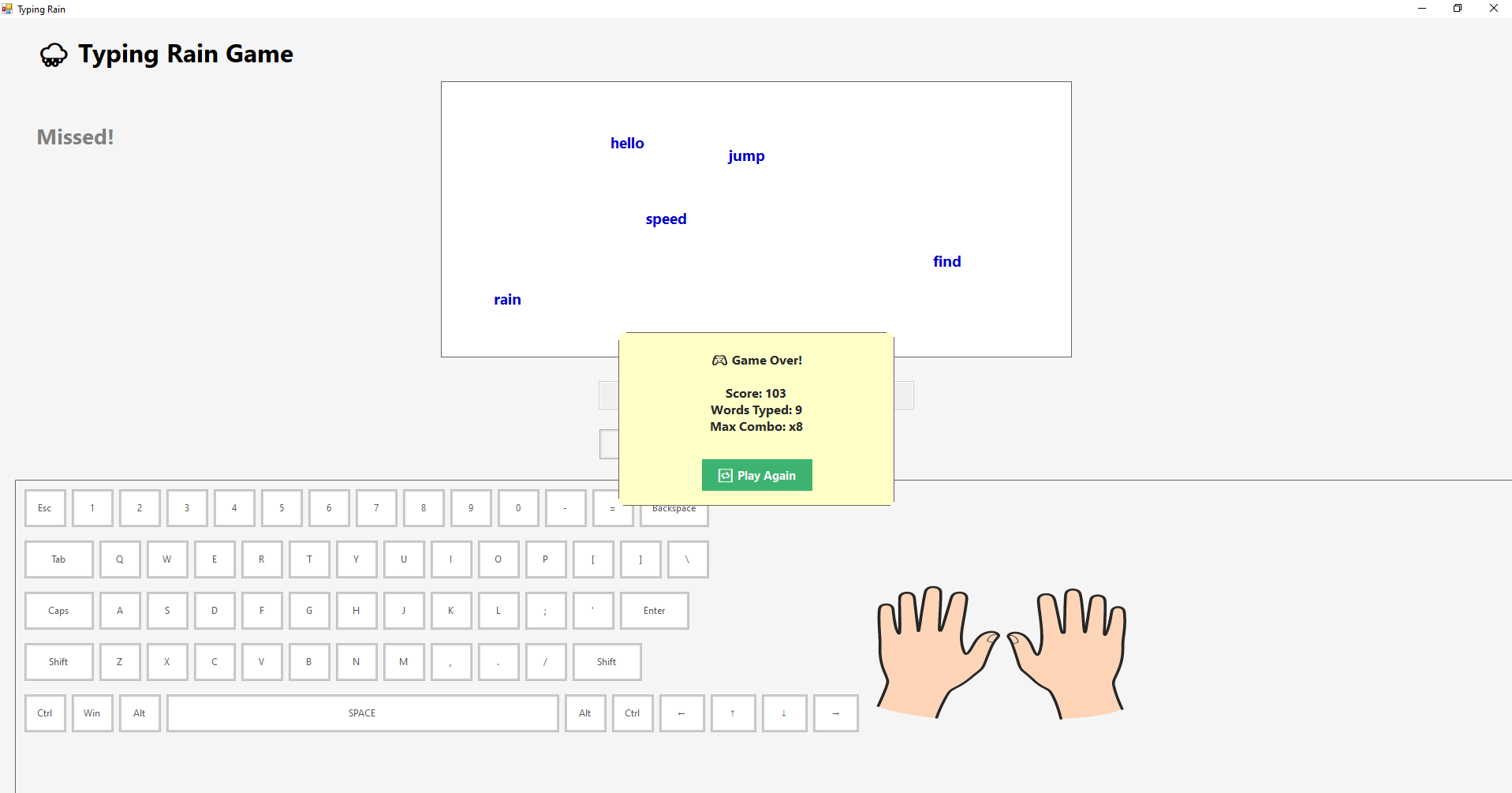
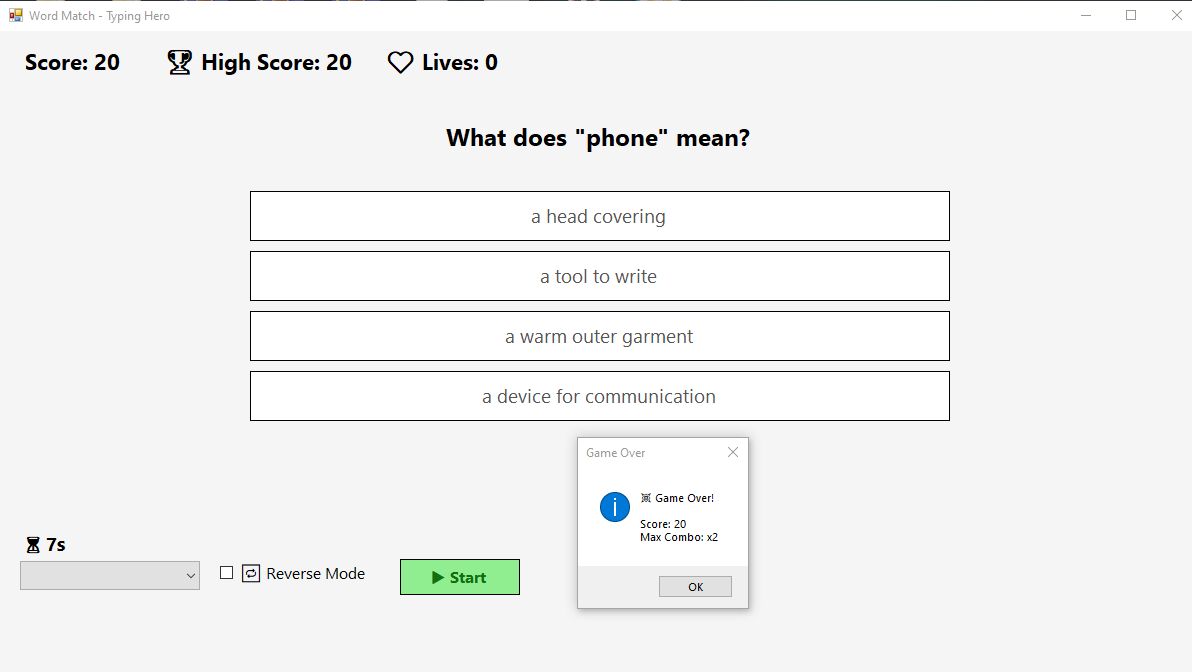
The app's core premise is set within a charming virtual kingdom where each lesson unlocks new areas and challenges. As users progress, they earn badges and rewards, turning the learning process into a gamified adventure. The engaging storyline motivates users to practice consistently, which is especially effective for younger learners or those struggling with traditional methods.
Personalized Learning Paths and Progress Tracking
One of Keyboard Kingdom's most remarkable features is its adaptive curriculum. Unlike generic typing tutors, it assesses each user's skill level early on and tailoring lessons accordingly. This personalized approach ensures that beginners aren't overwhelmed, and advanced users are constantly challenged, optimizing learning efficiency. Additionally, detailed progress dashboards allow users to see their improvements over time, reinforcing a sense of achievement.
Real-Time Feedback and Error Correction
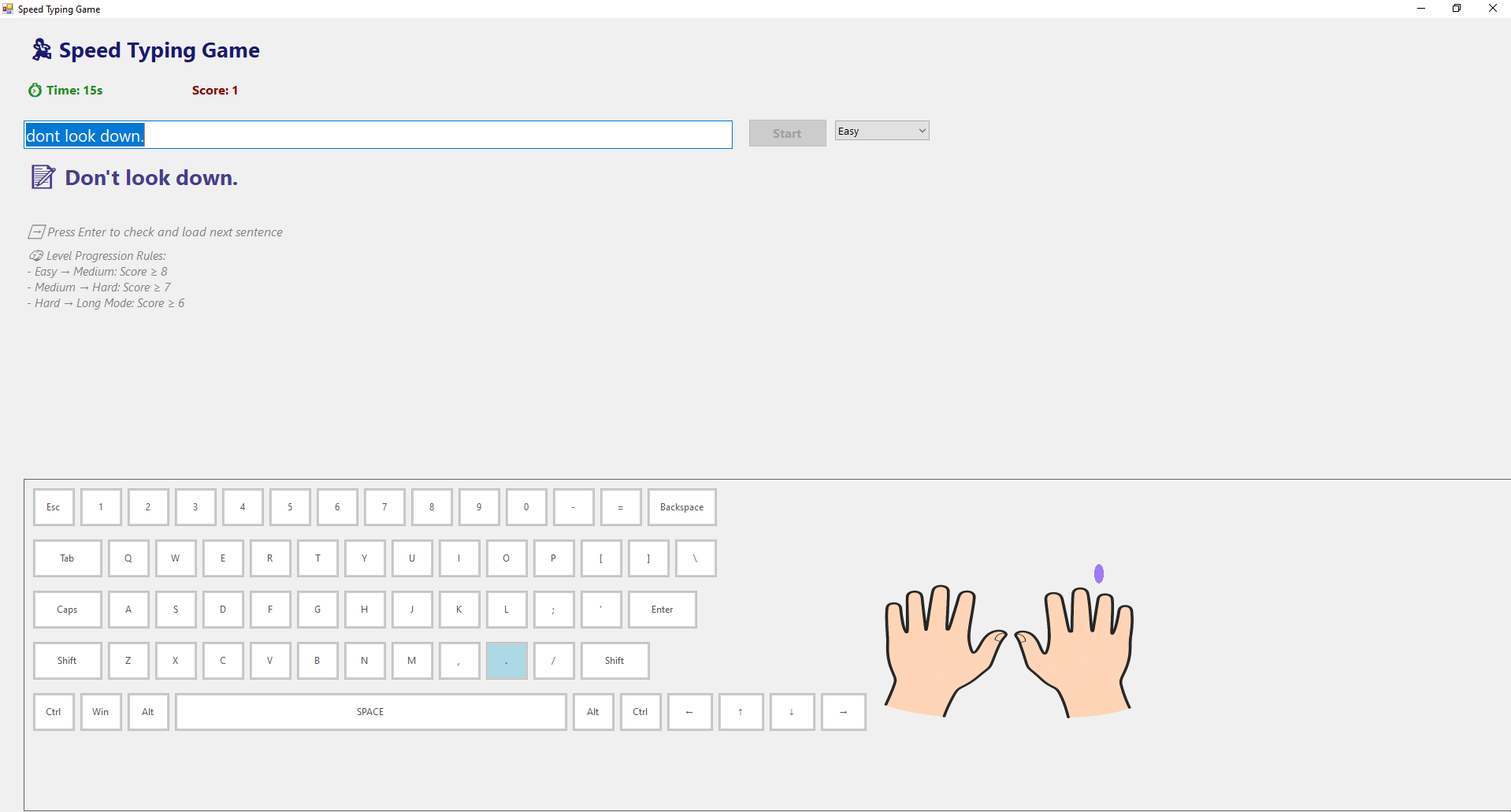
The app provides instant feedback during exercises, highlighting mistakes and suggesting corrections. This immediate response helps users develop proper muscle memory and avoid forming bad habits. The inclusion of visual aids like highlighted keys and animated prompts makes the experience more interactive and supportive, especially for learners who thrive on visual reinforcement.
User Experience and Design: Smooth Sailing for All Users
The interface of Keyboard Kingdom is a visual feast—colorful, intuitive, and crafted to reduce cognitive overload. Navigating through lessons feels natural, much like moving through a well-planned game, which keeps frustration at bay. The app runs smoothly on Windows devices, with responsive controls and minimal lag, making the learning process seamless and engaging. Its learning curve is gentle, accommodating beginners without sacrificing challenge for advanced users. Overall, the user experience is polished, with clear instructions and encouraging prompts that act like friendly guides along the way.
What Sets Keyboard Kingdom Apart from Its Peers?
Compared to other educational typing apps, Keyboard Kingdom shines in its blend of content accuracy, playful engagement, and adaptive learning. Its focus on delivering personalized pathways ensures users are neither bored nor overwhelmed, a common pitfall of one-size-fits-all platforms. The gamified adventure theme creates an emotional connection to the learning process, boosting motivation and retention. Furthermore, its focus on correct typing mechanics, coupled with visual and immediate feedback, ensures skills are built on a solid foundation—something not always prioritized elsewhere.
Final Thoughts and Recommendations
Keyboard Kingdom offers a thoughtfully designed, engaging, and effective typing tutorial for Windows users. It's particularly suitable for beginners, young learners, or anyone seeking a more lively approach to mastering keyboard skills. I'd recommend it for educators aiming to incorporate an enjoyable element into their curriculum or parents looking for an engaging way to help their children develop typing skills. For experienced typists, it might serve as a good refresher or a playful break from routine practice.
Overall, it's a well-rounded application that combines practicality with fun, making the journey to becoming a proficient typist an inviting adventure rather than a tedious chore. If you're in search of a beginner-friendly yet comprehensive typing trainer that stands out from typical programs, Keyboard Kingdom is worth exploring.
Pros
- Engaging gamified interface that motivates users to practice typing
- Structured lessons tailored for different skill levels
- Instant feedback helps users correct mistakes immediately
- Comprehensive progress tracking and achievements motivate ongoing improvement
- User-friendly interface suitable for children and beginners
Cons
- Limited customization options for lesson difficulty and pace
- Some users report occasional lag or slow response during intense typing exercises
- The app's library of activities could be expanded for more variety
- There is no offline mode; an internet connection is required for full functionality
- Advanced customization options, like personalized lesson plans, are limited