- Name Minecraft Education
- Category Education
- Developer Mojang/Microsoft Studios
- Available on PC
- OS Windows 10 version 16299.0 or higher
- Keyboard Integrated Keyboard
- Mouse Integrated Mouse
- languages English (United States)
An Innovative Approach to Learning: Minecraft Education for Windows
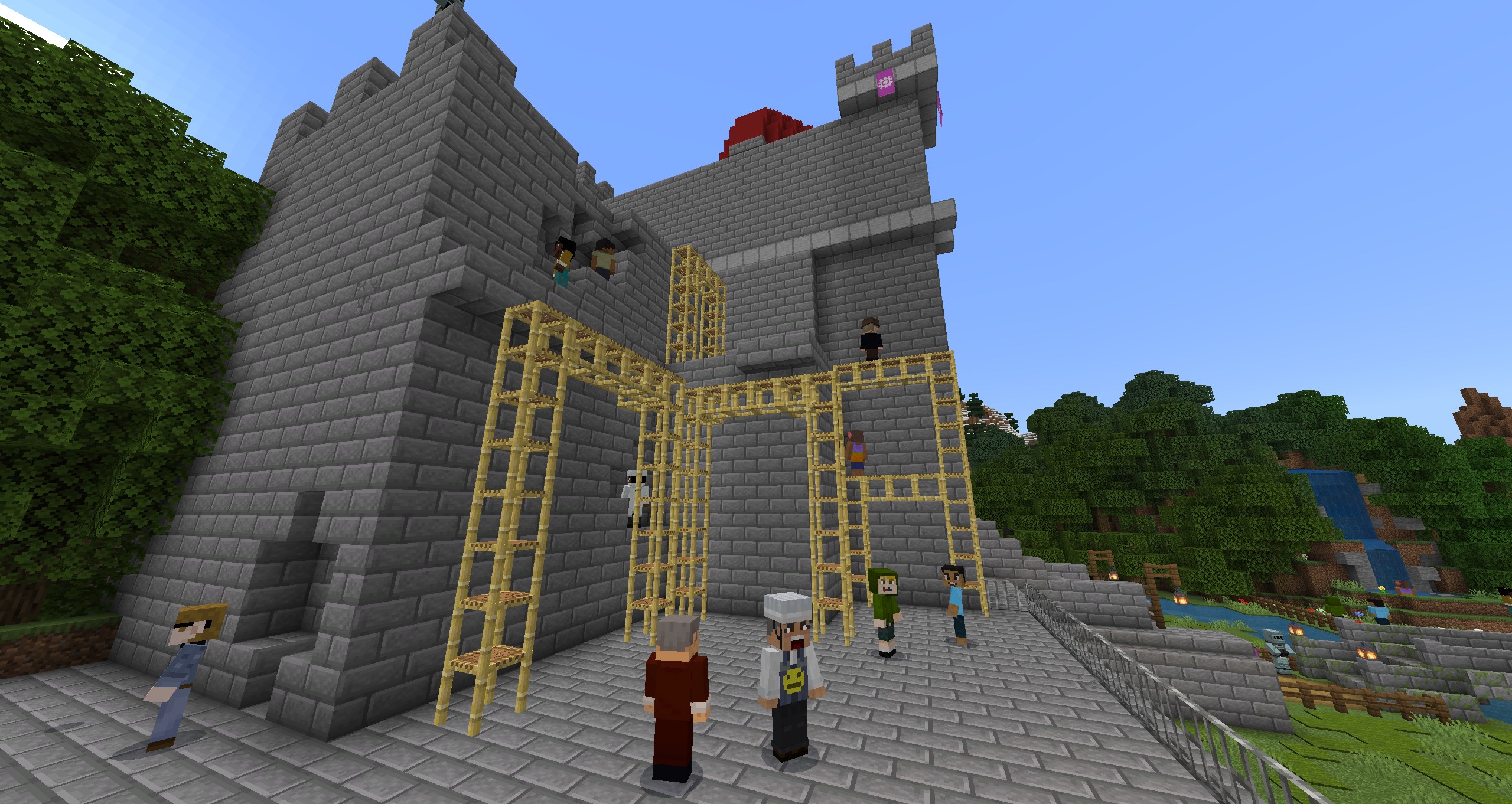
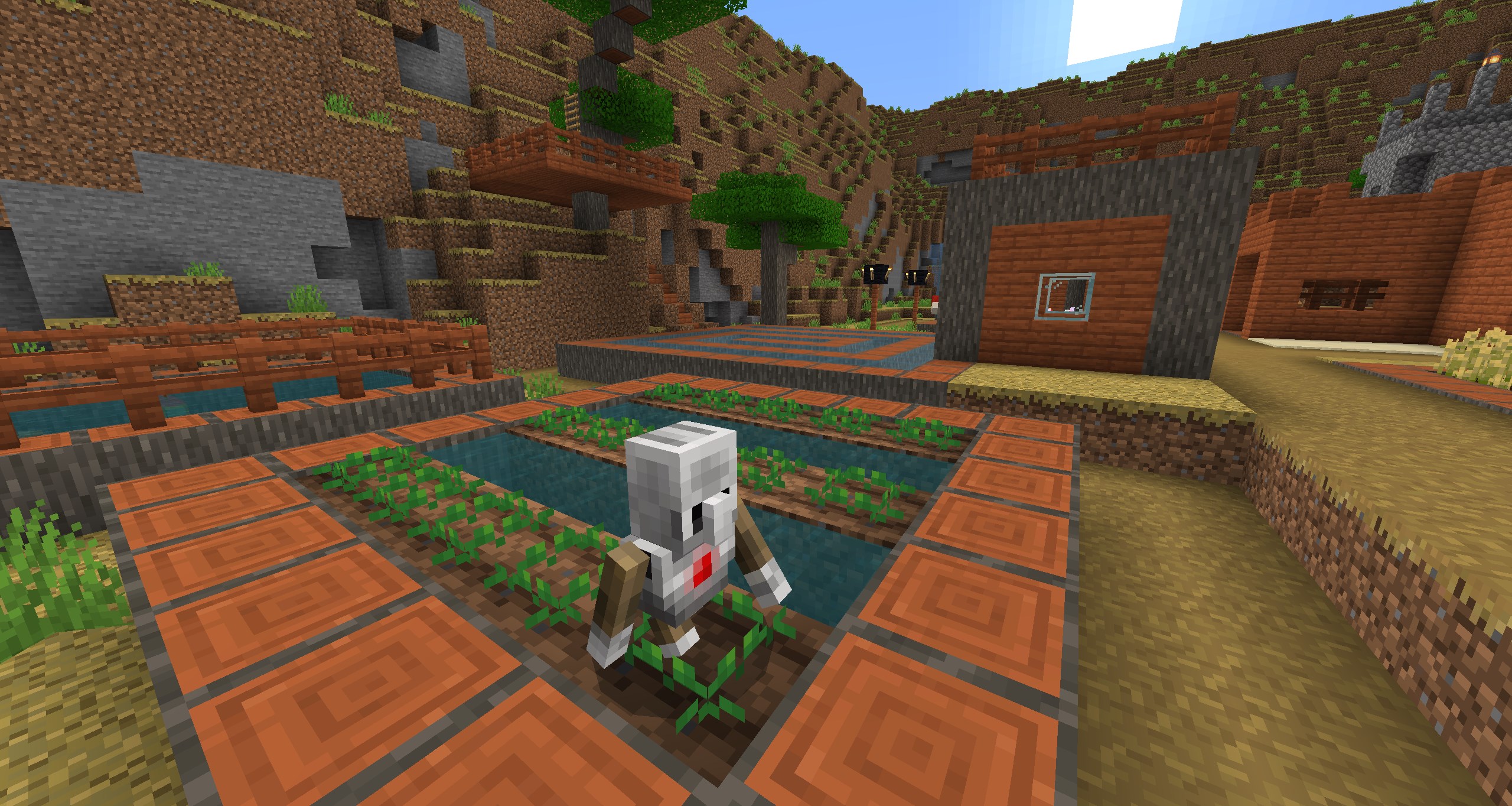
Imagine blending the creativity of a sandbox game with the rigor of educational content—that's exactly what Minecraft Education for Windows offers. Designed to transform traditional classroom engagement, this application serves as a versatile learning environment that sparks curiosity and nurtures skills through immersive gameplay.
Meet the Minds Behind the Magic
Developed collaboratively by Mojang and Microsoft Studios, Minecraft Education is built upon the proven creative platform of Minecraft, enriched with tailored features aimed at educators and students. Microsoft Studios, with its vast experience in software development and educational technology, ensures a seamless and reliable experience for users across different age groups and skill levels.
Key Features That Make a Difference
1. Tailored Educational Content & Resources
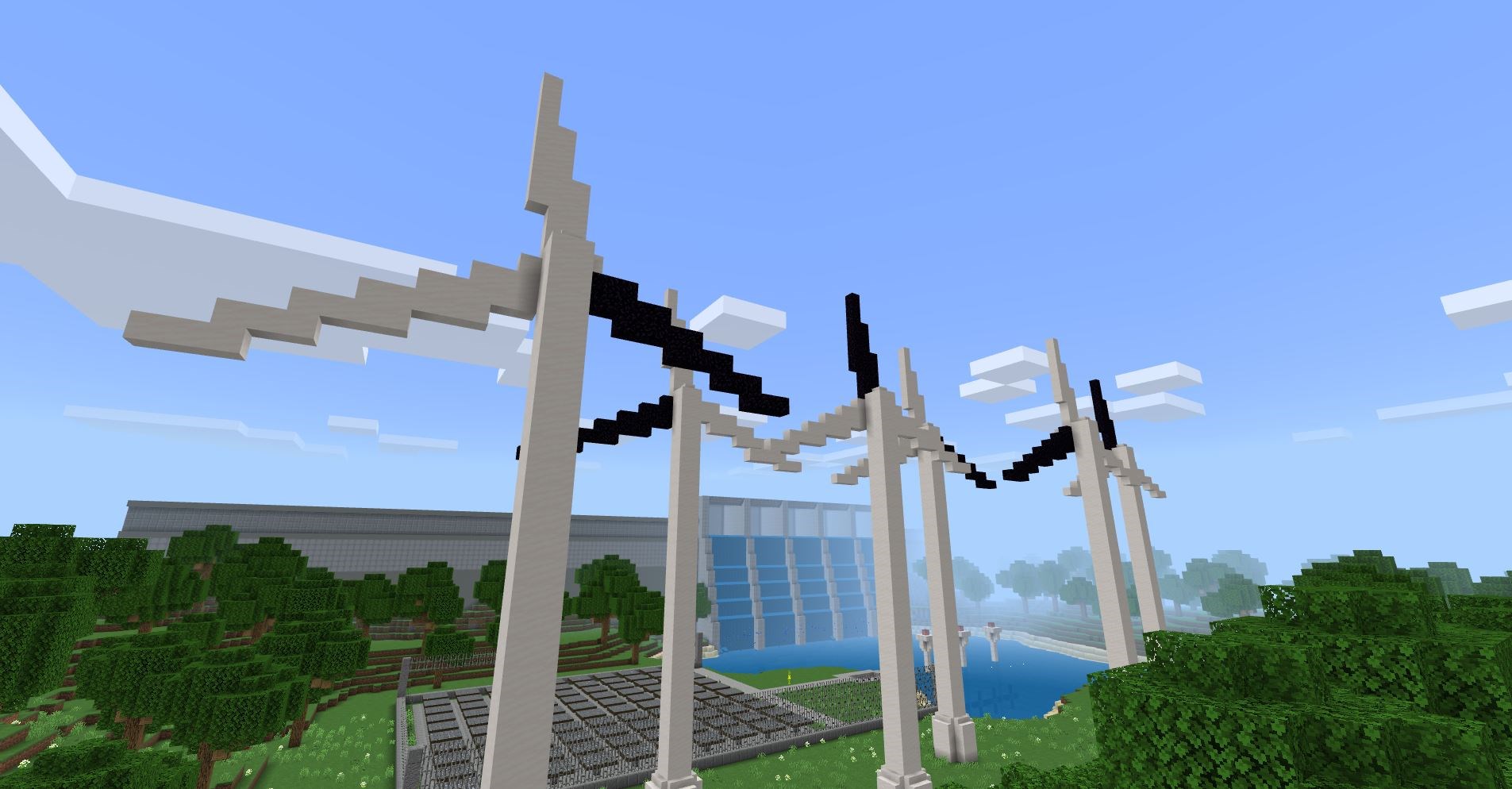
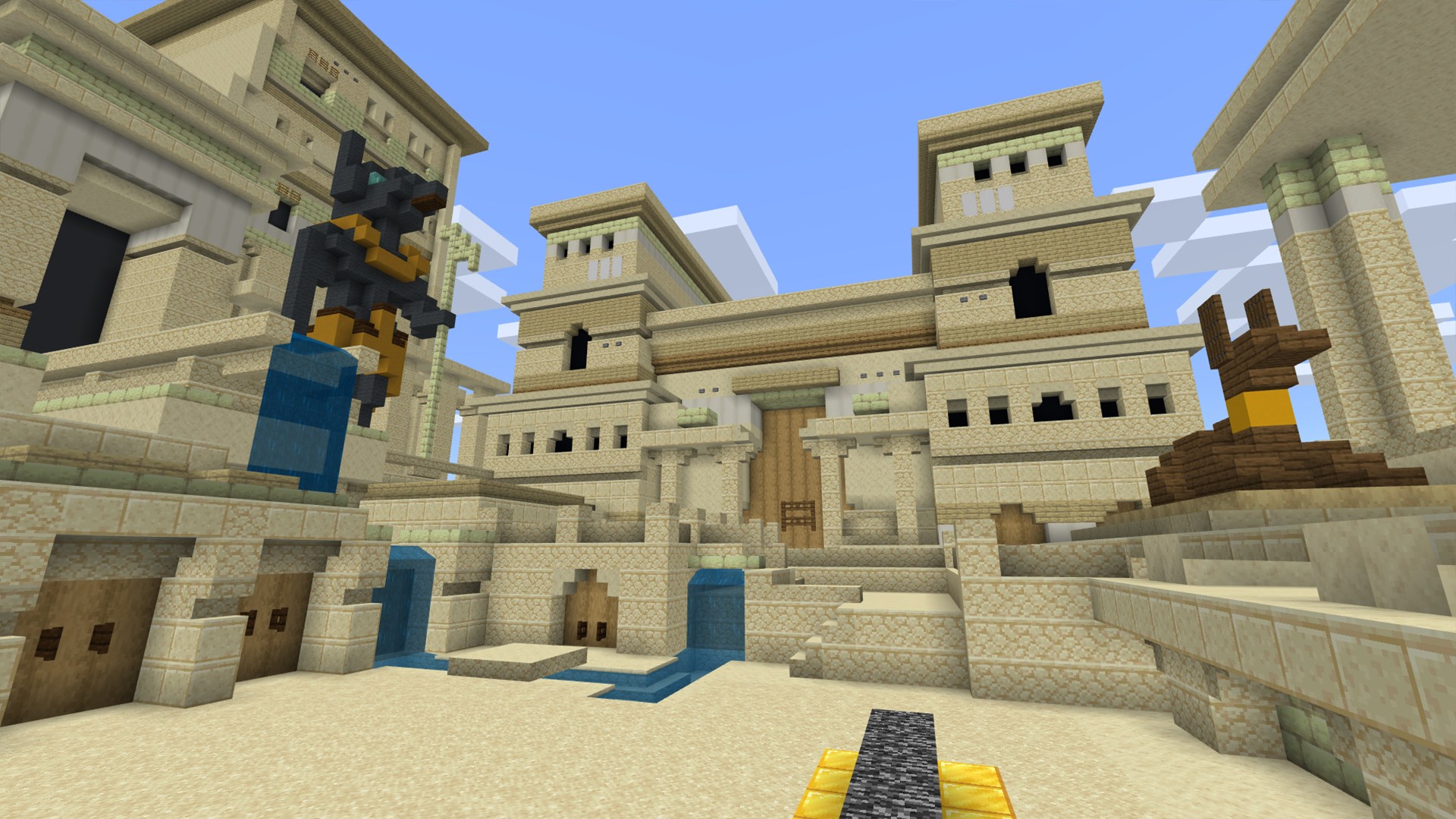
One of the standout strengths of Minecraft Education is its curated library of lessons, modules, and resources aligned with various curriculum standards. Whether exploring physics through redstone circuits or learning history via recreations of ancient civilizations, educators are empowered with ready-to-go content, reducing prep time while enhancing pedagogical impact.
2. Personalized Learning Pathways
This platform excels in fostering individualized learning journeys. Students can choose challenges fitting their interests and skill levels, guiding them from basic exploration to complex projects. The system records progress, allowing teachers to monitor performance and tailor instructions accordingly, much like a personal coach guiding each learner through their unique adventure.
3. Collaborative and Safe Learning Environment
Designed with classroom integration in mind, the app facilitates multiplayer sessions where students can collaborate in real-time within a secure sandbox. These shared environments encourage teamwork, communication, and problem-solving—all essential 21st-century skills—while the safety settings maintain a controlled and distraction-free experience.
Engaging User Experience and Interface
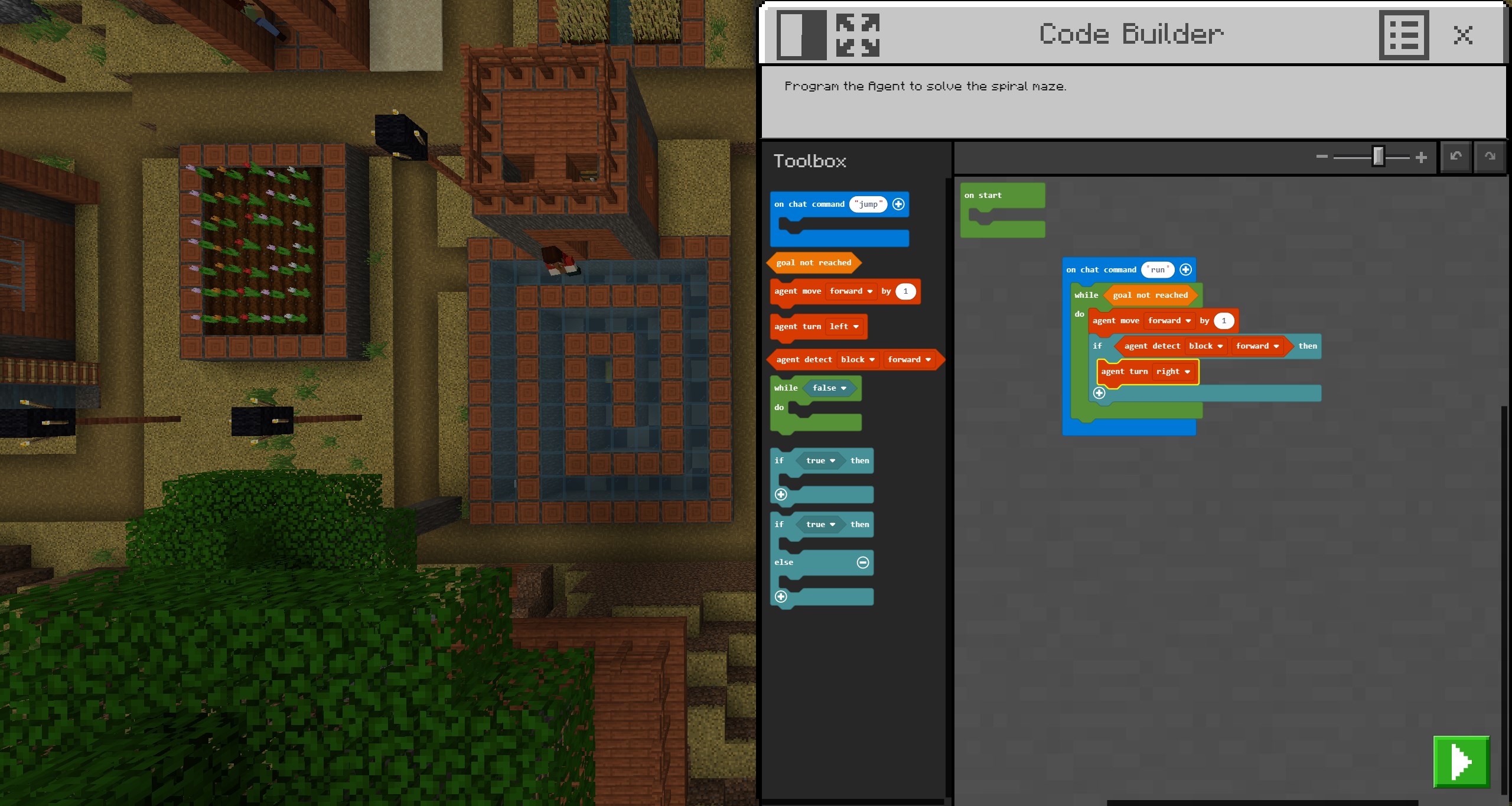
The interface of Minecraft Education for Windows is intuitive and visually appealing, echoing the familiar Minecraft aesthetic without overwhelming new users. Navigating the menus feels like stepping into a well-organized workshop—clear icons and straightforward options make accessing lessons or creating new worlds effortless. The application runs smoothly on compatible devices, with responsive controls that make interaction nearly seamless—each action feels satisfying, like piecing together a puzzle.
Learning curve-wise, new users might need a brief introduction—think of it as unlocking a new level in a game—but after that, the environment becomes second nature. The design's deliberate simplicity lowers barriers, encouraging spontaneous experimentation and creative expression.
What Sets It Apart? Content Authority and Customization
Unlike many other educational apps that offer generic content, Minecraft Education stands out with its emphasis on content accuracy and authoritative learning paths. The modules are developed in collaboration with educators and curriculum experts, ensuring that content is both engaging and educationally sound. Furthermore, the platform's ability to incorporate personalized learning paths positions it as a leader in adaptive education—from basic concepts to advanced problem-solving, it supports differentiated instruction tailored to individual learners' needs.
Recommendation and Usage Tips
If you're an educator or parent looking for an innovative, interactive supplement to traditional teaching, Minecraft Education for Windows is a highly recommended choice. Its strengths lie in fostering creativity, enhancing collaboration, and providing structured yet flexible learning experiences. For best results, start with familiarizing yourself with the available resources and establishing safety protocols, then gradually introduce students to creative projects aligned with your curriculum. I'd suggest using it as a core activity for project-based learning or as a fun interactive homework supplement—it makes education feel less like a chore and more like an adventure.
Overall, Minecraft Education for Windows is a thoughtfully designed platform that combines the engaging sandbox environment of Minecraft with robust educational features. Its focus on personalized learning pathways and authoritative content makes it a standout tool that can truly enrich classroom experiences. Whether you're a seasoned teacher or a curious parent, this app offers a promising avenue to inspire the next generation of thinkers and creators.
Pros
- Intuitive Gameplay Interface
- Rich Educational Content
- Multi-Platform Compatibility
- Collaborative Features
- Regular Updates and Support
Cons
- Limited Customization Options
- Performance Issues on Older Devices
- In-App Purchases for Additional Content
- Learning Curve for New Users
- Limited Offline Functionality in Some Areas