- Name Scratch 3
- Category Education
- Developer Scratch Foundation & MIT Media Lab
- Available on PC
- OS Windows 10 version 14316.0 or higher
- Keyboard Not specified
- Mouse Not specified
- languages English (United States)
Introducing Scratch 3 for Windows: A Gateway to Creative Coding
Designed as an accessible yet powerful platform, Scratch 3 for Windows offers a colorful universe where beginners and young learners can embark on their coding adventures. With its intuitive interface and rich set of features, it aims to foster creativity and computational thinking in a fun, approachable manner.
Developed by the Scratch Foundation & MIT Media Lab
This application is crafted by the renowned collaborative team behind Scratch, a project backed by two pioneering institutions — the Scratch Foundation and MIT Media Lab. Their expertise ensures that Scratch 3 for Windows remains at the forefront of educational technology, emphasizing open-ended learning and innovation.
Highlighting Key Features: Creativity, Accessibility, and Personalization
Scratch 3 for Windows stands out with several compelling features:
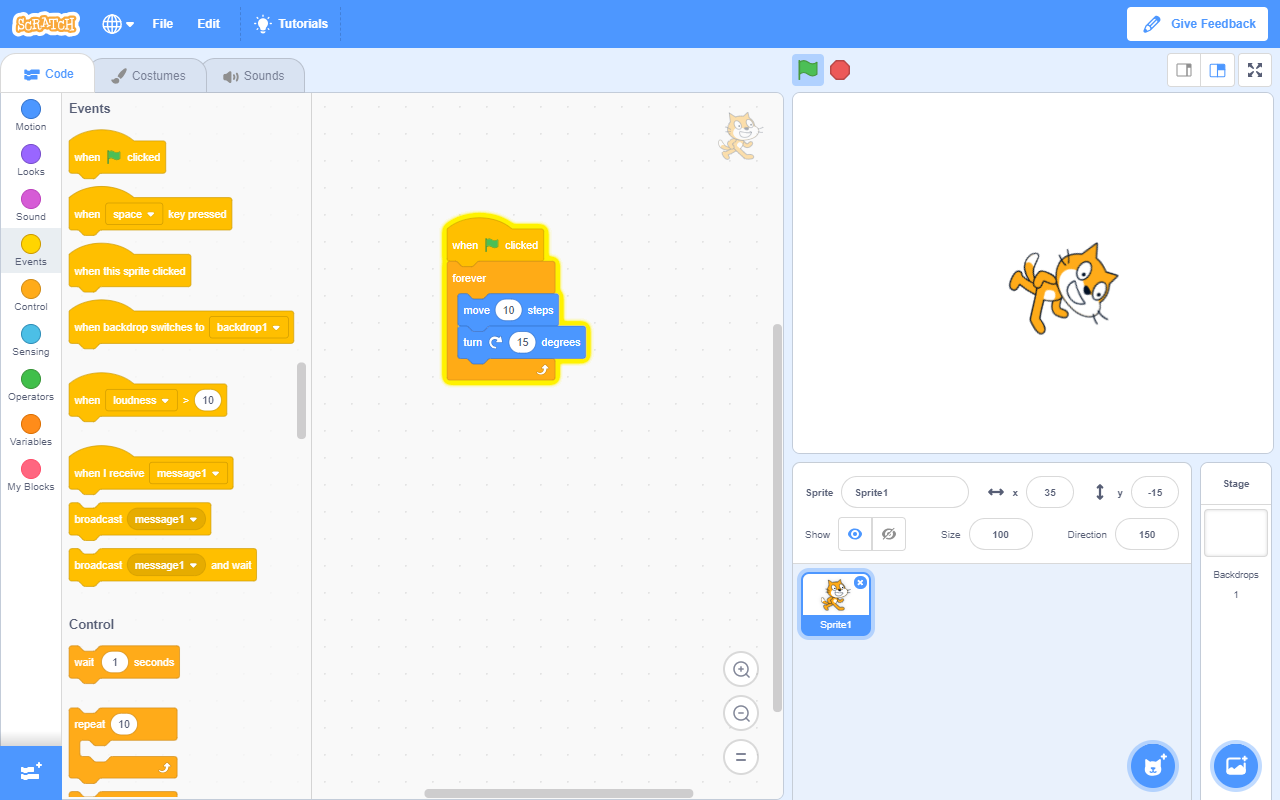
- Block-Based Coding Environment: A visual, drag-and-drop interface simplifies programming concepts, making coding approachable for beginners.
- Extensive Library of Sprites and Sounds: Users can customize their projects with a vast array of characters, backgrounds, and audio, encouraging artistic expression.
- Interactive Tutorials and Community Sharing: Built-in tutorials guide newcomers, while the integrated online community fosters shared learning and collaborative projects.
- Extended Compatibility and Offline Functionality: Unlike browser-based counterparts, the Windows app offers robust offline capabilities, ensuring uninterrupted creativity even without internet access.
Immersive and Engaging User Experience
Jump into a colorful world where creativity knows no bounds! From the moment you launch Scratch 3 for Windows, you're greeted with a vibrant mosaic of blocks and characters that feel like a playground for young coders. The interface design is playful yet organized, with clearly labeled categories that make navigation feel like browsing a digital art studio. Users will appreciate how smoothly projects transition, with seamless drag-and-drop actions that feel as natural as playing with building blocks. The learning curve is gentle enough for newcomers but offers enough depth to keep more experienced users engaged, making every click an exploration into new creative landscapes.
Core Functionalities: Powering Creativity and Learning
One of Scratch 3's most striking features is its block-based programming system. Imagine stacking colorful Lego bricks, each representing a command—this intuitive design demystifies coding. Kids can animate characters, design interactive stories, or create simple games, all through a visual language that's easy to understand and fun to manipulate. This method not only introduces computational logic but also nurtures problem-solving skills, transforming abstract coding concepts into tangible, enjoyable activities.
The second major pillar is its digital resource hub. The extensive library of sprites, sounds, and backgrounds makes project creation akin to crafting art. Whether mimicking a bustling city scene or composing a catchy tune, users have endless possibilities to personalize their projects. Complemented by built-in tutorials and a community space where projects can be shared and Remix-ed, learners are guided through a journey of self-paced discovery. This social aspect helps forge a sense of belonging, making coding a collaborative and motivational pursuit.
Assessing User Experience and Unique Selling Points
In terms of design and usability, Scratch 3 for Windows excels at balancing simplicity with depth. The interface's cartoonish aesthetic reduces intimidation, inviting children and educators alike to dive in without hesitation. The app runs smoothly on most Windows systems, with minimal lag even during complex projects, ensuring users stay absorbed in their creative flow. Its straightforward operation minimizes learning barriers, making it accessible for total beginners, yet empowering enough for more sophisticated projects.
Compared to similar educational applications, Scratch's most distinctive advantage lies in its Content Accuracy & Authority and Personalized Learning Paths. The platform's curated tutorials ensure learners grasp fundamental concepts correctly, while its ability to customize projects and explore personal interests creates a tailored learning experience. Unlike more rigid software, Scratch adapts to varied skill levels and interests, allowing users to progress at their own pace and explore their unique creative avenues.
Recommendation and Usage Suggestions
I would recommend Scratch 3 for Windows highly for educators, parents, and young learners eager to explore coding in a playful, structured manner. It's ideal for classroom settings, homeschool environments, or independent exploration. For those new to programming or looking for a tool to nurture creativity, Scratch provides a gentle yet enriching introduction to computational thinking. To maximize benefits, I suggest starting with beginner tutorials and gradually exploring community projects for inspiration. Given its offline functionality, it's especially suitable for environments with limited internet access, ensuring consistent engagement.
In conclusion, Scratch 3 for Windows stands out as a well-crafted educational platform that democratizes coding. Its engaging interface, combined with the depth of its creative toolkit and personalized learning pathways, makes it an excellent choice for nurturing the next generation of digital creators. Whether you're a teacher seeking a compelling classroom resource or a novice explorer eager to dabble in programming, Scratch 3 opens the door to a world of endless possibilities—like opening a box of digital LEGO blocks, waiting for you to build your own universe.
Pros
- User-friendly interface
- Extensive learning resources
- Wide range of programming blocks
- Supports extensions and customization
- Cross-platform availability
Cons
- Performance issues on older devices
- Limited offline features
- Learning curve for advanced features
- Occasional bugs in extension integration
- Limited support for exporting projects