

- Name TestNav
- Category Education
- Developer Pearson Education Inc
- Available on PC
- OS Windows 10 version 14393.0 or higher
- Memory 2 GB
- languages English (United States)
TestNav for Windows: Your Reliable Companion for Digital Assessments
Designed by Pearson Education Inc., TestNav for Windows is a versatile testing platform aimed at delivering a seamless, secure, and personalized assessment experience for students and educators alike. Perfectly tailored for educational institutions, this app transforms traditional testing into a smooth digital journey, ensuring accuracy and fairness throughout.
Meet the Developers: Pearson Education Inc.
Developed and published by Pearson Education Inc., a global leader in educational publishing and digital solutions, TestNav leverages years of expertise in creating reliable learning assessment tools. Their commitment to quality and innovation shines through in this application, which is built to meet the rigorous demands of modern educational testing.
Key Features That Stand Out
- High Content Accuracy & Authority: Utilizes a trusted question bank and secure assessment environment, ensuring that tests are both credible and consistent.
- Personalized Learning Paths: Adaptively adjusts to student performance, offering tailored assessments that identify individual strengths and weaknesses.
- Secure and Reliable Environment: Features robust security measures—locking down the testing device to prevent cheating and ensuring data integrity.
- Intuitive User Interface: An easy-to-navigate layout that minimizes technical hurdles, making both setup and test-taking straightforward for all users.
Immersive and User-Friendly Interface
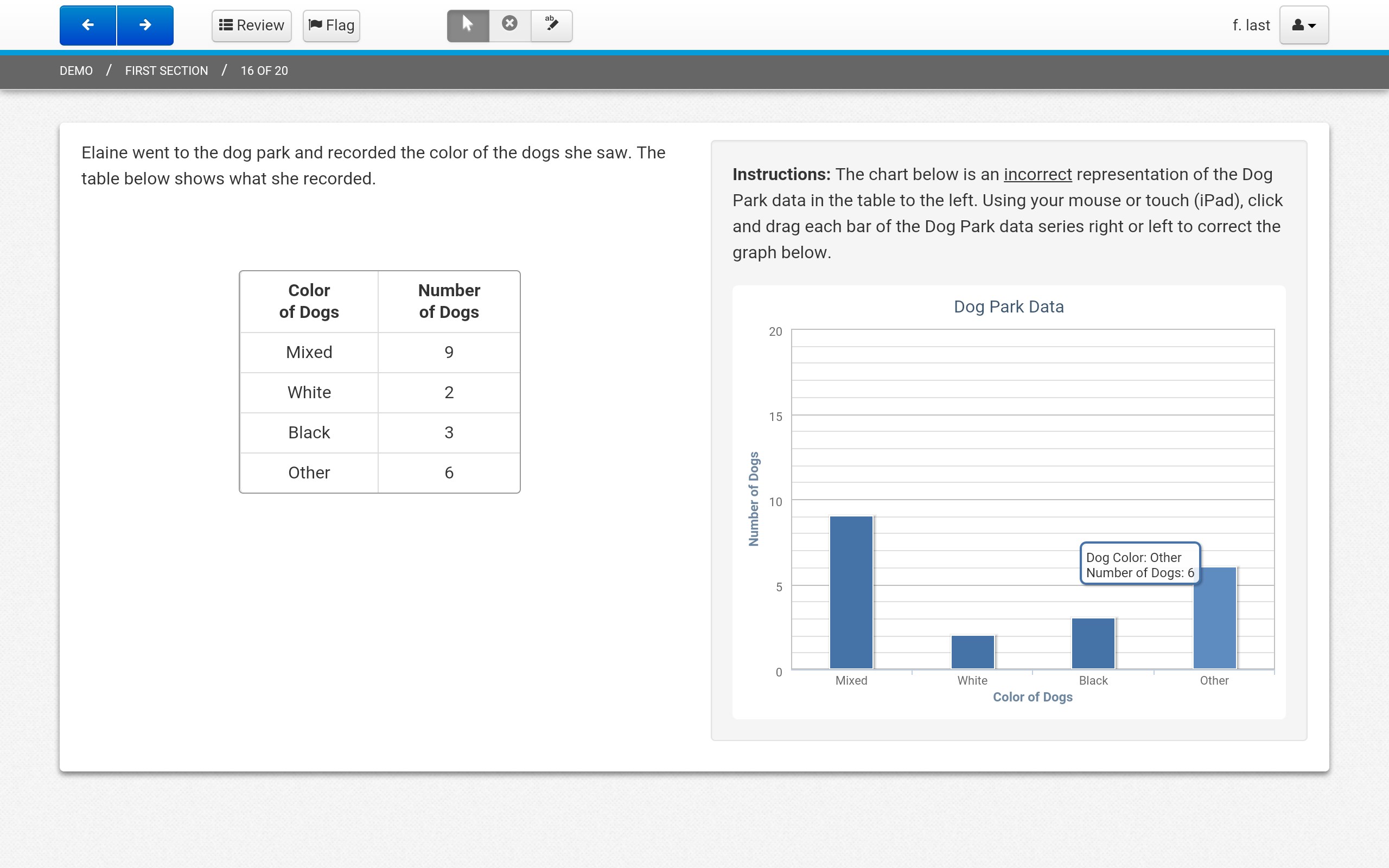
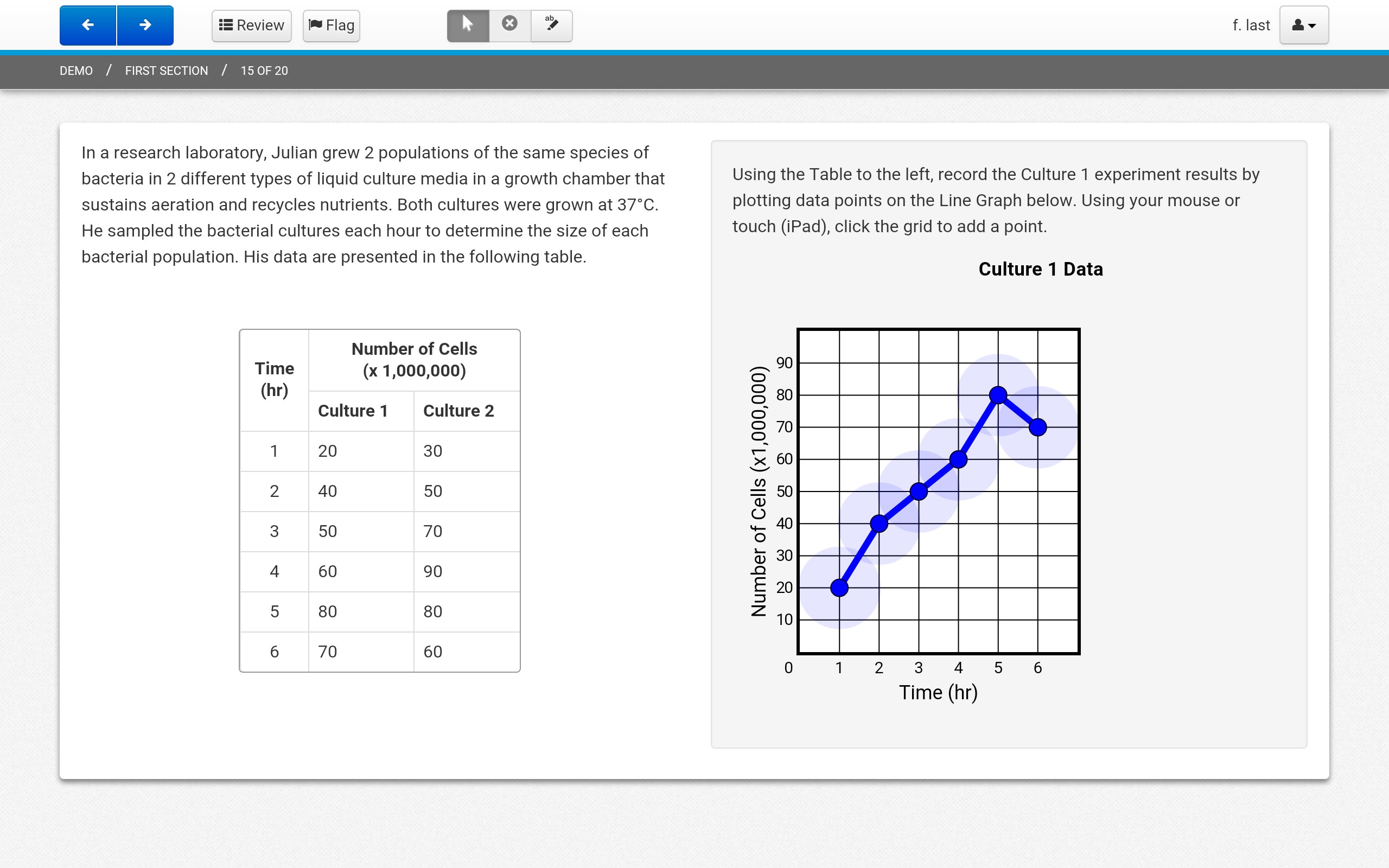
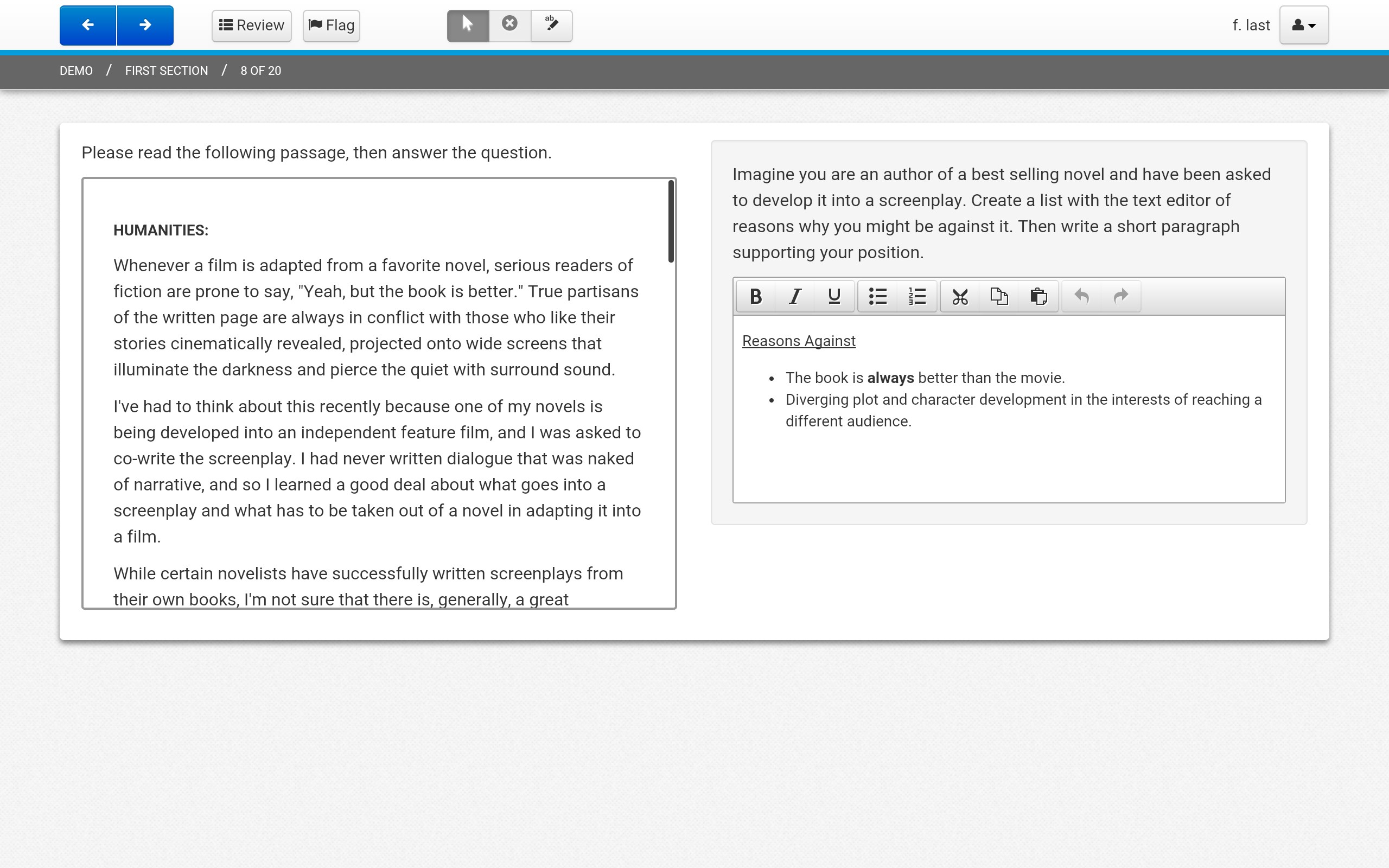
Spinning open the app is like stepping into a well-organized classroom—calm, professional, yet inviting. The interface boasts a clean layout with clearly labeled icons and intuitive menus, akin to a well-arranged toolbox, making the process of starting and managing tests feel effortless. Users will appreciate the minimal learning curve; even those less tech-savvy will find themselves navigating effortlessly after a quick glance. The design's focus on clarity and simplicity enhances the overall user experience, promoting concentration and reducing anxiety during critical testing moments.
Core Functionalities: Robust Assessment Management & Personalization
Flexible Assessment Creation and Management
TestNav's core function revolves around its ability to support diverse testing formats—multiple choice, essay, matching, and more—conveniently managed through a centralized dashboard. Teachers can easily upload custom exams or select from a vast bank of questions, organizing tests by grade level, subject, or difficulty. The platform automatically handles timing, question randomization, and accessibility settings, freeing educators from tedious administrative tasks. Moreover, the app ensures test security with features like automatic lockdown mode, preventing display switching or switching to other apps, ensuring integrity similar to a sealed examination room.
Adaptive and Personalized Testing Experience
The standout feature here is TestNav's ability to tailor assessments based on student performance. As students proceed through questions, the app analyzes their responses and dynamically adjusts subsequent questions—much like a personal coach that learns your strengths and targets areas for improvement. This adaptive approach not only makes testing fairer but also more engaging for students, as they encounter questions suited to their current knowledge level, reducing frustration or boredom. Such personalization is particularly valuable for formative assessments and skill diagnostics, making the app a powerful ally in individualized education plans.
From Aesthetics to Efficiency: Smooth User Experience
Transitioning from setup to test-taking is a breeze. The app runs smoothly on Windows devices, thanks to optimized performance that handles large question banks and multimedia content efficiently. Navigating through questions feels natural, with responsiveness akin to flipping through well-oiled pages of a digital workbook. Its minimalistic design minimizes distractions—test-takers can focus without being overwhelmed by clutter or confusing options. For educators, the backend provides quick insights and downloadable reports, streamlining grading and analysis.
How Does TestNav Compare? A Cut Above with Content Authority & Flexibility
Unlike many standard assessment apps, TestNav's integration with Pearson's extensive educational content and question banks guarantees high content authority—trustworthy questions that align with curricula standards. The adaptive testing feature sets it apart, providing a personalized assessment pathway that traditional fixed tests often lack. This approach not only enhances fairness but also aligns assessments more closely with student learning trajectories, helping educators identify precise learning gaps.
In the crowded space of educational testing apps, TestNav's emphasis on security, reliability, and personalization makes it a distinctive tool—especially valuable in environments demanding high stakes and high integrity assessments.
Final Verdict: Is It Worth Your Time?
If your teaching environment requires a dependable assessment tool that offers content authority, security, and adaptive testing, TestNav for Windows is highly recommended. Its user-friendly design ensures minimal setup hurdles, while its core strengths—content credibility and personalized pathways—provide real value in both formative and summative evaluation settings. While it's best suited for educational institutions seeking secure testing environments, individual educators and tutors may also find its adaptability advantageous.
Overall, TestNav strikes a balance between professional rigor and approachable usability, making it a solid choice for modern digital assessments. Give it a try if you're looking to elevate your testing game with confidence and clarity.
Pros
- User-Friendly Interface
- Reliable Exam Administration
- Strong Security Features
- Offline Test Support
- Broad Device Compatibility
Cons
- Slow Launch Times
- Occasional Connectivity Issues
- Limited Customization Options
- Difficulty in Troubleshooting Errors
- Requires Frequent Updates