- Name Remote control for RK
- Category Developer tools
- Developer Rok
- Available on PC, Mobile, Surface Hub, HoloLens
- OS Windows 10 version 16299.0 or higher
- languages English (United States)
Seamless Remote Control for RK on Windows: An In-Depth Review
If you've ever felt frustrated fumbling with multiple devices or juggling cable chaos, this app promises a neat solution—transforming your Windows PC into a centralized remote for your RK devices. Let's explore whether it truly delivers on its potential and how it stacks up against other remote control tools.
Basic Information and Key Highlights
Rok's “Remote Control for RK for Windows” is a dedicated application designed to easily manage and control RK-enabled devices directly from your Windows environment. Its main aim is to simplify media navigation, device management, and content sharing through a user-friendly interface.
The developer behind this tool is Rok, a company known for creating intuitive remote management solutions. It is published by RRemote Control, emphasizing its focus on remote device interaction.
Key features include:
- Device Discovery & Management: Effortlessly detect and connect to multiple RK devices within your network.
- Media Control & Streaming: Stream videos or music from your Windows PC to RK devices with ease.
- Remote Navigation & Keyboard: Use your PC's keyboard and mouse as a remote control to navigate RK device interfaces.
- Multi-Device Support: Manage several RK devices simultaneously, streamlining your entertainment setup.
This app primarily targets tech enthusiasts, home entertainment users, or multimedia professionals who want a centralized, efficient control point for their RK-based devices.
An Engaging Kickoff: Your Digital Remote Awaits
Imagine sitting comfortably on your sofa, smartphone in hand, commanding a movie to play, or switching between playlists without fumbling for each device. “Remote Control for RK for Windows” acts like a trusty digital Swiss Army knife, turning your PC into a powerful remote hub. Its straightforward approach feels almost like having a magic wand for your entertainment setup, making technology seamlessly work for you versus the other way around.
Discovering Devices and Streamlining Content
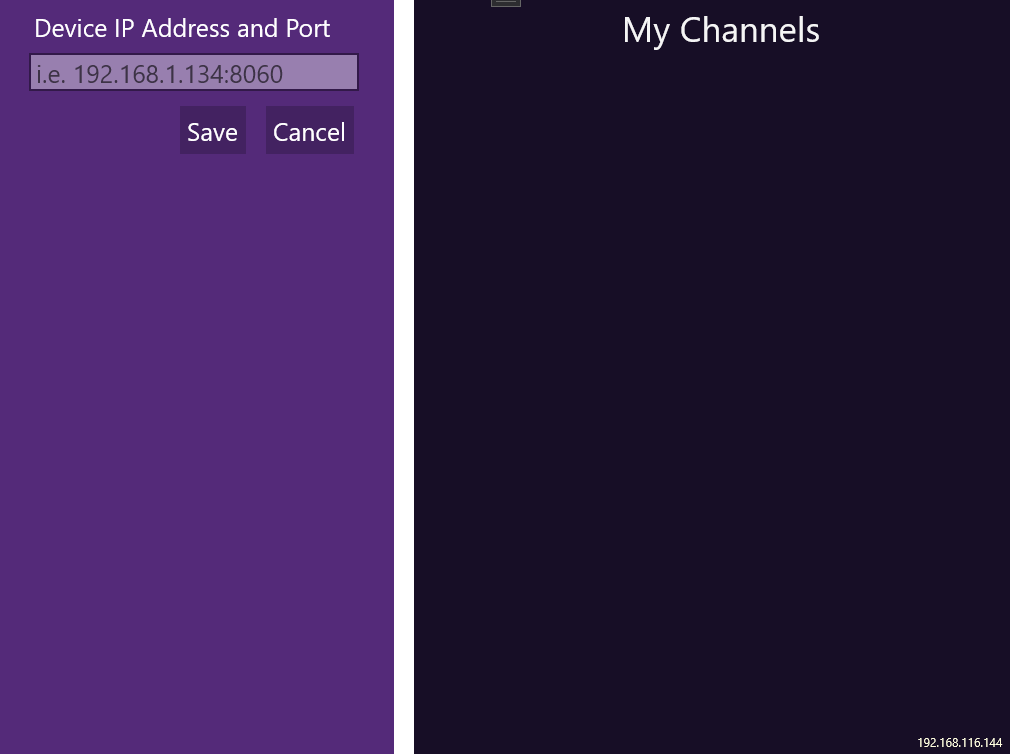
The first standout feature is its device discovery capability. Upon launching, the app scans your local network, presenting a clean list of RK-compatible devices. It's akin to having a radar that immediately spots all your remote devices, saving you from the tedious manual setup common in other tools. Once connected, streaming media becomes an experience akin to a casual chat—smooth and effortless. Drag and drop your media files, or select streaming options, and watch as content effortlessly flows onto your TV or RK box.
This ease of connection is particularly appreciated in households with multiple RK devices or in professional environments where quick device management is crucial. The app's stability ensures minimal lag or disconnections, fostering confidence during use.
Intuitive Navigation and Control: Your Virtual Remote
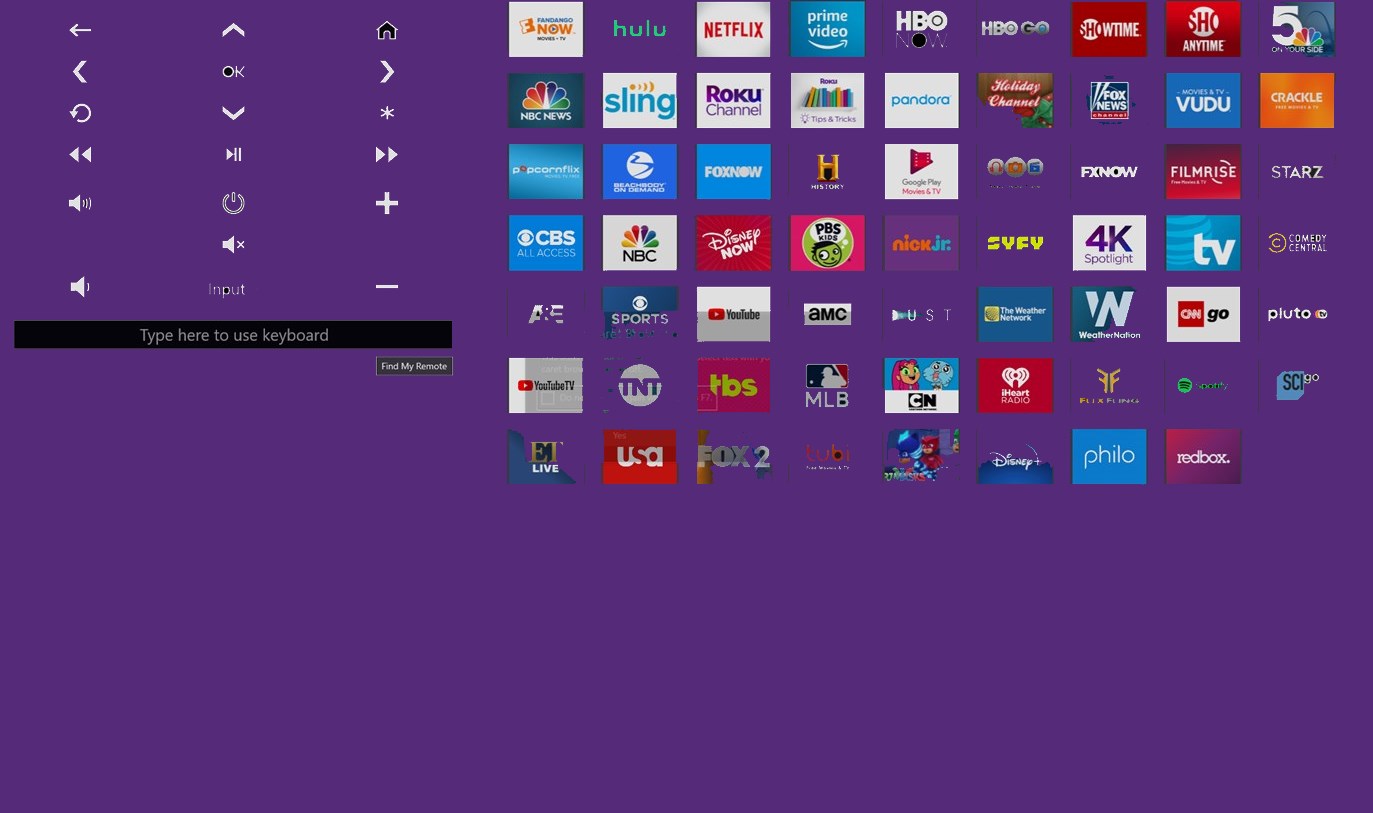
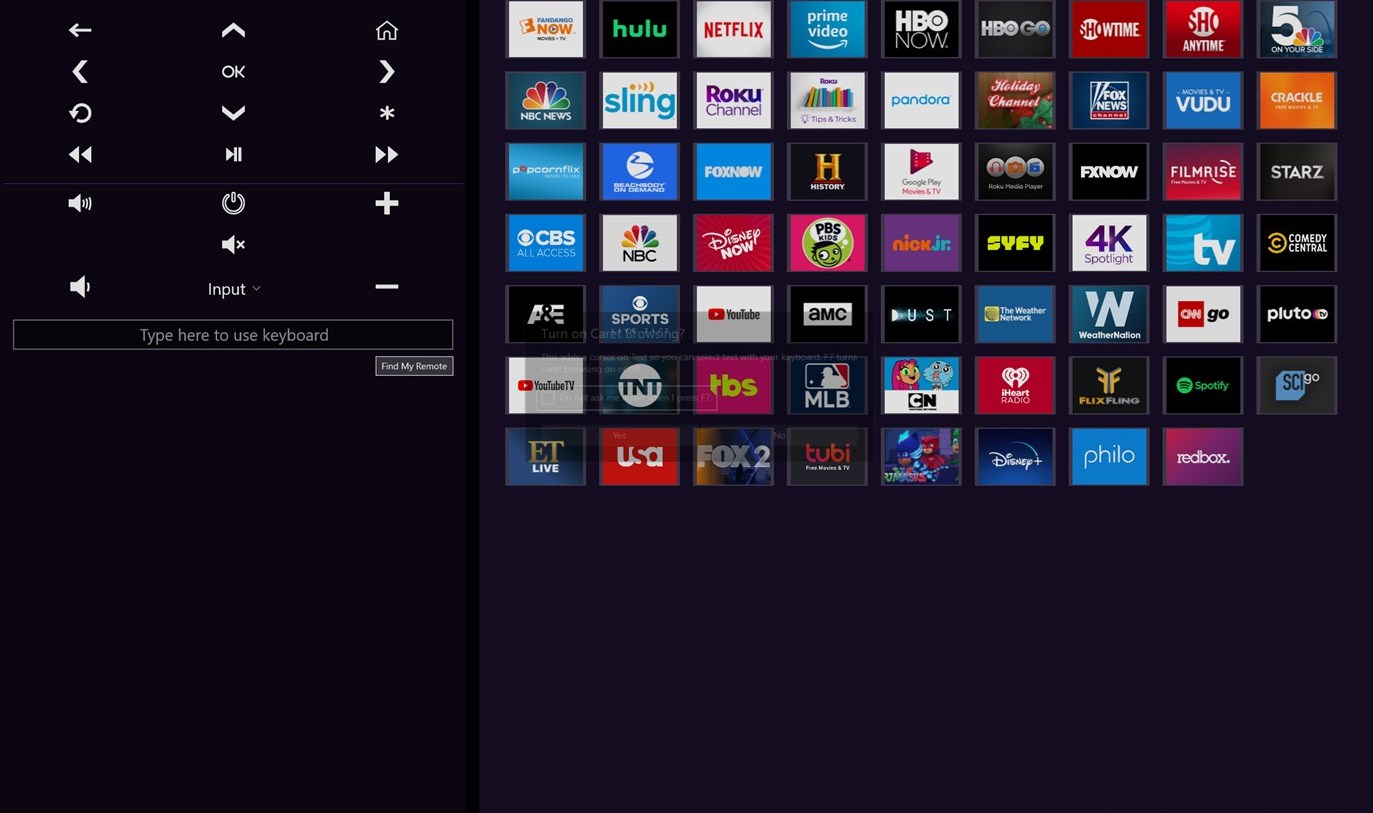
The second notable aspect is how the app transforms your keyboard and mouse into a capable remote control. Think of it as turning your actual remote into a laser pointer—here, your PC becomes the command center. The interface is clean, with large, clearly labeled icons and navigation menus that resemble familiar media remote layouts. This design reduces the learning curve, making it accessible for less tech-savvy users. The responsiveness, in particular, impresses—clicking a button or typing commands feels instantaneous, vital for activities like browsing menus or entering text during streaming.
Learning to finesse this remote is intuitive, requiring only a few minutes to grasp the full capabilities. This smooth experience stands out among similar tools that often have cluttered interfaces or sluggish response times.
A Unique Edge: Multi-Device & Streaming Harmony
What truly sets this app apart from peers is its multi-device support coupled with high-quality media streaming. While many remote tools focus solely on control, Rok's solution consolidates device management with media transmission, creating a harmonious ecosystem. Whether you want to switch seamlessly from controlling a media center to managing a smart TV or project presentation, this app simplifies it—all from a familiar Windows environment.
Compared to generic remote apps that require multiple platforms or fragmented software, this unified solution reduces complexity, minimizes setup time, and ensures consistent experience across devices.
Final Recommendation and Usage Tips
Overall, “Remote Control for RK for Windows” earns a strong recommendation for anyone seeking an organized, responsive, and straightforward way to manage their RK devices. It's particularly suited for users who value multi-device control and smooth media streaming without the fuss of complicated setups.
For optimal results, ensure your devices are all connected to the same network and keep the app updated for the latest features. Its user-friendly design makes it accessible for beginners, yet powerful enough for advanced users to appreciate.
In summary, this app provides a compelling, well-structured solution worth exploring for a smarter, more connected entertainment experience—think of it as the conductor guiding your device orchestra with calm precision.
Pros
- Intuitive remote control interface
- Wide device compatibility
- Customizable control options
- Responsive touch controls and gestures
- Fast connection setup
Cons
- Limited device support beyond RK devices
- Occasional lag in remote responses
- Basic customization options only
- Minimal documentation for troubleshooting
- Battery usage can be high during prolonged use