- Name PhotoStage
- Category Photo & video
- Developer NCH Software
- Available on PC
- OS Windows 10 version 15063.0 or higher
- Keyboard Integrated Keyboard
- Mouse Integrated Mouse
- languages English (United States)
PhotoStage for Windows: A User-Friendly Photo Slideshow Creator
PhotoStage for Windows, developed by NCH Software, is a versatile application designed to craft engaging photo slideshows with ease and professionalism. It offers a straightforward way for users—from hobbyists to small business owners—to transform their images into polished visual stories.
About the Developer and Core Features
Developed and published by NCH Software, a reputable name in multimedia tools, PhotoStage aims to simplify the process of photo presentation creation. Its main features include intuitive timeline-based editing, diverse transition effects, built-in music and narration support, and export options suitable for various platforms. The application's focus is on providing a feature-rich yet accessible experience for users seeking quick, attractive slideshow outputs.
A Fun and Engaging Introduction to PhotoStage
Imagine sitting comfortably at your desk, staring at a collection of cherished photos—your latest vacation, your family gatherings, or your pet's adorable antics. Now picture transforming those static images into a captivating story, complete with smooth transitions and background music, all effortlessly done in a matter of minutes. That's exactly what PhotoStage for Windows makes possible. It's like having a professional storyboard artist at your fingertips, ready to turn your snapshots into a narrative that speaks volumes—without the need for complex software or steep learning curves.
Core Functionality 1: Seamless Slideshow Creation with Advanced Transitions
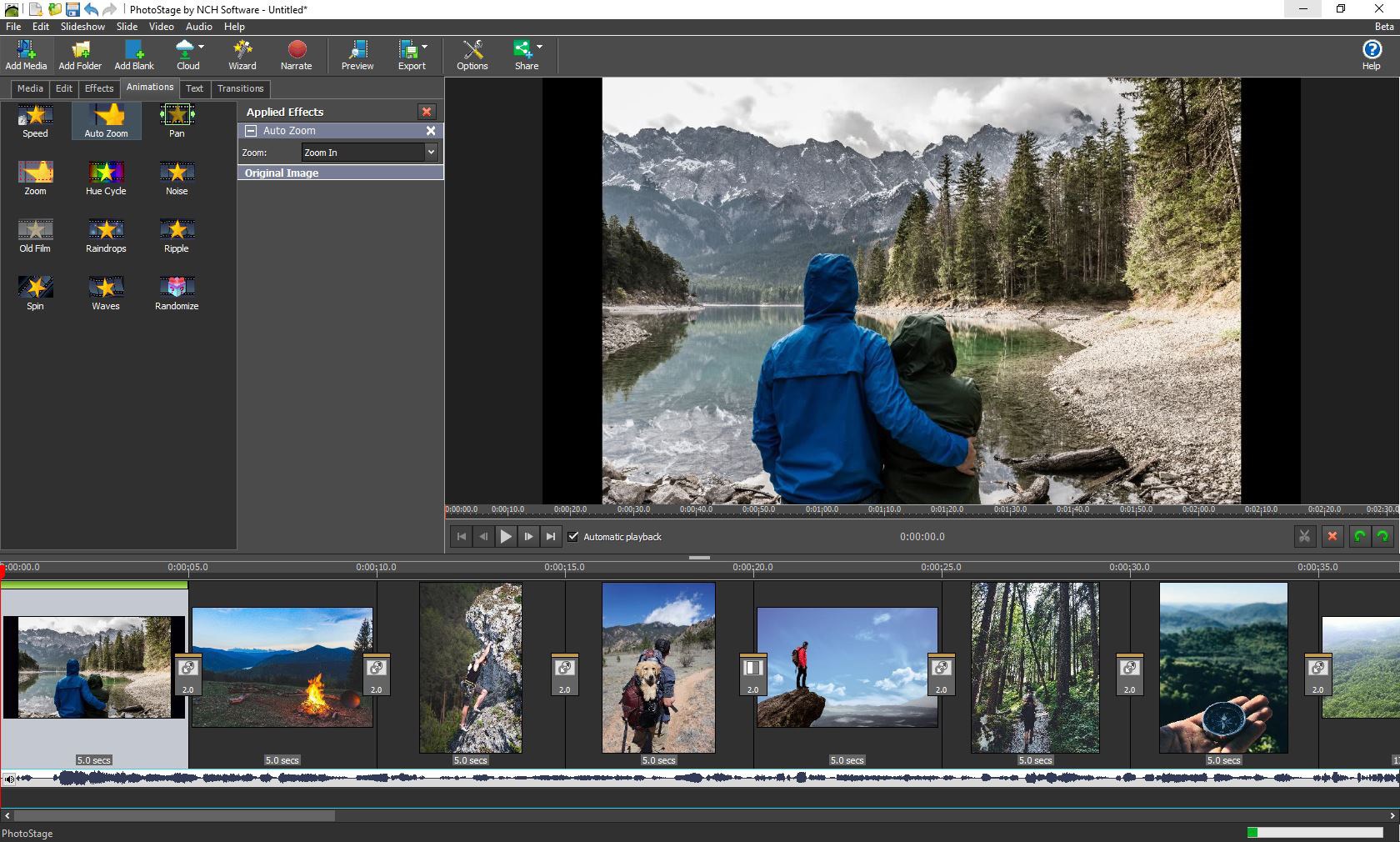
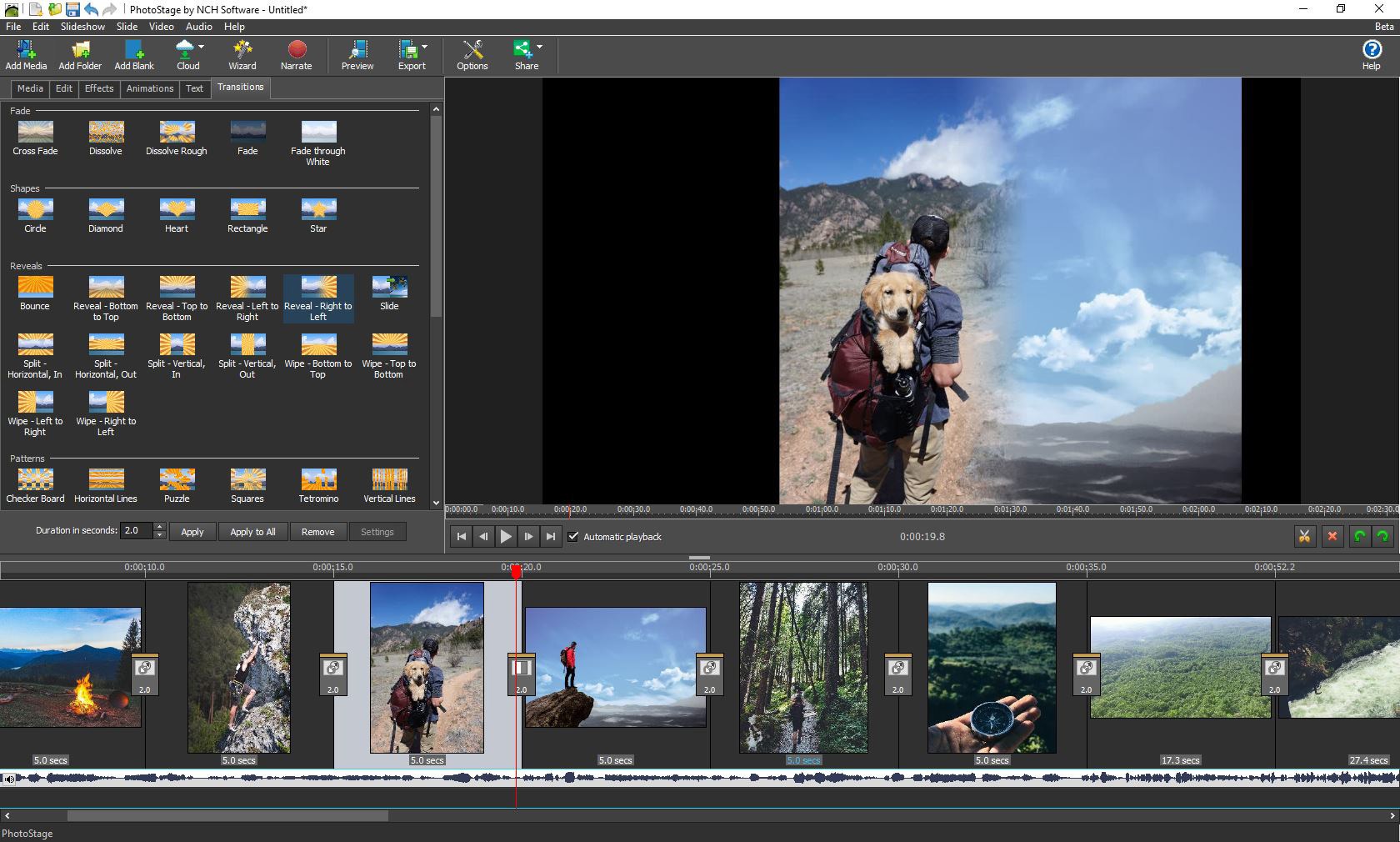
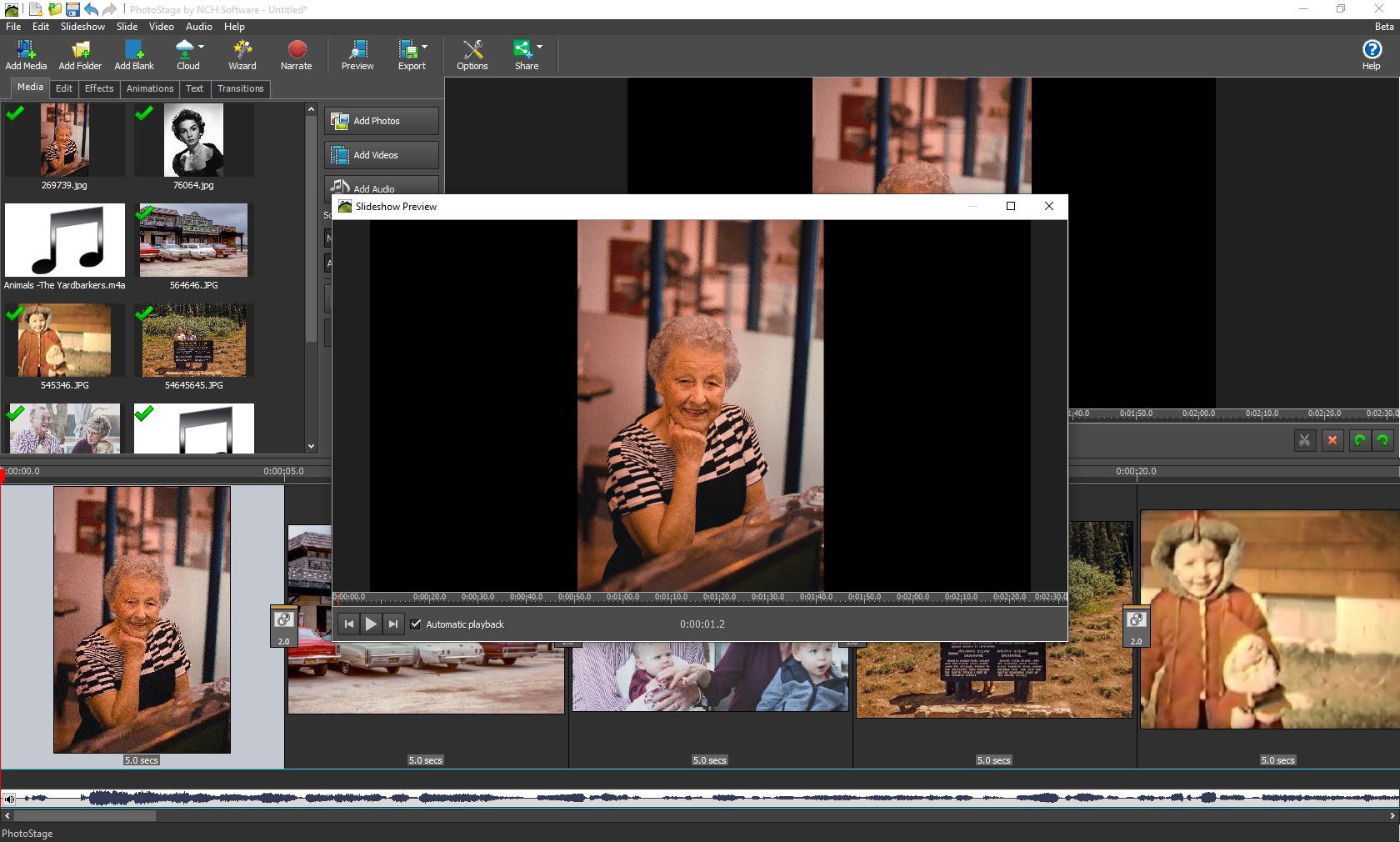
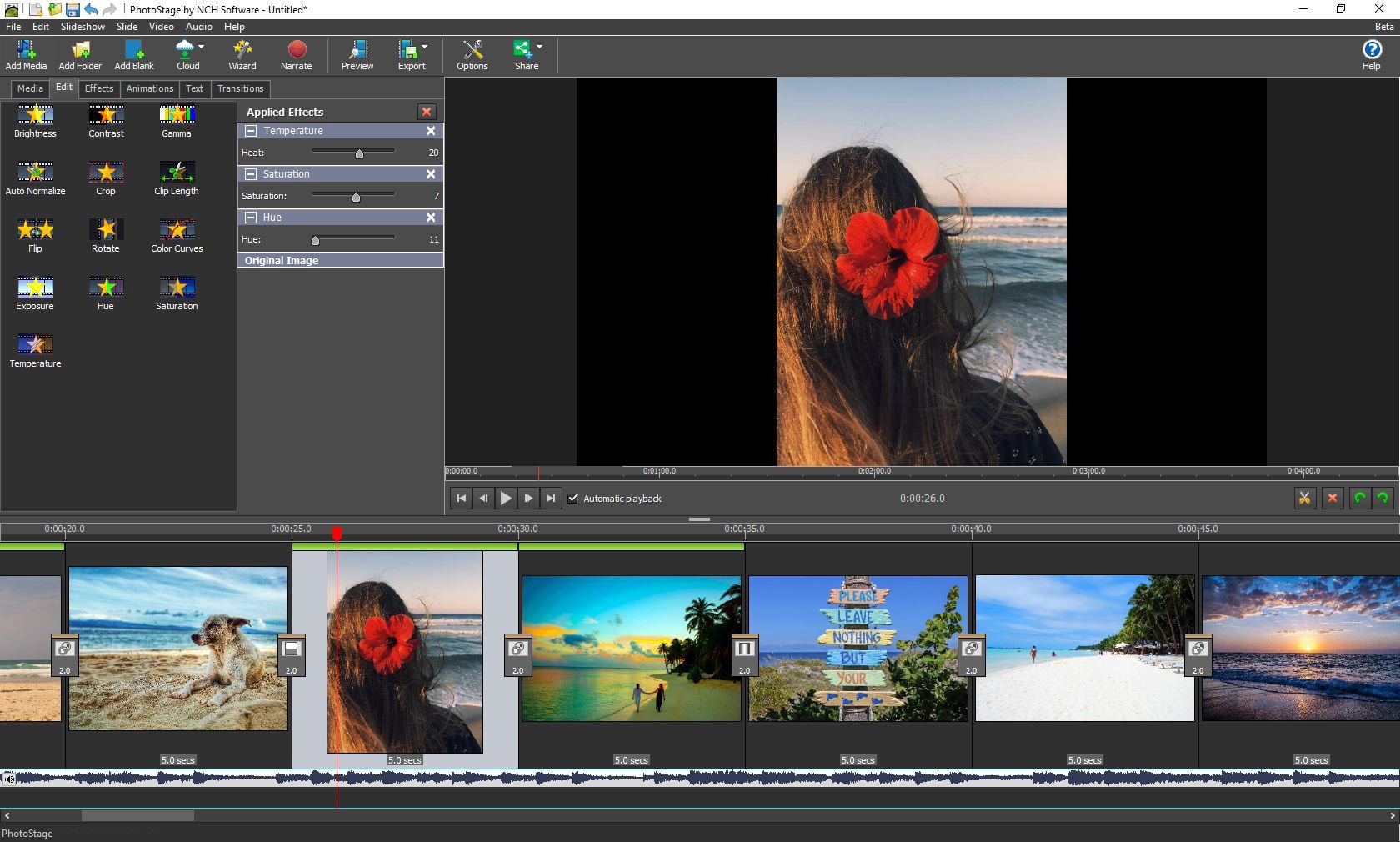
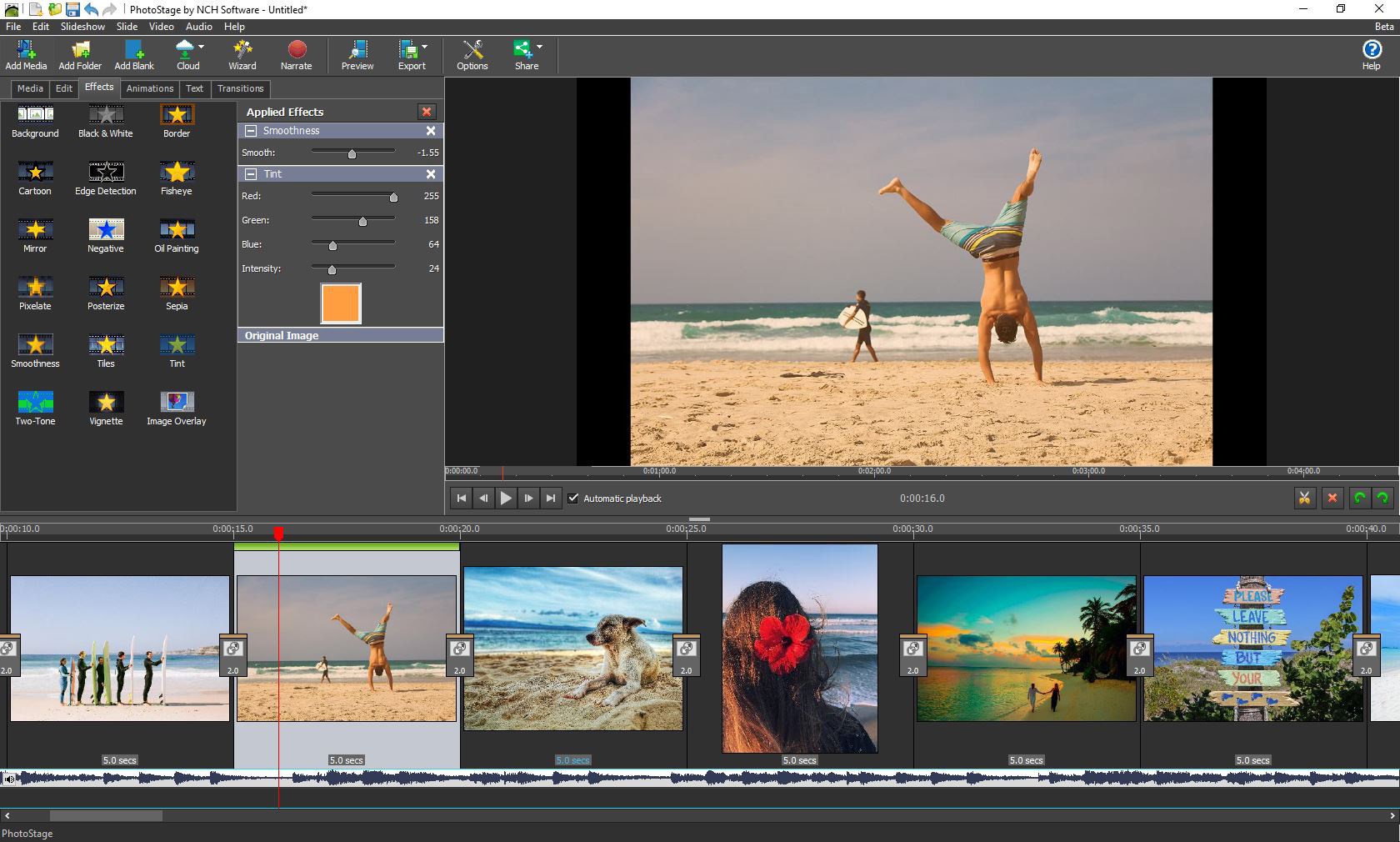
One of PhotoStage's standout features is its robust transition effects. Whether you prefer simple cross-fades or more elaborate animations like wipes and slides, the app provides a wide variety to choose from. The timeline interface resembles a professional video editing software, allowing you to precisely control the timing and order of your slides. Adding a personal touch is straightforward—drag and drop your photos, then apply transitions with a click. This makes the entire process feel like assembling a digital scrapbook, where each page flows naturally into the next.
What sets PhotoStage apart here is its focus on visual smoothness; transitions are rendered seamlessly, making your slideshow aesthetically polished without demanding technical finesse. Additionally, you can add text captions directly on images, perfect for narrating your story or highlighting specific moments.
Core Functionality 2: Audio Integration and Narration
Another compelling aspect is the built-in support for music tracks and voice recordings. With just a few clicks, you can import your favorite background music or record narration directly within the app. This layer of customization transforms a simple sequence of images into an emotional journey, whether it's a family reunion montage or a promotional showcase for your business. The audio tracks can be precisely synchronized with slide timing, giving you full control over the pacing and mood.
This feature's simplicity and flexibility make it easy for users to craft a uniquely personalized slideshow, amplifying the visual story with fitting sounds, without needing specialized audio editing skills.
User Experience and Unique Advantages
Visually, the interface of PhotoStage is clean and logically organized, almost like a well-designed art studio—everything you need is within arm's reach. The drag-and-drop functionality facilitates quick adjustments, while real-time previewing helps you see changes instantly. The learning curve is gentle; new users can grasp essential features within minutes, making it accessible for all skill levels. Smooth operation and responsive controls ensure that sessions feel fluid, encouraging experimentation without frustration.
Compared to other photo slideshow applications, PhotoStage's key differentiator lies in its combination of professional-grade features coupled with user-friendliness. While many apps offer similar transition effects and media support, PhotoStage's focus on a seamless, intuitive workflow, along with its high-quality output options—including DVD and online sharing—sets it apart. This makes it suitable not only for personal projects but also for small-scale professional presentations.
Recommendation and Usage Scenarios
All things considered, I recommend PhotoStage for anyone looking to create attractive photo slideshows without a steep learning curve. Whether you want to make a heartfelt family tribute, a portfolio showcase, or a quick presentation for work, this app provides a reliable, straightforward solution. The most special feature—its easy-to-use transition effects combined with audio integration—makes storytelling effortless and enjoyable. It's particularly ideal for users who value efficiency and quality in their multimedia projects.
If you're seeking a tool that balances professional features with accessibility, give PhotoStage a try. It's an excellent companion for transforming your images into captivating visual stories with minimal fuss, making every slideshow an enjoyable creative process rather than a chore.
Pros
- Intuitive User Interface
- Wide Range of Transition Effects
- Supports Multiple Media Formats
- Basic Editing Tools Included
- Affordable Pricing
Cons
- Limited Advanced Features
- Occasional Export Quality Issues
- Slow Rendering Speeds on Large Projects
- Limited Audio Editing Options
- Occasional Crashes on Certain Systems