- Name PhotoPad
- Category Photo & video
- Developer NCH Software
- Available on PC
- OS Windows 10 version 15063.0 or higher
- Keyboard Integrated Keyboard
- Mouse Integrated Mouse
- Memory 4 GB
- languages English (United States)
PhotoPad for Windows: A Friendly Yet Powerful Photo Editing Companion
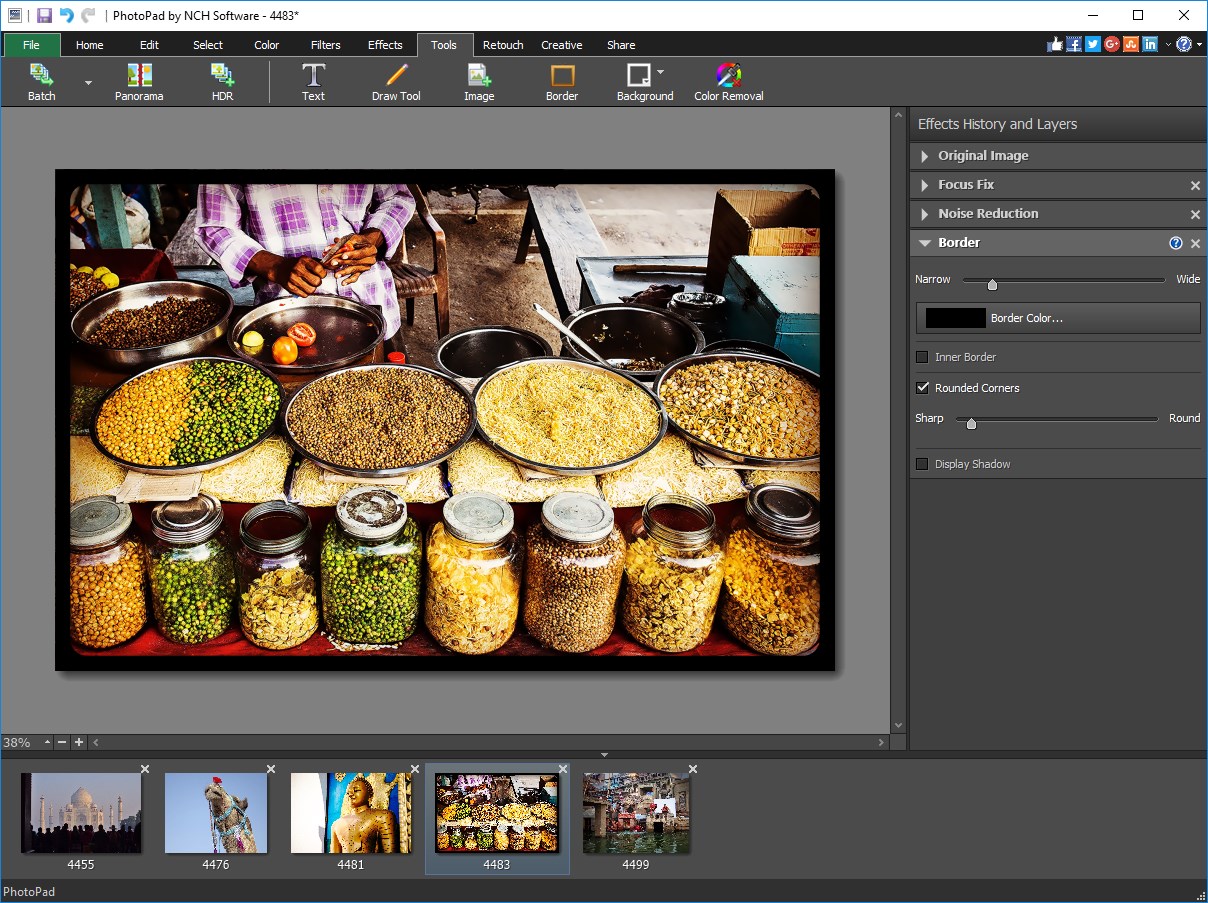
If you're looking for an easy-to-use yet capable photo editing tool that fits seamlessly into your Windows workflow, PhotoPad offers a welcoming interface coupled with versatile features. It's not just another photo editor—it's a reliable sidekick for hobbyists and semi-professionals alike, eager to bring out the best in their images without a steep learning curve.
Developed by NCH Software: A Trustworthy Name in Digital Solutions
Created by NCH Software, a seasoned developer known for a broad lineup of practical software solutions, PhotoPad benefits from years of experience in crafting user-centric applications. Their commitment to simplicity and efficiency shines through in this product, making it accessible for users who want straightforward editing capabilities without sacrificing quality.
Key Features That Make PhotoPad Shine
- Intuitive Interface with Guided Editing: The clean layout and step-by-step tools help users navigate even complex edits with ease, ideal for beginners and casual users.
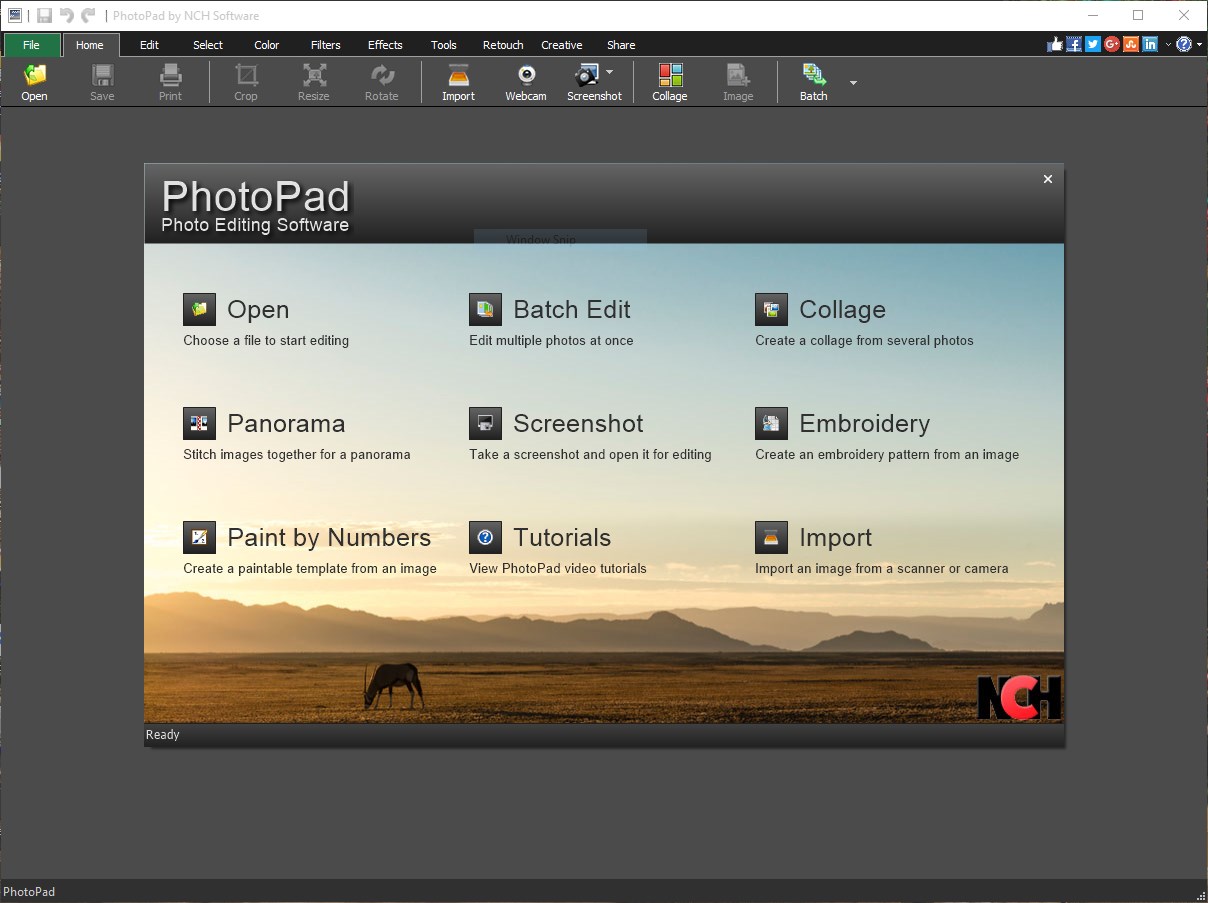
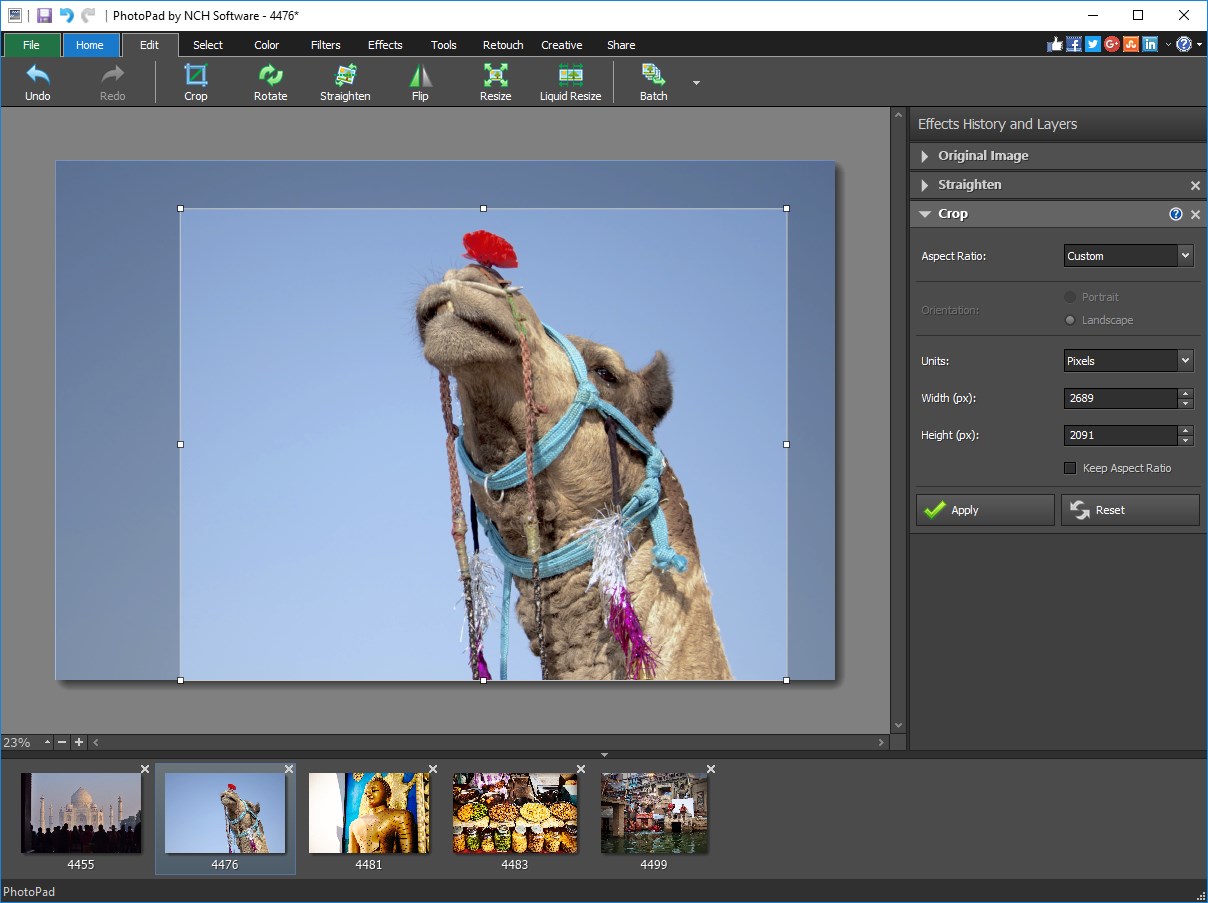
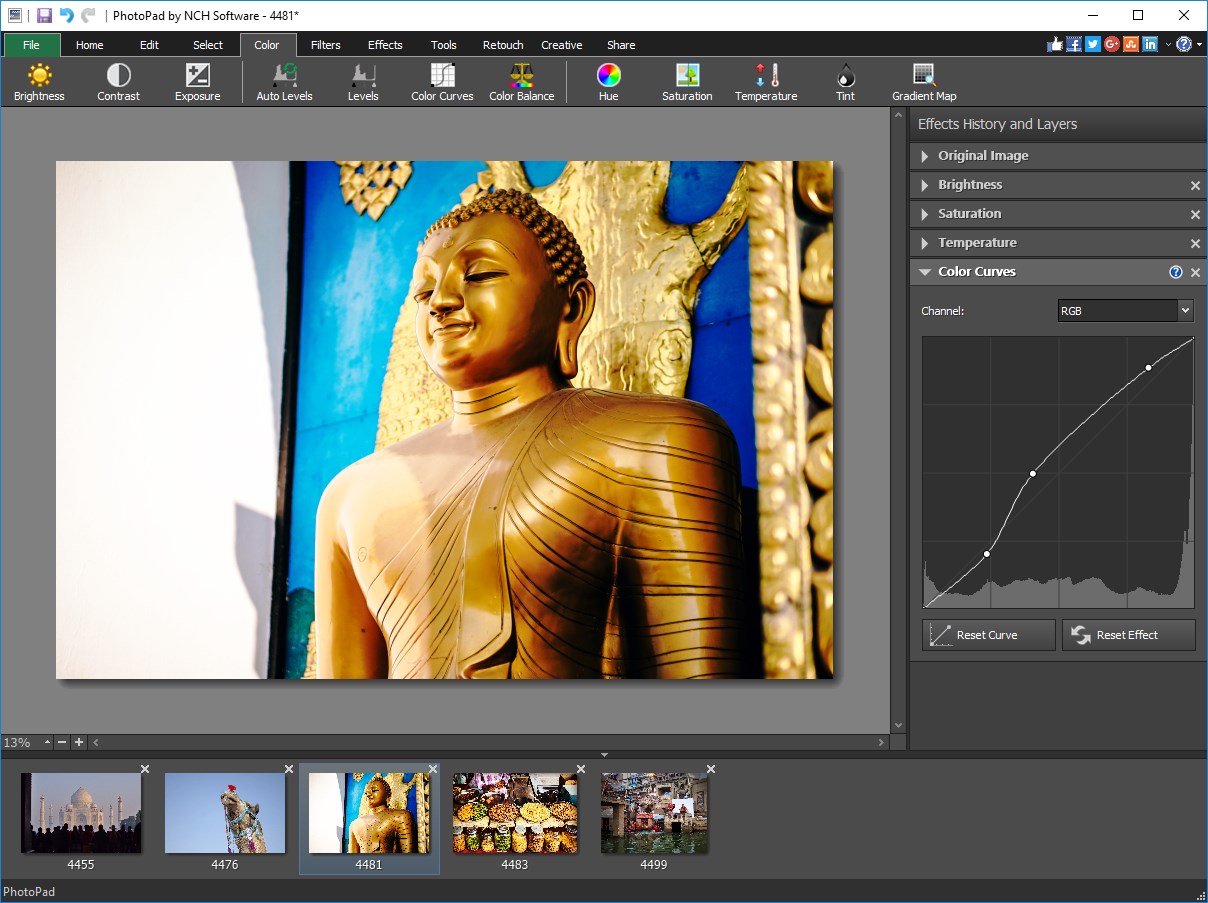
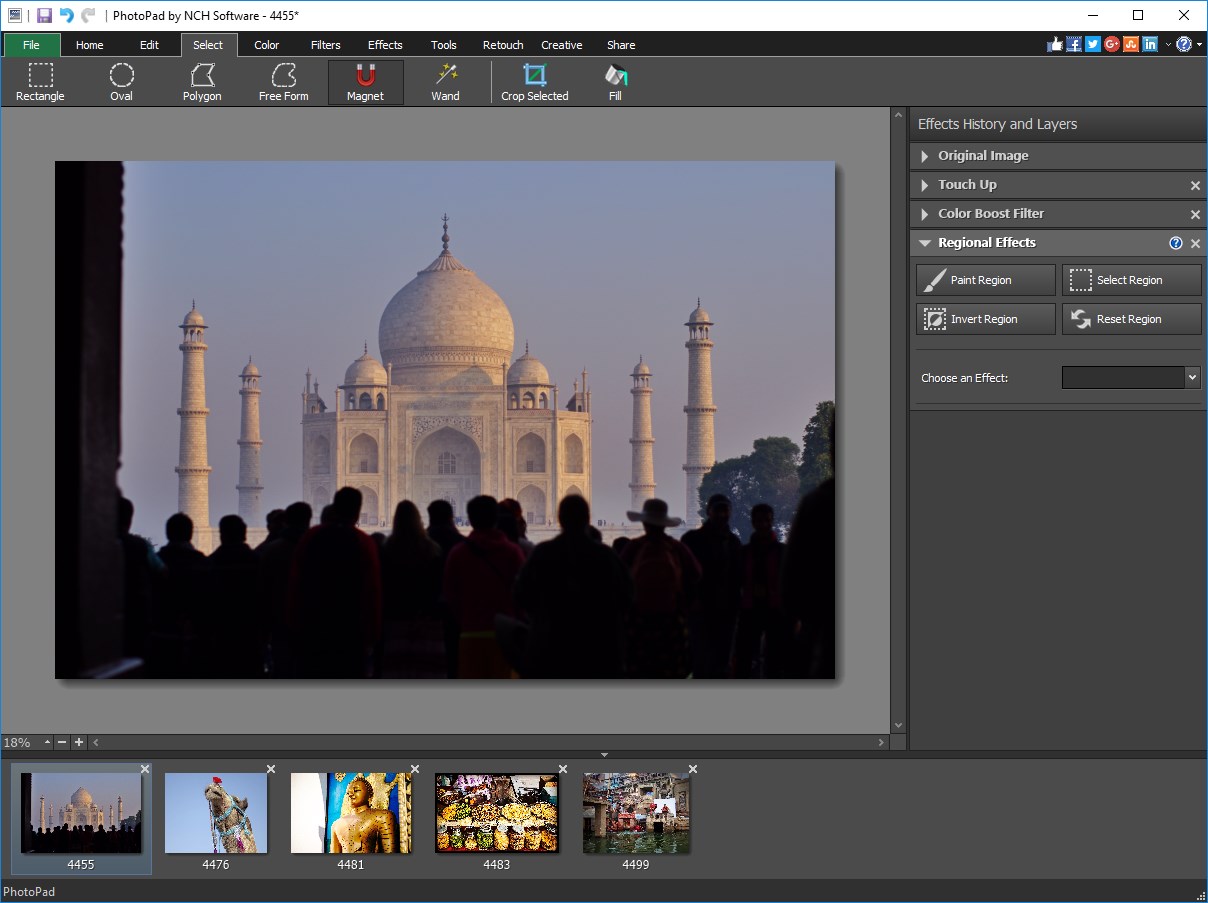
- Rich Toolbox for Enhancements and Effects: From basic crop and resize to advanced filters and color corrections, PhotoPad provides a comprehensive set of editing options embedded in a user-friendly environment.
- Support for Various File Formats and Batch Processing: Compatibility with multiple image formats and ability to process multiple files simultaneously save time and broaden usability.
- Non-Destructive Editing: Users can experiment freely, knowing their original images remain untouched, making creativity less daunting.
Engaging the User: A Refreshing Approach to Photo Editing
Imagine sitting down with a familiar, friendly guide that whispers, “Let's make your photos shine,” instead of overwhelming you with a jumble of options. PhotoPad accomplishes this through its approachable design and thoughtful layout. Whether you're removing red-eye from a cherished shot or applying an artistic filter to give your memories a new flavor, the app feels like a well-trained assistant eager to help, not complicate.
Core Functionality in Action: Smooth, Effective, and Versatile
Effortless Basic Edits
In the realm of fundamental editing, PhotoPad excels with its straightforward tools for cropping, straightening, and adjusting brightness or contrast. Its drag-and-drop interface makes these adjustments feel natural, akin to tweaking a photo on an old-fashioned drafting board—familiar and satisfying. The real magic lies in how the app preserves image quality during edits, ensuring your photos look sharp and lively.
Creative Enhancements and Effects
What sets PhotoPad apart is its robust collection of creative effects—think of them as digital painter's brushes. Whether adding sepia tones for vintage charm or applying artistic filters for a dramatic flair, users can explore without needing prior photo editing experience. The batch processing feature stands out here, allowing users to apply consistent edits across multiple images with a few clicks—a real boon for event photographers or social media enthusiasts managing large photo sets.
User Experience: Friendly, Fluent, and Forward-Looking
The application's interface is akin to a cozy workshop—organized, inviting, and easy to navigate. The operation feels fluid, with tools responding promptly, ensuring that your creativity isn't hampered by lag or clutter. The learning curve is gentle; most features can be picked up within minutes, making PhotoPad an ideal choice for those new to editing or those who prioritize efficiency over complexity.
What Sets PhotoPad Apart in a Crowded Market?
Unlike many similar editors that flood users with numerous obscure features, PhotoPad's key differentiation lies in its focus on usability and versatility. Its support for batch processing simplifies the repetitive tasks, a feature often reserved for more expensive or complex software. Additionally, the app's non-destructive editing approach encourages experimentation, which is essential for users seeking to develop their skills confidently.
Final Verdict: Worth Keeping in Your Digital Toolbox
Considering its ease of use, robust feature set, and thoughtful design, I'd recommend PhotoPad for users who want a reliable, friendly editing tool without the fuss. It's particularly suitable for hobbyists, small business owners, or anyone wanting quick, professional-looking results. While it might not replace high-end editors for advanced professionals, it's certainly a worthy companion for everyday editing needs—delivering just the right blend of power and simplicity.
Pros
- User-friendly interface
- Wide range of editing tools
- Supports various image formats
- No-cost basic version available
- Quick processing speeds
Cons
- Limited advanced features
- Watermark on free version
- Export options could improve
- Help documentation needs enhancement
- Occasional stability issues