
- Name Pengwin
- Category Developer tools
- Developer Whitewater Foundry, Ltd. Co.
- Available on PC
- OS Windows 10 version 17763.0 or higher
- Keyboard Integrated Keyboard
- Mouse Integrated Mouse
- Memory 2 GB
- languages English (United States)
A Fresh Take on Windows Subsystem: Pengwin for Windows Review
If you're someone who loves tinkering with your environment or needs a robust Linux experience right within Windows, Pengwin for Windows from Whitewater Foundry offers a compelling option. Think of it as a finely woven bridge that comfortably connects the worlds of Windows and Linux without the usual hassle — providing a tailored, flexible, and reliable solution for developers and power users alike.
Who's Behind It? The Team with Linux in Their Heart
Developed and published by Whitewater Foundry, Ltd. Co., Pengwin is the fruit of dedicated efforts by a team passionate about making Linux utilities seamlessly accessible on Windows. Their deep understanding of both ecosystems ensures that Pengwin not only functions smoothly but also offers features specifically optimized for Windows users who need Linux capabilities.
Pengwin's Highlights: Features That Stand Out
- Optimized Linux Distribution: Built on WSL2, Pengwin provides a highly compatible, fast, and stable Linux environment tailored specifically for Windows users.
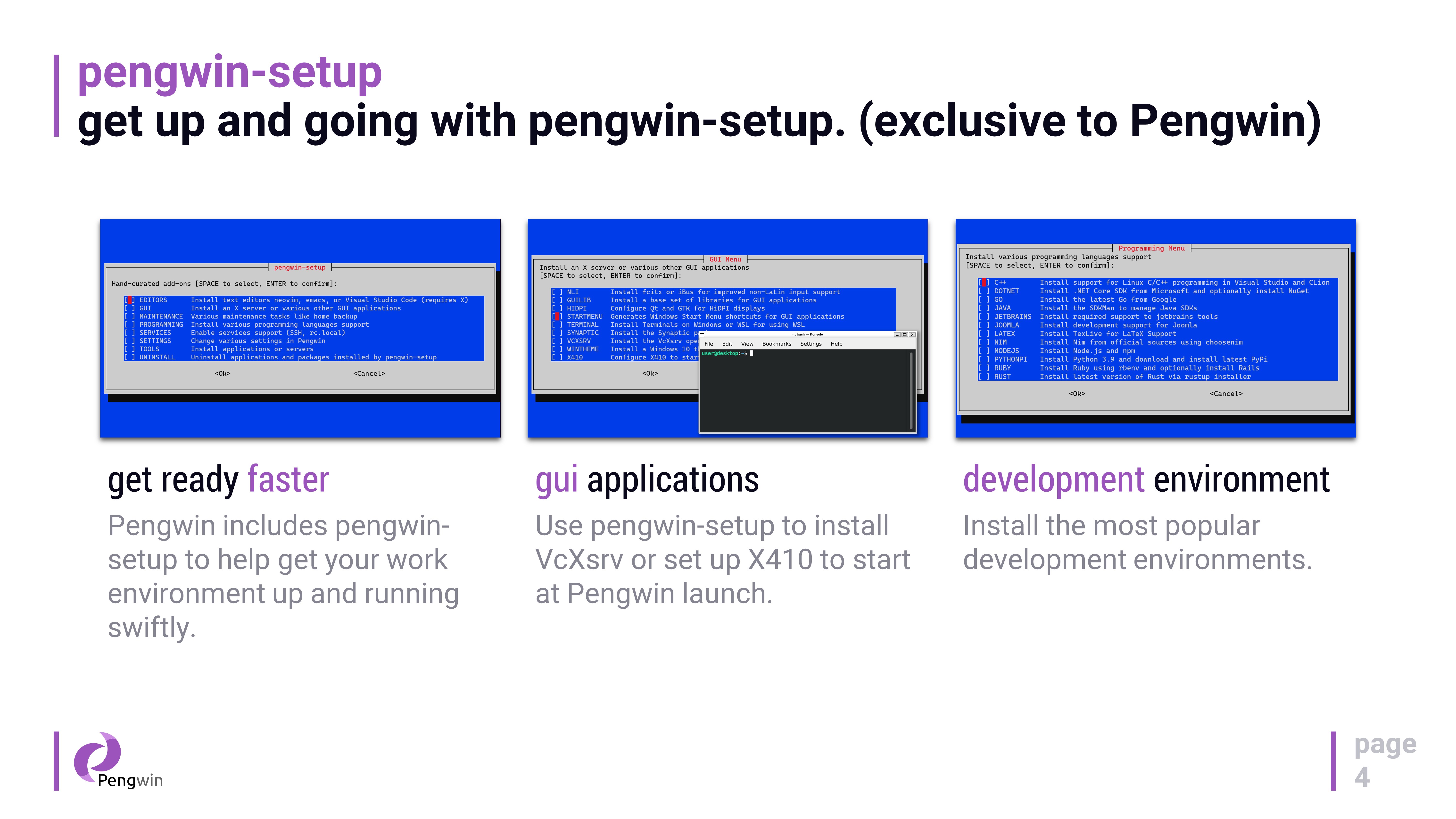
- Customizable Experience: It offers pre-installed software and easy customization options, reducing setup time and enhancing productivity.
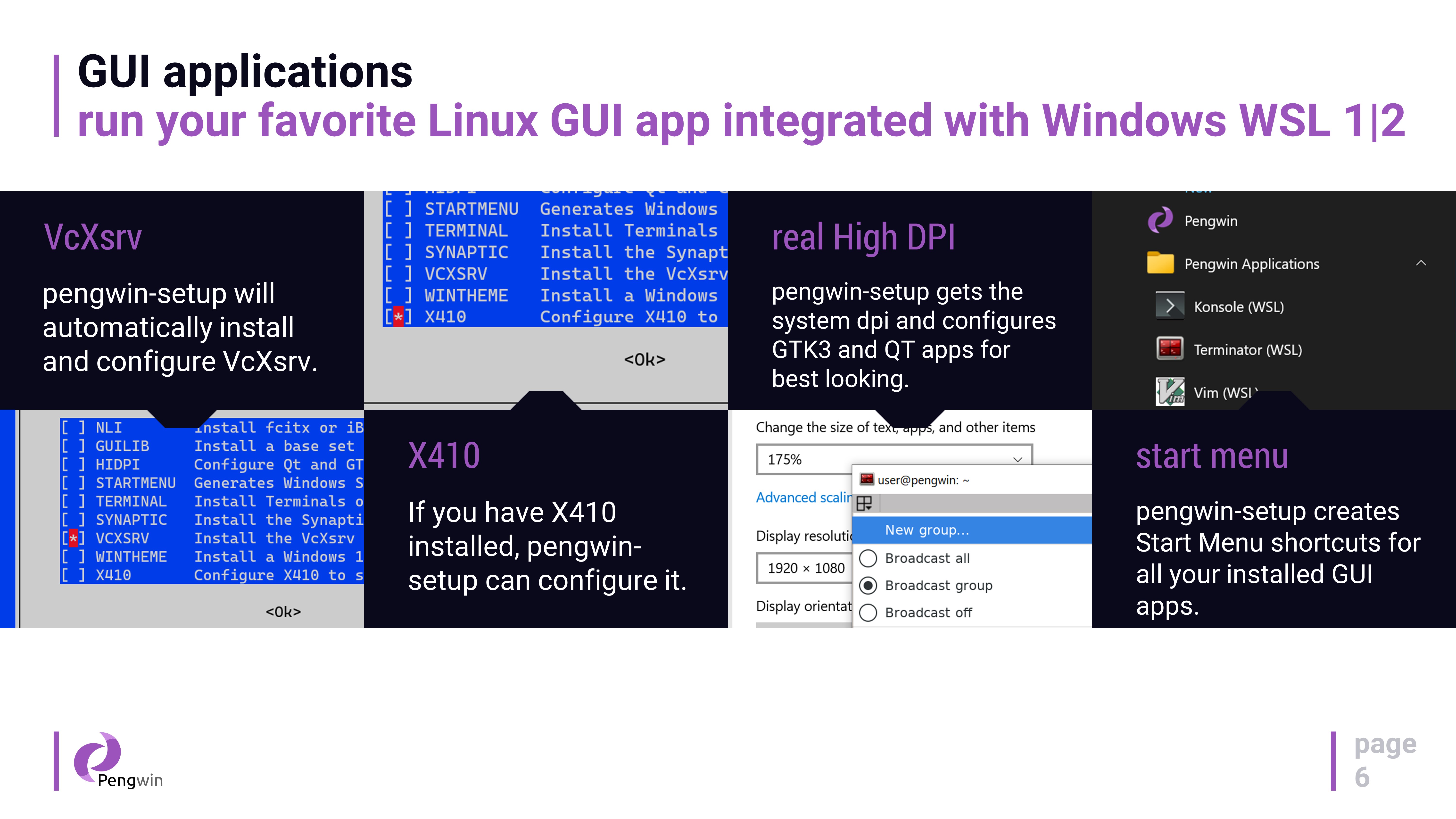
- Enhanced Integration: Pengwin integrates deeply with Windows, including shared clipboard, file system access, and network configuration, making cross-platform workflows frictionless.
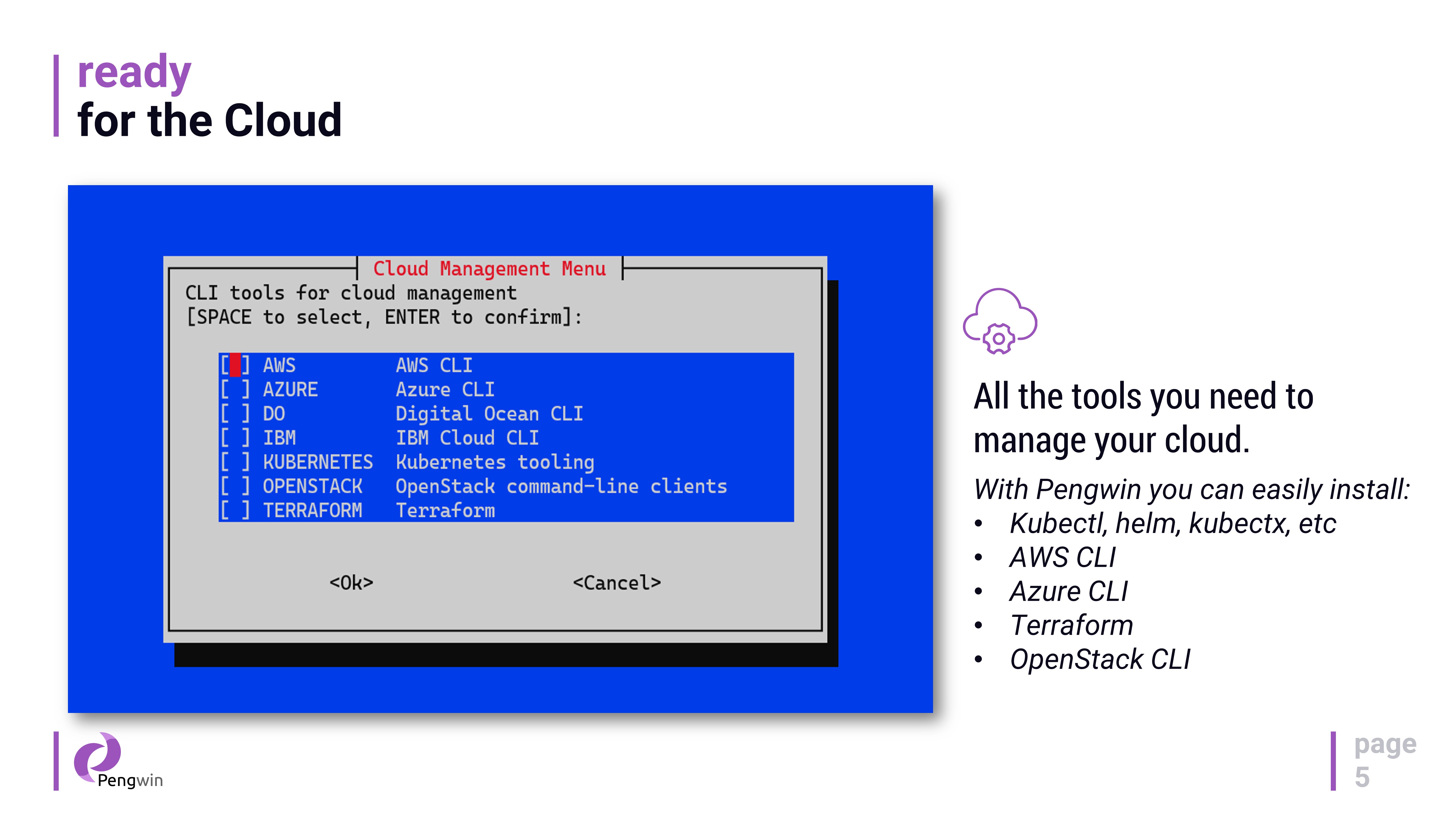
- Specialized Toolset: It features a curated collection of Linux tools and utilities optimized for developers, system administrators, and hobbyists alike.
Pengwin's target audience encompasses developers, system administrators, tech enthusiasts, and anyone needing a Linux environment within Windows — especially those who value performance, flexibility, and depth of features without sacrificing ease of use.
Introducing Pengwin: A Cordial Companion for Your OS Adventures
Imagine having a trusty Swiss Army knife running on your Windows desktop, ready to tackle Linux commands, scripts, and server setups effortlessly. Pengwin feels like that multi-tool — approachable yet packed with power. Its sleek design and streamlined workflow mean you don't get bogged down with complicated setups; instead, you're quickly immersed in a Linux environment that feels natural and intuitively integrated into Windows. Whether you're a developer testing code across platforms or a cybersecurity enthusiast exploring Linux security tools, Pengwin's adaptability shines through, making your daily tasks more efficient and enjoyable.
Core Functionality Deep Dive
Seamless WSL2 Integration and Optimization
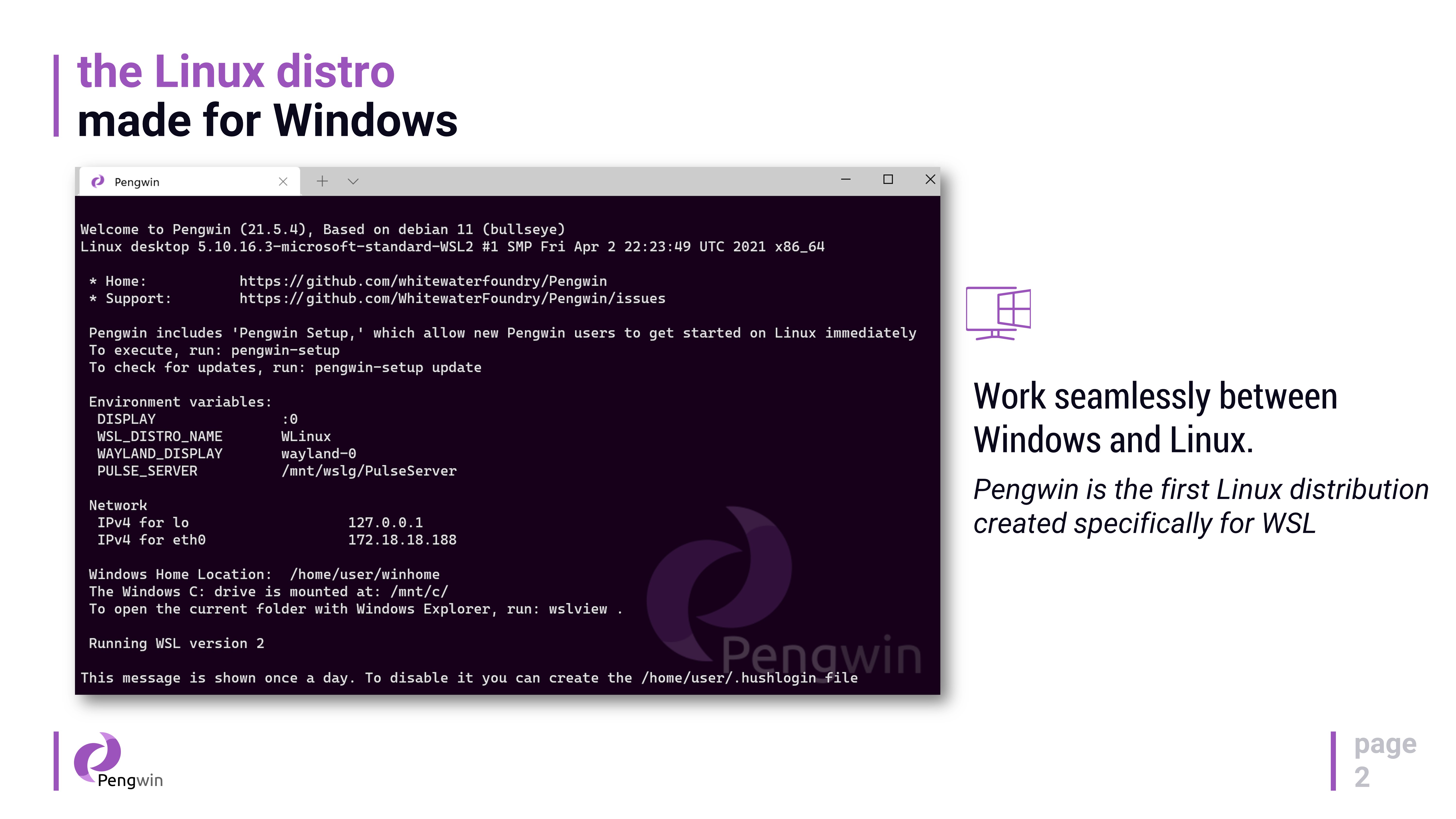
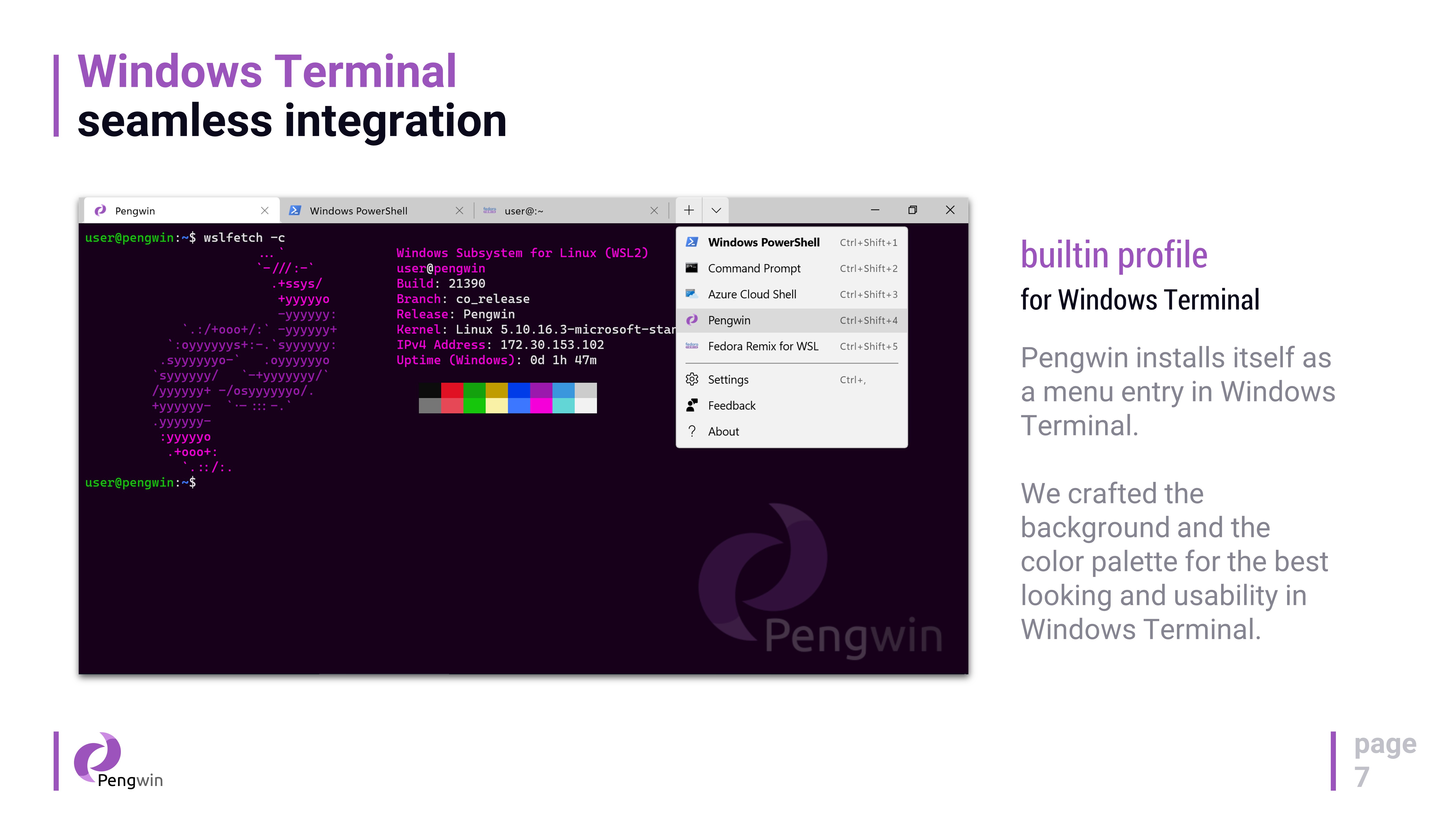
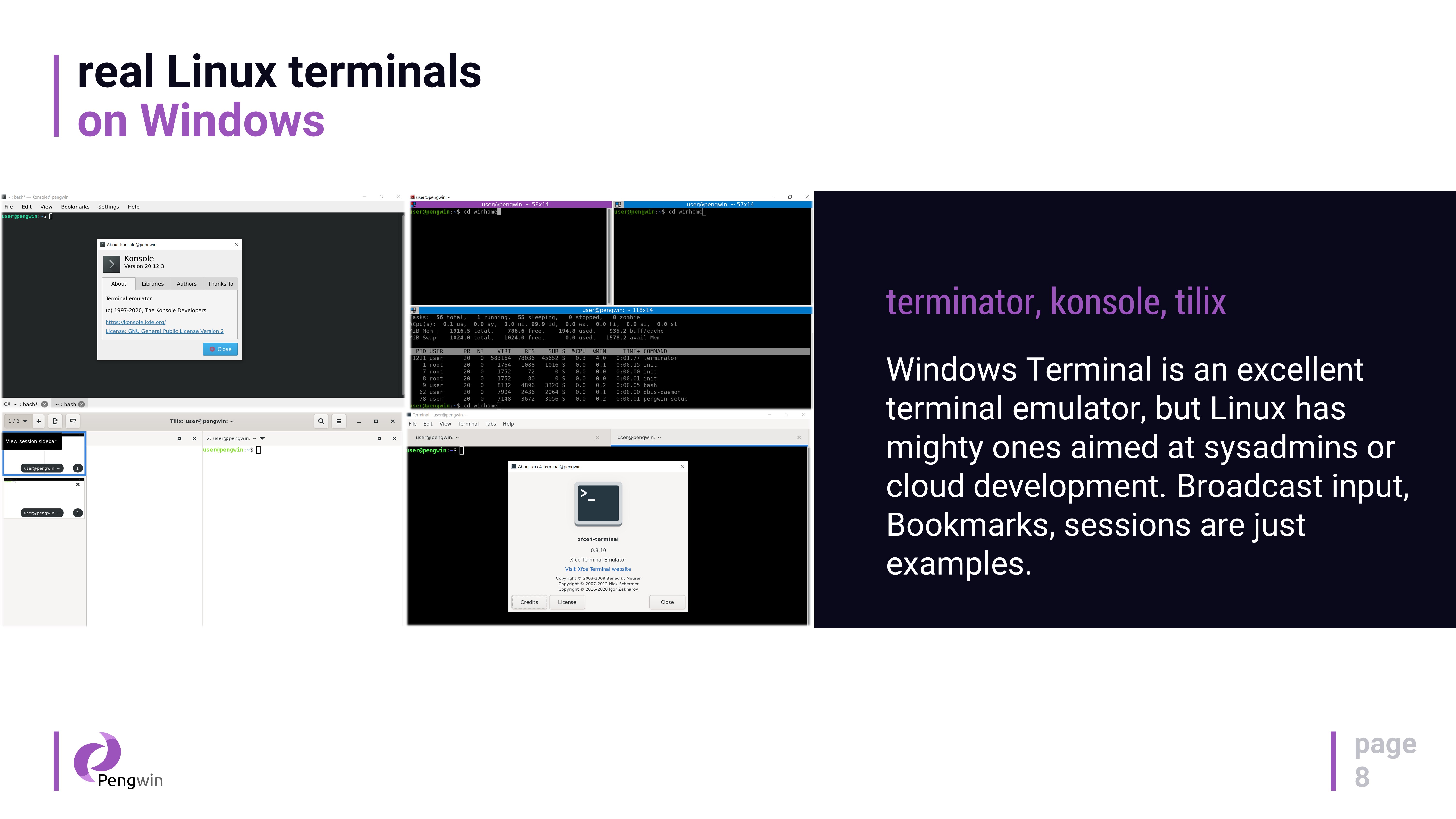
Pengwin is built atop WSL2, Microsoft's latest Windows Subsystem for Linux, which offers substantial improvements in speed and compatibility over previous versions. Importantly, Whitewater Foundry has optimized Pengwin to leverage WSL2's capabilities fully, ensuring that command execution is swift and filesystems are rapidly accessible. Its interface with Windows is fluid, allowing users to open Linux terminals directly from Windows Explorer or command prompts, like pulling a rabbit out of a hat to perform complex tasks with just a few clicks.
Pre-installed Utilities and Easy Customization
Imagine walking into a kitchen already stocked with your favorite ingredients; Pengwin provides this convenience by including a well-curated set of tools and software, such as Python, Git, and more, out-of-the-box. The setup process is straightforward—users can choose additional packages or configure environment variables effortlessly. This thoughtful setup reduces the learning curve, enabling users to focus on productive work rather than troubleshooting installations.
Deep Windows-Linux Interoperability
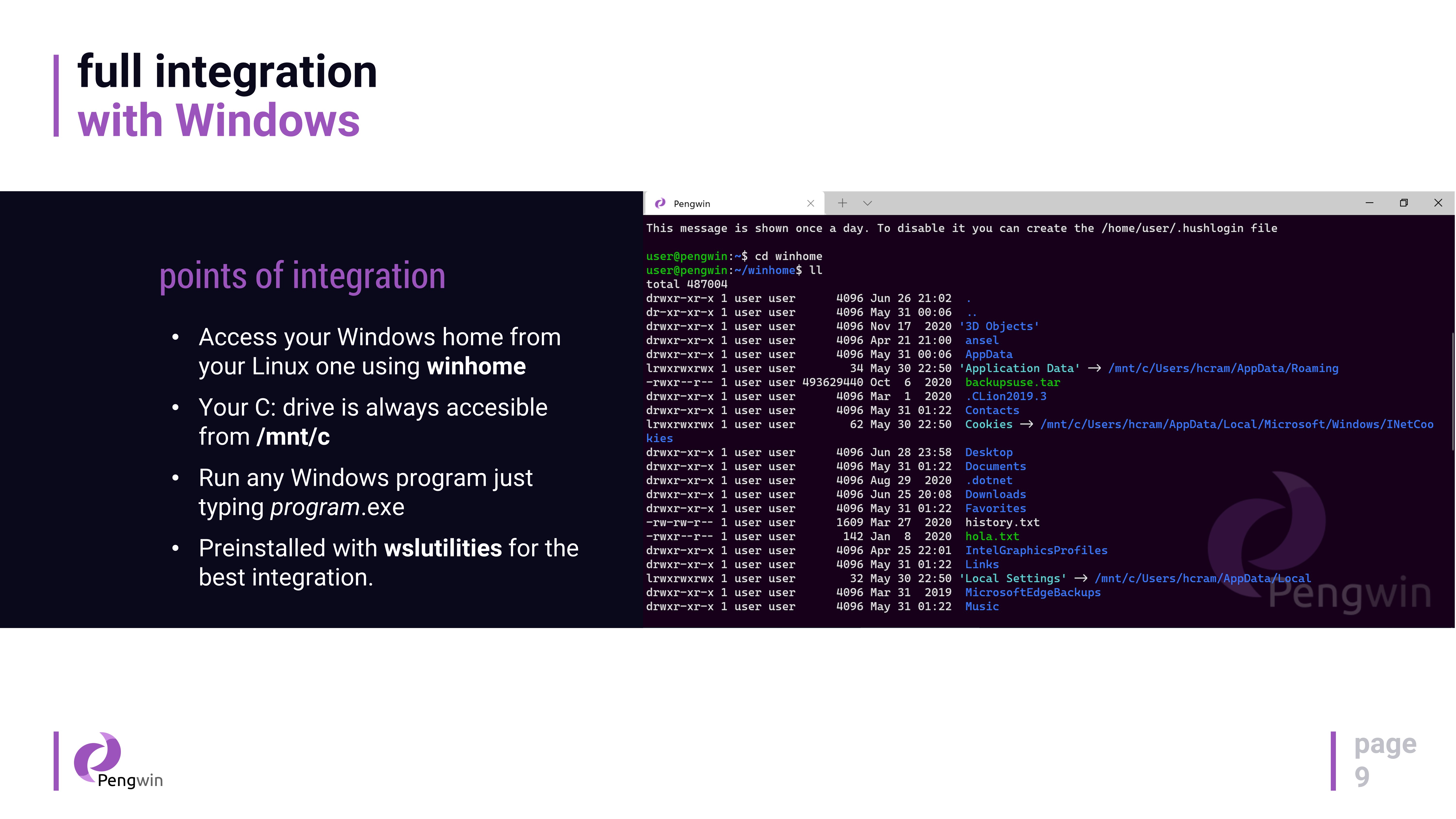
The ability to share files, clipboard, and processes between Windows and Pengwin sets it apart from many Linux distributions running on other platforms. For instance, you can copy a file from Windows Explorer and immediately access it within Pengwin, or run Linux scripts that directly interface with Windows applications. This fluid interoperability can be likened to a bilingual speaker who moves seamlessly between two languages, enhancing collaboration and efficiency in a mixed environment.
What Makes Pengwin Unique? The Distinctive Edge
Compared to other tools like Ubuntu on WSL or straight WSL2 distributions, Pengwin's edge lies in its focus on customization and deep integration, tailored specifically to Windows users who require a professional-grade Linux environment. Its curated toolset and optimized performance help it stand out from standard distributions that can sometimes feel generic or less tightly coupled to Windows workflows. Users seeking a Linux experience that feels like a natural extension of Windows, rather than an entirely separate system, will find Pengwin particularly appealing.
Final Verdict: Your Next Linux Companion?
For those who want a polished, reliable, and highly integrated Linux environment on Windows, Pengwin for Windows is a commendable choice. Its core strengths—performance optimization, user-friendly customization, and seamless Windows interoperability—make it stand apart in a crowded field of Linux-on-Windows solutions. While it may be more suited for users with intermediate to advanced Linux knowledge due to its rich feature set, the ease of access it provides makes the barrier to entry quite manageable. I'd recommend Pengwin particularly for developers and sysadmins looking for stability and integration quality. For casual users, it might be more than necessary, but for power users, it's a tool worth exploring.
Pros
- Seamless integration with Windows subsystem for Linux
- Customizable Linux environment
- User-friendly interface for WSL users
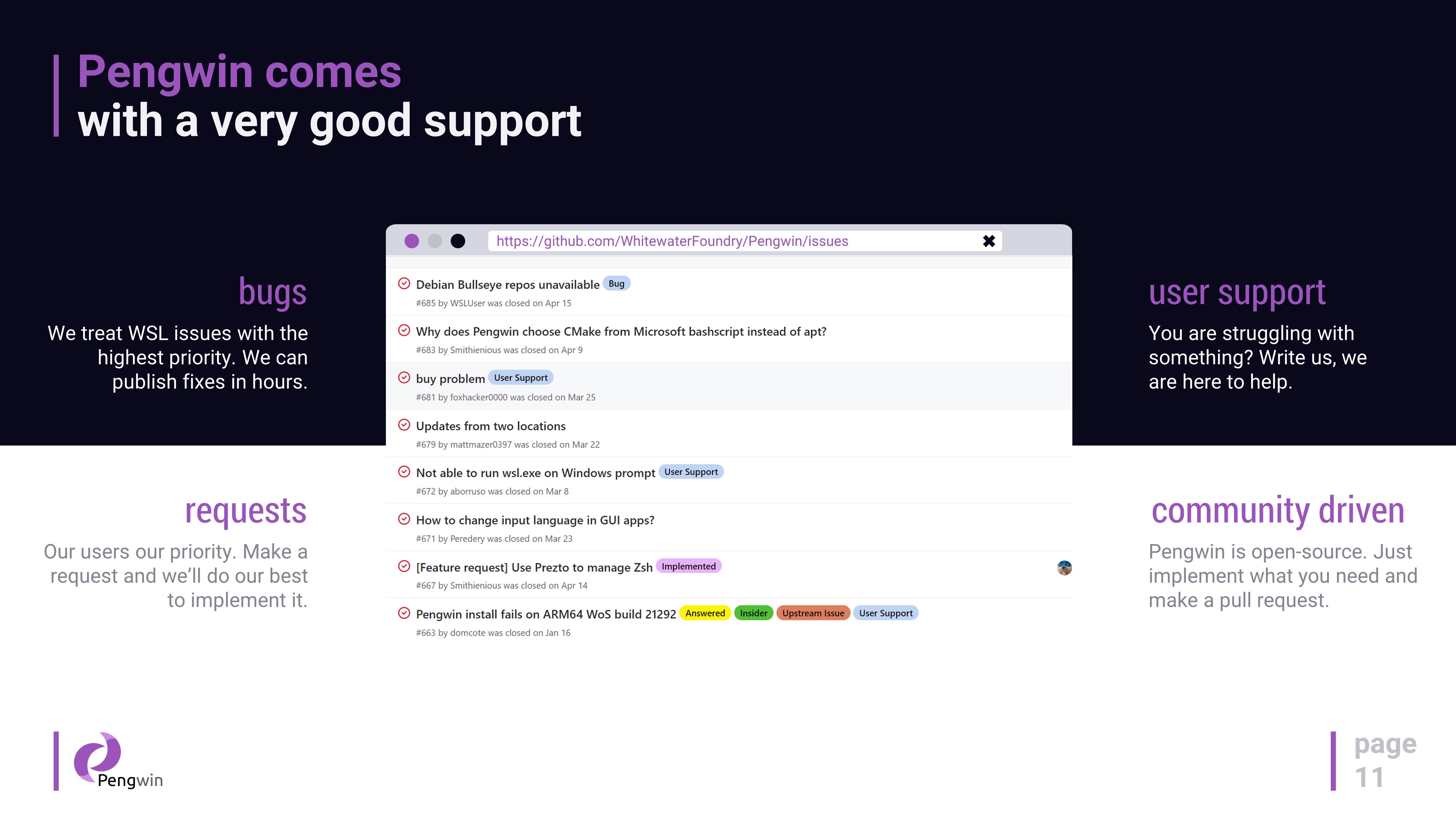
- Active support and regular updates
- Pre-configured Linux package repositories
Cons
- Limited non-Linux app support within Pengwin
- Occasional compatibility issues with some hardware peripherals
- Initial setup can be complex for non-technical users
- Some advanced Linux features are not fully supported or require manual configuration
- Performance may vary depending on Windows system resources