- Name Organize GoPro Files
- Category Lifestyle
- Developer Initially
- Available on PC
- OS Windows 10 version 14316.0 or higher
- languages English (United States)
An Efficient Tool for Managing GoPro Footage
If you're someone who captures life's adventures with a GoPro, organizing those countless clips can quickly become a daunting task. Enter "Organize GoPro Files for Windows" — a streamlined application designed to make managing your footage straightforward and stress-free, turning chaos into order with just a few clicks.
About the App and Its Developer
This app is a dedicated tool aimed at GoPro enthusiasts who want an efficient way to manage their videos on Windows. Developed and published by Initially, a team known for creating user-friendly multimedia applications, it promises a focused experience specifically tailored for organizing GoPro footage.
Key Features:
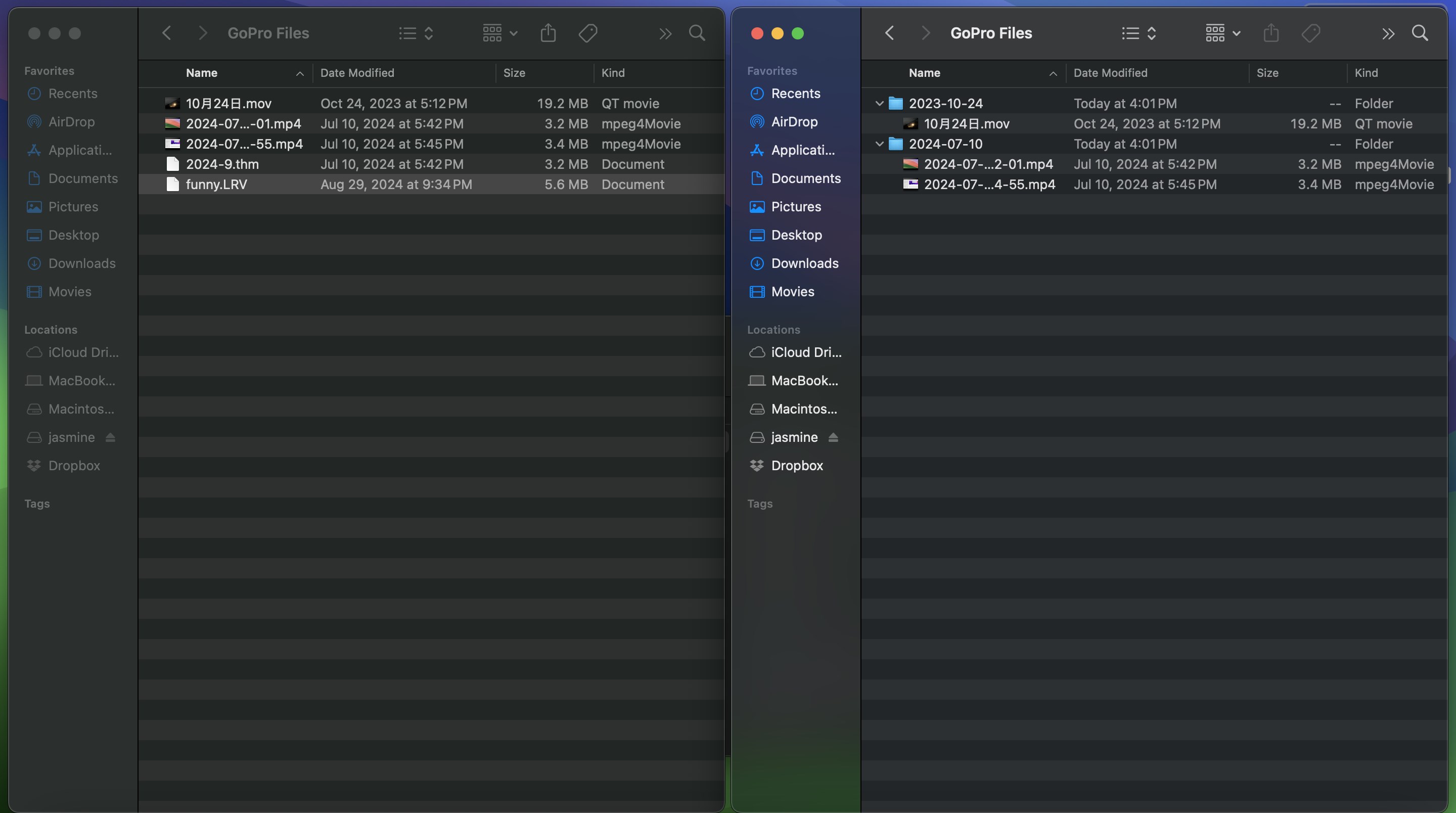
- Automatic detection and sorting of GoPro video files
- Intuitive folder management and renaming options
- Batch processing for quick organization of large video libraries
- Support for both basic and advanced file categorization
Target Users: Amateur and professional GoPro users, adventure videographers, travel bloggers, and anyone looking to keep their footage neatly organized on Windows machines.
A Fresh Take on Video Organization
Imagine having a cluttered desk piled high with photographs and video notes. Sounds chaotic, right? That's exactly how managing raw GoPro footage can feel—until you find an efficient assistant like this app. Designed with a friendly yet professional touch, it transforms scattered files into a tidy library, making your editing process simpler and more enjoyable.
Core Functionality: Seamless Detection and Sorting
The standout feature of this app is its ability to automatically scan your storage for GoPro video files. It intelligently detects common formats used by GoPro cameras, such as MP4 and HEVC, even amid other media. Once identified, it offers options to sort files by date, file size, or custom tags—saving you from tedious manual searches. This automation is what genuinely sets it apart, turning what was once a chore into a quick, almost effortless, task.
Batch Operations and Customization
Managing hundreds of clips can be overwhelming, but this app's batch processing capability lightens the load significantly. You can select multiple files or entire folders and perform actions like renaming, moving, or categorizing them in one go. The interface's straightforward design ensures you don't need to spend ages figuring out how to do it—it's almost as if the app reads your mind. Plus, customizable naming conventions add a professional touch to your library, especially useful for bloggers or videographers looking to stay organized for projects.
Design, Usability and User Experience
The interface adopts a clean, minimalistic style reminiscent of a well-organized toolbox—easy on the eyes and simple to navigate. The loading and processing speed are commendable, even for large video collections, indicating good optimization. Users will find the learning curve gentle; the app's logical layout means you can start organizing your footage with minimal fuss. It's akin to having a helpful assistant who knows exactly where to find your files and how to tidy them up efficiently.
What Makes It Stand Out?
Compared to other lifestyle and media management applications, this tool's focus on GoPro-specific content gives it an edge. It handles the intricacies of GoPro's file formats and metadata better than generic video organizers, thus maintaining the authenticity of your footage and preserving crucial details. Its ability to automatically detect GoPro files and batch process large sets for rapid organization is akin to having a personal librarian who instantly knows where every piece of footage belongs. This targeted approach makes it not just a tool, but a specialized assistant for content creators.
Recommendation and Usage Tips
Overall, I'd rate this app as a solid recommendation for anyone regularly working with GoPro footage on Windows. Its focused features and user-friendly design lower the barrier for efficiently managing a vast library of clips. I suggest using it immediately after importing new footage—this helps prevent clutter from accumulating and keeps your editing workflow smooth.
While it excels in automatic detection and batch processing, complementing it with regular manual checks can further optimize your organization. If you're a content creator, adventurer, or hobbyist looking to get your footage under control without fuss, this app deserves a spot in your toolkit.
Pros
- Intuitive File Organization
- Automatic Tagging Features
- Integrated Editing Tools
- Cloud Sync Support
- Batch Processing Capabilities
Cons
- Limited Editing Features
- Occasional Sync Delays
- Interface Could Be More Customizable
- Handling Large Files Can Be Slow
- Limited Support for Non-GoPro Files