- Name ngrok
- Category Developer tools
- Developer ngrok, inc.
- Available on PC
- OS Windows 10 version 17763.0 or higher
- Keyboard Not specified
- Memory Not specified
- languages English (United States)
Introducing ngrok for Windows: Seamless Tunneling Made Easy
Ngrok for Windows is a powerful tool that simplifies exposing local servers to the internet, making it an essential utility for developers and tech enthusiasts alike. With its user-friendly interface and robust features, it transforms complex network configurations into a straightforward experience.
Who's Behind the Curtain? The developers and main features
Developed and maintained by ngrok, Inc., a company dedicated to streamlining remote development and testing workflows, this application stands out in the landscape of network tunneling tools. Its primary features include secure local tunnels, custom subdomains, and real-time traffic inspection—all designed to streamline your development and debugging processes.
- Secure Local Tunnels: Easily expose local web services to the internet without complex configurations.
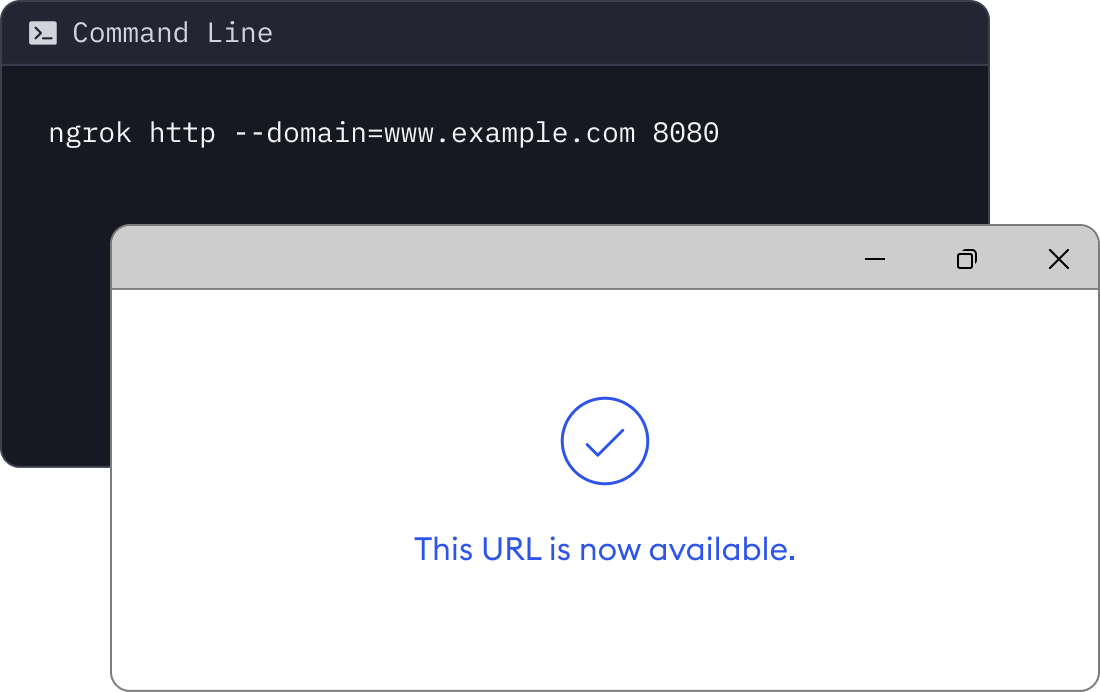
- Custom Subdomains & Domains: Personalize your tunnel URLs with custom identifiers for branding or clarity.
- Traffic Inspection & Replay: Monitor, analyze, and replay HTTP traffic in real-time for debugging.
- Multi-platform Compatibility: Seamless operation across Windows, Linux, and Mac environments.
Targeted at developers, QA testers, and remote team members, ngrok for Windows caters to individuals needing quick, secure, and transparent connections from local development environments to the wider world.
Engaging the Developer Crowd: A Closer Look
Imagine you're working late into the night, trying to showcase your latest web app. You want your client to see it, but it's running locally behind a firewall. Here enters ngrok—like a friendly courier bringing your local work to the digital doorstep of the world. It's as simple as running a command in your terminal, and voilà, your local server is now accessible via a public URL.
Intuitive Interface & User Experience
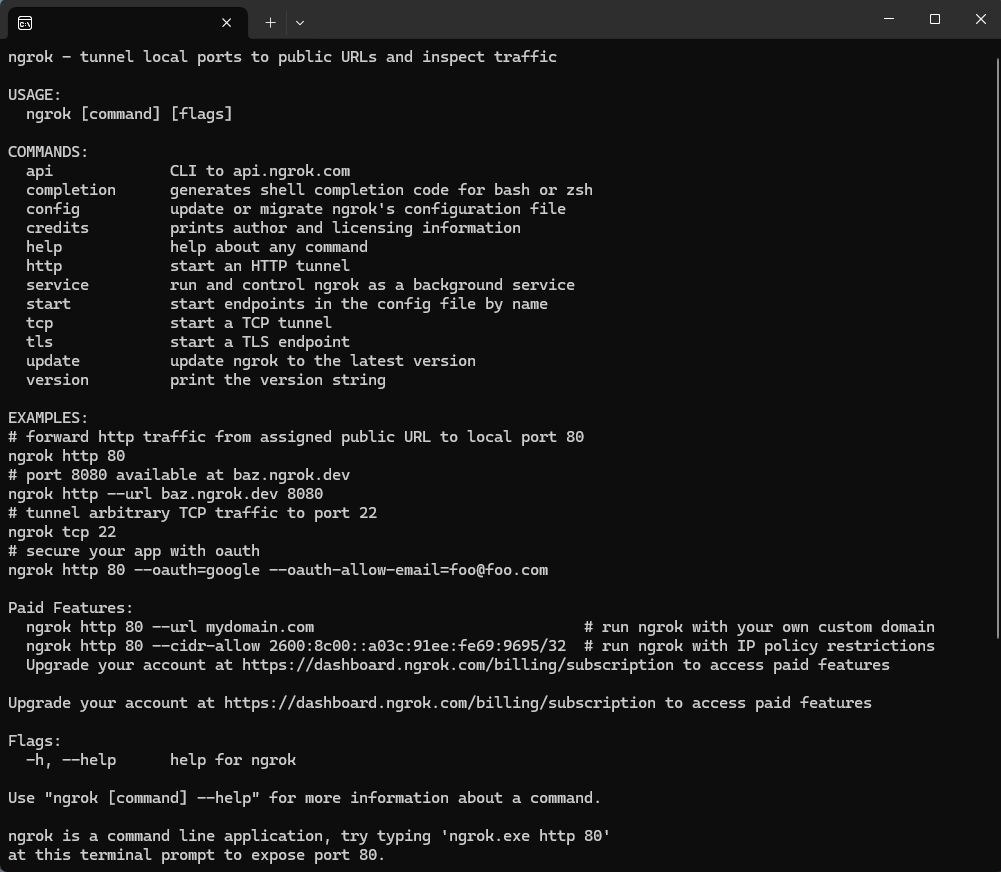
While ngrok for Windows doesn't boast a flashy graphical interface, its straightforward command-line interface paired with the Windows app makes setup remarkably intuitive. The Windows version offers a clean, minimalistic window where you can start, stop, and monitor tunnels with ease. Its design minimizes the learning curve, making it accessible even for newcomers. The real-time traffic view offers a helpful stream of HTTP request logs that resemble a steady heartbeat of your web service, providing immediate feedback and insight.
Core Features That Stand Out
The heart of ngrok's appeal lies in two features that make it markedly different from traditional SSH tunnels or VPN solutions:
- Automatic, Secure Tunnels with a Single Command: Rather than wrestling with port forwarding and network configurations, ngrok handles these behind the scenes. Just specify your local port and start the tunnel, and ngrok establishes a secure link instantly—think of it as a bridge built in seconds over a turbulent river.
- Traffic Inspection & Replay: This isn't just a tunnel; it's like having a live dashboard of your network traffic. You can monitor incoming requests, inspect headers, body content, and even replay specific requests to troubleshoot issues—indispensable when debugging complex interactions.
Comparison with Similar Tools & Final Verdict
Compared to other developer tunneling solutions like Localtunnel or Pagekite, ngrok's premium features, such as custom subdomains and detailed traffic inspection, provide a clear edge in professional workflows. Its reliability and security layers are meticulously crafted, giving users peace of mind during sensitive testing scenarios.
In terms of user experience, ngrok's minimalistic approach might seem sparse to some, but it ensures rapid setup and immediate productivity—perfect for those who prefer functionality over bells and whistles.
Given its robust features, reliability, and straightforward usability, I would recommend ngrok for Windows to developers and testers seeking a trustworthy tool to expose local services quickly and securely. It's especially suitable for those who need clear traffic insights without diving into complex network hacking.
In conclusion, ngrok for Windows is a noteworthy tool that brings powerful tunneling capabilities to your desktop with remarkable simplicity. Whether for quick demos, remote testing, or debugging, its combination of core features and ease of use makes it a standout choice in the developer toolkit landscape.
Pros
- Easy to set up and use
- Secure tunneling with encryption
- Real-time inspection and debugging
- Supports custom domains and subdomains
- Cross-platform compatibility
Cons
- Limited free plan features
- Potential latency issues for distant servers
- Inconsistent connection stability in some networks
- Lack of advanced access controls in free version
- Documentation could be more comprehensive