- Name Movavi Photo Editor
- Category Photo & video
- Developer Movavi Software
- Available on PC
- OS Windows 10 version 0.0 or higher
- Memory 6 GB
- languages English, German, Italian, French, Spanish, Portuguese, Dutch, Russian, Korean, Japanese, Chinese (Traditional Chinese), Turkish
Introduction: A Sleek and Efficient Photo Editing Companion
Imagine having a lightweight yet capable photo editor that feels more like a creative partner than just an app — Movavi Photo Editor for Windows fits that bill perfectly. Designed for both enthusiasts and casual users, this software promises to streamline your photo editing journey with ease and precision, making your images pop with just a few clicks.
Core Features That Make a Difference
Intuitive Object Removal and Background Replacement
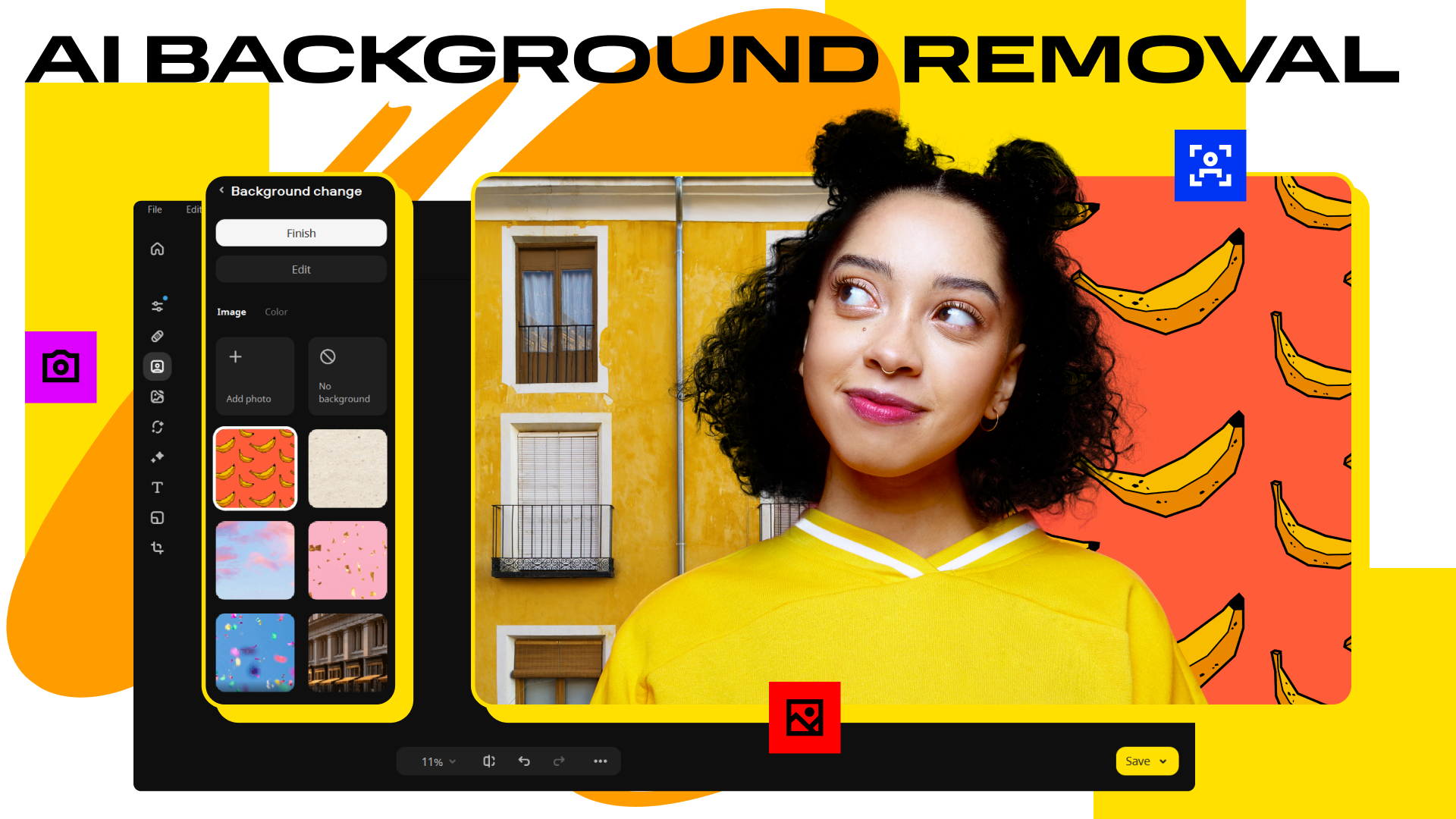
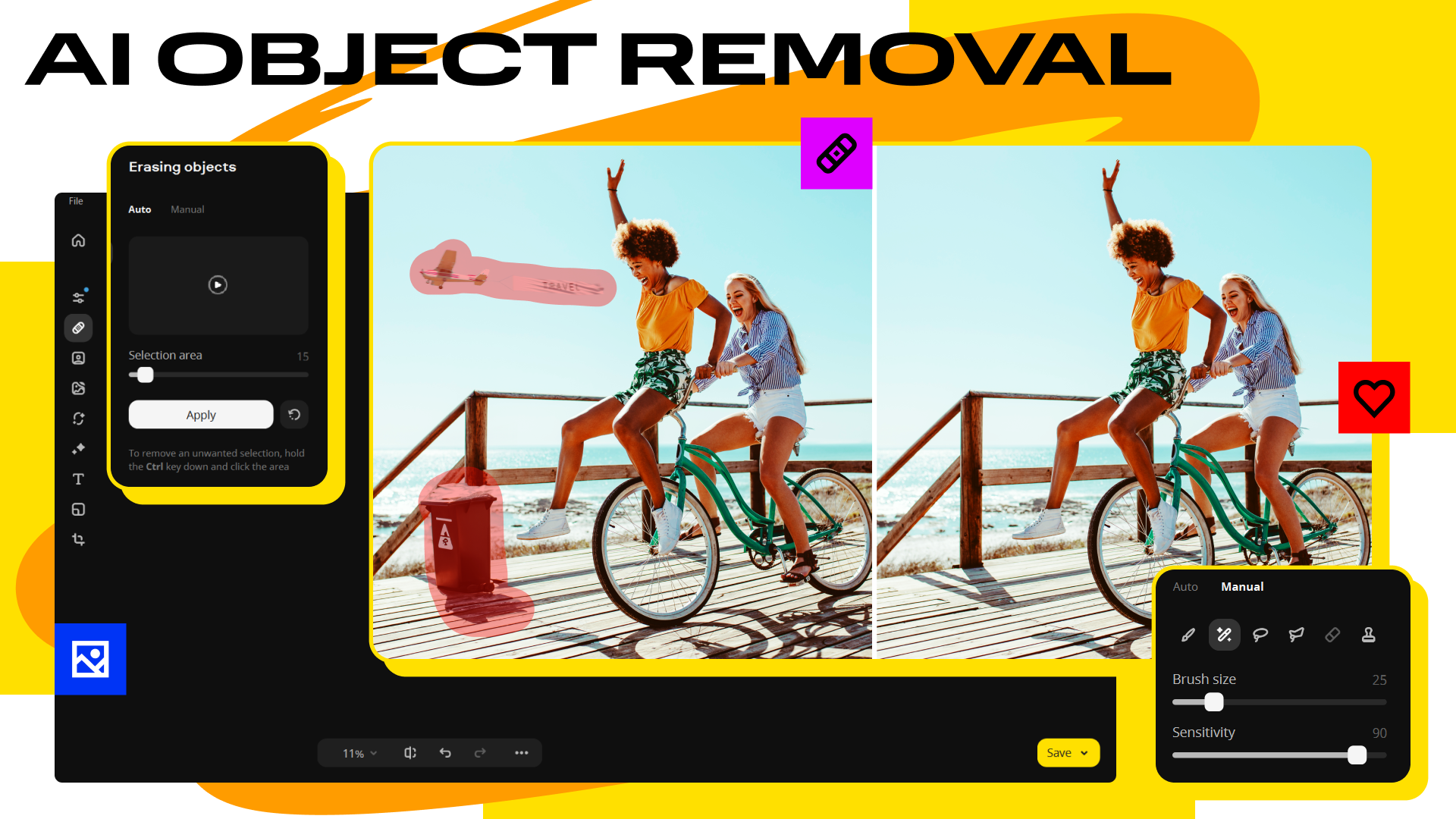
One of Movavi's standout features is its intelligent object removal tool. It's akin to having a digital erase that seamlessly snips out unwanted elements—be it a passing cyclist in a sunset shot or a distracting sign in a portrait. Coupled with its background replacement capability, users can effortlessly swap out dull skies or cluttered backgrounds, instantly transforming a basic shot into a professional-looking scene. Unlike some competitors that require complex masking, Movavi simplifies the process with automatic detection, making editing feel less like a chore and more like a creative game.
Smart Enhancements and Artistic Filters
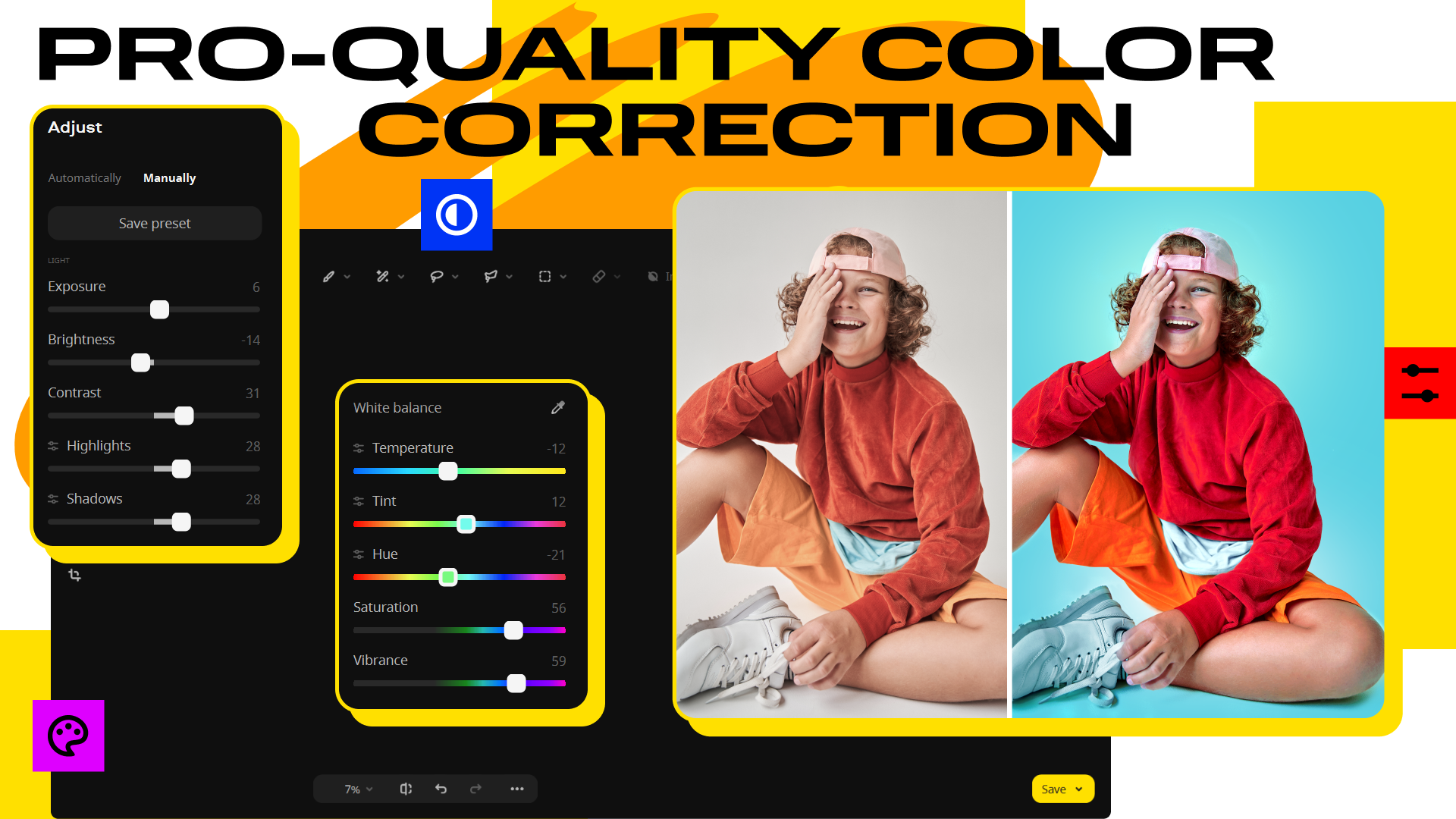
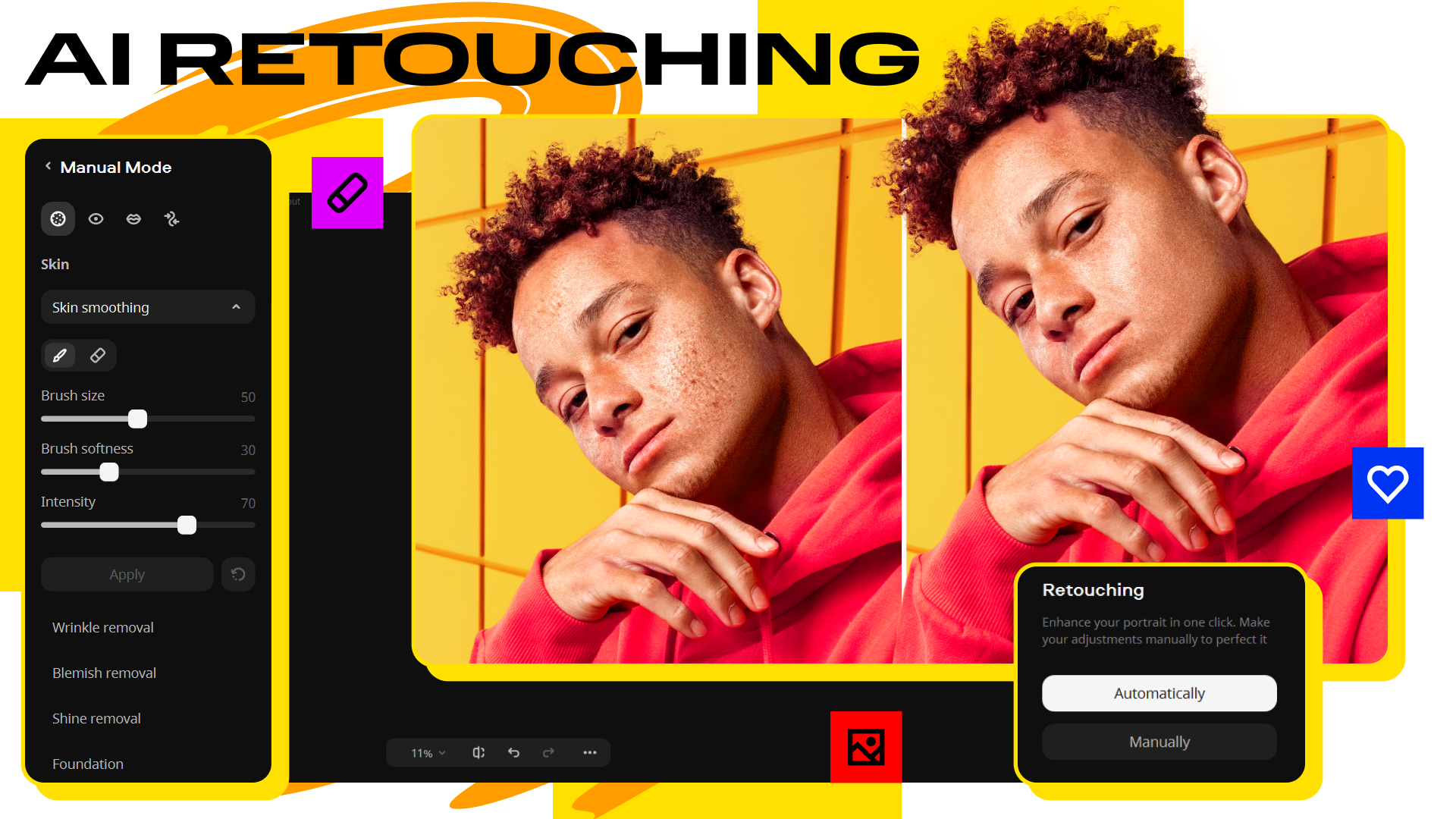
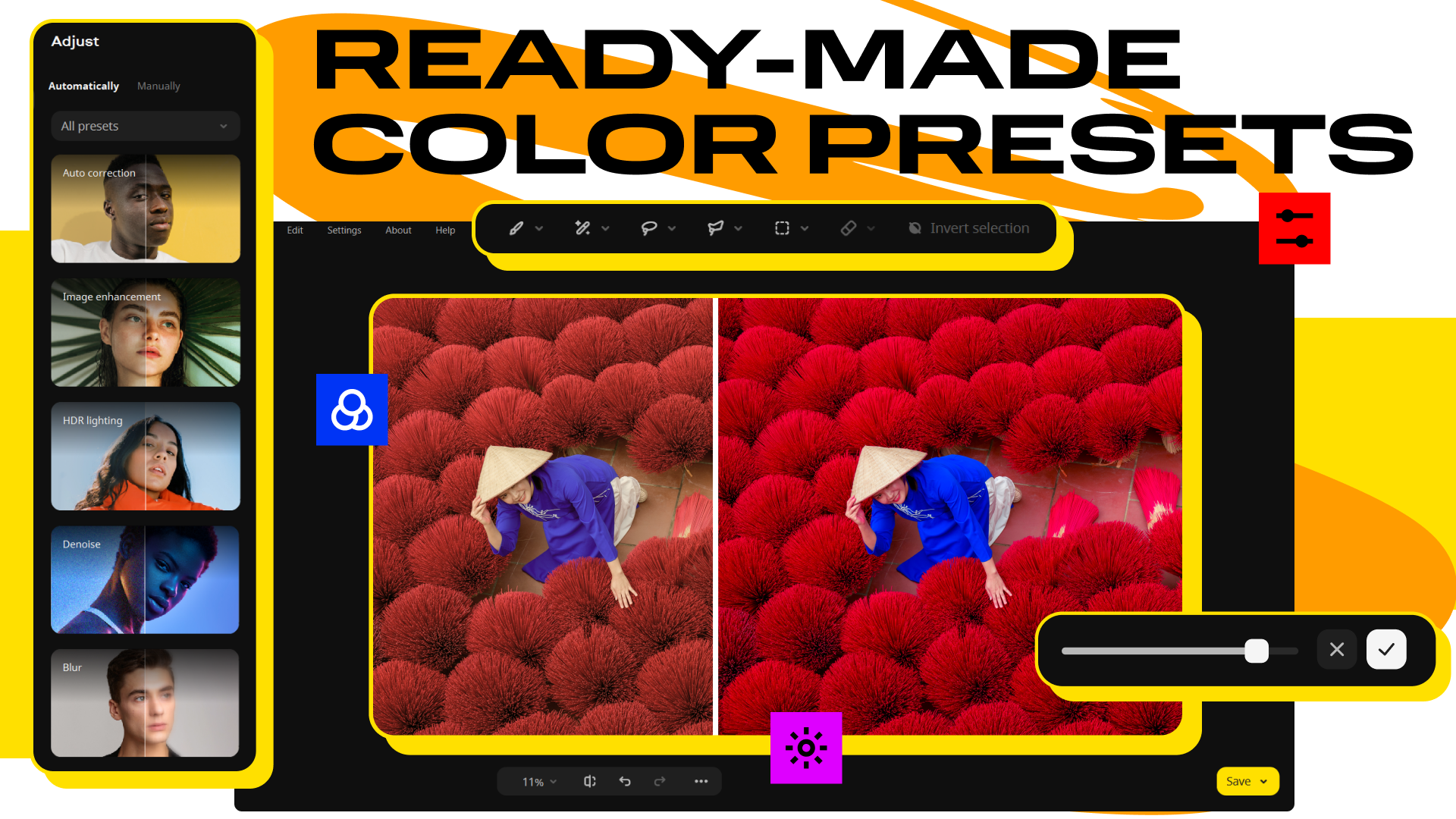
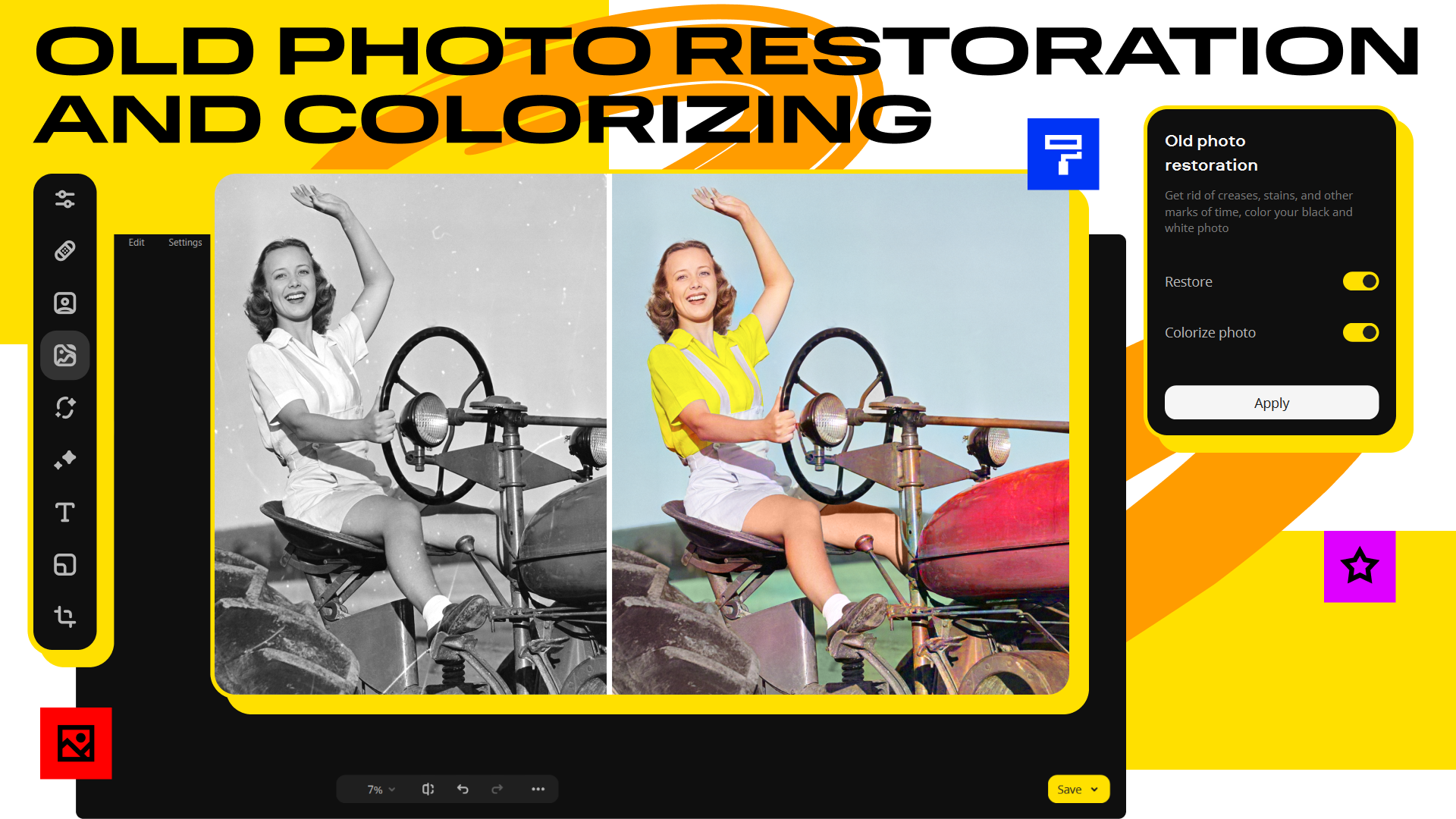
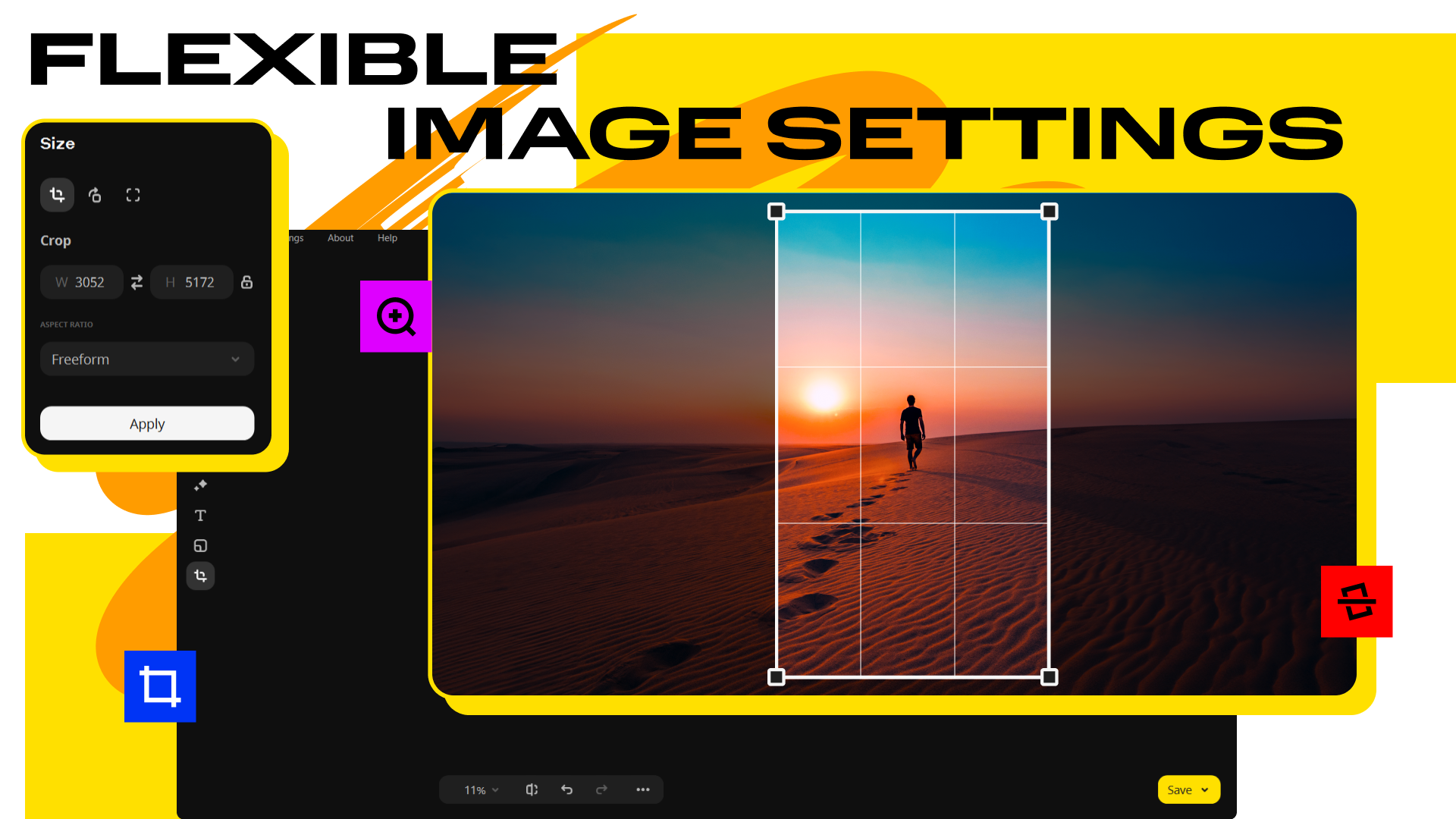
Beyond basic adjustments, Movavi offers a host of smart enhancement options. Whether you want to boost photo brightness, sharpen details, or add a pop of color, the tools are responsive and easy to tweak. The app also boasts a variety of artistic filters that can lend your images different moods—vintage, cinematic, or watercolor—with a single click. These features stand out because they are designed to be accessible to users without a steep learning curve, yet powerful enough to yield impressive results.
Batch Processing and User-Friendly Interface
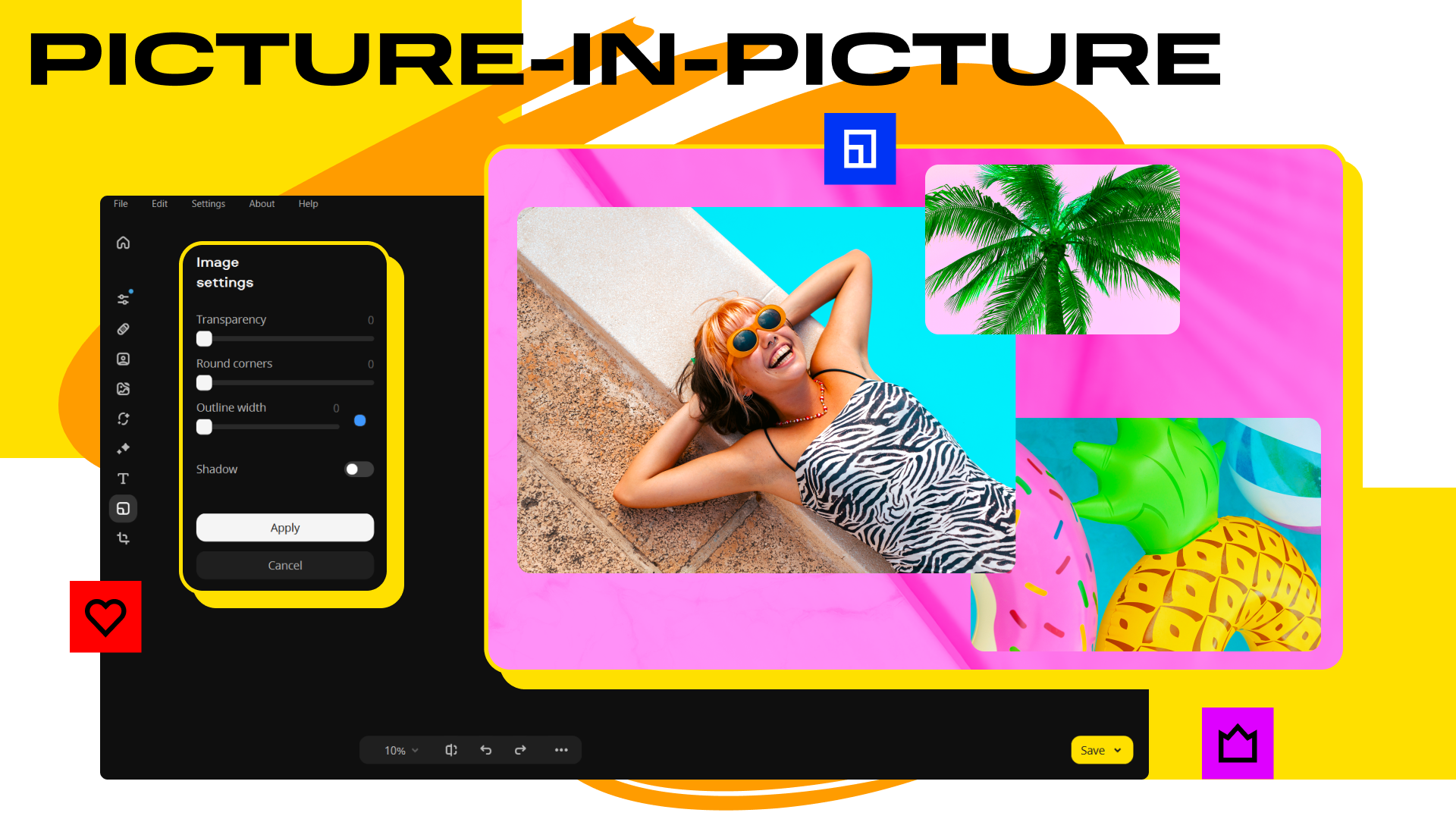
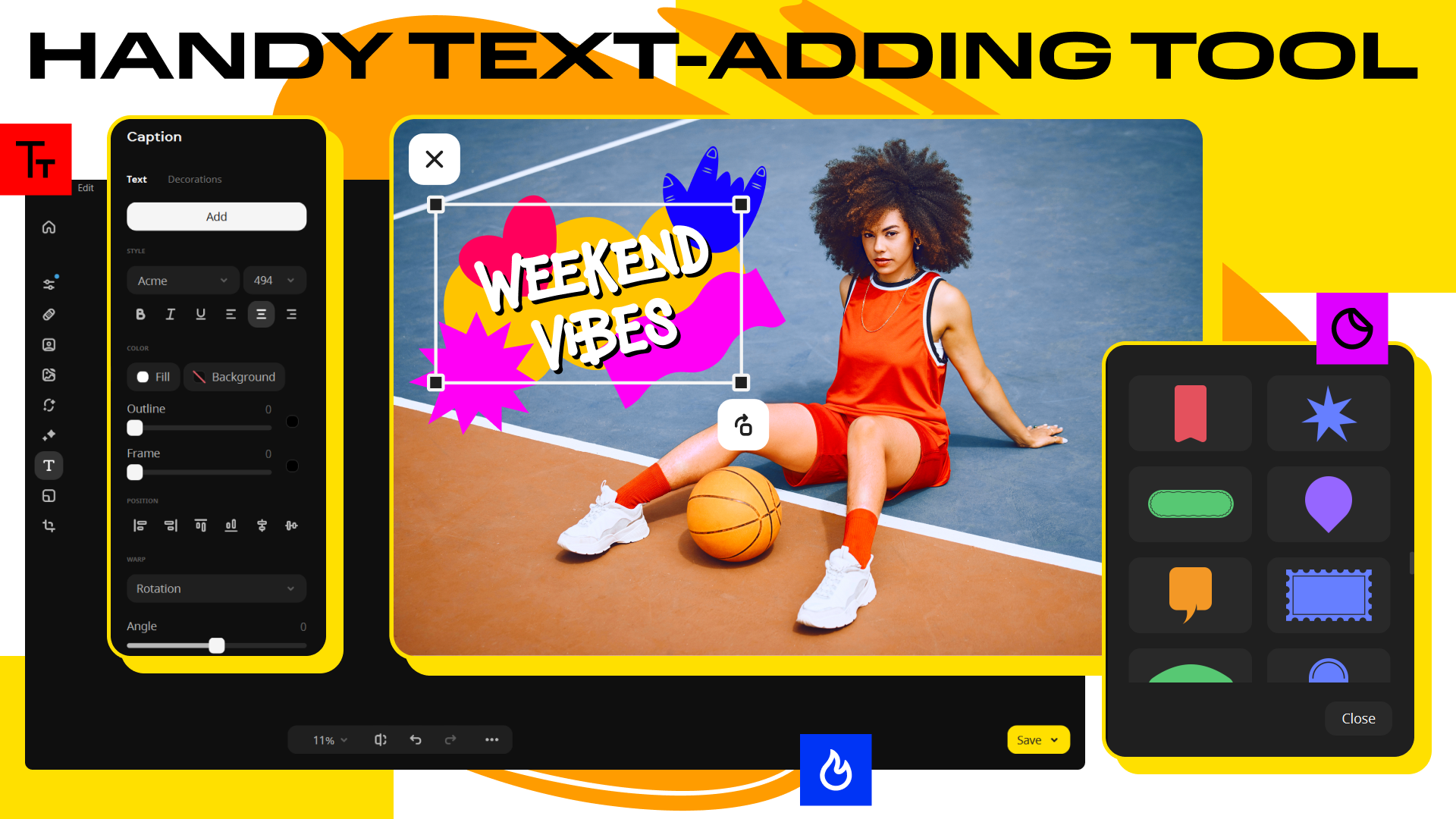
For those with multiple photos to polish, the batch processing feature is a real time-saver, allowing you to apply edits across numerous images simultaneously. The interface is clean, organized, and visually appealing—think of it as a well-arranged workshop where you can quickly find the tools you need. The drag-and-drop functionality and straightforward menu layout make navigation intuitive, even for beginners. Plus, the software's lightweight design ensures smooth operation, avoiding the sluggishness sometimes found in more complex editors.
Design and User Experience: Seamless and Friendly
From first launch, Movavi Photo Editor's interface greets you with a friendly, modern look—colors and icons arranged like a well-curated gallery. The learning curve is gentle; tools are self-explanatory, and inline tutorials help newcomers get started. The responsiveness of the application means actions feel instant, which keeps your creative flow unbroken. Even users new to photo editing will find navigating through features fluid and intuitive, making it feel less like a software and more like a trusted creative assistant.
Standing Out in the Crowd: What Makes Movavi Special?
Compared to other photo editing apps, Movavi's key differentiator lies in its combination of powerful, AI-assisted tools and user-centric design. Its object removal feature, in particular, is notably smooth and accessible—something that many competitors bundle with complicated masking techniques. Additionally, the background replacement feature is thoughtfully integrated, enabling quick scene alterations that look convincingly professional. While some apps boast more advanced editing features, Movavi strikes a commendable balance, offering high-quality results without overwhelming complexity.
Final Verdict: A Solid Choose for Creators
If you're looking for an easy-to-use yet potent photo editor that can handle everyday editing tasks with a touch of creative flair, Movavi Photo Editor for Windows deserves a spot in your toolkit. Its distinct features, like intelligent object removal and effortless background swaps, are particularly impressive. The app's approachable interface and smooth operation make it suitable for newcomers, while still providing enough depth for more seasoned users. I'd recommend it for hobbyists, social media enthusiasts, or anyone craving quick, clean edits without the fuss. Overall, Movavi strikes a fine balance between simplicity and sophistication—an excellent choice for enhancing your visual stories.
Pros
- Intuitive User Interface
- Powerful Photo Editing Tools
- Fast Processing Speed
- Good Export Quality
- Regular Updates
Cons
- Limited Free Features
- Occasional Stability Issues
- Learning Curve for Advanced Tools
- Limited Support for RAW Files
- UI Customization Options Are Sparse