
- Name Microsoft Photos
- Category Photo & video
- Developer Microsoft Corporation
- Available on PC, Surface Hub, Xbox console, Mobile, HoloLens
- OS Windows 10 version 19044.0 or higher
- languages Afrikaans, Albanian, Amharic, Arabic, Armenian, Assamese, Azerbaijani, Bangla (Bangladesh), Bangla (India), Basque, Belarusian, Bosnian (Latin, Bosnia and Herzegovina), Bulgarian, Catalan, Chinese (Simplified), Chinese (Traditional), Croatian, Czech, Danish, Dutch, English (United Kingdom), English (United States), Estonian, Filipino, Finnish, French, French (Canada), Galician , Georgian, German, Greek, Gujarati, Hausa (Latin), Hebrew, Hindi, Hungarian, Icelandic, Indonesian, Irish, Italian, Japanese, Kannada, Kazakh, Khmer, Kiswahili, Konkani, Korean , Lao, Latvian, Lithuanian, Luxembourgish, Macedonian, Malay, Malayalam, Maltese, Maori, Marathi, Nepali, Norwegian (Bokmål), Odia, Persian, Polish , Portuguese (Brazil), Portuguese (Portugal), Punjabi (India), Quechua, Romanian, Russian, Scottish Gaelic, Serbian, Serbian (Cyrillic, Bosnia and Herzegovina), Serbian (Latin, Serbia), Slovak, Slovenian (Slovenia), Spanish (Mexico), Spanish (Spain), Swedish, Tamil, Tatar, Telugu, Thai, Turkish, Ukrainian, Urdu, Uyghur, Uzbek, Valencian, Vietnamese, Welsh
Microsoft Photos for Windows: A Refreshing Take on Your Photo & Video Management
If you're looking for a reliable, user-friendly app to organize, enhance, and enjoy your photos and videos without the confusion of clutter or complexity, Microsoft Photos for Windows offers a well-rounded solution that caters to everyday users and creative enthusiasts alike. Developing from a familiar Windows staple, this app aims to streamline your media experience with thoughtful features and a clean interface.
Basic Information & Highlights
Microsoft Photos for Windows is a free media application designed to help users view, organize, edit, and share photos and videos effortlessly. Created and maintained by Microsoft Corporation, it integrates seamlessly into the Windows ecosystem, offering a familiar yet enhanced media experience.
- Key Features: Intelligent photo organization, powerful editing tools, Memories and automatic slideshow generation, and seamless video editing capabilities.
- Target Audience: Casual users seeking an all-in-one media viewer, amateur and semi-professional photographers, and anyone integrating photos and videos into their digital life on Windows.
Vibrant Introduction: Your Digital Photo Album Comes Alive
Imagine opening a digital photo album that not only displays your cherished memories but also brings them to life with clever organization and subtle enhancements. Microsoft Photos for Windows feels like a trusted friend guiding you through your visual stories—intuitive, friendly, and always ready with a new way to enjoy or share your latest adventure. Whether you're reminiscing over a family gathering or organizing vacation shots, this app transforms the sometimes daunting task of media management into an engaging journey.
Core Functionalities in Focus
Smart Organization & Automatic Curation
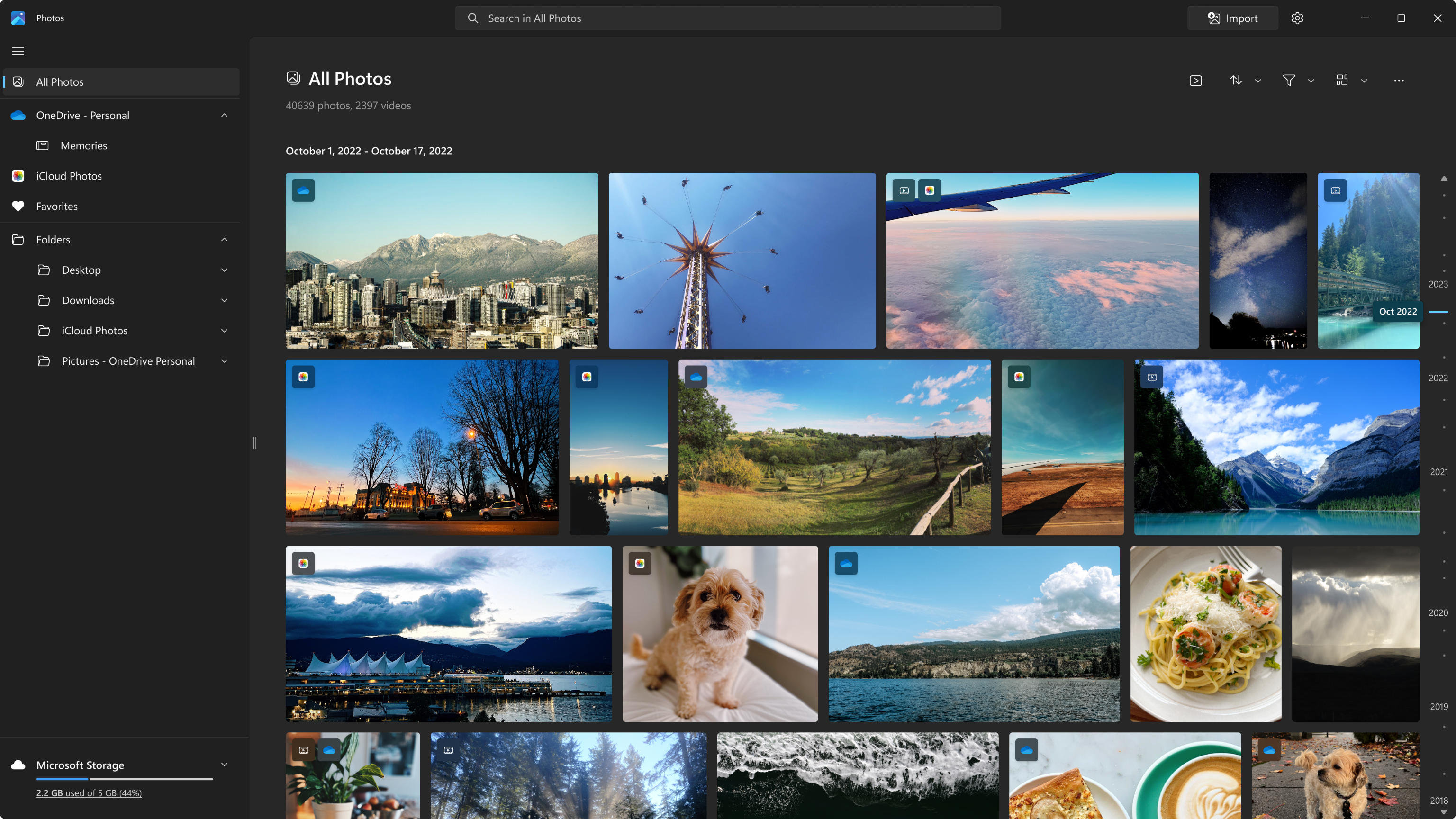
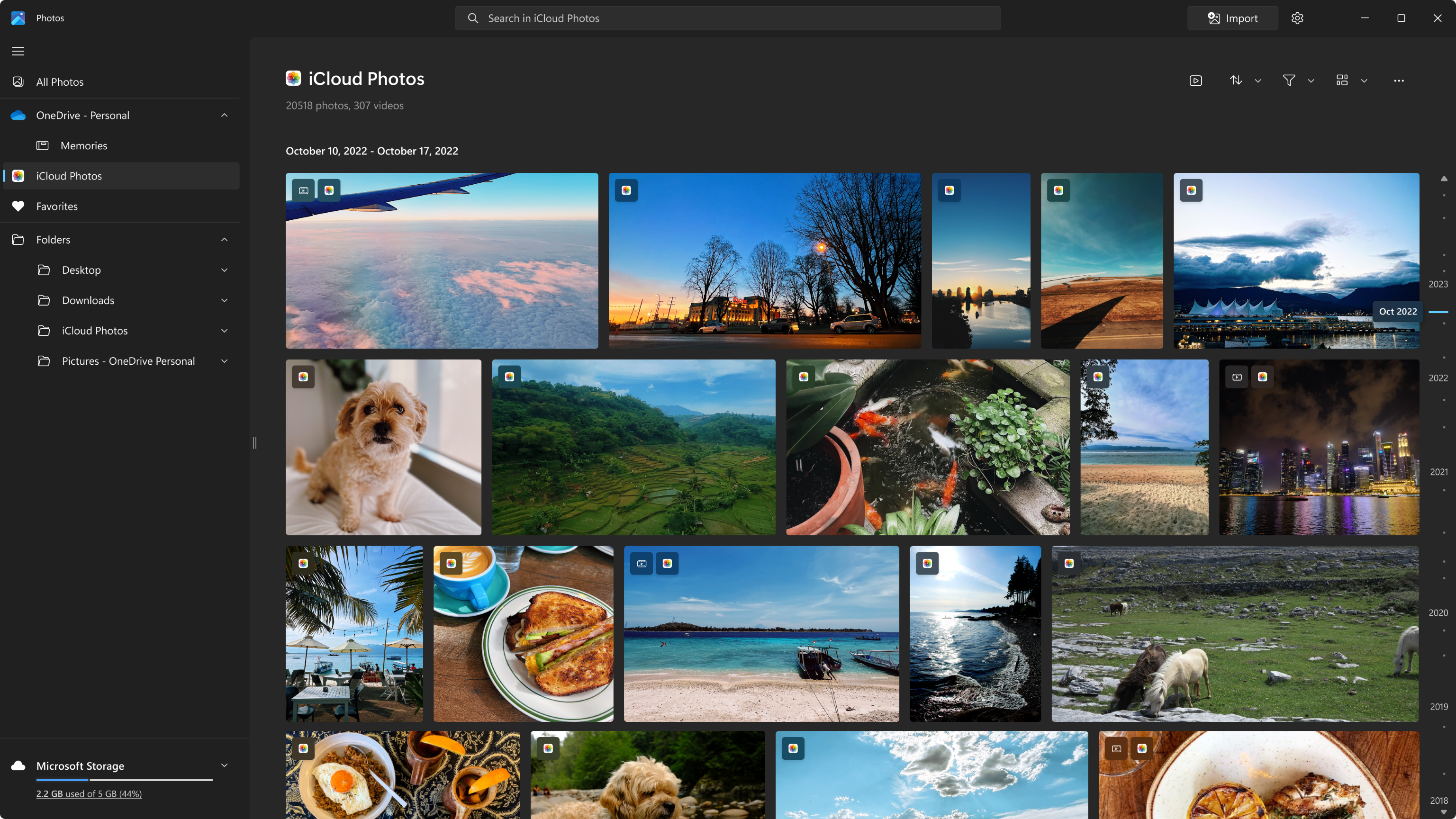
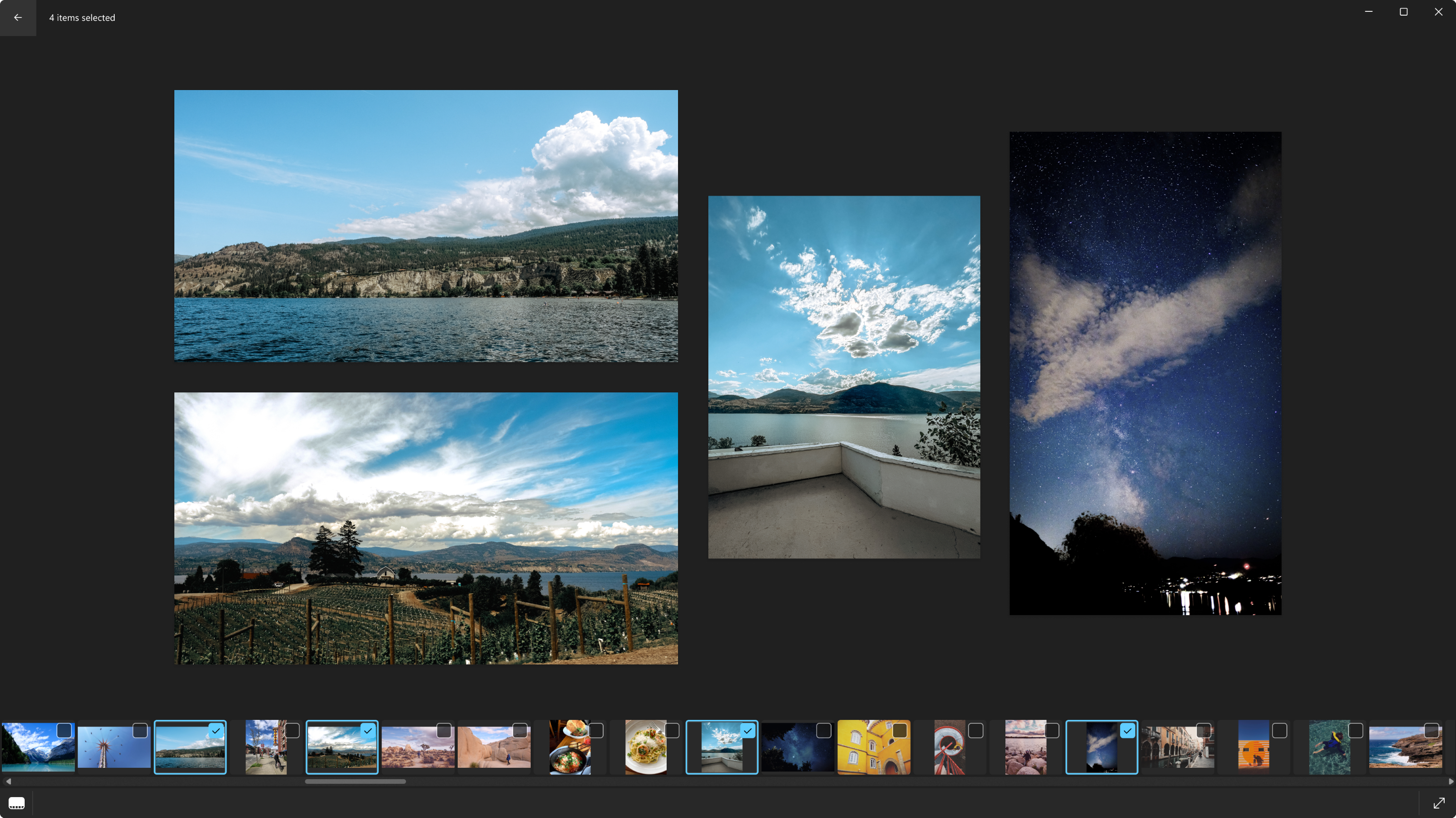
The standout feature of Microsoft Photos is how intelligently it handles your media library. As soon as you import your images, the app analyzes the content through AI-powered algorithms, tagging people, places, and even object types. This makes searching for a specific photo feel like consulting a well-organized album rather than scrolling endlessly. Additionally, its automatic album creation—such as “Best of Last Month” or themed collections—turns your cluttered folder into a polished showcase without manual effort, much like having a personal archivist at your fingertips.
Robust Editing & Enhancement Kit
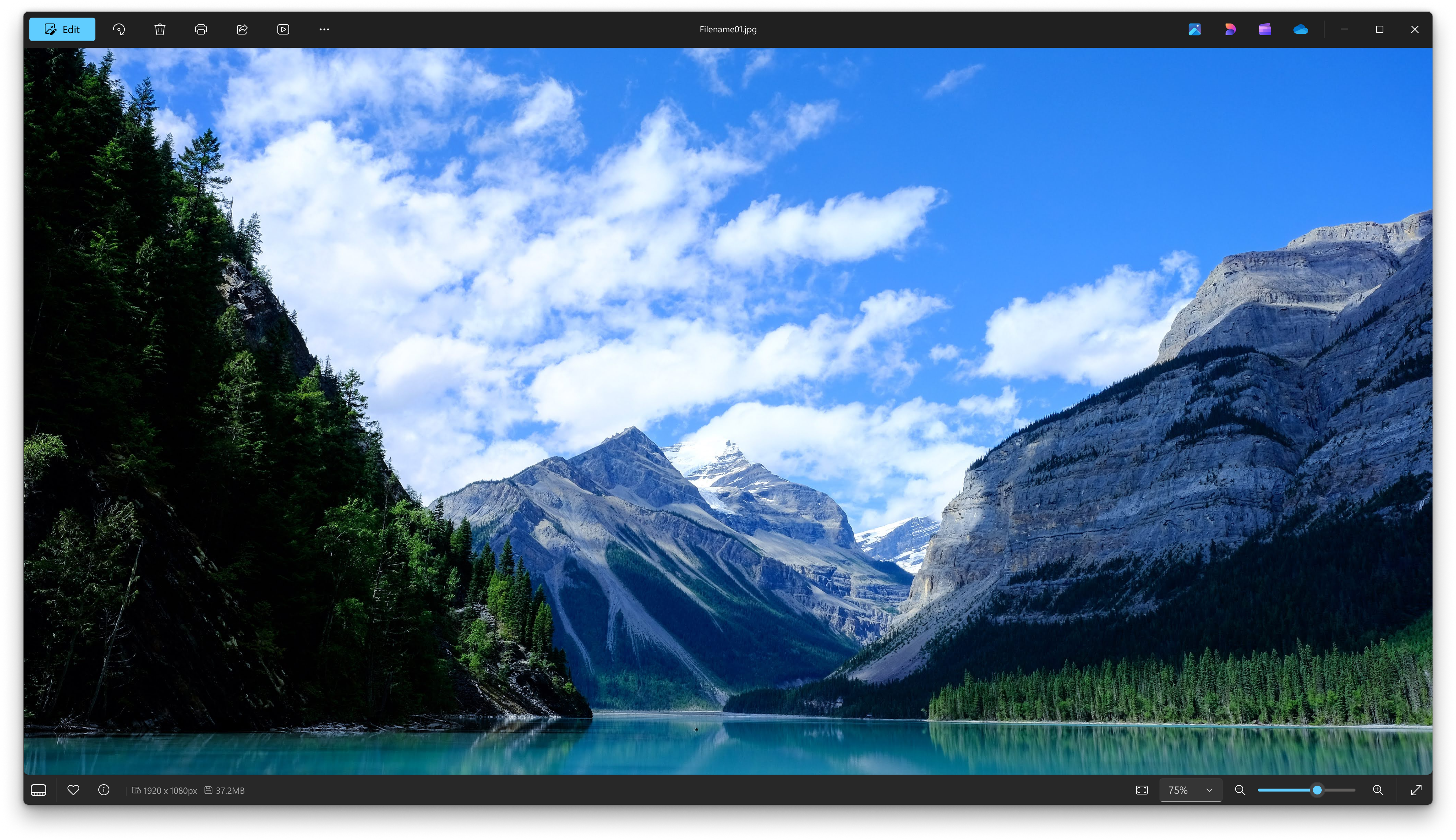
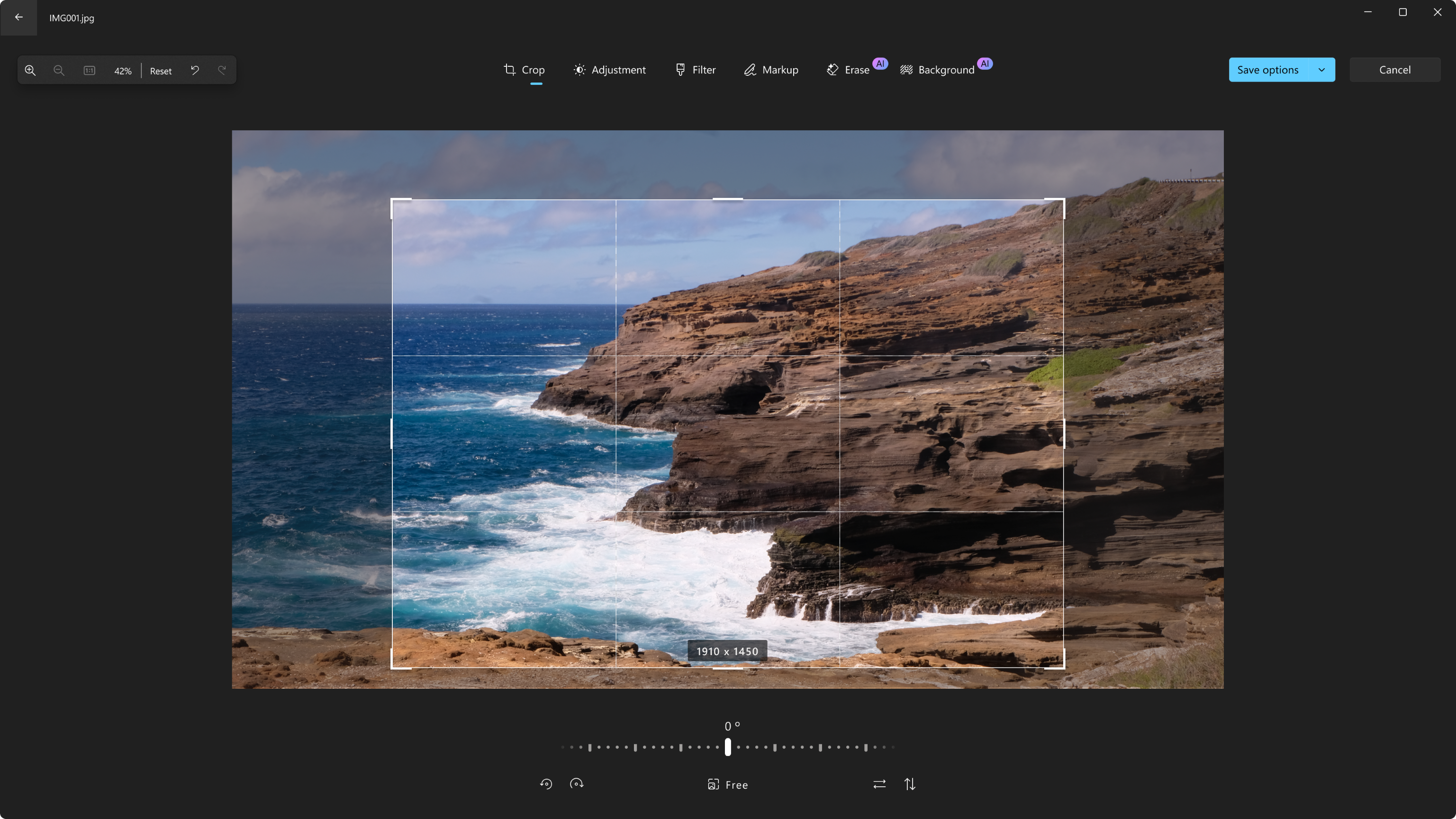
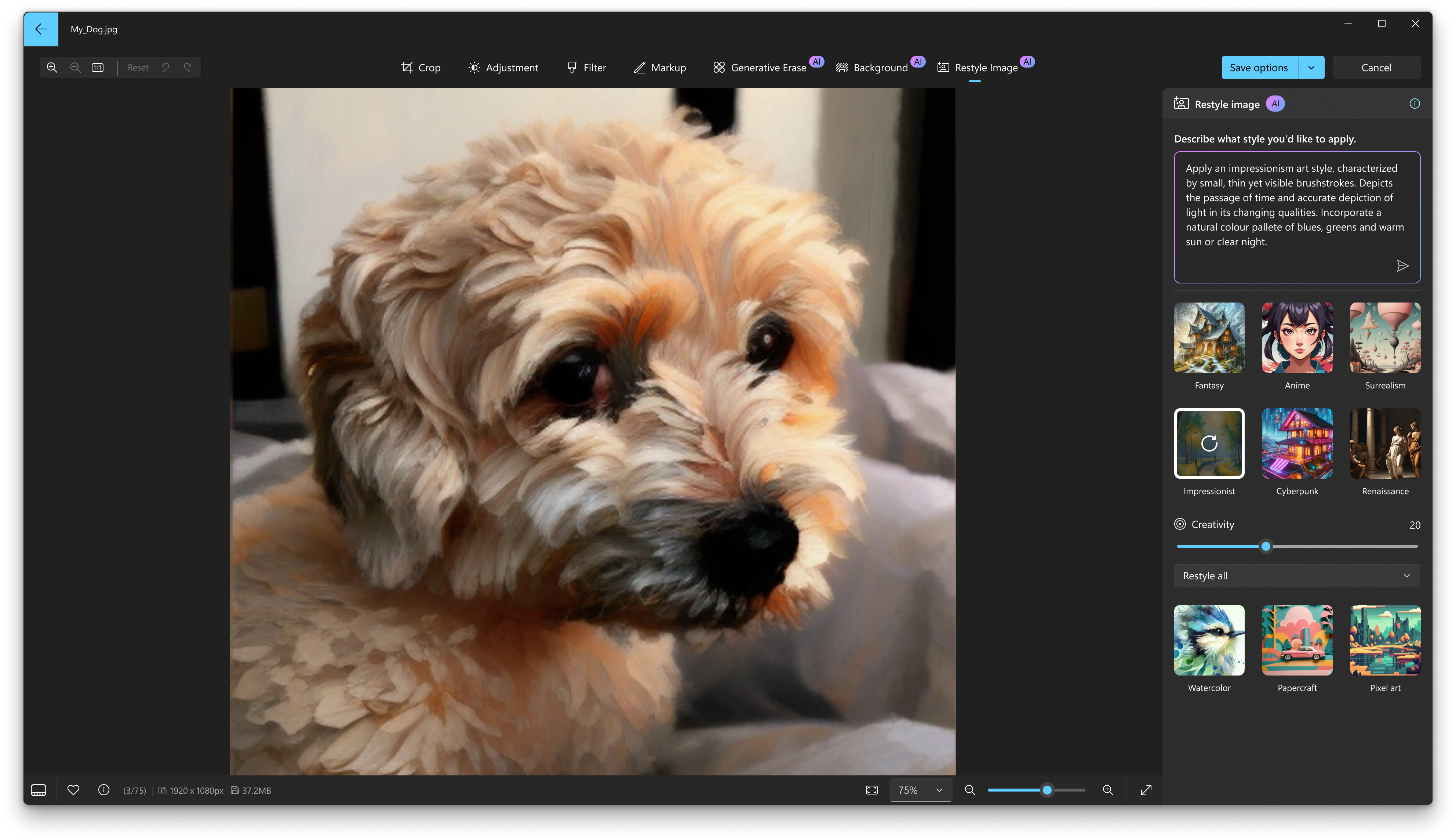
Once you've found that perfect shot, the app offers a suite of editing tools that are surprisingly user-friendly. Adjust brightness, contrast, or apply filters that subtly enhance rather than overhaul your images. The "Refine" feature intelligently improves image clarity, while creative tools like cropping, rotations, and effects are straightforward enough for beginners yet versatile enough for more experienced editors. For videos, the app provides trimming, slow-motion effects, stabilization, and even background music addition, turning your raw footage into share-ready productions.
Memories & Dynamic Slideshows
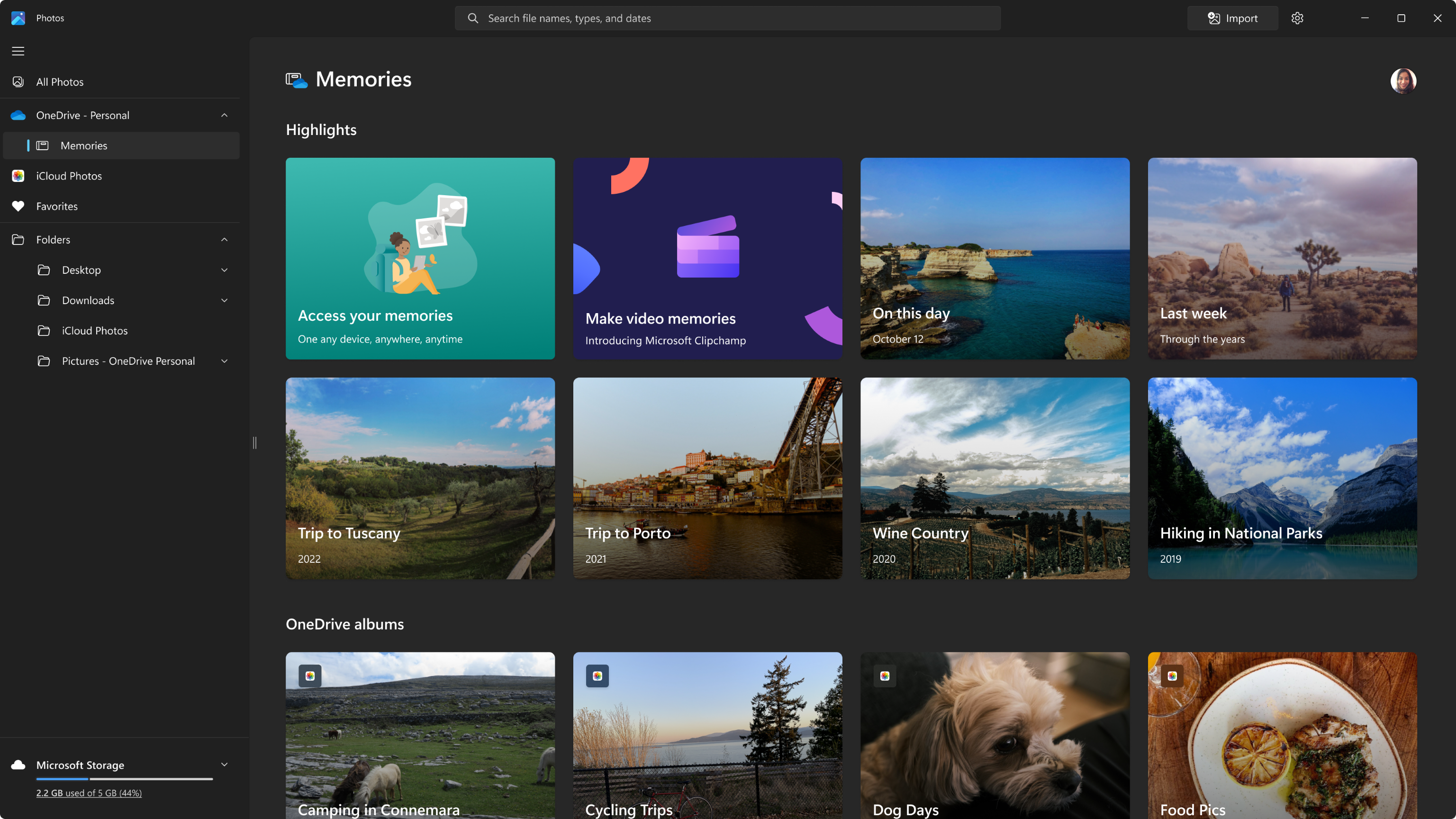
Microsoft Photos excels in transforming static collections into lively narratives through its Memories feature. It automatically assembles highlights from your recent trips, birthdays, or photos of specific people, accompanied by music and smooth transitions. Imagine your photos coming alive in a cinematic slideshow—perfect for sharing with friends or reliving moments yourself. This feature works behind the scenes but offers a satisfying discovery moment when your personal timeline is curated into a mini-movie, showcasing Microsoft's focus on experiential enjoyment.
Design, User Experience, & Unique Edge
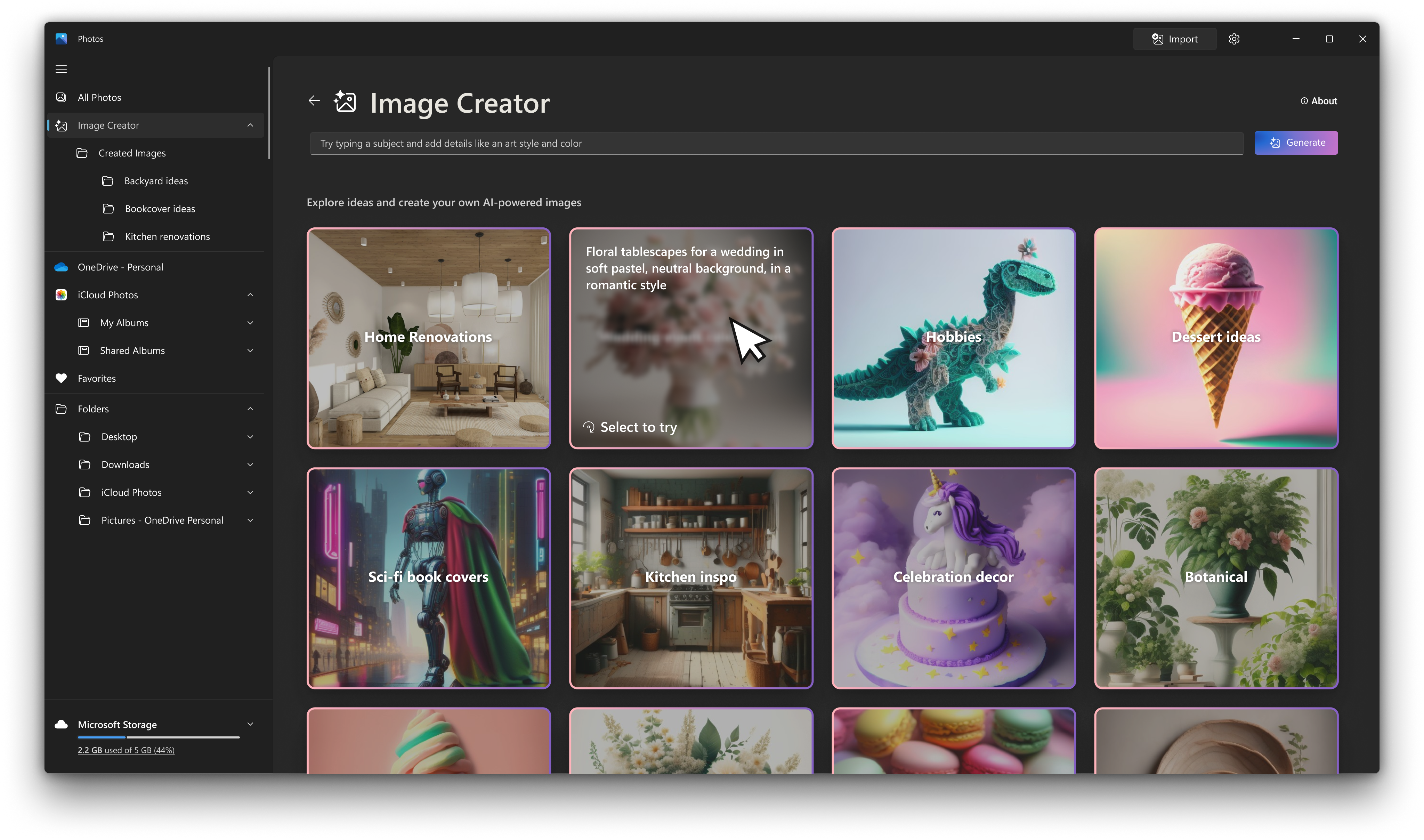
The interface of Microsoft Photos maintains a minimalistic, Windows-typical aesthetic—clean, flat, and easy to navigate. The layout emphasizes simplicity, with quick access to albums, editing tools, and sharing options, making the user experience seamless even for first-time users. The app runs smoothly on standard hardware, with fluid transitions and responsive controls that feel natural, akin to flipping through a digital photo album with a modern touch.
What sets Microsoft Photos apart from other media apps such as Google Photos or Apple Photos is its deep integration into Windows and the detailed AI-backed organization. The ability to directly access your local media library without extra account setup simplifies the workflow significantly. Moreover, the app's automatic album and slideshow generation, powered by intelligent algorithms, gives it a unique edge—saving time and elevating the casual organizing experience to something approaching artistry.
Recommendation & Usage Suggestions
I would recommend Microsoft Photos for Windows as a solid, no-fuss media management tool—especially if you prefer sticking within the Windows environment. Its automatic organization and slideshow features make it particularly appealing for users who want quick, beautiful summaries of their photo library without manual curation. Advanced editors might find the suite basic compared to specialized tools, but for most casual users, it hits a sweet spot of simplicity and capability.
For best results, consider using it as your primary viewing and basic editing hub—then supplement with other specialized apps if your projects require more advanced editing or raw photo processing. Overall, Microsoft Photos is a dependable, approachable app that transforms digital photo management into an enjoyable experience, like having a friendly digital archivist by your side.
Pros
- Intuitive User Interface
- Comprehensive Editing Tools
- Integration with Microsoft Ecosystem
- Supports 4K and HEIF Files
- Built-in Video Editing Features
Cons
- Limited Advanced Editing Options
- Slow Loading Times for Large Libraries
- Occasional Crashes on Certain Devices
- Limited Export Format Options
- Basic Metadata Management