- Name GoPro Player
- Category Photo & video
- Available on PC
- OS Windows 10 version 17134.0 or higher
- Keyboard Integrated Keyboard
- Mouse Integrated Mouse
- Memory 6 GB
- languages English (United States)
Introducing GoPro Player for Windows: A Powerhouse for Action Camera Enthusiasts
Designed for adventure lovers and content creators alike, GoPro Player for Windows is a dedicated application that transforms your footage into cinematic experiences. Whether you're a casual hobbyist or a professional videographer, this tool aims to make editing and reviewing your footage seamless and engaging.
Developed by the Trusted GoPro Team
Crafted by GoPro themselves, the app benefits from the company's deep expertise in action camera technology and video editing software, ensuring compatibility and a design philosophy aligned with their robust hardware products.
Key Features That Make It Stand Out
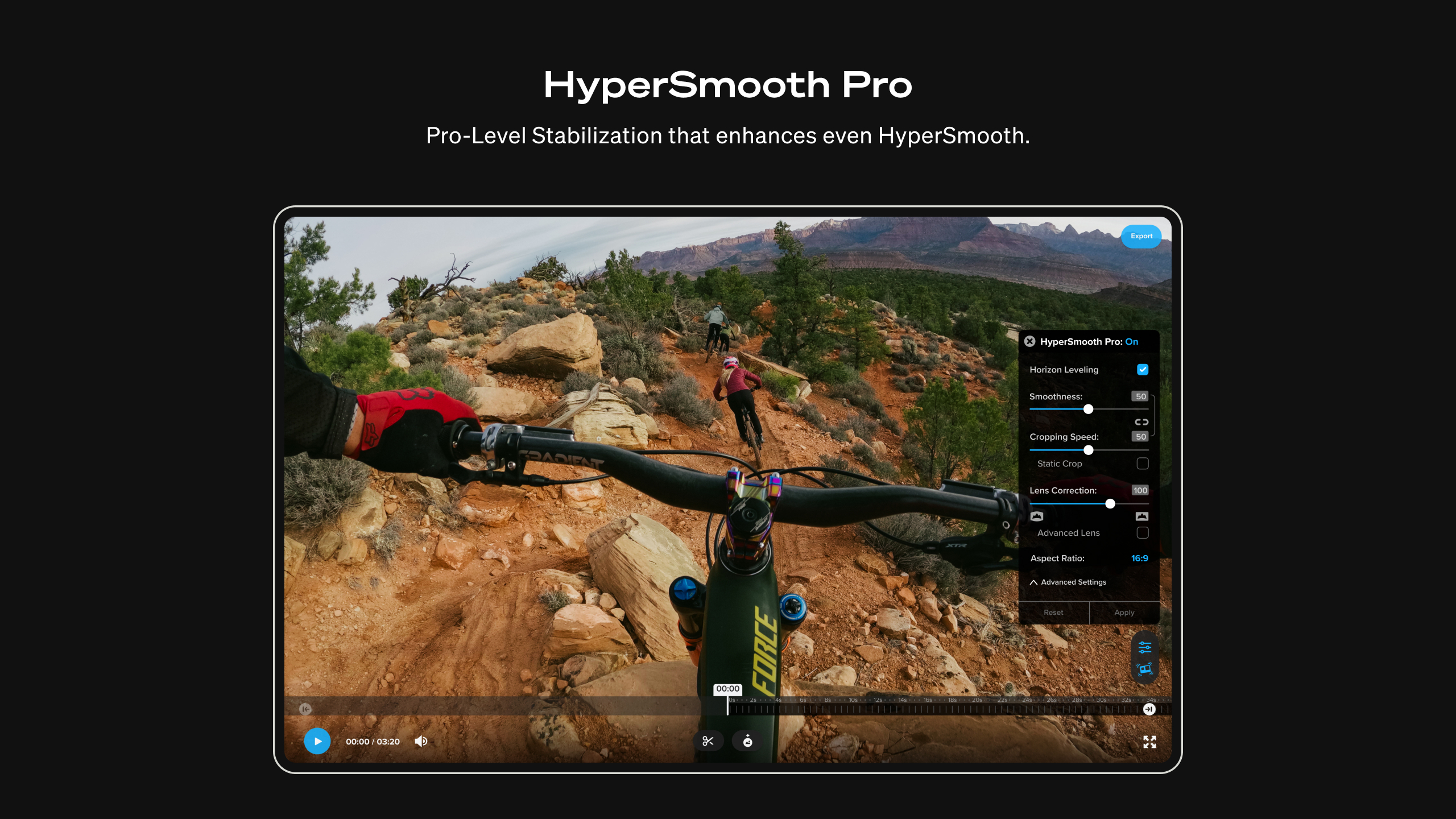
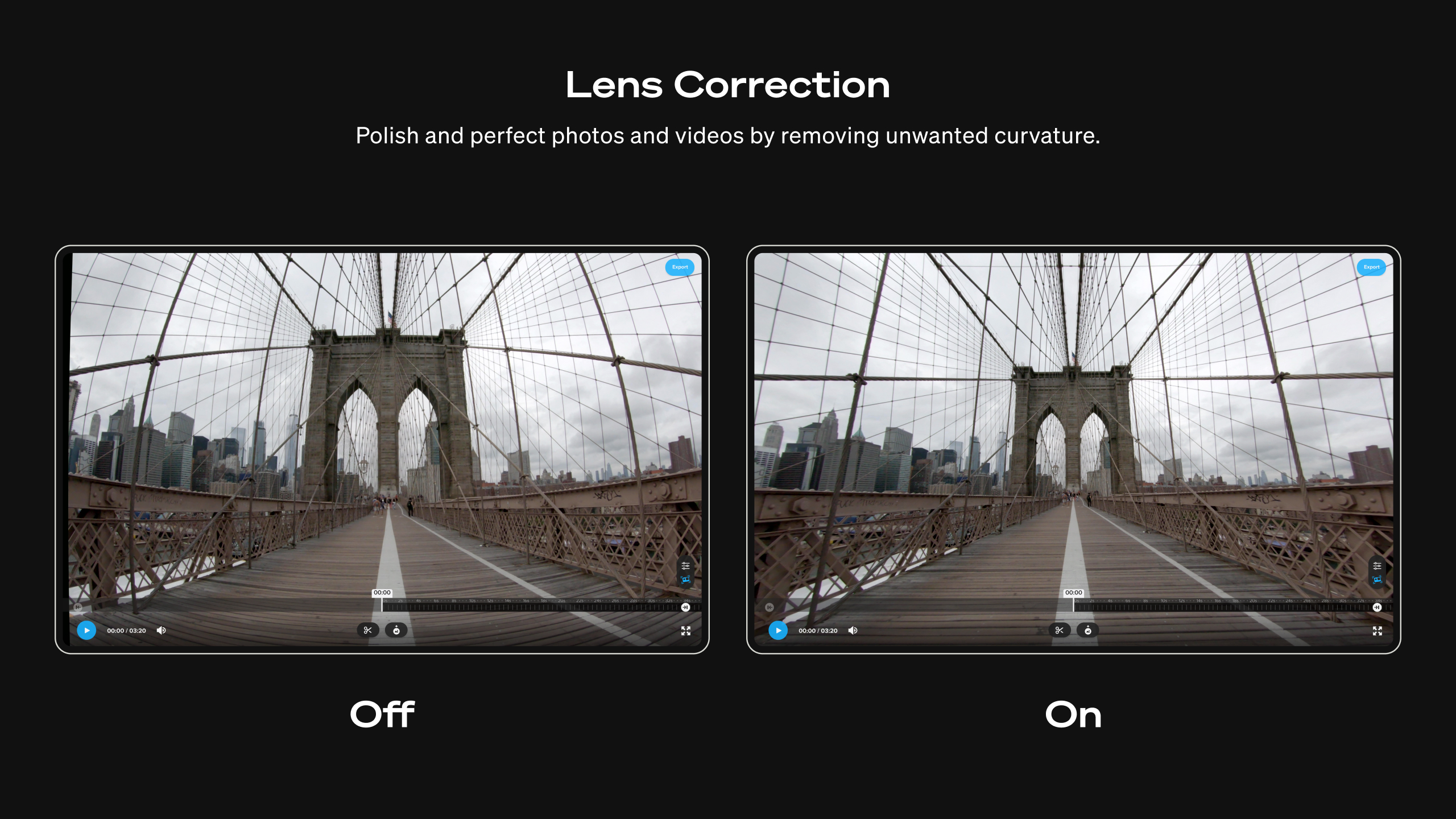
- Advanced Stabilization and Perspective Correction: Effortlessly smooth out shaky footage or change the perspective to get creative effects.
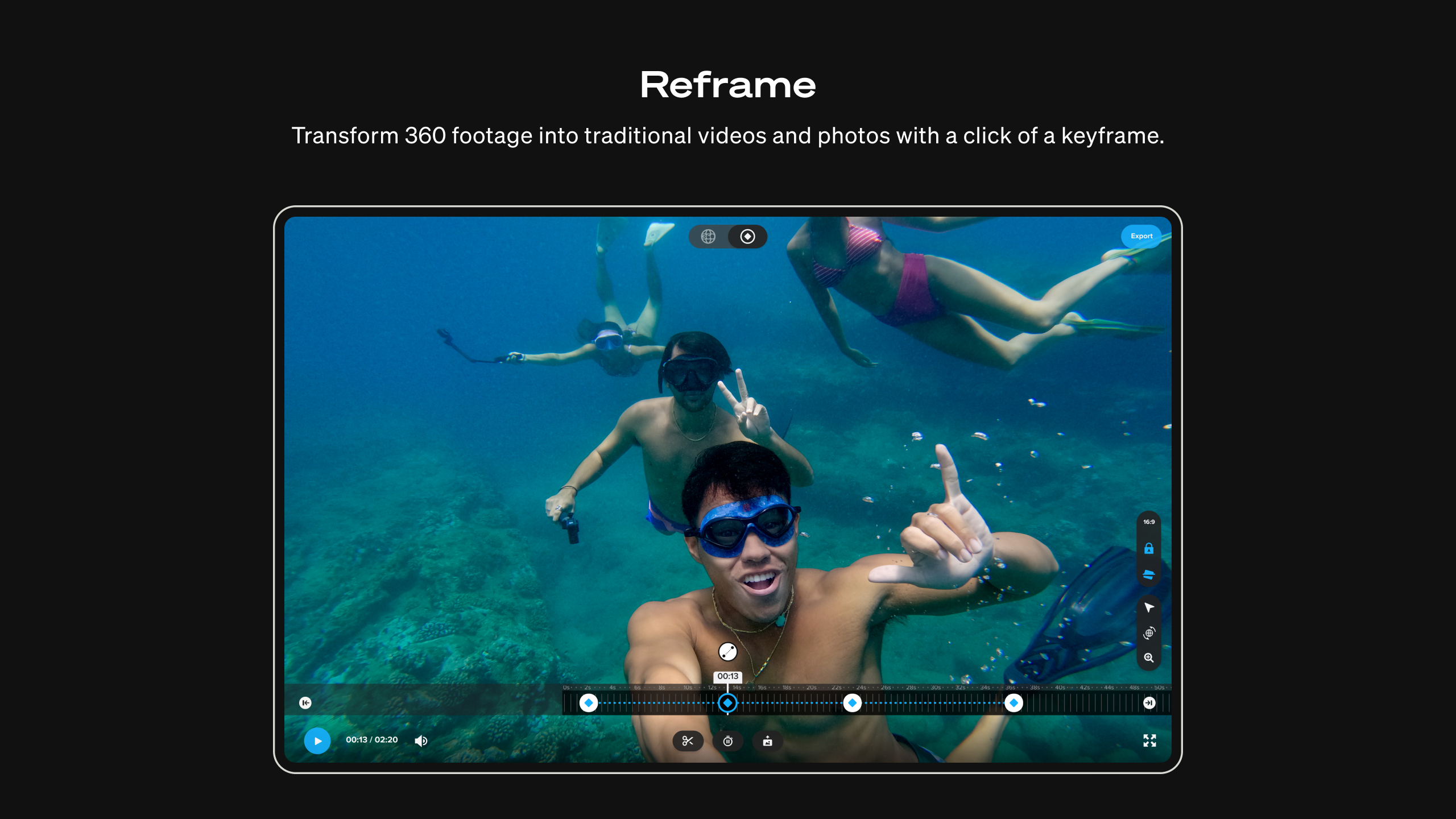
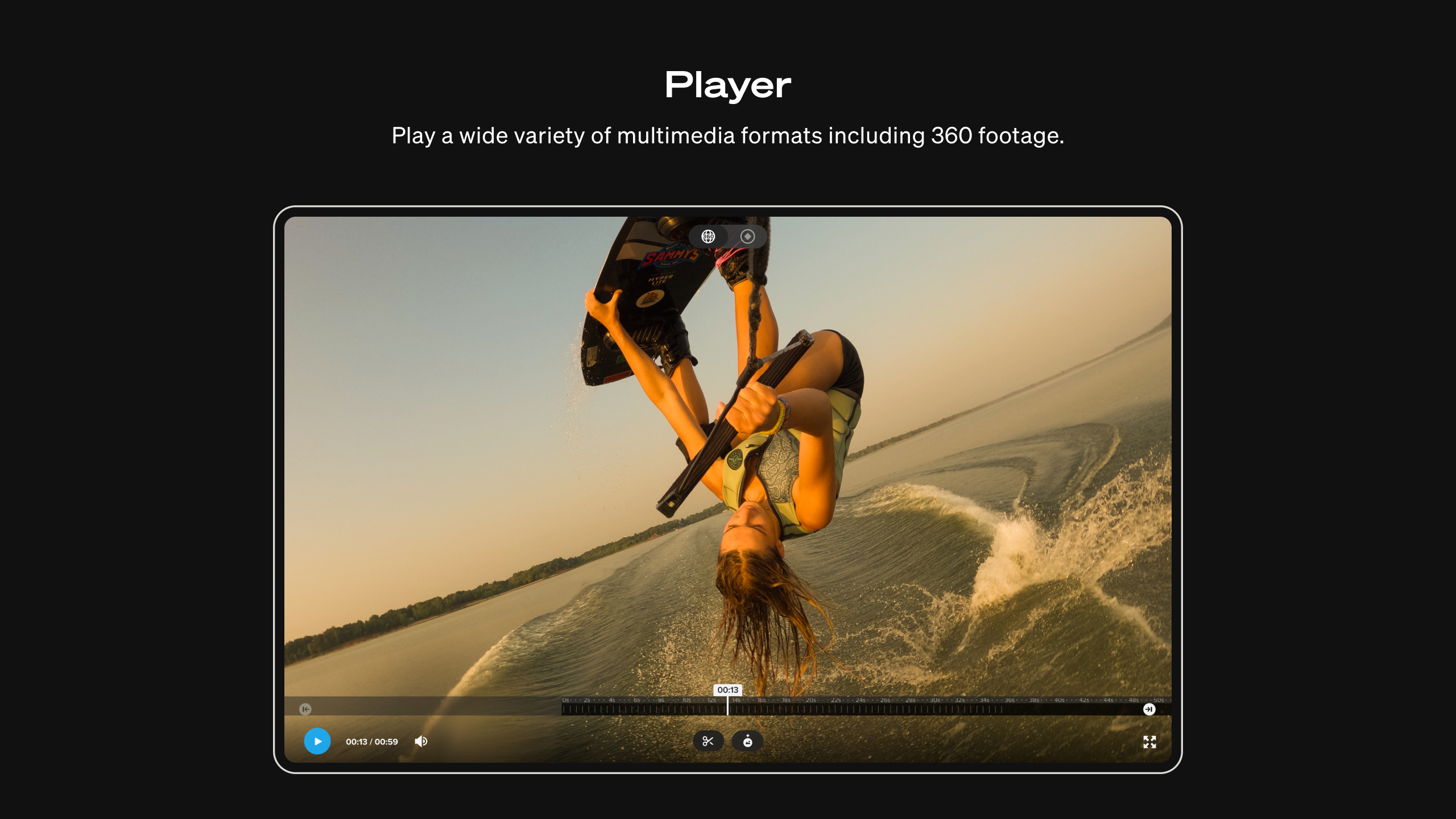
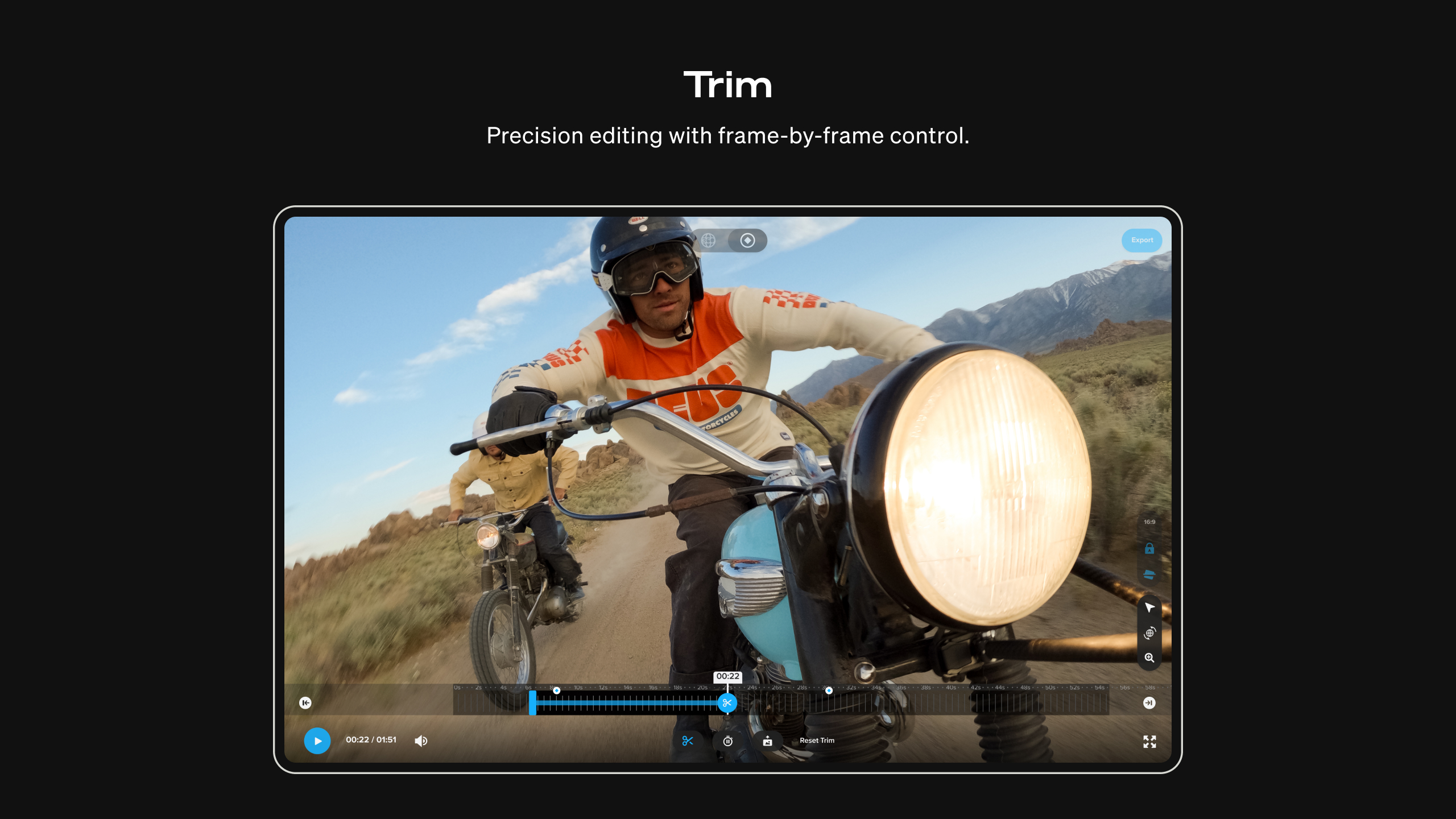
- Seamless Footage Review and Editing: Quickly review, trim, and organize clips from your GoPro camera, all within a clean interface.
- Automatic Highlight Generation: Generate highlight reels from your footage with a single click, perfect for sharing on social media.
- Intuitive User Interface: A user-friendly layout that simplifies complex editing tasks, making it accessible for beginners while satisfying experienced editors.
The app targets active users who shoot a lot of high-adrenaline footage—travelers, sports enthusiasts, vloggers—anyone who wants to turn raw footage into compelling stories without a steep learning curve.
A Dive into GoPro Player: Where Fun Meets Function
If you've ever wrestled with clunky editing software after a day of adrenaline-pumping activities, you'll appreciate how GoPro Player for Windows feels like chatting with a tech-savvy friend: friendly, straightforward, and reliable. Imagine being able to pop open your footage, and within minutes, have an instant highlight—or a perfectly stabilized shot ready to impress your friends. That's the promise of this app's lively and approachable design.
Stabilization and Perspective Correction: Turning Jitters into Joy
One of the app's standout features is its ability to stabilize shaky footage—think of it as giving your camera a steadying hand after the fact. Whether you're skiing down a slope or biking through rugged trails, the software's advanced stabilization smooths out those jitters, transforming your chaotic clips into silky-smooth videos. Additionally, the perspective correction function allows you to alter the optical angle, making mounted shots look as if they were filmed with a professional rig—adding a cinematic touch to your videos.
This feature is particularly useful for those who shoot handheld or with mounting accessories, as it ensures your footage looks polished without needing complex editing techniques. It's like having a virtual steadycam at your fingertips.
Intuitive Editing and Highlight Generation
Another feather in the cap is the seamless review and editing experience. The interface resembles a friendly dashboard, where thumbnails of your clips line up in an organized manner. Cutting, trimming, and arranging clips feels akin to arranging photo prints—simple drag-and-drop actions that don't require a steep learning curve.
What makes this app particularly appealing is its ability to create highlight reels automatically. Instead of manually sifting through hours of footage, you get a quick, thoughtfully curated montage—saving precious editing time and helping you share your adventures faster. This is especially handy for social media uploads or quick storytelling.
Design, Performance, and Uniqueness
The interface strikes a good balance—clean, modern, and logically organized—something like a well-designed workspace that invites you in rather than overwhelms you. Response times during playback and editing are smooth, indicating efficient performance that doesn't frustrate users. While some editing features are basic compared to professional software, the app's simplicity makes it ideal for quick edits and reviews.
What truly sets GoPro Player apart from other general-purpose photo and video apps is its tight integration with GoPro hardware and its ability to optimize footage specifically shot with action cameras. The automatic stabilization and perspective correction are particularly tailored to the unique quirks of action camera footage, making it a specialized tool rather than a generic editor.
Final Thoughts: Is It Worth Your Time?
Given its user-friendly design, powerful stabilization, and automatic highlight features, I'd recommend GoPro Player for Windows to anyone who frequently shoots with GoPro cameras or who values quick, high-quality edits. It's particularly suited for those who want reliable, easy-to-use software without the hassle of learning complex editing suites. If you're looking for a way to enhance your action footage effortlessly, this app is definitely worth trying out—especially considering it's free to download from the Microsoft Store.
To maximize your experience, start with basic edits and explore stabilization and auto-highlights. As you grow more comfortable, you can delve into manual edits for more creative control. Overall, this app acts like a trusty companion on your filming adventures—ready to help you turn raw clips into engaging stories with minimal fuss.
Pros
- User-Friendly Interface
- High-Quality Playback
- Comprehensive Editing Tools
- Optimized for GoPro Footage
- Cloud Sync Capability
Cons
- Limited File Format Support
- Steep Learning Curve for Advanced Features
- Occasional Stability Issues
- Slow Export Speeds During High-Resolution Rendering
- Limited Support for Older Devices