- Name FileZilla Pro
- Category Developer tools
- Developer Tim Kosse and Business Follows
- Available on PC
- OS Windows 10 version 17763.0 or higher
- Keyboard Integrated Keyboard
- Mouse Integrated Mouse
- Memory 300 MB
- languages English (United States)
FileZilla Pro for Windows: A Robust FTP Solution with a Modern Twist
FileZilla Pro for Windows is a versatile and reliable file transfer application designed to streamline your cloud and server connectivity needs, all wrapped in an intuitive interface. Perfect for professionals and enthusiasts alike, it elevates traditional FTP workflows with innovative features and seamless integrations.
About the Developer and Core Features
Developer and Publisher
The application is developed by Tim Kosse and his team, Business Follows srl, a reputable name in the open-source community known for their commitment to stable and secure file transfer solutions.
Main Highlights
- Supports multiple protocols including FTP, SFTP, and WebDAV, thereby covering a broad spectrum of server types.
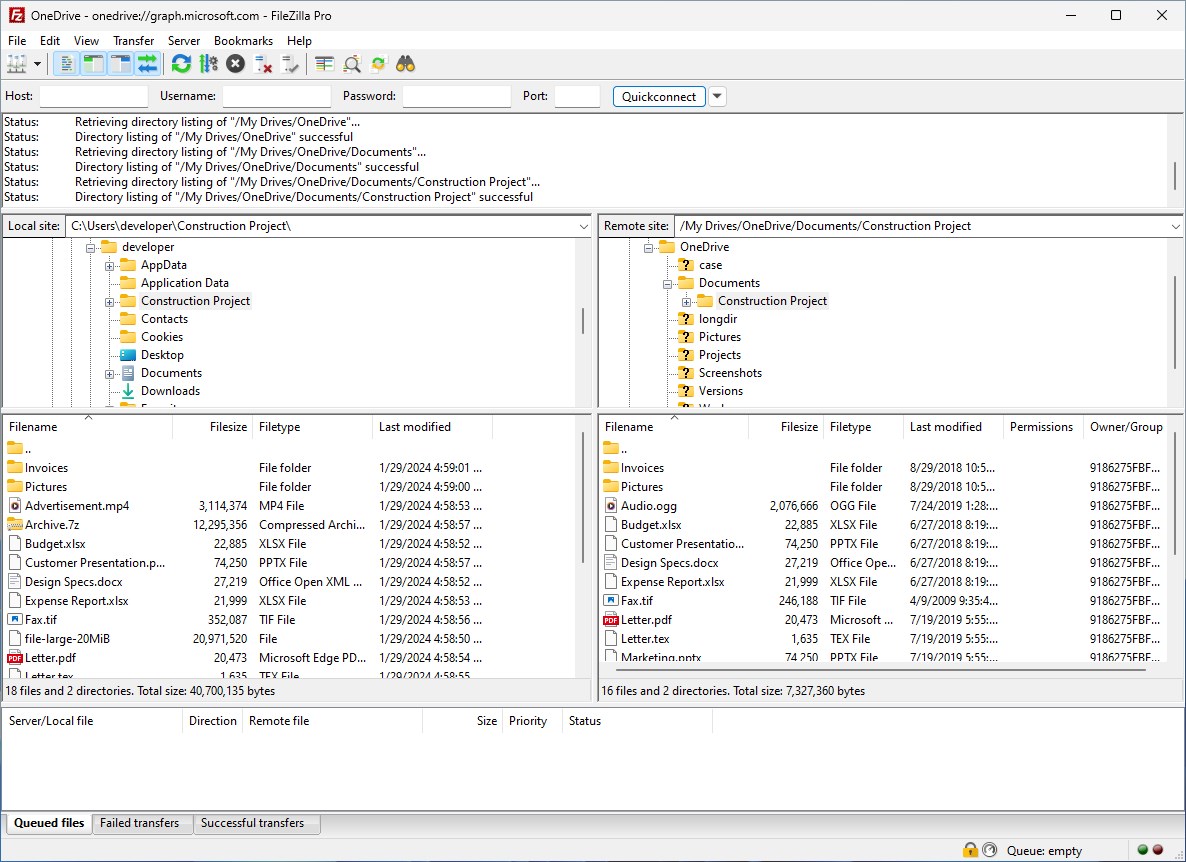
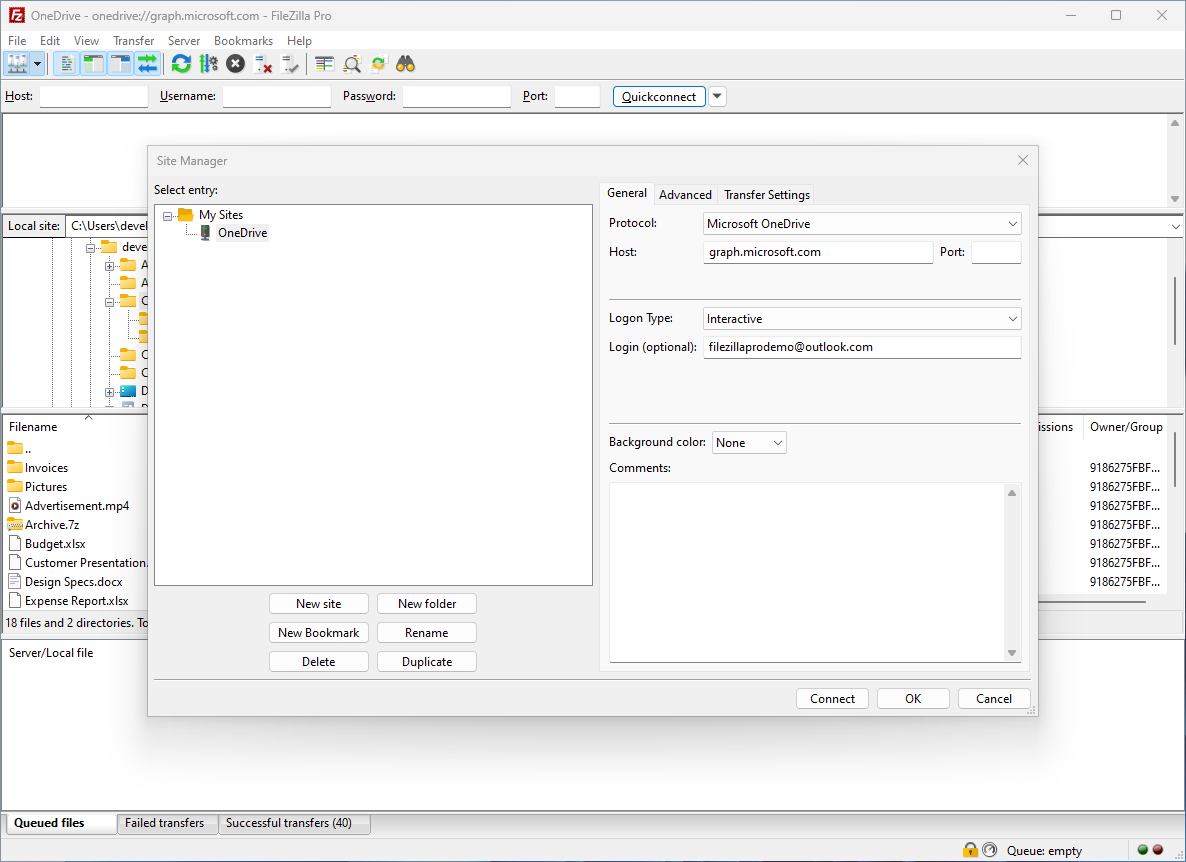
- Enables direct connections to popular cloud storage services such as Dropbox, Google Drive, and OneDrive, bridging local and cloud environments effortlessly.
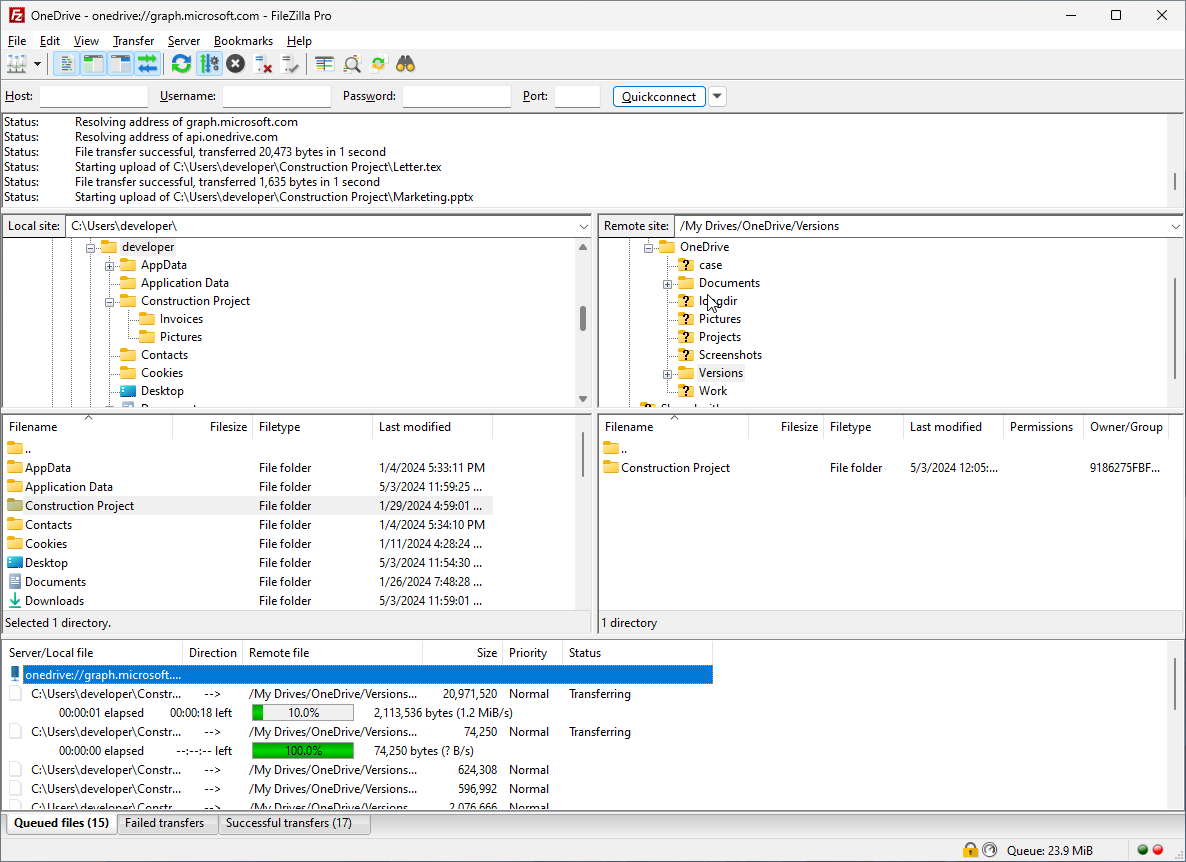
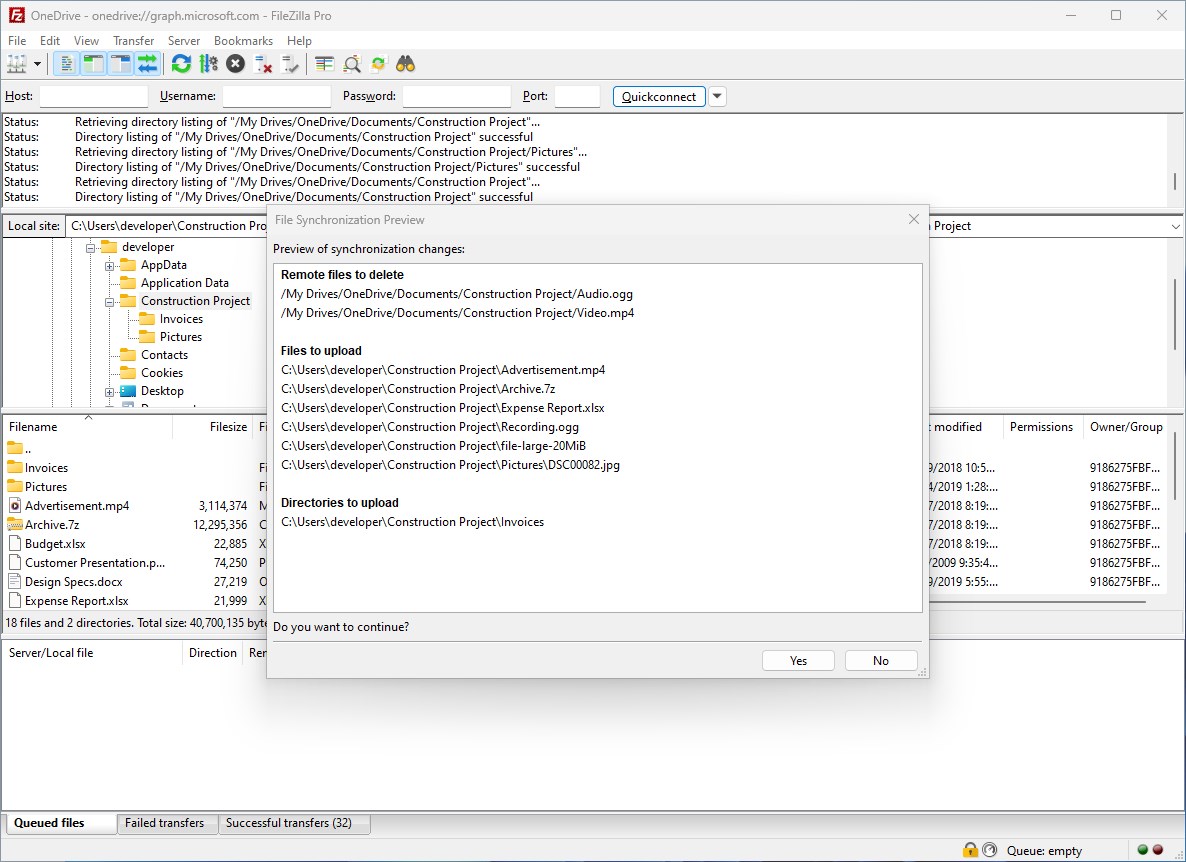
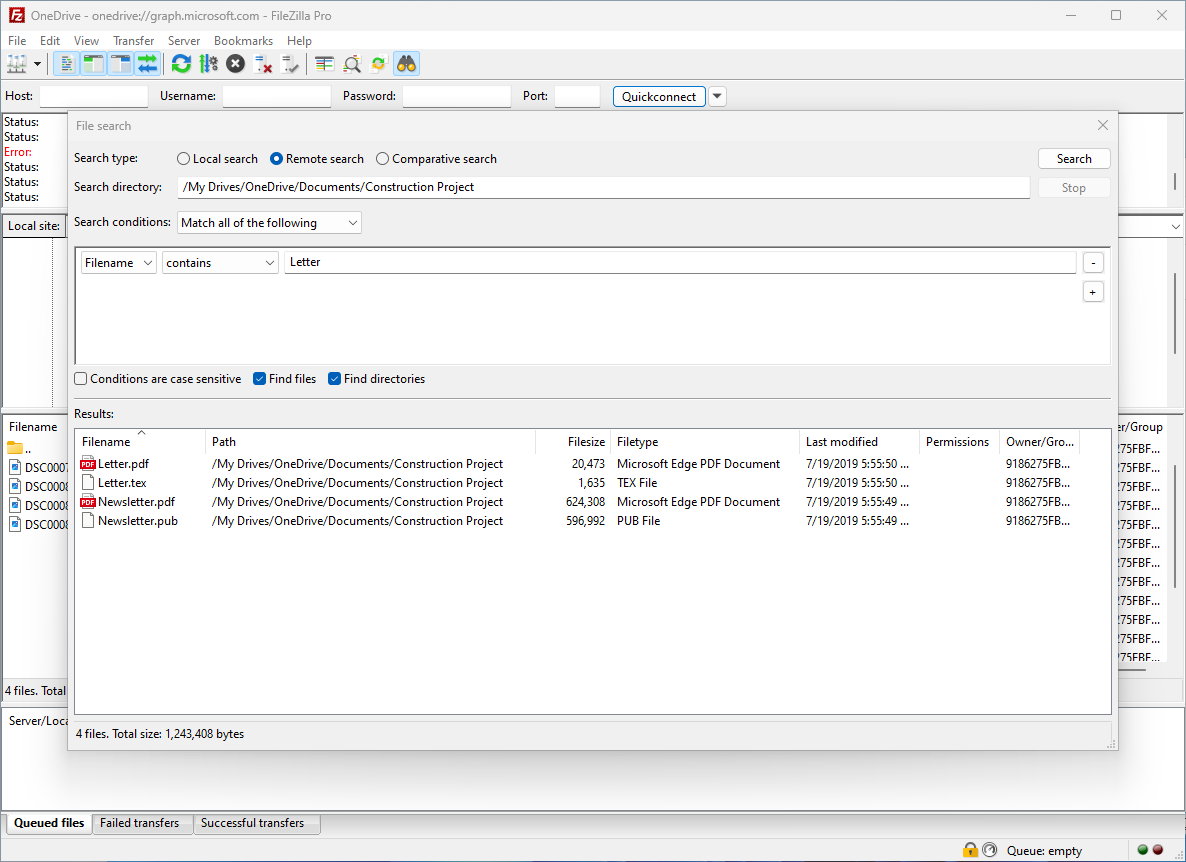
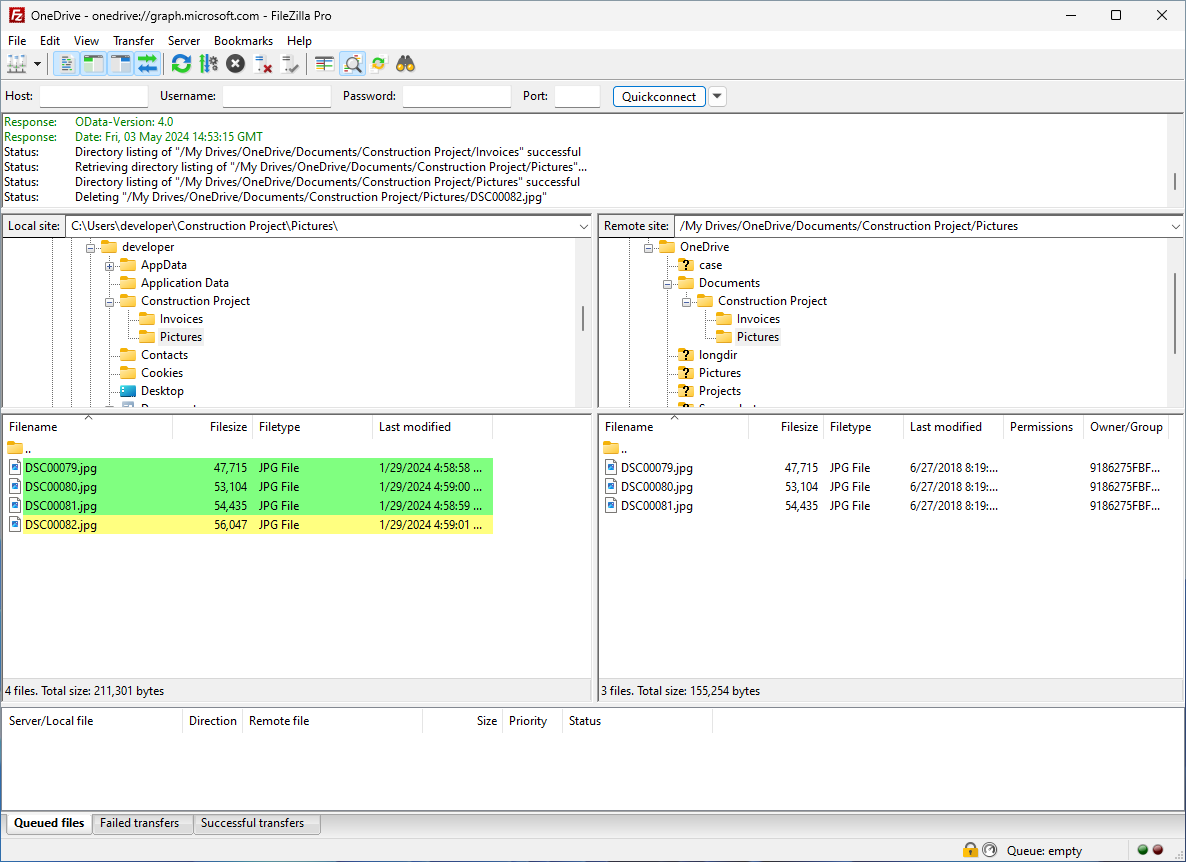
- Offers advanced transfer management with features like queued transfers, directory comparison, and synchronization, enhancing productivity and accuracy.
- Integrates a bookmark system and site manager for quick access and organized workflows.
Target Audience
This application targets web developers, IT professionals, and power users who require secure, efficient, and versatile file transfer capabilities across various servers and cloud platforms.
An Engaging Dive into FileZilla Pro
Imagine you're a digital nomad—your files are like your travel companions, hopping between your local machine, remote servers, and cloud storages. FileZilla Pro steps in as a trusty backpack, allowing you to carry your files effortlessly across different terrains. Its interface is friendly, yet packed with features that cater to the seasoned tech traveler. Let's explore what makes this application stand out from the crowd of file transfer tools.
Seamless Cloud and Server Connections
One of FileZilla Pro's standout features is its ability to connect directly to cloud storage services such as Dropbox, Google Drive, and OneDrive. This isn't just a simple add-on; it's an integrated portal that transforms your desktop into a unified hub for managing local files, cloud contents, and server data. Imagine clicking on a quick link to your Google Drive within the app, then effortlessly drag-and-dropping files into your website's server—no need to juggle multiple apps or browser tabs. This direct integration saves time and reduces the headache of switching contexts. The setup process is straightforward, with clear prompts guiding you through authentication, making it accessible even to less tech-savvy users.
Powerful Protocol Support and Transfer Management
Beyond its cloud capabilities, FileZilla Pro shines with its support for multiple transfer protocols, including FTP, SFTP (SSH File Transfer Protocol), and WebDAV. For those managing large websites or secure data, SFTP support is like having a personal courier delivering your confidential parcels safely. The app's interface allows for queued transfers and batch operations, smoothing out the workflow—think of it as having a conveyor belt for your files. Directory synchronization and comparison features further enhance accuracy, ensuring your local and remote folders mirror each other with just a few clicks.
Design, Usability, and Unique Selling Points
The UI of FileZilla Pro resembles a well-organized workshop—clean, logical, and responsive. Navigation feels natural, and transitions are smooth, allowing users to focus on their tasks instead of struggling with the interface. The learning curve is gentle for basic operations, yet it provides enough depth for advanced users to customize and optimize workflows. Unlike many traditional FTP tools, FileZilla Pro's integration with cloud services and multi-protocol support are game-changers. It's like having a Swiss Army knife for all your file transfer needs, eliminating the need to juggle multiple separate apps. The ability to switch seamlessly between local, server, and cloud environments provides a unique efficiency edge that can't be easily matched.
Final Thoughts and Recommendations
FileZilla Pro for Windows delivers reliability, versatility, and a modern approach to file transfers. Its standout features—particularly the integration with cloud storage services and comprehensive protocol support—make it an invaluable tool for users managing diverse data environments. While it maintains a user-friendly interface suitable for newcomers, its rich feature set benefits experienced professionals as well.
For those looking to streamline cross-platform workflows with a single, unified application, FileZilla Pro is highly recommended. It's a solid investment to make your file management smoother, safer, and more organized—think of it as adopting a dependable, all-in-one digital assistant. Whether you're maintaining websites, transferring large datasets, or managing cloud files, this tool adapts to your needs without fuss. Give it a try, and see how much more efficient your file handling can become.
Pros
- Intuitive User Interface
- Wide Protocol Support
- Secure Data Transfers
- Advanced Synchronization Options
- Reliable Transfer Resumption
Cons
- High Resource Consumption
- Limited Free Features
- Occasional Connection Issues
- Complex Settings for Beginners
- Delayed Updates