- Name Epson Print and Scan
- Category Photo & video
- Available on PC
- OS Windows 8 or higher
- languages Chinese (Simplified), Chinese (Traditional Chinese), Dutch, English, French, German, Italian, Japanese, Korean, Portuguese, Spanish
Seamless Printing and Scanning Experience with Epson Print and Scan for Windows
If you're seeking a reliable, straightforward tool to manage your Epson printing and scanning needs on Windows, Epson Print and Scan offers a dedicated solution. Think of it as a Swiss Army knife designed for your Epson devices—compact, efficient, and ready to tackle various tasks seamlessly.
Developed by SEIKO Epson Corporation: Trust from a Legacy
Created by SEIKO Epson, a globally renowned leader in imaging and printing technology, this application embodies their commitment to quality and user-friendly design. With decades of expertise, Epson ensures that users get a smooth, stable experience tailored specifically for Epson printers and scanners.
Core Highlights: What Makes This App Stand Out?
- Optimized Printer and Scanner Management: It intelligently detects connected Epson devices, simplifying setup and ensuring stability during operations.
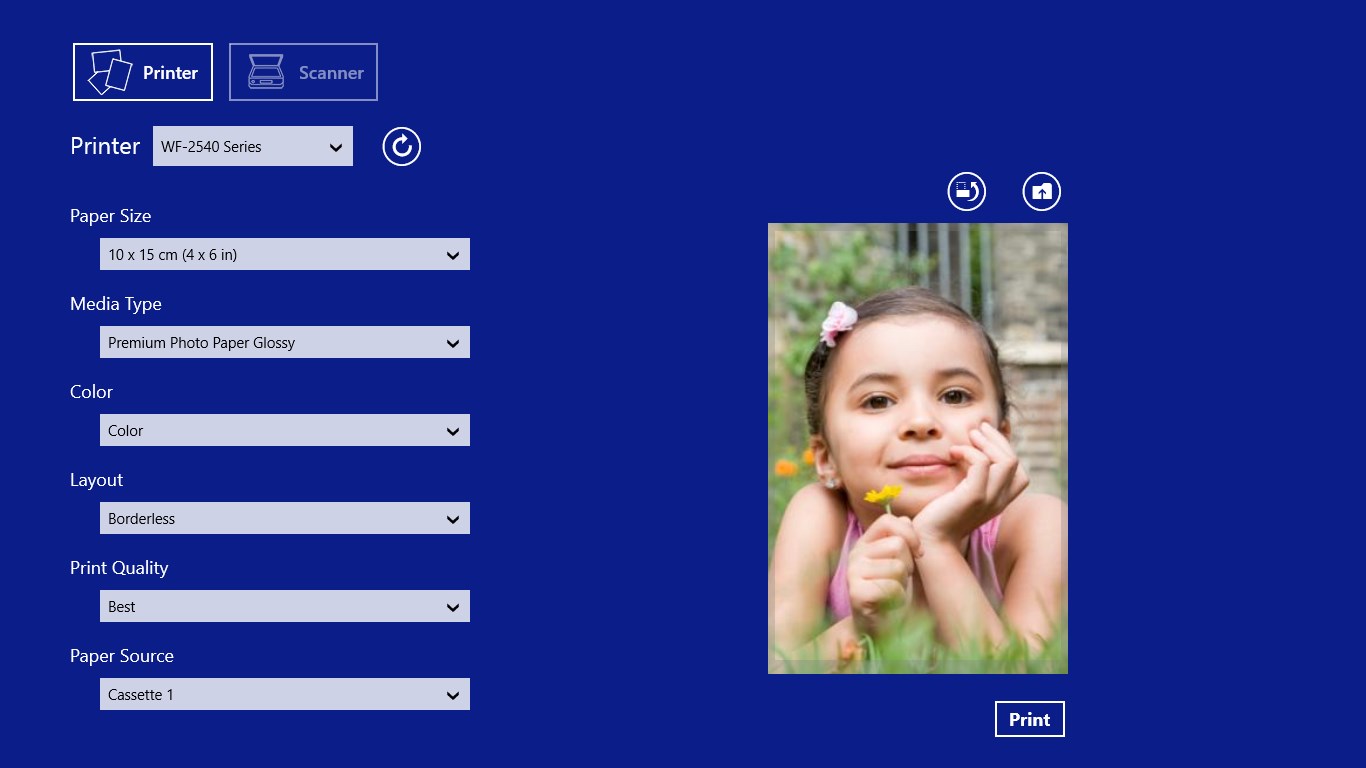
- Versatile Printing Options: Supports various print modes, including photo printing, double-sided printing, and custom settings—perfect for both casual and professional use.
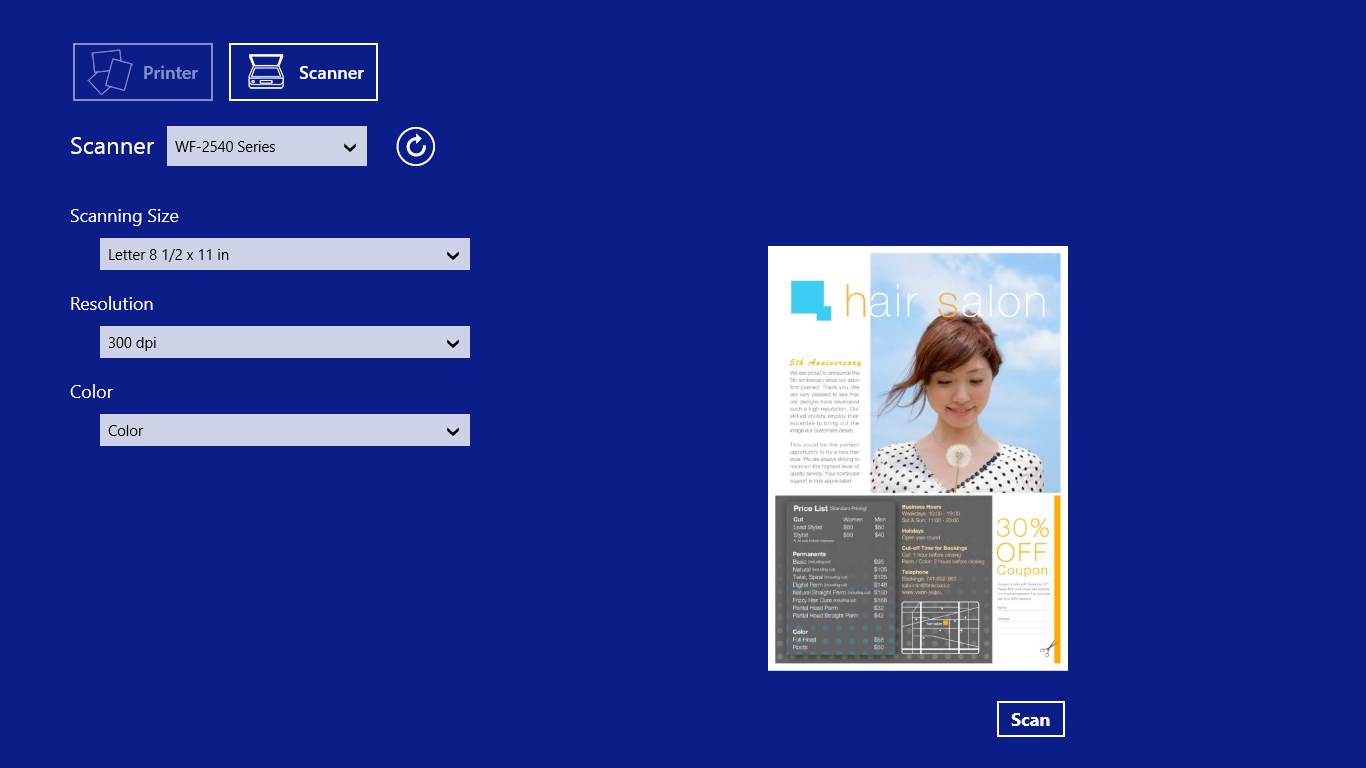
- Enhanced Scanning Features: Facilitates high-quality scans with options to organize, edit, and directly save files in multiple formats, streamlining your workflow.
- User-Friendly Interface: Designed with simplicity in mind, making it accessible for users of all experience levels.
The target users range from home users who print occasional photos or documents to small business owners needing reliable device management and consistent print quality.
A Vibrant Peek into the User Experience
Imagine plugging into a device that feels less like a complex tech gadget and more like an intuitive extension of your workflow. From the instant you launch Epson Print and Scan, a clean and uncluttered interface welcomes you—bright, approachable, and easy to navigate. The app's responsiveness is evident; actions like selecting a printer or initiating a scan happen swiftly, without frustrating delays. It feels as smooth as gliding over a well-polished surface—nothing cumbersome, just fluid, effortless control.
The User Interface: Simplicity Meets Elegance
The design strikes a fine balance—clear icons, straightforward menus, and contextual prompts guide you effortlessly. Whether you're a tech novice or a seasoned pro, learning the ropes takes mere minutes. No steep curves or confusing jargon—just intuitive navigation that feels natural, like chatting with a knowledgeable friend who truly understands your needs.
Performance and Workflow: Reliable and Seamless
The app's operation is notably stable; once your devices are connected, tasks like photo printing or document scanning execute reliably. Batch printing and multi-page scans are handled gracefully, making it suitable for bulk jobs without hiccups. During test runs, it maintained speedy processing even with high-resolution images, highlighting its efficiency. So, whether you're crafting photo albums or digitizing important documents, Epson Print and Scan stands ready to be your dependable partner.
Unique Selling Points: How It Outshines Similar Applications
Unlike generic printer management apps or multi-purpose photo editors, Epson Print and Scan is laser-focused on delivering the best experience for Epson hardware. Its standout feature is the tight integration with Epson devices, allowing for optimization specific to their technology. This results in superior print quality, fewer connection issues, and a streamlined scanning process. Additionally, the app includes intelligent presets and customizable options that cater specifically to diverse printing and scanning needs, which many broader applications overlook.
Moreover, its emphasis on straightforward usability—designed to serve both tech-savvy users and novices—gives it an edge over more complicated, feature-heavy apps that often overwhelm users with options they don't need.
Final Verdict: A Solid Choice for Epson Users
All things considered, Epson Print and Scan for Windows earns a recommending nod—especially if you're an Epson device owner craving a dedicated, reliable management tool. Its focus on ease of use, stability, and device-specific optimization makes it a practical choice for everyday printing and scanning tasks. While it may not reinvent the wheel, it refines the core functions to a high standard, making your interaction with Epson devices smoother and more efficient.
If your current setup involves regularly printing photos or managing scanned documents, this app is worth trying out. Install it, explore its capabilities, and experience how it transforms routine tasks into simple, satisfying workflows.
Pros
- User-friendly interface
- Seamless scanning and printing
- Wireless connectivity support
- Multiple file format compatibility
- Regular updates
Cons
- Occasional connection drops
- Limited customization options
- Slow response time when switching devices
- Some features are not available for all printer models
- UI could improve for complex tasks