- Name Desktop Lock
- Category Security
- Developer TopLang
- Available on PC
- OS Windows 10 version 0.0 or higher
- languages English, English (Afghanistan), English (Åland Islands), English (Albania), English (Algeria), English (American Samoa), English (Andorra), English (Angola), English (Anguilla), English (Antarctica), English (Antigua and Barbuda), English (Armenia), English (Aruba), English (Australia and New Zealand), English (Australia), English (Azerbaijan), English (Bahamas), English (Bangladesh), English (Barbados), English (Belarus), English (Belize), English (Benin), English (Bermuda), English (Bhutan), English (Bolivia), English (Bonaire, Saint Eustatius and Saba), English (Bosnia and Herzegovina), English (Botswana), English (Bouvet Island), English (British Indian Ocean Territory), English (British Virgin Islands), English (Brunei), English (Bulgaria), English (Burkina Faso), English (Burundi), English (Cambodia), English (Cameroon), English (Canada), English (Cape Verde), English (Caribbean), English (Cayman Islands), English (Central African Republic), English (Chad), English (Christmas Island), English (Cocos (Keeling) Islands), English (Comoros), English (Congo (DRC)), English (Congo), English (Cook Islands), English (Côte d'Ivoire), English (Croatia), English (Curaçao), en-cz, English (Djibouti), English (Dominica), English (Dominican Republic), English (Eastern Africa), English (Equatorial Guinea), English (Eritrea), English (Estonia), English (Ethiopia), English (Falkland Islands), English (Faroe Islands), English (Fiji), English (French Guiana), English (French Polynesia), English (French Southern and Antarctic Lands), English (Gabon), English (Gambia), English (Georgia), English (Germany), English (Ghana), English (Gibraltar), en-gr, English (Greenland), English (Guadeloupe), English (Guam), English (Guernsey), English (Guinea-Bissau), English (Guinea), English (Guyana), English (Haiti), English (Heard Island and McDonald Islands), English (Honduras), English (Hong Kong SAR), en-hu, English (Iceland), English (India), English (Indonesia), English (Iraq), English (Ireland), English (Isle of Man), English (Israel), English (Jamaica), English (Jersey), English (Jordan), English (Kazakhstan), English (Kenya), English (Kiribati), English (Kyrgyzstan), English (Laos), English (Latvia), English (Lesotho), English (Liberia), English (Libya), English (Lithuania), English (Macao SAR), English (Macedonia, FYRO), English (Madagascar), English (Malawi), English (Malaysia), English (Maldives), English (Mali), English (Malta), English (Marshall Islands), English (Martinique), English (Mauritius), English (Mayotte), English (Micronesia), English (Moldova), English (Monaco), English (Mongolia), English (Montserrat), English (Mozambique), English (Myanmar), English (Namibia), English (Nauru), English (Nepal), English (Netherlands Antilles (Former)), English (Netherlands), English (New Caledonia), English (New Zealand), English (Nicaragua), English (Niger), English (Nigeria), English (Niue), English (Norfolk Island), English (Northern America), English (Northern Mariana Islands), English (Oman), English (Pakistan), English (Palau), English (Palestinian Authority), English (Papua New Guinea), English (Philippines), English (Pitcairn Islands), English (Puerto Rico), English (Qatar), English (Reunion), English (Romania), English (Rwanda), English (Saint Barthélemy), English (St Helena, Ascension, Tristan da Cunha), English (Saint Kitts and Nevis), English (Saint Lucia), English (Saint Martin (French Part)), English (Saint Pierre and Miquelon), English (Saint Vincent and the Grenadines), English (Samoa), English (San Marino), English (São Tomé and Príncipe), en-sa, English (Senegal), English (Seychelles), English (Sierra Leone), English (Singapore), English (Sint Maarten), English (Slovakia), English (Slovenia), English (Solomon Islands), English (Somalia), English (South Africa), English (South Georgia and the South Sandwich Islands), English (Southern Africa), English (Sri Lanka), English (Sudan), English (Suriname), English (Svalbard and Jan Mayen), English (Swaziland), English (Tajikistan), English (Tanzania), English (Thailand), English (Timor-Leste), English (Togo), English (Tokelau), English (Tonga), English (Trinidad and Tobago), English (Turkey), English (Turkmenistan), English (Turks and Caicos Islands), English (Tuvalu), English (U.S. Minor Outlying Islands), English (U.S. Virgin Islands), English (Uganda), en-ae, English (United Kingdom), English (United States), English (Uzbekistan), English (Vanuatu), English (Holy See (Vatican City)), English (Vietnam), English (Wallis and Futuna), English (Western Africa), English (Zambia), English (Zimbabwe)
Unveiling Desktop Lock for Windows: A Reliable Guardian for Your Digital Workspace
If you're on the lookout for a straightforward yet powerful way to secure your Windows desktop, Desktop Lock for Windows by TopLang offers a practical solution. Designed for users who value simplicity without sacrificing security, this app acts like a steadfast lock that keeps prying eyes and uninvited guests at bay. Whether you need to protect sensitive work files or prevent accidental modifications, Desktop Lock provides a user-friendly interface with robust features tailored to everyday security needs.
About the Developer and Core Features
Developed by TopLang, a team dedicated to crafting intuitive and reliable security tools, Desktop Lock for Windows stands out with its focus on simplicity and effectiveness. The app's main strengths include:
- Easy Lock and Unlock Functionality: Instantly secures your desktop with a single click, ensuring privacy without complex setups.
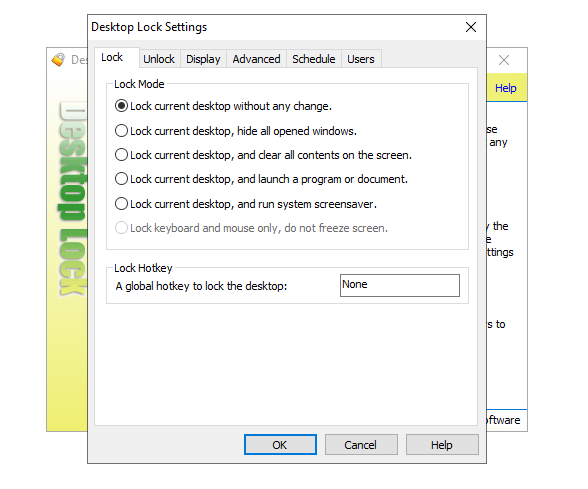
- Customizable Lock Modes: Offers various lock options, including password protection, time-based locks, or simple visual barriers, catering to different security preferences.
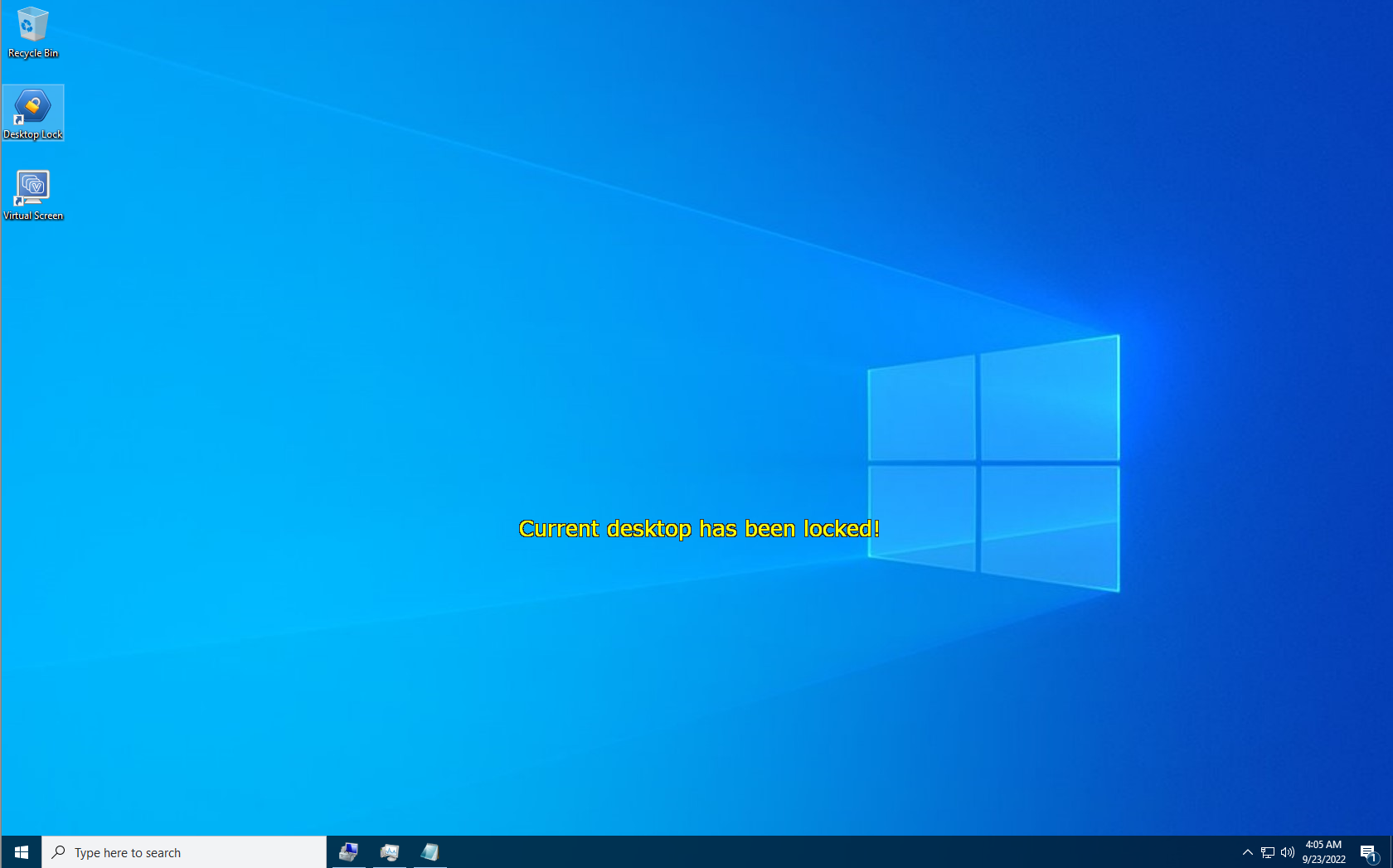
- Secure Screen Blocking: Prevents unauthorized access during periods of absence, functioning like an invisible barrier that only you can lift.
- Lightweight & Efficient: Does not consume excessive system resources, ensuring seamless operation even on modest hardware.
Targeting everyday users, including students, remote workers, or anyone needing quick privacy assurances, Desktop Lock aims to be the digital equivalent of drawing a curtain in front of your workspace.
Engaging with the App: From First Impressions to Daily Use
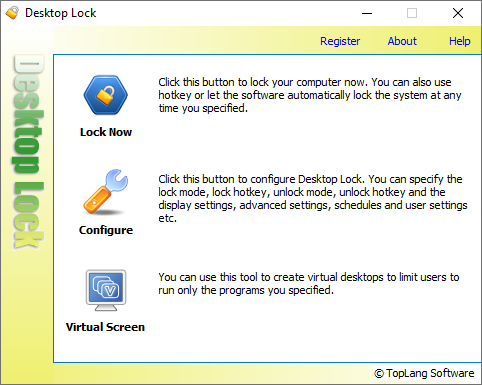
Starting up Desktop Lock feels like opening a familiar lock that welcomes you with its clean, uncluttered interface. Think of it as a well-organized toolbox—everything in its place, ready at your command. The initial setup involves a brief configuration process, mostly setting your preferred lock mode or password, which is straightforward enough for tech novices yet flexible for power users.
The core functionality is designed with practicality in mind. With a simple click or hotkey, you can lock your desktop in a flash—imagine pressing an elevator button to whisk you away into privacy mode. The application responds swiftly, locking the screen with minimal latency, akin to flipping a switch that instantly switches your workspace to "private mode." When you're ready to unlock, entering your password or PIN is smooth, ensuring the security doesn't become a frustrating hurdle.
Design & User Experience: Friendly, Effortless, and Direct
In terms of interface design, Desktop Lock adopts a minimalistic approach that feels more like a friendly assistant than a complex software. Its straightforward layout minimizes learning curves; even first-time users find themselves unlocking secrets with ease. The app's operation is impressively fluid—locking and unlocking happen almost instantaneously, making the overall experience feel natural and non-disruptive.
However, the app isn't just about simple aesthetics; it offers enough customization for users wishing to tailor security settings. Whether choosing a password, a pattern lock, or a time-based lock, the options are accessible through an intuitive menu that prevents confusion. This balance between simplicity and flexibility makes Desktop Lock appealing to users across the spectrum—from tech novices to more experienced security enthusiasts.
What Sets it Apart? The Unique Strengths of Desktop Lock
Many security tools offer lock features, but Desktop Lock's standout trait is its seamless combination of speed, simplicity, and flexible lock modes. Unlike more heavy-duty security suites that might intimidate or slow down your workflow, Desktop Lock feels like a friendly gatekeeper—easy to summon when needed without fuss.
One particularly distinctive feature is its customization of lock modes—users aren't limited to just password protection. They can implement quick visual barriers or time-bound locks, significantly enhancing adaptability in different scenarios. This versatility is a major advantage, setting Desktop Lock apart from similar applications that may only provide one-size-fits-all solutions.
Final Verdict: A Practical Choice for Everyday Privacy Needs
Considering its lightweight design, user-friendly interface, and flexible lock options, Desktop Lock for Windows is highly recommended for users seeking quick and reliable desktop security. It's particularly suitable for those who want to prevent accidental disclosures or unauthorized access without deploying complicated security setups. While it may not replace comprehensive security suites, it excels as an accessible tool for daily privacy protection.
If simplicity and efficiency are your priorities, give Desktop Lock a try. It's like having a digital padlock that's always ready to safeguard your workspace at a moment's notice—a subtle yet essential security companion for your Windows environment.
Pros
- User-friendly interface
- Strong security features
- Customizable lockdown options
- Lightweight performance
- Compatibility with multiple Windows versions
Cons
- Limited customization settings in the free version
- Occasional minor glitches during updates
- Lack of detailed user activity logs
- Limited customization for lock screen appearance
- No native mobile management