- Name Auto Screenshot
- Category Photo & video
- Available on PC
- OS Windows 10 version 0.0 or higher
- Keyboard Integrated Keyboard
- Mouse Integrated Mouse
- languages English
A Handy Tool for Effortless Screen Capture
Auto Screenshot for Windows is a lightweight yet powerful application designed to simplify the process of capturing and managing screenshots, making it an essential utility for students, professionals, and casual users alike.
Smooth Operation with a User-Friendly Interface
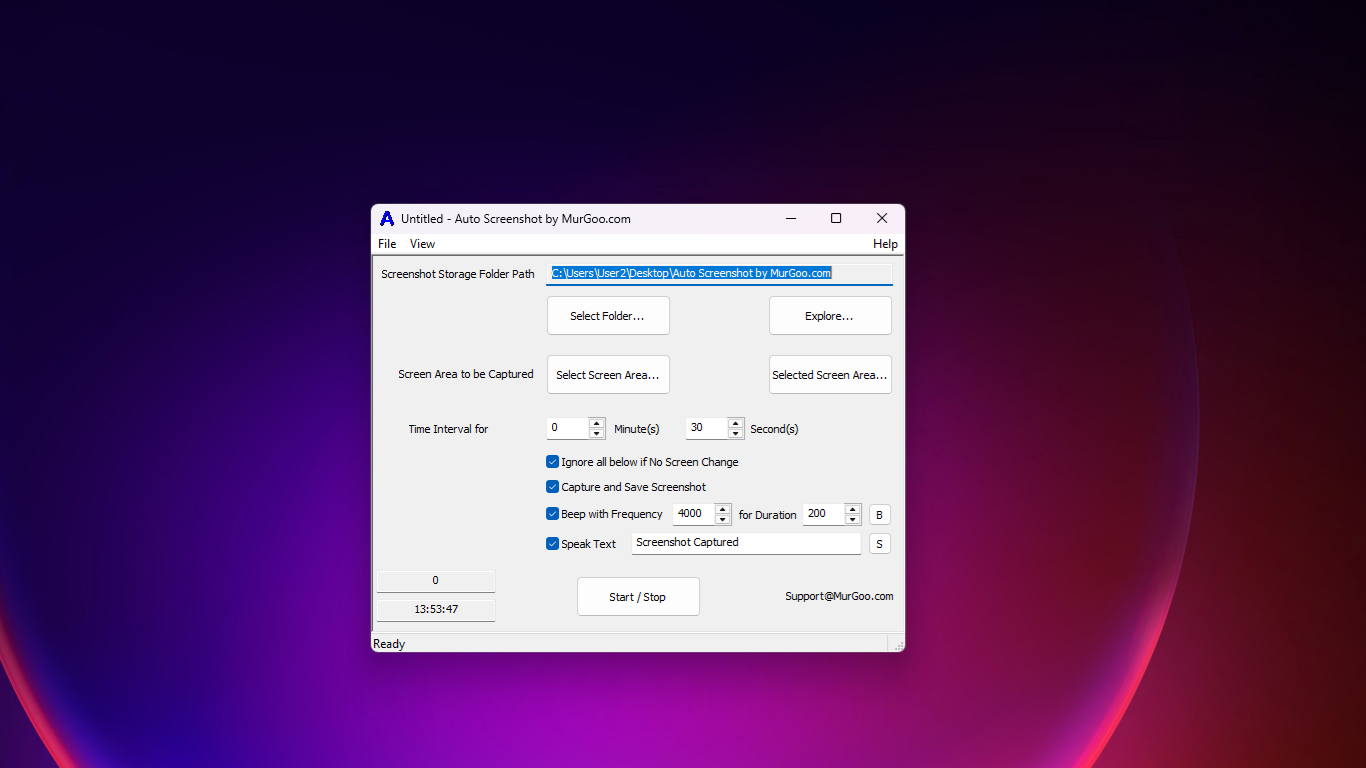
Developed by MurGoo.com, this app prides itself on a clean, intuitive interface that feels like a familiar workspace—no steep learning curves here. Whether you're tech-savvy or new to screen capture tools, you'll find the navigation straightforward. The application responds smoothly to your commands, ensuring that capturing that perfect screenshot is just a click away. The setup process is quick, and the minimalist design helps users focus on their task without distraction.
Core Features that Make a Difference
Automatic and Scheduled Screenshots
The standout feature of Auto Screenshot is its ability to automatically capture screenshots at preset intervals. Imagine setting it up once, then telling it to keep an eye on your screen like a vigilant assistant—perfect for monitoring changing data, recording gameplay, or documenting lengthy processes without manual effort. There's also the option to schedule captures, which is great for routine monitoring or creating time-lapse sequences.
Flexible Capture Modes and Annotation Tools
The app offers various capture modes including full screen, selected window, or custom regions, giving users the versatility to grab exactly what they need. After capturing, the built-in annotation tools—such as drawing, highlighting, and adding text—allow for quick edits directly within the app. This eliminates the need for external editors and streamlines your workflow.
Efficient Management and Saving Options
Once you've captured your images, managing them is seamless. The app automatically organizes your screenshots into a dedicated folder, enabling easy retrieval later. Supported formats and quality settings ensure your images suit different purposes, whether for professional presentations or casual sharing.
Distinctive Strengths and User Experience
Unlike some photo and video apps that focus heavily on editing or multimedia creation, Auto Screenshot is tailored specifically for quick, reliable screen capturing. Its ability to automate captures at intervals sets it apart—think of it as having a personal photographer who works silently in the background, documenting everything without fuss. The minimalist design means less time spent navigating menus and more time focusing on your task. Additionally, the smooth performance ensures that it won't lag or disrupt your workflow, even during intensive capture sessions.
Recommendation and Usage Tips
Overall, Auto Screenshot for Windows earns a solid recommendation for anyone needing an efficient, no-nonsense screen capture tool. It's especially useful for professionals who require regular documentation, gamers recording their sessions, or educators preparing tutorials. For casual users, its simplicity will make capturing and managing screenshots a breeze.
To get the most out of this application, consider using the scheduled capture feature for long-term monitoring or recording workflows that require minimal manual input. Combining the automatic captures with on-the-fly annotations can streamline your projects and save valuable time.
Pros
- User-Friendly Interface
- Automatic Capture Functionality
- Multiple Save Options
- Customizable Settings
- Lightweight and Fast
Cons
- Limited Editing Tools
- Inconsistent Screenshot Quality on High-Resolution Displays
- Occasional Stability Issues
- Limited Cloud Integration
- Basic User Support