
- Name Adobe Premiere Elements 2026
- Category Photo & video
- Developer Adobe
- Available on PC
- OS Windows 10 version 0.0 or higher
- Keyboard Integrated Keyboard
- Mouse Integrated Mouse
- Memory 8 GB
- DirectX DirectX 12 API, Hardware Feature Level 12
- languages Czech, Dutch, English (United States), French, German, Italian, Japanese, Polish , Spanish (Spain), Swedish, Portuguese (Brazil)
Introducing Adobe Premiere Elements 2026 for Windows
Adobe Premiere Elements 2026 continues its tradition of providing accessible yet powerful video editing capabilities tailored for casual creators and enthusiasts alike. With an intuitive interface and smart automation features, it aims to make editing engaging videos straightforward and enjoyable without steep learning curves.
About the Developers and Core Highlights
Developed by Adobe Inc., a global leader in creative software, Premiere Elements 2026 is crafted by a dedicated team committed to simplifying video editing while integrating advanced technology. The software's standout features include AI-powered smart editing tools that intelligently enhance videos, guided editing modes for users seeking step-by-step assistance, and a variety of creative effects to bring personal stories to life. Its target audience primarily includes hobbyist videographers, family storytellers, and small content creators who want professional-looking results with minimal technical fuss.
Engaging and User-Friendly Interface
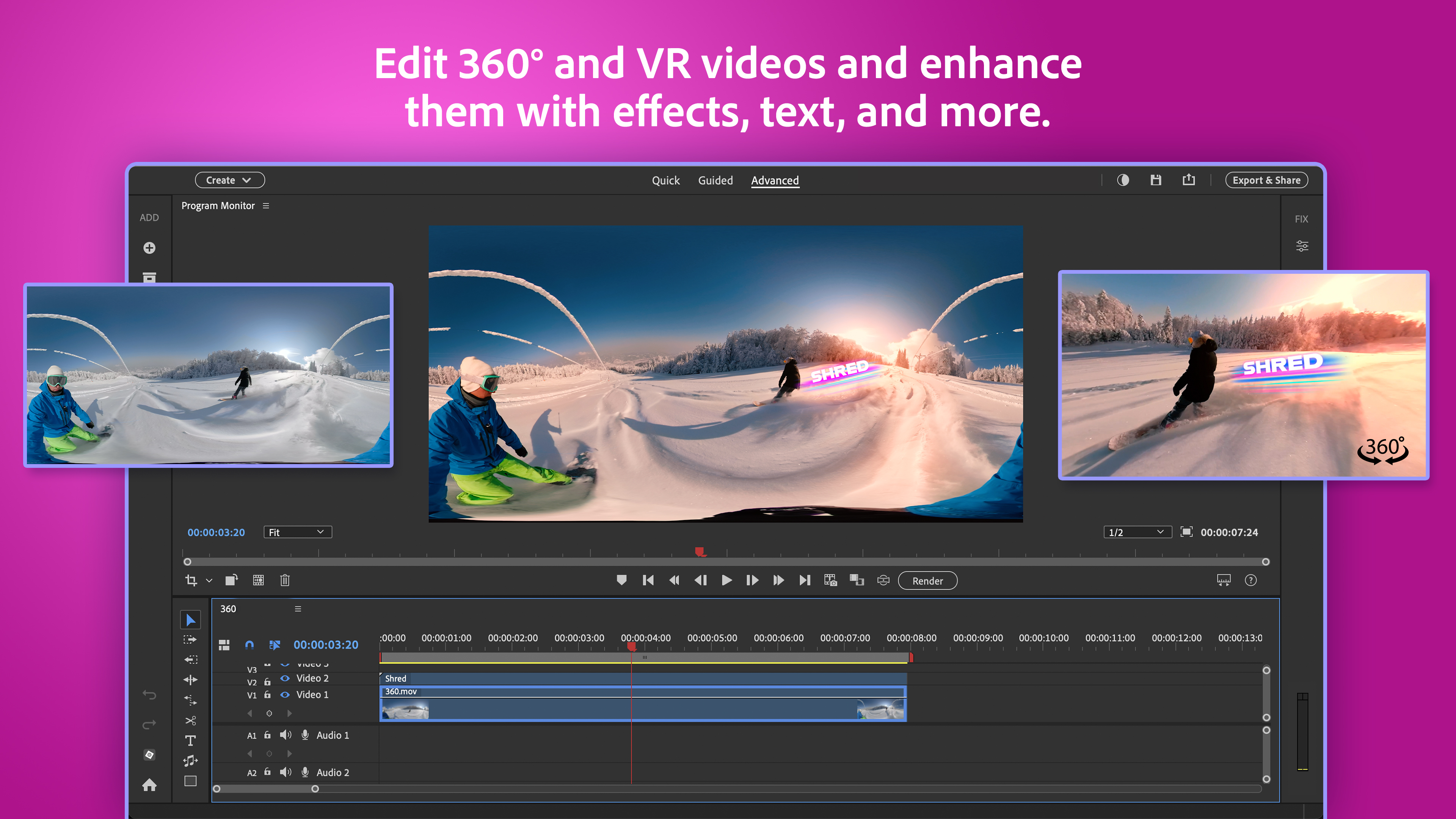
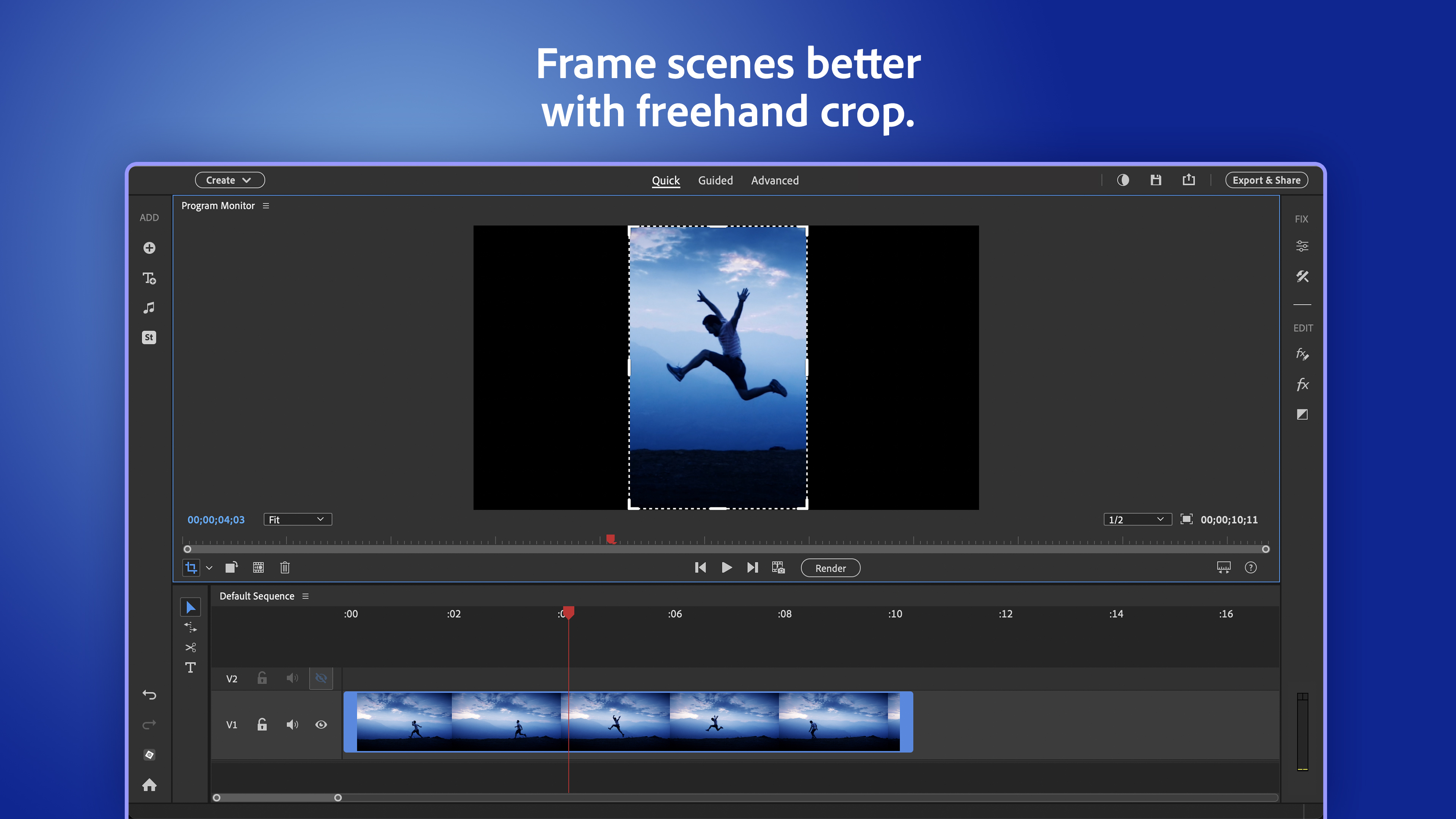
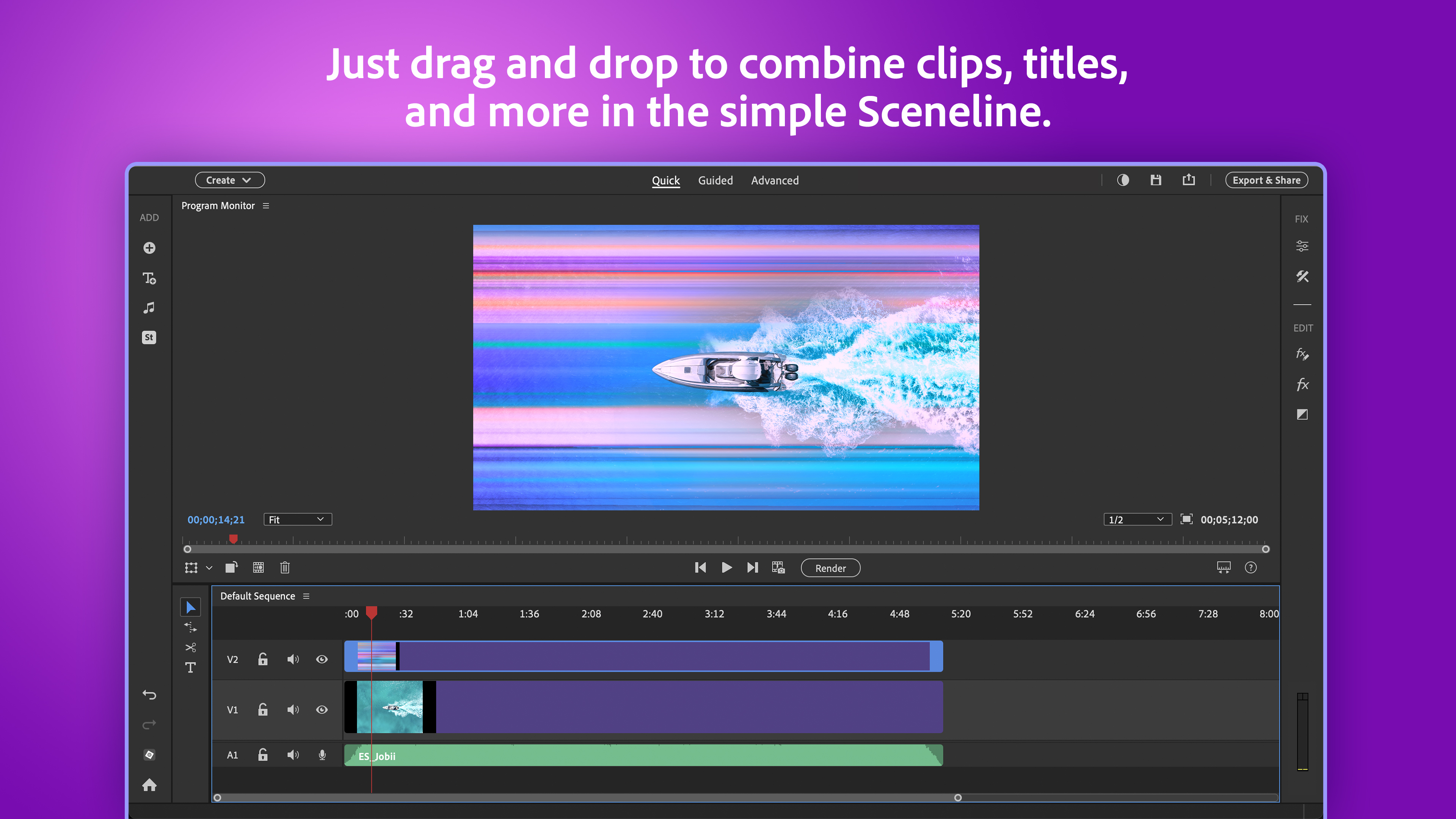
The first thing that strikes you upon launching Premiere Elements 2026 is its refreshingly clean and organized layout—think of it as walking into a well-lit, clutter-free art studio. The interface feels familiar yet modern, with clearly segmented workspaces that cater to both beginners and more experienced users. Navigation is smooth, with drag-and-drop functionality that effortlessly guides you through your editing process. The Smart Trim and Auto Creations features work behind the scenes like a skilled assistant, leaving you more time to focus on your creative vision.
Deep Dive into Core Features: Smarter Editing at Your Fingertips
1. AI-Powered Auto-Editing and Scene Recognition
One of Premiere Elements' most distinguishing traits is its intelligent auto-editing feature. Using sophisticated AI algorithms, the software automatically scans your footage for key moments, detects scene changes, and applies appropriate transitions and adjustments. It's akin to having a seasoned editor who pre-selects the best takes and sequences for you. Whether you're creating a family vacation montage or a birthday celebration video, this feature significantly cuts down editing time while maintaining a polished look. Users can customize these auto-generated edits or use them as inspiration for further refinement.
2. Guided Edits for Creative Excellence
Imagine having a friendly mentor guiding you step-by-step through complex editing tasks—this is what Guided Edits in Premiere Elements 2026 deliver. Whether it's creating cinematic effects, adding animated titles, or applying slow-motion sequences, these guided workflows make advanced editing accessible even to novices. The instructions are clear, accompanied by visual cues, and allow you to follow along easily. It's like having a personal tutor standing by as you craft professional-quality videos without feeling overwhelmed.
3. Rich Library of Effects and Templates
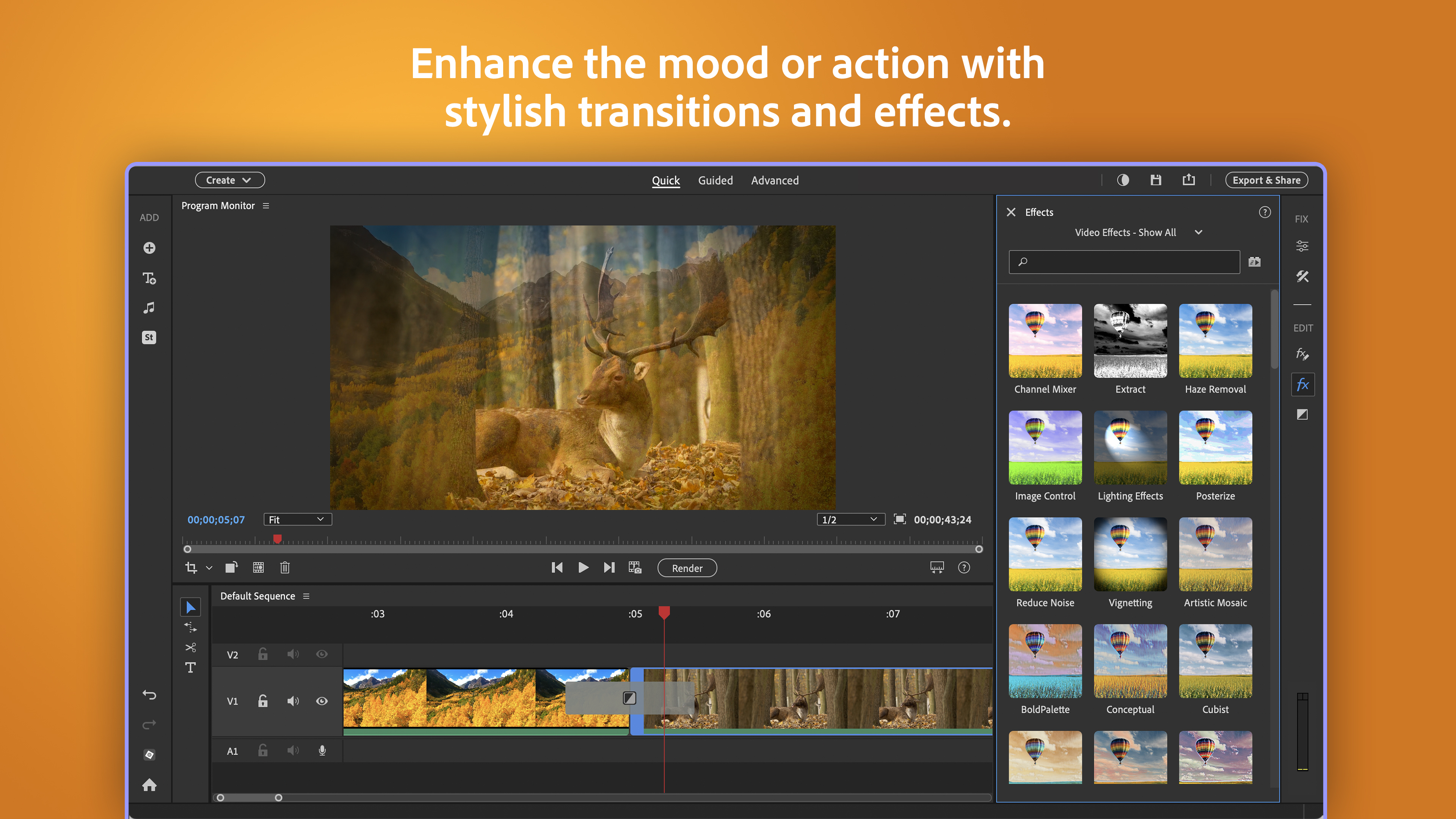
For those wanting to add their signature style, the software offers a vast collection of effects, overlays, filters, and templates. From nostalgic film looks to modern color grading, these options help elevate your videos. The importance of these creative assets lies in their seamless integration and ease of application—just drag and drop—making customization intuitive. This differentiates Premiere Elements from some other entry-level editors that might have more limited effects libraries, giving users a broader palette to express their creativity.
User Experience and Unique Selling Points
Premiere Elements 2026's design emphasizes an elegant balance between simplicity and power. The platform responds swiftly to editing commands, thanks to optimized performance that minimizes lag even with high-resolution footage. The learning curve is gentle, supported by comprehensive tutorials, which makes it accessible to newcomers, yet offers enough depth for more advanced users seeking nuanced control.
Its most unique advantage is the integration of AI-driven auto-editing and scene recognition, which effectively acts as an intelligent assistant—saving time and enhancing productivity. When comparing to other self-serve video editors, Premiere Elements distinguishes itself by combining these automated tools with guided workflows and a rich effects library, making it a versatile yet approachable package for a wide audience.
Final Verdict and Recommendations
Overall, Adobe Premiere Elements 2026 stands out as a reliable and user-centered video editing solution, particularly suited for hobbyists and semi-professionals. Its intelligent automation features and guided edits provide a compelling balance of simplicity and creativity. For those looking for a software that helps craft beautiful videos without requiring extensive technical knowledge, this edition is a solid choice.
While it might not replace high-end professional editors for complex projects, its strengths lie in making high-quality editing accessible to everyday users. I recommend it to anyone eager to transform raw footage into memorable stories with minimal fuss. If your goal is to enjoy the editing process and produce polished videos without a steep learning curve, Adobe Premiere Elements 2026 is an excellent companion on your creative journey.
Pros
- Intuitive User Interface
- Powerful Editing Features
- Extensive File Format Support
- Fast Rendering Times
- Built-in Templates and Effects
Cons
- High System Requirements
- Occasional Stability Issues
- Limited Customization Options for UI
- Subscription-Based Model
- Learning Curve for Advanced Features