- Name Adobe Photoshop
- Category Photo & video
- Developer Adobe
- Available on PC
- OS Windows 10 version 0.0 or higher
- Keyboard Integrated Keyboard
- Mouse Integrated Mouse
- Memory 8 GB
- DirectX DirectX 12 API, Hardware Feature Level 12
- languages Arabic, Chinese (Simplified), Chinese (Traditional Chinese), Czech, Danish, Dutch, English (United Kingdom), English (United States), Finnish, French, French (Canada), German, Hebrew, Hungarian, Italian, Japanese, Korean, Norwegian, Polish, Portuguese (Brazil), Russian, Spanish, Swedish, Swedish (Finland), Turkish, Ukrainian
Introducing Adobe Photoshop for Windows: The Classic Powerhouse Refined
Adobe Photoshop remains the gold standard in digital image editing, and this Windows version continues to uphold its legacy with even more refined features. Designed for photographers, designers, and digital artists alike, it offers a comprehensive toolkit that transforms raw creativity into polished visuals. But what sets this iteration apart in a crowded field of editing apps is its seamless integration with cloud-based workflows and innovative AI-powered tools. Whether you're retouching photos or creating complex compositions, Photoshop for Windows aims to be your reliable digital atelier.
Core Features That Elevate Your Creative Workflow
Advanced AI-Driven Editing Capabilities
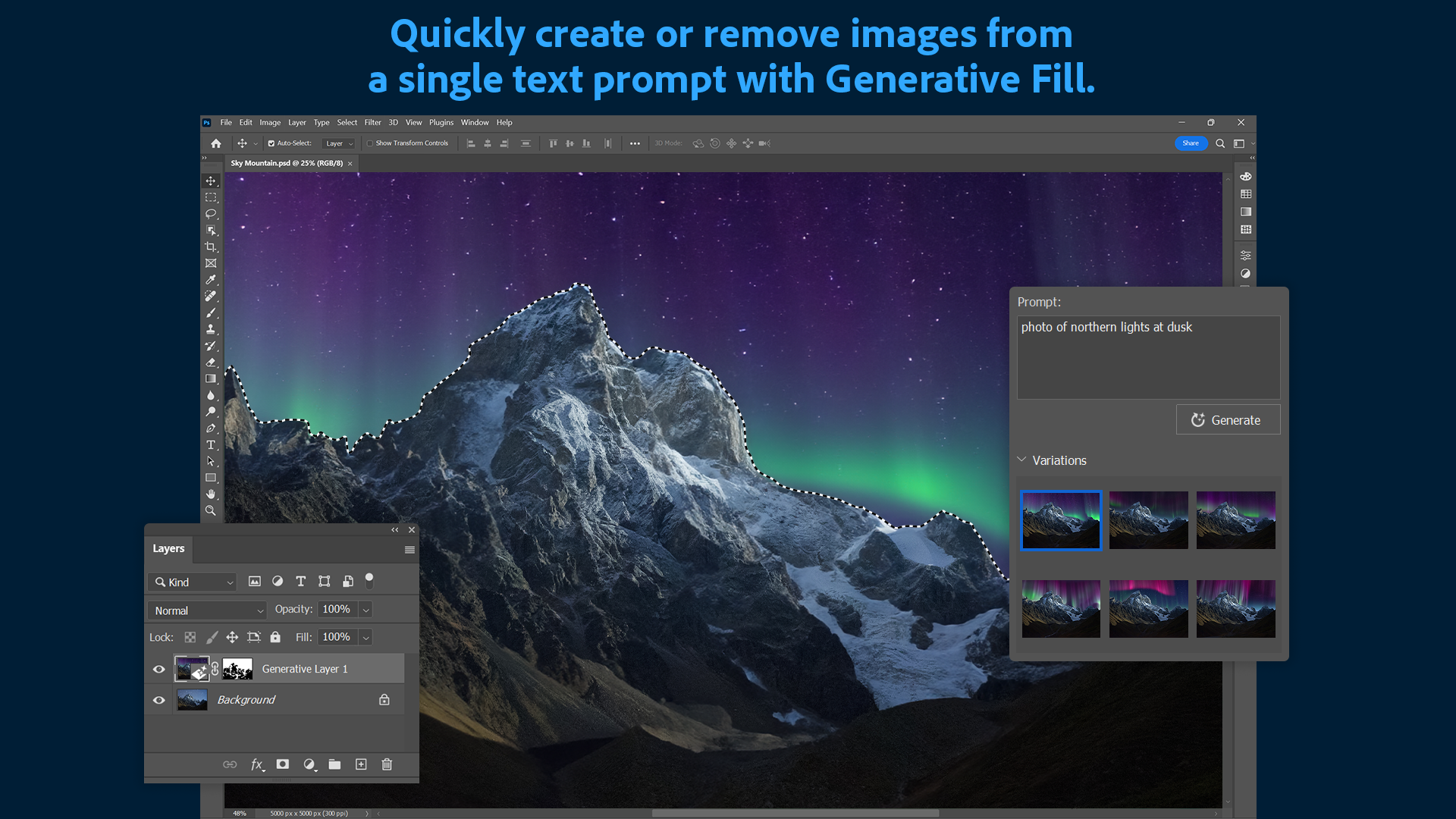
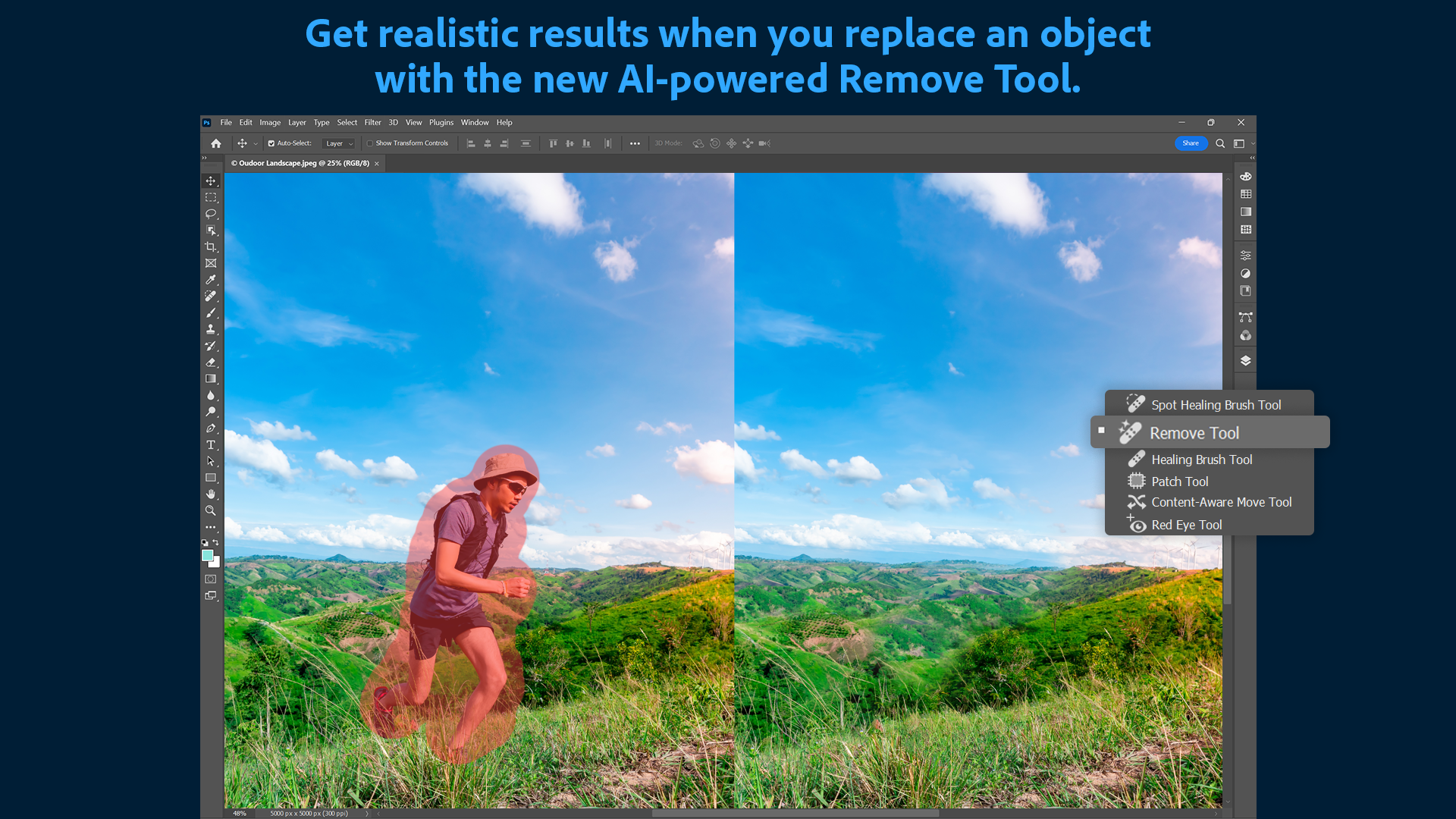
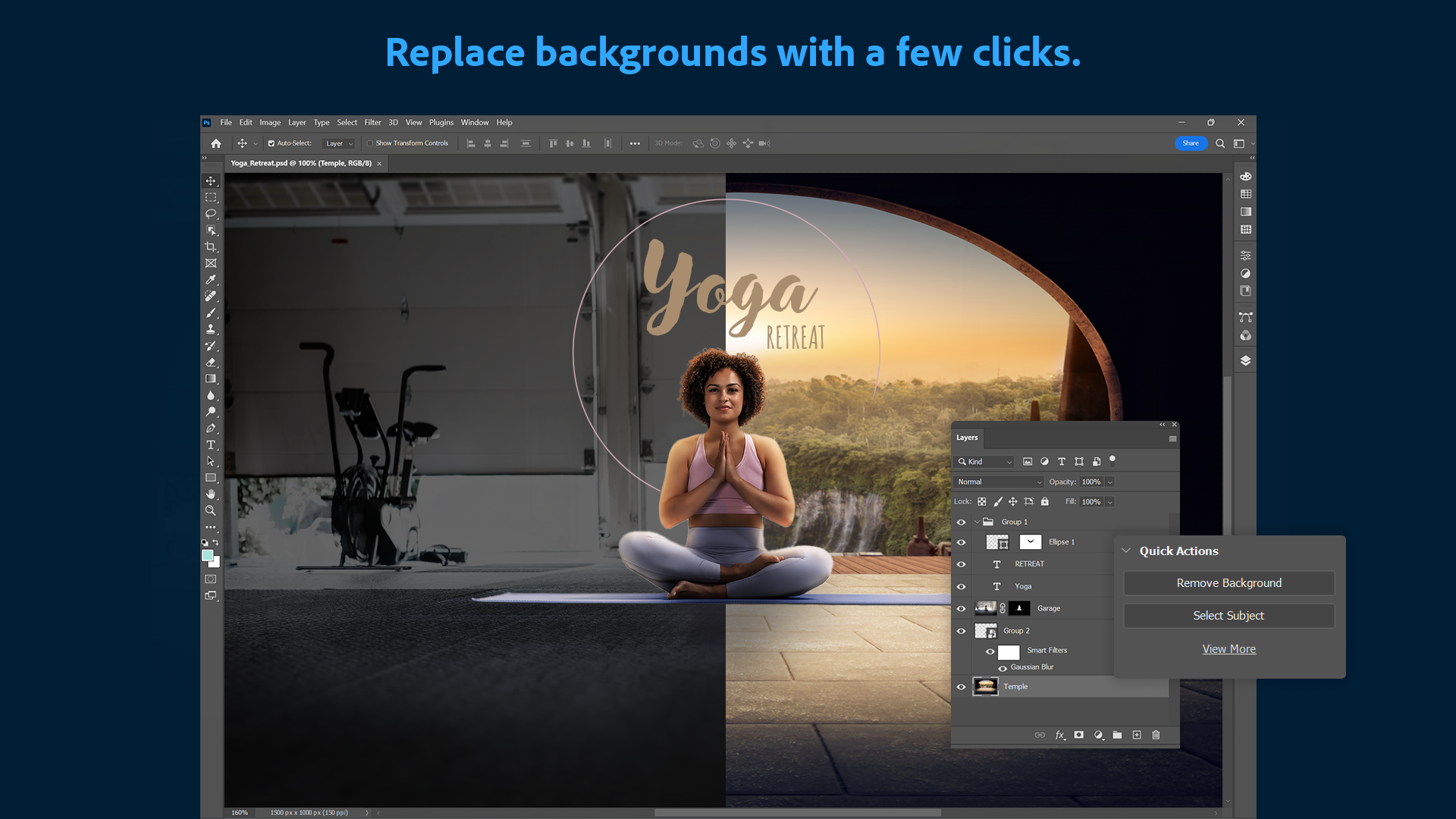
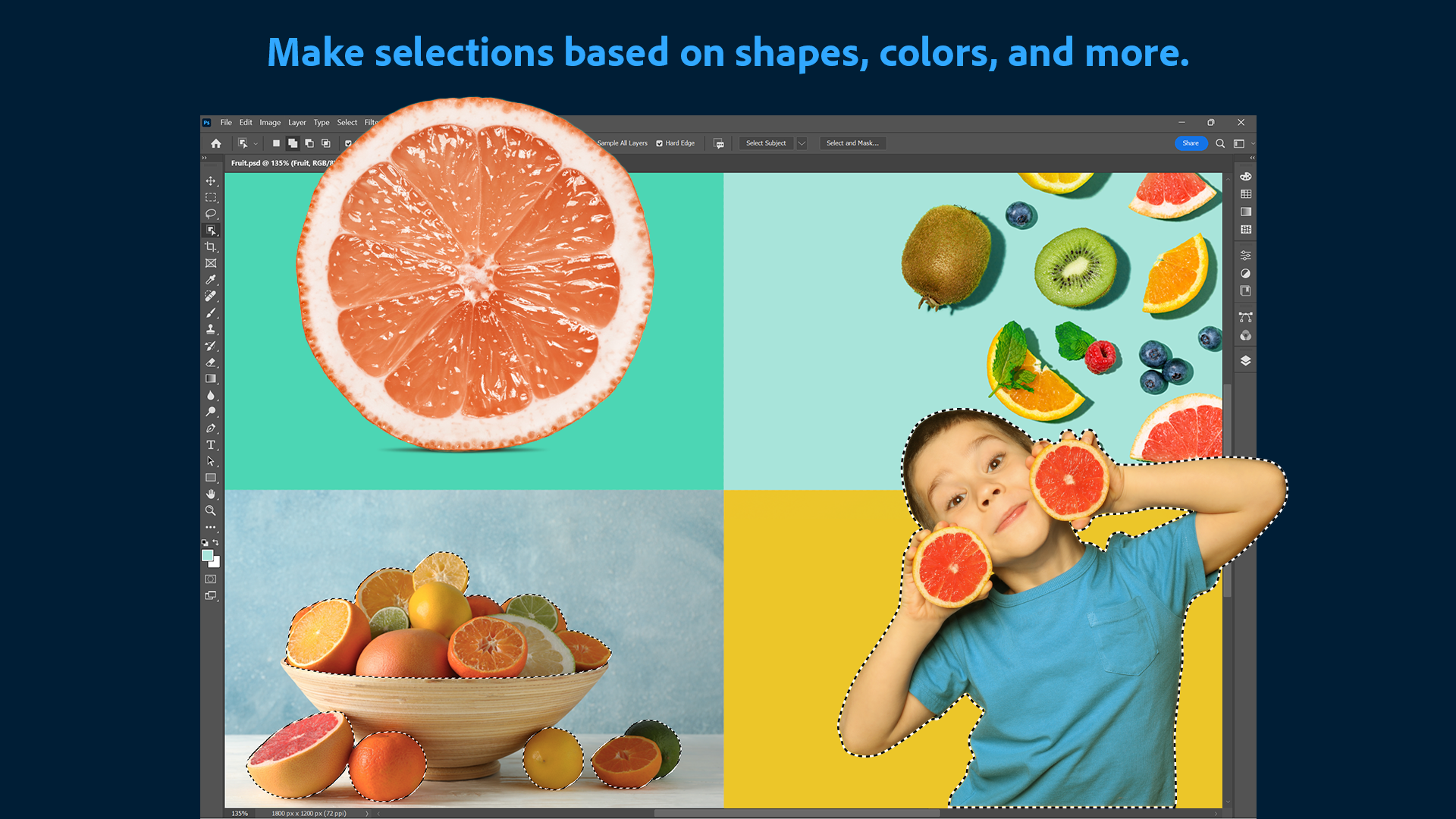
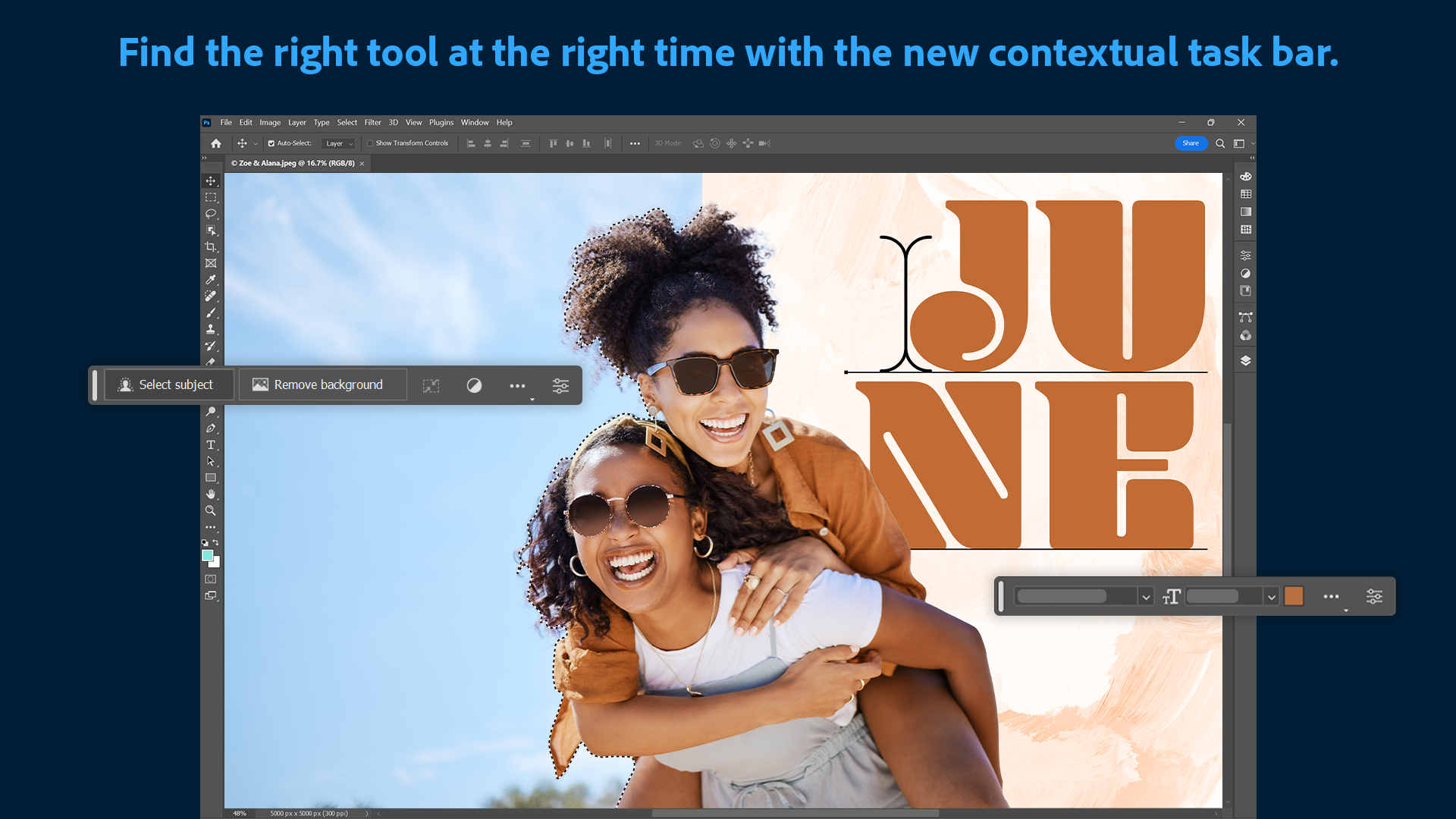
One of the standout features of this version is its incorporation of Adobe's Sensei AI technology. It automatically suggests content-aware fill, intelligent upscaling, and smart object removal, making tedious editing tasks swift and hassle-free. For example, retouching a portrait no longer requires endless manual cloning—an AI-powered 'Remove Background' tool instantly isolates subjects for you. This blend of smart automation and manual control empowers users to achieve professional results without digging through complex menus.
Non-Destructive, Flexible Layer Management
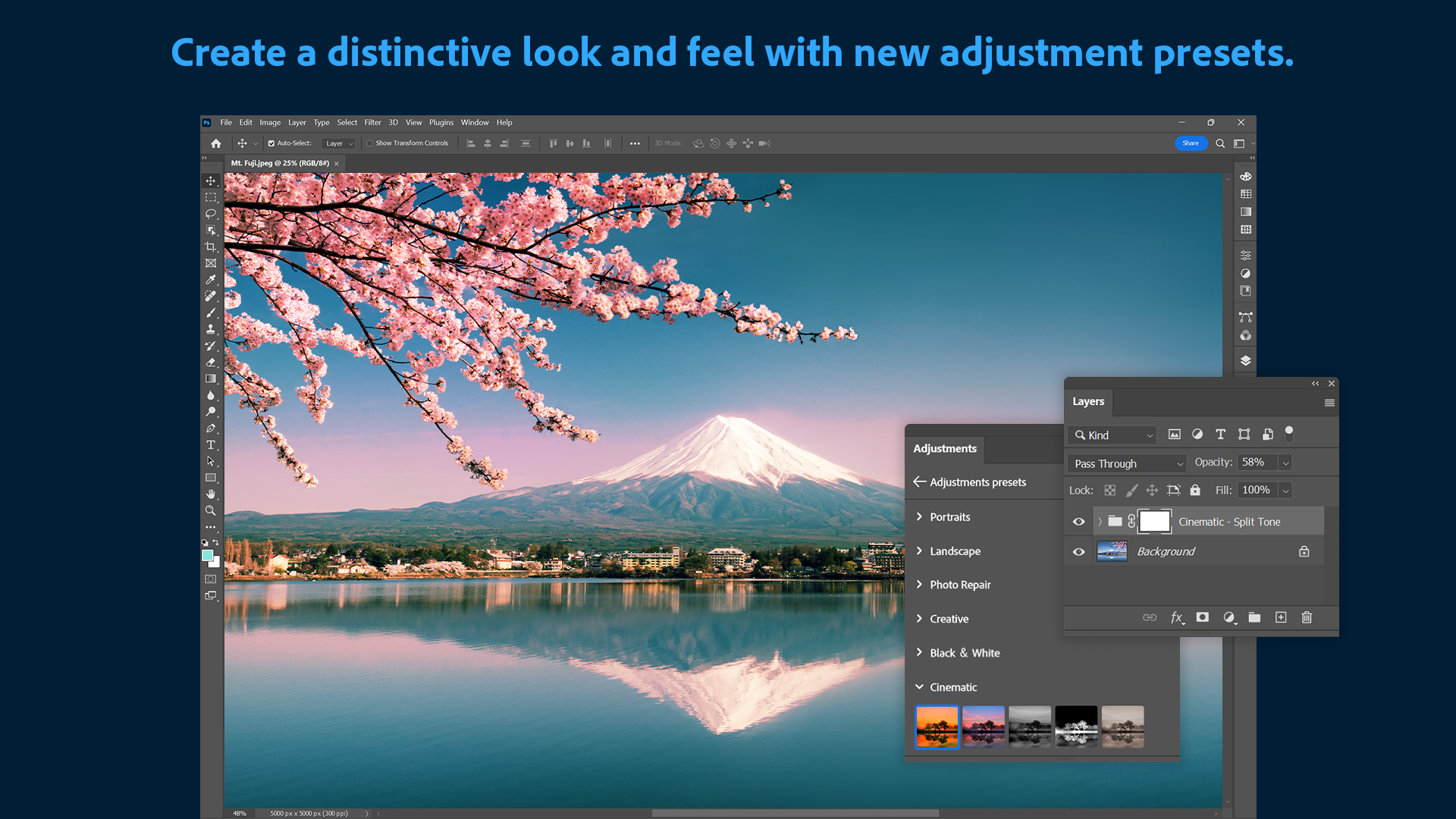
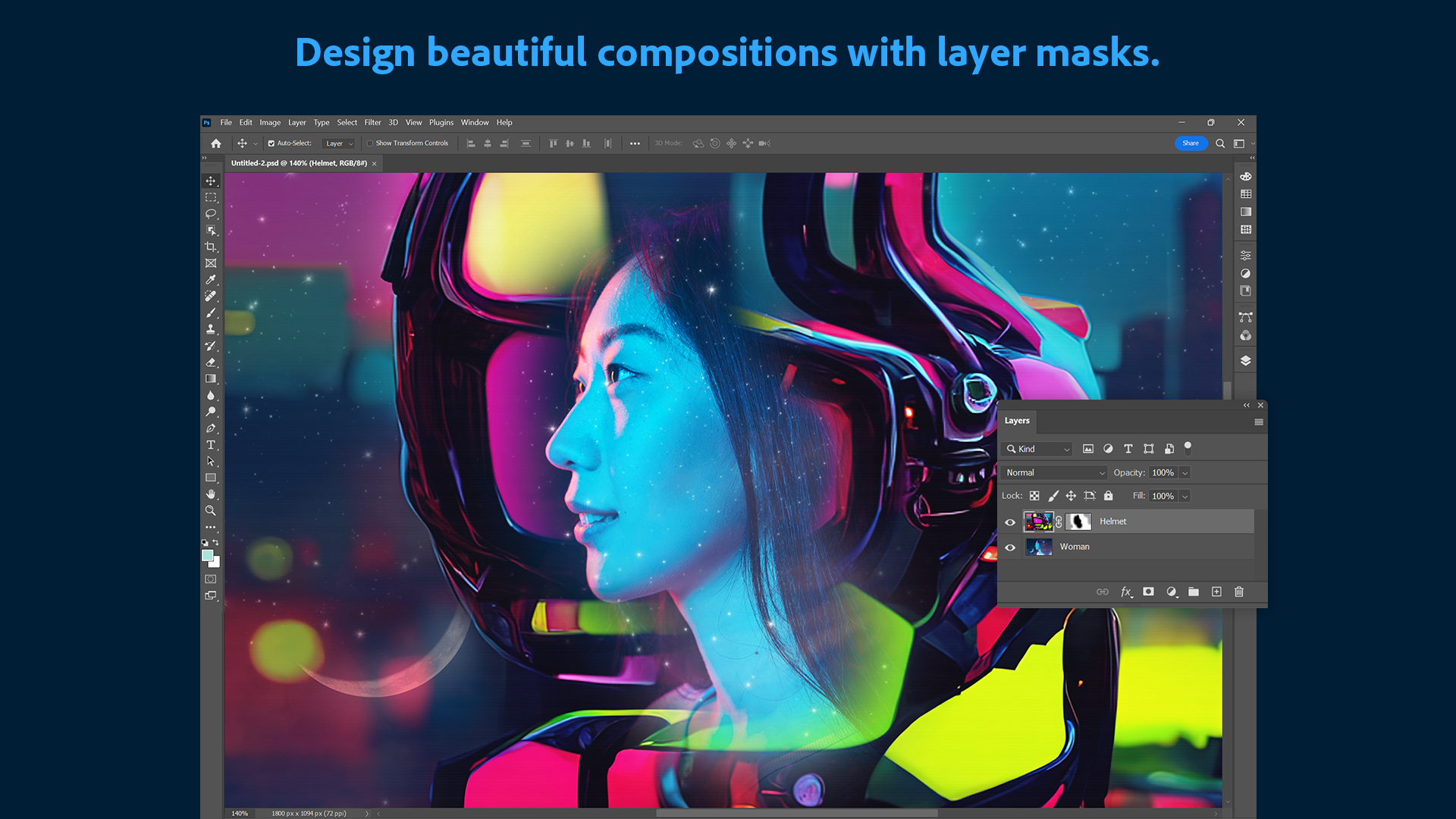
Photoshop continues to exemplify exceptional layer handling, an essential feature for any serious editor. The app supports an extensive range of layer effects, adjustment layers, and masks, all in a non-destructive environment. The interface offers a clear workspace, enabling you to experiment freely—whether stacking multiple adjustments or blending modes—without risking the original image. This flexibility fosters a more creative and risk-free editing process, ideal for both beginners and experts.
Intuitive Interface with Enhanced Workflow Efficiency
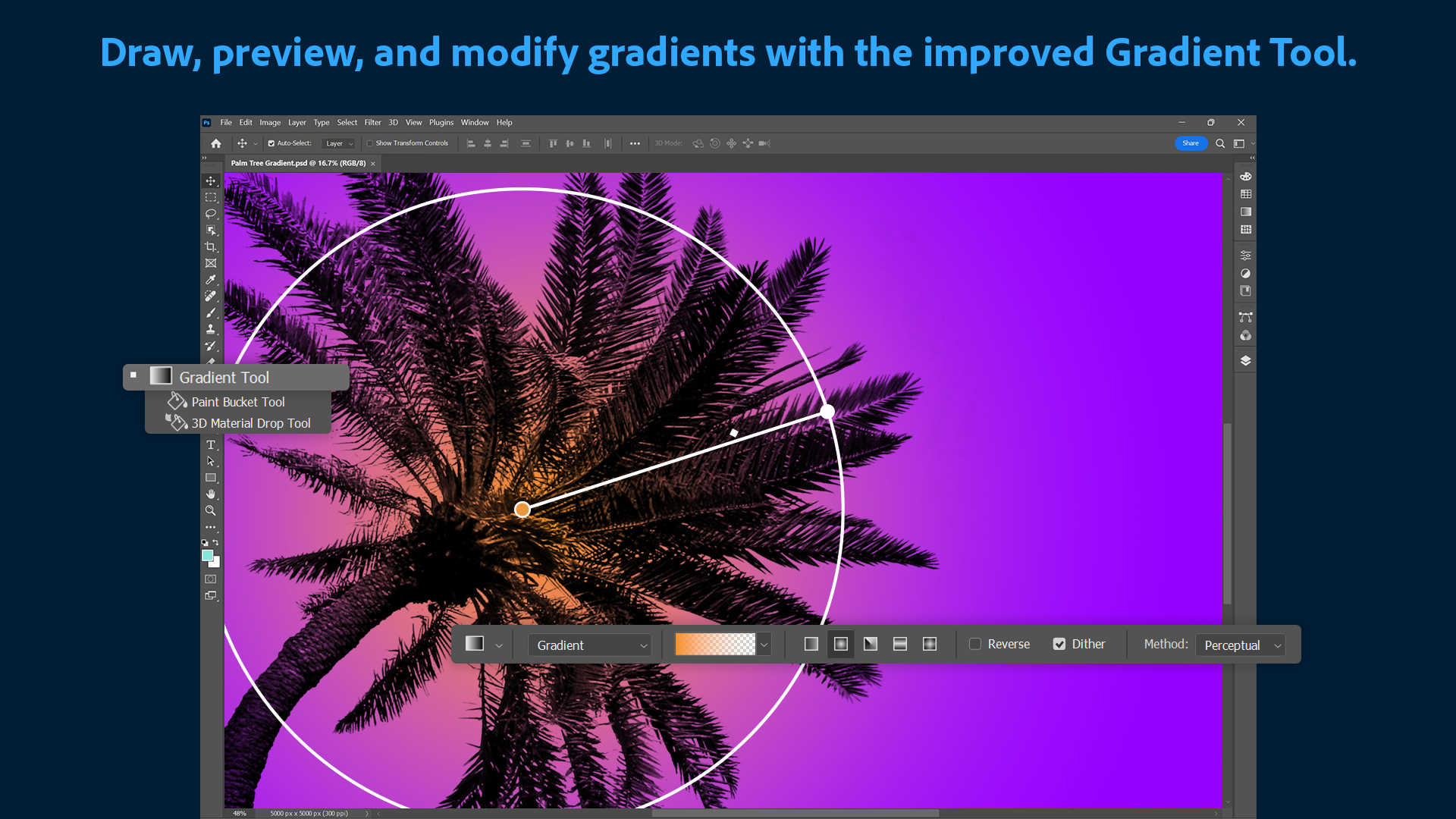
The user interface strikes a balance between professional power and accessibility. Its dark theme reduces eye strain during long editing sessions, while customizable workspace options allow users to tailor the environment to their needs. Smooth panning, zooming, and quick access to tools ensure that transitions between tasks are effortless. Learning curve? It can be as gentle or as complex as your skills dictate—ideal for novices to gradually deepen their mastery, and for veterans seeking speed through streamlined controls.
Unique Selling Points and User Experience
What makes Photoshop for Windows distinctly compelling is its integration with Adobe Creative Cloud. This connectivity allows seamless access to cloud documents, fonts, templates, and Adobe's ecosystem of apps. Moreover, Adobe's use of AI distinguishes this version—settings like 'Neural Filters' can drastically alter images with a few clicks, such as aging or rejuvenating faces or stylizing images with artistic filters. These features serve as creative accelerators, setting Photoshop apart from other photo editing apps that often rely solely on manual adjustments.
Final Verdict: A Toolbox Worth Having in Your Digital Arsenal
This version of Adobe Photoshop for Windows exemplifies a blend of powerful features and user-friendly enhancements. Its AI-driven tools and flexible layer management make it particularly suitable for professionals who need precision yet appreciate automation. While the app's extensive capabilities may come with a learning curve, its intuitive interface and helpful tutorials lower barriers for newcomers. I would confidently recommend this app for serious hobbyists and industry professionals looking to elevate their editing projects. For casual users or those exploring basic edits, the full feature set might feel overwhelming, so starting with simpler apps might be better before diving into Photoshop's depths. Nonetheless, once mastered, it becomes an indispensable companion for digital artistry.
Pros
- Powerful photo editing tools
- Intuitive user interface
- Seamless integration with Adobe Creative Cloud
- Extensive selection of brushes and plugins
- Regular updates with new features
Cons
- High system requirements
- Steep learning curve for beginners
- Subscription-based pricing model
- Occasional bugs and glitches
- Large installation size