- Name Adobe Photoshop Elements & Premiere Elements 2026
- Category Photo & video
- Developer Adobe
- Available on PC
- OS Windows 10 version 0.0 or higher
- Keyboard Integrated Keyboard
- Mouse Integrated Mouse
- Memory 8 GB
- DirectX DirectX 12 API, Hardware Feature Level 11
- languages English (United States), French, German, Japanese, Italian, Swedish, Polish, Dutch, Czech, Portuguese (Brazil), Spanish (Spain)
Blending Creativity and Simplicity: An Overview of Adobe Photoshop Elements & Premiere Elements 2026
Adobe Photoshop Elements & Premiere Elements 2026 for Windows is a comprehensive multimedia editing suite designed for hobbyists and casual creatives seeking powerful tools without the complexity of professional-grade software. Crafted by the well-known Adobe team, this combo aims to streamline photo and video editing, delivering user-friendly yet feature-rich experiences that make digital storytelling accessible to all.
Core Features That Spark Your Creativity
Enhanced AI-Powered Editing
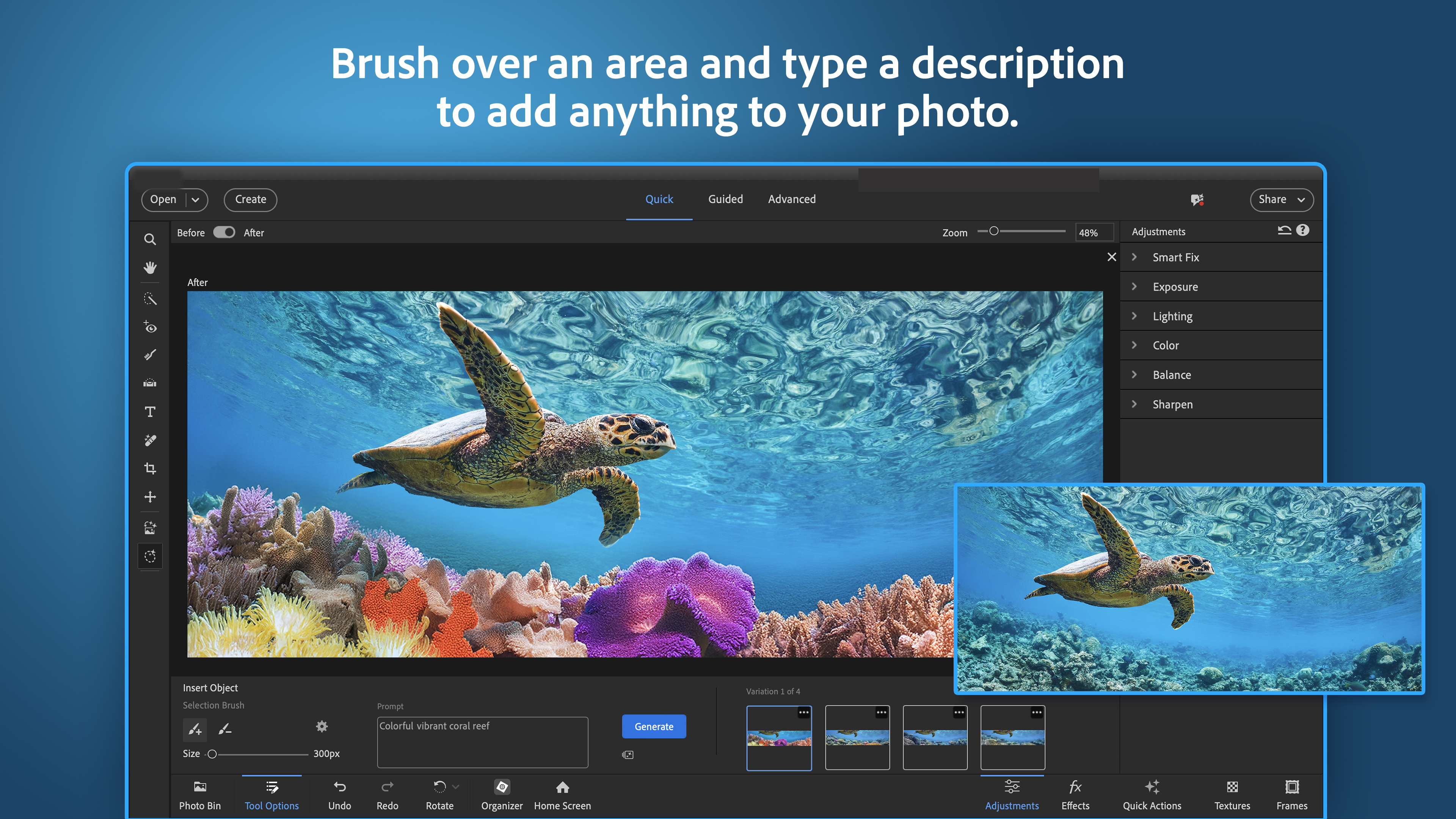
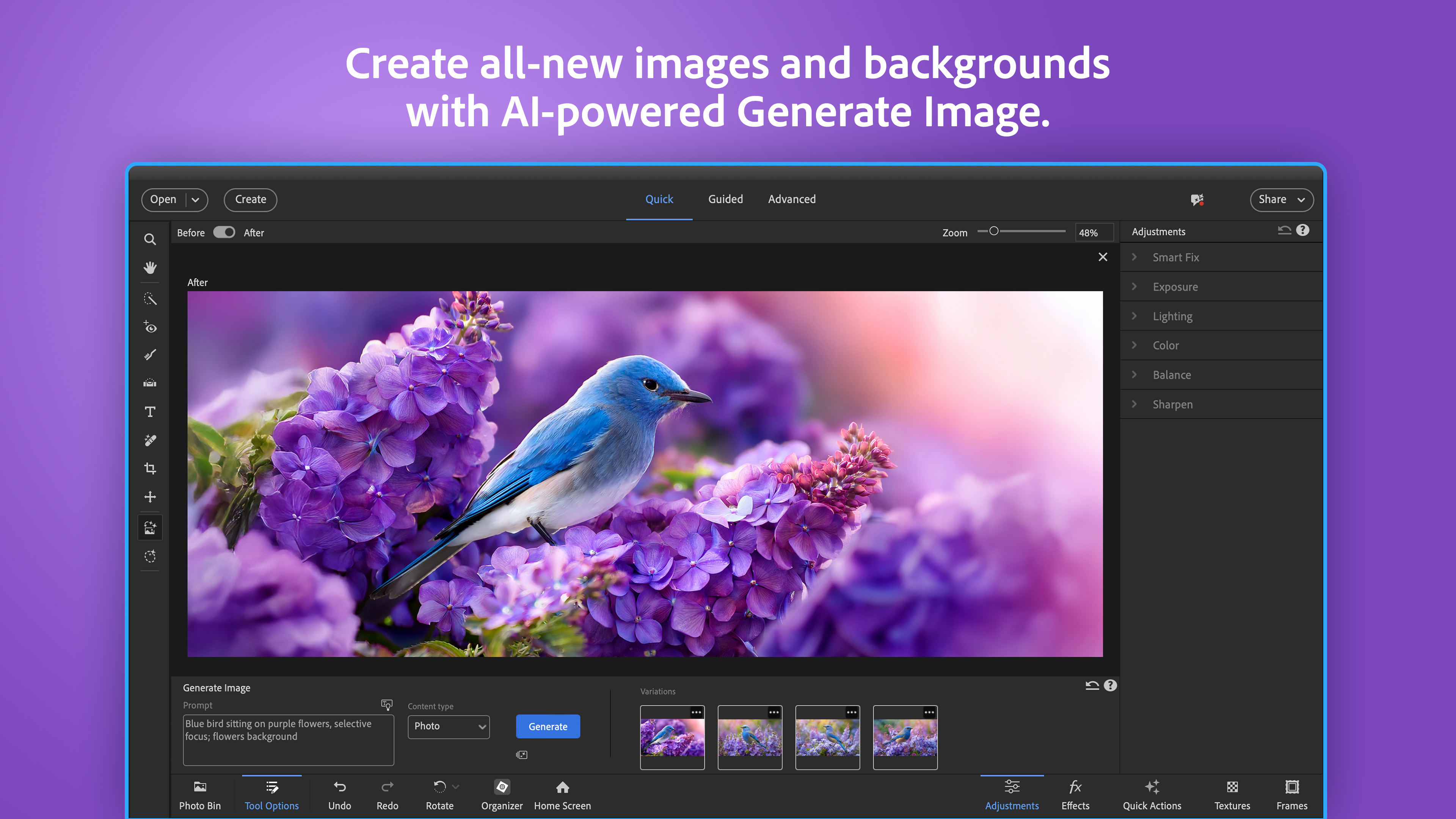
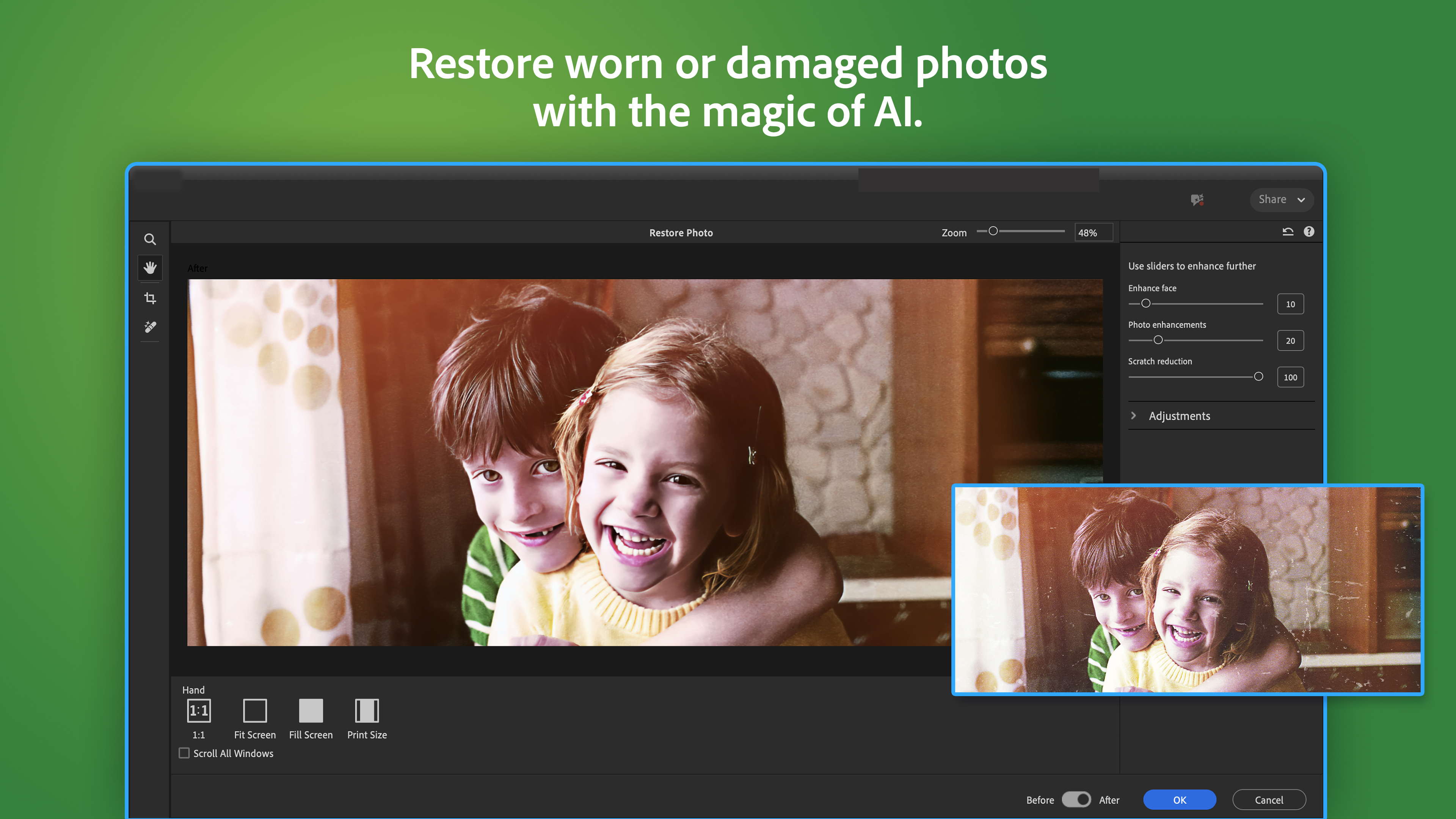
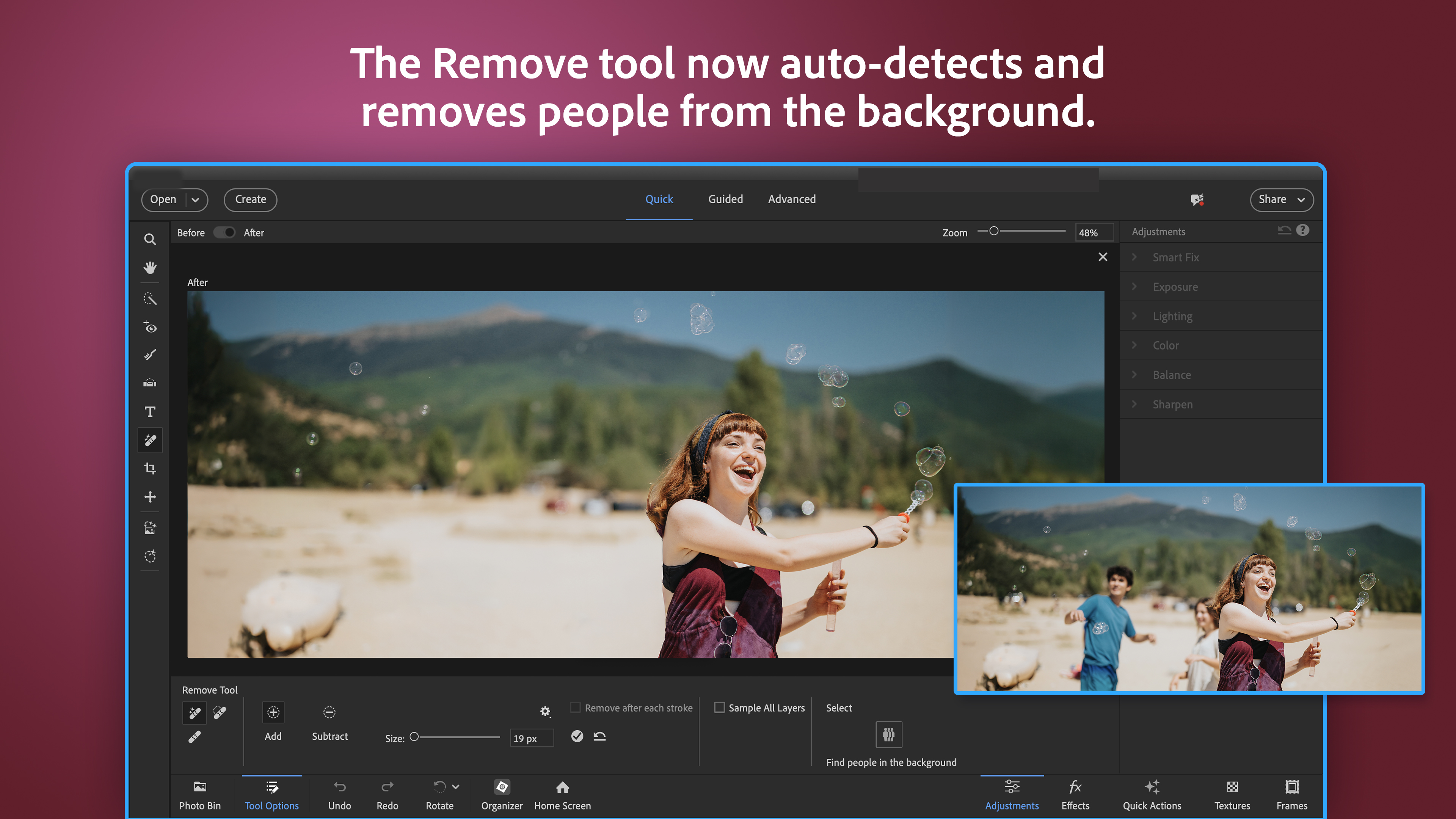
The standout feature of this version is its refined AI technology, which intelligently detects scenes, objects, and faces to assist in effortless editing. Whether it's automatically enhancing photo details or suggesting edits for a captured video clip, the AI acts like a friendly co-pilot, taking care of tedious adjustments while you focus on your creative vision.
Intuitive Guided Edits
For users who want to learn and grow, the guided edits offer step-by-step prompts to achieve specific effects or corrections. Imagine having a seasoned photography or videography teacher right beside you, guiding your clicks and moves — perfect for beginners or those wanting to sharpen their skills. These guides help you craft professional-looking results without a steep learning curve.
Seamless Photo and Video Integration
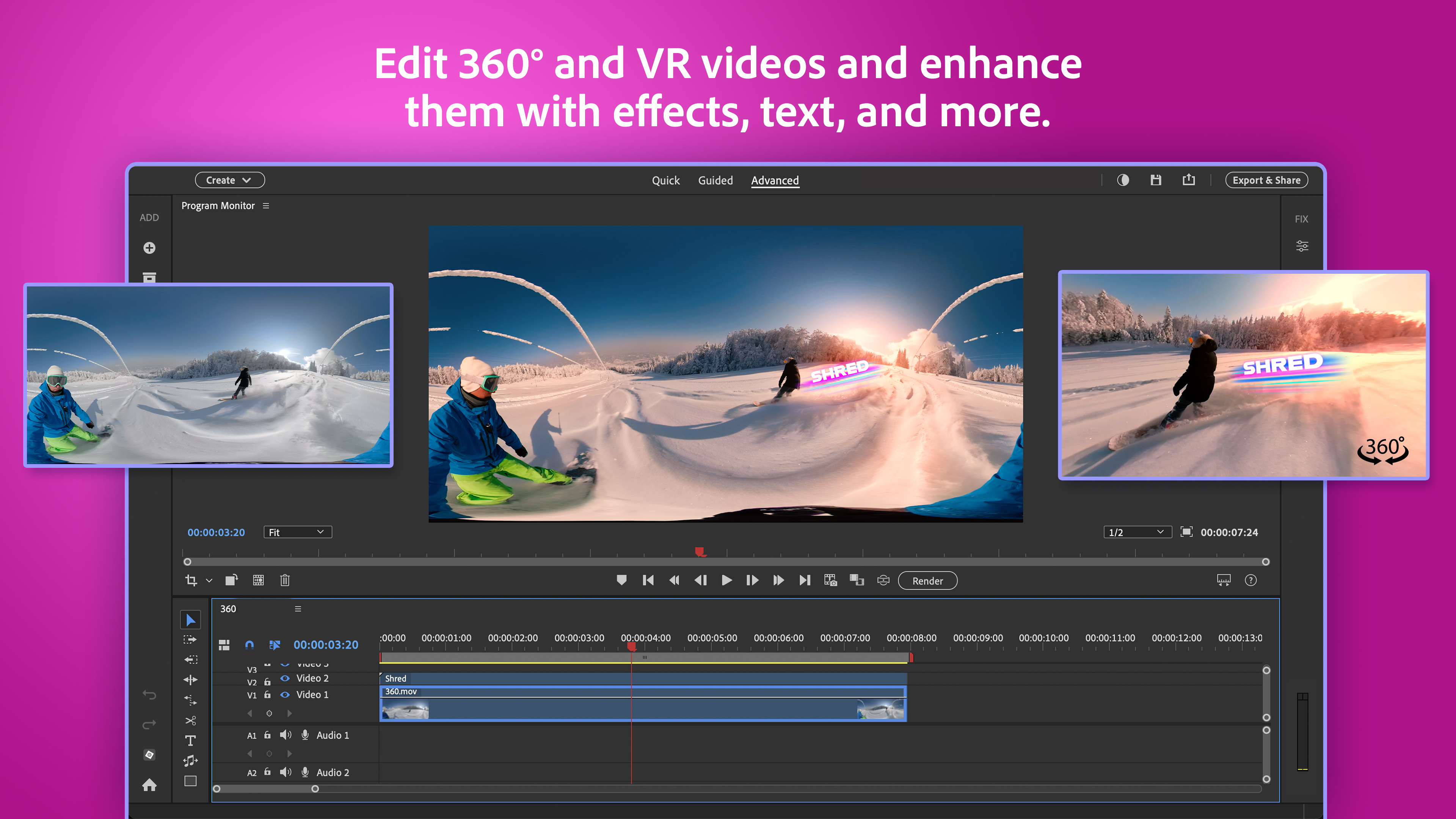
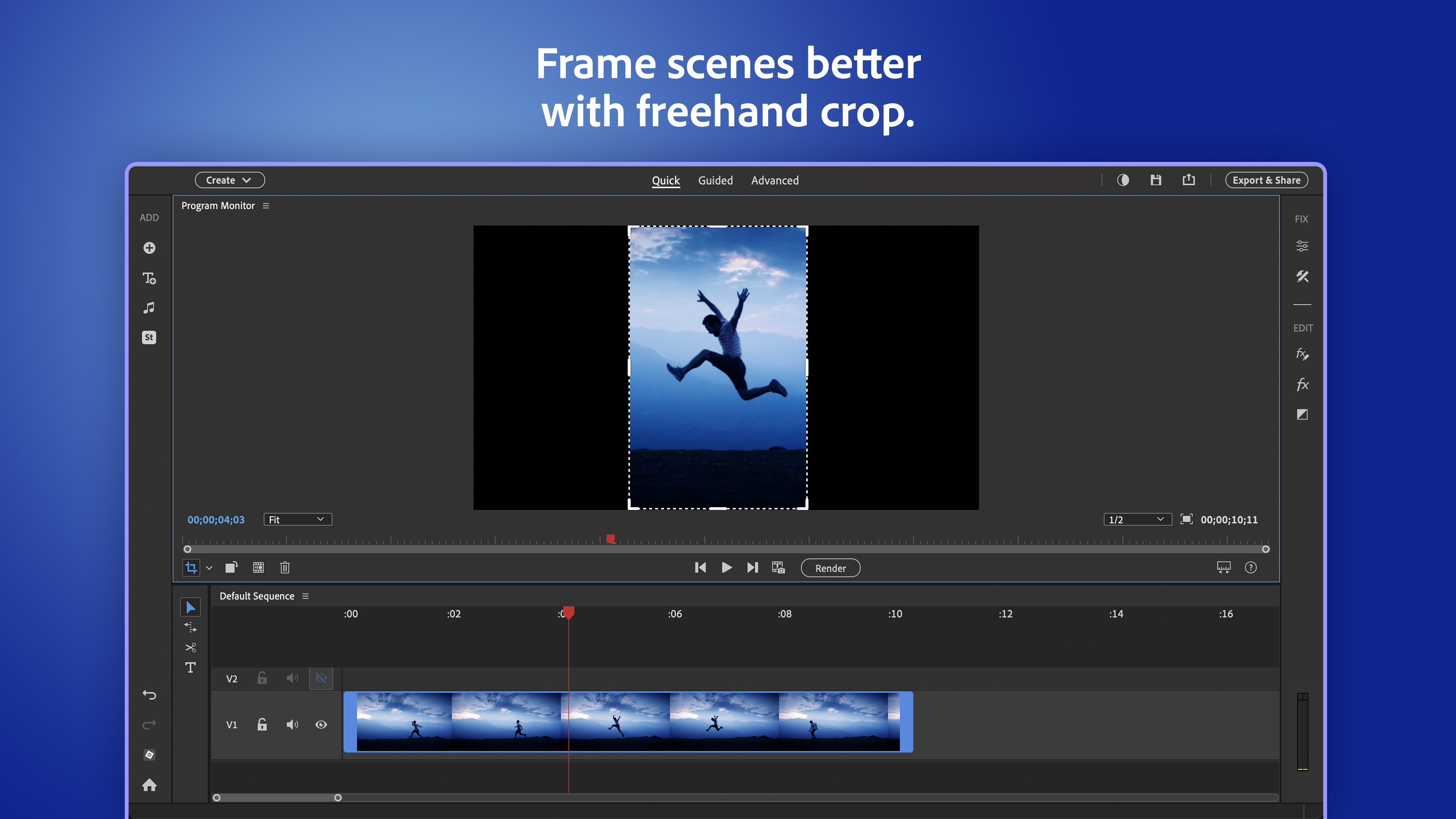
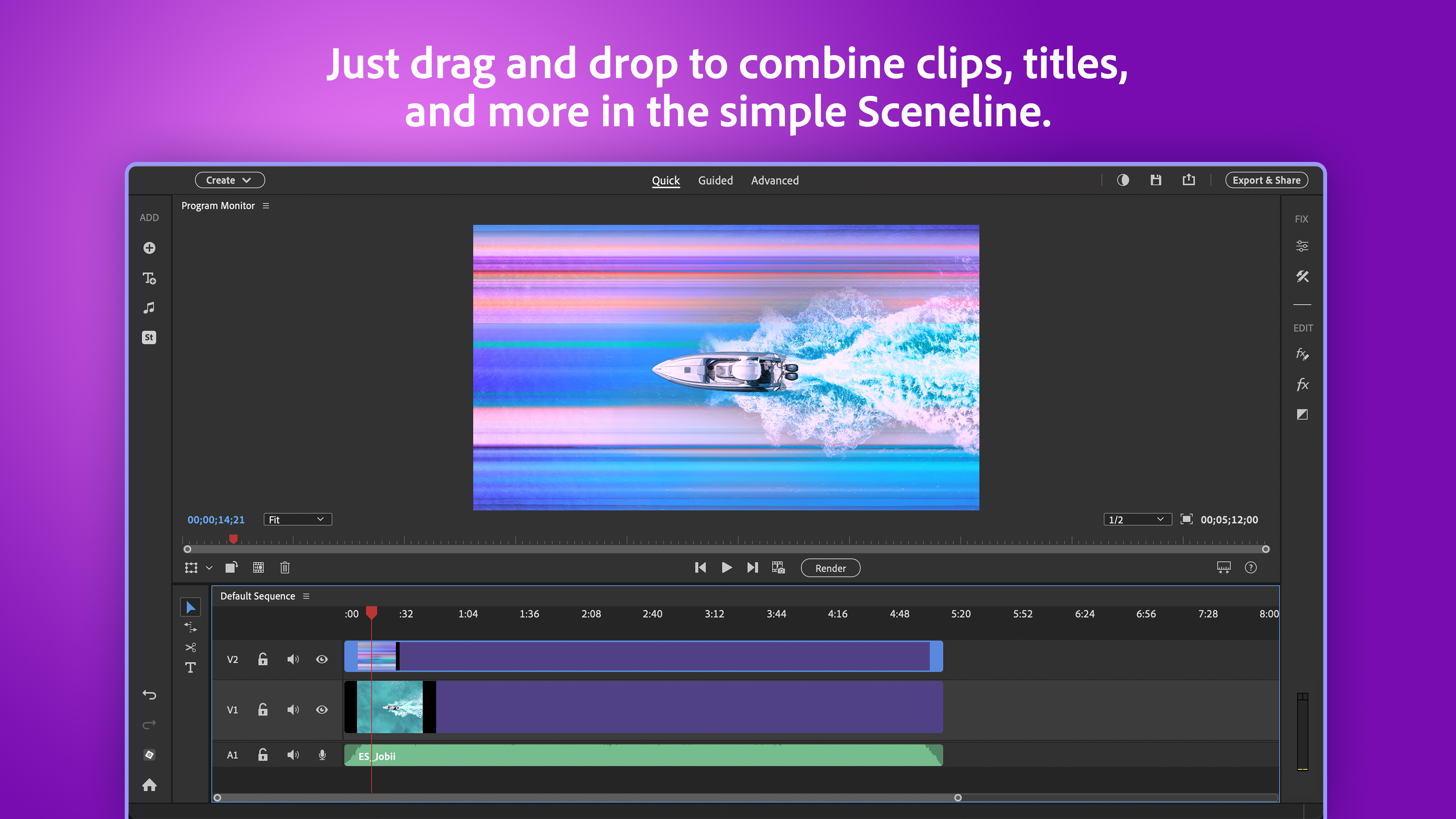
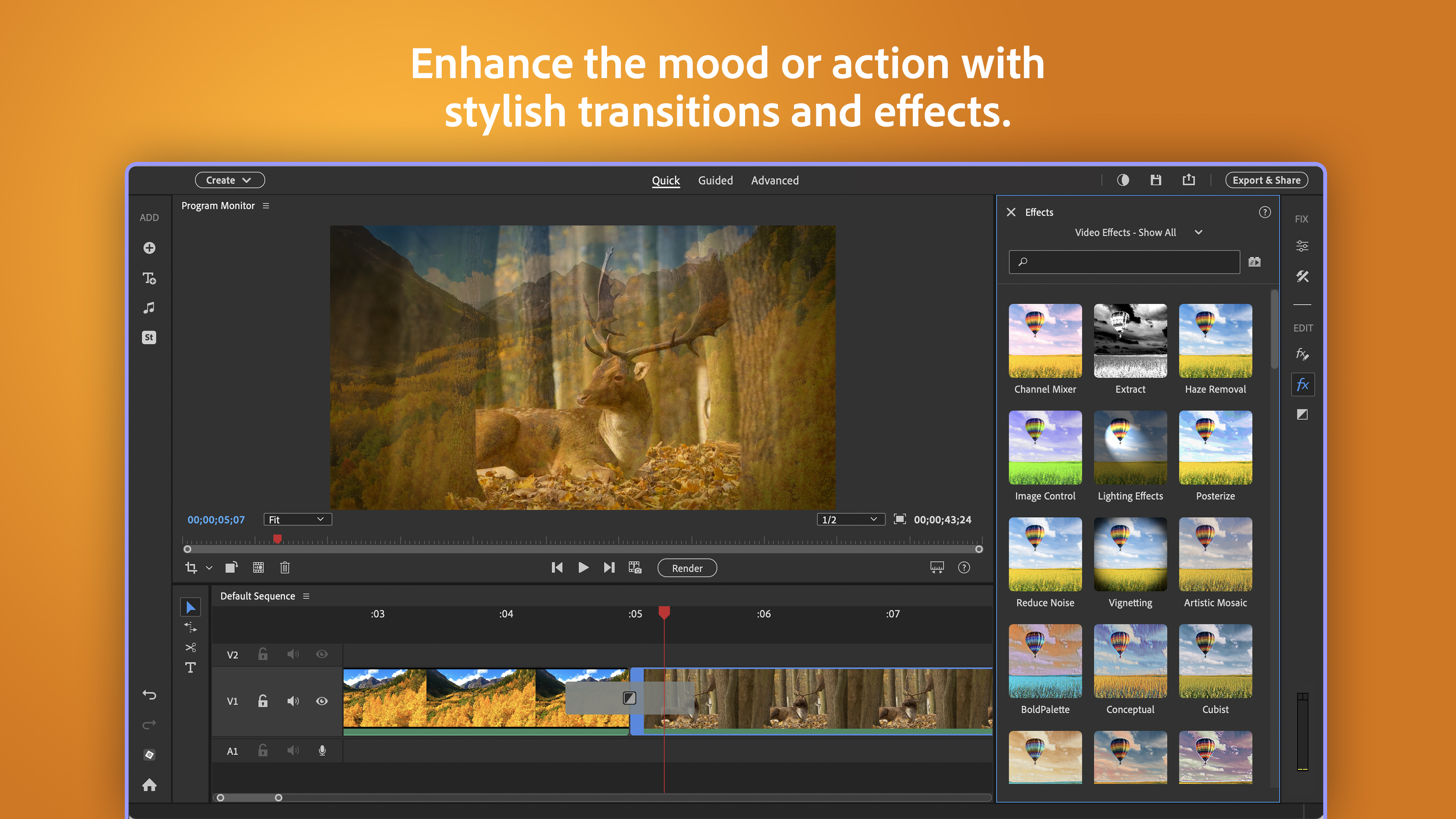
One of the app's most appealing aspects is its ability to combine photo and video projects seamlessly. With drag-and-drop interfaces and integrated timelines, users can craft slideshows, video montages, or memory books that unite still images with dynamic videos, creating compelling narratives that feel polished but approachable.
Design, Usability, and User Experience
The interface strikes a pleasant balance — colorful, inviting, yet logically organized. It's akin to stepping into a well-organized craft workshop where everything is at your fingertips. The design minimizes clutter, prioritizing essential tools while offering tips and tutorials to guide beginners through new features. Transitioning from one project stage to another feels smooth, with responsive controls that make editing satisfying rather than frustrating.
Performance-wise, the application handles most editing tasks with commendable fluency. Light editing sessions typically run without noticeable lag, which is vital when working on large batches of photos or high-definition videos. The learning curve is gentle; even first-timers can produce decent results after exploring the guided edits and tutorials, making it an ideal entry point into creative editing.
What Makes It Stand Out?
Compared to other photo and video editing apps, Adobe Elements 2026 emphasizes accessibility through its robust AI automation and guided workflows. Unlike more complex professional tools, it requires less technical expertise, yet still delivers impressive results. Its ability to automatically enhance images and videos, combined with personalized step-by-step tutorials, provides a tailored experience that adapts to varying skill levels.
Another distinctive advantage is its integration—users can easily switch between editing photos and videos within a unified environment, streamlining the creative process. Plus, its cloud-based sharing options and built-in templates foster quick storytelling, perfect for social media enthusiasts or family memory keepers.
Recommendations and Usage Tips
Overall, I'd rate Adobe Photoshop Elements & Premiere Elements 2026 as a strong choice for casual creators seeking a balanced blend of power and simplicity. It's especially suitable for beginners or those who want to quickly produce professional-looking content without investing in steep learning curves. I recommend exploring the guided edits first to get comfortable, then experimenting with AI enhancements to elevate your projects effortlessly.
If you appreciate intuitive workflows, seamless photo-video integration, and intelligent automation, this app deserves a spot in your creative toolbox. For more advanced, feature-heavy editing, professionals might find it somewhat limited, but for the everyday creative, it offers an impressive package that truly democratizes digital storytelling.
Pros
- Intuitive User Interface
- Comprehensive Editing Tools
- Cloud Integration Support
- Regular Updates and Improvements
- Support for High-Resolution Files
Cons
- High System Requirements
- Learning Curve for Advanced Features
- Limited Non-Subscription Options
- Occasional Stability Issues
- Basic Video Effects Are Limited