

- Name Adobe Lightroom
- Category Photo & video
- Developer Adobe, Inc.
- Available on PC
- OS Windows 10 version 0.0 or higher
- Keyboard Integrated Keyboard
- Mouse Integrated Mouse
- Memory 8 GB
- DirectX DirectX 12 API, Hardware Feature Level 11
- languages Chinese (Simplified), Chinese (Traditional Chinese), Dutch, English, French, German, Italian, Japanese, Korean, Norwegian, Polish, Portuguese, Russian, Spanish, Swedish, Thai
Adobe Lightroom for Windows: A Powerful Companion for Photographers
Adobe Lightroom for Windows offers aspiring and professional photographers a comprehensive yet user-friendly platform to enhance, organize, and creatively edit their images with precision and style. As part of Adobe's renowned photo editing ecosystem, it focuses on delivering streamlined workflows and high-quality results through innovative features.
About the App
Developed by Adobe, Inc., Lightroom for Windows is a flagship photography application designed to facilitate both quick edits and in-depth photo adjustments. Crafted by one of the most influential names in digital imaging, this tool encapsulates professional-grade editing capabilities while maintaining accessibility for amateurs. Its core features encompass non-destructive editing, advanced color grading, and effortless photo organization, making it a versatile choice for a wide range of users.
The primary target audience includes hobbyist photographers, seasoned professionals, social media influencers, and anyone eager to turn their snapshots into stunning visual stories. Its cross-device integration further appeals to users seeking a seamless editing experience between desktop and mobile environments.
Brightening the Frame: An Engaging Entrance
Imagine opening a box of professional photography gear—lightweight but packed with powerful tools. That's exactly what Lightroom offers for your digital photographs. Whether capturing a sunset or a bustling city street, the app transforms ordinary images into captivating visuals with just a few clicks. Its intuitive interface invites users to explore creative possibilities without feeling overwhelmed, making editing feel more like an artful journey rather than a technical chore.
Core Functionality: Precision Editing at Your Fingertips
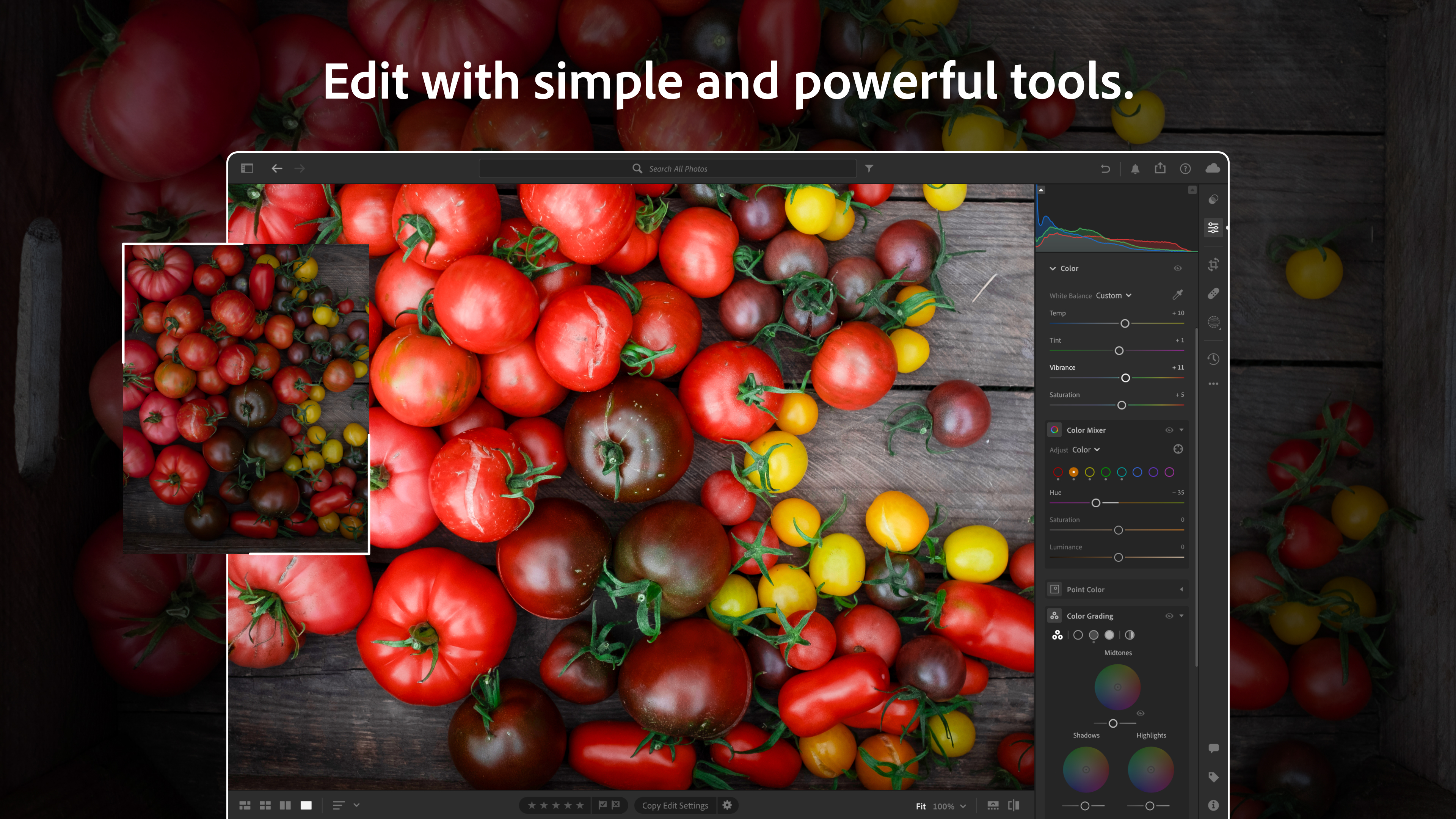
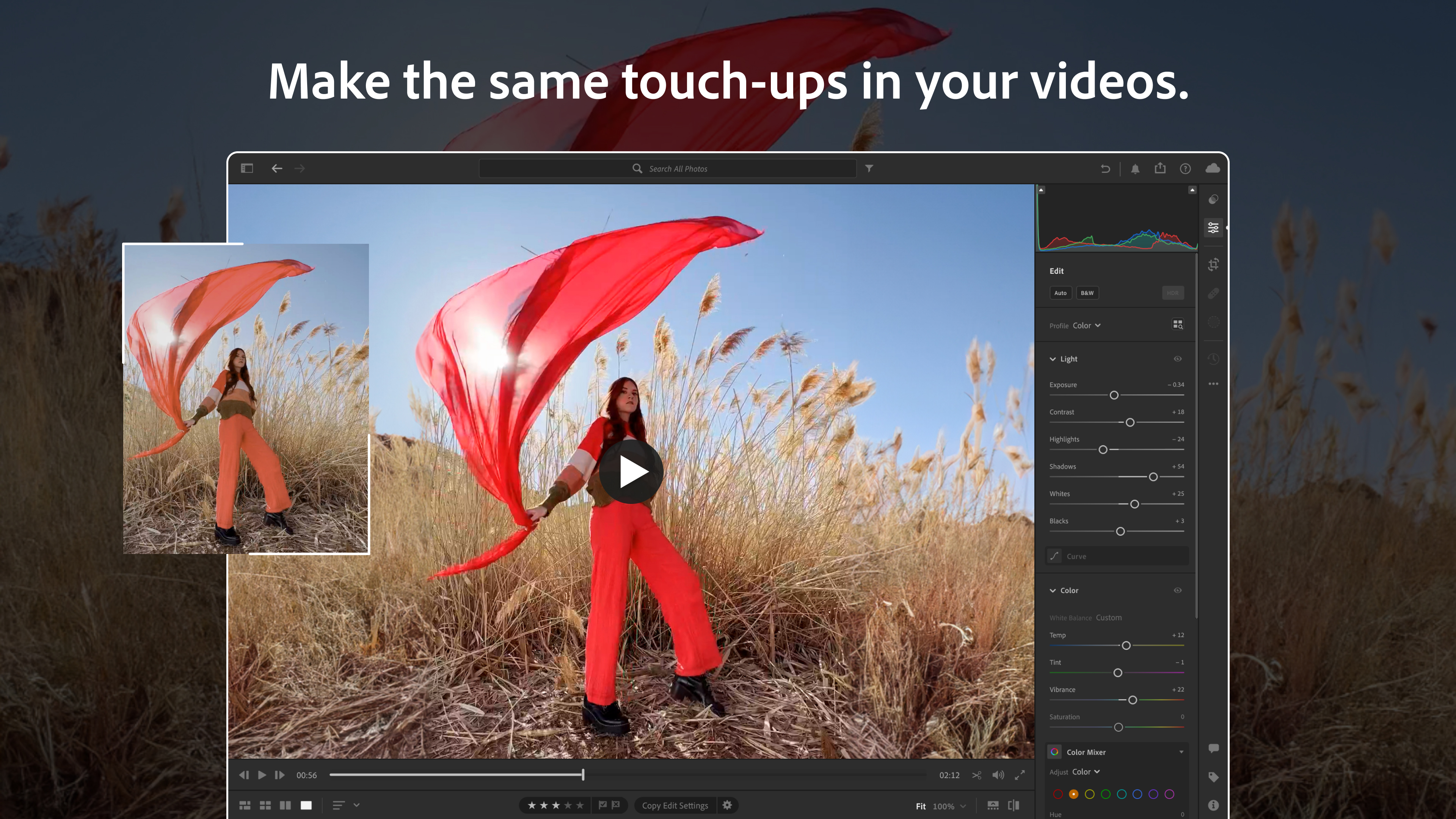
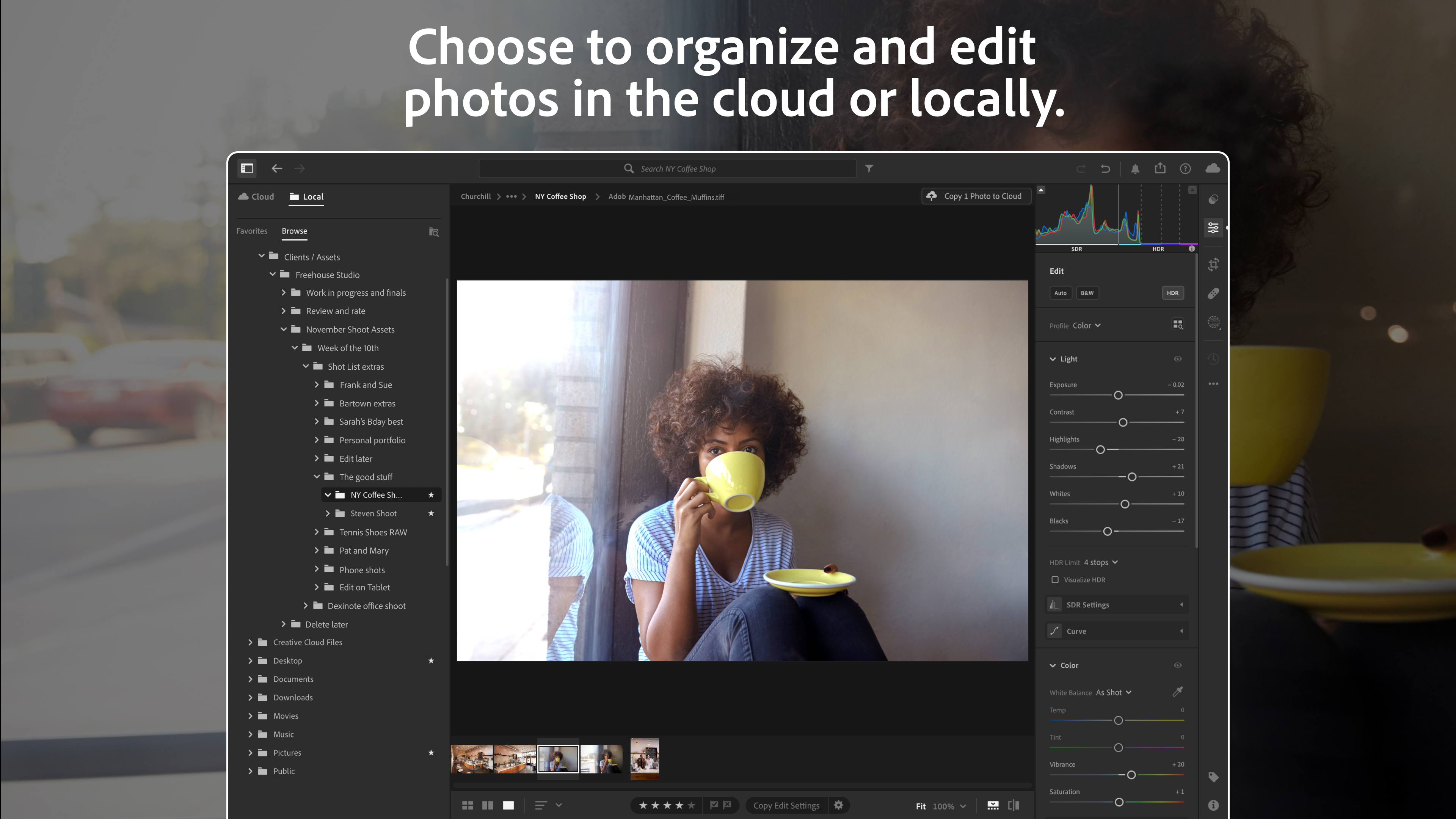
One of Lightroom's standout features is its flexible adjustment sliders, which allow for nuanced control over exposure, contrast, highlights, shadows, and more. The “Tone Curve” tool provides an expressive way to manipulate tonal ranges—think of it as a digital paintbrush for brightness levels. For users aiming to craft specific moods, the “Color Grading” module permits granular color adjustments, helping images evoke warmth, coolness, or artistic undertones effortlessly.
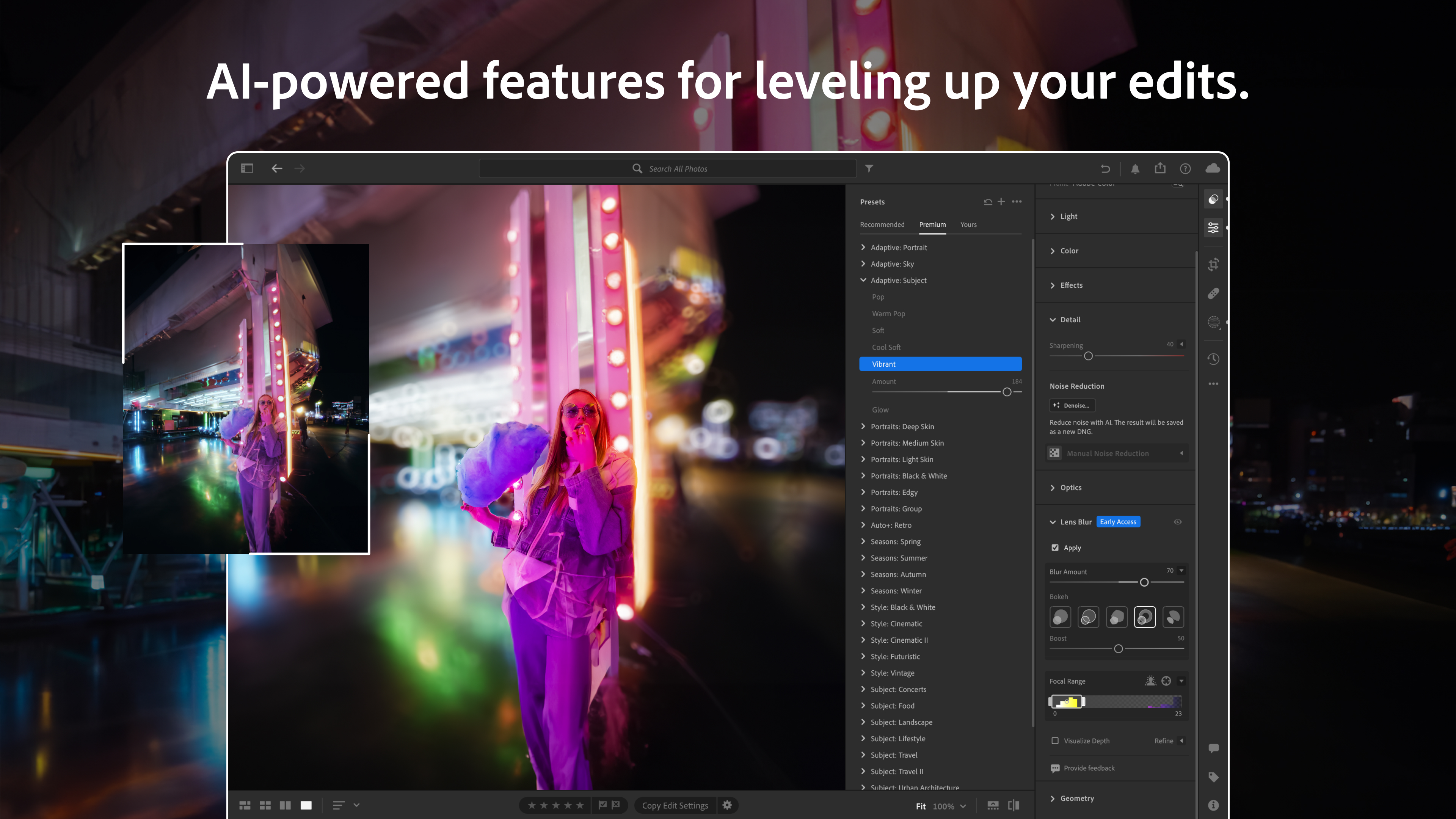
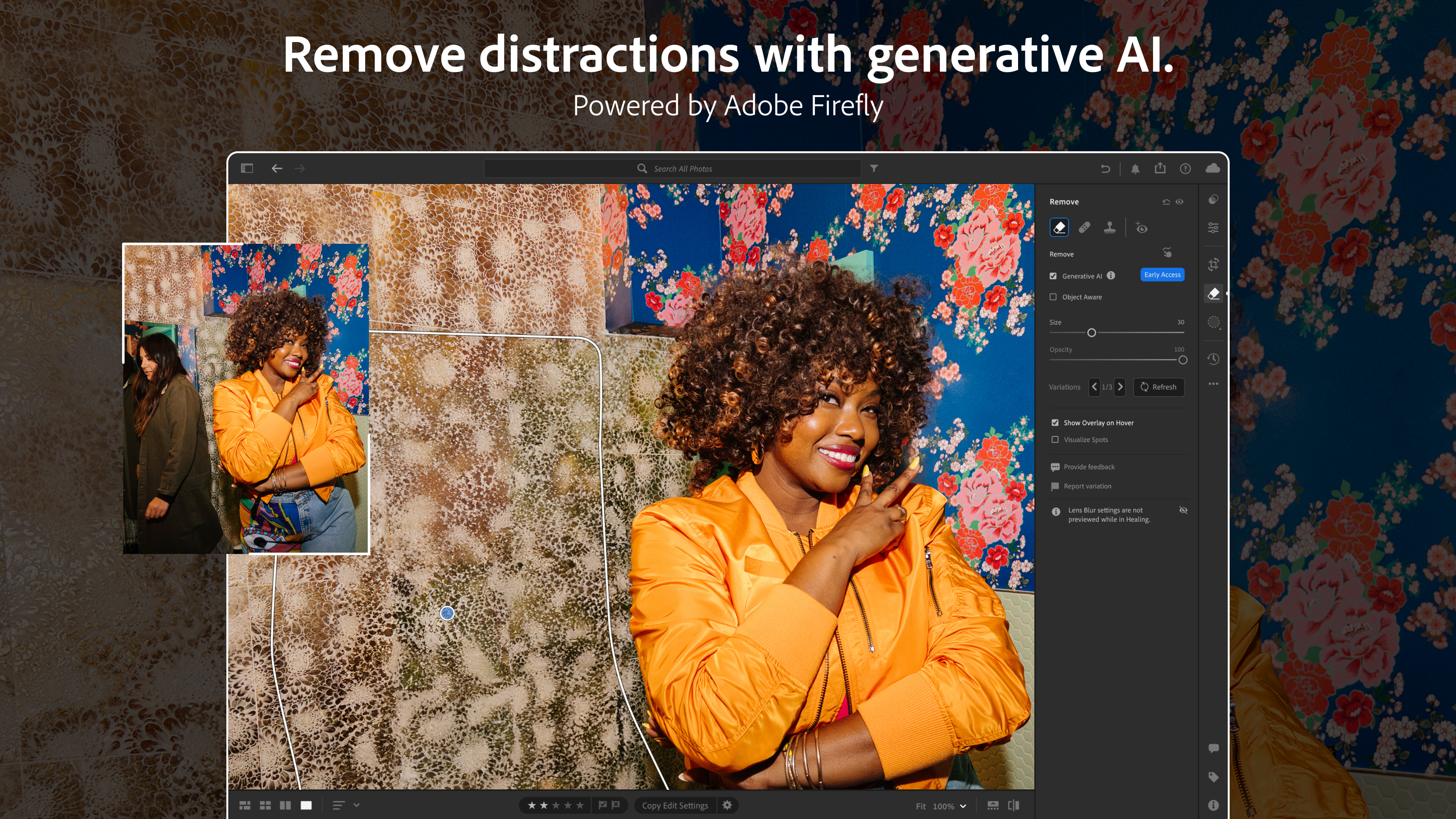
Additionally, Lightroom's integration of AI-driven ‘Auto' corrections simplifies the editing process, providing professional-quality results instantly, yet still allowing for manual refinement. The app's non-destructive workflow ensures your original photos stay untouched, giving you peace of mind as you experiment freely.
Streamlined Organization and Sharing
Beyond editing, Lightroom excels in image management. Its cataloging system enables users to tag, rate, and categorize photos swiftly, transforming a chaotic folder into an organized gallery. Its AI-powered search feature recognizes subjects, locations, and even objects within photos—imagine having a digital assistant that recognizes your favorite landscapes or pets.
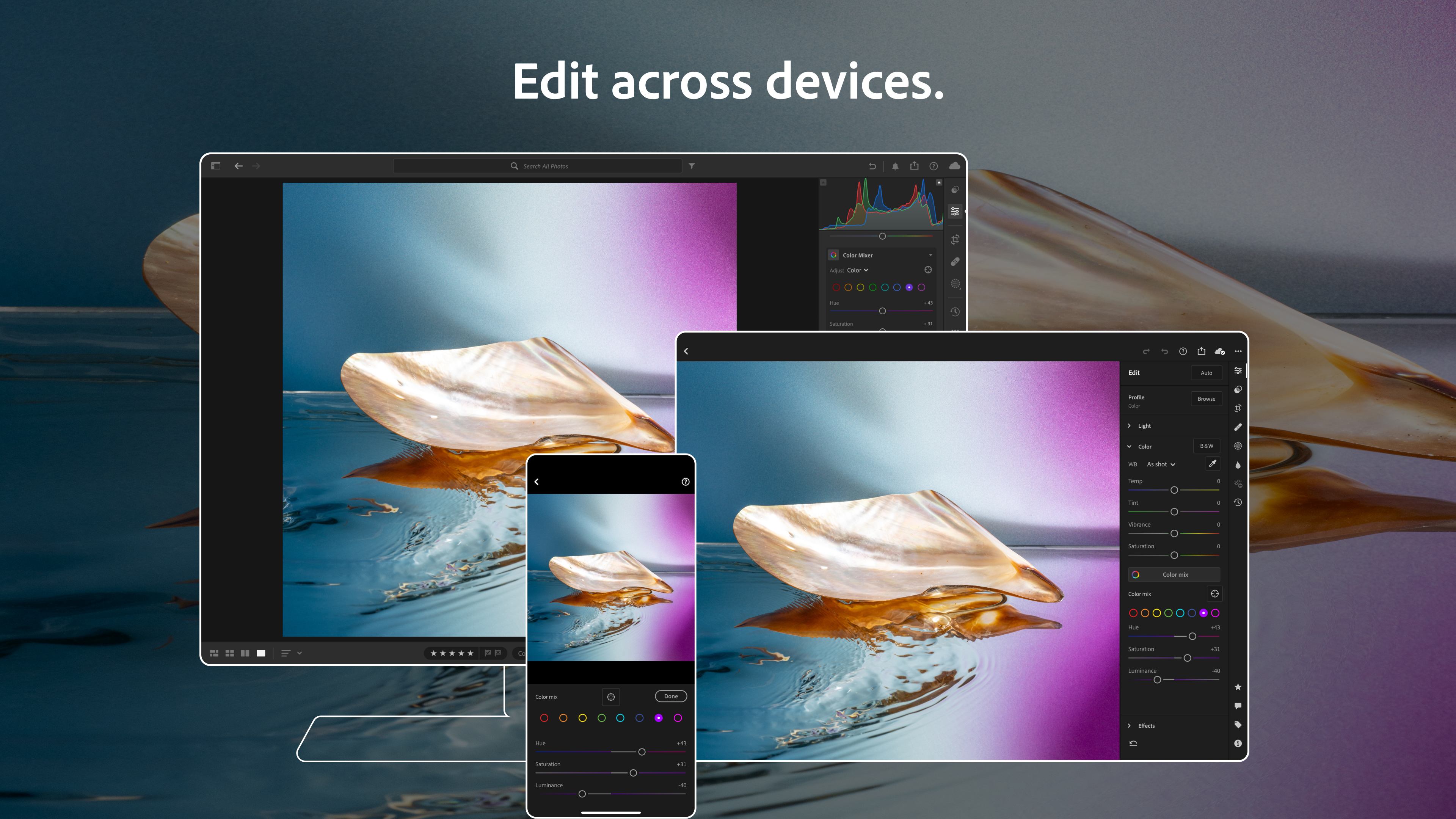
When it comes to sharing, Lightroom simplifies exporting directly to social media platforms or creating high-resolution prints. Its cloud synchronization capability ensures edits made on your PC are instantly reflected on your mobile device, which is ideal for on-the-go curation or quick shareability.
Design, Usability, and Unique Selling Points
The interface design strikes a balance between minimalism and functionality, echoing the aesthetic of modern creative tools—clean, intuitive, and customizable. Users appreciate smooth operation, with responsive sliders, quick preview rendering, and seamless navigation. Beginner-friendly, yet packed with professional features, the app's learning curve is gentle, supported by in-built tutorials and a vast online community.
Compared to other photo editors like Capture One or DxO PhotoLab, Lightroom shines with its cloud-based ecosystem, broad third-party plugin support, and tightly integrated photo management—making it more than just an editing app, but a complete photography workflow solution. Its most distinctive advantage is undoubtedly its combination of advanced editing capabilities with excellent organizational tools, all wrapped in an accessible interface.
Final Verdict: Who Should Use It?
Lightroom for Windows earns a solid recommendation for those seeking a balanced photo editing tool that doesn't compromise on quality or usability. Beginners will find it approachable, while professionals will value its depth and workflow integrations. For anyone serious about photography, this app offers a reliable, powerful, and evolution-ready environment to develop your images—and most importantly, enjoy the process.
Pros
- Powerful editing tools
- Non-destructive editing
- Cloud synchronization
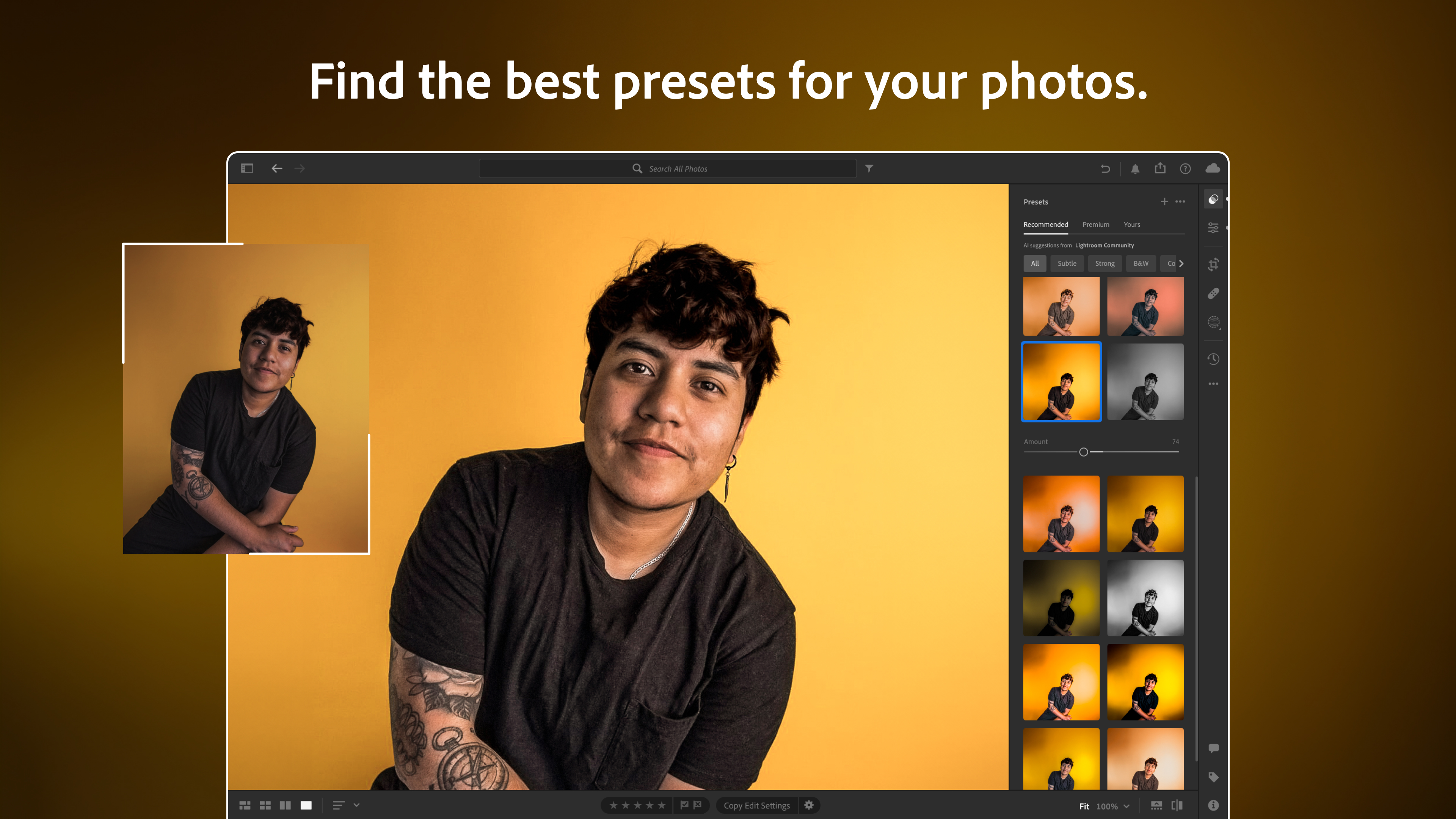
- Extensive preset options
- Integration with Adobe ecosystem
Cons
- Subscription-based pricing
- Steep learning curve for beginners
- Occasional lag on older hardware
- Limited advanced RAW processing features
- Requires constant internet connection for some features