
- Name 123 Photos: View, Edit & Convert
- Category Photo & video
- Developer Dreamoji
- Available on PC
- OS Windows 10 version 19041.0 or higher
- languages Afrikaans, Albanian, Amharic, Arabic, Armenian, Bangla, Basque, Belarusian, Bulgarian, Chinese (Simplified), Chinese (Traditional), Croatian, Czech, Danish, Dutch, English (United States), Estonian, Filipino, French, Galician, Georgian, German, Greek, Gujarati, Hebrew, Hindi, Hungarian, Icelandic, Irish, Italian, Japanese, Kannada, Kazakh, Khmer, Kinyarwanda, Korean, Latvian, Lithuanian, lo, Luxembourgish, Macedonian, Malayalam, Maltese, Maori, Marathi, Nepali, Norwegian, Odia, Polish, Portuguese, Punjabi, Romanian, Russian, Sinhala, Slovak, Slovenian, Spanish, Swedish, Tamil, Telugu, Thai, Ukrainian, Urdu, Vietnamese, Welsh
Elevating Your Photo Management: An In-Depth Look at 123 Photos: View, Edit & Convert
If you're often caught juggling dozens of images—whether for personal projects or professional tasks—then 123 Photos offers a streamlined solution to viewing, editing, and converting images all in one place. This user-friendly app promises to be a versatile assistant in your creative toolkit, aiming to simplify complex workflows with ease and style.
Meet the Makers: Dreamoji's Creative Force
Developed by Dreamoji, a dedicated team with a passion for crafting intuitive digital tools, 123 Photos combines technical robustness with thoughtful design. As the publisher, dreamoji.com ensures regular updates and customer support, giving users confidence in a reliable app that evolves alongside their needs.
Key Features That Make a Difference
- All-in-One Photo Viewer, Editor, and Converter: Manage your images seamlessly without bouncing between multiple apps—view, tweak, and convert with a few clicks.
- Batch Processing Capabilities: Need to convert or resize a large number of photos? The app handles batch operations efficiently, saving valuable time.
- Format Compatibility and Conversion: Supports various image formats like JPEG, PNG, BMP, and more—plus quick conversion to suit different platforms and needs.
- User-Friendly Interface: Designed with simplicity in mind, making it accessible even for users new to photo editing software.
A Vibrant Walkthrough of Features and User Experience
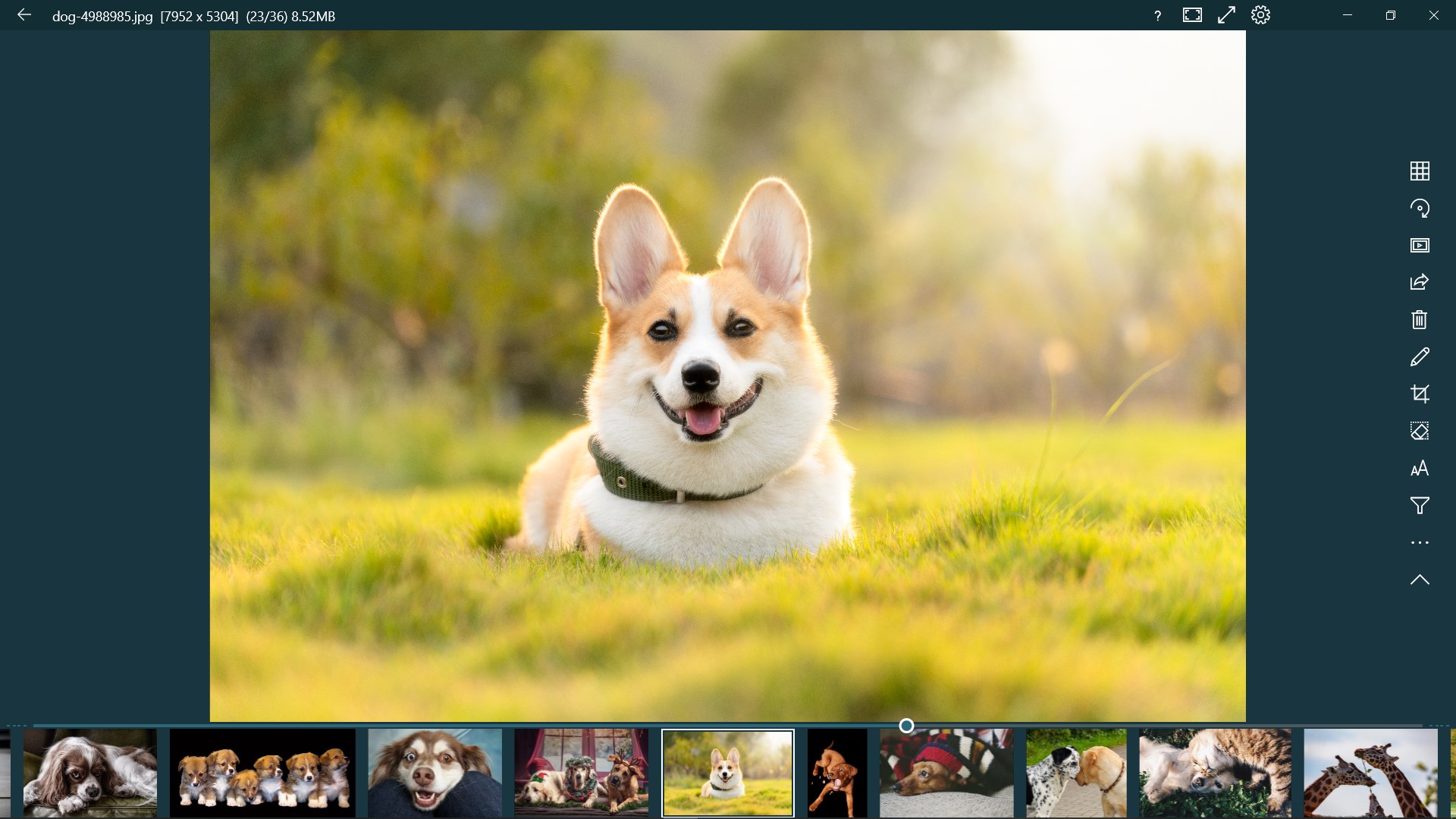
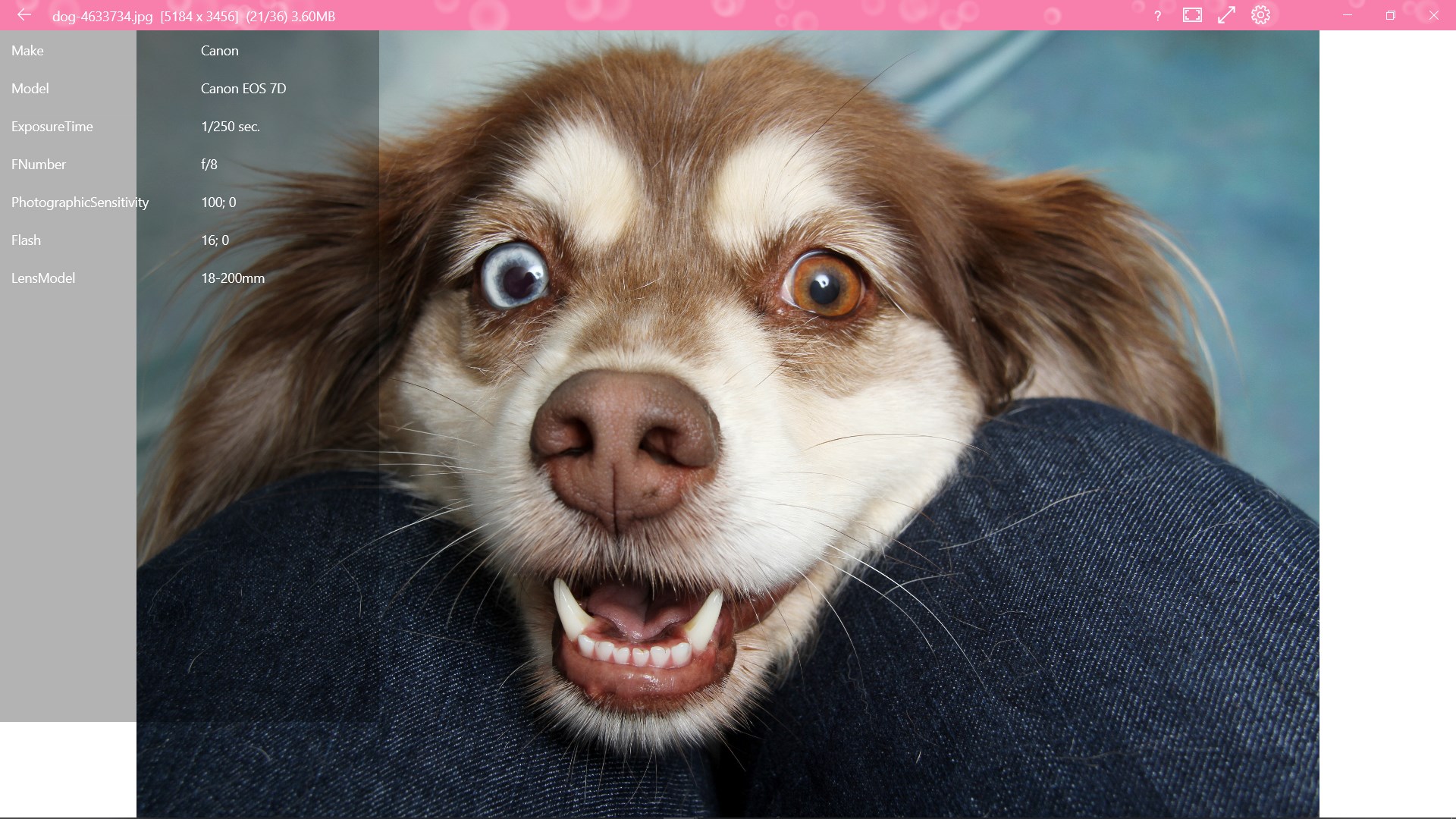
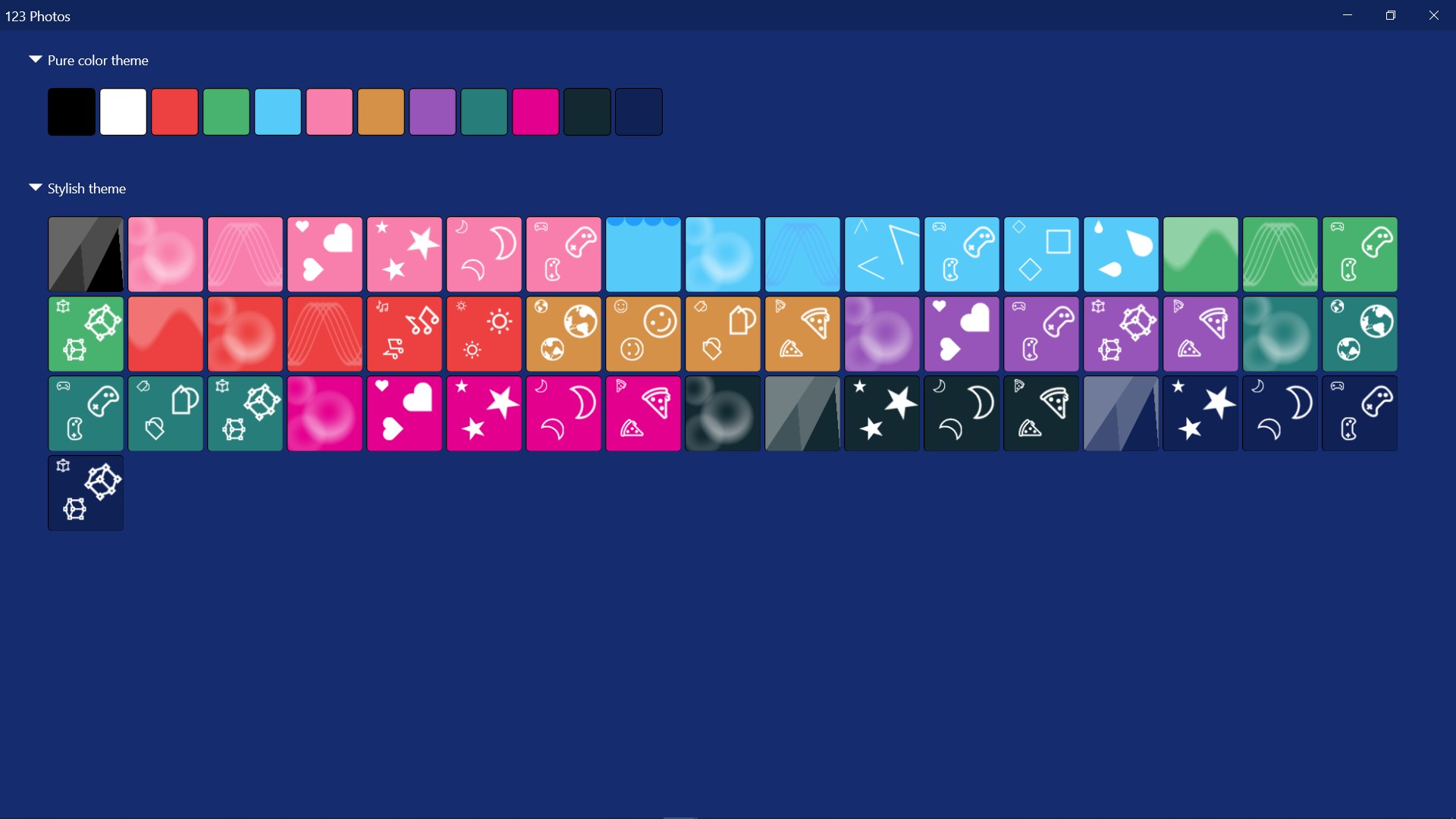
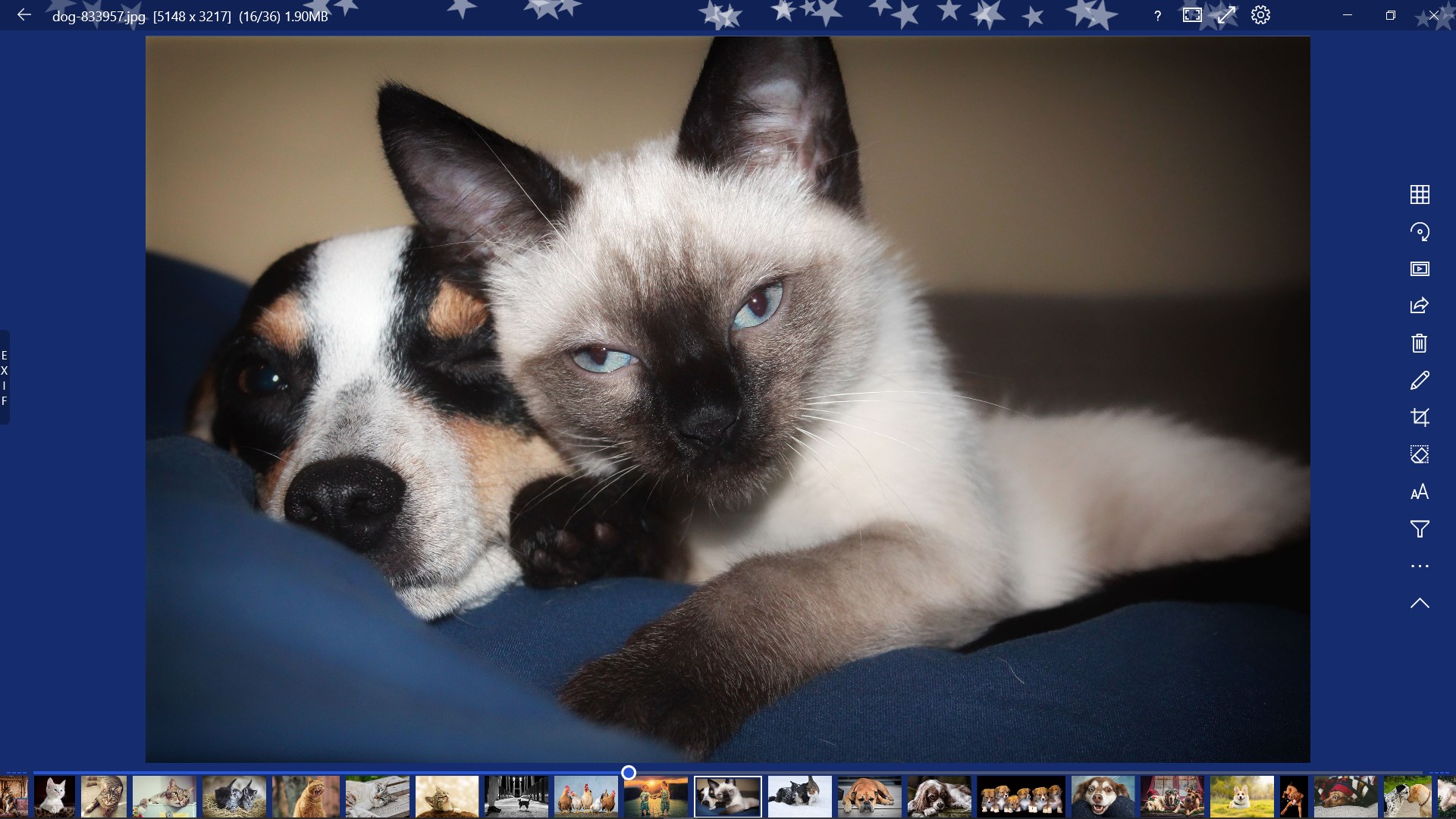
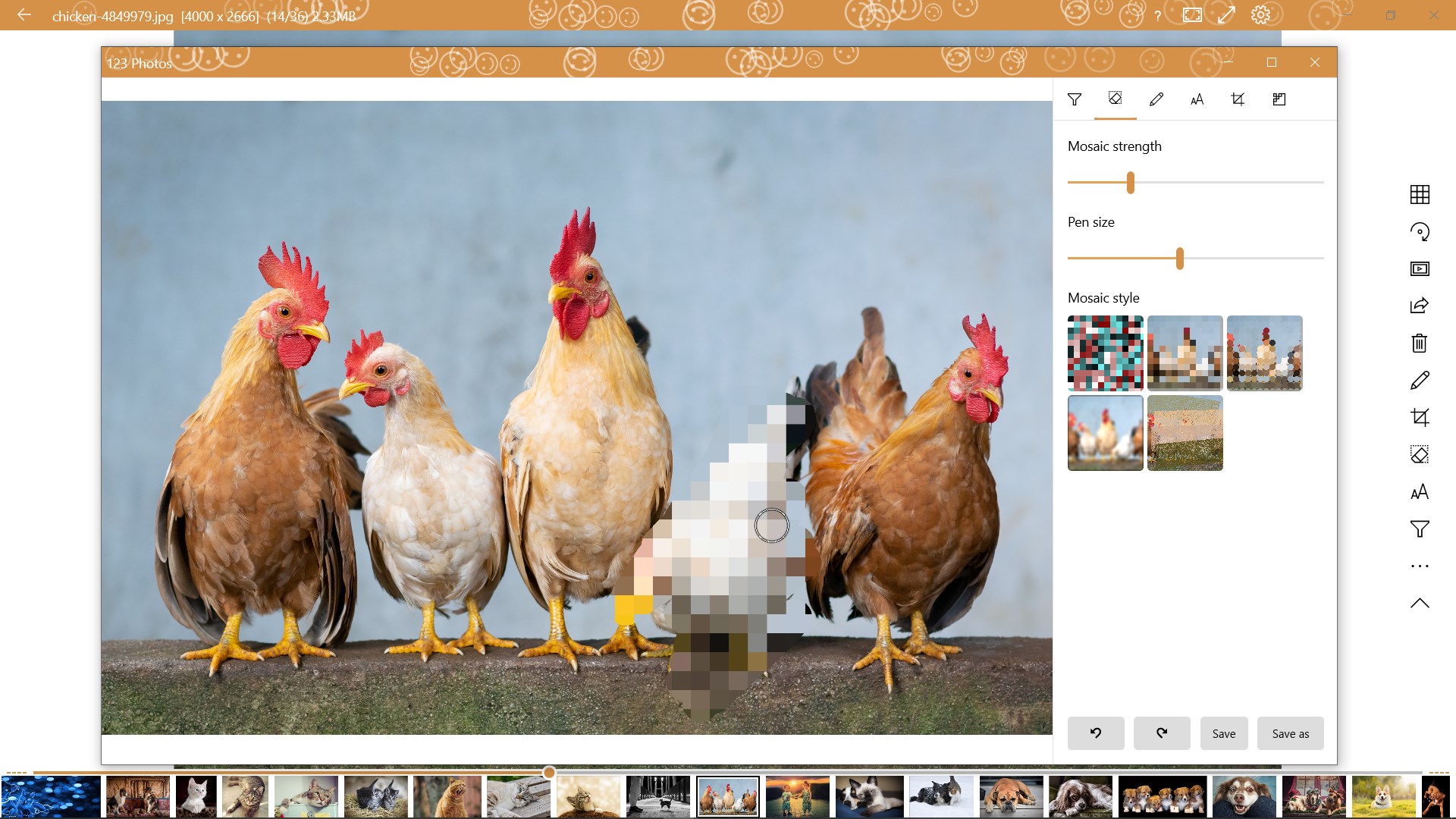
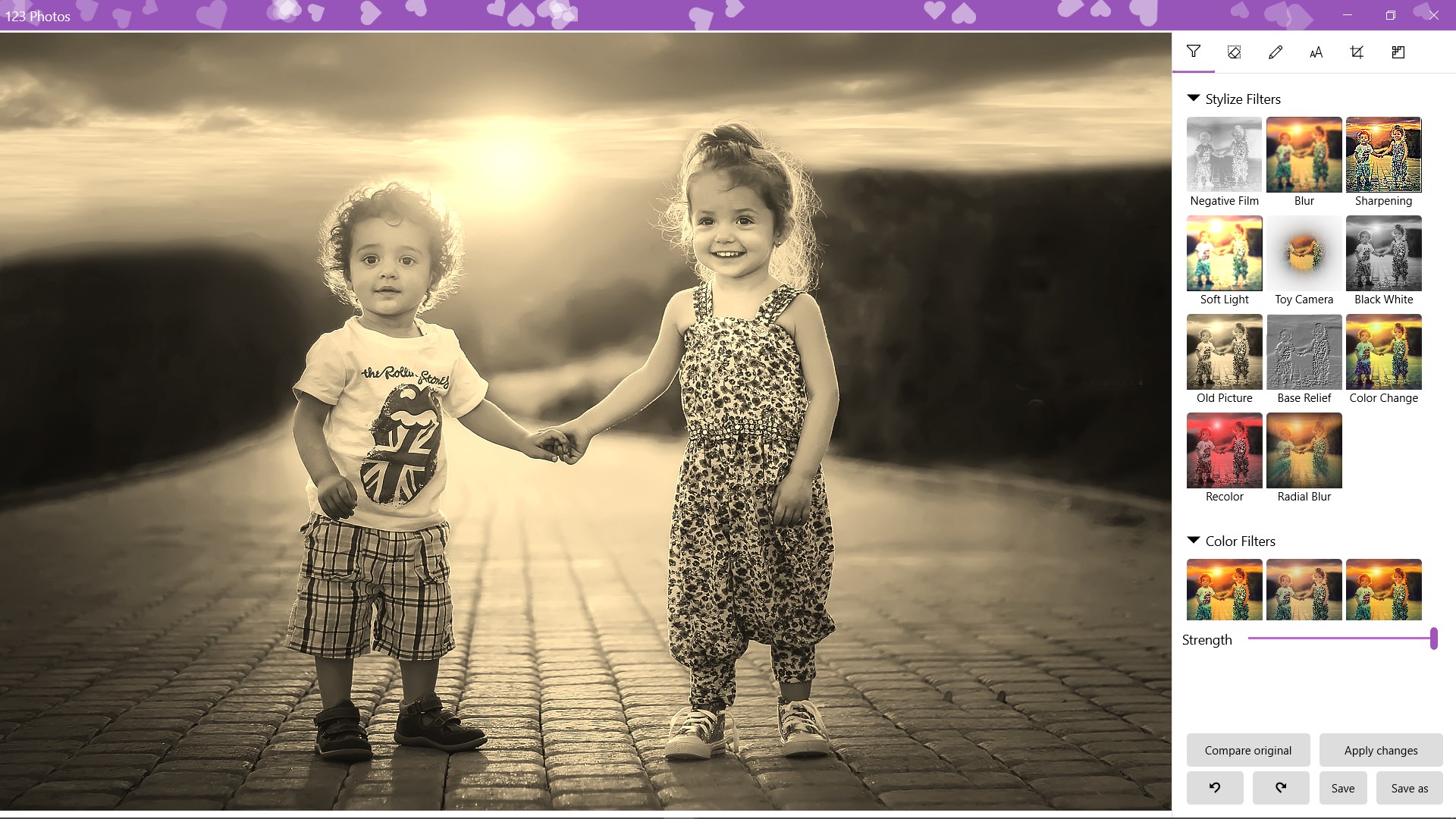
diving into 123 Photos is like opening a well-organized digital photo studio—everything you need is logically arranged and immediately accessible. The interface radiates a clean, minimalistic aesthetic, with a palette that invites you to start editing without distraction. Navigating through your library is smooth as silk; images load quickly whether you're browsing a handful or hundreds of photos. The app's layout resembles a cozy workspace, where each tool is just a click away, making the learning curve gentle even for those less tech-savvy.
Photo Viewing and Management — A Clear-Focused Lens
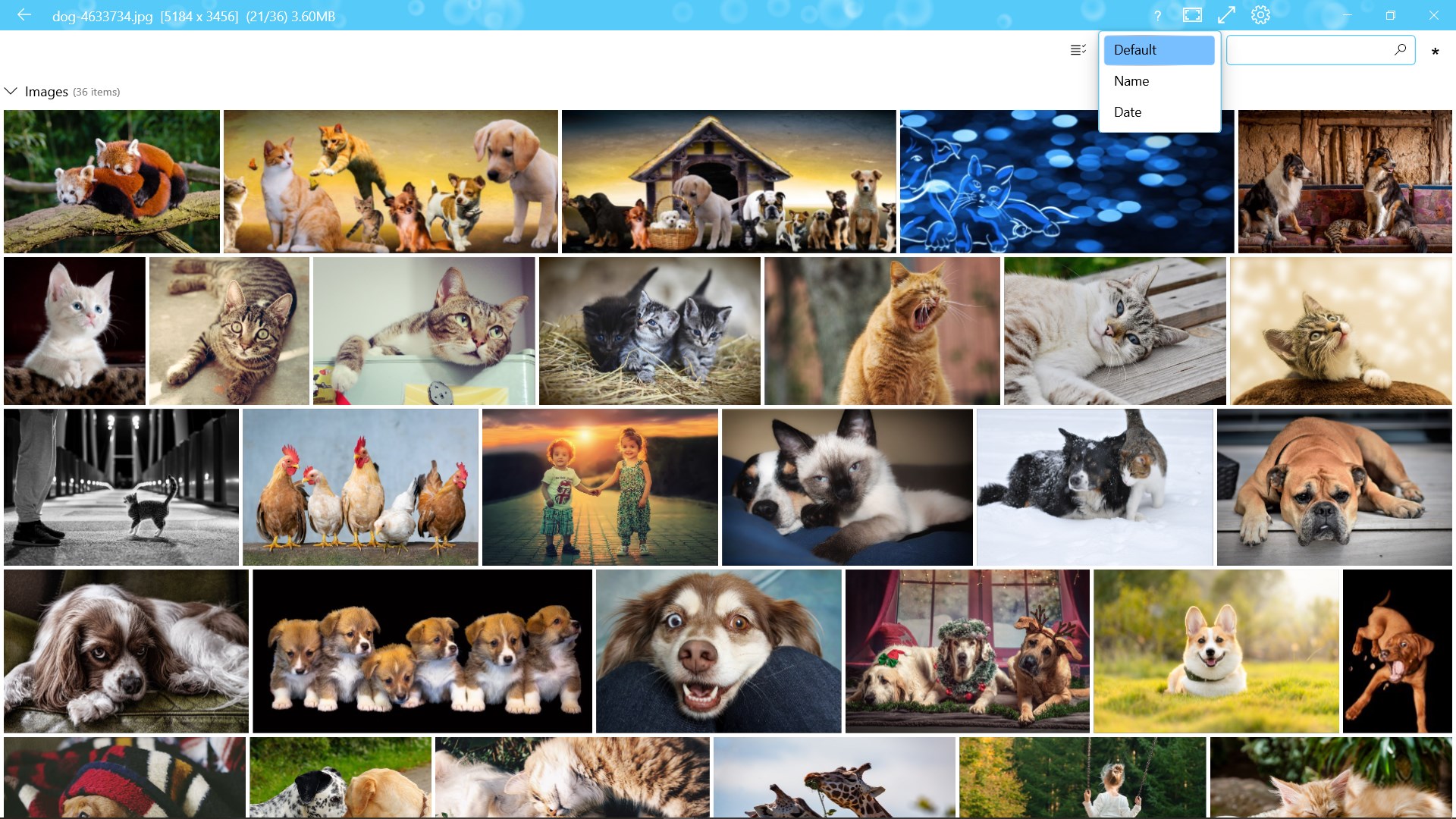
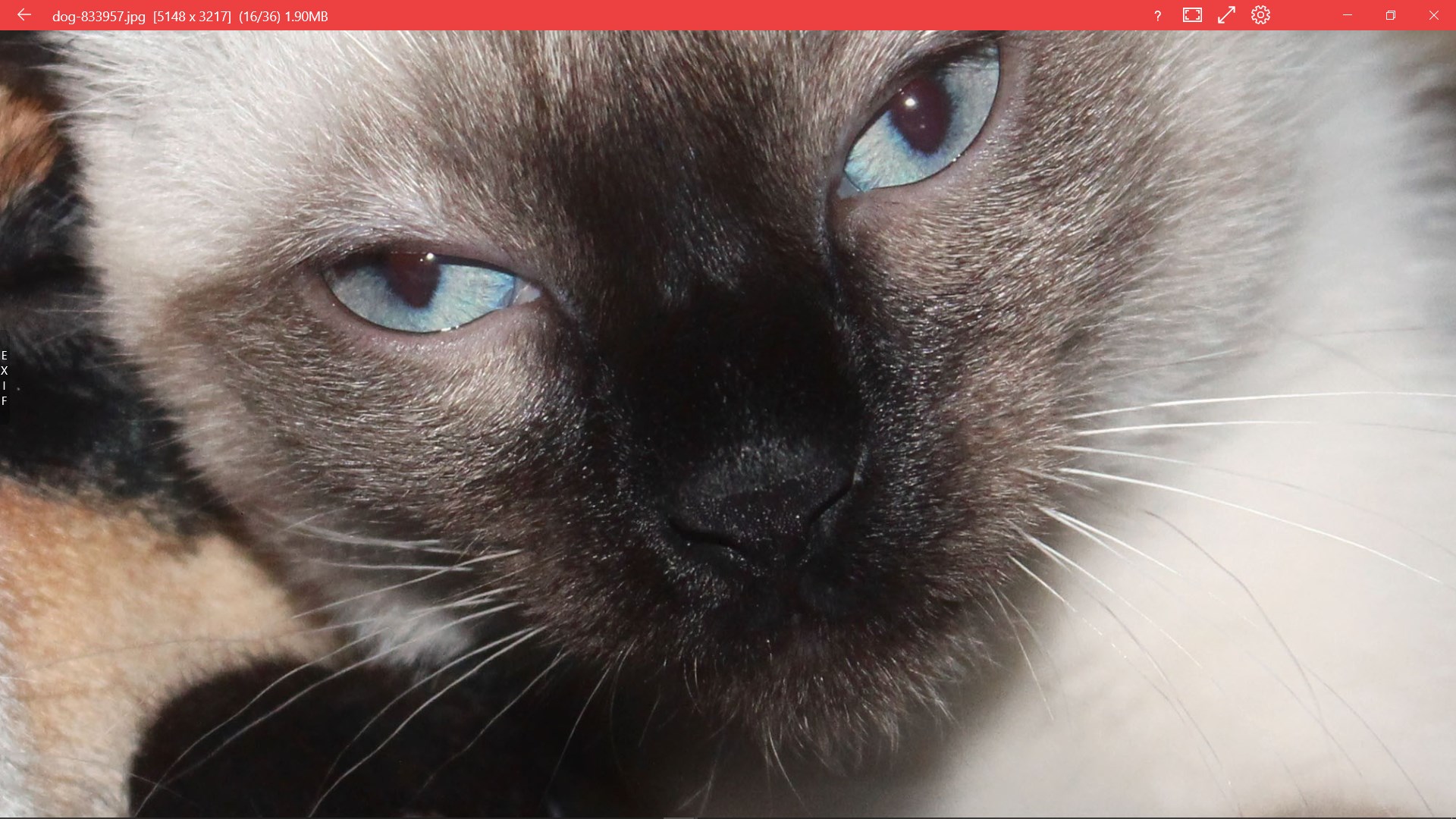
The core feature of 123 Photos—its ability to view images in various formats—is impressively smooth. You can browse through your collections, zoom in for details, and organize images effortlessly. Unlike some cluttered photo managers, this app keeps things straightforward, letting you focus on the photos rather than the interface. A noteworthy touch is its thumbnail preview system, which load swiftly and clearly, making it easy to pick the perfect shot or bulk select items for editing or conversion.
Editing Made Simple and Effective
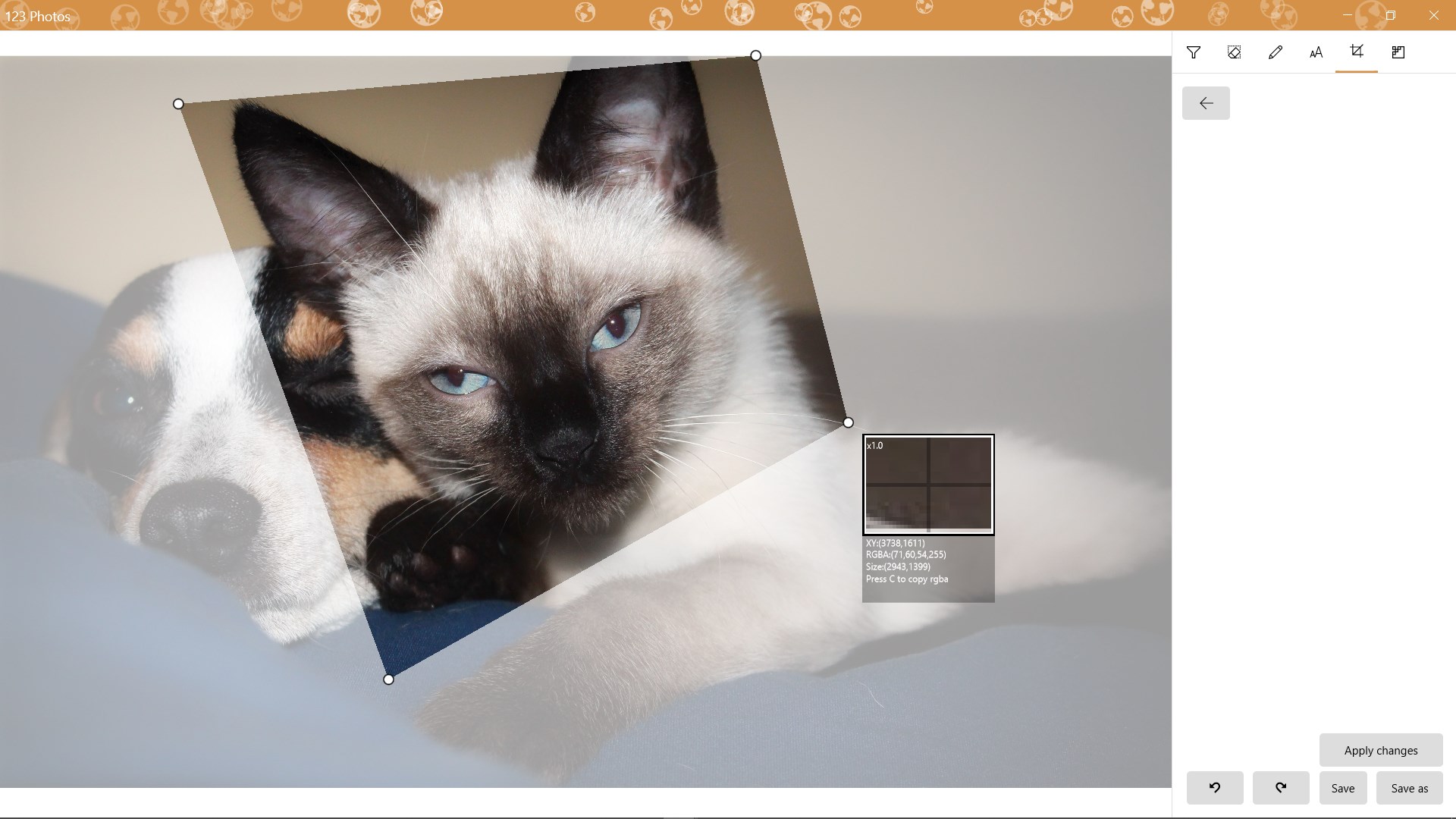
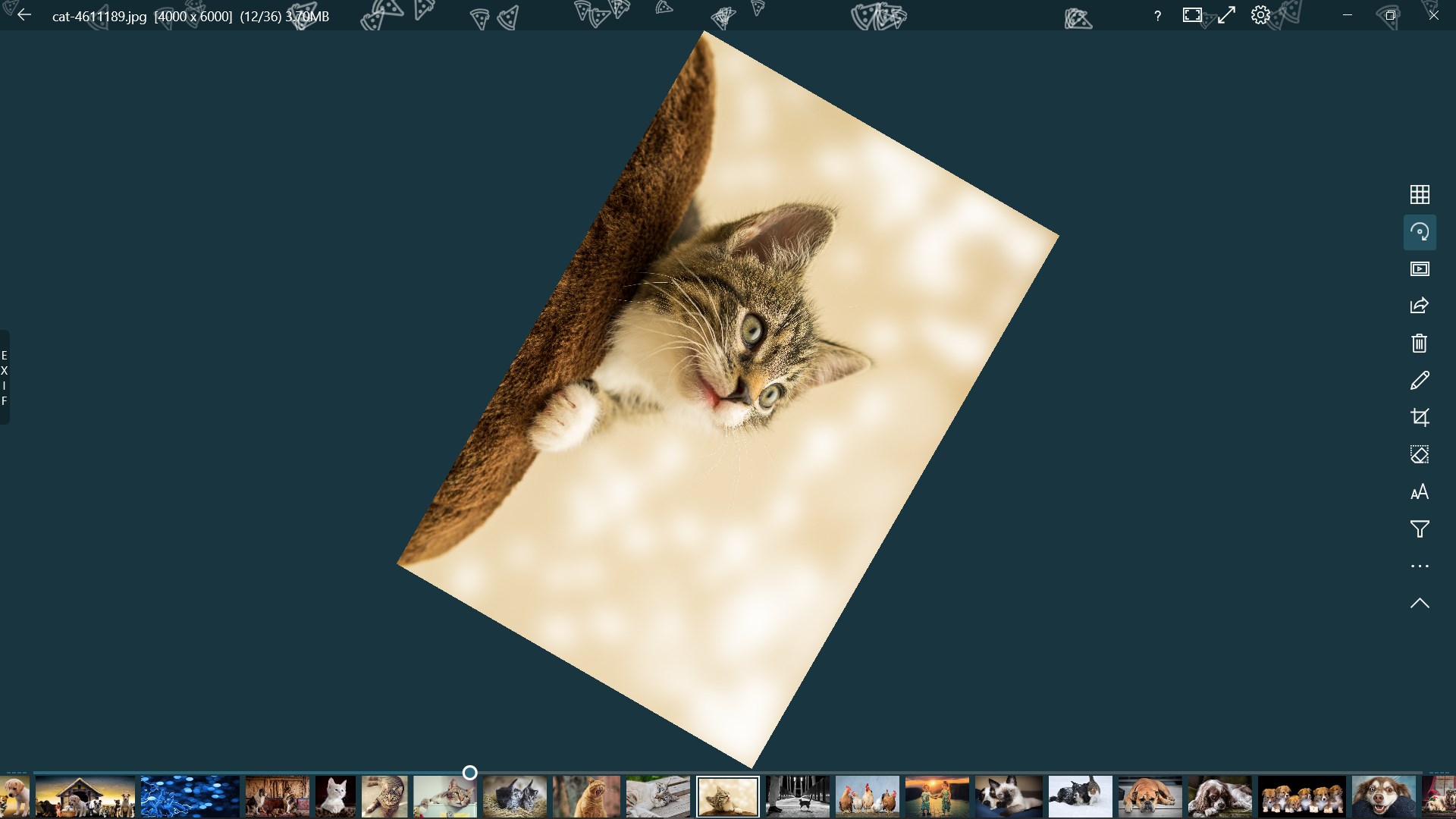
When it comes to editing, 123 Photos offers a set of essential tools—crop, rotate, resize, and adjust color levels—that are intuitive enough for novices yet robust enough to satisfy casual photographers. The app's editing flow feels natural, like turning the pages of a well-loved photo album. While it doesn't aim to compete with heavyweight editors like Photoshop, its focus on handling common adjustments efficiently makes it a handy companion for quick edits or batch adjustments.
Converting Photos—A Powerful Tool for Compatibility
The conversion feature stands out as one of the app's strongest suits, especially for users who deal with multiple formats regularly. Batch conversion works flawlessly, allowing you to convert entire folders of images in a flash. The speed is commendable, and the format choices cover the majority of use cases—from sharing high-quality prints to preparing images for websites or social media. This capability is particularly useful for professionals managing large image libraries, providing a one-stop solution for all format needs.
How Does It Compare? Unique Advantages
Compared to many traditional photo apps that focus solely on editing or viewing, 123 Photos combines these functions with powerful conversion tools, all wrapped in an accessible package. Its batch processing capability and format versatility set it apart, making it especially valuable for users with large volumes of images. Moreover, its straightforward interface and responsive performance make it more approachable than some complex or resource-heavy alternatives. While it might not replace specialized editing software for advanced tasks, for everyday photo management, it fills a niche beautifully.
Final Thoughts: Should You Give It a Spin?
For casual photographers, small business owners, or anyone needing a reliable photo companion, 123 Photos is worth considering. Its simplicity doesn't sacrifice functionality, especially with its standout batch processing and versatile format support. If your workflow involves viewing, quick editing, and converting large collections of photos, this app can become a time-saving partner. I'd recommend trying it out—especially if you value an intuitive experience paired with robust core features. As with any tool, grasping its full potential might take a little exploration, but once familiar, you'll likely find it a dependable workhorse in your digital toolkit.
Pros
- Intuitive User Interface
- Wide Range of Editing Tools
- Efficient Conversion Features
- Fast Performance
- Free to Use with Essential Features
Cons
- Limited Advanced Editing Tools
- Occasional Crashes on Large Files
- Basic Export Options
- Inconsistent Filter Effects
- Absence of Batch Processing for Multiple Files