- Name Turtle Beach - PDP Control Hub
- Category Entertainment
- Developer Turtle Beach, Inc
- Available on PC, Mobile, Xbox console, Surface Hub, HoloLens
- OS Windows 10 version 15063.0 or higher
- languages Chinese (Simplified), Danish, Dutch, English (United States), French, French (Canada), German, Italian, Japanese, Norwegian (Bokmål), Polish , Portuguese (Portugal), Spanish (Spain), Swedish
Introducing the Turtle Beach PDP Control Hub for Windows
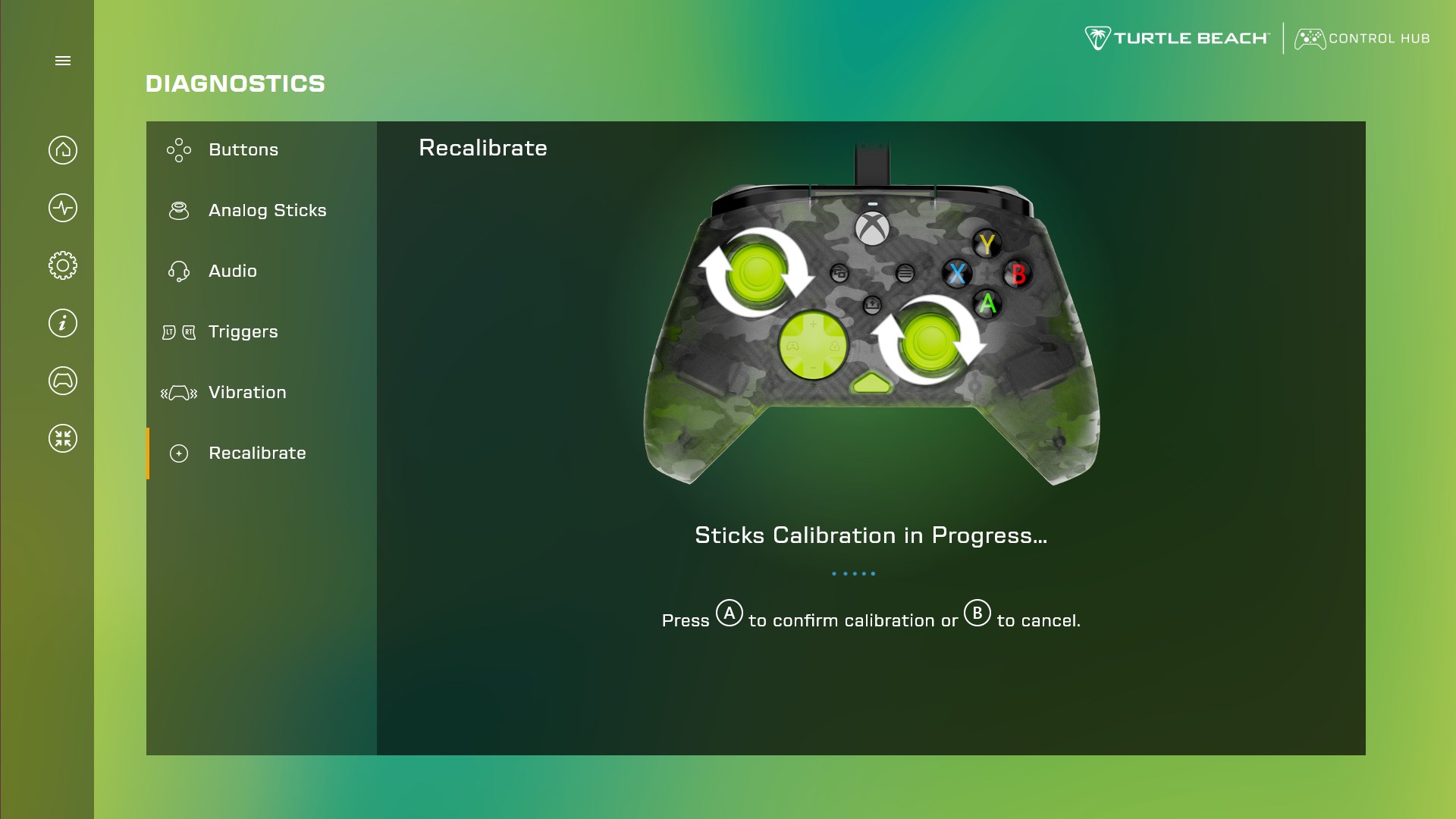
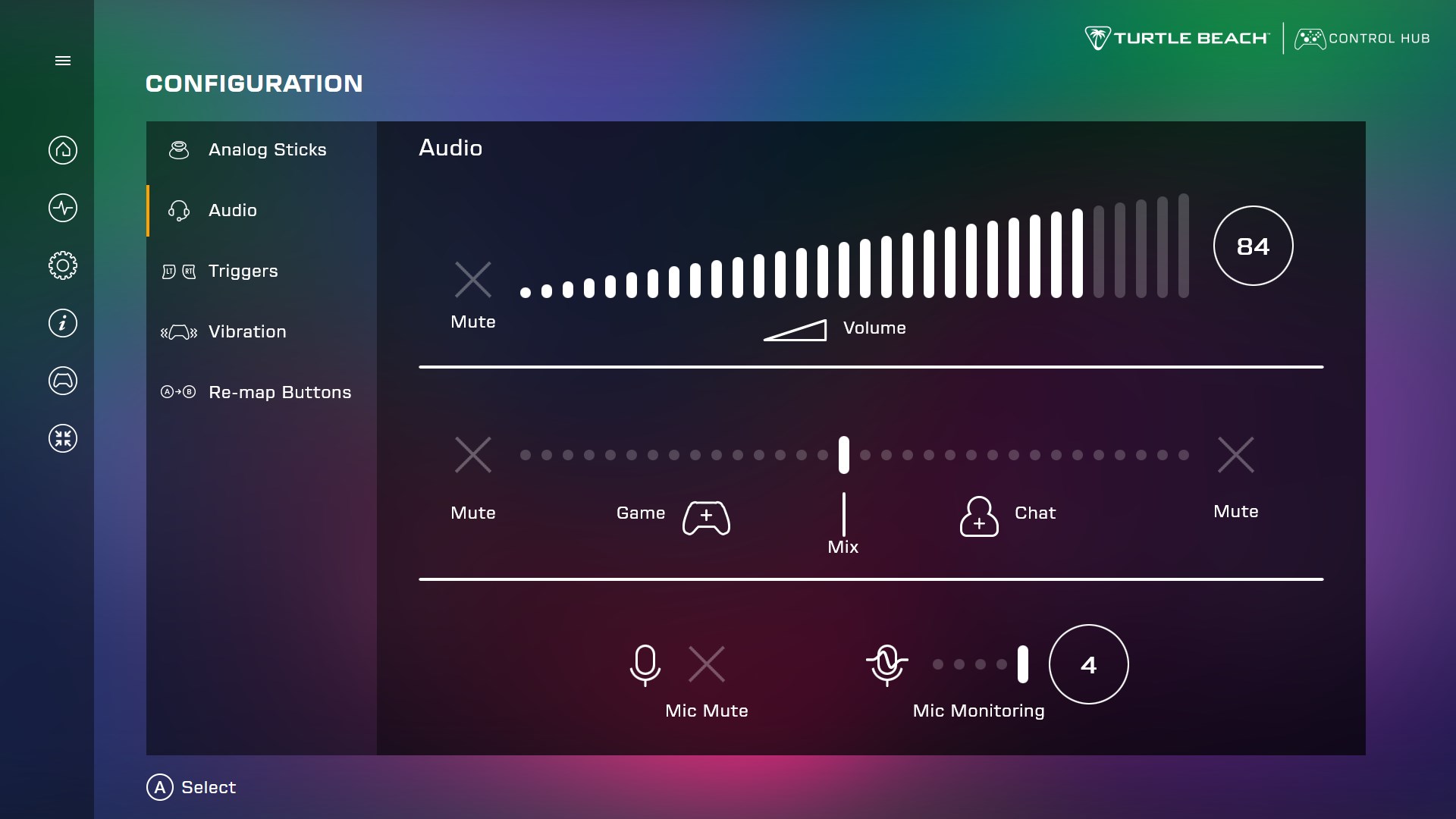
The Turtle Beach PDP Control Hub for Windows is a dedicated application designed to elevate your gaming and audio experience by providing detailed customization and control over Turtle Beach peripherals and headphones. It acts as a central command center for users eager to fine-tune sound settings, manage profiles, and integrate seamlessly with Windows-based gaming setups.
Developer and Core Highlights
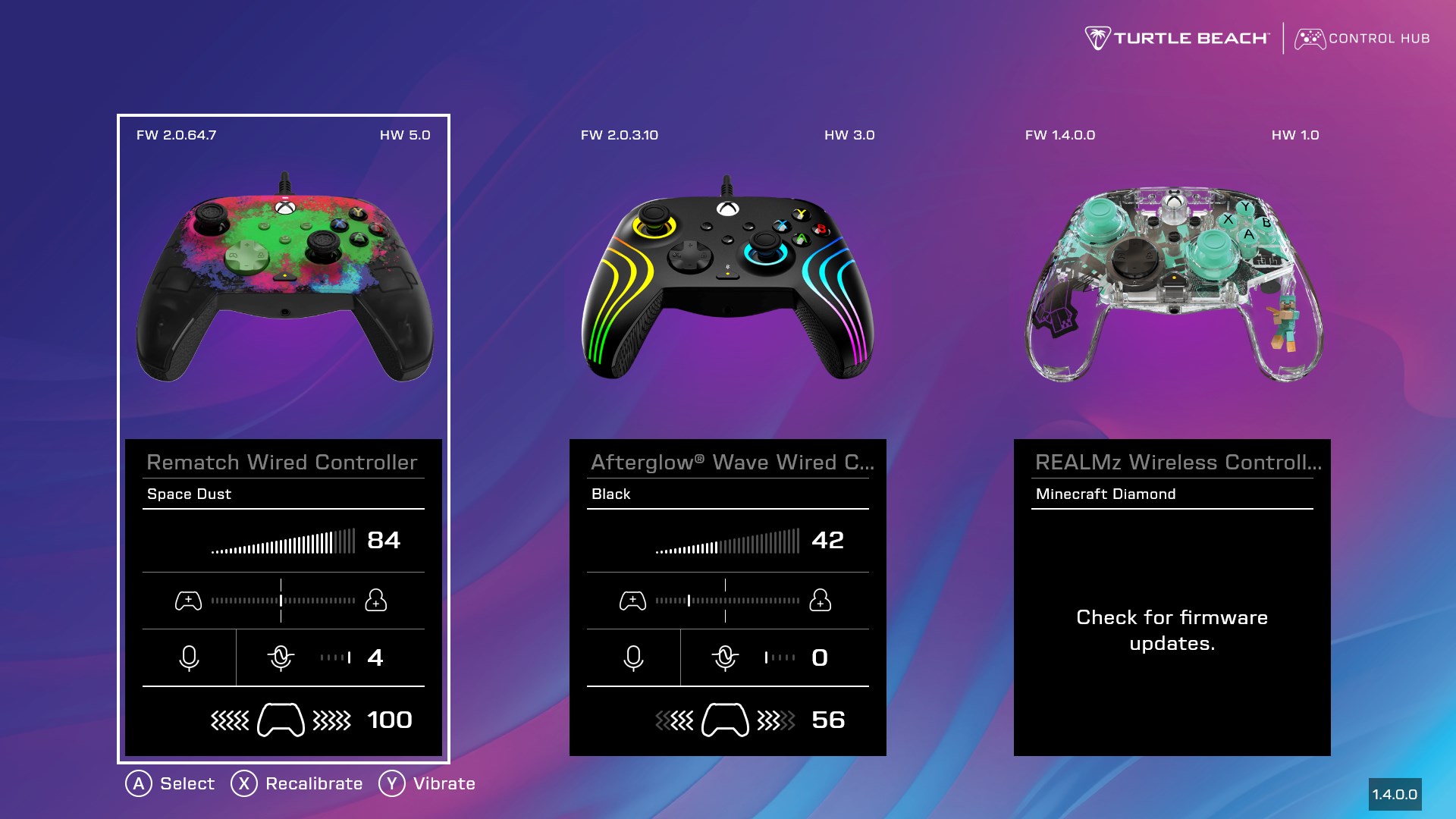
Developed and published by Turtle Beach, Inc., a renowned leader in gaming audio, this app prioritizes user-friendly customization and advanced sound management. Key features include intuitive profile creation for different gaming scenarios, real-time audio adjustments, and a streamlined interface designed to accommodate both casual and dedicated gamers. Its primary audience encompasses PC gamers, streamers, and audiophiles seeking precise control over their Turtle Beach gear.
Engaging and User-Friendly Interface
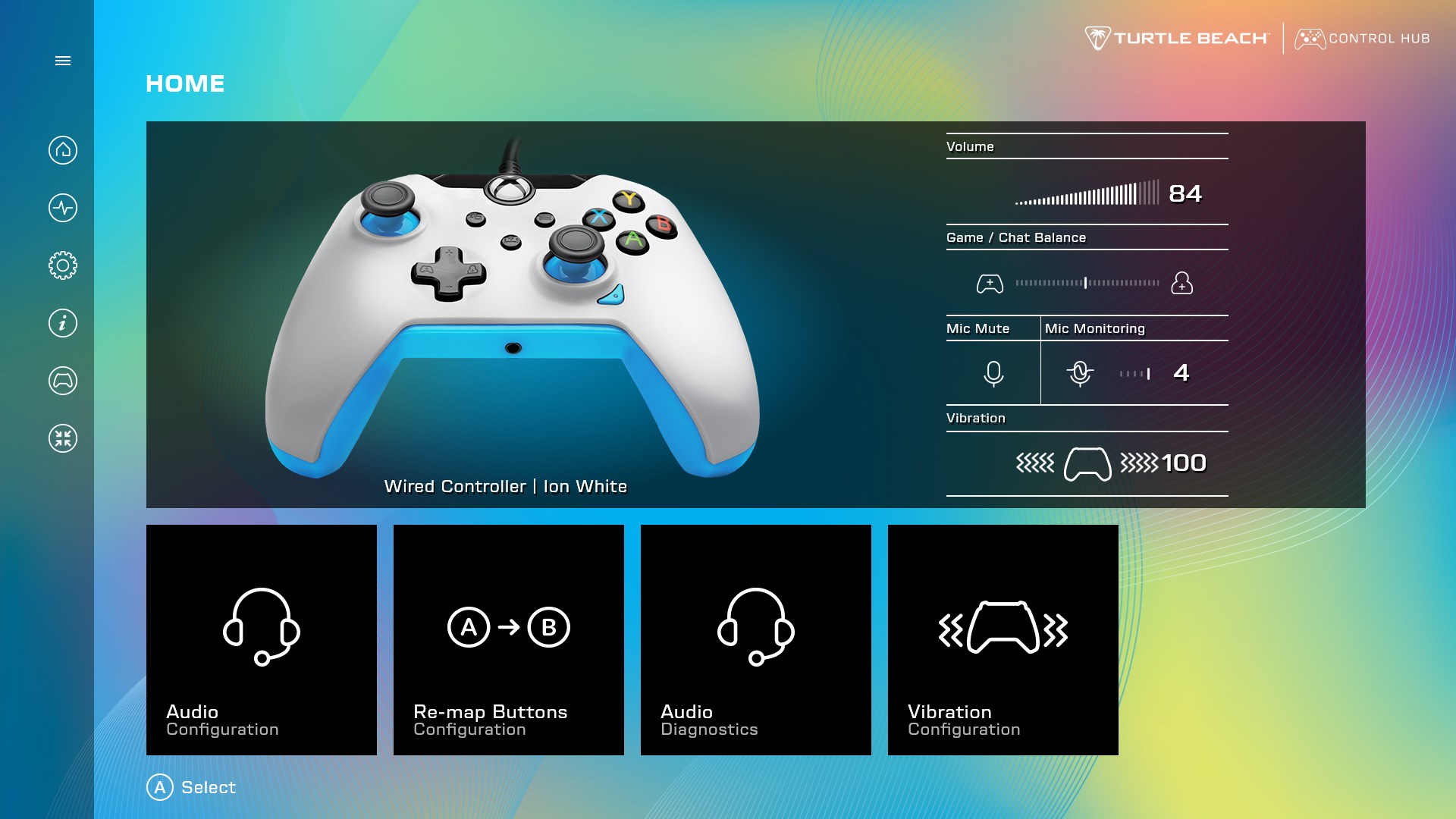
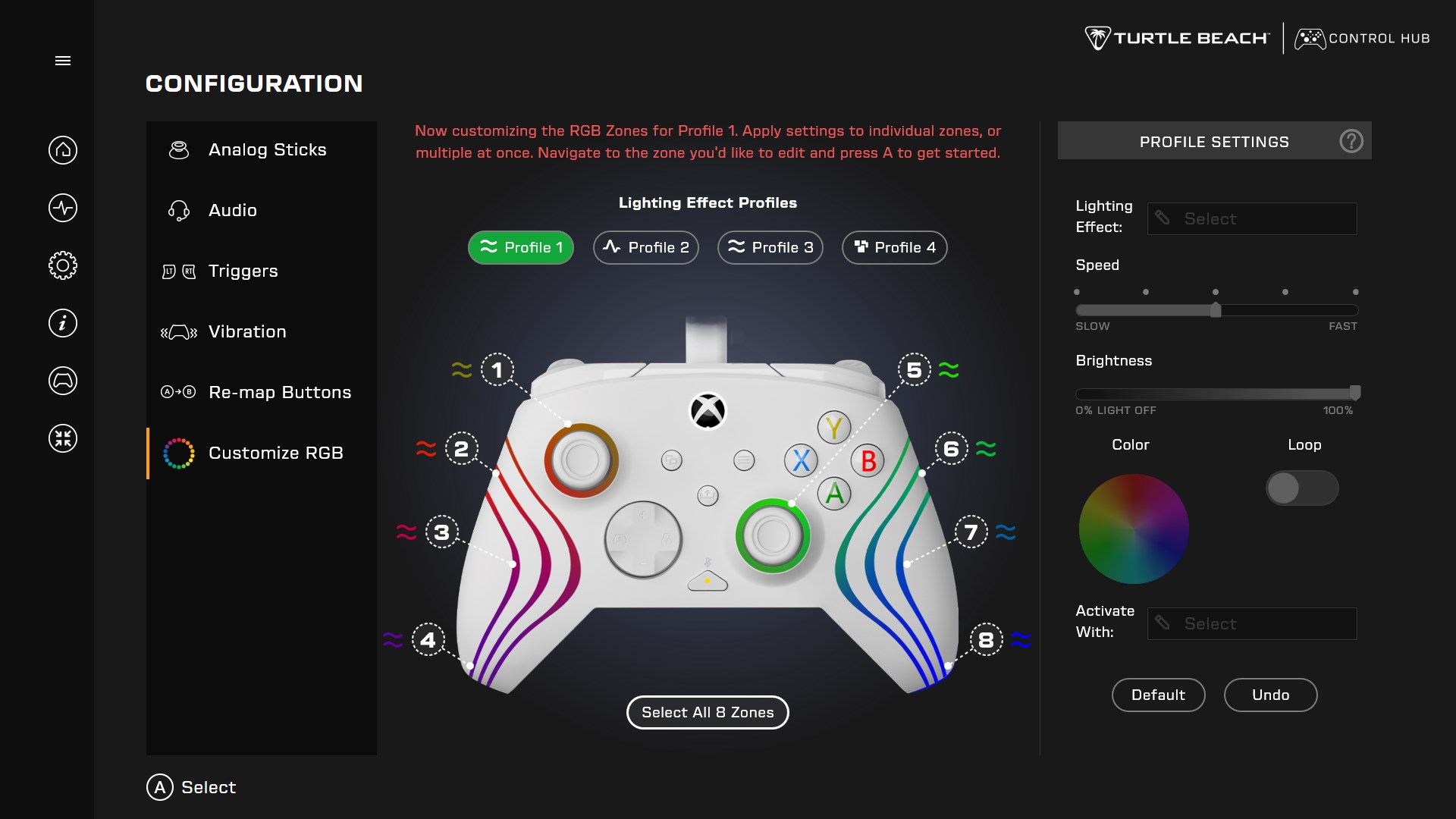
From the moment you open the application, you're greeted with a sleek, modern dashboard that feels like stepping into your own personal audio command bridge. The interface design is clean, with intuitive navigation that allows users to switch effortlessly between profile settings, equalizer adjustments, and device management. The drag-and-drop functionality for assigning audio profiles or customizing button mappings feels remarkably smooth, akin to conducting an orchestra of sound with minimal effort.
Operation within the app is responsive, with immediate visual feedback that reassures you your changes are being applied correctly. While there is a slight learning curve for those unfamiliar with audio customization, Turtle Beach's clear labels and step-by-step guides make onboarding accessible, smoothing out potential bumps on the learning journey.
Precision Sound Management and Customization
The core appeal of the PDP Control Hub lies in its robust sound management capabilities. Users can create multiple audio profiles tailored to different gaming genres—such as FPS, RPG, or casual listening—and switch between them with ease. The app boasts an advanced equalizer that allows for detailed frequency adjustments, giving audiophiles the ability to sculpt their audio landscape precisely. For instance, boosting bass for a more immersive experience during action sequences or enhancing dialogue clarity for story-rich games can dramatically change your gaming immersion.
What sets this app apart from similar entertainment control applications is its focus on personalization relevance. It intelligently suggests profiles based on your previous usage and gaming habits, offering a semi-automated approach to optimizing your audio setup. This dynamic content discovery ensures that your sound preferences evolve naturally, much like a trusted advisor who learns your tastes over time.
Enhanced Personalization and Unique Features
Among the standout features is the app's ability to integrate deeply with Windows. For example, it can automatically adjust profiles based on the game you're launching, making transitions seamless—like a chameleon that changes its colors to blend perfectly with its environment. This contextual awareness makes the app more than just a static control panel; it's a proactive assistant helping to sculpt your optimal sound every time.
Compared to similar applications, Turtle Beach's Control Hub emphasizes relevance and usability over mere customization. Its recommendation algorithm considers your historical preferences and gaming context, offering highly relevant suggestions for sound profiles—akin to having a personal coach tailoring the experience to you rather than offering generic presets. This intelligent tailoring enhances user satisfaction and makes it more than just a configurator, but a proactive partner in your gaming journey.
Final Thoughts: Your Sound Companion
Overall, the Turtle Beach PDP Control Hub for Windows earns a solid recommendation for anyone dedicated to elevating their gaming audio. It's particularly ideal for users who prefer a tailored experience—those who want their sound settings to adapt fluidly to different gaming scenarios without fuss. While it benefits from an intuitive interface and intelligent features that stand out among similar apps, newcomers should anticipate a brief period to familiarize themselves with its advanced capabilities.
If you're a gamer or streamer looking to refine and personalize your audio environment with a thoughtful, intelligently designed application, this control hub is worth exploring. It's like having a seasoned sound engineer sitting at your side, helping you craft the perfect auditory atmosphere for every game and mood—quiet enough to hear every subtle detail or boosted for maximum adrenaline during combat.
Pros
- Intuitive User Interface
- Extensive Customization Options
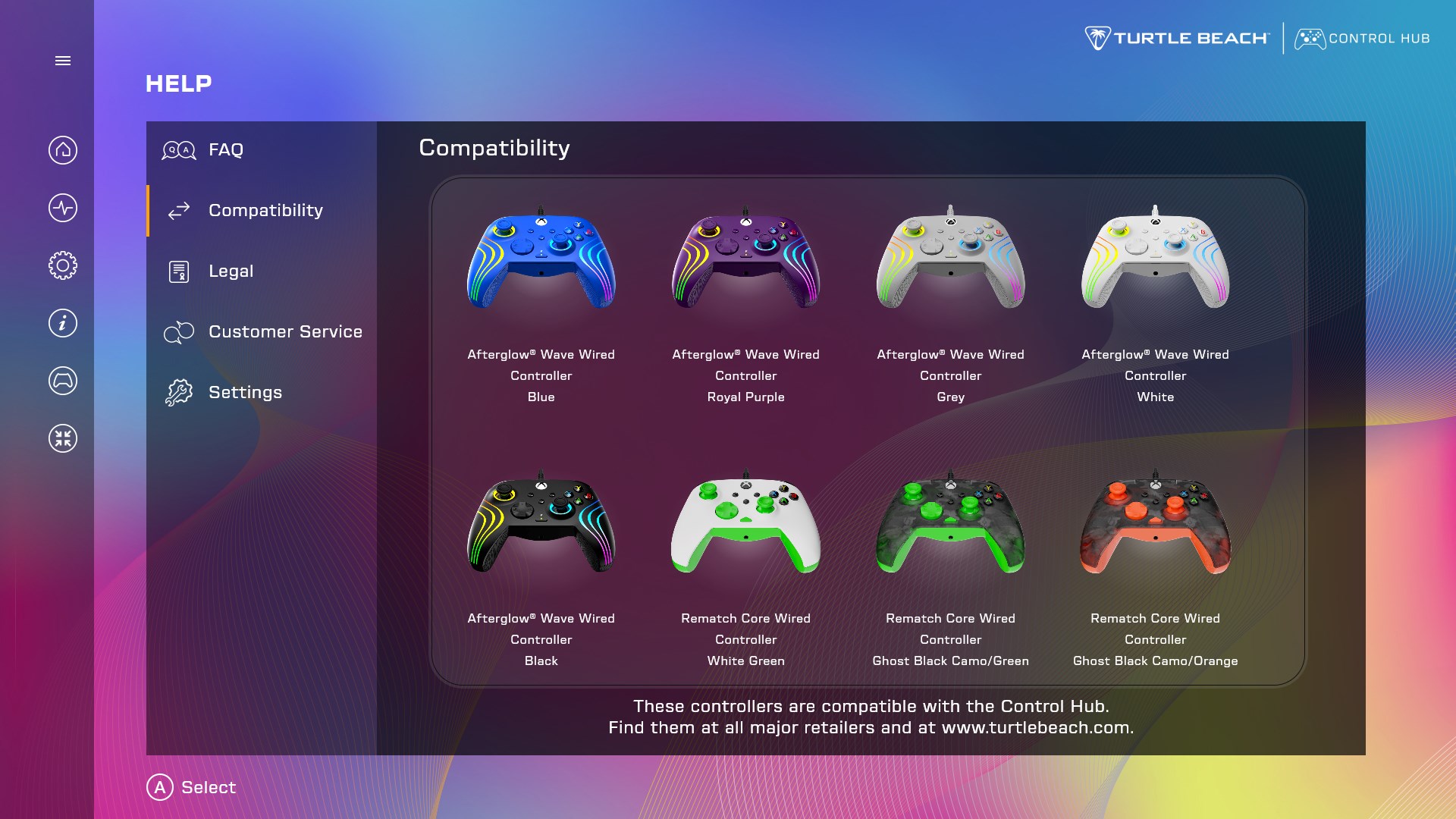
- Seamless Device Compatibility
- Real-Time Firmware Updates
- Profiles and Presets Management
Cons
- Occasional Connectivity Issues
- Limited Compatibility with Older Devices
- App Stability in Some Cases
- Basic Help and Support Resources
- Limited Customization for Certain Features