
- Name Crunchyroll
- Category Entertainment
- Available on PC, Xbox console
- OS Windows 10 version 19041.0 or higher
- languages English (United States)
Crunchyroll for Windows: Your Personal Gateway to Anime & Manga
Imagine having an anime kingdom at your fingertips—a seamless portal where you can indulge in your favorite shows, discover new series, and personalize your viewing experience—all from your Windows desktop. That's exactly what Crunchyroll for Windows offers: a dedicated app that brings the vibrant world of anime directly to your computer, making it easier and more enjoyable to stay immersed in your favorite media.
A Glimpse Behind the Curtain: Developer and Core Features
Developed by Crunchyroll, LLC—a leading name in anime streaming—the app aims to streamline the viewing experience for dedicated fans. Its main highlights include a robust content library with up-to-date episodes, personalized recommendations powered by advanced algorithms, and an easy-to-navigate interface designed specifically for desktop users. The target audience encompasses anime enthusiasts of all ages who prefer a dedicated app over browser streaming, whether they're casual viewers or dedicated otaku.
Engaging Interface and Smooth Experience: Turning Fans into Fans for Life
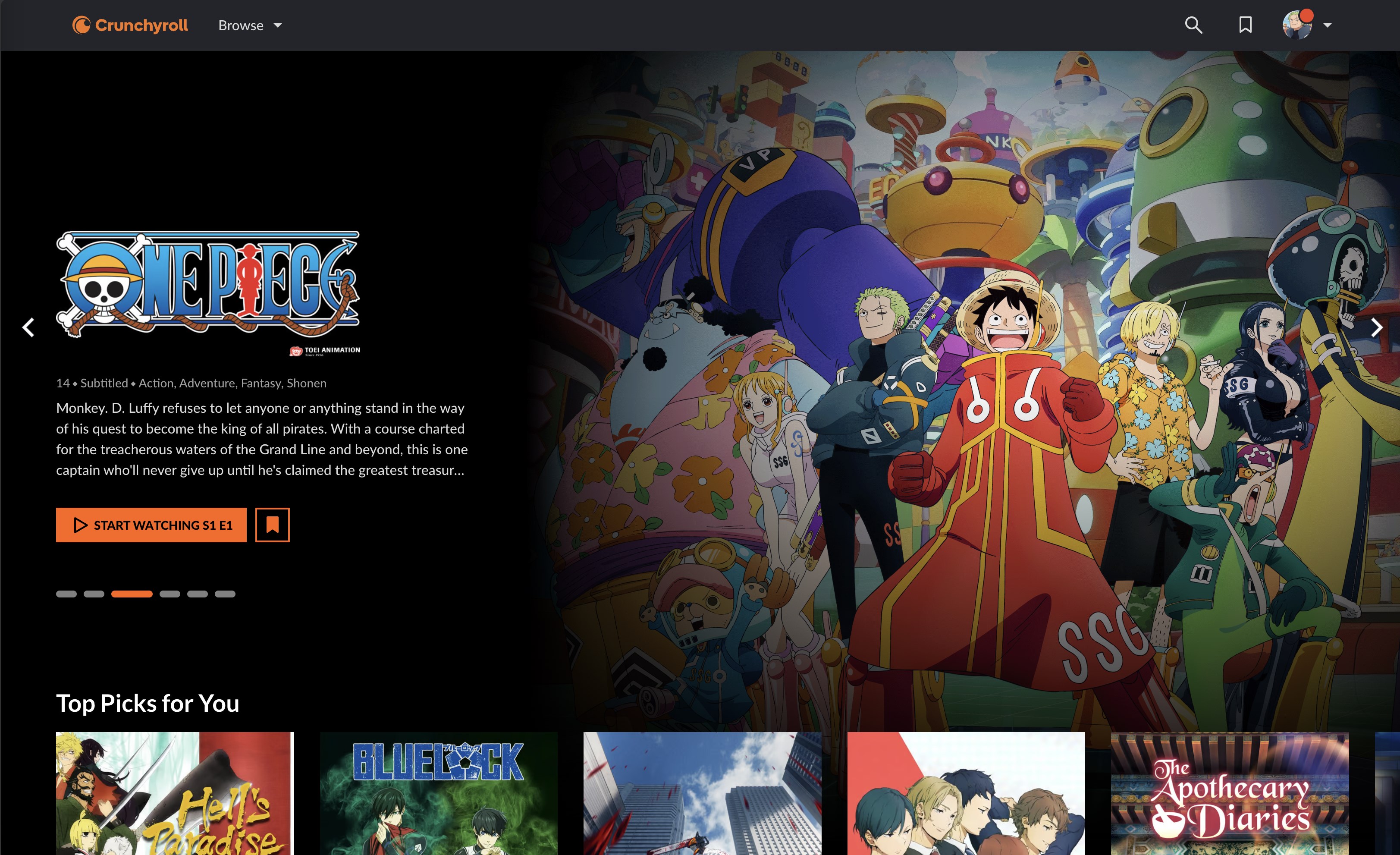
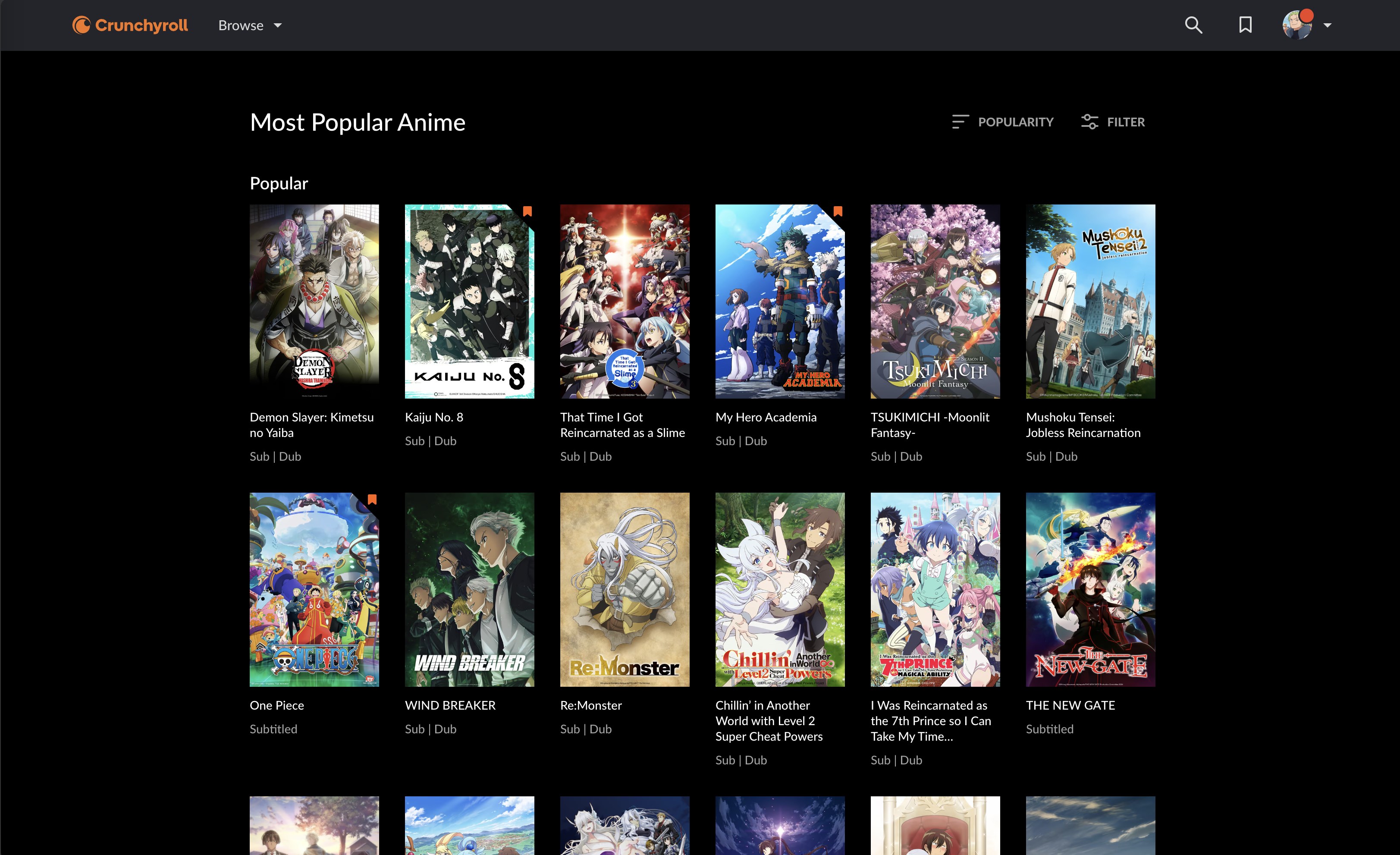
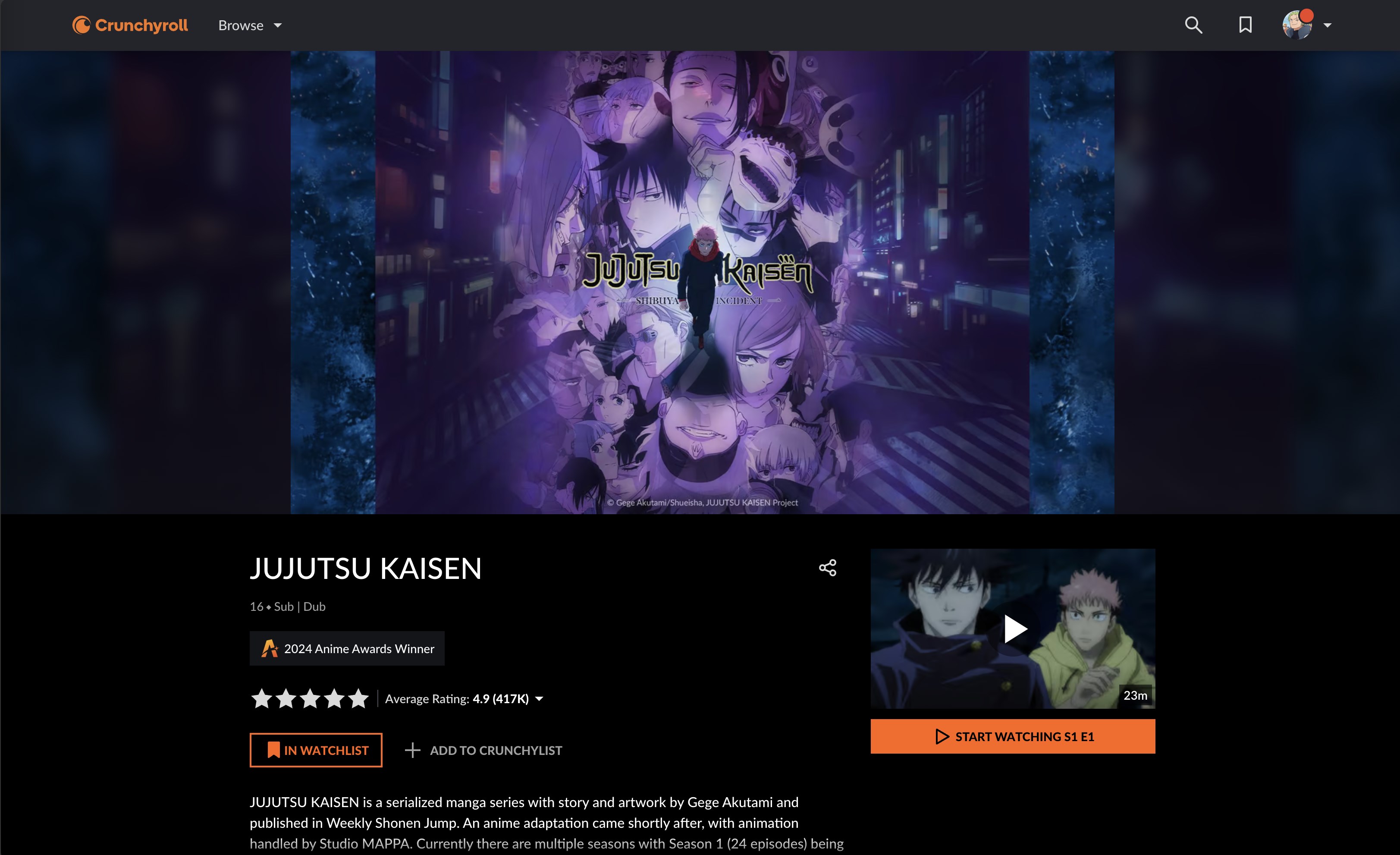
Launching the app feels like opening a well-loved manga volume—the interface is clean, visually appealing, and intuitively designed. The main screen showcases featured series, trending episodes, and personalized recommendations, all laid out like a curated manga shelf. Navigation is fluid; clicking between categories or searching for a specific title feels silky-smooth, thanks to optimized performance and responsive controls. Watching videos is a seamless experience, with minimal buffering and clear visuals that resemble watching in the best cinema halls, just on your desktop.
Learning the app's features is straightforward, making it accessible even for newcomers. The learning curve is gentle, akin to picking up a new hobby—once you get the hang of the layout, exploring the vast anime catalog becomes effortless. The app's design caters to both casual viewers and binge-watchers, offering customizable playback options and subtitle settings that enhance user comfort.
Unique Selling Points: Content Discovery & Personalized Recommendations
What sets Crunchyroll for Windows apart from other entertainment apps are its powerful content discovery algorithms and highly relevant, personalized recommendations. Unlike generic streaming platforms, this app employs sophisticated algorithms that analyze your viewing habits in real time, allowing it to suggest series that truly match your taste—kind of like having a knowledgeable friend who understands your anime preferences intimately. This feature ensures that viewers spend less time scrolling and more time enjoying fresh content tailored specifically for them, fostering a more engaging and satisfying viewing experience.
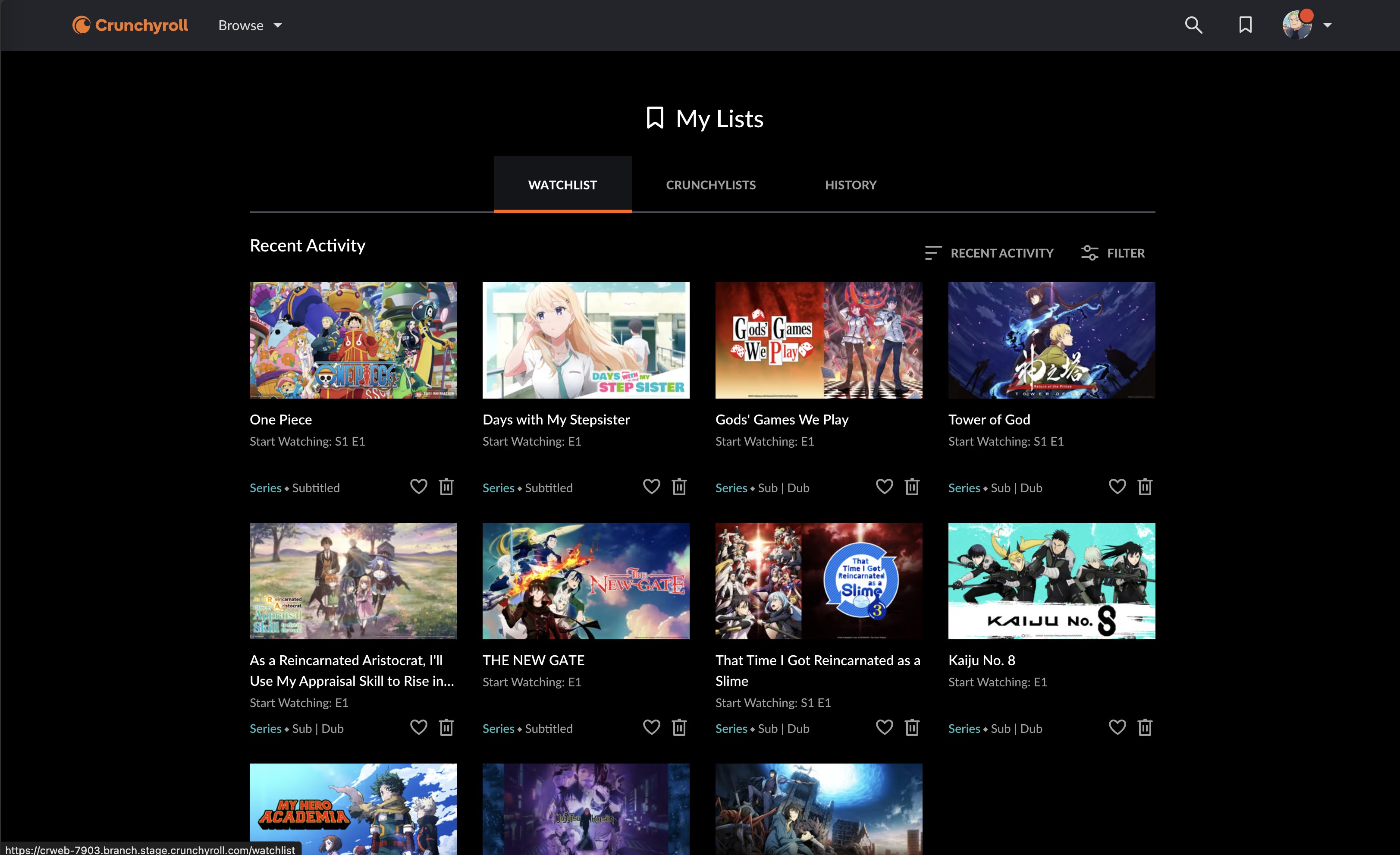
Another standout feature is the curated playlists and notifications about upcoming episodes of your favorite series, keeping you constantly connected to the anime universe. Combined with a straightforward, distraction-free interface, this personalized touch makes the app not just a streaming tool but a loyal companion for anime lovers seeking quality content with minimal fuss.
Recommendations and Final Thoughts
Overall, Crunchyroll for Windows earns a solid recommendation for anime fans who use Windows devices regularly. Its most compelling features—especially the intelligent content discovery system and tailored recommendations—are particularly valuable in today's crowded digital media landscape. Whether you're a casual viewer looking for quick entertainment or a devoted fan eager to keep up with the latest episodes, this application provides a streamlined, user-friendly experience that elevates your anime consuming journey.
While it might not drastically differ in core functionalities from other streaming apps, its focus on personalized, content-rich discovery makes it stand out as a tailored experience designed specifically for anime fans. For those who appreciate a thoughtfully curated, immersive viewing environment on their Windows PC, Crunchyroll for Windows is worth exploring—and likely to become your go-to anime hub.
Pros
- Extensive Content Library
- User-Friendly Interface
- High-Quality Streaming
- Offline Download Options
- Multi-Device Compatibility
Cons
- Limited 4K Support
- Occasional App Crashes
- Limited Language Options for Subtitles
- Slow Content Updates
- Some Ads in Free Version