- Name Turtle Beach Control Center 2
- Category Entertainment
- Available on PC, Xbox console
- OS Windows 10 version 17763.0 or higher
- languages English (United States)
Unveiling Turtle Beach Control Center 2: A Sleek Hub for Gaming Audio Customization
Designed to elevate your gaming audio experience, Turtle Beach Control Center 2 for Windows offers a comprehensive platform to fine-tune sound settings, manage compatible devices, and enjoy personalized audio profiles.
Meet the Brain Behind the Sound
Developed by Turtle Beach Europe, LTD., a renowned name in gaming audio hardware, this application brings over a decade of expertise in creating immersive sound environments directly to your desktop. Their focus is on delivering precise control and a user-friendly interface tailored for gamers and audiophiles alike.
Key Features That Make a Difference
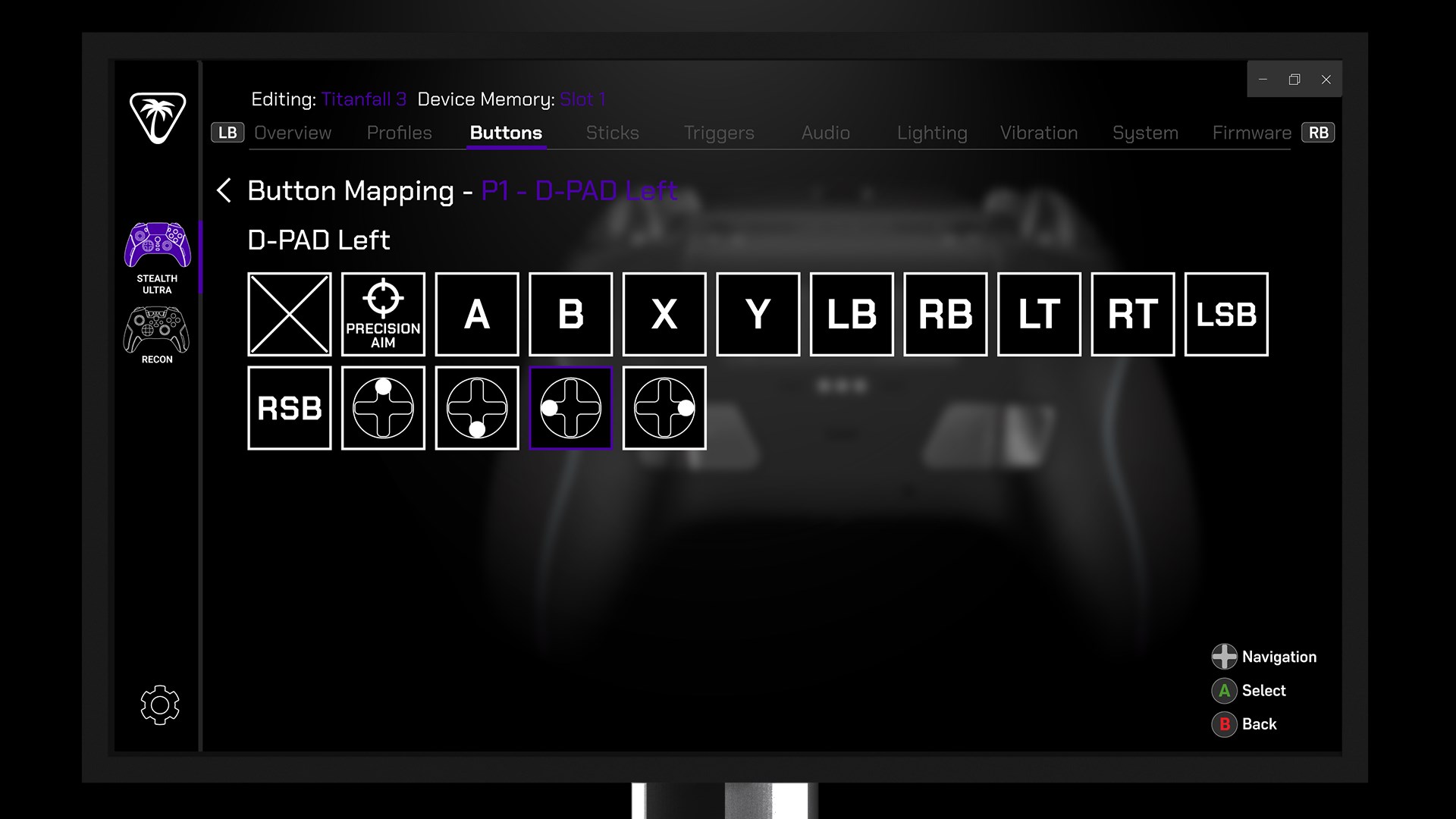
- Advanced Audio Customization: Fine-tune multiple sound profiles, including bass, treble, and dialogue clarity, to match your gaming needs or personal preference.
- Device Management: Seamlessly connect and manage compatible Turtle Beach headsets and accessories, ensuring optimal performance with minimal fuss.
- Profiles and Presets: Create and switch between custom profiles quickly, allowing a tailored experience for different games or media types.
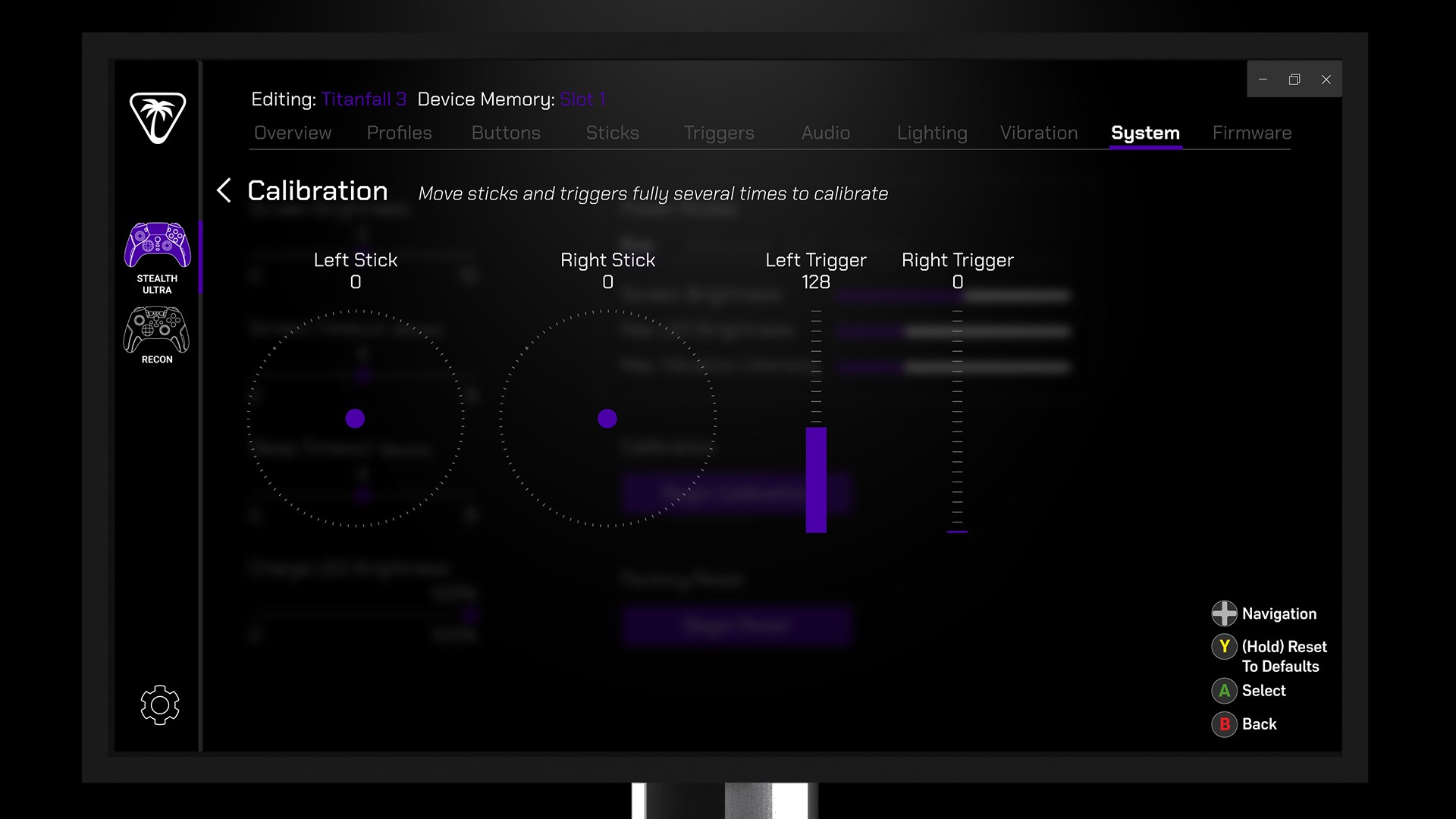
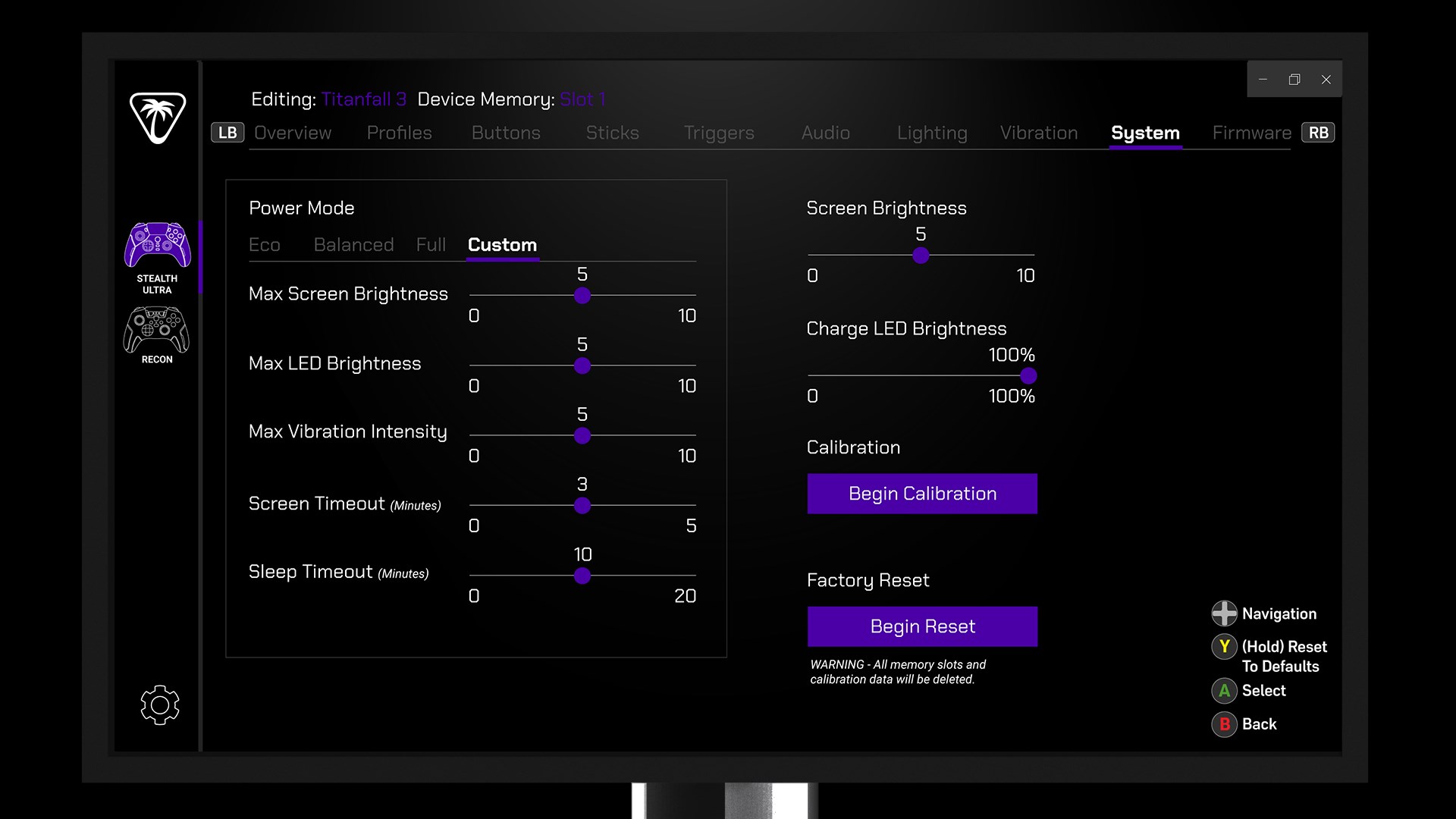
- Firmware Updates & Diagnostics: Keep your hardware up-to-date and troubleshoot issues directly within the app, maintaining peak performance at all times.
Engaging and Intuitive User Interface
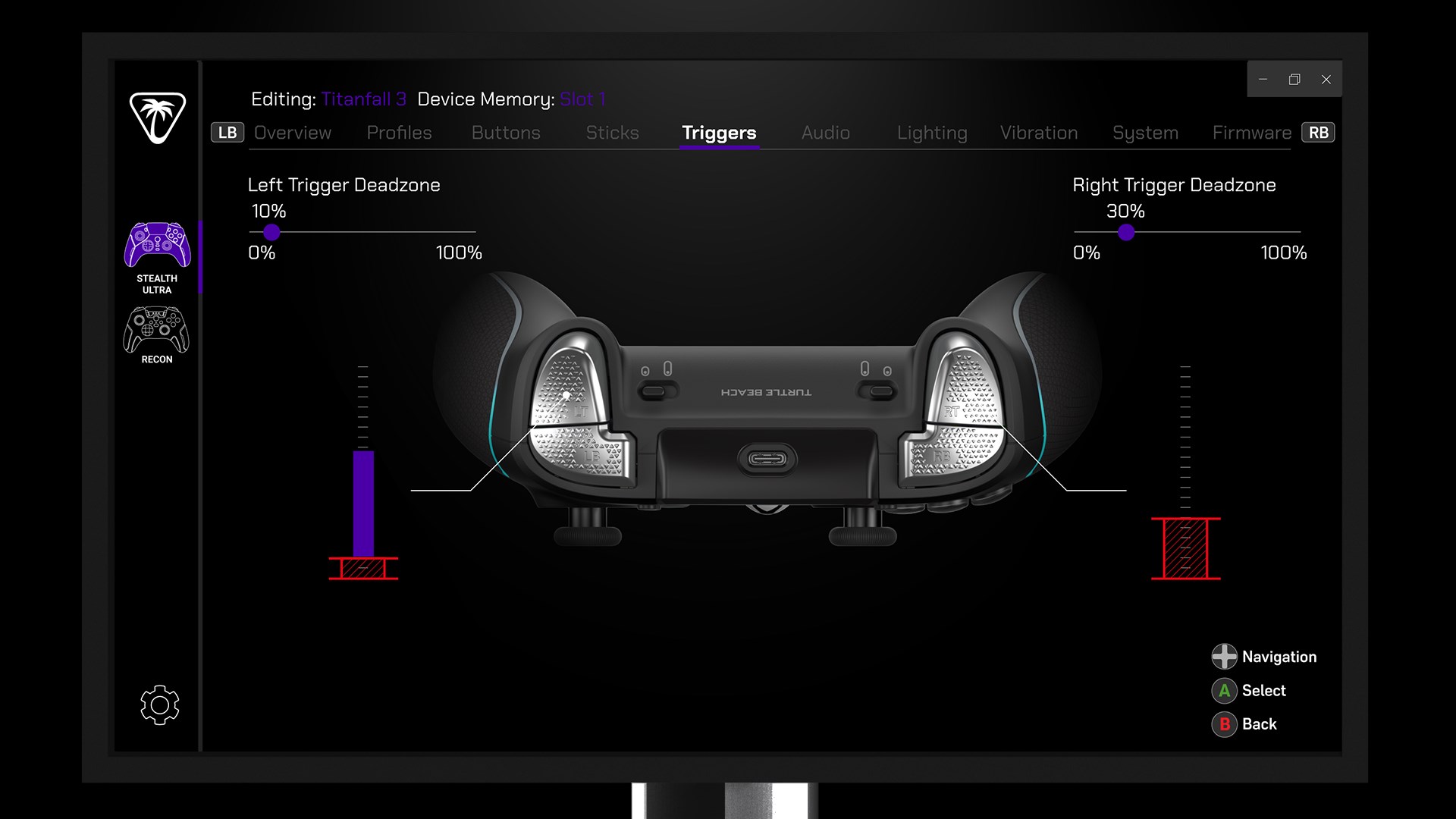
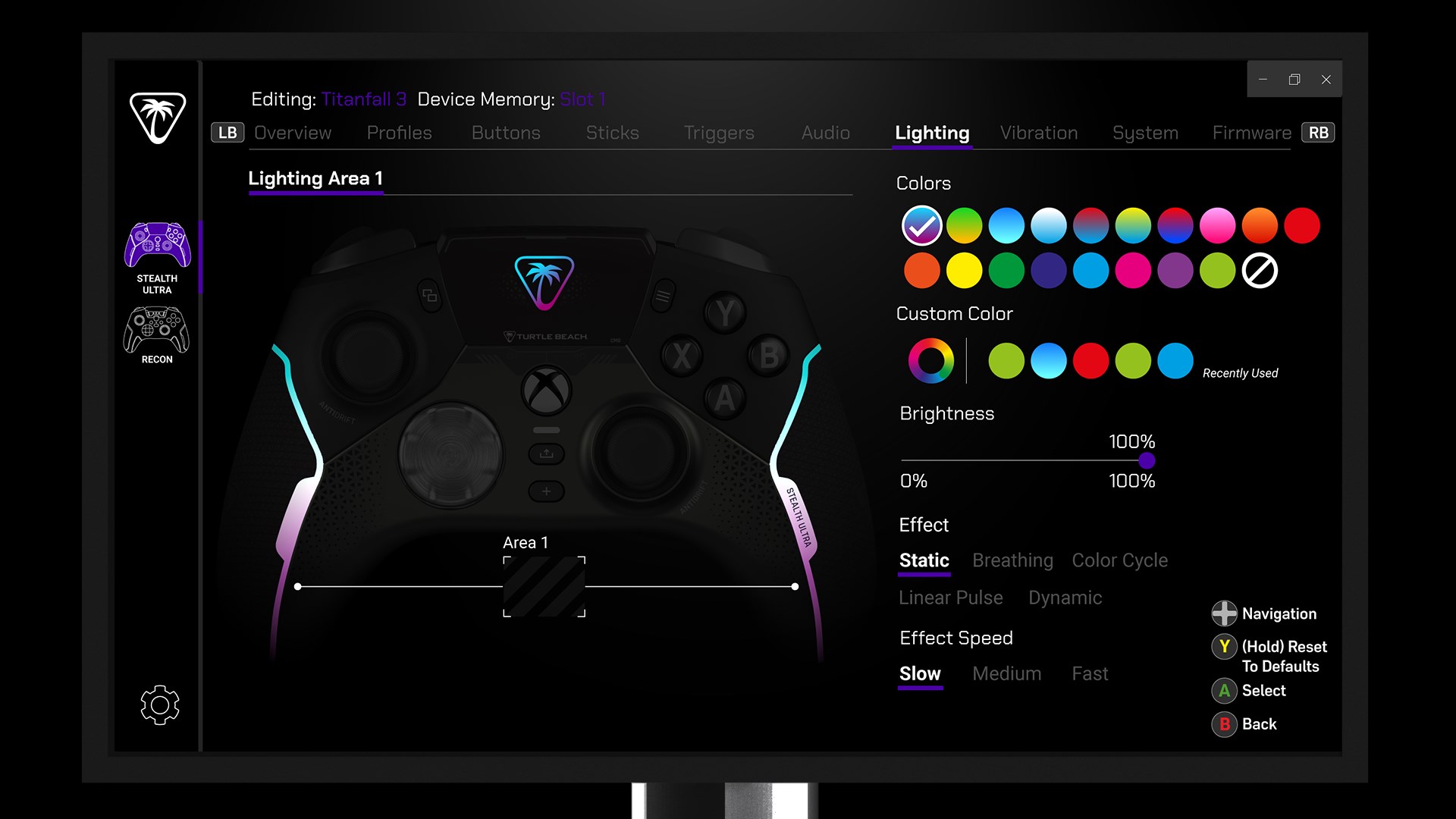
Upon launching the app, users are greeted with a clean, modern interface that resembles a high-tech cockpit—every control within arm's reach. The layout is intuitive, with clearly labeled sections making navigation effortless even for first-time users. Transitioning between different gaming profiles or device settings feels seamless, akin to flipping switches on a futuristic dashboard.
Performance and User Experience
Control Center 2 excels in providing a smooth and responsive experience. The app runs swiftly without noticeable lag, complimented by crisp visual feedback for each action. The learning curve is gentle; most features are self-explanatory, but detailed tooltips are available for users wanting to deepen their understanding. For gamers who switch devices or profiles frequently, the app's implementation of quick profile switching feels like having a personal DJ seamlessly syncing your favorite playlists—it's effortless, quick, and tailored just for you.
What Sets It Apart from Other Entertainment Apps?
Particularly remarkable is how the app's content discovery algorithms aren't a focus here—yet, the application excels at personalized sound profile recommendations that analyze your usage patterns. Unlike many similar applications that offer generic presets, Control Center 2 critiques the relevance of recommendations based on your game genres or media habits. It learns your preferences over time, offering increasingly refined suggestions that feel almost intuitive—like a trusted gaming buddy who knows exactly what you need for that perfect audio setup.
My Take & Recommendations
I'd confidently recommend Turtle Beach Control Center 2 for Windows to serious gamers and audio enthusiasts seeking precision and convenience. Its standout features—particularly the personalized profile management and device diagnostics—make it a powerful tool that justifies regular use. For those who value a user-friendly interface coupled with detailed customization options, this app is a worthy addition to your gaming arsenal. While it might not revolutionize how you discover game content, it ensures your audio environment is always perfectly tuned, turning every gaming session into an immersive experience.
Pros
- User-friendly interface
- Custom audio profiles
- Real-time monitor
- Firmware updates
- Compatibility with multiple devices
Cons
- Limited features for advanced users
- Occasional connectivity issues
- Require regular updates for optimal performance
- Limited platform support
- Minor UI bugs are reported