
- Name Tuber - MP3 & Video Downloader
- Category Entertainment
- Available on PC, Mobile, Surface Hub, HoloLens
- OS Windows 10 version 10240.0 or higher
- languages English (United States)
Introducing Tuber - Your All-in-One MP3 & Video Downloader for Windows
In the crowded universe of media downloaders, Tuber by Invotech shines as a versatile and user-friendly solution that caters to entertainment enthusiasts craving quick and easy access to their favorite audio and video content. Combining simplicity with powerful features, this app aims to streamline the media saving experience on Windows PCs.
Key Features That Stand Out
Developed by Invotech, Tuber distinguishes itself with an intuitive interface and well-designed core functionalities. The app excels in offering fast download capabilities, versatile media format support, and personalized content discovery—all wrapped in a clean, approachable layout. Its targeted users include casual users, students, content creators, and anyone looking to offline their favorite YouTube or streaming content effortlessly.
Seamless and Fun Media Downloading Experience
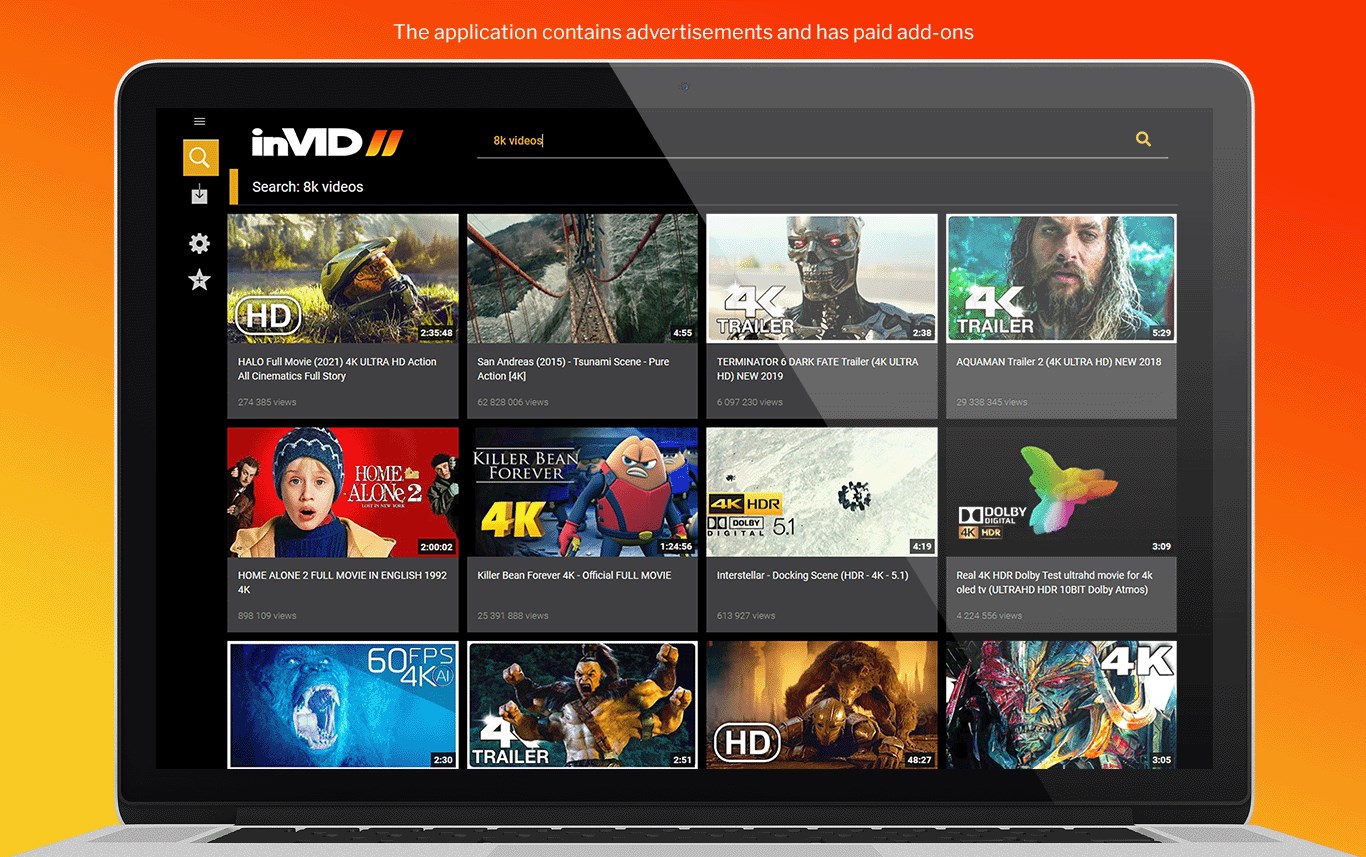
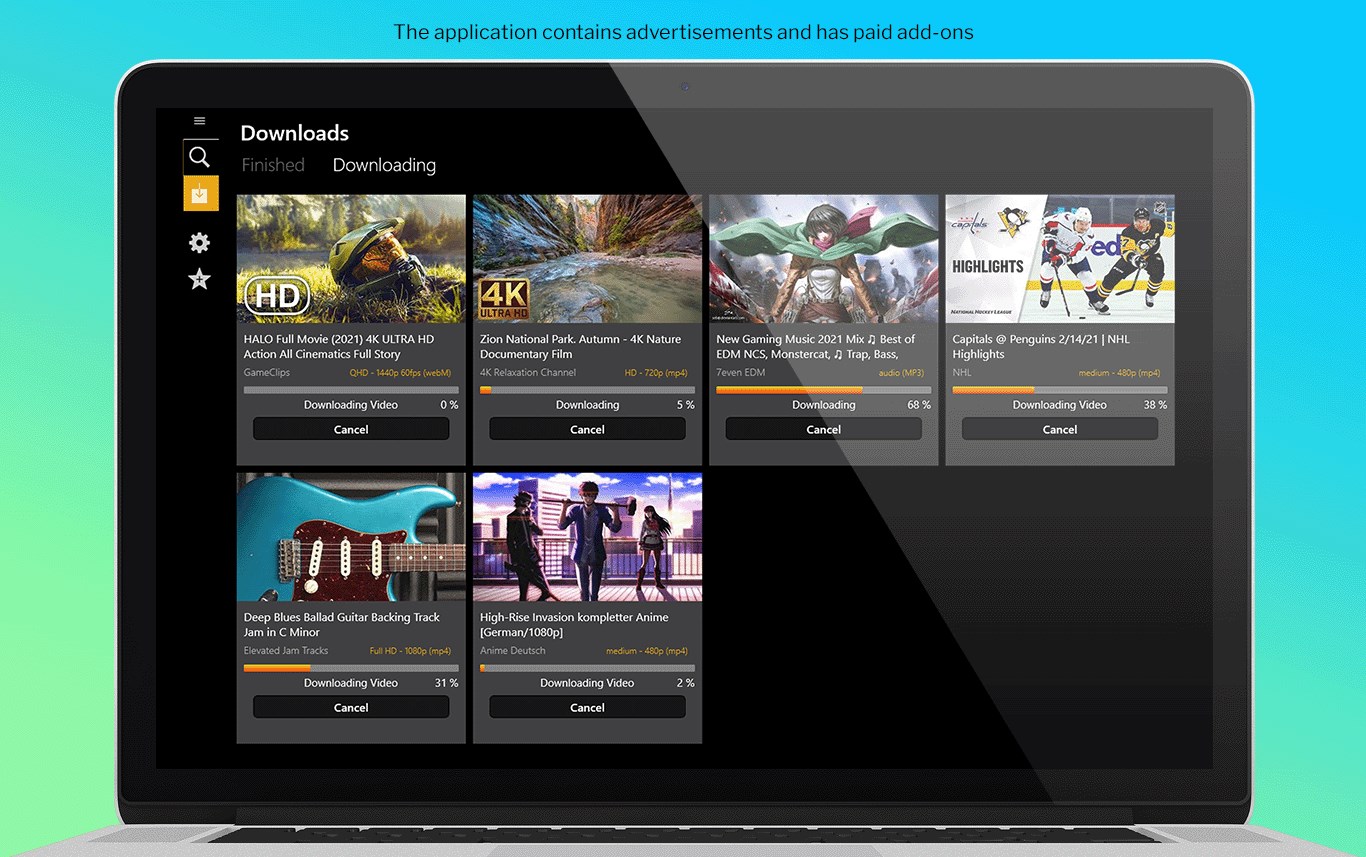
From the first launch, Tuber greets you with a straightforward, no-nonsense interface reminiscent of a friendly digital toolbox. Navigating through the application feels intuitive—think of it as opening a well-organized drawer where every tool has a clear purpose. Its responsive design ensures smooth operation, even when handling large files or multiple downloads. The learning curve is gentle, making it accessible for those new to media downloaders while still offering enough depth for power users. The app's menu layout, iconography, and overall flow are designed to minimize confusion, enabling users to start downloading within minutes of installation, much like opening a gift box filled with useful surprises.
Powerful Download Capabilities and Format Support
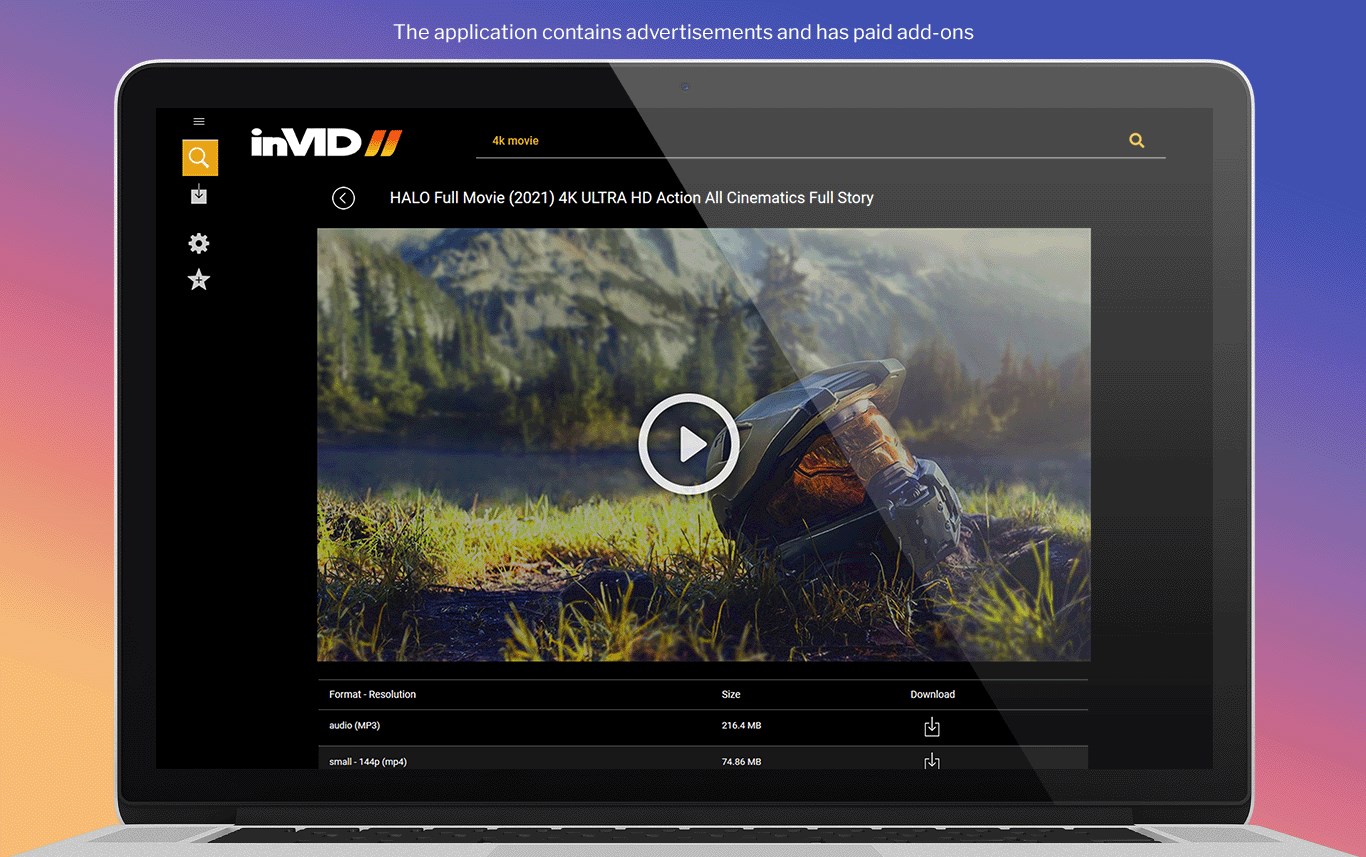
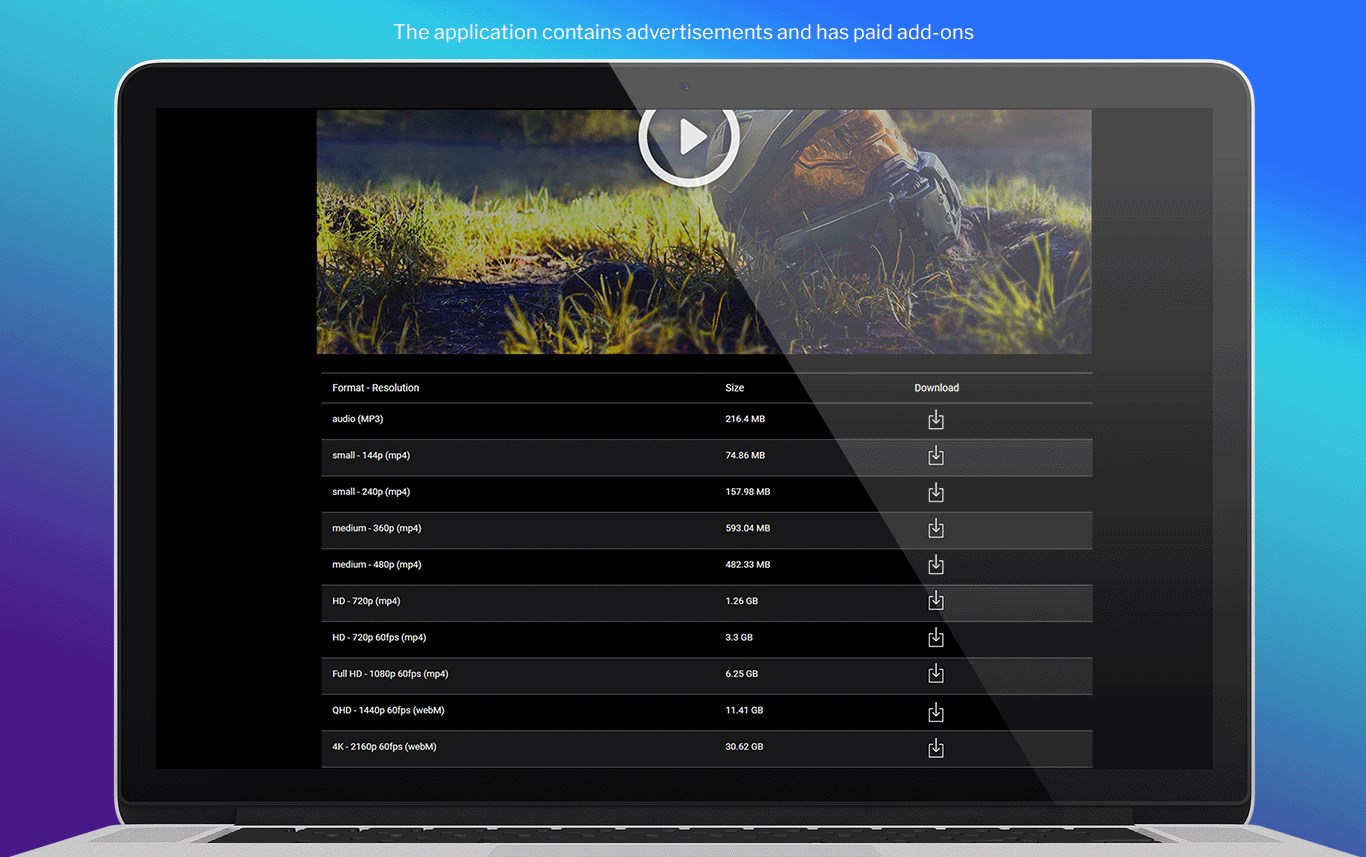
At the heart of Tuber is its robust download engine, which can pull videos and audio from various platforms with remarkable speed. Whether you're grabbing a YouTube video for offline viewing or extracting audio tracks to listen on the go, Tuber handles it gracefully. One of its key highlights is the ability to choose from multiple formats and quality settings—ranging from low-res to HD—giving users control over the file size and clarity. This flexibility makes the app particularly appealing to those who want tailored content without extra fuss. The download process is straightforward: paste the link, select your preferred format, and you're set. It's like having a personal media assistant at your fingertips.
Unique Content Discovery and Personalized Recommendations
What sets Tuber apart from many similar apps is its innovative approach to content discovery. Unlike typical media downloaders that simply fetch content, Tuber employs content discovery algorithms that analyze your previous download patterns and browsing habits. This allows it to suggest videos and music aligned with your tastes, almost like a trusty friend recommending the next favorite song or clip. The personalization aspect ensures that the app isn't just a generic downloader but a smart companion that adapts to your entertainment preferences. This feature enhances user engagement and satisfaction, providing a more tailored experience compared to other tools that only focus on raw download functionality.
Final Thoughts and Recommendations
All in all, Tuber offers a solid, user-friendly experience with notable features such as versatile format support and intelligent content suggestions. It's particularly well-suited for users who want a reliable, accessible media downloader with a slight edge in personalized content discovery. While it may not replace professional media management software, for casual and semi-regular needs, Tuber is a compelling choice. I recommend giving it a try if you're looking for an intuitive app that combines straightforward downloading with smart content recommendations—think of it as having a personal media assistant that's always ready when you need it.
Pros
- User-Friendly Interface
- Support for Multiple Formats
- Fast Download Speeds
- Built-in Media Player
- Free to Use
Cons
- Limited Search Functionality
- Occasional Ads Disruption
- Video Quality Fluctuations
- Lack of Batch Download Support
- App Stability Issues