

- Name Spotify - Music and Podcasts
- Category Music
- Available on PC
- OS Windows 10 version 17763.0 or higher
- Keyboard Not specified
- Mouse Not specified
- languages Afrikaans, Amharic, Arabic, Arabic (Egypt), Arabic (Morocco), Azerbaijani (Latin), Bangla, Basque, Bosnian (Latin), Bulgarian, Catalan, Chinese (Simplified), Chinese (Traditional Chinese), Chinese (Traditional), Chinese (Traditional) (Hong Kong), Croatian, Czech, Danish, Dutch, English (United Kingdom), English (United States), Estonian, Filipino, Finnish, French, French (Canada), Galician, German, Greek, Gujarati, Hebrew, Hindi, Hungarian, Icelandic, Indonesian, isiZulu, Italian, Japanese, Kannada, Kiswahili, Korean, Latvian, Lithuanian, Macedonian, Malay, Malayalam, Marathi, Nepali, Norwegian (Bokmål), Odia, Persian/Farsi, Polish, Portuguese (Brazil), Portuguese (Portugal), Punjabi (India), Romanian, Russian, Serbian (Latin), Slovak, Slovenian, Spanish, Spanish (Argentina), Spanish (Latin America), Spanish (Mexico), Swedish, Tamil, Telugu, Thai, Turkish, Ukrainian, Urdu, Vietnamese
Spotify for Windows: A Robust Companion for Music Lovers
Spotify's Windows application stands as a comprehensive platform that seamlessly blends vast music libraries with personalized listening experiences, making it an essential tool for any audiophile navigating the desktop environment.
Basic Information about the App
Designed as a versatile music and podcasts hub, Spotify – Music and Podcasts for Windows offers users an extensive catalog of streaming audio content in a user-friendly interface.
- Developer: Spotify AB
- Main Features Highlights:
- Personalized playlists and music recommendations based on listening habits
- High-quality audio streaming supporting various bitrates
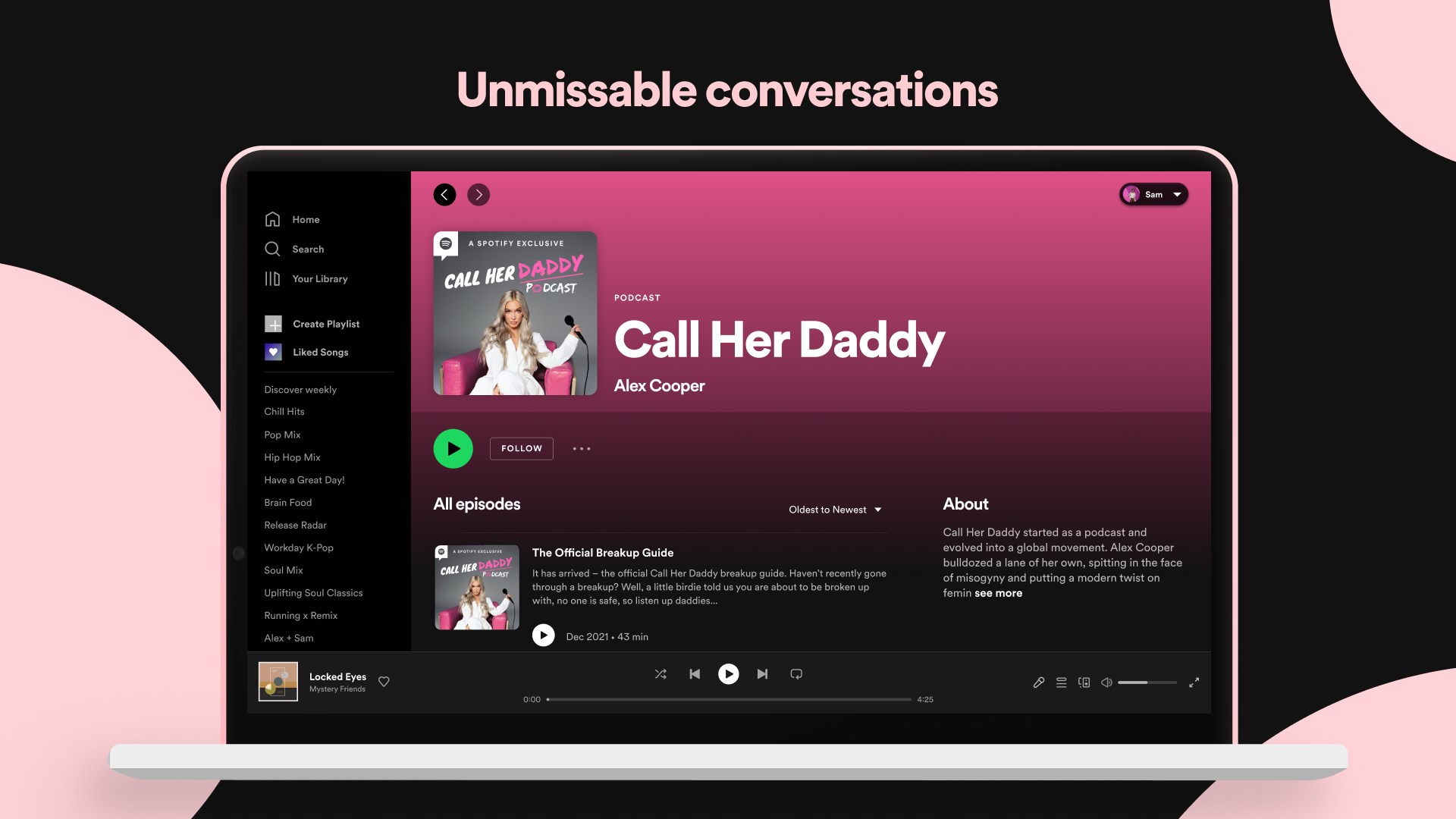
- Integrated podcast discovery and management
- Offline listening capabilities for premium users
- Target Audience: Music enthusiasts, podcast aficionados, casual listeners, and anyone seeking a tailored streaming experience on Windows.
Engaging the User: An Inviting Introduction
Imagine sitting back after a long day, firing up Spotify on your Windows PC, and instantly being transported by a melody that hits just right—this app promises that very ease and depth. With a vast universe of songs, podcasts, and personalized playlists, Spotify for Windows transforms your desktop into a one-stop sound sanctuary, ready to match every mood and moment.
Remarkable Core Features Explored
Personalized Playlists and Music Recommendations
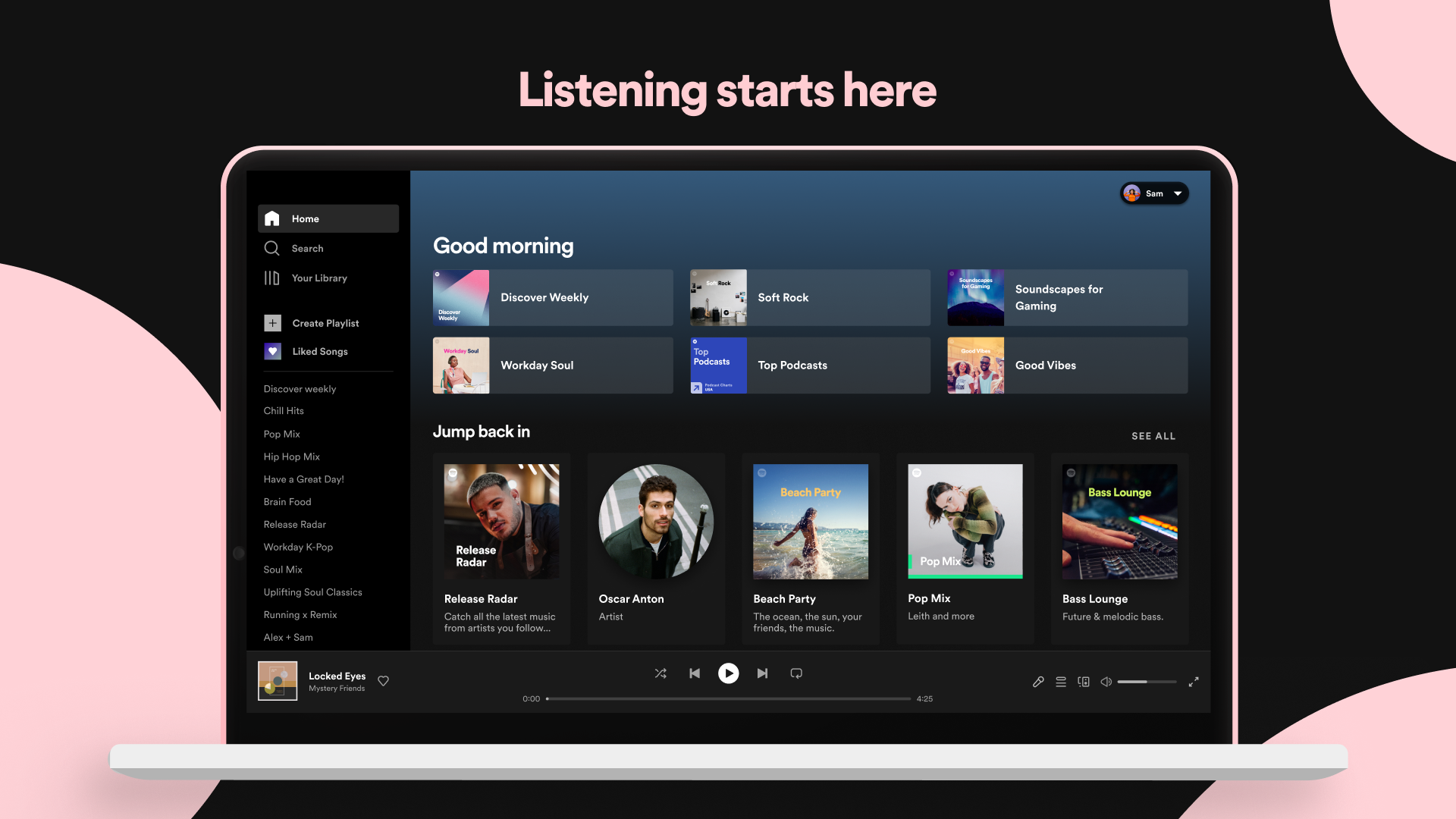
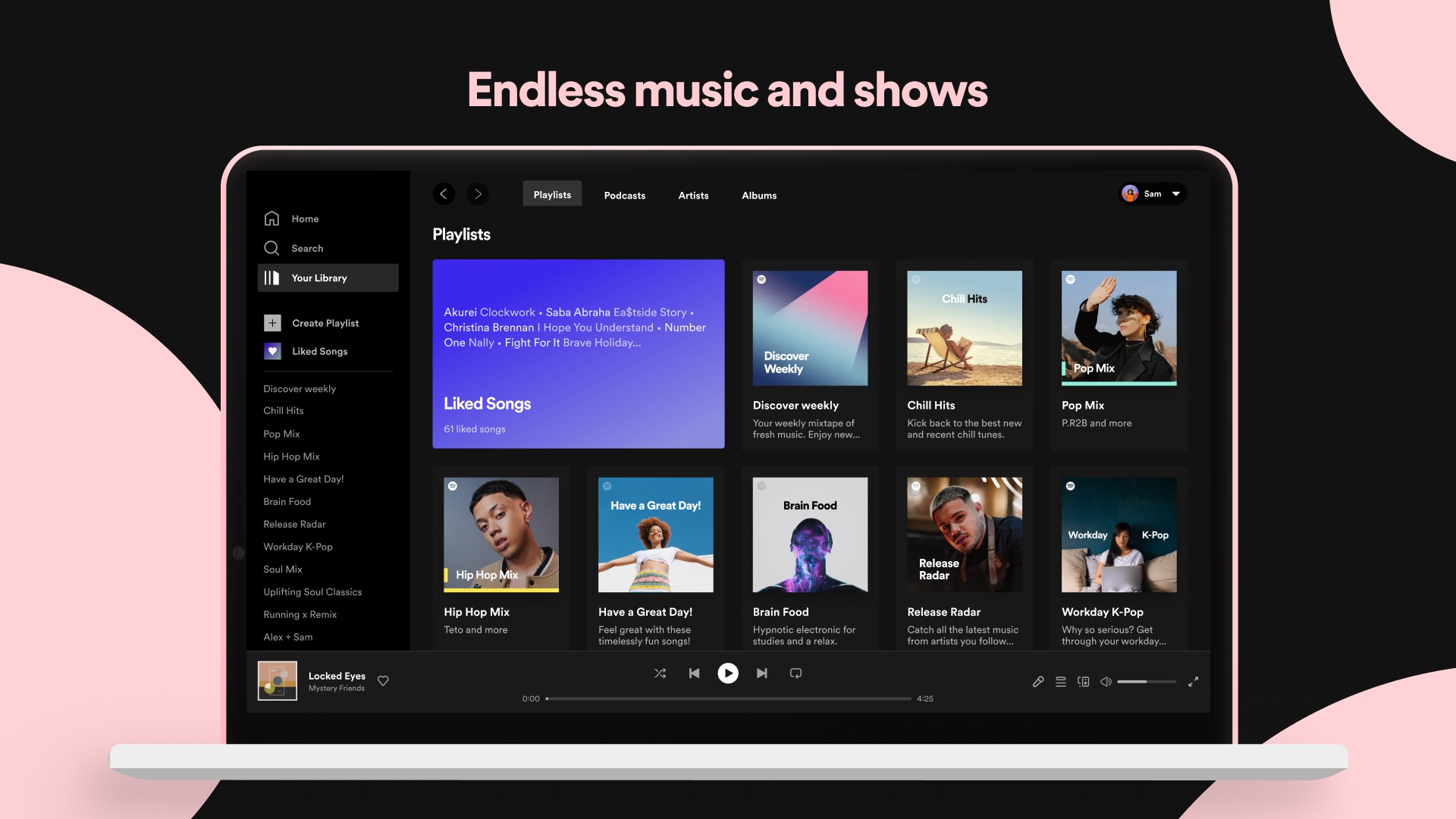
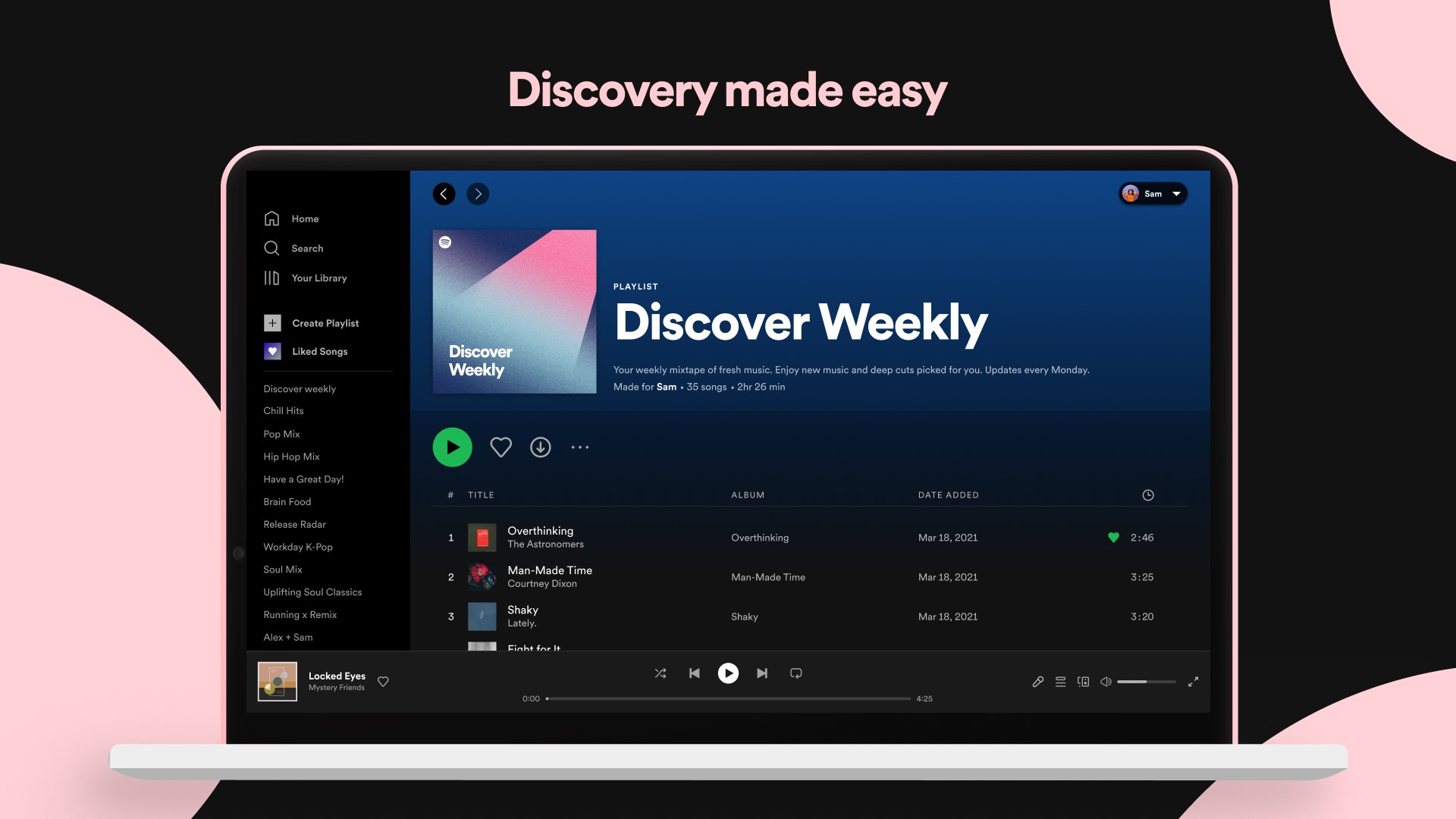
Spotify's magic lies in its ability to learn your musical tastes. As you listen, it gently curates playlists that seem to read your mind—offering fresh tracks to discover based on your moods and habits. Whether you want energetic beats to kickstart your morning or mellow tunes for winding down, the app's algorithm finely tunes itself to serve your unique preferences, making every session feel like a tailored concert.
Podcasts and Content Diversity
The app doesn't just stop at music; it's also a potent podcast hub. From trending series to niche topics, Spotify's vast collection transforms your default media player into a dynamic audio library. Navigating podcasts is streamlined with seamless search and categorization, letting you delve into topics with just a few clicks—perfect for those long commutes or lazy weekends.
Offline Mode and Audio Quality
Premium subscribers can download their favorite playlists and podcasts, turning windows into a portable music locker—no internet bumps or signal drops required. The app supports multiple quality settings, ensuring that whether you're on Wi-Fi or mobile data, your listening experience remains crisp and immersive. This level of control over audio fidelity enhances the overall user experience, especially for discerning listeners.
User Experience and Differentiators
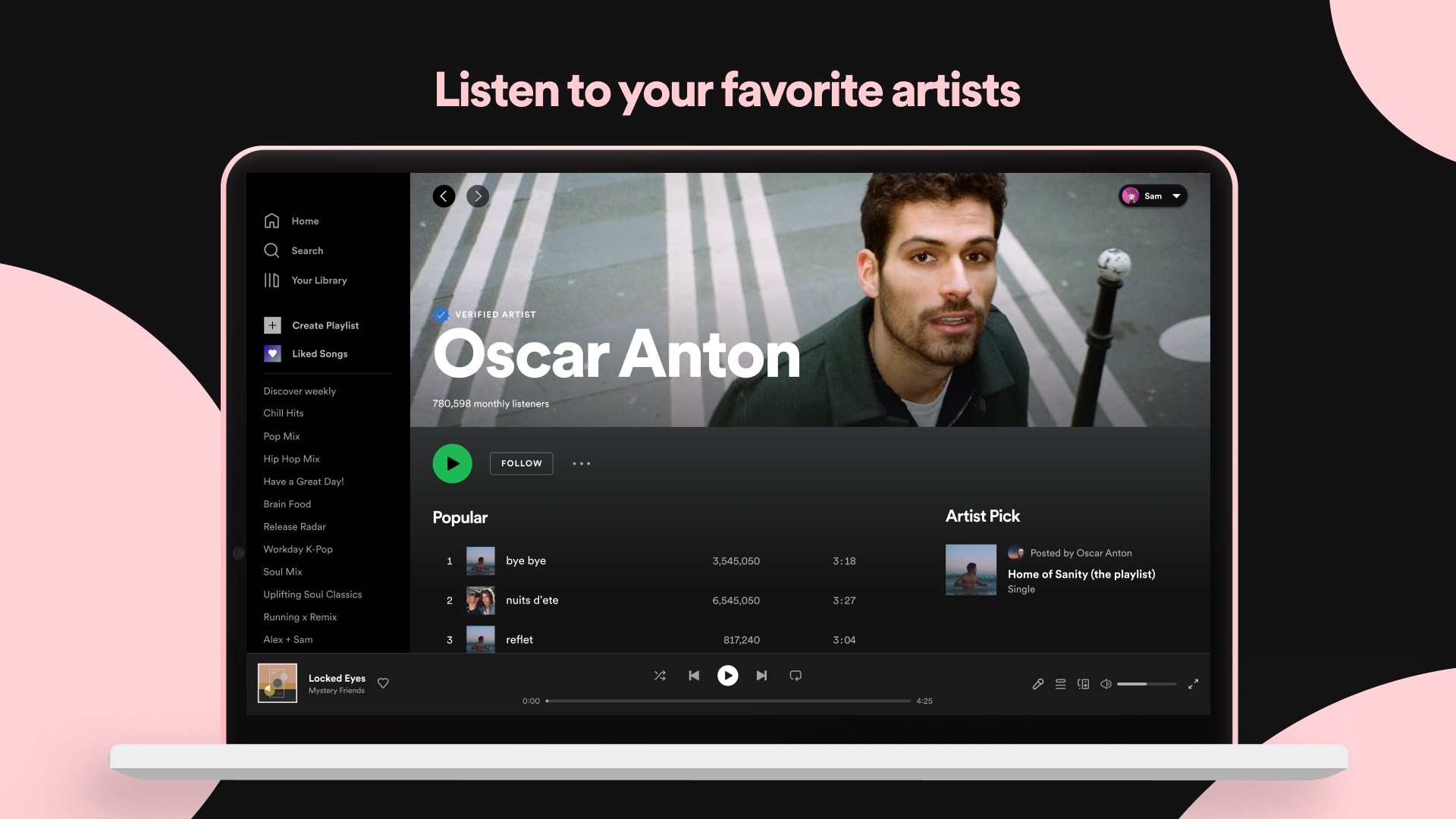
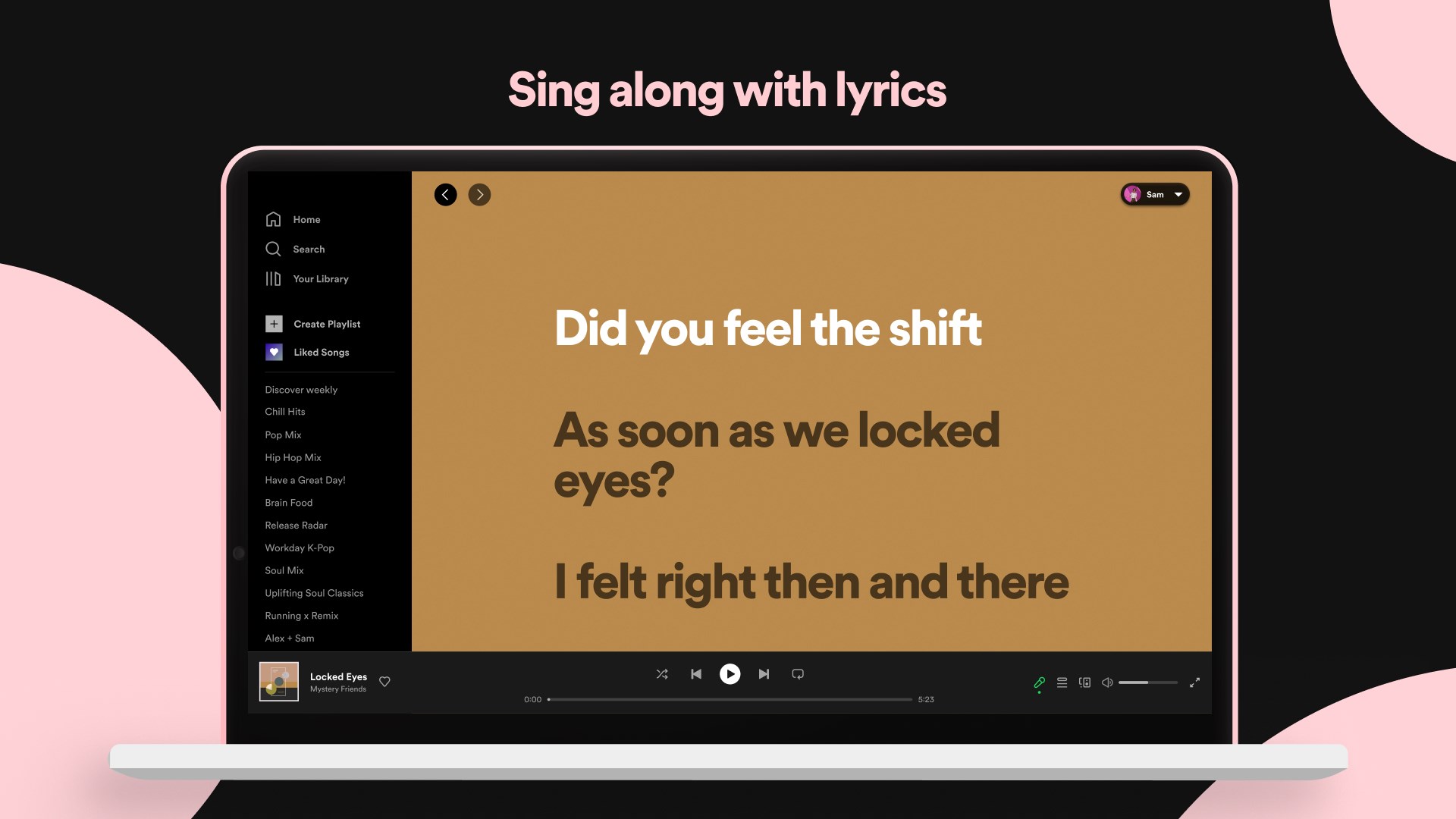
Navigation within the Spotify app exudes clarity and simplicity, akin to flipping through your favorite music collection in a well-organized closet. The interface is sleek yet intuitive, with clear icons and minimal clutter, giving even first-time users a gentle learning curve. The app's responsiveness is noteworthy; song selection and playlist management happen fluidly, without lag or stutter, making it feel like a natural extension of your thoughts.
Compared to other streaming apps, Spotify shines with its rhythm pattern variety assessment and latency tolerances. It excels at assessing rhythm pattern diversity, ensuring that playlists have a dynamic flow, keeping listeners engaged without monotony. Additionally, its slightly relaxed latency tolerances improve the app's ability to load and buffer content smoothly, even on less-than-ideal network conditions—a subtle but meaningful advantage over some rivals.
Final Thoughts: Who Should Use It?
Overall, Spotify for Windows presents an excellent balance between powerful customization and user-friendly design. Its flagship features—personalized recommendations and robust podcast integration—are standout qualities that differentiate it from other music streaming platforms. For anyone seeking an app that adapts to your listening style while maintaining seamless performance, this app earns a strong recommendation.
While it might not be the best choice for audiophiles demanding extreme sound fidelity or free users aiming for unlimited skips, its strengths make it a compelling choice for everyday use. Consider trying the free version to explore its features and see how it transforms your desktop into a personal concert hall. Happy listening!
Pros
- Extensive Music & Podcast Library
- Personalized Recommendations
- Offline Listening Support
- Intuitive User Interface
- Seamless Cross-Device Sync
Cons
- Ad-Supported Free Tier
- Limited Customization of Playlists
- Battery Consumption
- Offline Mode Restriction to Premium Users
- Occasional Lag or Glitches