- Name M4A to MP3 - M4A to WAV
- Category Music
- Developer IO Stream
- Available on PC, Mobile, Surface Hub, HoloLens
- OS Windows 10 version 19041.0 or higher
- languages Chinese (Traditional Chinese), English (United States), Japanese, Vietnamese
Introducing M4A to MP3 - M4A to WAV for Windows
This lightweight application is designed to convert your M4A audio files into widely compatible formats like MP3 and WAV with ease and efficiency.
Created by IO Stream
Developed and published by IO Stream, a team committed to creating straightforward multimedia tools that simplify audio file management for everyday users.
Key Features that Stand Out
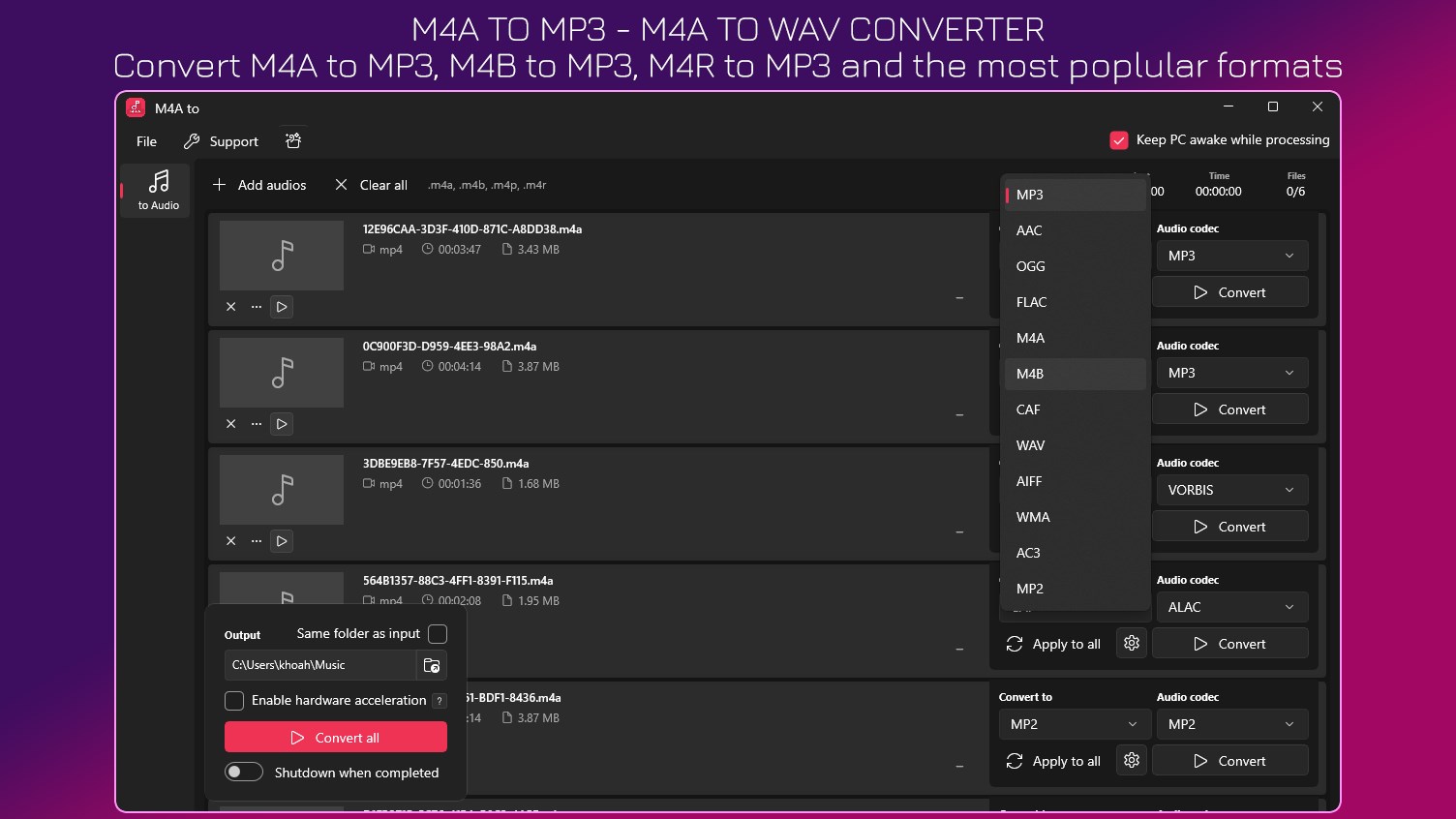
- Multiple Format Conversion: Seamlessly switch between M4A, MP3, and WAV, covering various playback scenarios and device compatibilities.
- Batch Processing Capability: Convert multiple files simultaneously, saving time during large projects or library updates.
- Fast and High-Quality Output: Optimized algorithms ensure quick conversions without sacrificing audio fidelity.
- User-Friendly Interface: Intuitive design that allows even beginners to operate without a steep learning curve.
Engaging the User: A Smooth Sonic Journey
Imagine walking into a music library that magically re-shelves itself to fit your current playlist needs. That's what this app offers—a quick, effortless transformation of your audio files so you can enjoy your favorite tunes on any device, anytime, without fuss or frustration. Whether you're a casual listener or a dedicated DJ prepping for a gig, this app promises a reliable hand in managing your audio formats—no technical wizardry required.
Core Functionality: Conversions Made Simple
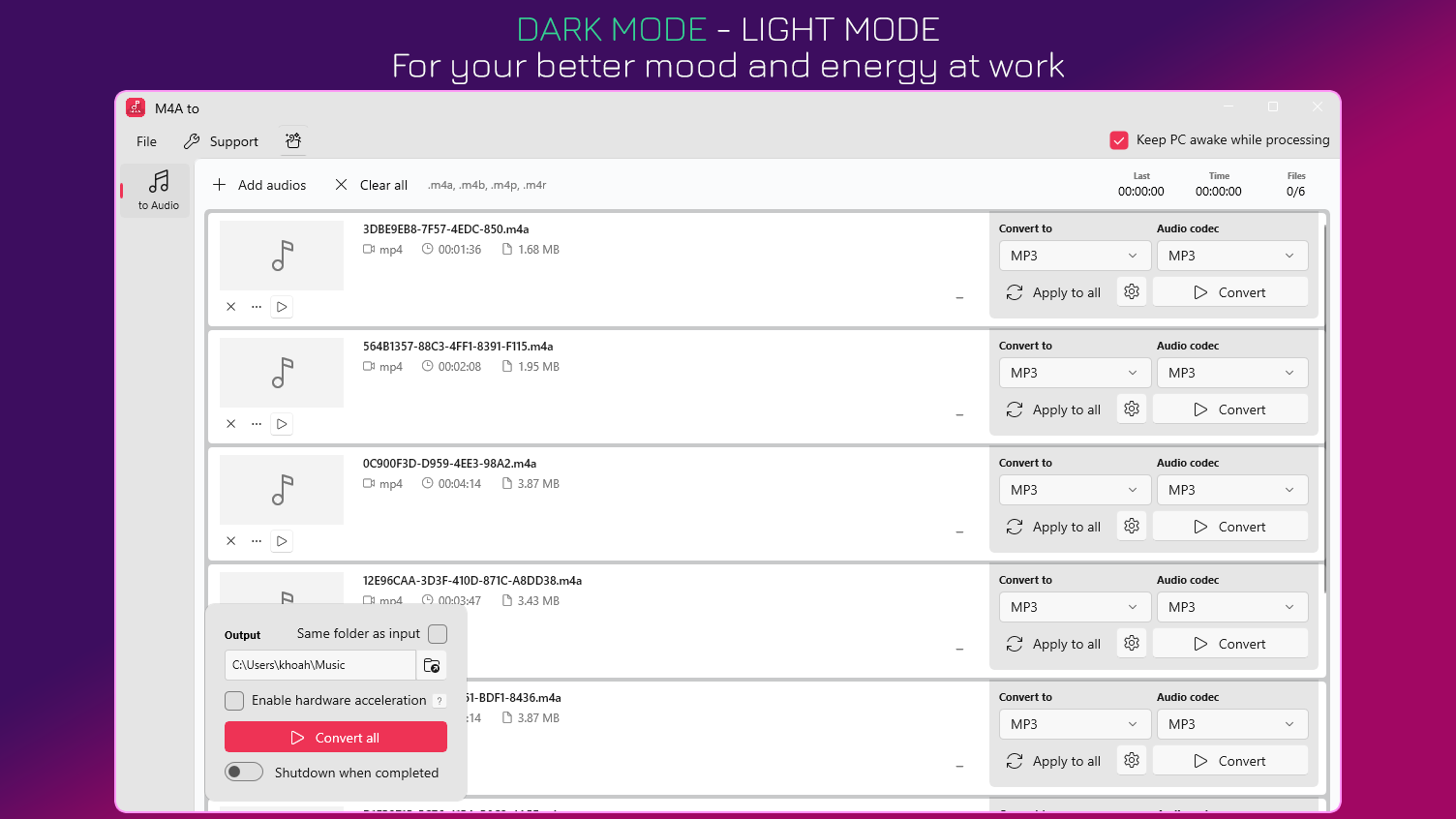
The heart of this app lies in its conversion engine, which handles M4A to MP3 and WAV formats with remarkable speed. The process is straightforward: users select their files, choose the desired output format, and hit "Convert." The results are high-quality files that retain the original clarity, making sure that your music sounds just as good after the switch. The batch processing feature is a real time-saver, perfect for users with extensive music collections. It manages multiple files without breaking a sweat, efficiently converting an entire playlist in one go.
Design and User Experience: Friendly and Fluid
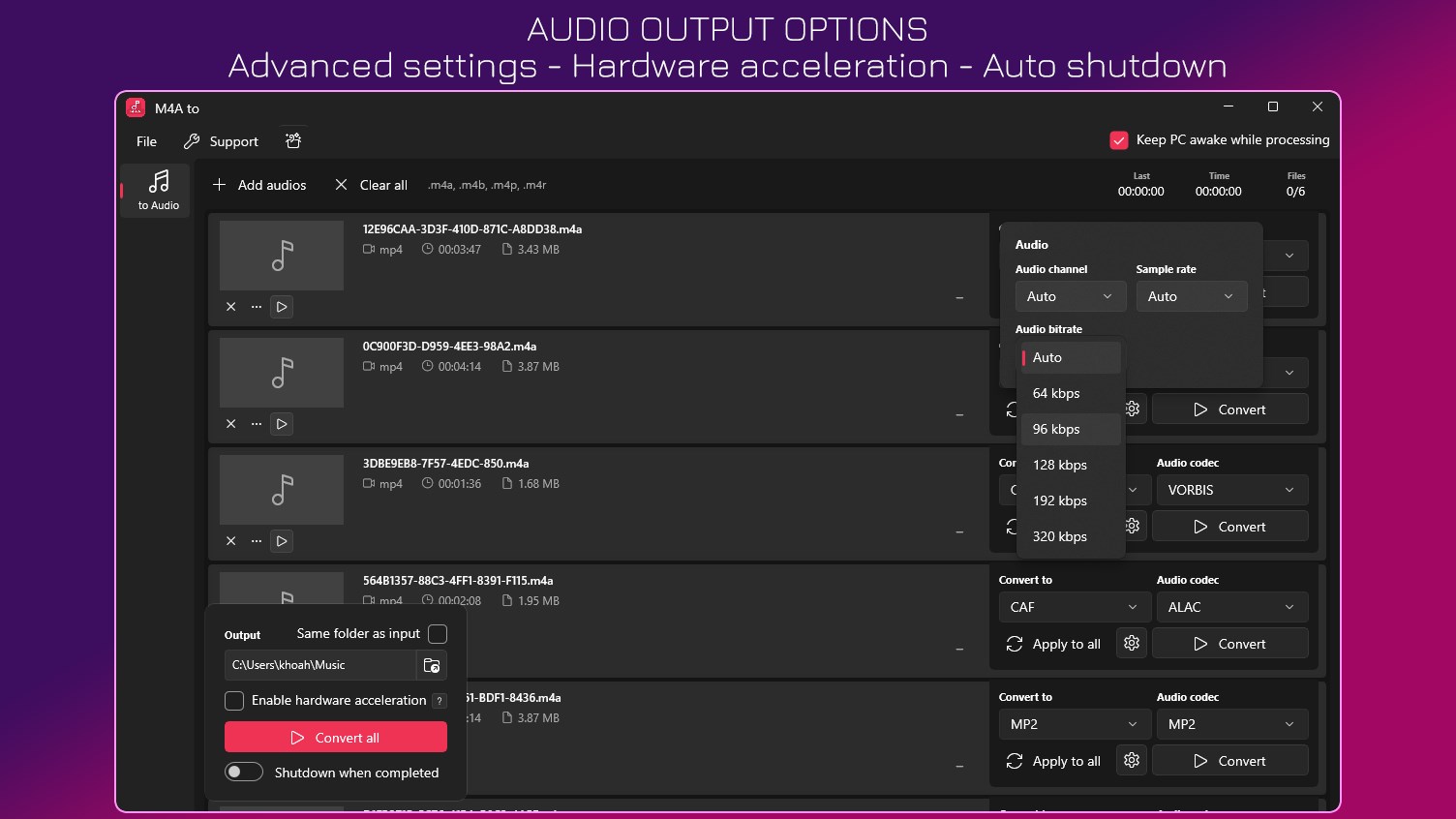
The interface reflects a clean, modern aesthetic—like a well-organized music cabinet that invites exploration. Navigation is smooth, with clear buttons and minimal clutter, making the learning curve gentle even for newcomers. Operations feel responsive; conversions start promptly, and the app maintains stability throughout lengthy batch tasks. The setup is intuitive, so you'll find yourself converting files in moments, without wading through complex settings or documentation.
Unique Selling Points: Setting It Apart
What truly distinguishes this application from similar tools is its intelligent handling of audio quality during conversions and its robust batch processing. Unlike some converters that might compromise audio fidelity or struggle with larger libraries, this app ensures consistent high-quality output and swift processing. Moreover, its adaptive algorithm assesses the rhythm pattern variety within your files, providing nuanced conversions that preserve the musical integrity during format shifts—akin to a skilled linguist translating lyrics without losing their poetic essence.
Final Verdict and Recommendations
This application earns a solid recommendation for anyone seeking a reliable, easy-to-use audio converter on Windows. Its focus on maintaining audio quality and streamlined batch processing makes it especially suitable for users with extensive audio libraries or those needing quick turnaround times. While it doesn't boast flashy features, its practical design and efficient performance make it a dependable choice for everyday audio management. For casual users or professionals alike, it's a helpful tool that respects your time and your tunes—worthy of inclusion in your digital toolbox.
Pros
- High Conversion Quality
- Multiple Output Formats
- User-Friendly Interface
- Batch Conversion Capability
- Fast Conversion Speeds
Cons
- Limited Editing Features
- Lack of Built-in Audio Player
- No Cloud Integration
- Limited Customization Options
- Occasional Compatibility Issues