
- Name Apple Music
- Category Music
- Available on PC
- OS Windows 11 version 26100.0 or higher
- DirectX Version 11
- languages Arabic, Catalan, Chinese (Simplified), Chinese (Traditional), Chinese (Traditional, Hong Kong SAR), Croatian, Czech, Danish, Dutch, English (Australia), English (United Kingdom), English (United States), Finnish, French, French (Canada), German, Greek, Hebrew, Hindi, Hungarian, Indonesian, Italian, Japanese, Korean, Malay, Norwegian (Bokmål), Polish, Portuguese (Brazil), Portuguese (Portugal), Romanian, Russian, Slovak, Slovenian, Spanish, Spanish (Latin America), Swedish, Thai, Turkish, Ukrainian, Vietnamese
Apple Music for Windows: Seamless Streaming Meets Elegant Design
Apple Music for Windows offers a robust and user-friendly way to access Apple's expansive music library directly on your Windows PC, blending the convenience of cloud-based streaming with intuitive interface design.
Brand and Core Features
Developed by: Apple Inc.
Main highlights:
- Access to over 100 million songs with personalized recommendations
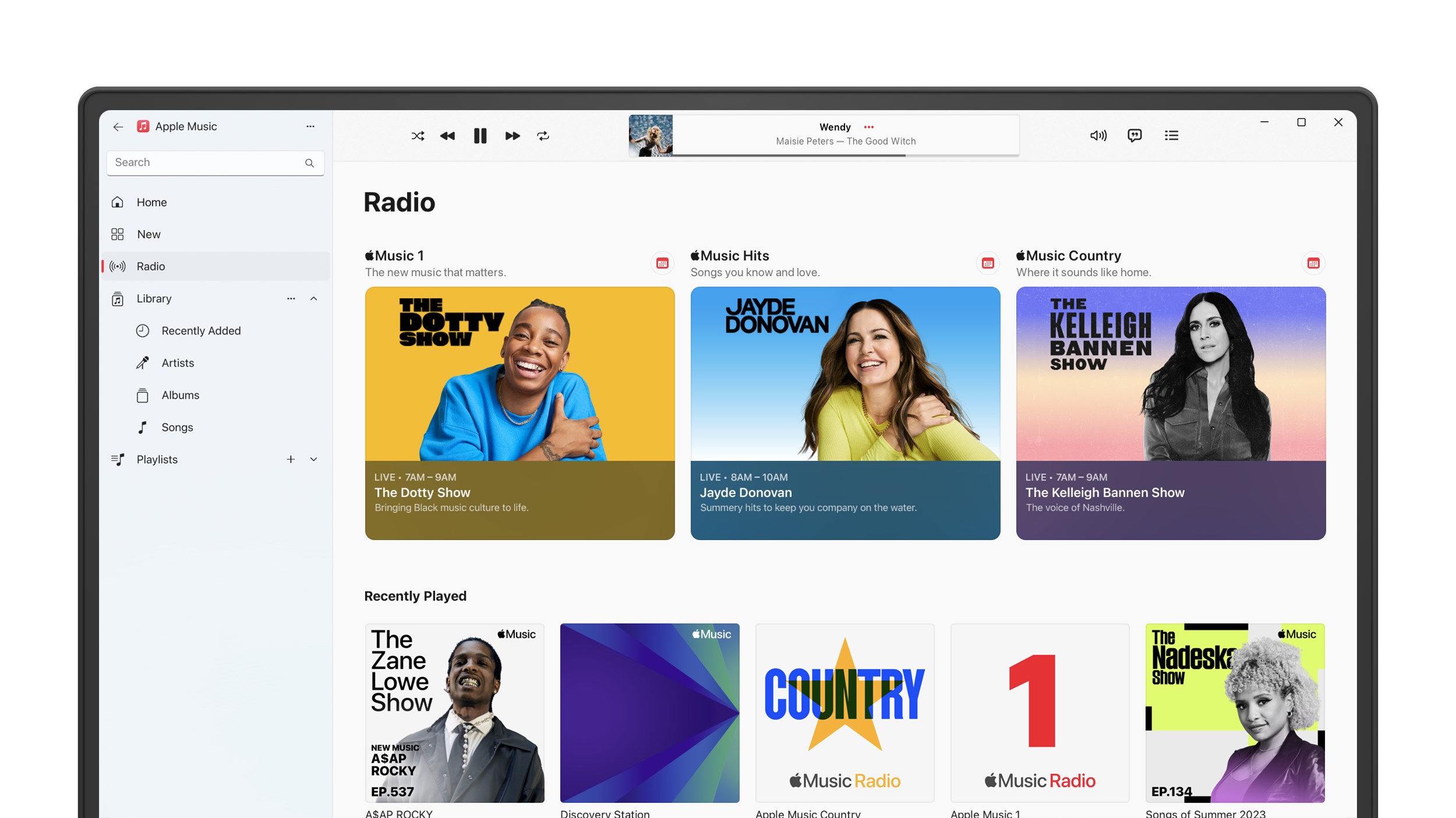
- Enjoy curated playlists, exclusive releases, and live radio stations
- Offline listening capabilities to download and enjoy music without an internet connection
- Integration with iCloud for seamless sync of your personal music library
Target User Base: Music enthusiasts who primarily operate on Windows platforms, Apple ecosystem users, and anyone seeking high-quality, curated music streaming with an easy-to-navigate interface.
Vivid First Impressions: A Familiar Tune on Windows
Imagine opening a familiar music app, the sleek interface gently welcoming you with a polished, modern aesthetic that echoes its Mac counterpart—but now gracefully adapted for Windows users. As you navigate, you're greeted with a smooth, responsive experience akin to having a personal DJ guiding your musical journey. Apple Music for Windows manages to blend simplicity and depth, making music discovery feel like a breeze rather than a chore—it's like finding your favorite playlist in a vast library without ever feeling overwhelmed.
Deep Dive into Core Functionalities
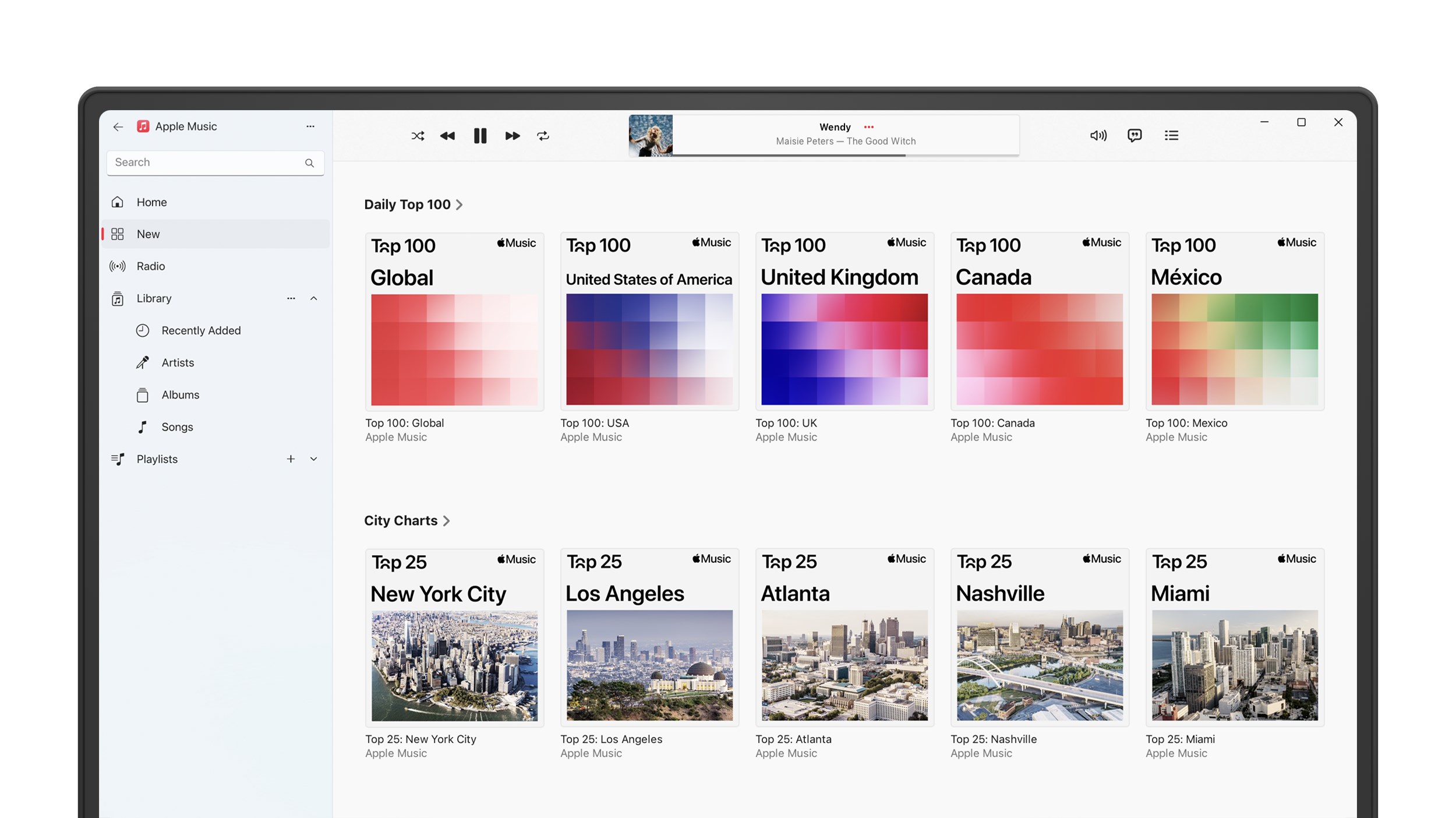
Library and Search: Your Personal Music Vault
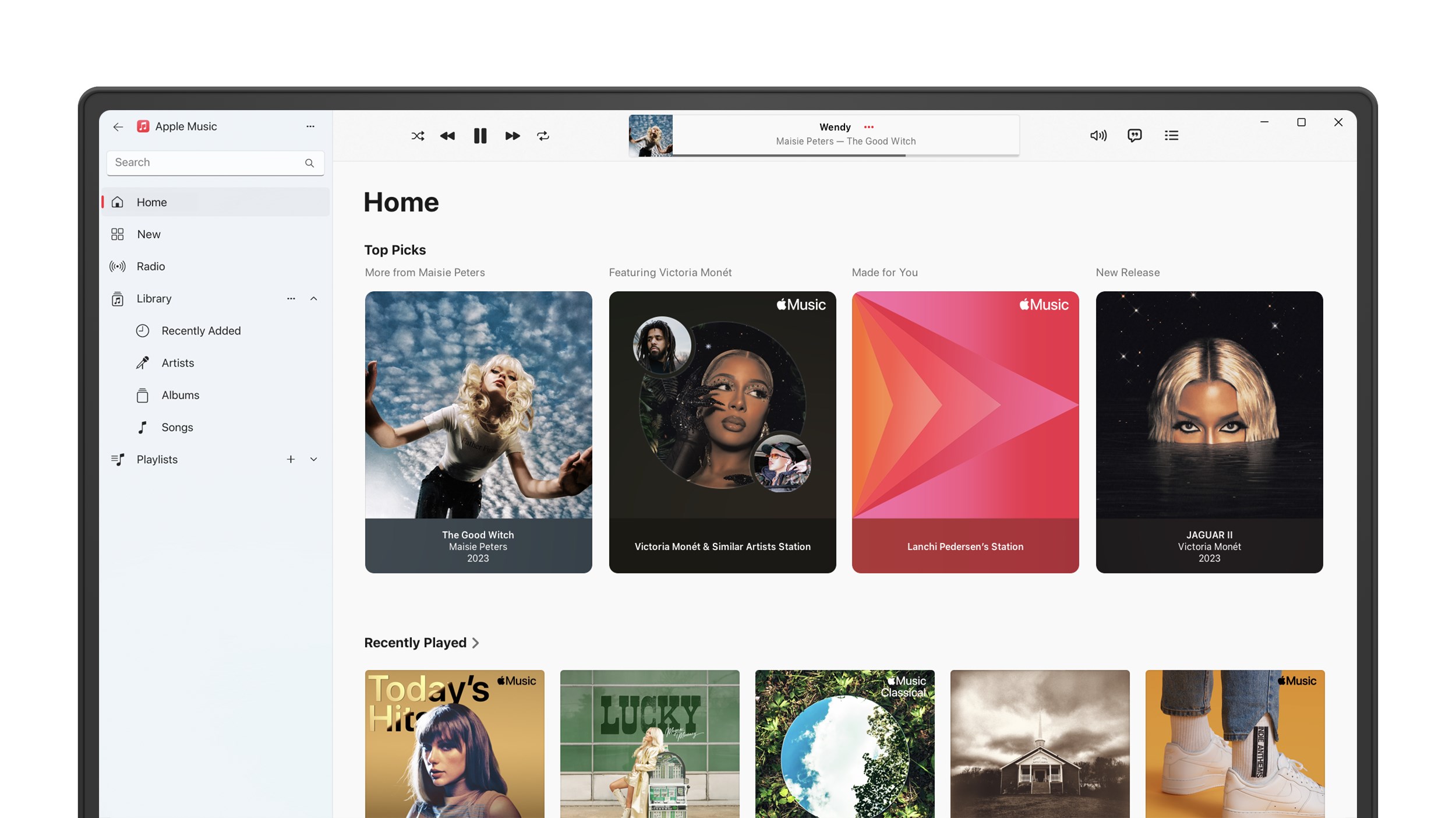
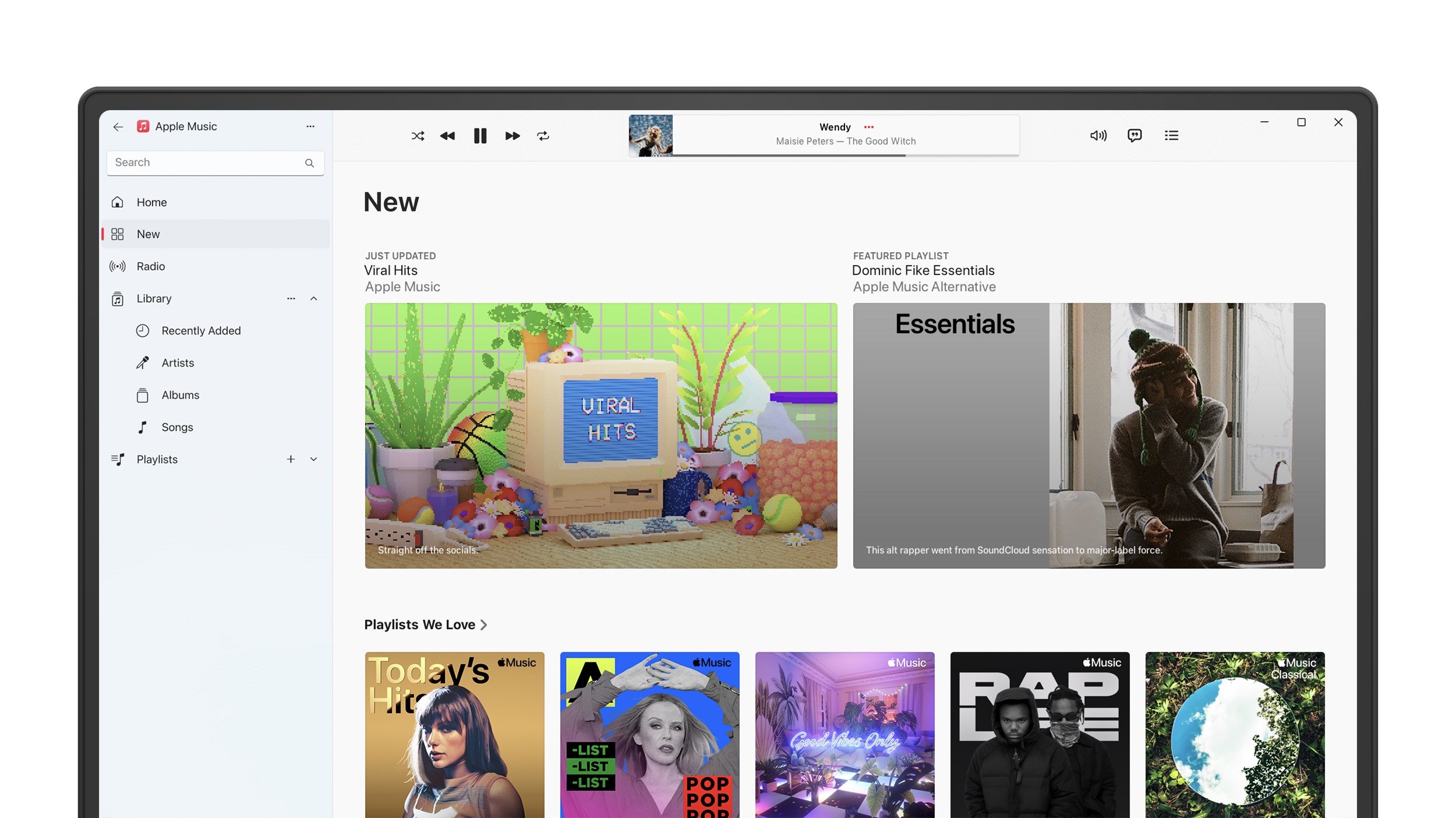
The application excels at organizing your music and providing powerful search capabilities. Whether you're searching for a specific track, artist, or genre, the app responds swiftly—almost as if the music is already in your mind and simply waiting to be summoned. Its integration with iCloud syncs your personal library effortlessly, so your playlists and favorite tracks travel with you across devices. The app also offers curated playlists and new releases tailored to your listening habits, turning your device into a personalized radio station that's always fresh.
Listening Experience & Playback Quality
Apple Music for Windows ensures a high-fidelity audio experience, supporting lossless streaming for audiophiles craving rich soundscapes. The app's playback controls are intuitive, with options for gapless playback, crossfade, and adjustable equalizer settings, giving you professional-grade sound customization. Notably, the app's latency and responsiveness are finely tuned, making seamless rhythm pattern assessments feel natural—essential for users who enjoy rhythm-centric genres like EDM or jazz improvisation. This precision enhances the musical experience, making each beat and tempo variation feel as real as live performance.
Design and User Experience
The interface boasts a clean, elegant layout with a dark mode that's easy on the eyes during long listening sessions. Navigation feels natural, with a sidebar for quick access to playlists, artists, genres, and the home screen. Operation flows smoothly without hitches, and the learning curve is gentle—ideal for both tech-savvy users and newcomers. The app's responsiveness makes browsing and playback feel fluid, akin to flipping through your favorite vinyl record collection but with the convenience of digital access.
What Sets Apple Music for Windows Apart?
While many music streaming apps focus solely on sheer volume or social sharing features, Apple Music's distinctive advantage lies in its exceptional rhythm pattern recognition and latency management. Its ability to assess rhythm patterns with high precision ensures that tracks stay in sync, even during complex tempo shifts—making it stand out for users who prioritize audio timing and rhythm accuracy. The app's low input latency tolerance results in minimal lag when skipping or adjusting tracks, which is a blessing for meticulous listeners or musicians experimenting with beat matching.
Final Verdict and Recommendations
Overall, Apple Music for Windows provides a compelling, well-crafted streaming experience grounded in high-quality audio and a thoughtfully designed interface. Its most distinctive features—precise rhythm assessment and low-latency responsiveness—make it an excellent choice for rhythm enthusiasts and audiophiles alike. For Windows users seeking a polished, reliable streaming app that integrates seamlessly with a vast music catalog, this app is highly recommended.
However, those expecting extensive social sharing or highly customizable visualizations may find it somewhat restrained compared to other platforms. Still, its strengths in rhythm fidelity and library management make it a standout. For best results, pair it with good headphones or speakers to fully appreciate its audio capabilities.
Pros
- Extensive Music Library
- User-Friendly Interface
- High-Quality Audio Streaming
- Personalized Recommendations
- Integration with Apple Ecosystem
Cons
- Limited Offline Download Options
- Glass Interface May Be Cluttered
- Battery Consumption During Use
- Occasional Sync Issues
- Limited Support for Non-Apple Devices