- Name Solitaire Card Games
- Category Card & board
- Available on PC, Mobile, HoloLens
- OS Windows 10 version 10240.0 or higher
- languages English (United States)
Essential Solitaire Experience for Windows: An In-Depth Review
If you're a fan of classic card games looking for a straightforward yet engaging version to enjoy on your Windows device, Solitaire Card Games for Windows by A Trillion Games Ltd offers a delightful option. Combining simplicity with a touch of elegance, this app aims to bring the timeless appeal of solitaire directly to your fingertips, whether for quick breaks or relaxed leisure sessions.
Smooth and User-Friendly Interface
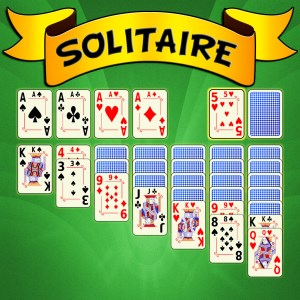
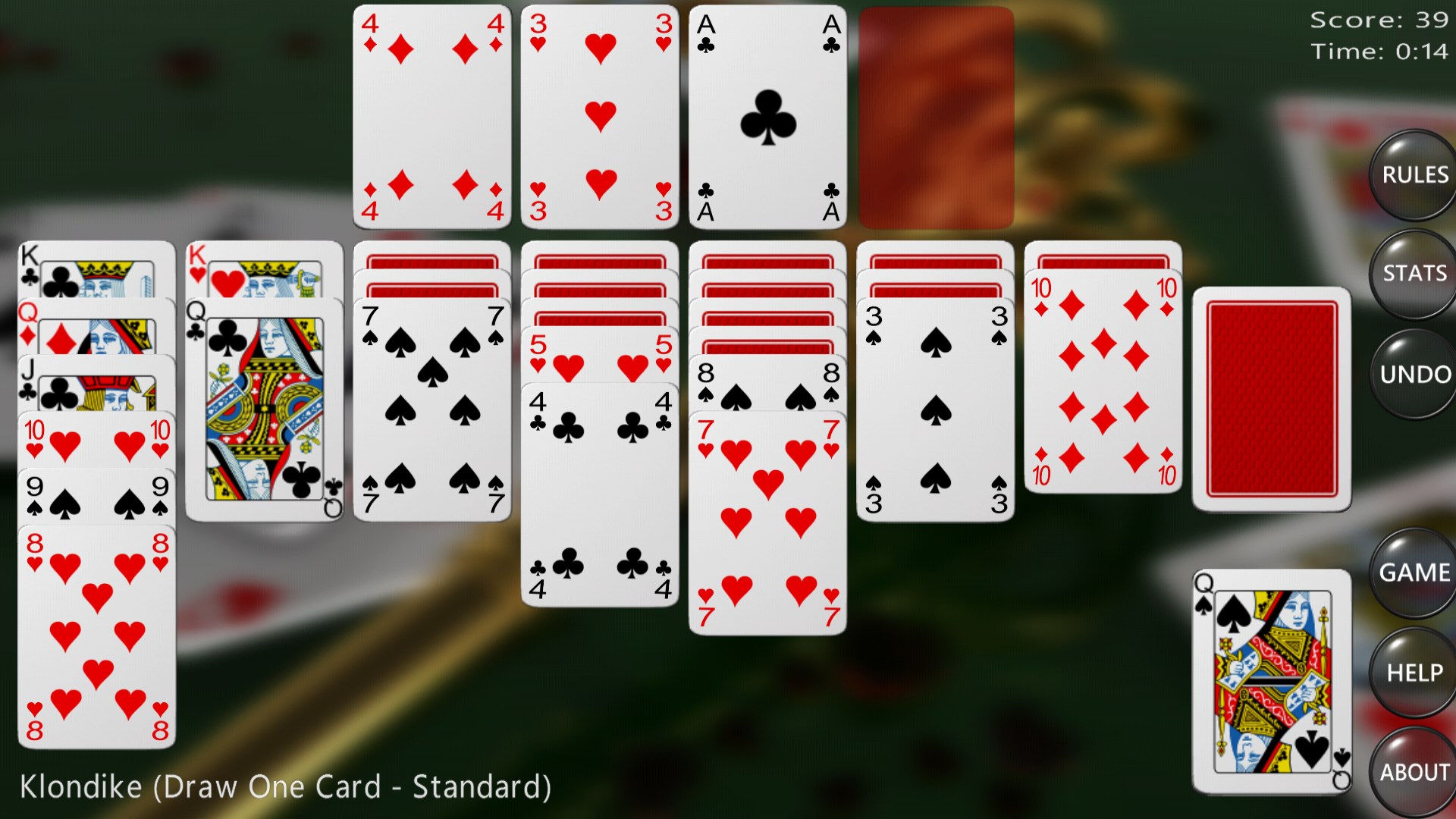
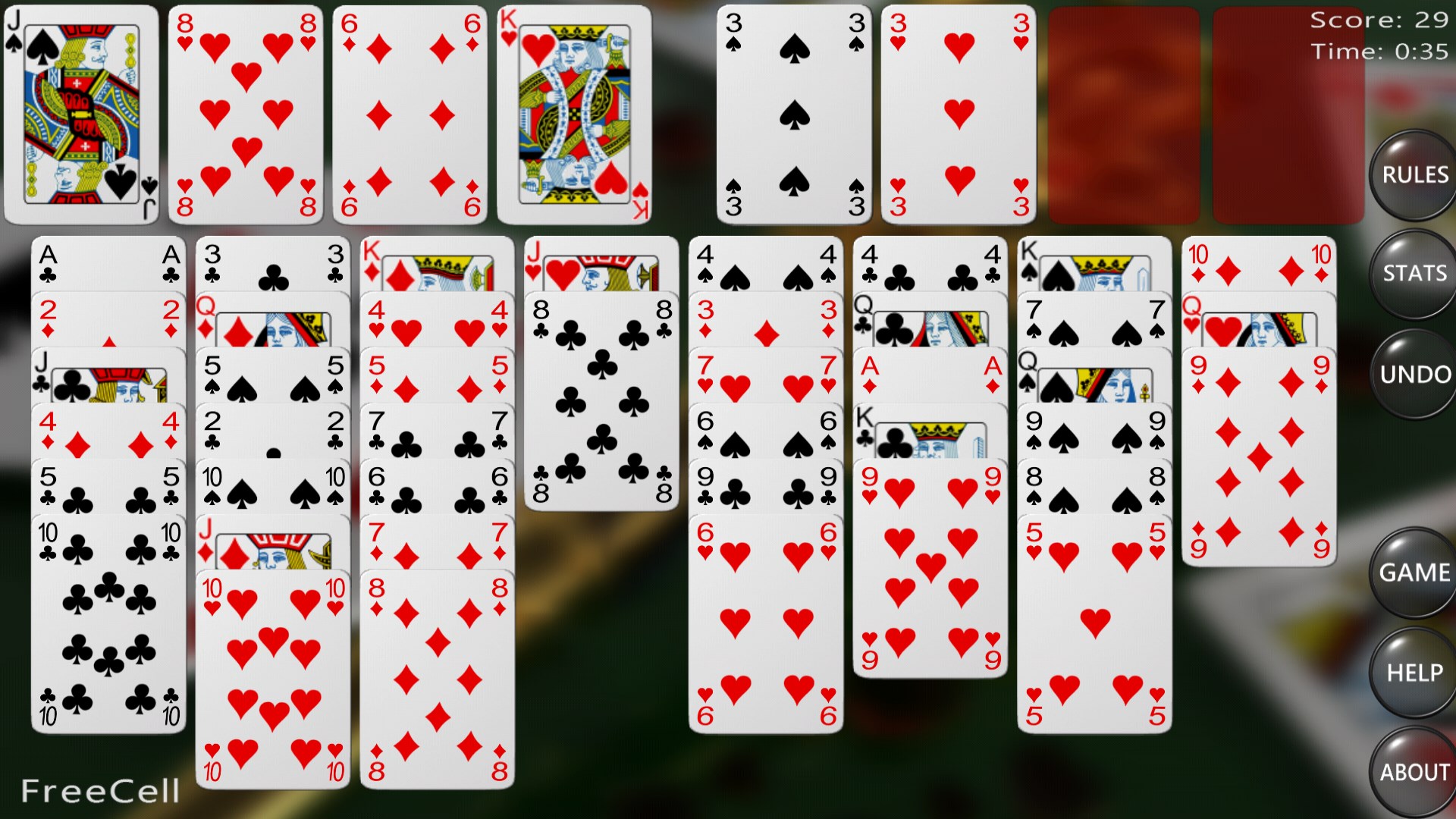
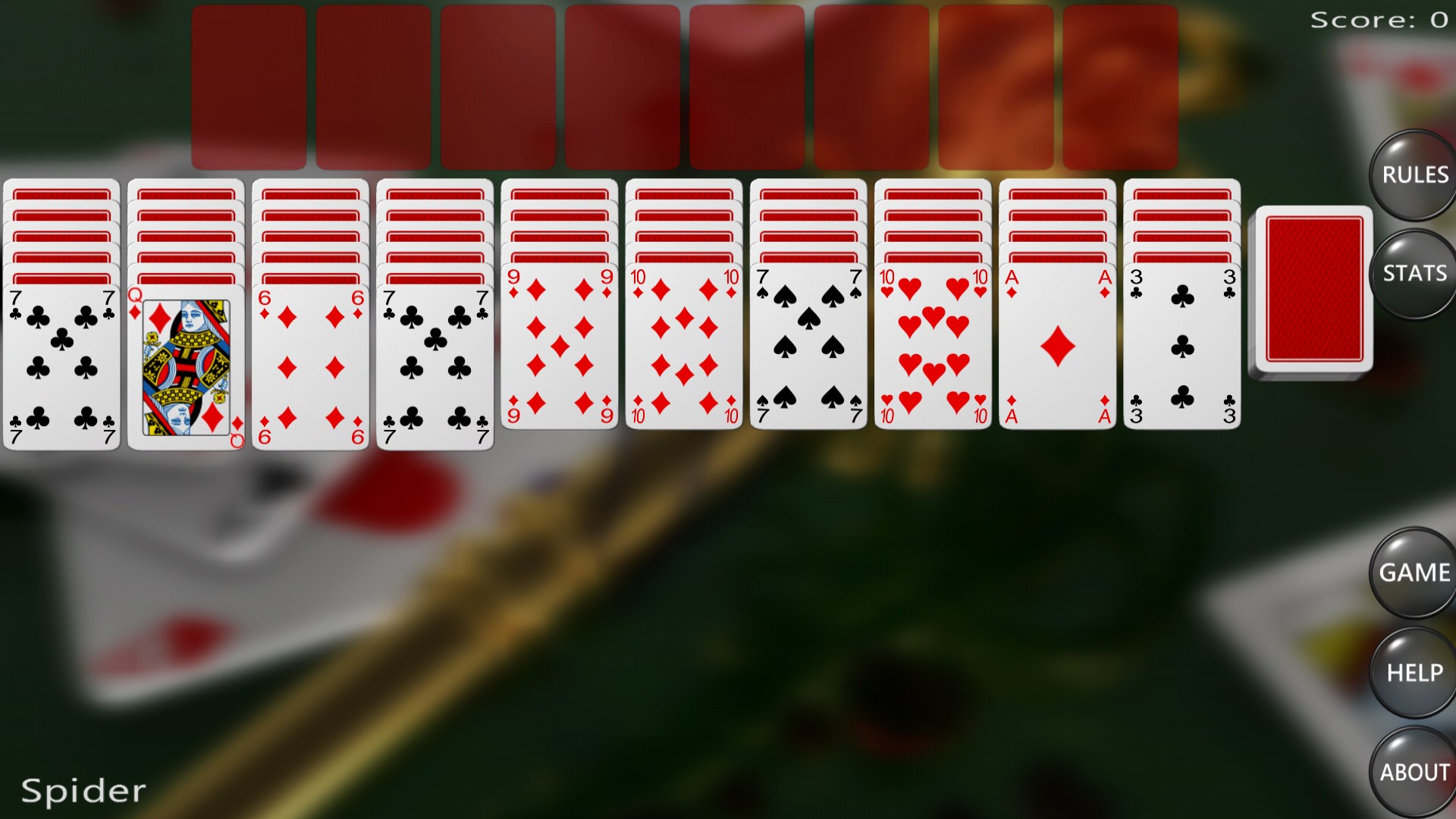
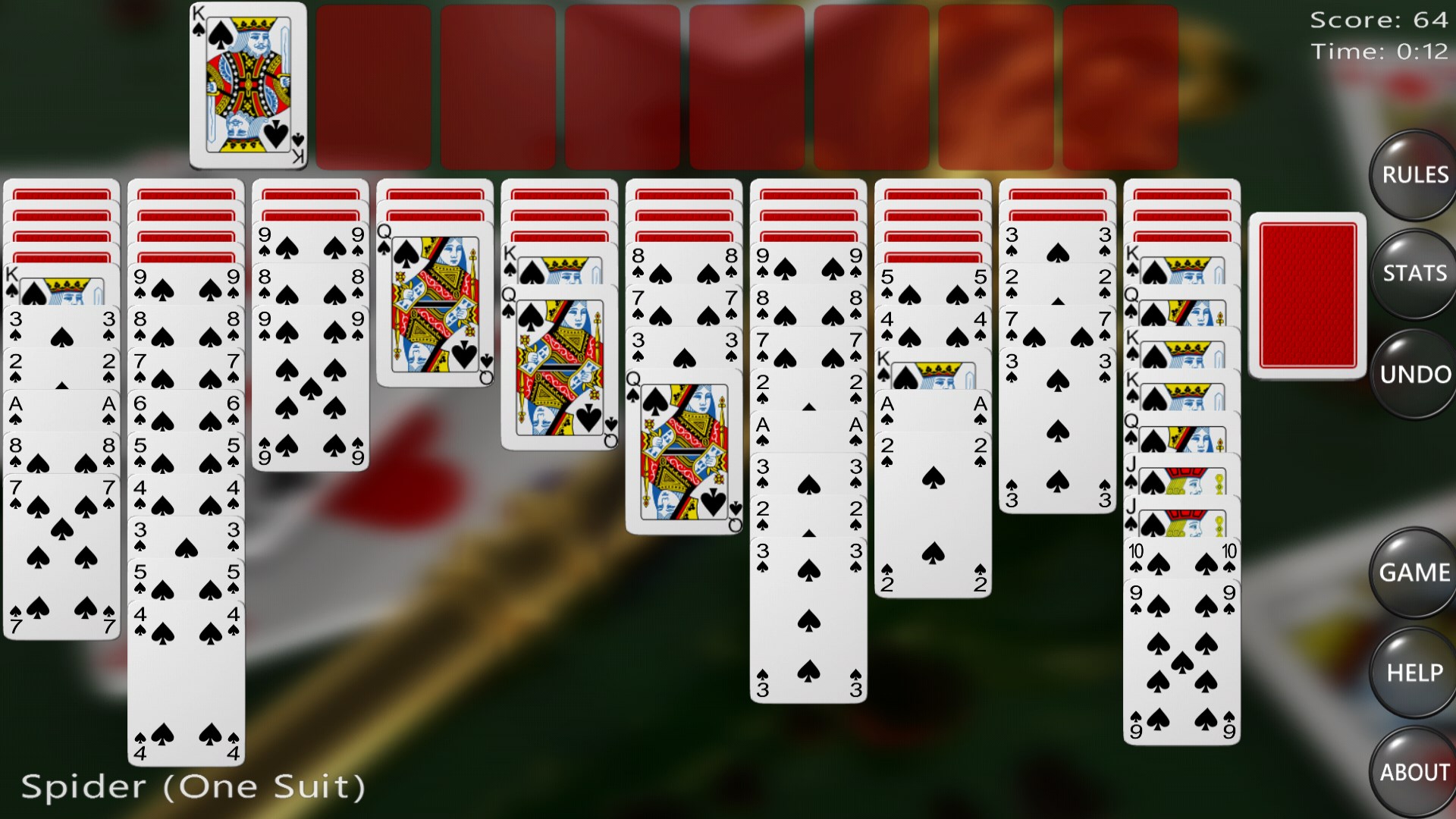
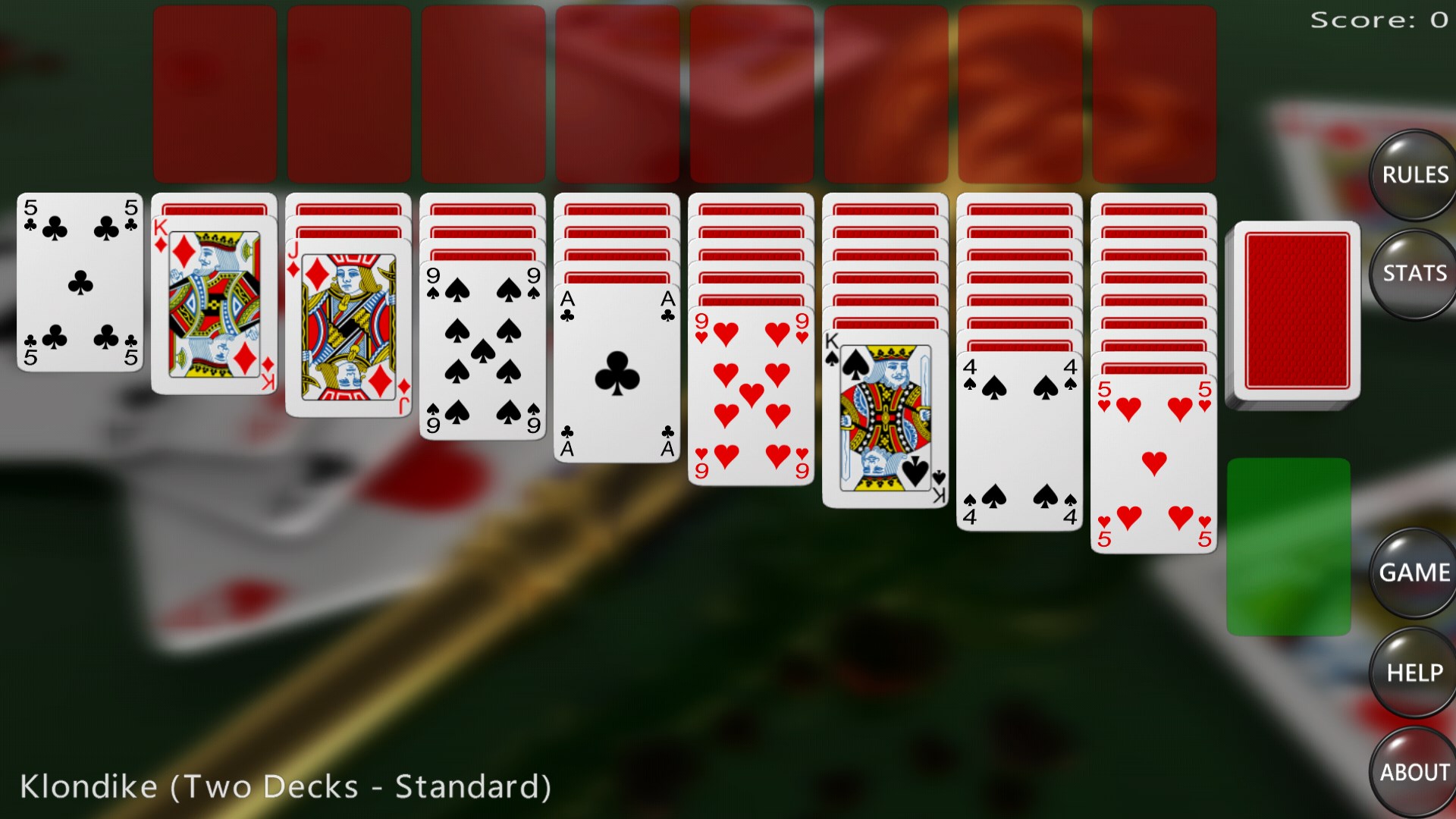
The first thing that strikes you when launching Solitaire Card Games for Windows is its clean, uncluttered interface. The design employs a calming color palette with crisp, easily distinguishable card graphics, making navigation intuitive. On a busy screen, chaos is replaced with order—each element neatly organized, allowing players to focus solely on their game. The app's responsive layout adapts seamlessly to different window sizes, providing a consistent experience whether you're playing on a small laptop or a larger monitor.
Intuitive Controls and Fluid Gameplay
One of the hallmarks of a quality card game app is how smoothly gameplay feels. This app excels in delivering fluid card movements, with swipe and click interactions that feel natural and satisfying. Dragging cards across the tableau or flipping the stock pile requires minimal effort, thanks to well-optimized controls. Even for newcomers, the learning curve remains gentle—thanks to subtle hints and smooth animations that make the experience enjoyable without overwhelming newcomers with complexity.
Core Features That Keep You Coming Back
Among its standout functionalities, three features truly elevate Solitaire Card Games for Windows above other similar apps:
Multiple Solitaire Variants
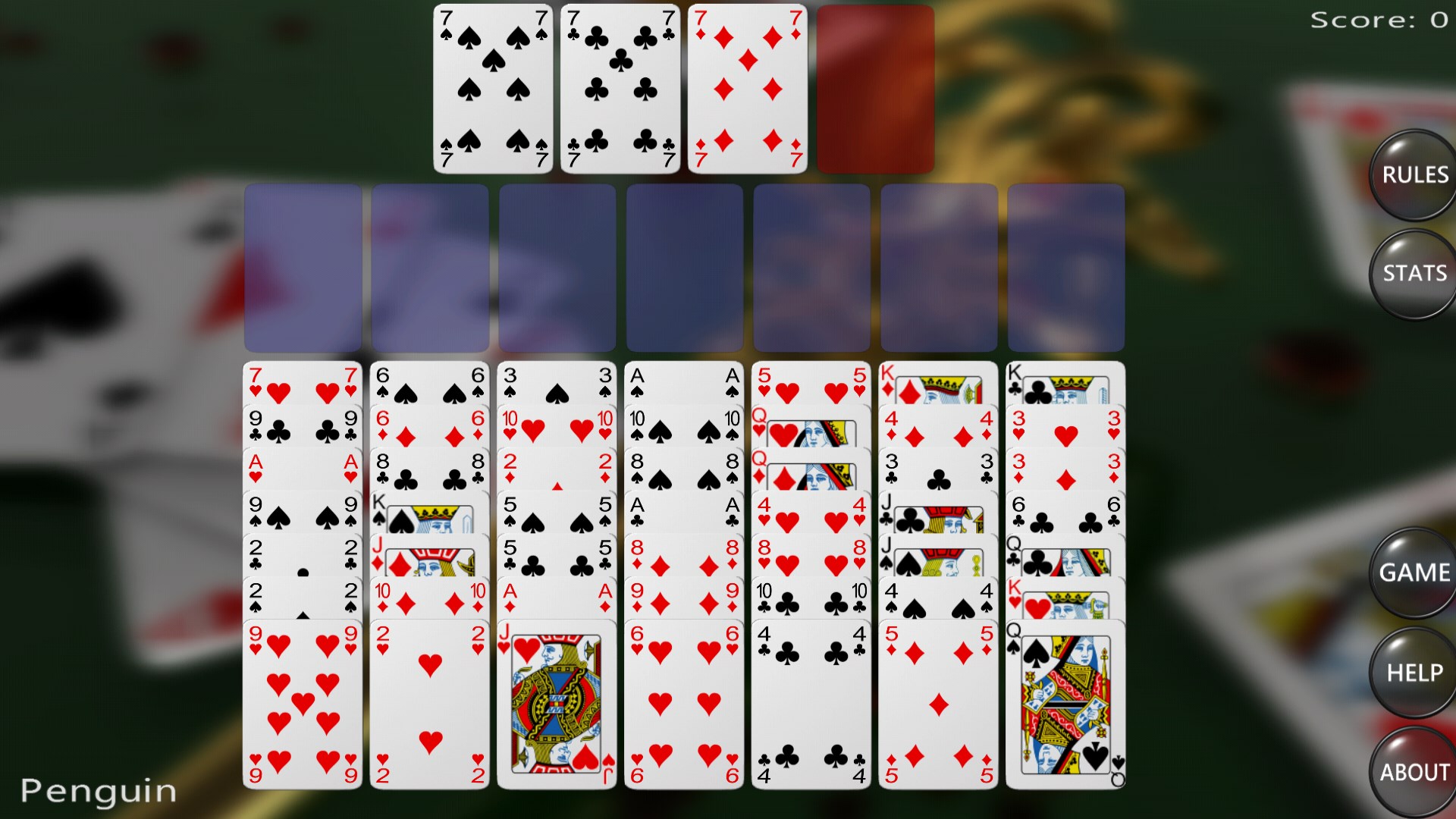
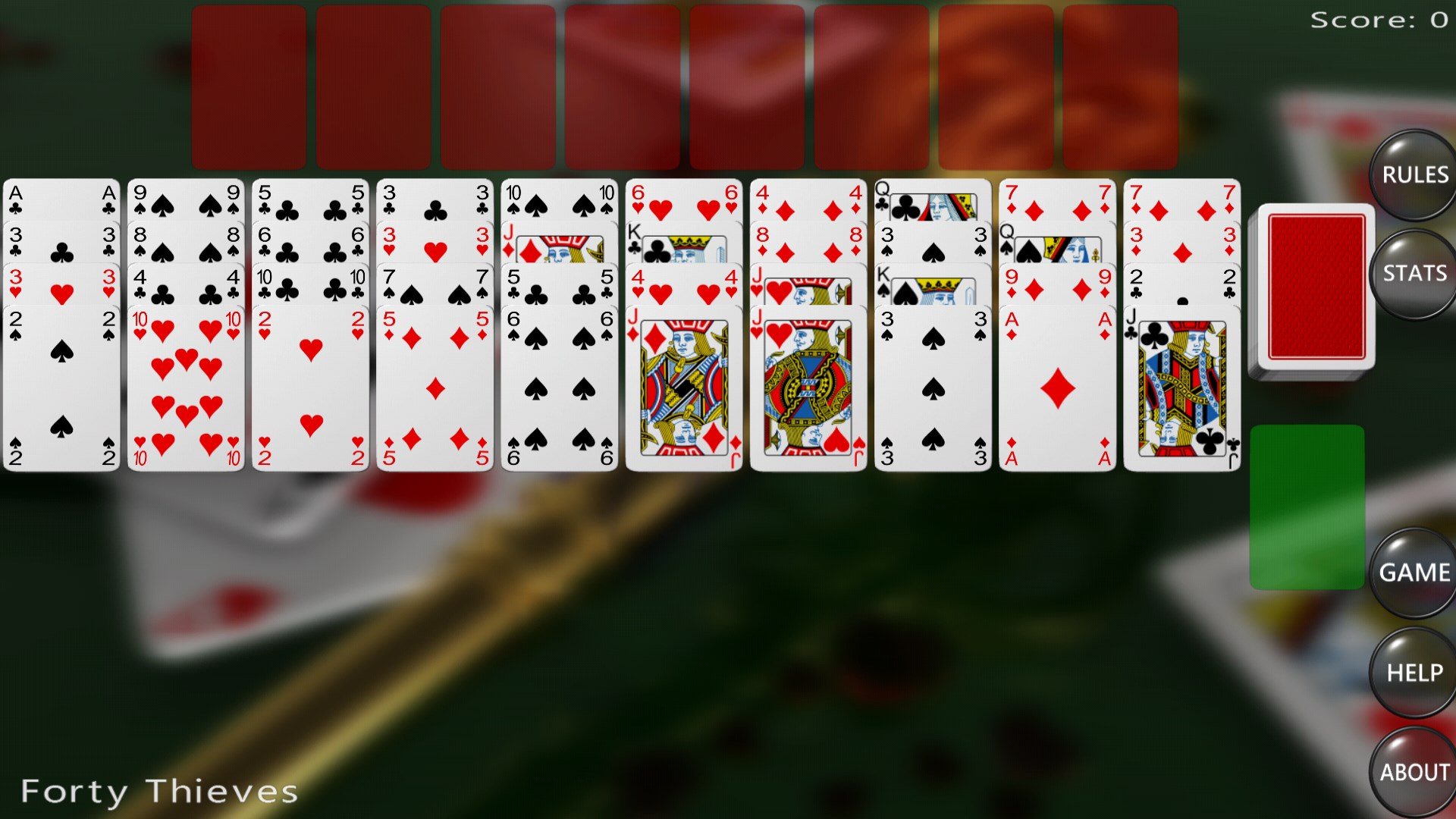
While many solitaire apps stick to the classic Klondike, this app diversifies your options by including several popular variants such as FreeCell, Pyramid, and Spider. This variety not only keeps the experience fresh but also offers players opportunities to explore different strategies, catering to both casual players and seasoned card game enthusiasts.
Customizable Themes and Settings
What sets this app apart is its emphasis on personalization. Users can choose from multiple themes—ranging from traditional card decks to modern, minimalistic designs. Adjusting backgrounds, card backs, and even sound effects allows players to craft a personalized gaming environment reflective of their mood or aesthetic preference. This level of customization enriches the experience, making it more engaging and tailored.
Progress Tracking and Achievements
An understated yet powerful feature is the integrated progress tracking system. Players can monitor their game statistics, review their best times, and unlock achievements as they solve puzzles. This gamification element enhances motivation and fosters a sense of accomplishment, encouraging longer play sessions and repeated visits to the app.
Unique Advantages and Differentiation
What truly sets Solitaire Card Games for Windows apart is its thoughtful combination of simplicity and depth. Unlike many casual solitaire apps that often overlook customization, this app invites players to make it their own, fostering a more personalized connection. Moreover, its smooth animations and multiple game variants ensure that players don't feel confined—there's always a new challenge around the corner. Its unobtrusive design is like a well-organized desk—nothing superfluous, just the essentials for a satisfying gaming experience.
Final Recommendations and Usage Tips
Overall, Solitaire Card Games for Windows offers a solid, enjoyable experience rooted in classic gameplay but enhanced with modern touches. Its intuitive controls, variety of game modes, and customization options make it suitable for casual players seeking a relaxing pastime or serious card strategists wanting to hone their skills. For anyone looking for a clutter-free, smooth, and versatile solitaire app, this one is definitely worth trying.
My suggestion is to start with the classic Klondike to get familiar, then explore the other variants and themes as you grow more comfortable. Its straightforward design means you can pick up and play almost instantly—making it an ideal companion for short breaks or extended gaming sessions alike.
Pros
- Intuitive User Interface
- Variety of Game Modes
- Smooth Performance
- Offline Play Support
- Customizable Themes
Cons
- Limited Tutorial Assistance
- Ads May Be Intrusive
- Minimal Progress Tracking
- Limited Social Features
- Customization Options Are Basic