

- Name Komga
- Category Books & reference
- Developer Gauthier Roebroeck
- Available on PC
- OS Windows 10 version 17763.0 or higher
- Memory 2 GB
- languages English
Introducing Komga for Windows: A Robust Comics and Digital Library Manager
Komga for Windows is a versatile application designed to organize, read, and manage digital comics, manga, and similar media with ease. Its clean interface and powerful features make it a compelling choice for comic enthusiasts seeking a dedicated desktop solution.
Developer and Core Features
Developed by Gauthier Roebroeck and published by Gotson, Komga stands out thanks to its lightweight yet customizable platform. The app primarily offers features such as seamless library management, an intuitive reading experience, and comprehensive metadata support. Its ability to organize large collections effortlessly, coupled with customizable reading settings, makes it perfect for dedicated fans who want a clutter-free, efficient way to enjoy their comics on Windows.
Engaging and User-Friendly Design
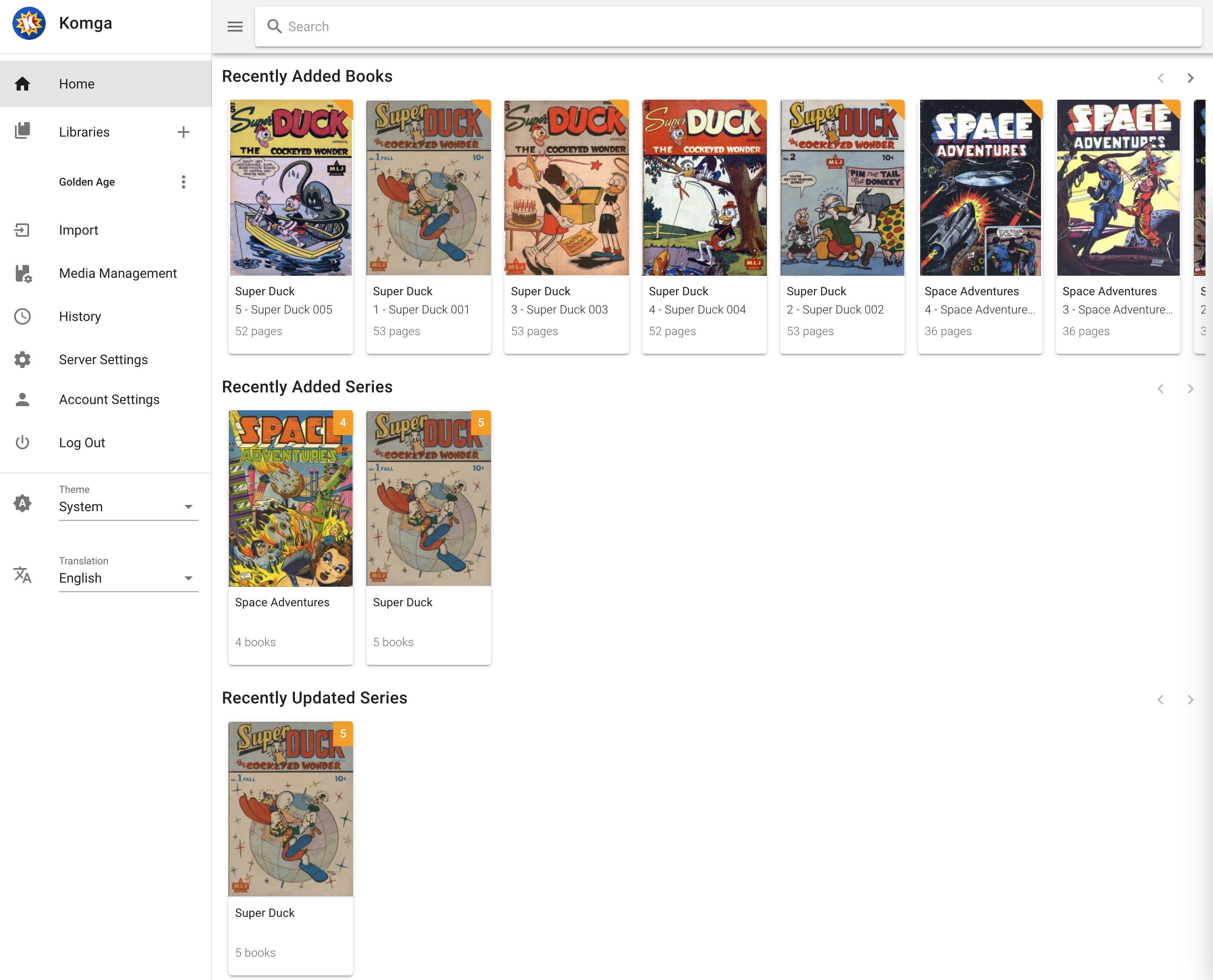
Opening Komga feels like stepping into a well-organized comic library. The interface sports a minimalistic design, focused on ease of navigation—think of it as a neatly arranged bookshelf that's just a click away from revealing your favorite titles. The app responds swiftly to user inputs, whether you're flipping through pages or searching for a specific comic, creating a smooth, frustration-free experience. Beginners will appreciate the gentle learning curve, thanks to straightforward menus and intuitive controls, while advanced users can dive deep into customization options without feeling overwhelmed.
Core Functionality: Library Management & Reading Experience
Streamlined Library Management
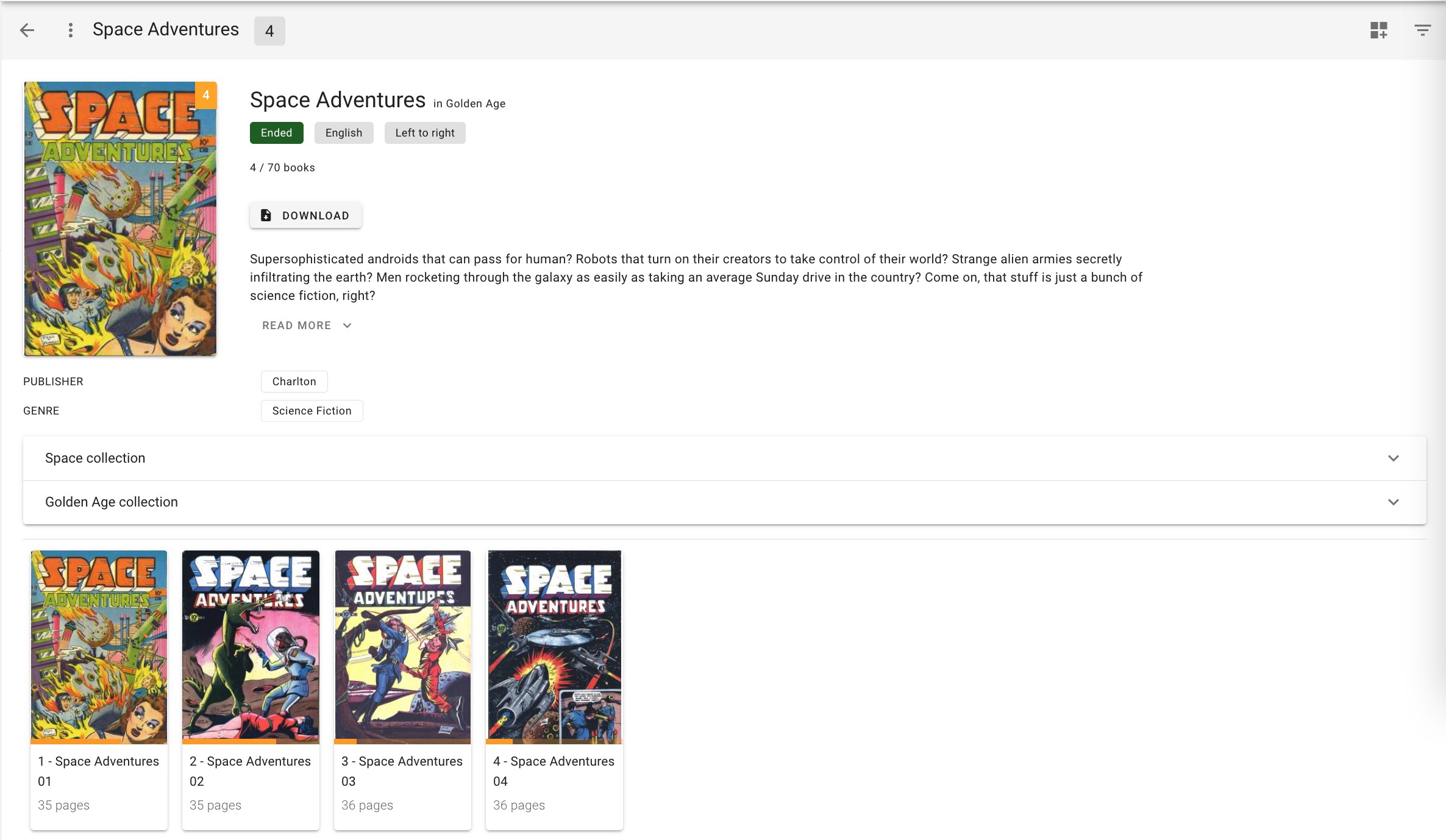
One of Komga's standout features is its robust library management system. It allows users to easily add and organize their comics and manga collections. Unlike traditional file browsers, Komga automatically recognizes metadata such as series, volume, and cover images, giving your digital library a polished, professional look. The smart categorization is akin to having a personal librarian who keeps everything meticulously sorted and easy to find—even as your collection grows into the thousands. This makes browsing and locating specific titles a seamless task, similar to flipping through a curated archive rather than rummaging through disorganized folders.
Enhanced Reading Experience
The app's reading interface is thoughtfully crafted, offering various viewing modes—including single page, dual page, and scroll—adapted to different reading habits. It supports keyboard shortcuts, mouse gestures, and customizable settings, facilitating an immersive experience that mimics flipping through physical comics. The high-quality rendering ensures that images are crisp and detailed, even at larger zoom levels, which is like turning a page in a glossy magazine rather than peering through a foggy window. This flexibility makes Komga suitable for both casual readers and voracious collectors.
Unique Advantages & Final Recommendations
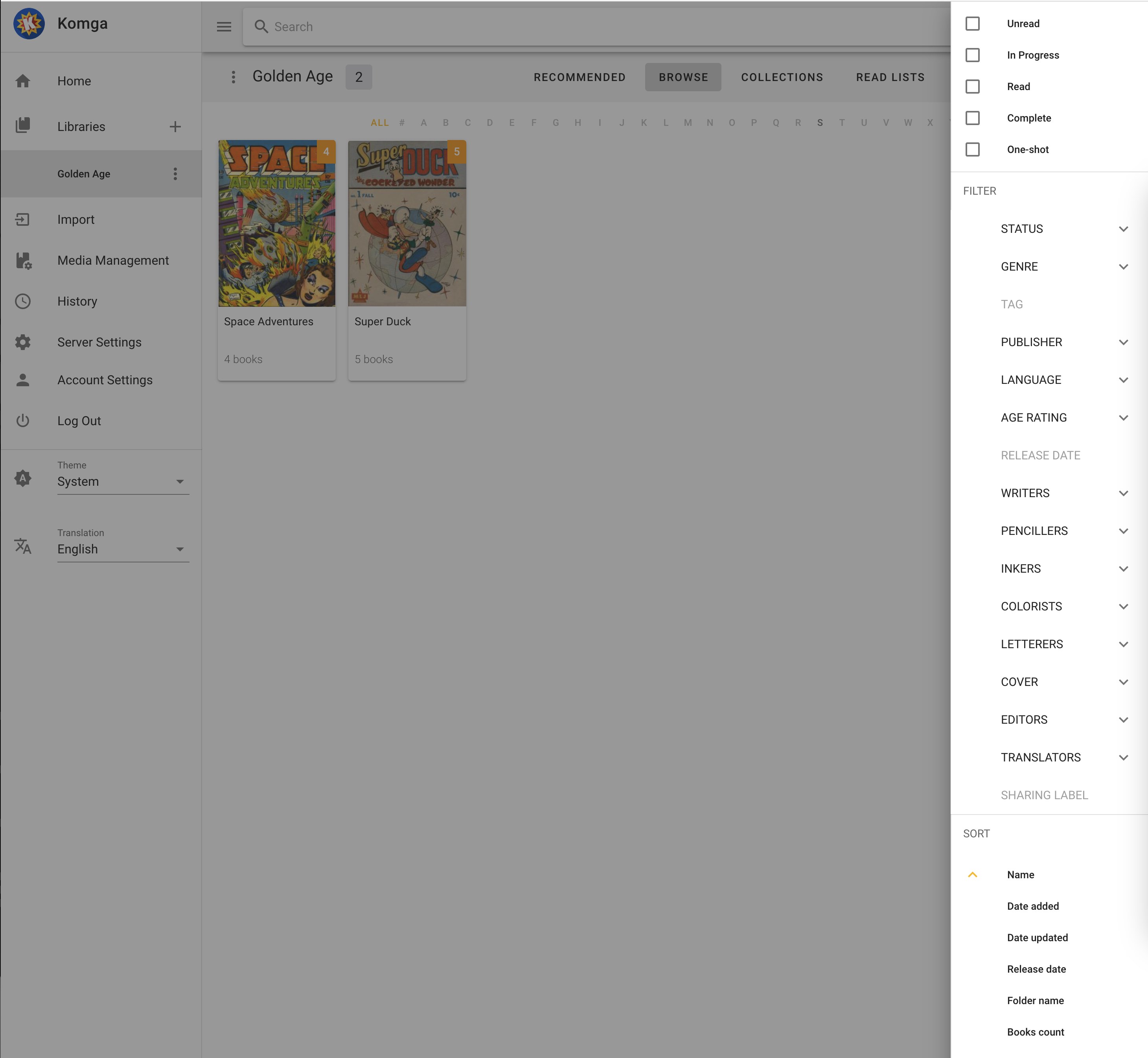
What truly sets Komga apart from other books and reference apps is its focus on comics and manga-specific features, especially its metadata automation and server-based architecture, which allows for easy syncing across devices. Unlike generic ebook readers, Komga is tailored for comics, with features like series grouping, advanced filtering, and robust media support. Although it lacks some of the more social or cloud-sharing functionalities of larger platforms, its open-source nature and customization potential appeal to users who prefer control and privacy.
Overall, I would recommend Komga for Windows to serious comic collectors, manga fans, and anyone who values a dedicated, lightweight, and highly customizable library management tool. Whether you're organizing a modest collection or managing thousands of volumes, Komga offers a dependable and delightful experience for digital comic reading—like having a personal librarian right on your PC.
Pros
- Intuitive User Interface
- Supports Multiple Formats
- Library Management Features
- Open Source and Free
- Cloud Sync and Remote Access
Cons
- Limited Customization Options
- Occasional Stability Issues
- Lack of Advanced Search Filters
- Limited Official Support
- Mobile App Experience