
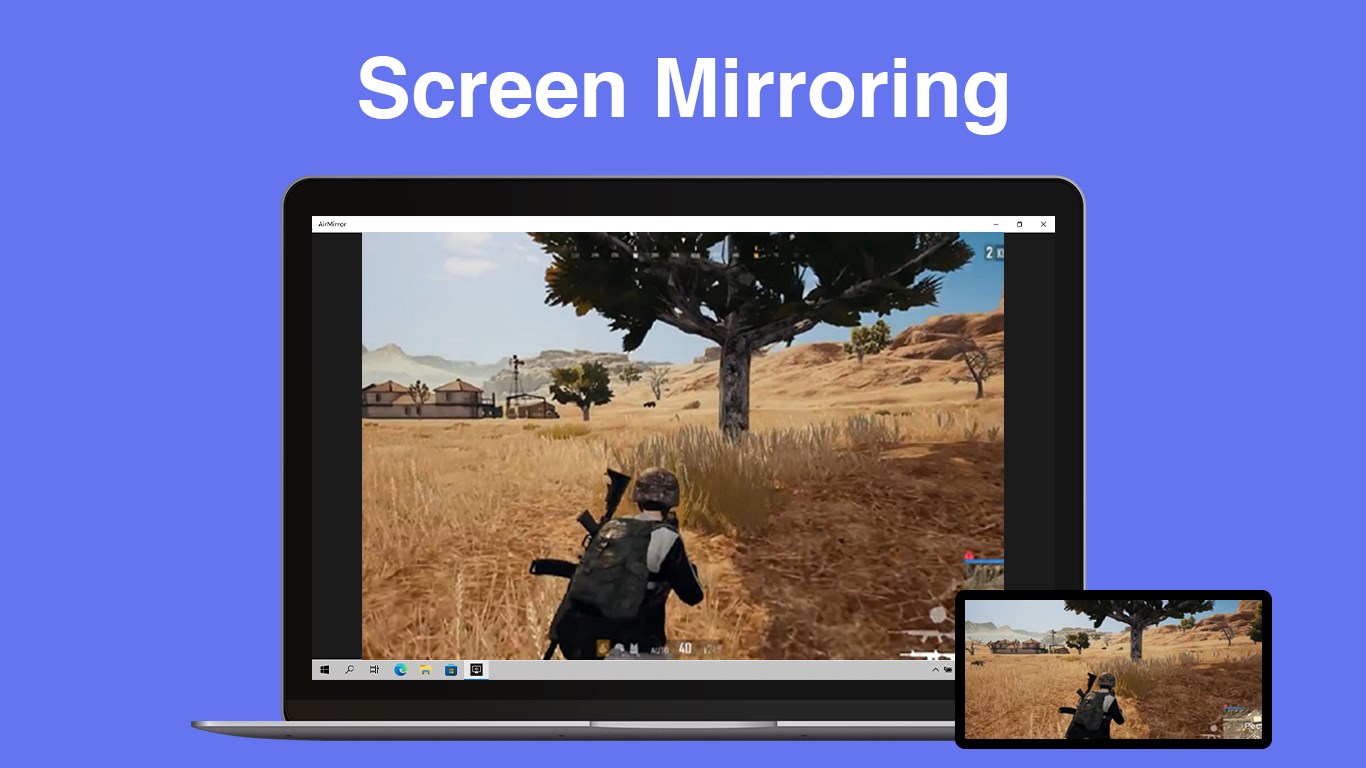
- Name AirPlay - Screen Mirroring
- Category Entertainment
- Developer CAI HAO
- Available on PC, Mobile, Xbox console, Surface Hub, HoloLens
- OS Windows 10 version 16299.0 or higher
- languages Arabic, Chinese (Simplified), Chinese (Traditional Chinese), English (United States), French, German, Italian, Japanese, Korean, Portuguese, Russian, Spanish, Thai, Turkish
Seamless Screen Mirroring on Windows: An In-Depth Look at AirPlay - Screen Mirroring for Windows
If you've ever found yourself wishing for effortless mirroring from Apple devices to your Windows PC, AirPlay - Screen Mirroring for Windows promises to bridge that gap with ease. As a tool designed to bring the familiar Apple ecosystem experience to Windows users, this app aims to streamline screen sharing, entertainment, and presentations — all without cumbersome cables or complicated setups.
About the App: One Satz to Describe
An intuitive, reliable solution enabling effortless AirPlay screen mirroring from iOS and macOS devices to Windows PCs.
Developer and Publisher
Developed by CAI HAO and published by Hao Cai, this application benefits from a dedicated team focused on integrating Apple's proprietary protocol into the Windows environment for smooth user experiences.
Main Features and Highlights
- Wireless Screen Mirroring: Instantly mirror your iPhone, iPad, or Mac screen onto your Windows PC wirelessly, perfect for presentations or media sharing.
- High-Quality Video and Audio Streaming: Supports HD streaming with minimal latency, ensuring crystal-clear visuals and synchronized audio for both entertainment and professional use.
- Multi-Device Compatibility: Easily connect multiple Apple devices without needing reconfiguration, making it ideal for collaborative environments.
- Simple and Intuitive Interface: User-friendly design that allows even less tech-savvy users to start mirroring within seconds.
Engaging the Audience: The App in Action
Imagine hosting a presentation, only to find your cable tangled or your display incompatible with your device. Enter AirPlay for Windows — a digital magic wand, turning your PC into a mirror for your iPhone or Mac. The setup is straightforward: launch the app, select the device you want to mirror, and voila — you're sharing screens as effortlessly as passing a note in class. The experience feels natural, as if Apple devices and Windows are now speaking the same language, making collaboration and entertainment smoother than ever.
Core Functionality Deep Dive
Wireless Mirroring Made Easy
The app's prime allure lies in its robust wireless mirroring capability. Unlike traditional solutions that depend on clunky cables or complicated setups, this app leverages Wi-Fi to transmit your device's screen directly. During testing, the connection was stable, providing lag-free visuals suitable for streaming videos, gaming, or professional presentations. The interface makes device selection straightforward, with a clear list of available targets, akin to picking a playlist on your favorite music app.
Superior Streaming Quality & Multi-Device Support
What sets this tool apart is its ability to deliver high-definition video and audio with remarkably low latency. Whether you're projecting a keynote or sharing family photos, the quality remains sharp and synchronized. Additionally, supporting multiple devices simultaneously ensures that teams can connect several Apple gadgets at once, fostering collaborative workflows. This feature feels like having a digital symphony where each instrument (or device) contributes seamlessly without stepping on each other's toes.
User Experience: Simplicity Meets Performance
The app's interface is clean, minimizing clutter and focusing on core functions. The learning curve is gentle, making it accessible for users of varying tech proficiency. During usage, the app responded swiftly to commands, and navigation was intuitive — tapping options felt natural, almost like flipping through a well-organized album. Even first-time users will find themselves mirroring screens within moments, all without scratching their heads over complex settings.
What Makes It Unique? The Differentiators
Compared to other screen mirroring or entertainment applications, AirPlay for Windows stands out due to its dedicated support for Apple's proprietary protocols, ensuring high compatibility and stability. Unlike apps that rely on generic streaming or require additional hardware, this app's precise tailoring to Apple devices ensures that the experience resembles native AirPlay on Apple hardware — smooth, reliable, and high-quality.
Furthermore, its emphasis on minimizing latency and maintaining media quality is a significant advantage for users who need a trustworthy solution for professional or personal use. The app's ability to handle multiple devices simultaneously also sets it apart, making it a practical choice for small teams or family rooms.
Final Verdict: A Recommended Tool for Apple-Windows Integration
Overall, AirPlay - Screen Mirroring for Windows provides a solid, user-friendly experience that bridges the Apple-Windows ecosystem gap with finesse. While it may not feature the flashy marketing of some entertainment apps, its focus on stability, quality, and ease of use make it a dependable companion for daily needs. Whether you're giving a quick presentation, sharing photos, or streaming videos, this app deserves a spot on your toolkit — particularly if seamless Apple device integration is a priority.
For users seeking a straightforward, high-performance mirroring solution, I would recommend giving this app a try — it's like having a digital translator that makes Apple devices and Windows PCs speak the same language effortlessly.
Pros
- Easy Screen Mirroring
- High-Quality Video Streaming
- Broad Device Compatibility
- User-Friendly Interface
- Stable Connection
Cons
- Limited Compatibility with Non-AirPlay Devices
- Occasional Latency or Lag
- Requires Wi-Fi Connection
- Basic Customization Options
- Potential Compatibility Issues with Windows Updates