

- Name AirPlay - Screen Mirroring Receiver
- Category Entertainment
- Developer CQ
- Available on Xbox console, PC, Surface Hub, HoloLens
- OS Windows 10 version 17134.0 or higher
- languages Chinese (Simplified), Chinese (Traditional), English (United States), French, German, Japanese, Russian, Spanish (Spain), Thai
Clarifying the Basics: What is "AirPlay - Screen Mirroring Receiver for Windows"?
This application serves as a dedicated receiver that enables seamless AirPlay screen mirroring and media streaming directly onto Windows devices, transforming your PC into a versatile media hub. Developed by CQ and published by cjw1115, it offers users an easy way to display iOS or macOS screens without the need for additional hardware or complex setups.
Core Features and Highlights
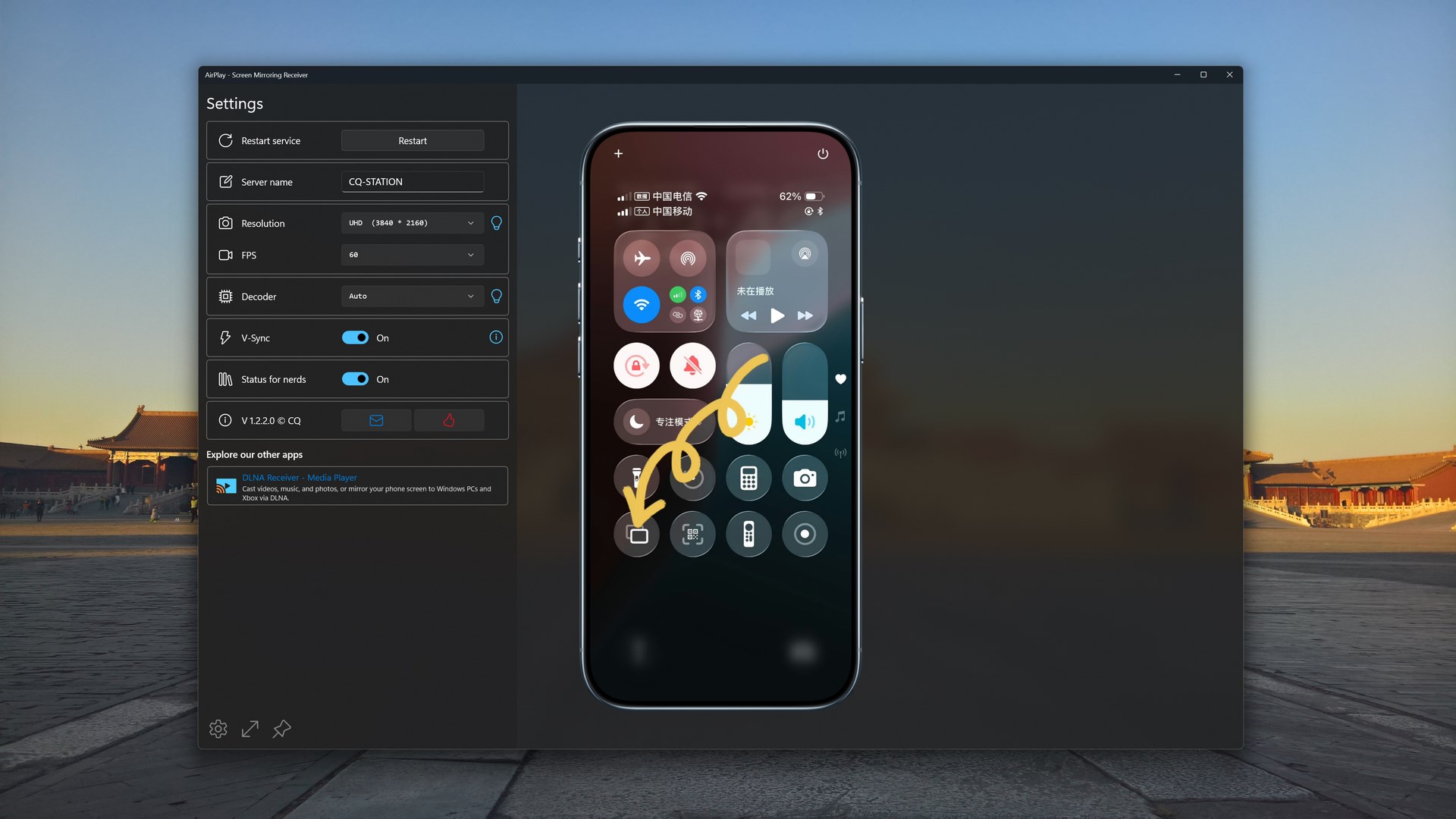
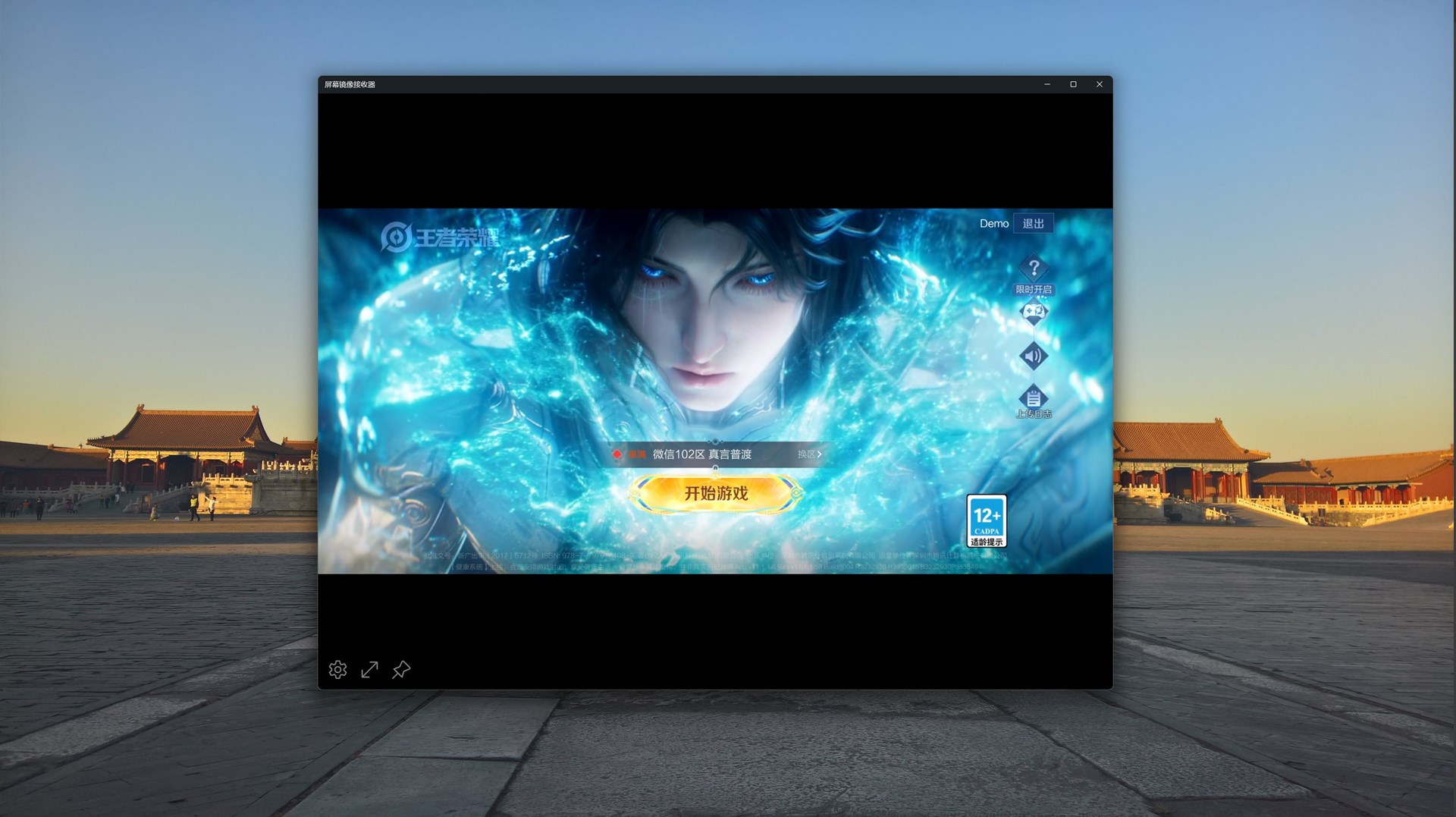
1. **Effortless Screen Mirroring**: Connect your iPhone or iPad wirelessly and see your device's screen reflected in crisp detail on your Windows PC, ideal for presentations, media playback, or casual sharing.
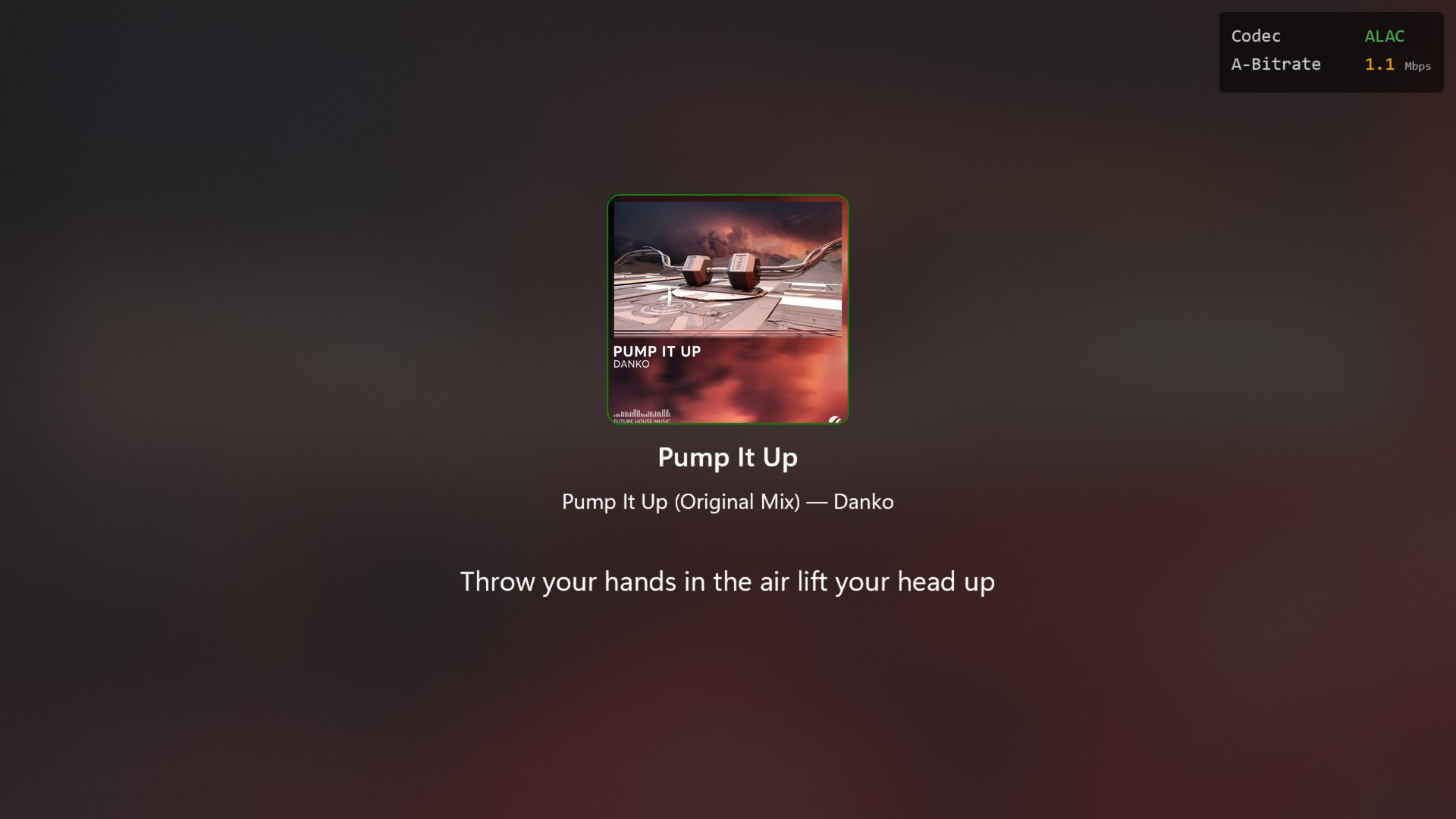
2. **Media Streaming Support**: Beyond mirroring, the app supports streaming videos, music, and photos from Apple devices to your Windows machine, creating a unified media experience.
3. **Stable and Low-Latency Connection**: Designed with optimized networking protocols, it offers smooth, real-time display with minimal lag, crucial for interactive applications or gameplay.
4. **User-Friendly Interface**: The app boasts an intuitive interface that's clean and straightforward, making setup and operation accessible even for users unfamiliar with screen mirroring tech.
An Engaging Dive into the App's Performance
Imagine sitting in your home theater, clutching your iPhone, eager to project the latest vacation photos onto your big screen. With "AirPlay - Screen Mirroring Receiver for Windows," this scenario turns from a tech challenge into a simple, almost magical experience. The app feels like a bridge — connecting the Apple ecosystem seamlessly with Windows, much like a courteous host ensuring guests feel at home.
Robust Mirroring Capabilities — Without the Mess
One of the standout features of this app is its reliable screen mirroring. Unlike some solutions that falter with lag or disconnects, it maintains a steady connection with minimal delay. This makes it especially suitable for sharing live demos, gaming, or even remote work presentations. When you project your iPhone screen onto Windows, the image appears sharp and responsive — akin to holding a window directly into your device. The interface facilitates quick device pairing, often taking less than a minute to set up after installation, which is appealing for both casual users and professionals alike.
Media Streaming and Content Discovery — Personalized for You
The app's media streaming capabilities are straightforward yet thoughtfully optimized. It not only mirrors screens but also allows users to stream media files directly. What's compelling is its adaptive content discovery approach, which intelligently prioritizes media content based on usage patterns. This feature resembles a personalized recommendation engine — akin to a friend suggesting your favorite playlist — making your media session feel more tailored and relevant. Unlike some competitors that offer generic streaming, this app's custom content handling ensures that, whether you're projecting a movie or sharing photos, your experience remains fluid and personally curated.
Design, Usability, and User Experience
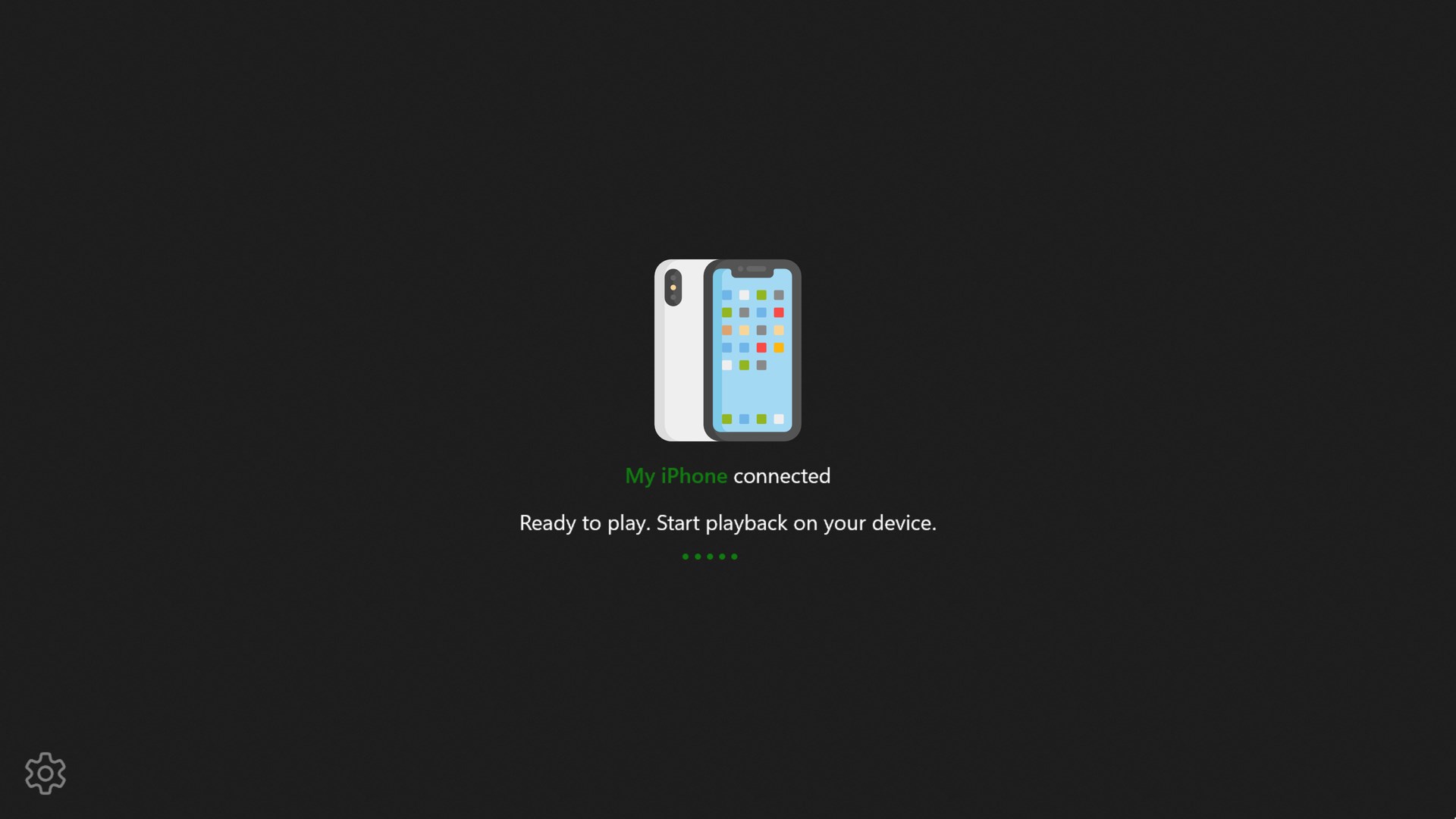
The user interface is refreshingly uncluttered, with clear icons and a logical layout that guides you through connection steps smoothly. Getting started is almost as easy as waving your phone in the air — tap, connect, and enjoy. The app's responsiveness contributes to a fluid experience that minimizes frustration often associated with wireless displays. For newcomers, the learning curve is gentle; even those less tech-savvy will find it accessible. The app's stability and speed are comparable to a professional-grade projection setup, making it a reliable choice for various scenarios.
Stand-Out Differentiators and Final Recommendations
Where this app shines brightest is its focus on simplicity paired with stability. Its personalized content discovery, which intelligently adapts to user preferences, sets it apart from more generic screen mirroring solutions. This makes your media sessions more intuitive, less cluttered, and more tailored to your habits. Additionally, the low latency and high stability make it suitable not just for casual use but also for more critical tasks like presentations or remote collaborations.
Overall, I'd recommend "AirPlay - Screen Mirroring Receiver for Windows" to users seeking a straightforward, reliable way to mirror iOS or macOS screens onto Windows without fuss. It's especially beneficial for those who value a seamless, personalized media experience. For casual home use, small business presentations, or even creative workflows, this app offers a compelling, easy-to-use solution — a breath of fresh air in the wireless display landscape.
Pros
- Easy Screen Mirroring Setup
- Supports Multiple Platforms
- High-Quality Video Transmission
- Low Latency for Real-Time Content
- Free Basic Version Available
Cons
- Limited Device Compatibility
- Occasional Connectivity Drops
- Basic Features Only Free
- Performance Varies by Network Quality
- Interface Could Be More Intuitive