
- Name Build a City: Community Town
- Category Classics
- Developer Sparkling Society Games B.V.
- Available on PC, Mobile, Surface Hub, HoloLens
- OS Windows 10 version 19041.0 or higher
- DirectX Version 10
- Keyboard Integrated Keyboard
- Mouse Integrated Mouse
- languages Arabic, Chinese (Simplified), Chinese (Traditional Chinese), Danish, Dutch, English, Filipino, French, German, Indonesian, Italian, Japanese, Korean, Malay, Norwegian (Bokmål), Persian/Farsi, Polish, Portuguese, Russian, Spanish, Swedish, Thai, Turkish, Vietnamese
Build a City: Community Town for Windows — A Creative Urban Planning Experience
Build a City: Community Town is a charming simulation game that invites players to design, develop, and manage their own vibrant community, blending city-building fundamentals with community-centric gameplay on Windows.
About the Developer and Core Features
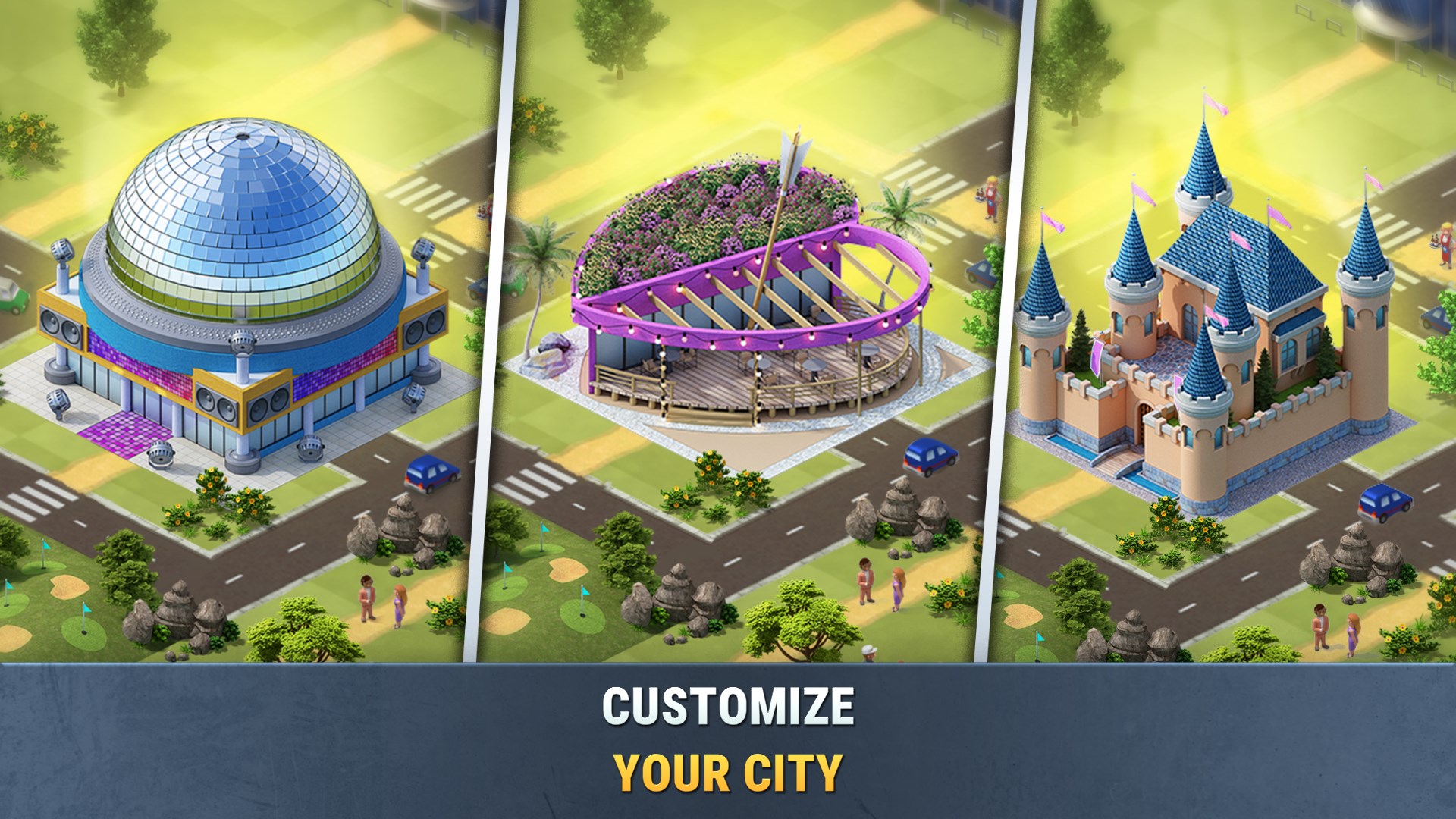
Developed and published by Sparkling Society Games B.V., a studio renowned for crafting engaging casual simulation titles, this app showcases their dedication to accessible yet immersive gameplay. Its key features include intuitive city layout tools, community management challenges, and customizable building options. These elements work synergistically to deliver a comprehensive urban planning experience aimed at casual players and fans of simulation games alike.
A Playful Journey into Building Your Little Metropolis
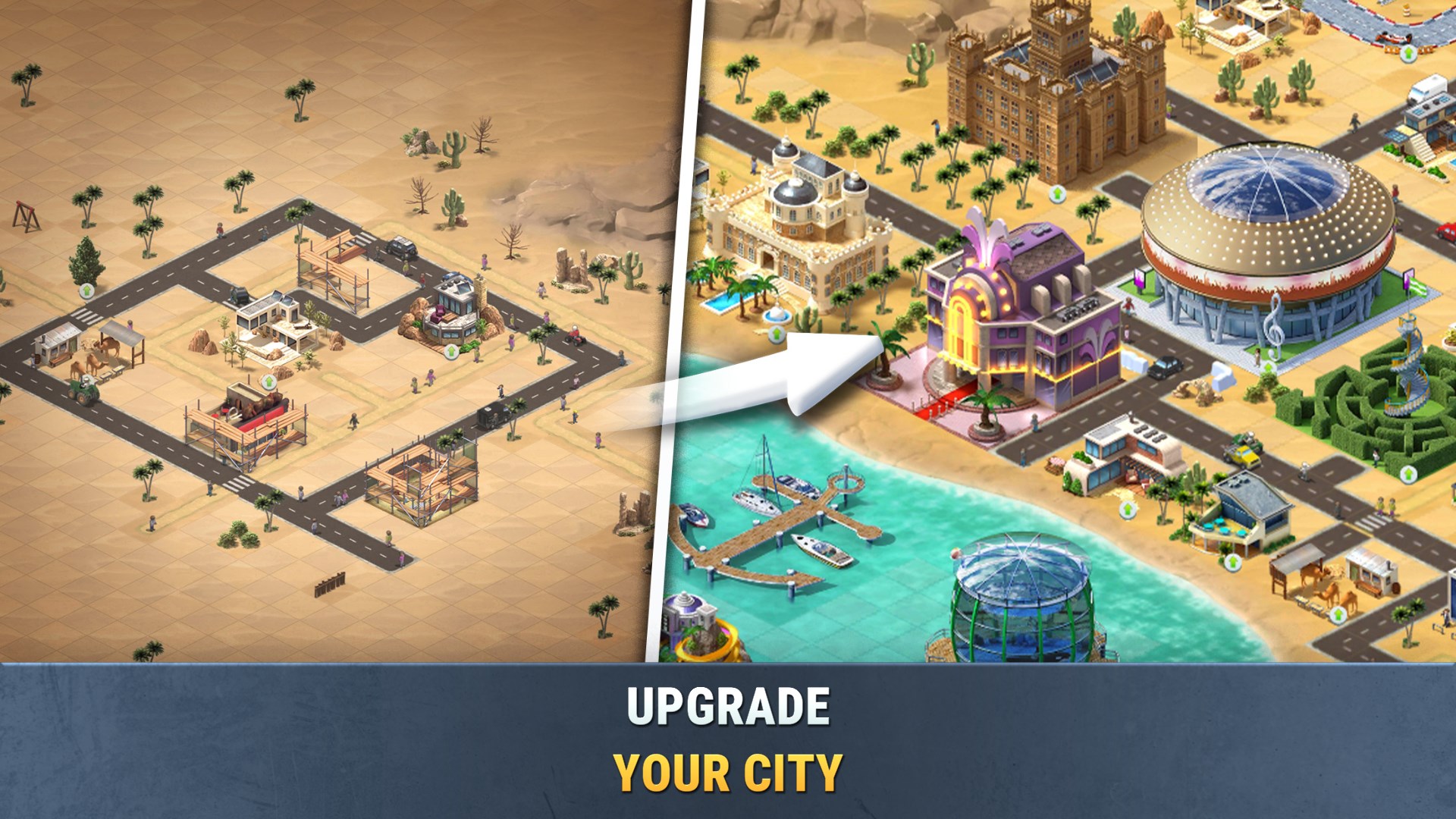
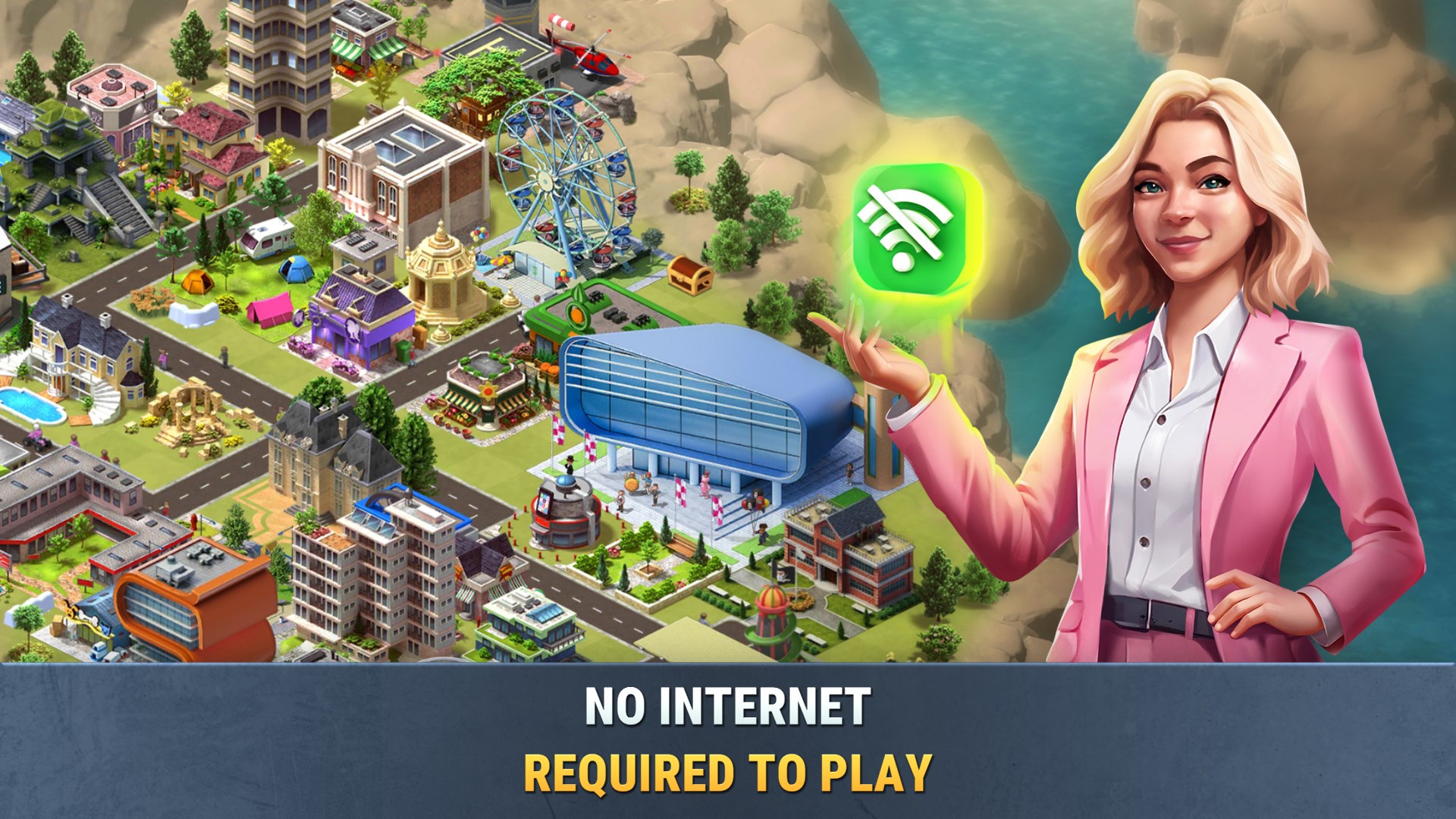
Imagine stepping into a canvas where you're both an architect and a town mayor—this is exactly what Build a City offers. Its interface feels like strolling through a bustling construction site turned lively neighborhood, where every decision transforms an empty plot into a thriving community. The game's charming graphics and engaging animations evoke the warmth of community life, making each new building placement feel like planting seeds for a future full of potential.
Design and Layout Tools — Crafting the Perfect Community
The core of Build a City revolves around its straightforward yet versatile layout tools. Players can drag and drop various types of buildings—residential, commercial, and recreational—to create their ideal cityscape. The interface is clean, with a bird's-eye view that's easy to navigate. The design process is fluid; dragging, placement, and adjustments happen seamlessly, akin to sculpting a mini-metropolis with a digital chisel. The intuitive controls lower the learning curve, making it approachable for newcomers while still engaging enough for seasoned city-builders.
Community Management and Progression — Growing Together
One of the app's particularly engaging features is its focus on community development. As you expand your city, you encounter various challenges like balancing resources, meeting citizen needs, and upgrading infrastructure. These mechanics simulate real-life town management, adding layers of strategy without overwhelming. The game rewards thoughtful planning, encouraging players to experiment with different layouts and management tactics. The progression system keeps players invested by unlocking new buildings and decoration options, ensuring a steady stream of goals and satisfaction.
Visual Appeal and User Experience — Friendly, Fun, and Functional
The visual design strikes a pleasant balance between simplicity and charm. Bright colors and a cartoonish aesthetic create an inviting atmosphere that resembles a lively neighborhood from a storybook. During gameplay, performance remains smooth, with no noticeable lags, thanks to optimized code that handles complex building arrangements well. The learning curve is gentle; even newcomers quickly grasp game mechanics with minimal tutorials. Users appreciate how the interface minimizes clutter, making the building and management process intuitive and enjoyable—akin to gardening in a well-tended yard.
What Sets Build a City Apart? Small but Mighty Innovations
Compared to other city-building apps, this game's most striking feature is its community-centric approach. Unlike traditional city sims that focus solely on macro-management, Build a City emphasizes the social aspect by encouraging players to craft neighborhoods that promote interaction and lively environments. Its simple yet deep management mechanics make it accessible without sacrificing depth, offering a refreshing alternative in the simulation genre. Additionally, its customizable buildings allow for creative expression, giving each player a unique metropolis that reflects their personality.
Recommendations and Usage Tips
Overall, Build a City: Community Town is a well-crafted simulation that appeals to casual players seeking a relaxing yet rewarding experience. It scores highly on accessibility, charm, and engagement. For players who enjoy the process of designing and nurturing a virtual community, this app is highly recommended. Beginners should start with the tutorial and explore layout options gradually, while seasoned players can dive right into complex management tasks for more strategic play. Just remember, patience and creativity go hand in hand here—so take your time building your dream town without rushing.
In essence, Build a City offers a delightful journey into urban planning wrapped in friendly visuals and straightforward gameplay, making it a solid choice for anyone curious about crafting their own community bubble on Windows.
Pros
- Intuitive and user-friendly interface
- Extensive customization options
- Engaging community features
- Regular updates and new content
- Cross-platform compatibility
Cons
- Limited tutorial guidance for new users
- In-app purchases can be tempting for advanced features
- Performance issues on older devices
- Limited offline functionality
- Some users report slow load times on large cities