- Name Microsoft Jigsaw
- Category Puzzle & trivia
- Available on PC
- OS Windows 10 version 19041.0 or higher
- languages English (United States), French, German, Italian, Japanese, Portuguese (Brazil), Portuguese (Portugal), Spanish (Spain)
Unveiling Microsoft Jigsaw: A Captivating Puzzle Experience on Windows
Microsoft Jigsaw for Windows is a thoughtfully crafted puzzle game that blends classic jigsaw-solving with modern digital convenience, offering an engaging challenge for players of all ages.
Basic Info and Highlights
Developed by Xbox Game Studios, Microsoft Jigsaw stands out as a versatile and user-friendly puzzle platform designed to entertain and stimulate the mind. Its main features include a vast library of beautiful images and themes, adjustable difficulty levels, and an intuitive interface that makes assembling puzzles a breeze. This app is ideal for casual puzzle enthusiasts, families seeking shared entertainment, and those who enjoy relaxing cognitive exercises on their computers.
A Fun and Engaging Puzzle Journey Begins
Imagine settling into your favorite cozy corner, laptop open, with a thousand-piece masterpiece slowly revealing itself. Microsoft Jigsaw transforms this imagining into reality, turning puzzle-solving into a delightful hobby that can be tailored to your pace and preferences. Whether you're unwinding after a busy day or looking for a mentally stimulating activity, this app offers a smooth and satisfying experience that keeps you coming back for more.
Core Features That Elevate the Experience
Immersive Image Collection and Themes
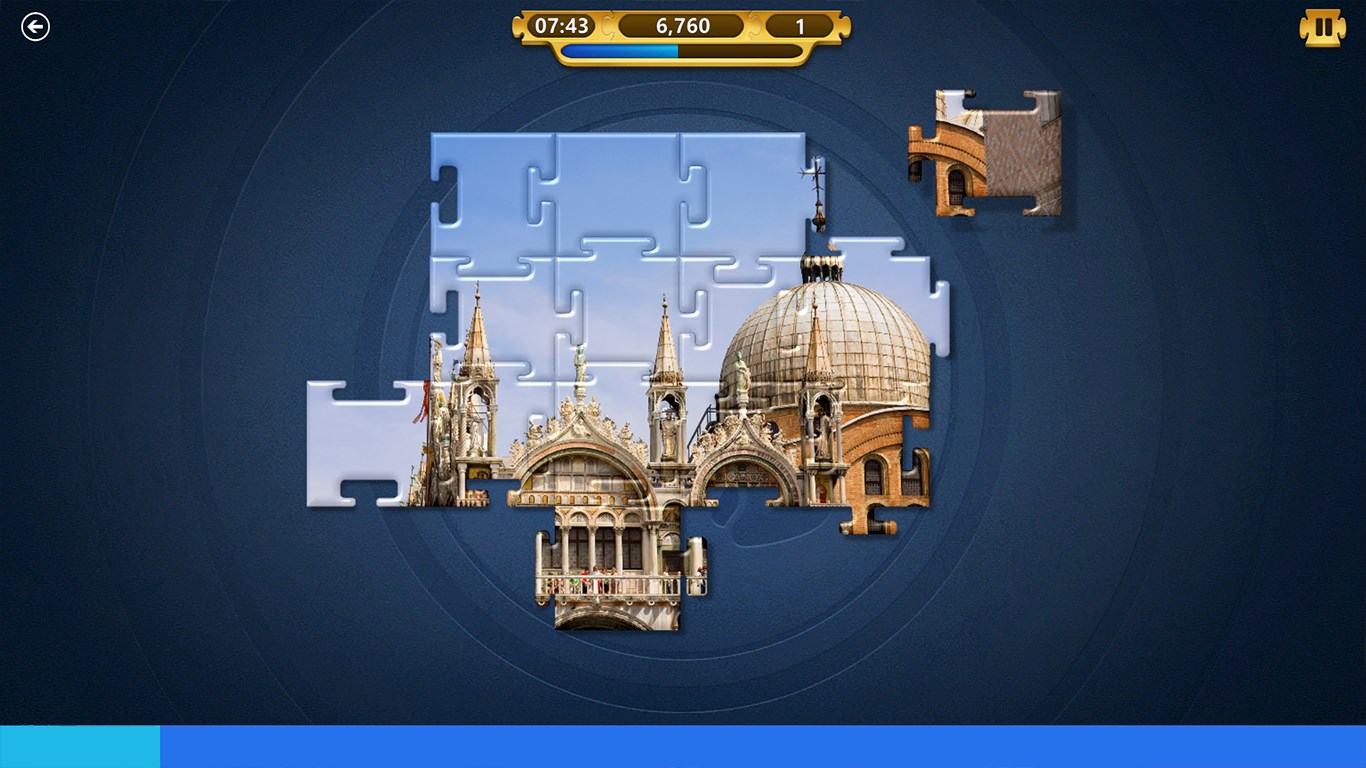
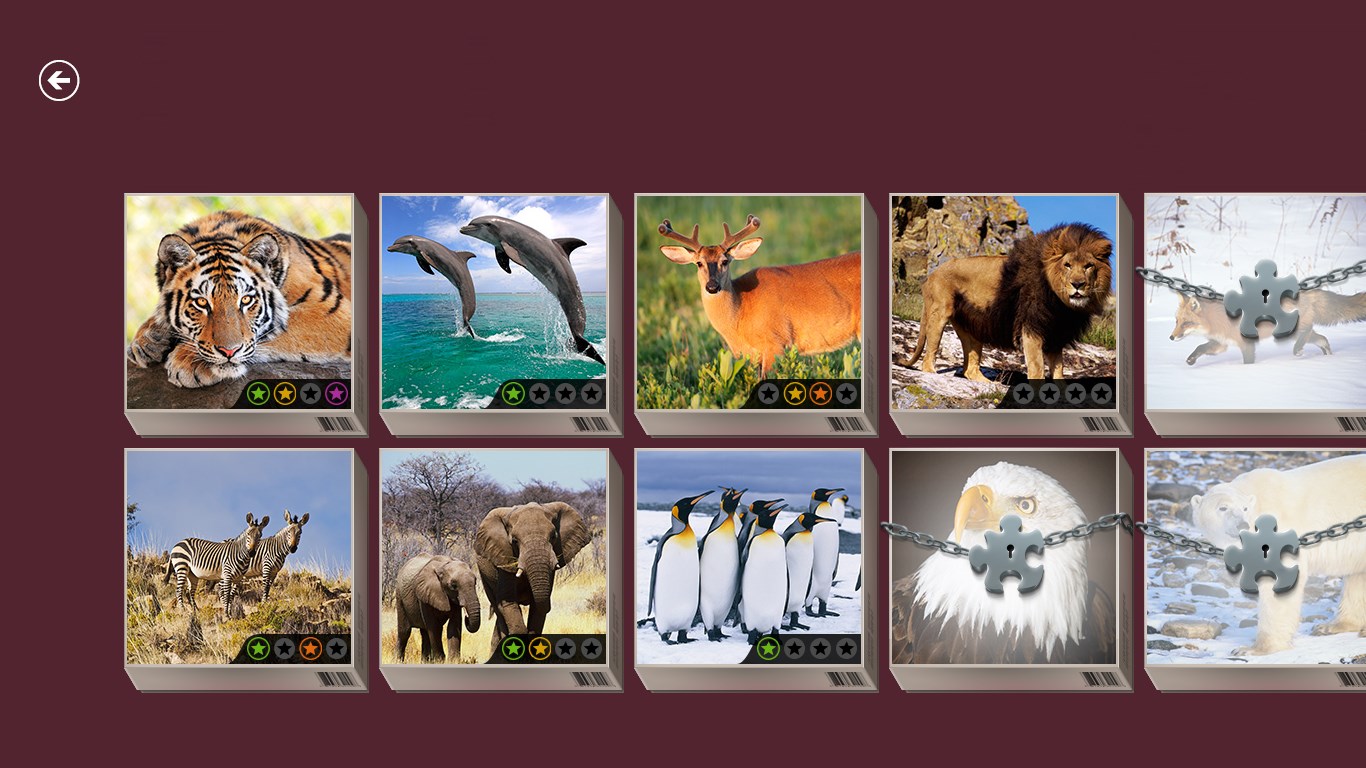
One of the most captivating aspects of Microsoft Jigsaw is its extensive library of images. From serene landscapes and intricate artwork to themed collections like holidays and wildlife, users can select puzzles that resonate with their interests. The game allows you to choose from various themes, ensuring that each puzzle session is fresh and engaging. This diversity caters to different tastes and provides a personalized puzzle experience, making it more than just a game—it's a visual journey.
Adjustable Difficulty and Customization
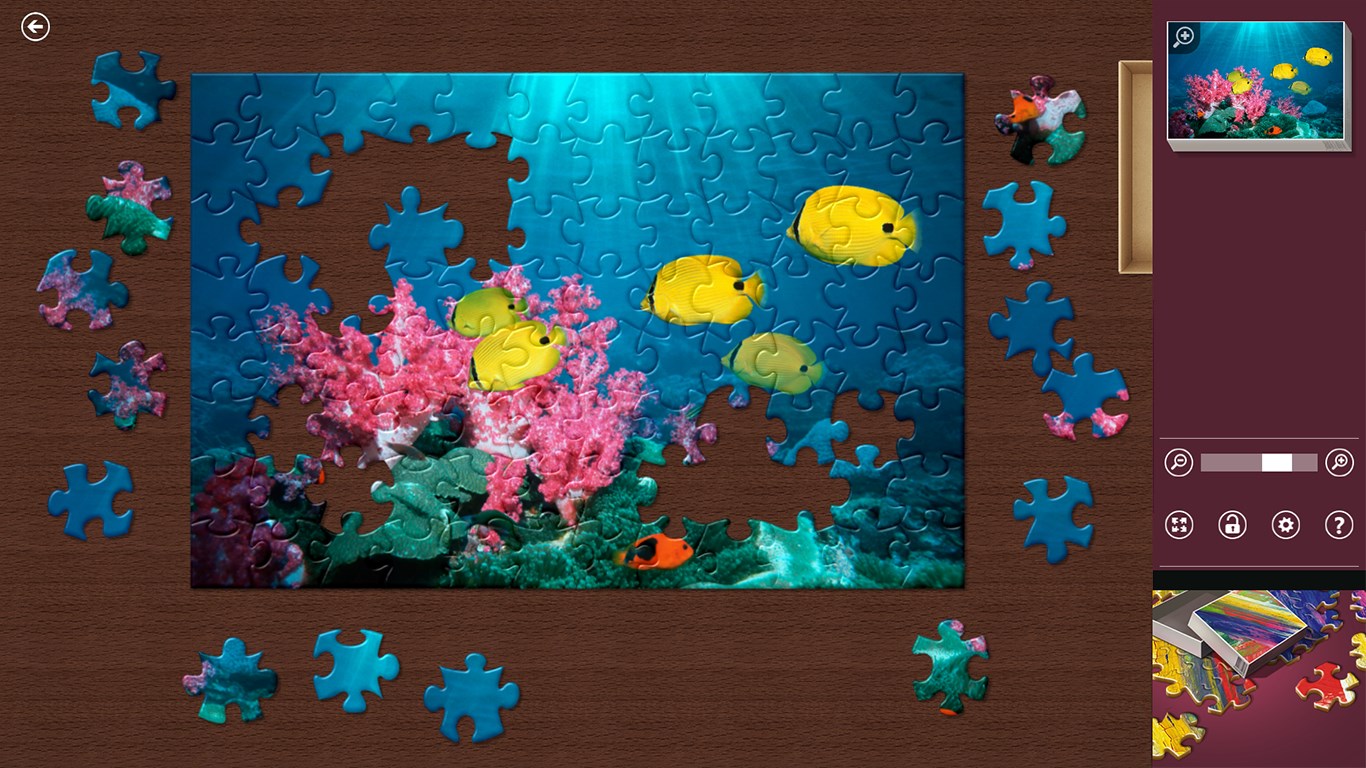
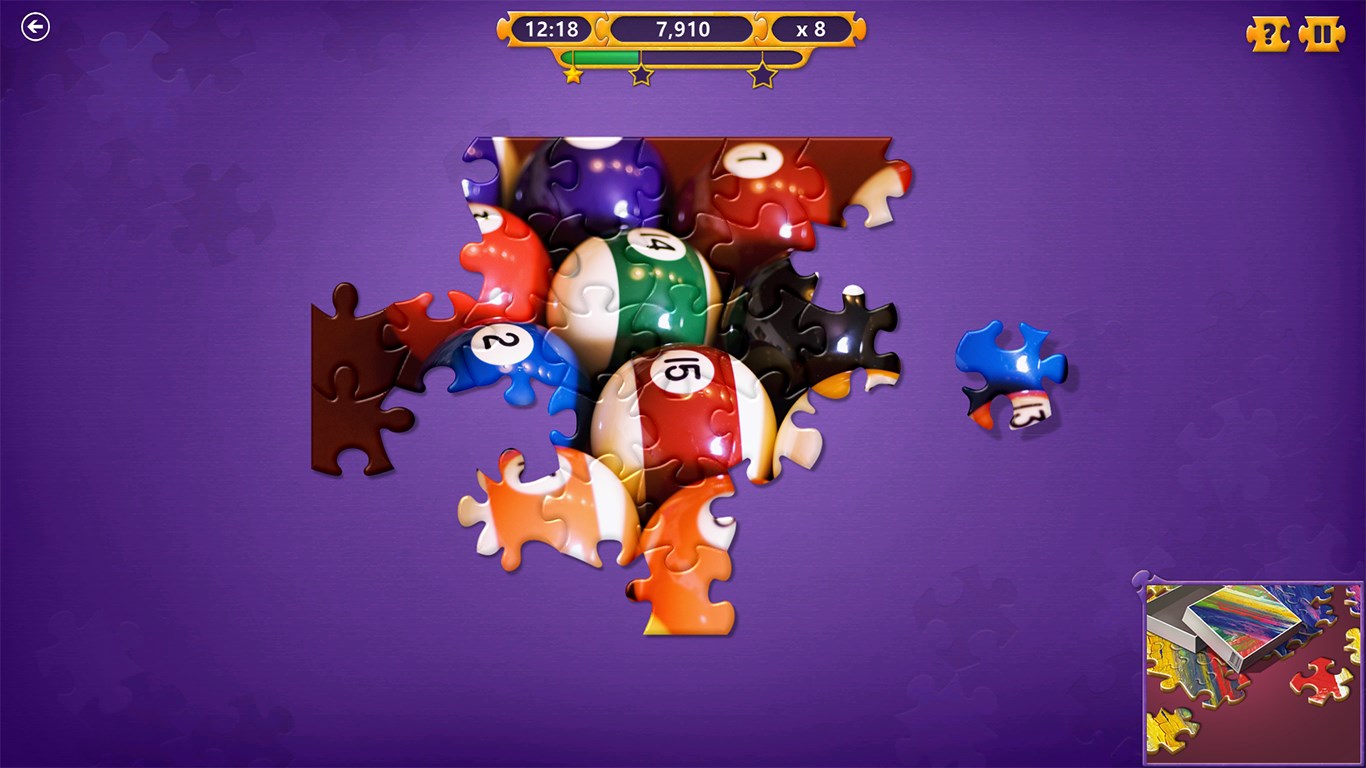
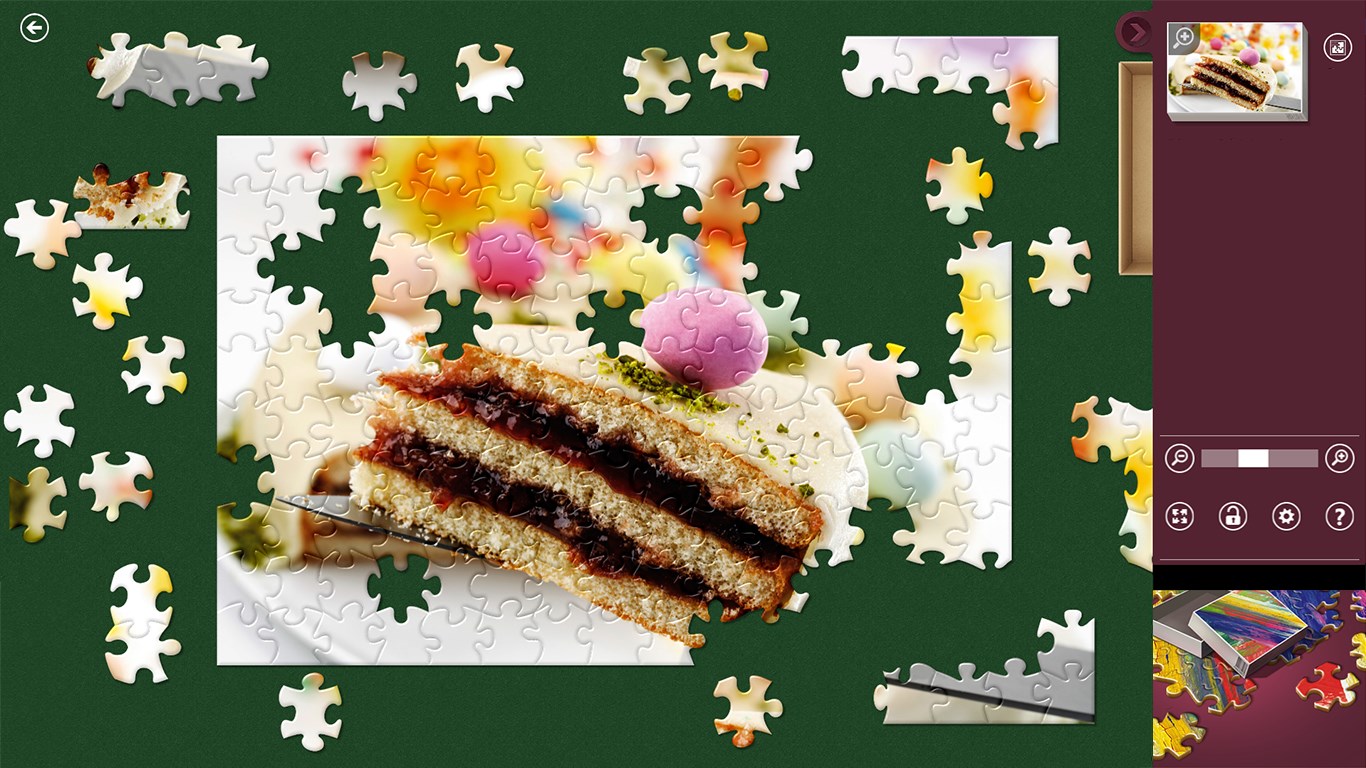
Microsoft Jigsaw excels in providing flexibility with difficulty settings, offering options for different piece counts, shape complexities, and piece edging styles. Novices can start with simpler, fewer-piece puzzles, while seasoned puzzlers can challenge themselves with larger, more intricate designs. This adjustable complexity ensures that the app remains accessible yet challenging, accommodating users at every skill level. Moreover, the ability to rotate pieces adds another layer of complexity and engagement.
Intuitive User Interface and Seamless Operation
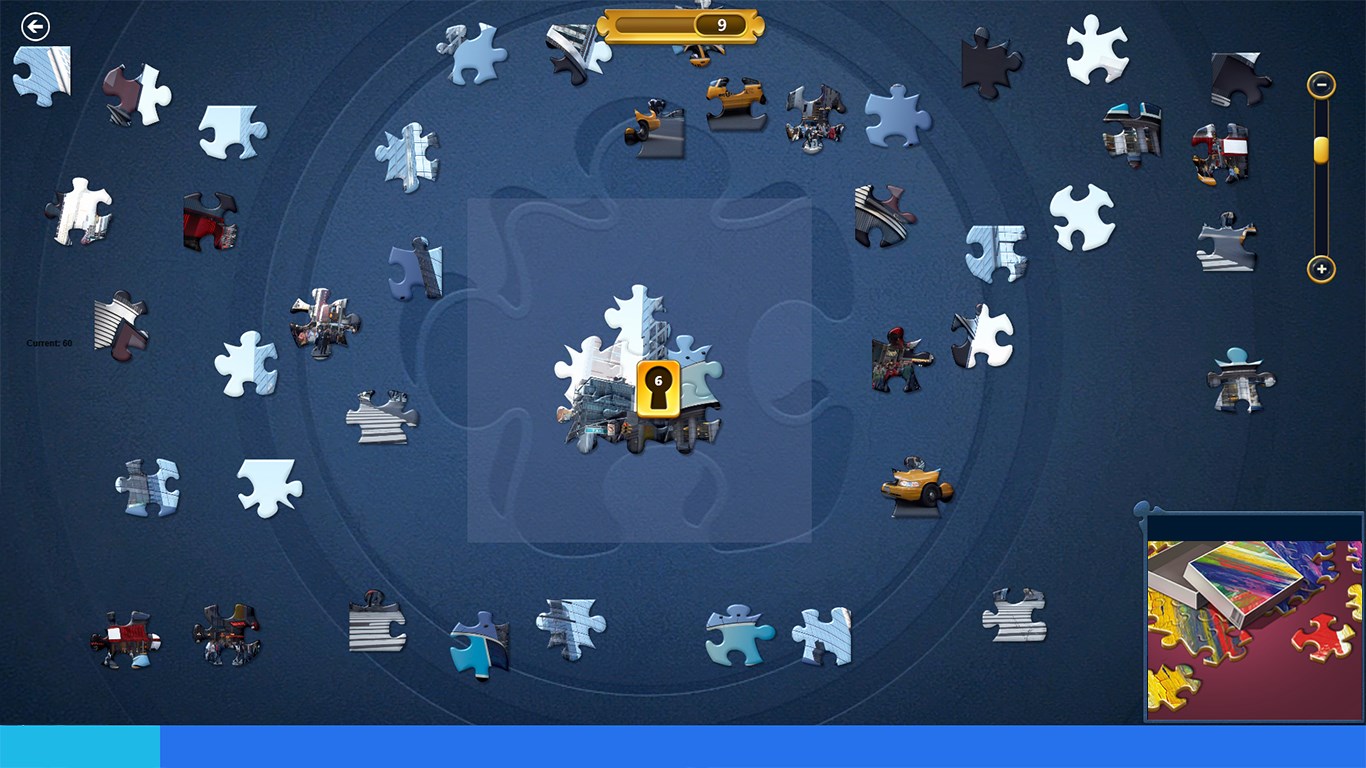
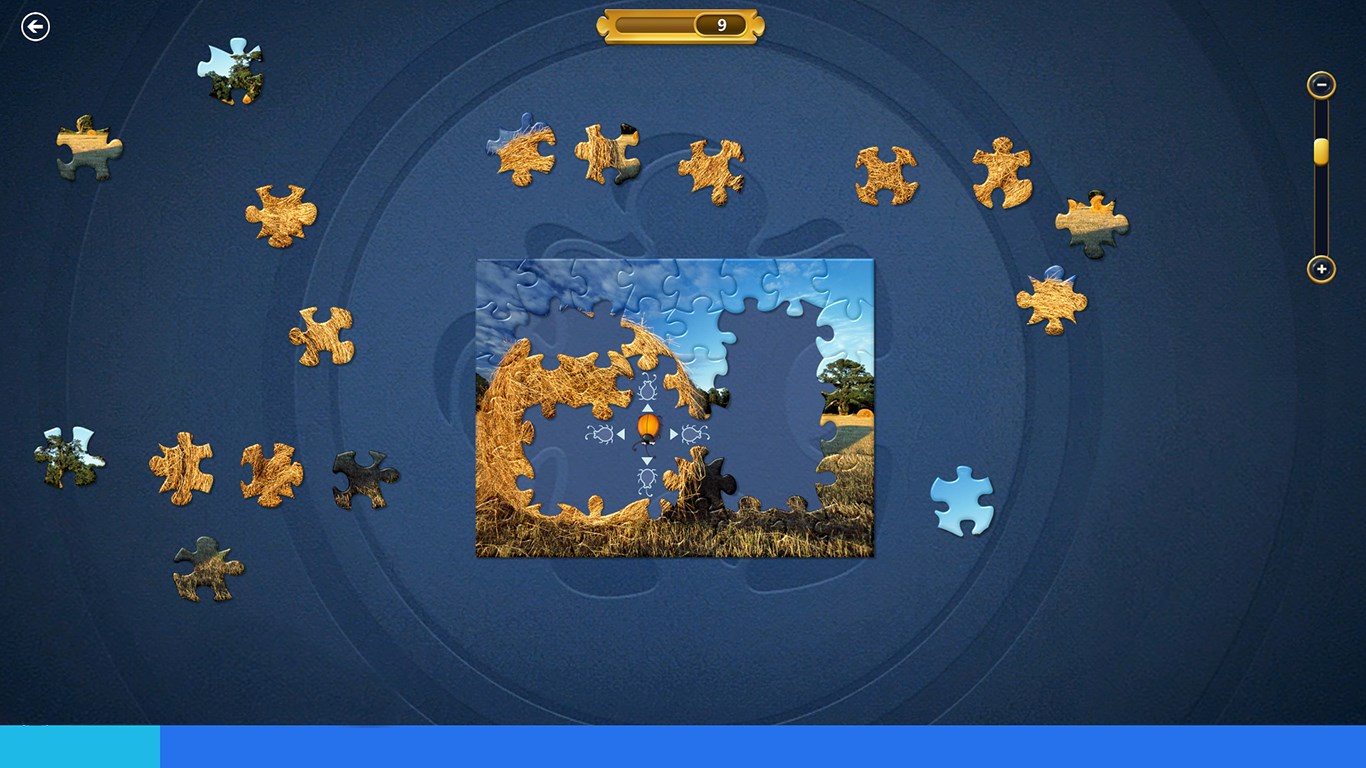
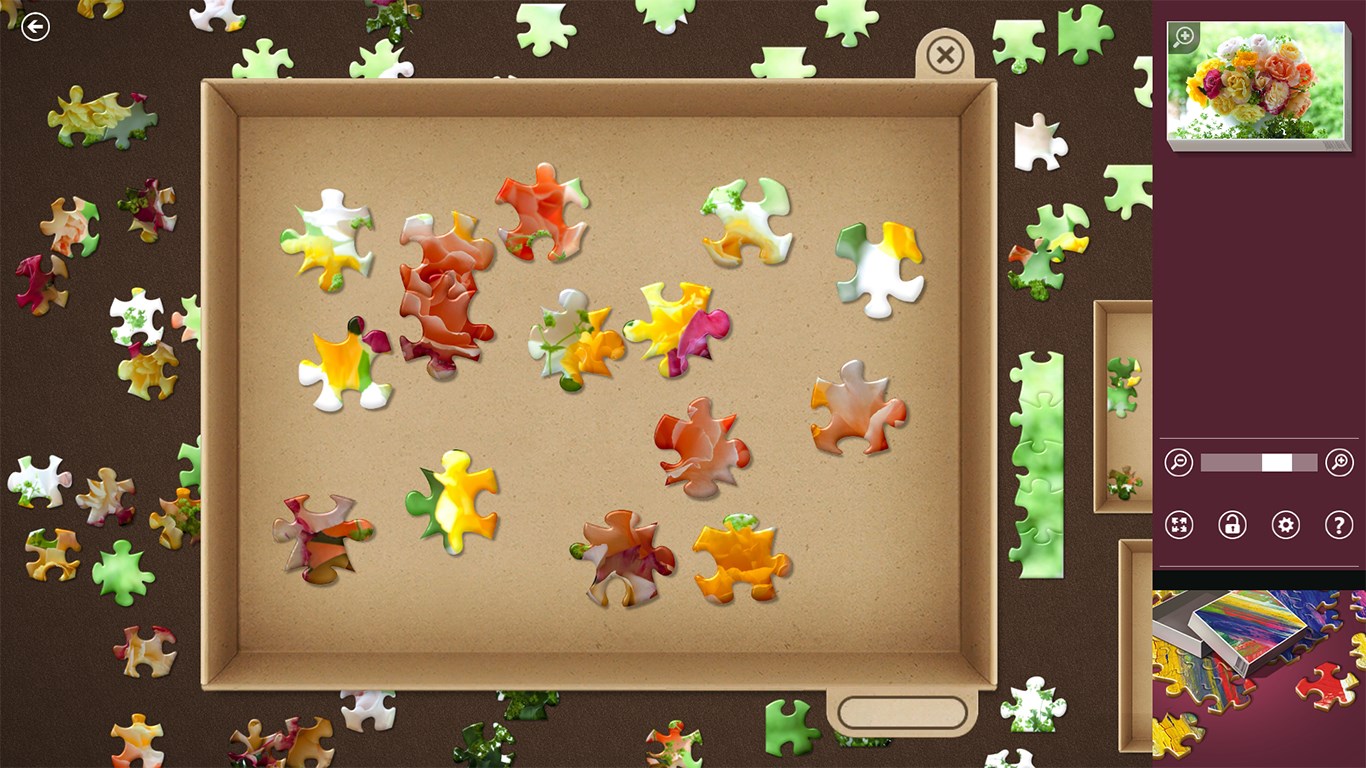
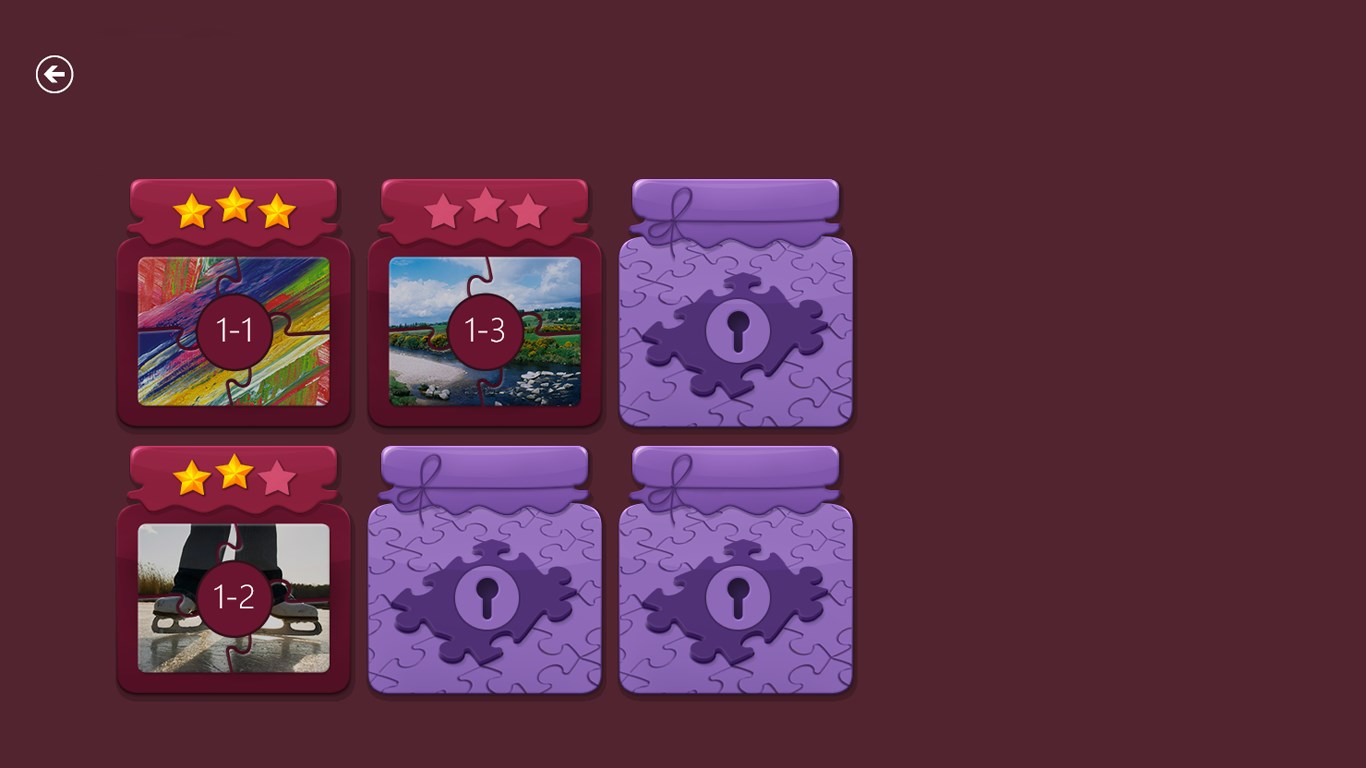
The app's interface is sleek and user-friendly, akin to unfolding a well-organized physical puzzle box. Navigating between puzzles, adjusting settings, and manipulating pieces feels natural and fluid, thanks to responsive controls and clear icons. The smooth gameplay flow minimizes frustrations, creating a tranquil environment that encourages focus and immersion. Even newcomers to digital puzzles find the learning curve gentle, thanks to helpful hints and an intuitive design language.
Unique Strengths and Differentiators
While many puzzle apps focus solely on assembling images, Microsoft Jigsaw's standout feature is its integration with the broader Microsoft ecosystem, allowing for easy sharing and saving progress across devices. Notably, its extensive library of high-quality images, combined with customization options, sets it apart from competitors that often restrict users to fewer themes or less adjustable settings. Additionally, its ability to cater to different skill levels within a single platform makes it highly accessible and versatile.
Final Recommendations and Usage Tips
If you're seeking a puzzle app that combines variety, ease of use, and a calm aesthetic, Microsoft Jigsaw is a solid choice. It's particularly recommended for players who enjoy personalized, thematic puzzles and appreciate a seamless user experience. For best results, explore its customization options to match your desired difficulty and use the app's wide image selection to keep the activity fresh. Whether you're aiming for a relaxing pastime or a challenging mental workout, Microsoft Jigsaw offers a balanced and compelling experience worth trying.
Pros
- Intuitive and engaging gameplay
- Wide variety of puzzle themes and difficulty levels
- Regular updates with new puzzles
- High-quality visuals and smooth performance
- Helpful hints and tools available
Cons
- Limited customization options for puzzles
- In-app ads can be intrusive
- Some puzzles may be repetitive over time
- Performance issues on lower-end devices
- Limited social sharing features