My Library: Your Personal Book Collection, Simplified
In the digital age, keeping track of your personal book collection can be a challenge. That’s why My Library is here—a completely free and ad-free app designed to help you store, organize, and quickly search through your literary world. Whether you own a few dozen books or a sprawling library, this tool turns your smartphone into a powerful cataloging companion. No subscriptions, no pop-ups—just pure, streamlined utility for book lovers.
Effortless Book Entry: Scan, Search, or Type
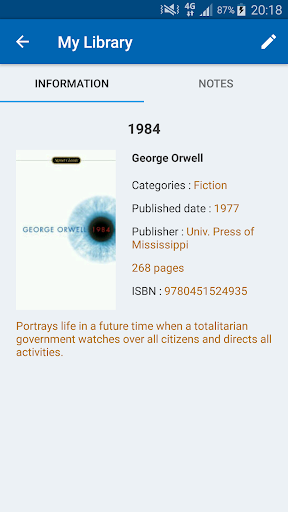
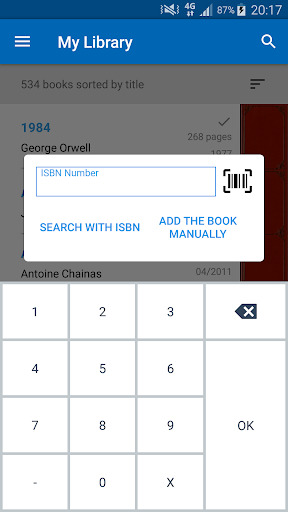
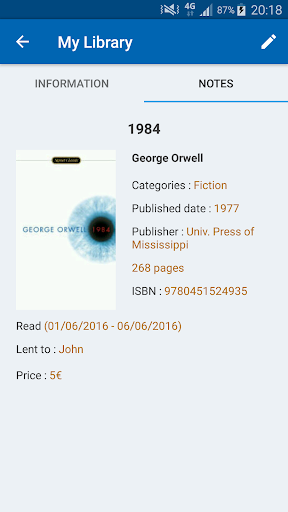
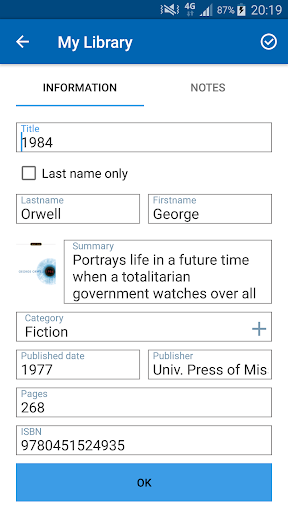
Adding a new book to your collection is refreshingly simple. The app lets you scan a barcode for instant metadata retrieval—title, author, cover, summary, publication date, publisher, and more. Prefer manual input? You can add a book by its ISBN number or simply search by keyword. For those who love a hands-on approach, there’s also a fully manual entry mode to fill in every detail yourself. The flexibility means you’re never stuck, regardless of how your book came to you.
Organize, Sort, and Manage with Ease
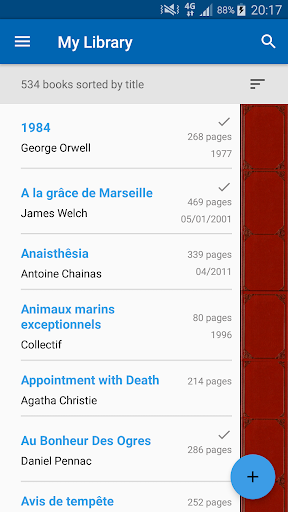
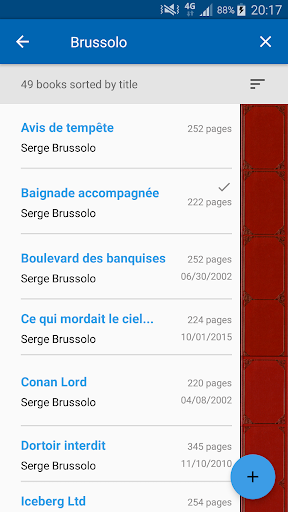
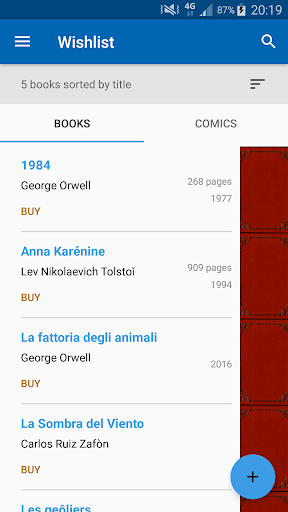
Once your books are in, My Library makes organization feel natural. You can quickly look up any book within your collection using the built-in search—perfect for that moment when you can’t remember if you already own a title. Sorting is equally flexible: arrange your shelves by title, author name, category, read/unread status, or any other custom set you prefer. For those who like to plan ahead, the wishlist management feature lets you track upcoming purchases without cluttering your main inventory. Plus, a built-in statistics dashboard gives you a clear snapshot of your reading habits—total books, genres, progress, and more—so you can see your collection at a glance.
Backup, Export, and Import: Your Data, Your Control
Data portability matters. That’s why My Library allows you to export your entire library into an Excel file with a single tap. Whether you want to back up your list or share it with a friend, you’re in control. Conversely, you can import a library from a previously exported file, making migration from another device or app a breeze. No lock-in, no hidden walls—just clean, open access to your own data.
A Note on Covers and ISBN Matching
You may notice that some screenshots on app stores show generic placeholders instead of real book covers. This is purely for intellectual property reasons—Google Play restricts displaying actual copyrighted covers in marketing images. Inside the app, you’re absolutely free to add official cover art for every book you own. Also, keep in mind that My Library relies on external services like Google Books and Amazon to match ISBNs against your search queries. If a specific ISBN isn’t found, it simply means that particular book isn’t referenced in those databases—a limitation of the third-party ecosystem, not the app itself.
Thank You to Our Global Community
Finally, a heartfelt shout-out to the amazing users and volunteer translators who helped make My Library a truly international tool. Their contributions have brought the app to speakers of German, Italian, Russian, Portuguese, Spanish, Chinese, Kannada, Polish, Turkish, Arabic, Dutch, Romanian, Norwegian, Slovenian, Thai, Vietnamese, Ukrainian, and Danish. Special thanks also to Rafi from GraphicsFuel for the beautiful icon design. It’s your feedback and enthusiasm that keep this project growing—and it’s why we’ll always stay free, ad-free, and focused on what matters most: your love of books.
Pros
- Offers a streamlined method for digitally managing a personal book collection
- Enables cataloging books by title, author, genre, and other criteria
- Features an intuitive interface for efficient searching and sorting of stored books
- Facilitates tracking of reading progress and personal notes for individual books
- Provides backup and multi-device synchronization capabilities to safeguard data
Cons
- Requires manual input of book details, which can be tedious for extensive collections
- Does not integrate with online book databases for automatic metadata retrieval
- Offers limited organizational flexibility beyond standard categories
- May encounter performance slowdowns when managing extremely large libraries
- Lacks social functionalities for sharing reading lists or recommendations