
- Name Xerox Print and Scan Experience
- Category Utilities & tools
- Available on PC
- OS Windows 11 version 22621.0 or higher
- languages Arabic, Bulgarian, Catalan, Chinese (Simplified), Chinese (Traditional Chinese), Chinese (Traditional), Croatian, Czech, Danish, Dutch, English, English (United States), Finnish, French, German, Greek, Hebrew, Hungarian, Italian, Japanese, Korean, Korean , Norwegian (Bokmål), Polish, Portuguese, Portuguese (Brazil), Romanian, Russian, Spanish, Spanish (Spain), Swedish, Turkish, Ukrainian
Simplify Your Printing and Scanning Tasks with Xerox Print and Scan Experience for Windows
If you're tired of juggling multiple steps to print or scan documents, the Xerox Print and Scan Experience app for Windows aims to streamline these processes into a seamless experience. Designed by Xerox Corporation, this app brings professional-grade printing and scanning right to your fingertips, making everyday document management less of a chore and more of a breeze.
Key Features That Stand Out
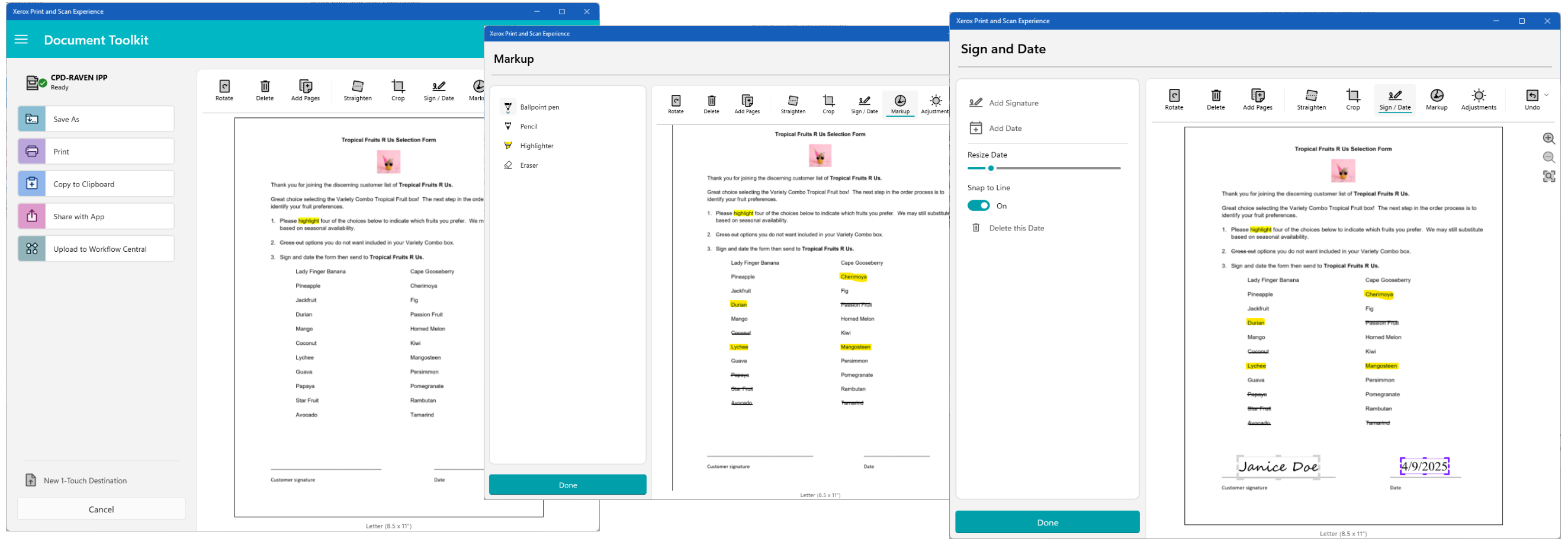
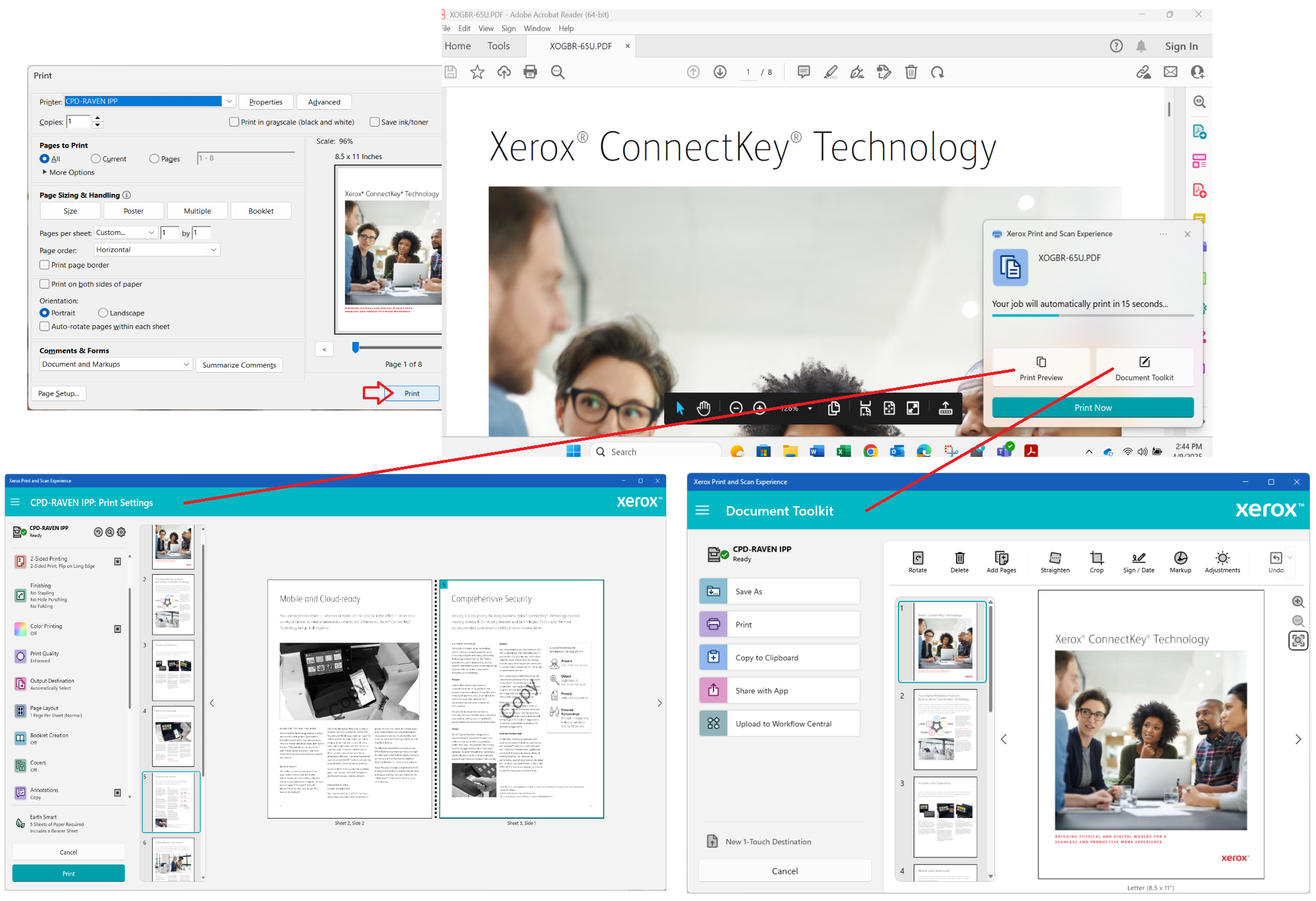
At its core, the app offers a straightforward way to print, scan, and manage documents directly from your Windows device. Its main highlights include:
- One-Click Printing and Scanning: The app enables quick access and operation, reducing setup time and complexity.
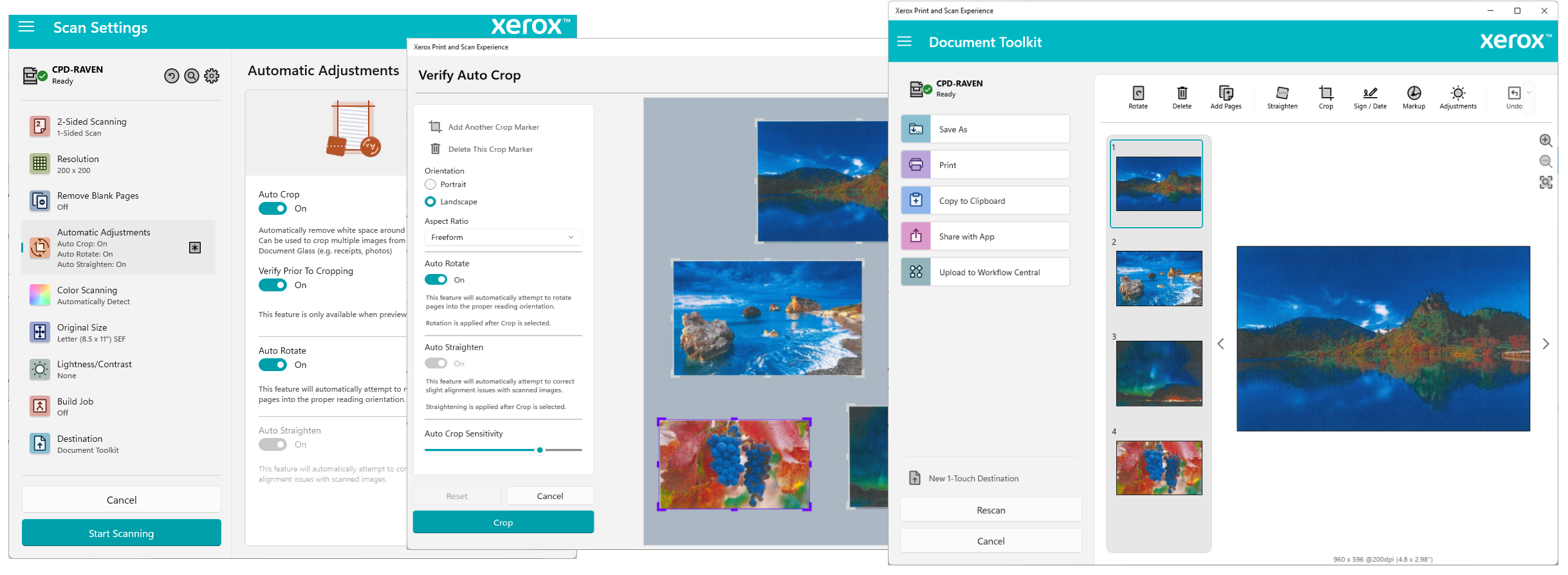
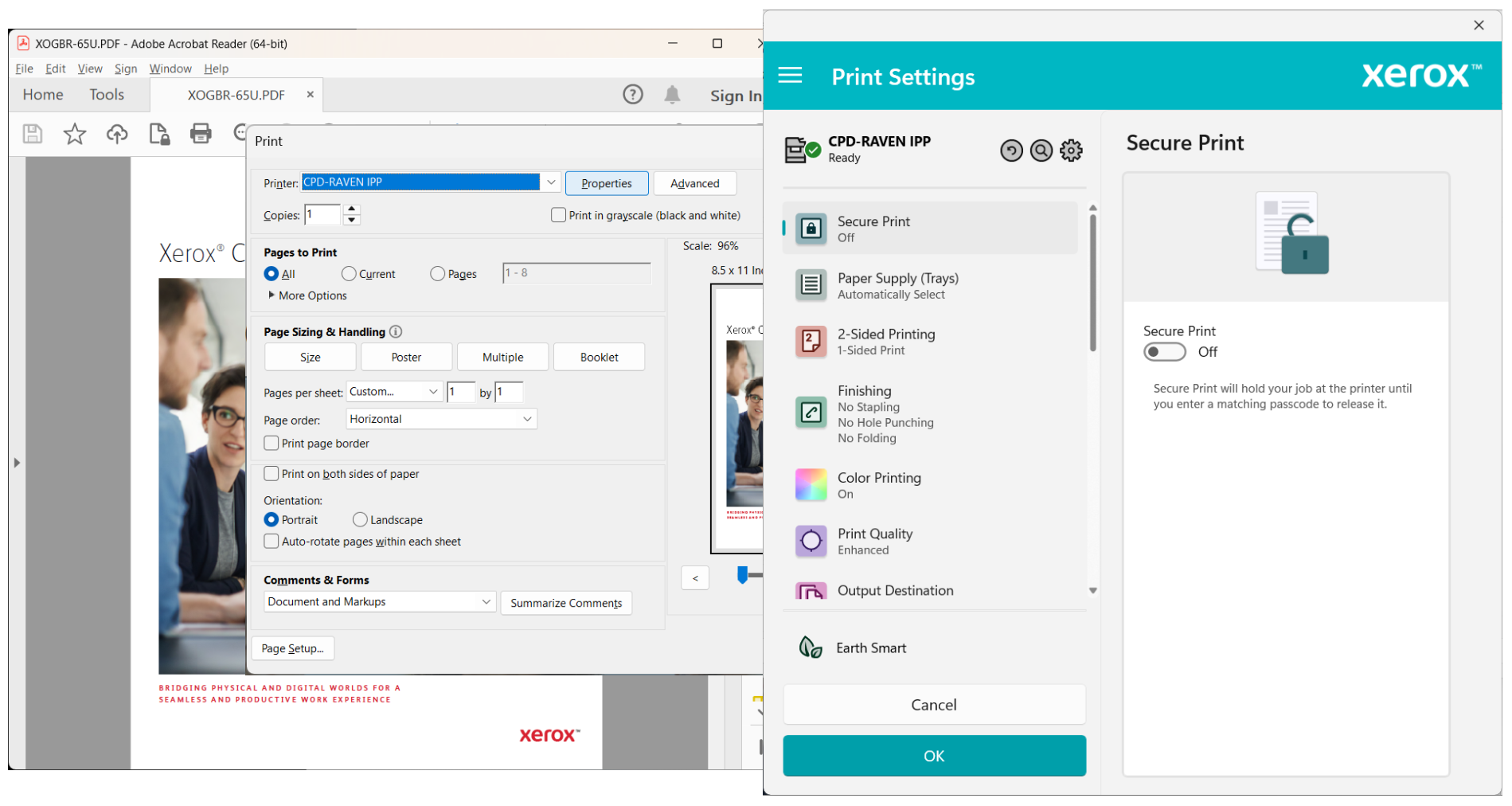
- Integrated Workflow Management: Easily specify print settings or scan destinations without navigating through numerous menus.
- Device Compatibility: Supports a wide range of Xerox printers and multifunction devices, ensuring flexibility across different environments.
- Cloud and Network Support: Enables printing and scanning over local networks or cloud services, enhancing versatility.
A Lively Introduction to Your New Favorite Utility
Imagine sitting at your desk, needing to print a last-minute report or scan a stack of important documents—Xerox Print and Scan Experience is like having a friendly tech assistant right there with you, ready to handle the mundane so you can focus on what truly matters. Its intuitive interface and reliable performance make mundane tasks feel almost effortless, transforming the way you handle documents every day.
Simplified Printing and Scanning: The Core Strengths
Effortless User Interface
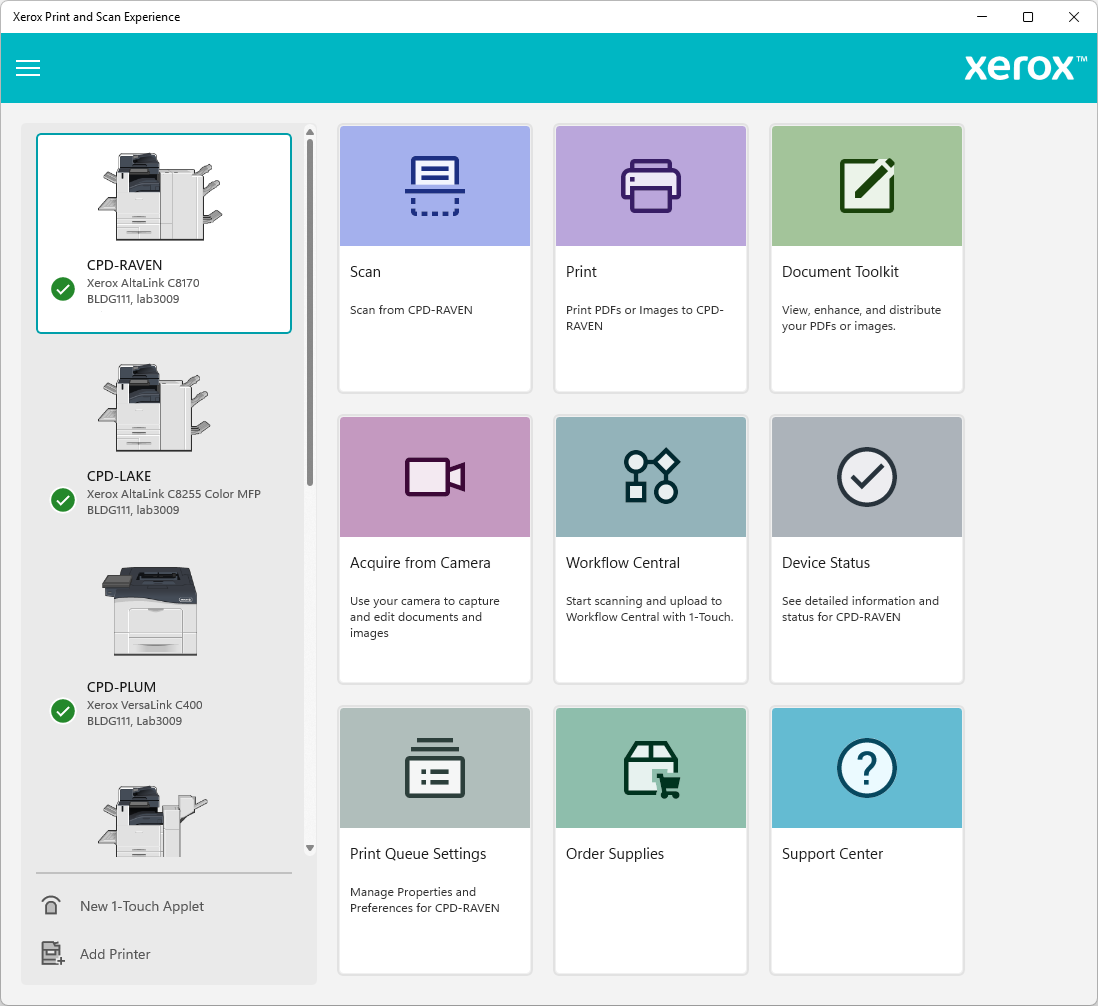
The app sports a clean, modern interface that feels more like navigating your favorite app than fiddling with a complicated printer menu. Clear icons and minimal clutter mean users can jump straight into printing or scanning without wasting time figuring out how. From selecting a document to choosing the printer or scan destination, the workflow is logically laid out, making the experience enjoyable even for novices.
Smooth Operation and Quick Learning Curve
Once set up, users will find that the app responds swiftly to commands, with nearly instant transitions between tasks. The learning curve is gentle—think of it as learning to ride a bike with training wheels; intuitive prompts and guided workflows make mastering its features feel like second nature after a few uses.
Unique Edge: Unified Control and Cloud Integration
Compared to other utilities or tools, Xerox Print and Scan Experience's standout attribute is its ability to unify control over multiple devices and print/scan destinations within a single app interface. This means no more juggling between different software for different printers or scanning workflows. Furthermore, its integration with cloud storage options like OneDrive or SharePoint adds a layer of convenience, especially for users working from home or in shared office environments. This cloud-aware approach elevates it beyond simple local utility tools, offering seamless connectivity that adapts to modern digital workflows.
Final Thoughts: Worth a Try for Everyday Document Tasks
If your routine involves frequent printing or scanning, this app is definitely worth incorporating into your toolkit. It caters especially well to office workers, home users, or small teams looking to simplify their document handling without sacrificing control or quality. While it's straightforward and very user-friendly, power users may appreciate the range of customization options available.
Overall, I recommend giving Xerox Print and Scan Experience a shot if you value efficiency, ease of use, and integrated device management. It may not replace more comprehensive enterprise solutions, but for daily tasks, it's a reliable, thoughtfully designed helper that keeps your workflow smooth and organized.
Pros
- User-friendly interface
- Supports multiple devices
- Seamless wireless connectivity
- Quick access to device status and alerts
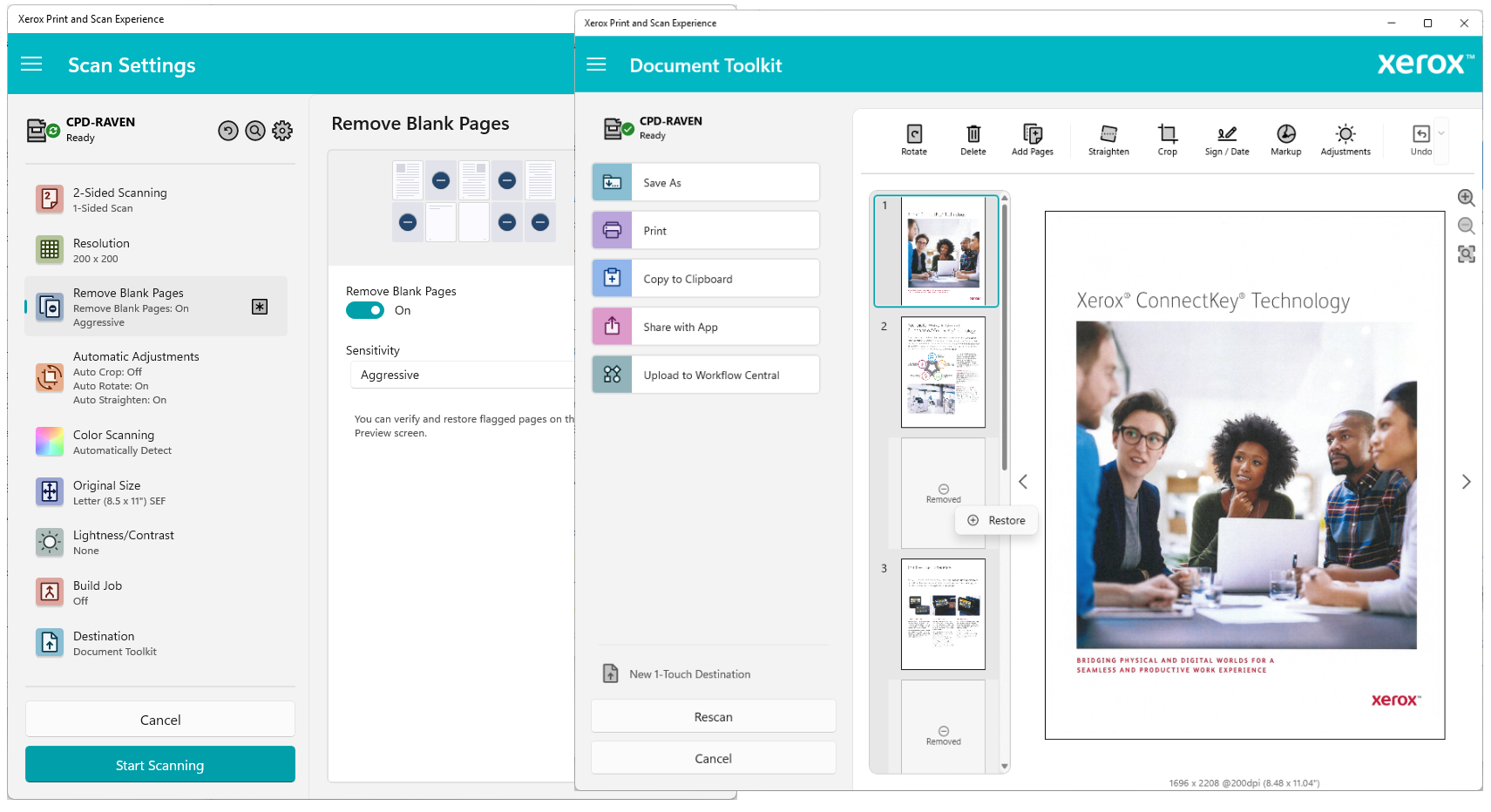
- Enhanced scanning features
Cons
- Initial setup can be complicated
- Limited customization options during printing
- Occasional connectivity glitches
- Inconsistent scan quality in some cases
- Lack of extensive troubleshooting guides within the app











