

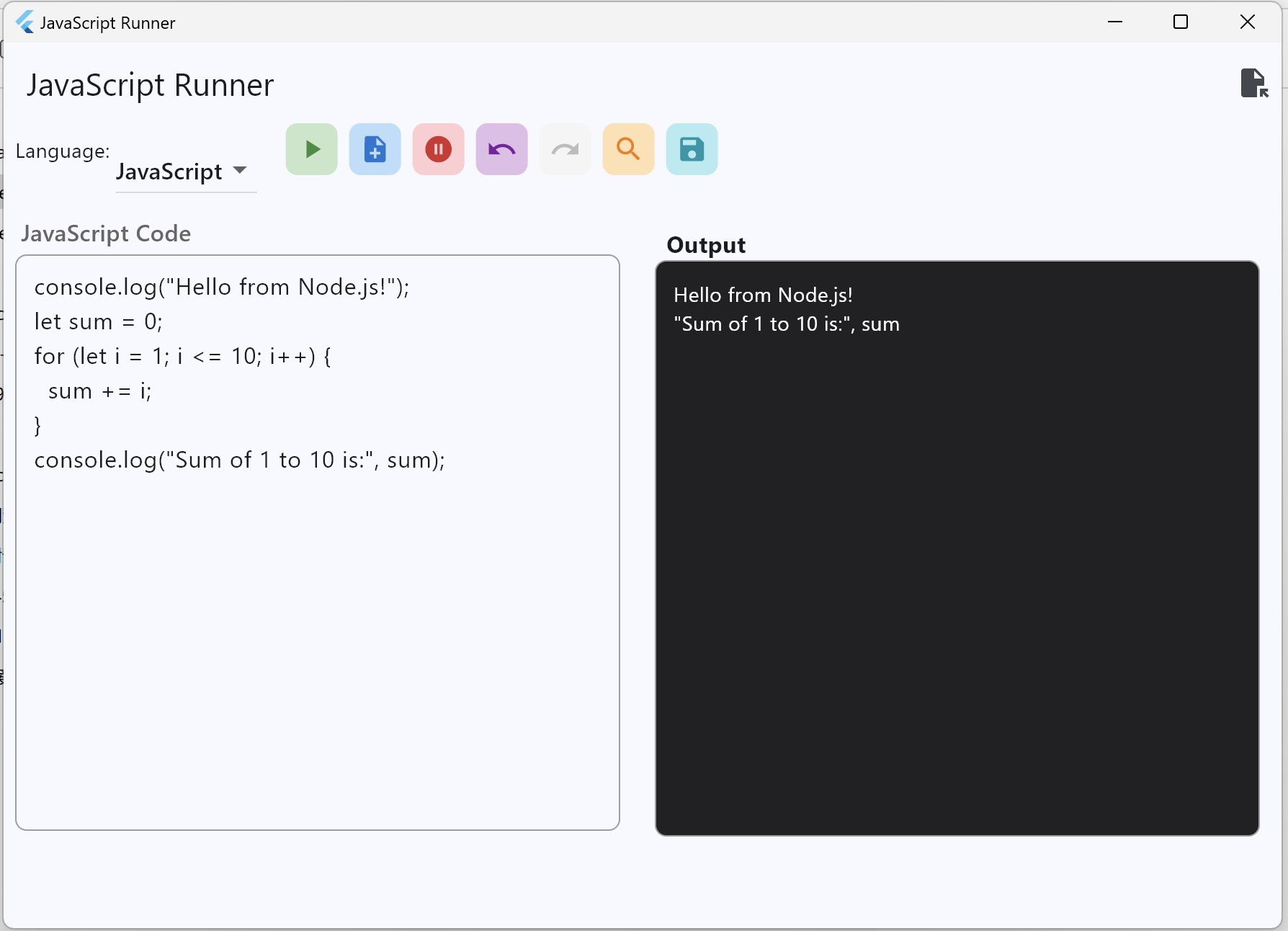
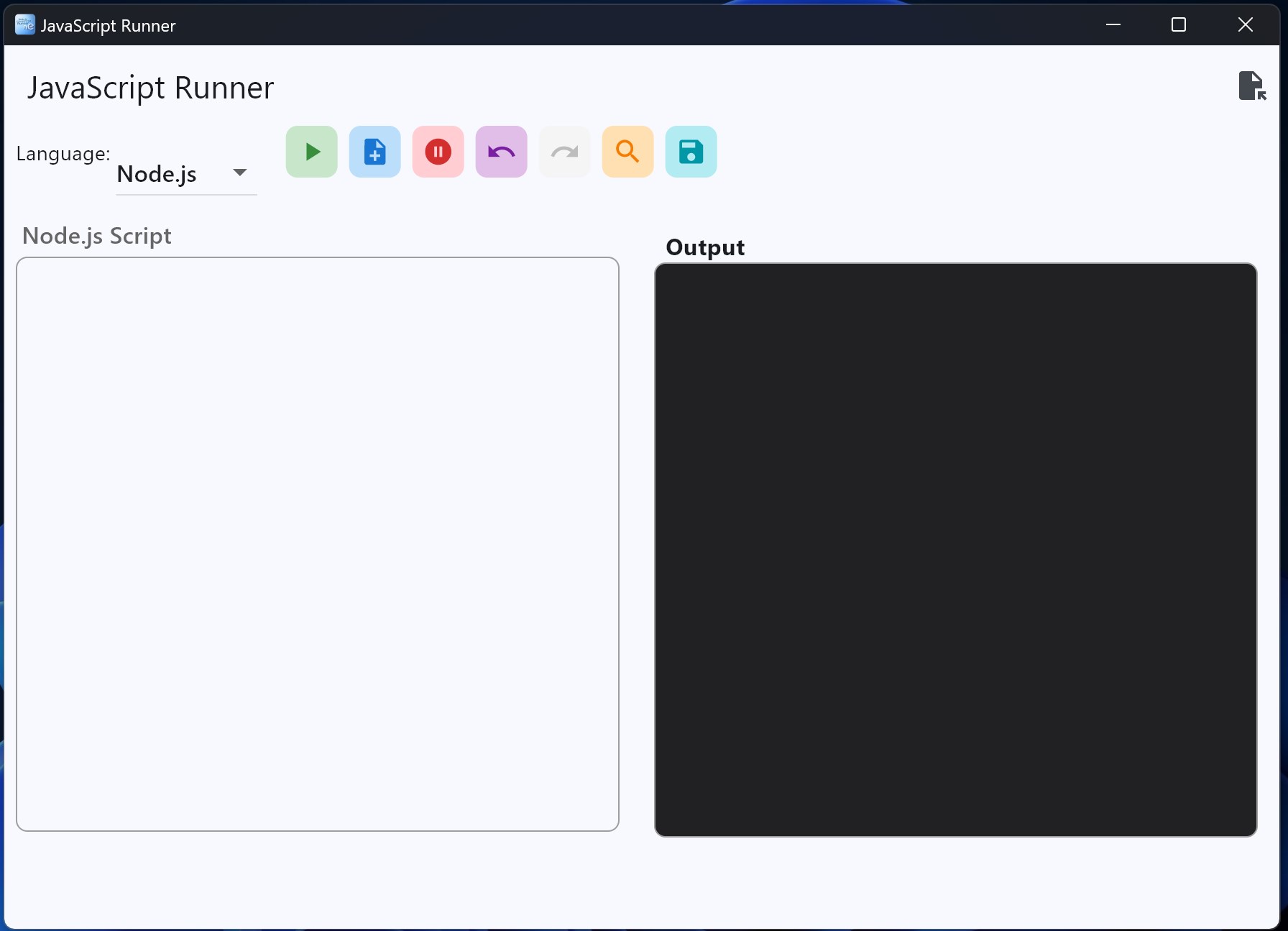
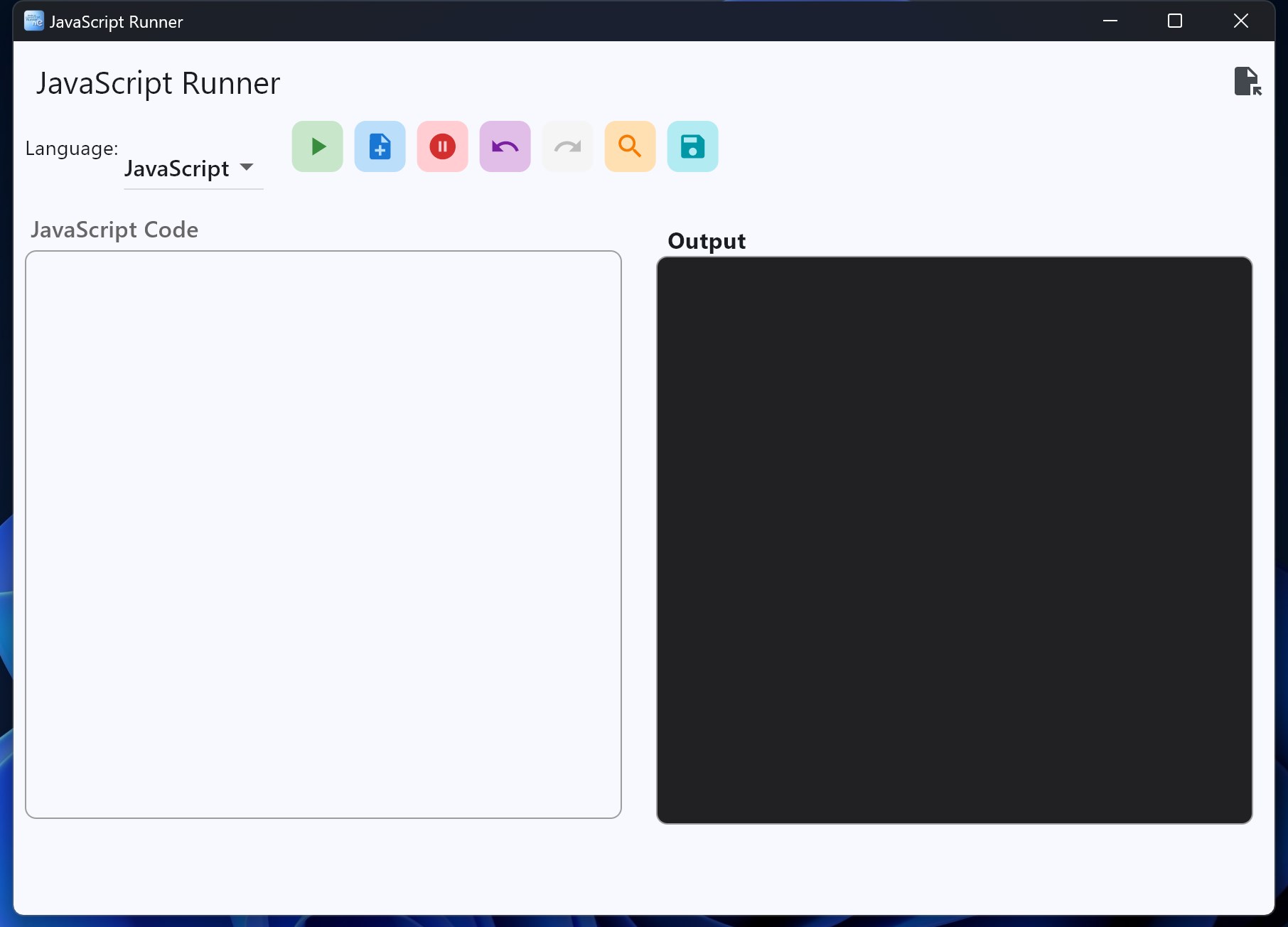
- Name Node.js/JavaScript Runner
- Category Utilities & tools
- Developer Shek Lab
- Available on PC
- OS Windows 10 version 17763.0 or higher
- languages Chinese (Simplified), Chinese (Traditional), English (United States), Persian, Portuguese (Brazil), Russian, Spanish (Spain), Turkish
Introducing the Node.js/JavaScript Runner for Windows
Imagine having a sleek, lightweight engine that allows you to run your JavaScript and Node.js scripts seamlessly right on your Windows desktop—this is precisely what the Node.js/JavaScript Runner by Shek Lab offers. It aims to bridge the gap between developers and their scripts, delivering a smooth and accessible way to execute JavaScript code outside of a browser or traditional IDE environment.
About the Developer and Main Features
Developed and published by Shek Lab, this application caters primarily to developers, hobbyists, and students who frequently work with JavaScript or Node.js scripts. Its core functionalities spotlight three main aspects:
- Quick Script Execution: Enables rapid running of JavaScript/Node.js files without the need for complex environments or command-line tools.
- Code Snippet Management: Offers a simple yet effective interface to organize and manage code snippets for quick reuse.
- Cross-Platform Support: While designed for Windows, the tool ensures compatibility with various Node.js versions and JavaScript libraries, facilitating diverse development needs.
The primary target audience includes developers looking for a lightweight script runner, educators conducting coding demonstrations, and learners practicing JavaScript or Node.js scripting.
Engaging and Friendly Evaluation
Stumbling upon a new utility can feel like discovering a hidden gem in your digital toolbox—exciting yet uncertain. The Node.js/JavaScript Runner for Windows feels like such a find, promising simplicity and efficiency wrapped in a clean interface. From the moment you launch it, you're greeted with a straightforward window that feels like an inviting workspace rather than a cluttered command line.
Core Functionality Breakdown
Instant Script Running — No Fuss, Just Run
The standout feature is its capacity for instant script execution. Just open your JavaScript or Node.js file within the app, hit run, and watch the magic happen—no need to fiddle with environment variables or terminal commands. It's akin to having a magic button that transforms your code into a live output, making testing and debugging faster and more intuitive. This streamlined process significantly reduces the barrier for newcomers and speeds up workflows for experienced developers.
Snippet Management — Your Personal Code Vault
Managing multiple scripts or code snippets can be chaotic, especially as your project grows. This app offers a built-in, minimalistic snippet organizer—think of it as a personal library where you can bookmark frequently used code blocks for quick retrieval. Its simplicity ensures you spend less time searching and more time coding, making it especially helpful for repetitive tasks or common utility functions.
Compatibility and Customization — Supporting Your Code Ecosystem
Another compelling aspect is its support for various Node.js versions and libraries, giving developers flexibility to work across multiple project environments without switching tools. Though the interface is basic, it doesn't limit customization options—developers can tweak settings to match their specific development stacks, which adds to its appeal as a versatile utility tool.
Intuitive User Experience & Unique Selling Points
The user interface strikes a balance between simplicity and functionality. It resembles a tidy desktop workspace—every button and option serves a clear purpose. Operation feels fluid, with almost no lag between command and output, akin to flipping through pages of a well-organized notebook. Learning the app is effortless, thanks to minimalistic design and straightforward options, making it accessible even to less tech-savvy users.
Compared to similar utilities, such as basic command-line runners or more complex IDE integrations, this tool's unique edge lies in its focus: a dedicated, standalone script runner that's portable, quick, and easy to master. Its lightweight nature means it doesn't bog down your system—perfect for quick tests or casual scripting sessions.
Final Verdict and Recommendations
If you're seeking a no-nonsense JavaScript/Node.js runner that complements your workflow without unnecessary complexity, this application deserves a spot on your desktop. It's especially beneficial if your needs revolve around quick script execution or managing snippets efficiently. While it may lack advanced debugging or editing features found in comprehensive IDEs, its speed and simplicity make it an invaluable utility for everyday coding tasks.
In summary, I recommend this tool for developers, students, and tech enthusiasts who value speed and minimal setup. Its best use cases lie in rapid testing, educational demonstrations, and snippets management—making coding sessions smoother and more enjoyable. Give it a try and experience how a dedicated utility can transform your JavaScript workflow into a breeze.
Pros
- User-friendly interface
- Wide language support
- Integrated code editor
- Easy project management
- Performance optimization
Cons
- Limited customization options
- Basic debugging tools
- Dependency management is minimal
- Occasional performance hiccups with large scripts
- Lack of advanced code analysis features










