

- Name Windows Troubleshooter
- Category Utilities & tools
- Available on PC
- OS Windows 10 version 17763.0 or higher
- Keyboard Integrated Keyboard
- Mouse Integrated Mouse
- Memory 2 GB
- languages English (United States)
Introducing Windows Troubleshooter for Windows: Your Personal System Doctor
Imagine having a reliable, easy-to-use digital assistant ready to diagnose and fix common Windows issues at a moment's notice—that's exactly what Windows Troubleshooter for Windows aims to be. Designed to streamline troubleshooting tasks, this app simplifies maintaining your PC health without the technical jargon or convoluted processes often associated with traditional methods.
Developed by MyTechnician: A Trusted Name in Tech Support
Produced by the reputable developer MyTechnician, known for their focus on user-friendly utility tools, this app comes from a team dedicated to empowering everyday users with straightforward troubleshooting capabilities. Their experience in creating supportive tech solutions is evident in the app's intuitive design and robust problem-solving features.
Key Features that Make Troubleshooting Easy and Effective
- Automated Issue Detection: The app intelligently scans your system to identify common problems, reducing the need for manual diagnostics.
- One-Click Fixes: With minimal effort, users can resolve issues such as network connectivity problems, performance hiccups, or system errors—akin to pressing a single button to summon a trained mechanic for your PC.
- Comprehensive Troubleshooting Modules: Covers a variety of areas, including Windows updates, driver issues, network adapters, and more, making it a versatile tool for different scenarios.
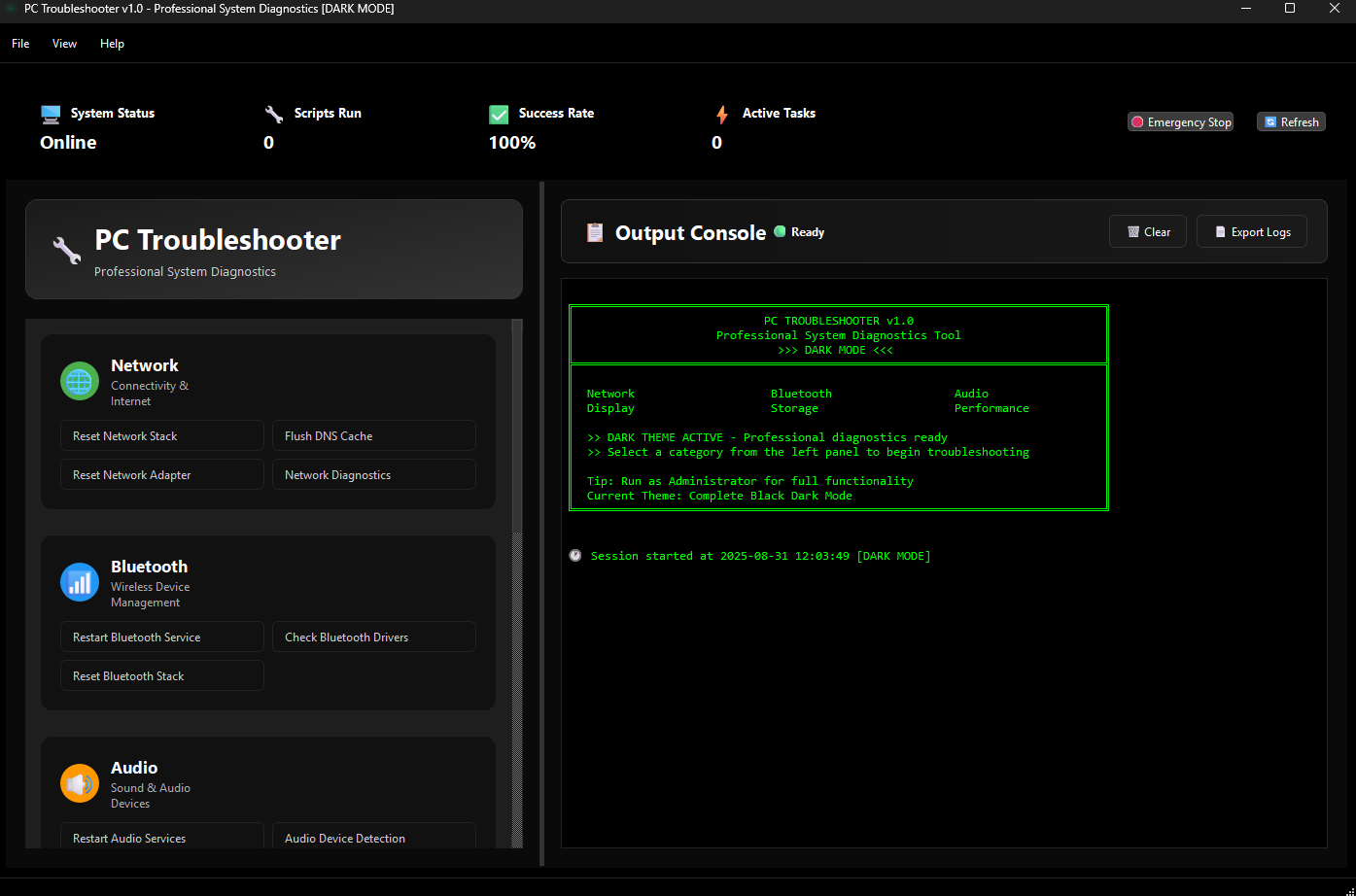
- User-Friendly Interface: Designed with the average user in mind, the interface is clean, simple, and navigable—which means no PhDs required to get your system back on track.
Evaluating User Experience: Smooth, Intuitive, and Accessible
The app's interface resembles a well-organized dashboard—think of it as the control panel of a spaceship, where everything is within easy reach. Its layout is straightforward, guiding users seamlessly from diagnosis to solution. The troubleshooting process is swift, with clear instructions and progress indicators that keep users informed every step of the way. For those concerned about learning curves, the app offers concise tooltips and explanations, making it accessible even for novices.
Compared to other utilities that often require navigating through complex menus or command-line inputs, Windows Troubleshooter for Windows stands out with its focus on simplicity. Its automation capabilities not only save time but also reduce the frustration associated with manual troubleshooting, especially for users who may not be comfortable with Windows' built-in diagnostic tools.
Unique Strengths: Standing Out in a Crowded Market
While many system utility tools boast similar features, this app's standout advantage is its combination of automated detection combined with one-click fixing. This dual approach ensures users aren't left guessing about what's wrong—or how to fix it. Its targeted modules are specifically tailored for Windows systems, offering more precise solutions compared to generic tools. Additionally, MyTechnician's track record suggests ongoing support and updates, adding to its credibility.
Recommendation and Usage Tips
If you're someone who prefers a fuss-free approach to maintaining a healthy Windows PC or is looking for a straightforward troubleshooting assistant, this app deserves a spot in your toolkit. It's especially useful for users who encounter recurrent issues with system errors or network failures but lack the technical expertise to dig into logs or tweak settings manually.
We rate Windows Troubleshooter for Windows as a solid “Recommended” for everyday users seeking quick fixes without diving into technical complexities. For optimal results, combine it with regular system updates and routine maintenance to keep your PC running smoothly.
In summary, this app acts like a courteous mechanic—prompt, professional, and easy to work with—making troubleshooting a less dreaded chore and more of a manageable task. It's a handy digital ally for keeping your Windows machine healthy and stress-free.
Pros
- User-Friendly Troubleshooting Interface
- Automated Detection of Common Issues
- Built-in Repair Tools
- Integration with Windows System
- Helpful Diagnostics Reports
Cons
- Limited Scope of Troubleshooting
- Occasional False Positives
- Dependence on Network Connectivity
- Limited Customization Options
- Reactive Rather Than Proactive











