

- Name Windows Sound Recorder
- Category Utilities & tools
- Available on Mobile, PC, Surface Hub, HoloLens
- OS Windows 11 version 22000.0 or higher
- languages Afrikaans, Albanian, Amharic, Arabic, Azerbaijani, Bangla (Bangladesh), Basque, Belarusian, Bulgarian, Catalan, Chinese (Simplified), Chinese (Traditional), Croatian, Czech, Danish, Dutch, English (United Kingdom), English (United States), Estonian, Filipino, Finnish, French, French (Canada), Galician , German, Greek, Hausa (Latin), Hebrew, Hindi, Hungarian, Icelandic, Indonesian, Italian, Japanese, Kannada, Kazakh, Khmer, Kiswahili, Korean , Lao, Latvian, Lithuanian, Macedonian, Malay, Malayalam, Norwegian (Bokmål), Persian, Polish , Portuguese (Brazil), Portuguese (Portugal), Romanian, Russian, Serbian (Latin, Serbia), Slovak, Slovenian (Slovenia), Spanish (Mexico), Spanish (Spain), Swedish, Tamil, Telugu, Thai, Turkish, Ukrainian, Uzbek, Vietnamese
A Clear Sound Companion for Windows Users
Windows Sound Recorder for Windows by Microsoft Corporation is a straightforward, no-frills audio recording tool designed to help users capture sound clips effortlessly without the need for complex editing features. Its simplicity makes it suitable for casual users and professionals alike who need quick audio snippets or voice notes.
About the App
Offered by Microsoft Corporation, this application aims to provide a lightweight and user-friendly audio recording experience directly integrated within Windows. It stands out with its minimalistic interface and ease of use, allowing users to start recording immediately without navigating through cluttered menus.
- Main Features: Simple one-click recording, straightforward playback, and easy save/export options.
- Target Audience: Students, journalists, casual users, and anyone needing quick audio capture without advanced editing needs.
A Fresh Approach to Audio Recording
Imagine you're in a bustling cafe, trying to capture the faint melody of a street performer or jot down a quick voice memo — Windows Sound Recorder is your digital notepad for sounds, designed to be both accessible and reliable. Its clean design ensures activating the recorder feels like flipping a switch, making it suitable for users of all skill levels. Whether you're recording a lecture, a music idea, or a simple voice memo, this app keeps things straightforward and efficient, much like a trusty notebook that's always ready to go.
Core Functionality: Speed and Simplicity
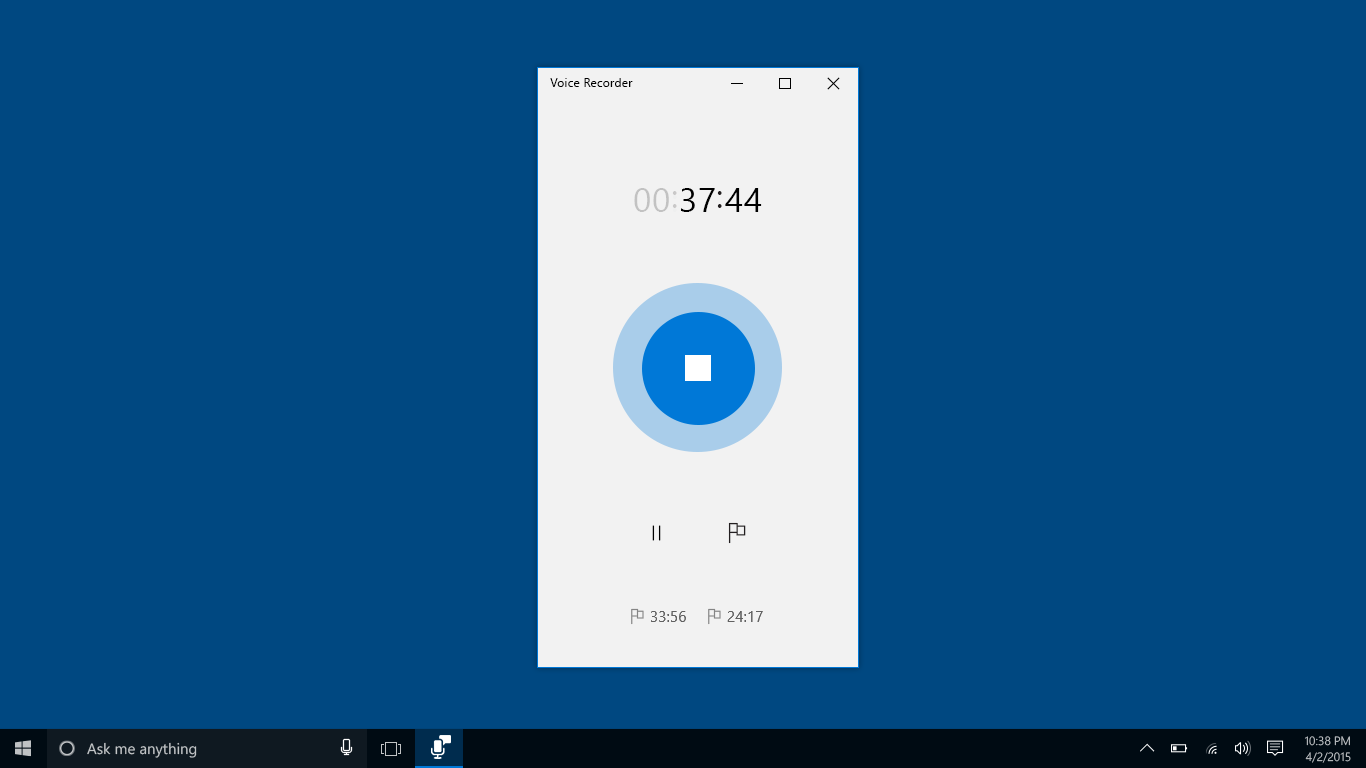
The highlight of this application is its ability to rapid-fire start recording with minimal fuss. Once launched, users encounter a large, inviting record button that, when pressed, begins capturing sound immediately. The interface's minimalism removes distractions, allowing users to focus solely on the task at hand — much like a stopwatch just waiting for the start signal.
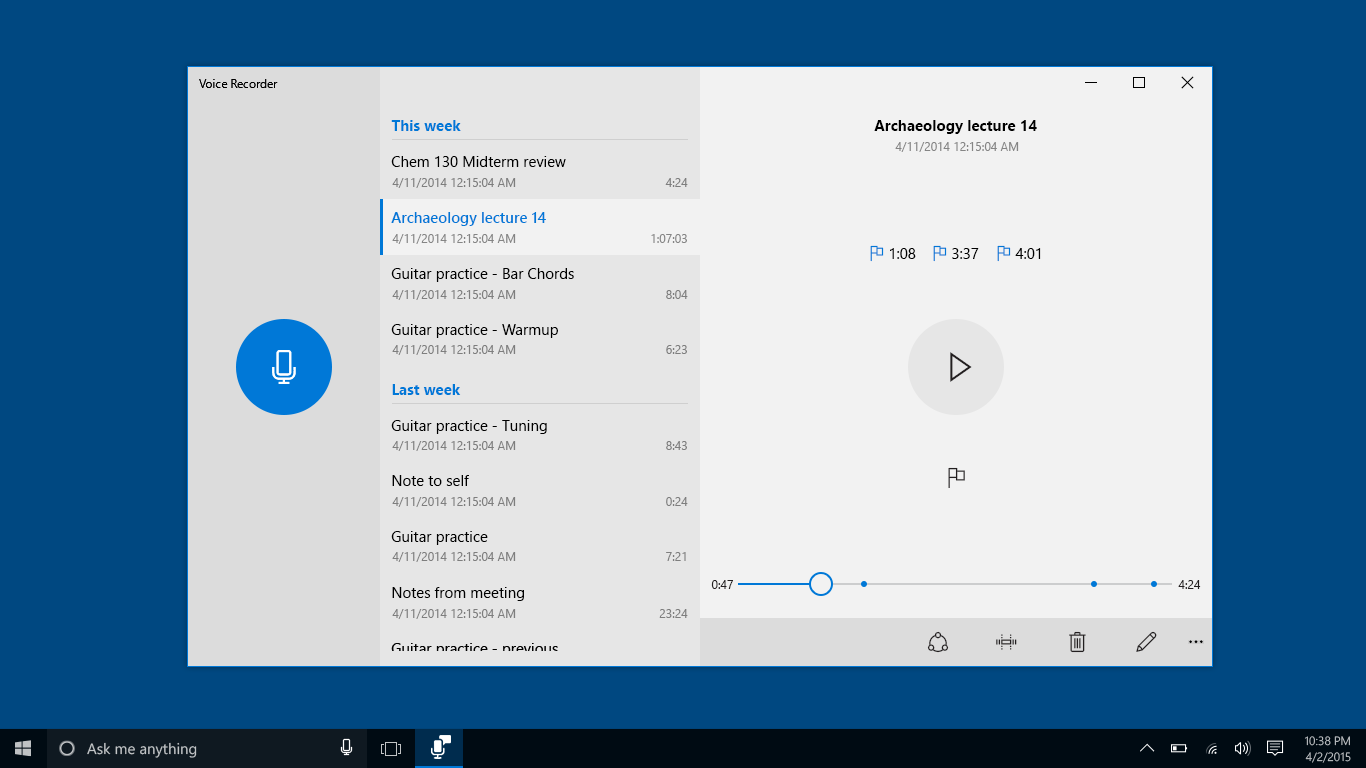
Another key feature is the easy access to playback and saving. After recording, a simple tap plays back the clip, and with just a few clicks, users can save or share their audio files. This emphasis on quick transition from recording to sharing makes it ideal for these fast-paced scenarios.
Interface and User Experience: Clean, Intuitive, and Accessible
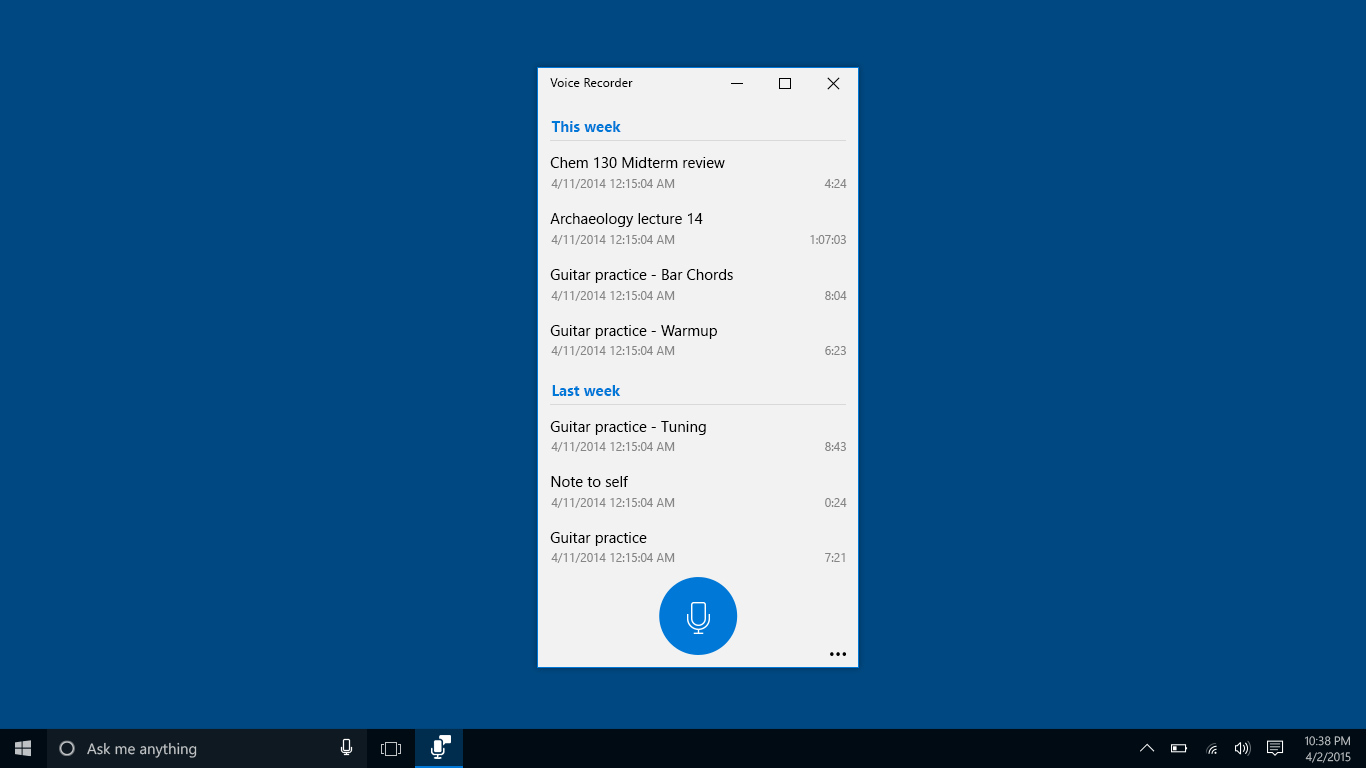
The app's interface adopts a flat, modern aesthetic reminiscent of a sleek digital voice recorder. Its large icons and straightforward layout contribute to an intuitive experience — perfect for both tech-savvy users and those less familiar with audio software. The minimal learning curve means new users can be recording in seconds, much like flipping a light switch on a dark room. The app also performs smoothly on older Windows devices, providing a frustration-free experience without lag or crashes.
While lacking advanced editing features, the app's focus on core recording capabilities positions it as a dedicated tool for quick captures rather than detailed audio editing. Its simplicity is its strength, offering reliable performance without clutter or complexity.
What Sets It Apart: Uniqueness in Utility
Among many similar utilities, Windows Sound Recorder distinguishes itself with its tight integration into Windows and its focus on minimalism. Unlike bulky audio editing suites, this app zeroes in on the essential — capturing sound with just a press of a button. Additionally, its ability to be quickly accessed from the Start menu or taskbar makes it incredibly convenient for on-the-fly recordings.
Another unique aspect is its compatibility with modern Windows features, enabling seamless sharing via OneDrive or email directly from the app. This integration streamlines workflows for users needing rapid dissemination of recorded content, setting it apart from third-party tools that may require multiple steps or additional software.
Final Thoughts: A Practical, No-Nonsense Recorder
If your needs are as simple as pressing a button and capturing sound, Windows Sound Recorder hits the mark with its straightforward approach. It's an app that feels like a digital equivalent of a pocket tape recorder — no bells or whistles, just dependable performance. I recommend it to anyone who values quick access, ease of use, and reliable recording without the fuss of editing or complex features. Whether you're a student taking notes, a journalist capturing spontaneous interviews, or just someone who occasionally jots down ideas vocally, this app offers a practical solution without overwhelming complexity.
Pros
- User-Friendly Interface
- Fast Access to Basic Recording Features
- Lightweight Application
- Supports Various Audio Formats
- Integration with Windows Ecosystem
Cons
- Limited Editing Capabilities
- Basic Noise Reduction
- Absence of Cloud Saving
- Limited Format Support
- No Multitrack Recording











