

- Name Windows File Recovery
- Category Utilities & tools
- Available on PC
- OS Windows 10 version 19041.0 or higher
- languages English (United States)
Unlocking Lost Files with Windows File Recovery for Windows
If you've ever faced the panic of accidentally deleting an important document or losing cherished photos due to a sudden system crash, you'll appreciate the utility of Windows File Recovery for Windows. Designed as a straightforward yet powerful tool, this application offers a reliable solution for retrieving data across various storage scenarios, acting almost like a digital rescue squad for your lost files.
Developed by Microsoft: A Trusted Name in Data Recovery
Created by the tech giant Microsoft Corporation, Windows File Recovery leverages years of enterprise expertise to deliver a user-friendly data recovery experience. Backed by a reputable developer, this tool integrates seamlessly with Windows environments, promising both security and efficiency without the need for third-party interventions.
What Makes It Stand Out? Key Features at a Glance
- Versatile File System Support: Compatible with NTFS, FAT, exFAT, and ReFS file systems, covering a broad spectrum of storage devices including internal drives and external SD cards.
- Multiple Recovery Modes: Offers different modes such as 'Default,' 'Segment,' and 'Signature' to cater to various data loss scenarios—from accidental deletion to formatted drives.
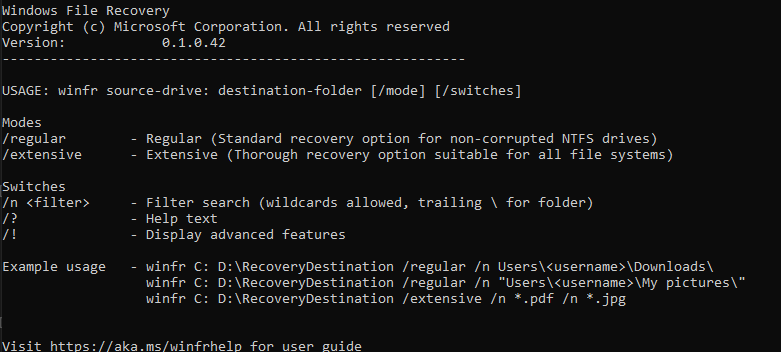
- Command-Line Driven but User-Friendly: Despite its command-line interface, the tool includes guidance and straightforward instructions, making it accessible to not just tech pros but also dedicated power users.
- Deep Scan Capabilities: Utilizes advanced algorithms to delve into drives for remnants of deleted files, increasing chances of successful recovery even after prolonged periods.
Experience the Process: A Closer Look at Functionality and Usability
Intuitive Interface with a Functional Edge
Windows File Recovery is designed with simplicity in mind, presenting users with a clean, no-frills window that focuses solely on recovery. Unlike many utilities cluttered with confusing options, this app emphasizes clarity, guiding users through recovery steps with clear instructions—almost like a reliable GPS for your data rescue mission.
Efficiency in Action: How Smooth is the Recovery Journey?
Operating primarily via command-line, the application may seem daunting at first, but Microsoft's inclusion of detailed instructions reduces the learning curve significantly. Once familiar, users will appreciate the speed and reliability—the recovery process is swift, often completing within minutes depending on drive size and data fragmentation. The application handles large volumes of data efficiently, which is vital when time is of the essence during data crisis moments.
Strengths over Similar Utilities & Unique Selling Points
What sets Windows File Recovery apart from other recovery tools is its deep integration with the Windows OS and support for a variety of file formats and scenarios that many third-party tools don't handle as seamlessly. Its focus on system compatibility ensures minimal fuss and maximum reliability. Additionally, being a Microsoft product means it benefits from ongoing updates and security measures, providing a certain degree of peace of mind absent in lesser-known utilities.
Would I Recommend This? Final Thoughts and Usage Tips
All in all, Windows File Recovery offers a solid, no-nonsense solution for data retrieval within the Windows ecosystem. It's particularly valuable for users comfortable with command-line interfaces but also appreciates the comprehensive recovery modes it offers. While it may lack a graphical interface, its robust functionality makes it a trusted choice when other, more flashy tools fail.
Use it as your first line of action for critical data recovery—especially when dealing with formatted drives or accidental deletions. However, for everyday casual users unfamiliar with command prompts, a more intuitive third-party GUI tool might be preferable. Nevertheless, for tech-savvy folks or those willing to follow step-by-step guides, this Microsoft's recovery tool is a dependable and cost-effective option worth keeping in your digital toolbox.
Pros
- Effective File Recovery
- Supports Multiple File Types
- Command-Line Interface
- Free to Use
- Integration with Windows
Cons
- User Interface Complexity
- Limited Recovery Options for Overwritten Files
- Slow Scanning Speeds on Large Drives
- No Preview Before Recovery
- Requires Proper Usage for Best Results











