

- Name Windows Calculator
- Category Utilities & tools
- Developer Microsoft Corporation
- Available on PC, Mobile, Surface Hub, HoloLens
- OS Windows 10 version 19041.0 or higher
- languages Afrikaans, Albanian, Amharic, Arabic, Azerbaijani, Bangla (Bangladesh), Basque, Belarusian, Bulgarian, Catalan, Chinese (Simplified), Chinese (Traditional), Croatian, Czech, Danish, Dutch, English (United Kingdom), English (United States), Estonian, Filipino, Finnish, French, French (Canada), Galician , German, Greek, Hausa (Latin), Hebrew, Hindi, Hungarian, Icelandic, Indonesian, Italian, Japanese, Kannada, Kazakh, Khmer, Kiswahili, Korean , Lao, Latvian, Lithuanian, Macedonian, Malay, Malayalam, Norwegian (Bokmål), Persian, Polish , Portuguese (Brazil), Portuguese (Portugal), Romanian, Russian, Serbian (Latin, Serbia), Slovak, Slovenian (Slovenia), Spanish (Mexico), Spanish (Spain), Swedish, Tamil, Telugu, Thai, Turkish, Ukrainian, Uzbek, Vietnamese
A Fresh Take on a Classic Tool
Microsoft's Windows Calculator for Windows isn't just your run-of-the-mill calculator; it's a thoughtfully designed utility that aims to streamline everyday computations while offering advanced features for power users. Whether you're balancing a checkbook, tackling complex scientific formulas, or programming, this app seeks to be your reliable digital companion.
About the App: The Basics
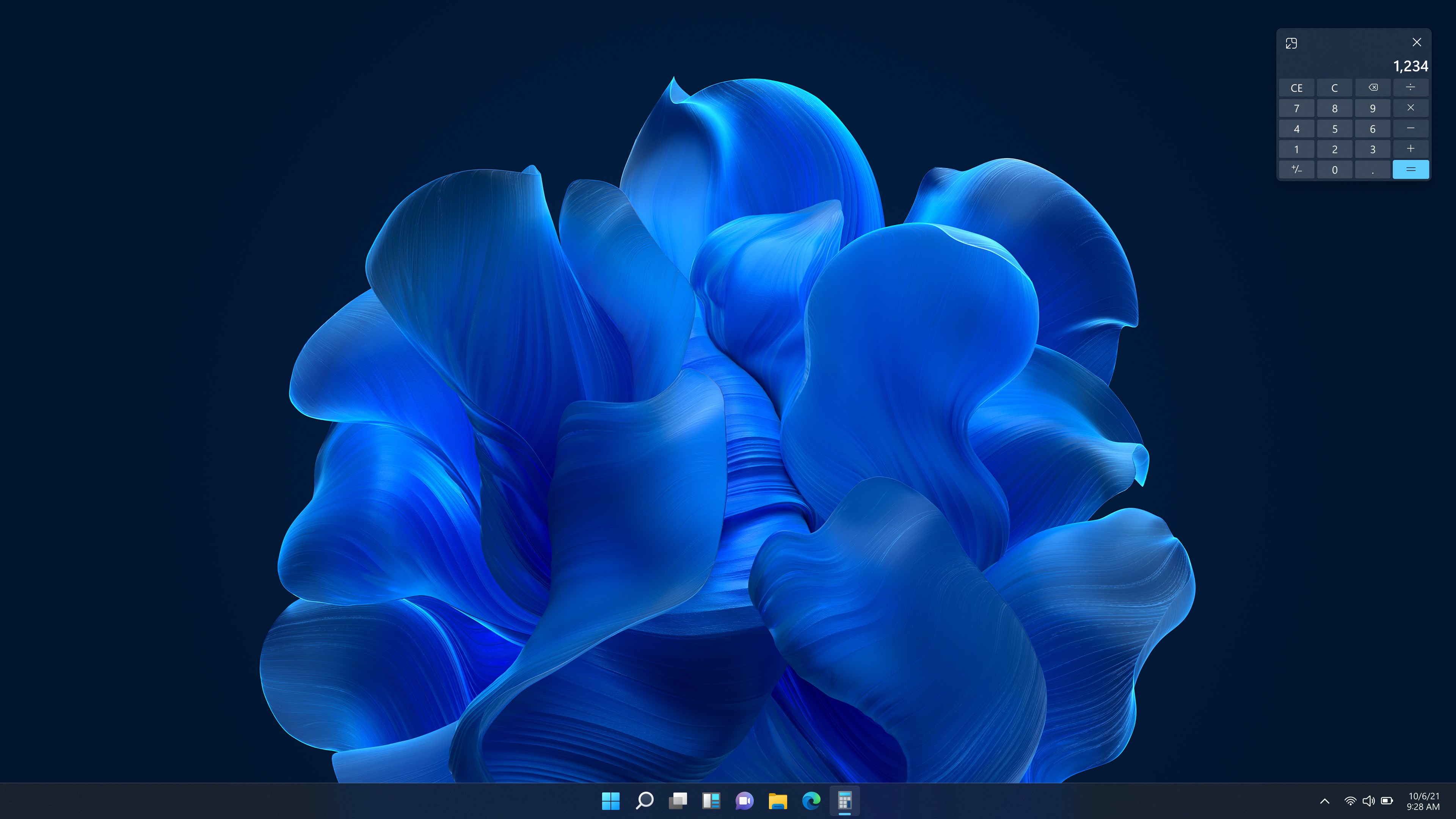
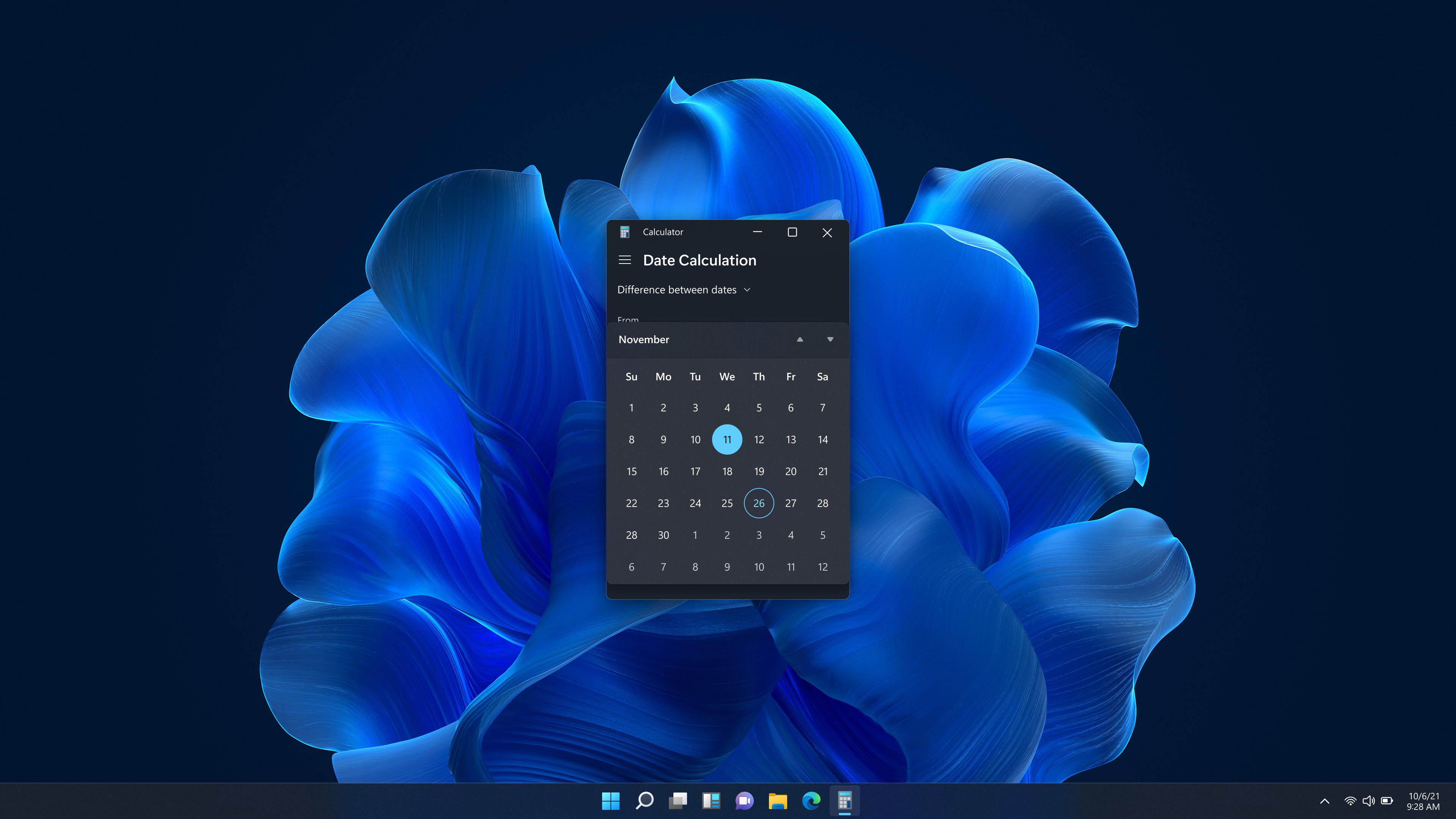
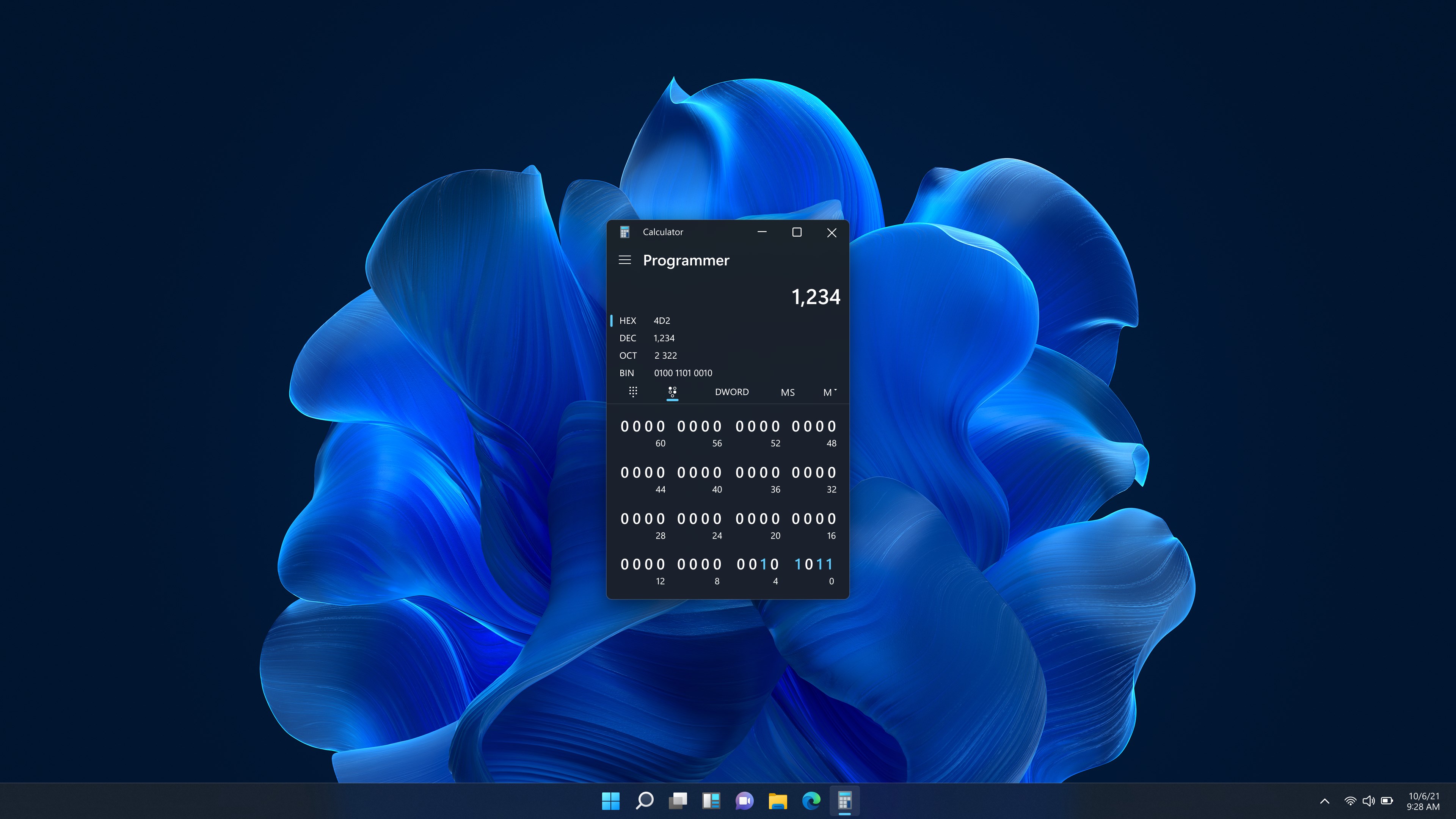
Developed and published by Microsoft Corporation, Windows Calculator is a built-in utility for Windows 10 and Windows 11 that has been evolving into much more than a basic arithmetic tool. Its main highlights include scientific, programmer, and graphing modes, as well as unit conversions and date calculations. The target audience ranges from students and educators to software developers and professionals who need quick, accurate calculations integrated into their daily workflow.
Spirited Evaluation: Why It Stands Out
Imagine a calculator that's not just a calculator but a versatile, intuitive gadget capable of adapting to your needs — it's like having a Swiss Army knife for numbers. Windows Calculator offers a seamless experience that makes calculations feel less like chores and more like a natural extension of your thought process.
Core Features That Make a Difference
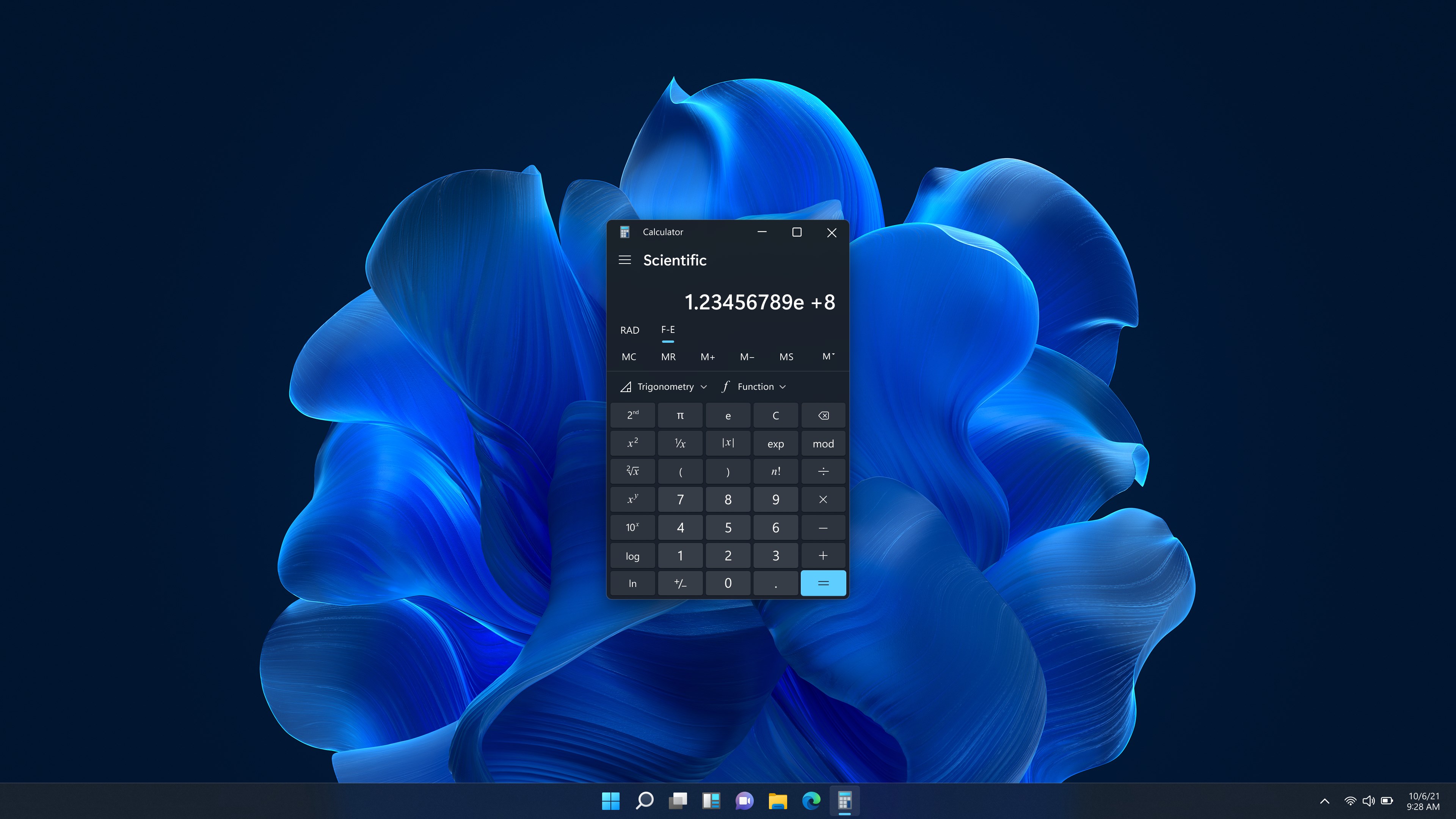
First, the Scientific Mode is a standout, transforming the calculator into a mini laboratory for advanced math tasks. It features functions such as trigonometry, logarithms, derivatives, and more, all accessible with a clean, uncluttered interface. This is particularly useful for students and engineers who need quick access to complex formulas without switching to dedicated software.
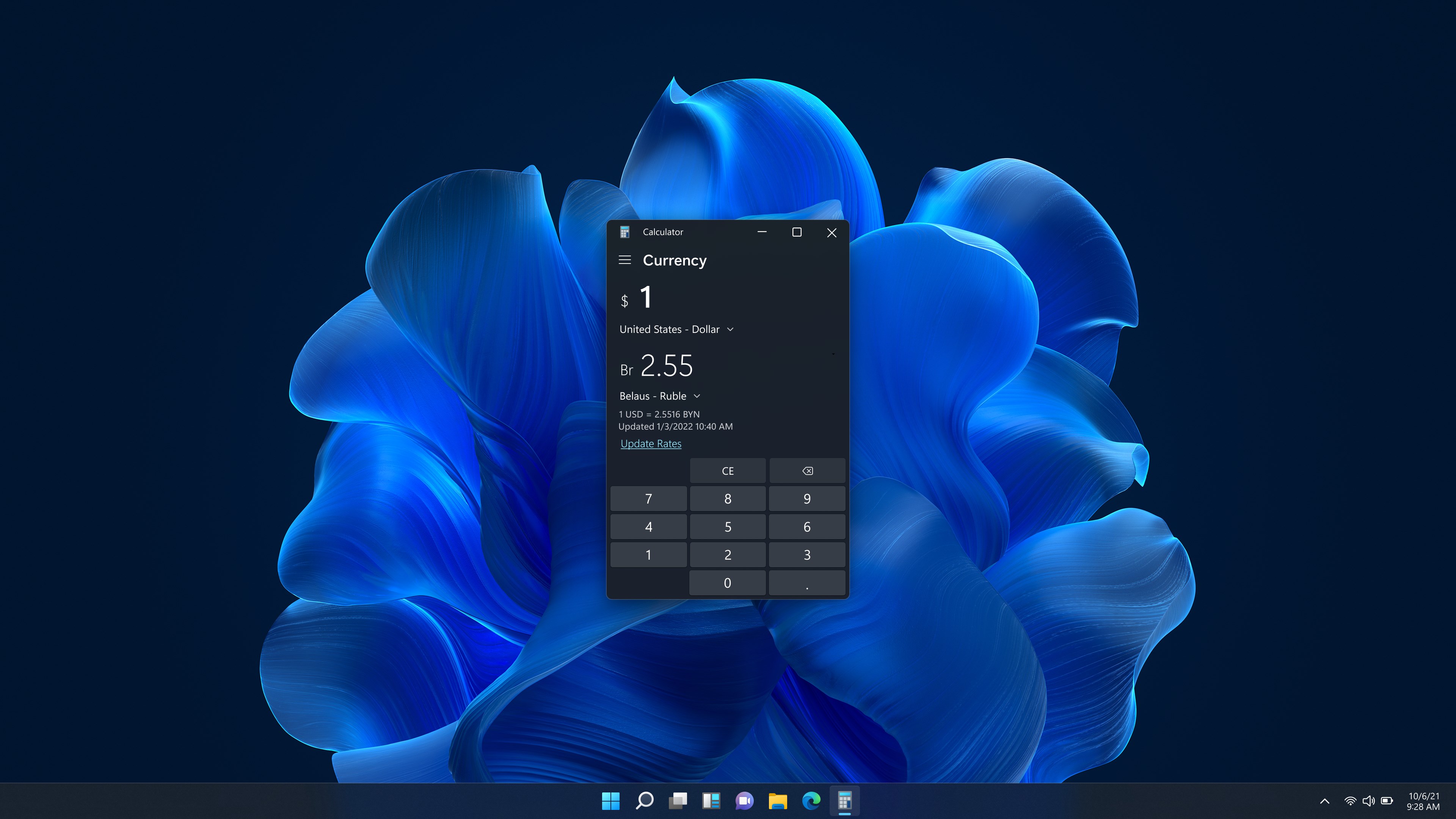
Second, the Conversion Capabilities are impressively comprehensive. Whether you're converting units of length, weight, volume, or currency, the app simplifies the process with a straightforward dropdown menu and dynamic updates. What makes this feature particularly user-friendly is its real-time conversion, meaning you get instant results without any lag, making it a dependable tool during travel, shopping, or engineering projects.
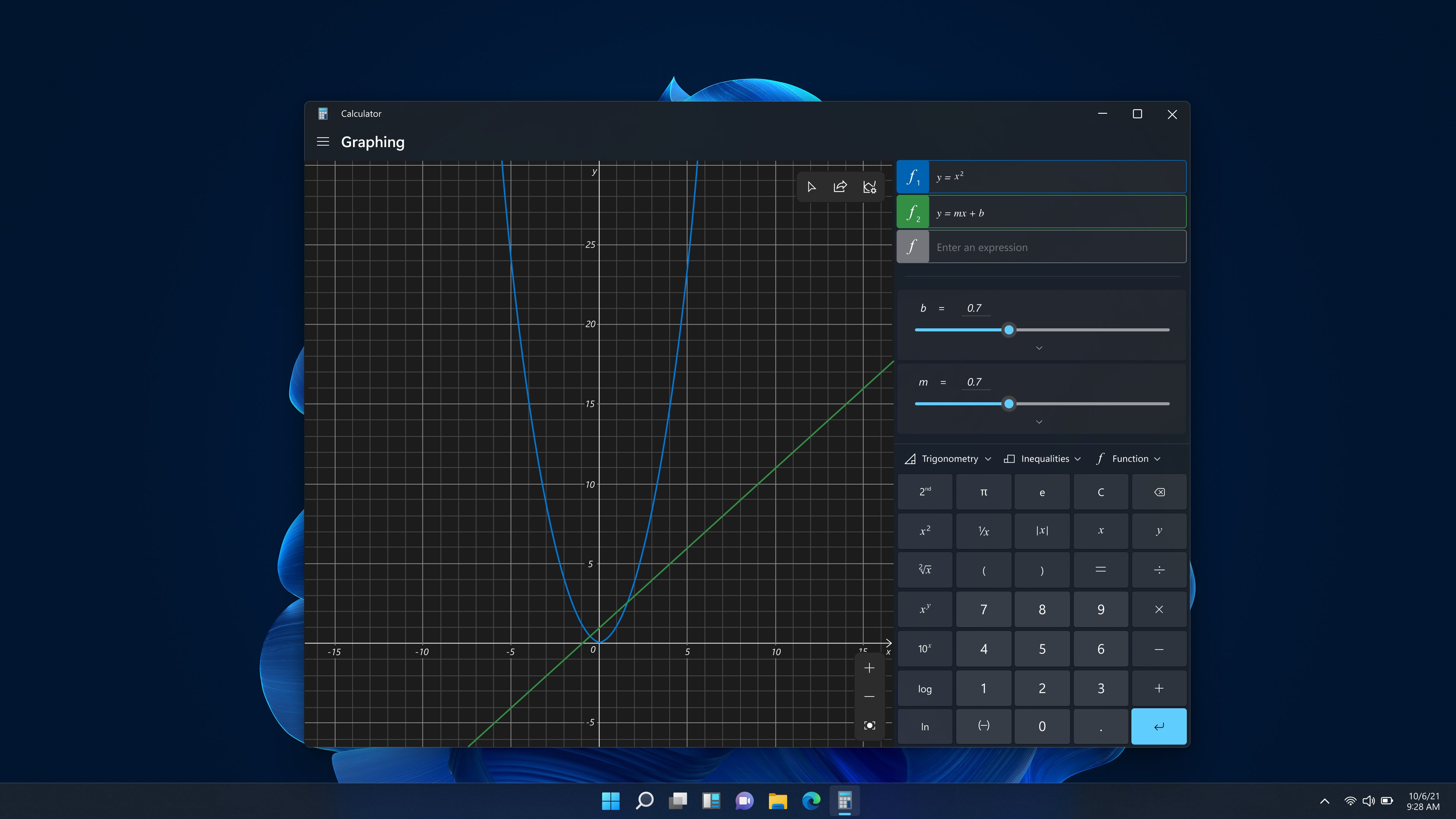
Third, the Graphing Function, which might sound like a luxury for a calculator app, is surprisingly robust. It allows users to visualize functions directly within the app, showing graphs that are easy to interpret. For students learning calculus or anyone needing to analyze functions visually, this feature transforms a simple calculation app into an educational ally.
Design and User Experience: Smooth, Intuitive, and Accessible
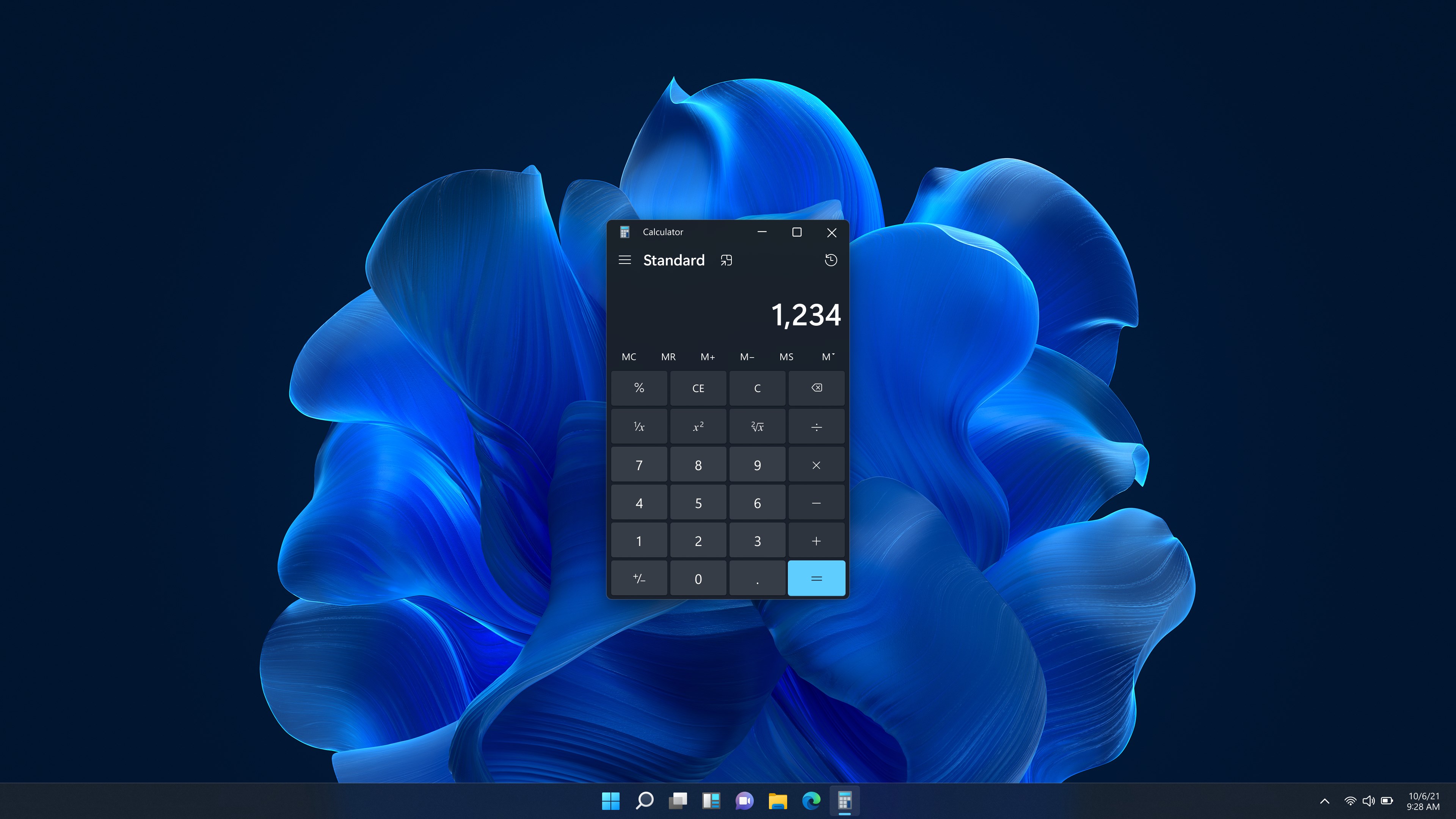
The interface is sleek and modern, with a clean layout reminiscent of a well-organized workspace. The transitions between modes are fluid, giving the impression of flipping through pages in a well-stocked journal. The app's responsiveness is excellent; it handles rapid input changes without any noticeable lag, which is crucial when accuracy and speed matter.
Learning the app's features is straightforward. The minimalist design ensures that new users encounter a gentle learning curve, while power users can quickly access advanced functions. The menu structures are logical, and the help tips embedded in the interface are concise and helpful, making it easy to become proficient with all its capabilities in a short time.
Unique Advantages: Standing Out in the Crowd
Compared to other utility calculators, Windows Calculator's standout feature is its seamless integration with Windows and Microsoft's ecosystem, including support for Cortana for voice commands and Windows Ink for handwritten calculations. Its dual focus on user-friendly design and depth of functionality sets it apart from more generic or cluttered calculator apps. Moreover, its inclusion of graphing and programming modes makes it an excellent choice for a range of technical workflows.
Final Thoughts and Recommendations
All considered, Windows Calculator is a reliable, versatile, and thoughtfully crafted tool that caters to a broad spectrum of users. For students, educators, engineers, or anyone needing quick access to a range of calculation modes, this app is a valuable addition to their Windows toolkit. Given its free availability and regular updates from Microsoft, I would recommend giving it a try—especially if you appreciate a calculator that's both simple and powerful. It might just become your go-to digital assistant whenever numbers need crunching.
Pros
- Intuitive User Interface
- Multiple Calculation Modes
- History and Memory Features
- Seamless Integration with Windows
- Regular Updates and Improvements
Cons
- Limited Customization Options
- Occasional Performance Lag
- Basic Error Messages
- Limited Conversion Features
- No Voice Input Support











