

- Name WiFi Analyzer
- Category Utilities & tools
- Developer Matt Hafner
- Available on PC, Mobile, Surface Hub, HoloLens
- OS Windows 10 version 10240.0 or higher
- languages Bangla, Chinese (Simplified), Czech, Dutch, English (United States), Finnish, French, German, Italian, Japanese, Polish, Portuguese, Russian, Spanish, Turkish
Discovering WiFi Analyzer for Windows: Your New Best Friend in Network Troubleshooting
If you've ever felt like WiFi signals are a mysterious force, slipping away just when you need them most, WiFi Analyzer for Windows steps in as your friendly tech detective. Designed to visualize and diagnose your wireless network, this app makes understanding WiFi performance less of a mystery and more of an achievable task. Developed by Matt Hafner, this tool is tailored for anyone who wants to optimize their internet connection without diving into complex setups or expensive hardware.
Basic Information: The Essentials of WiFi Analyzer
At its core, WiFi Analyzer for Windows is a straightforward application aimed at providing detailed insights into your wireless network's performance. Whether you're a casual user, a tech enthusiast, or a small business owner, this app helps you visualize your WiFi environment with ease.
Developed and published by Matt Hafner, a developer known for clear-cut, user-friendly utilities, this app emphasizes simplicity and utility in equal measure.
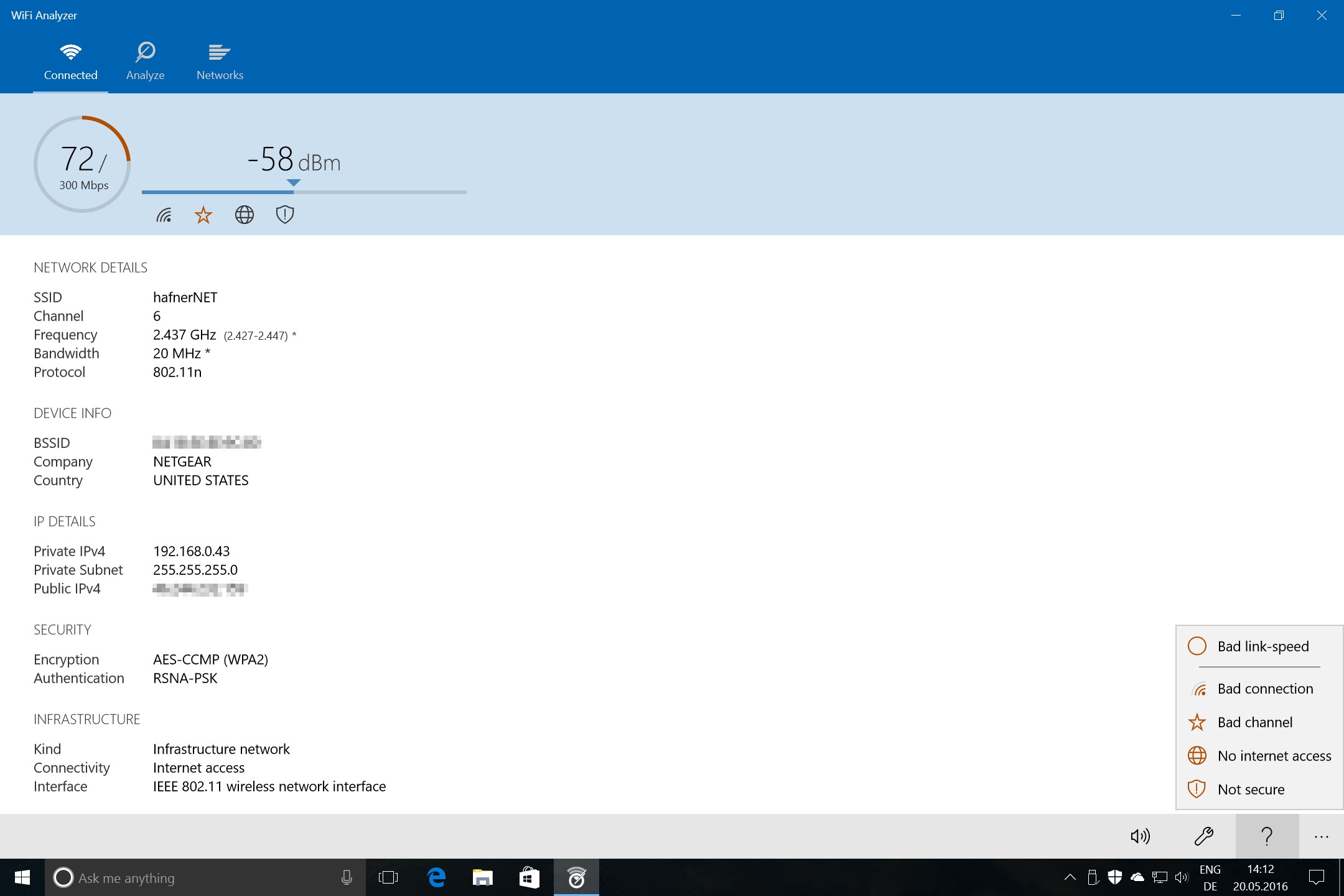
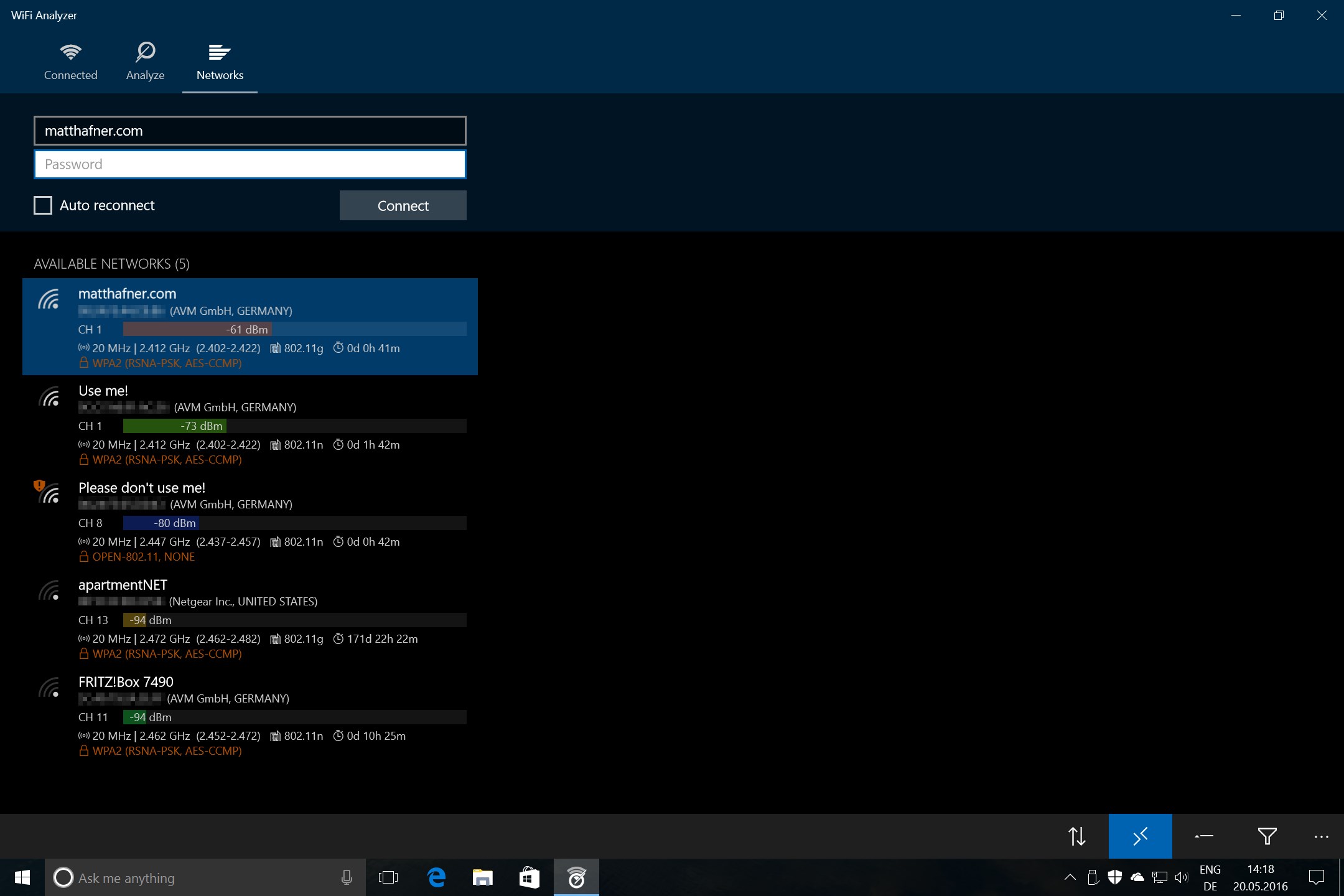
Highlighting its key features, WiFi Analyzer offers real-time WiFi signal strength monitoring, detailed channel analysis, interference detection, and a easy-to-read graphical interface to interpret all this data at a glance. Its main purpose is to help users optimize their home or office WiFi by identifying the best channels and troubleshooting connectivity issues efficiently.
Primarily targeted at Windows users who seek a practical yet accessible network diagnostic tool, it caters to students, remote workers, small business owners, and tech lovers aiming to improve their internet stability and speed.
A Bright Spotlight on Core Features
Visualizing WiFi Signals: Making Invisible Networks Visible
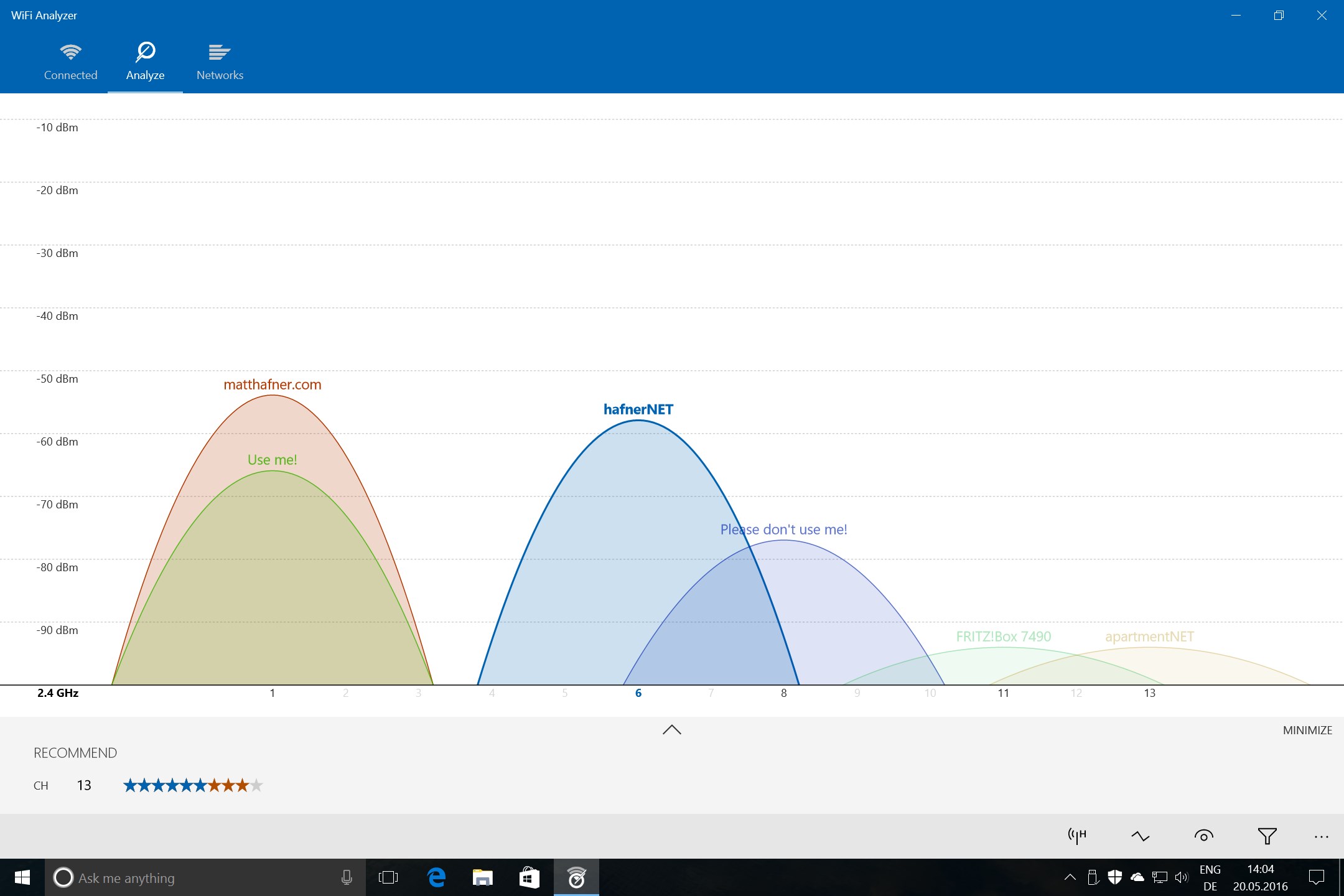
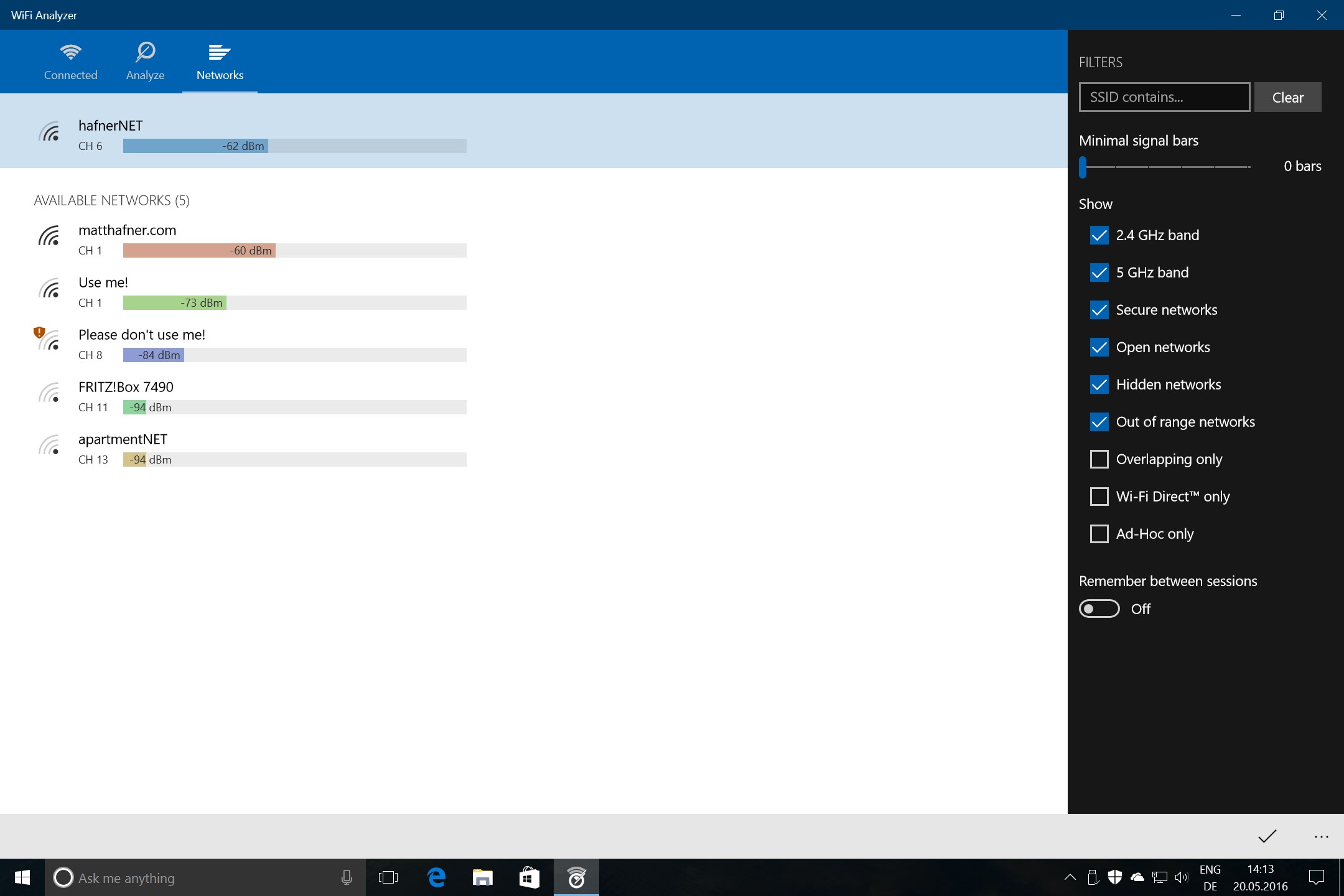
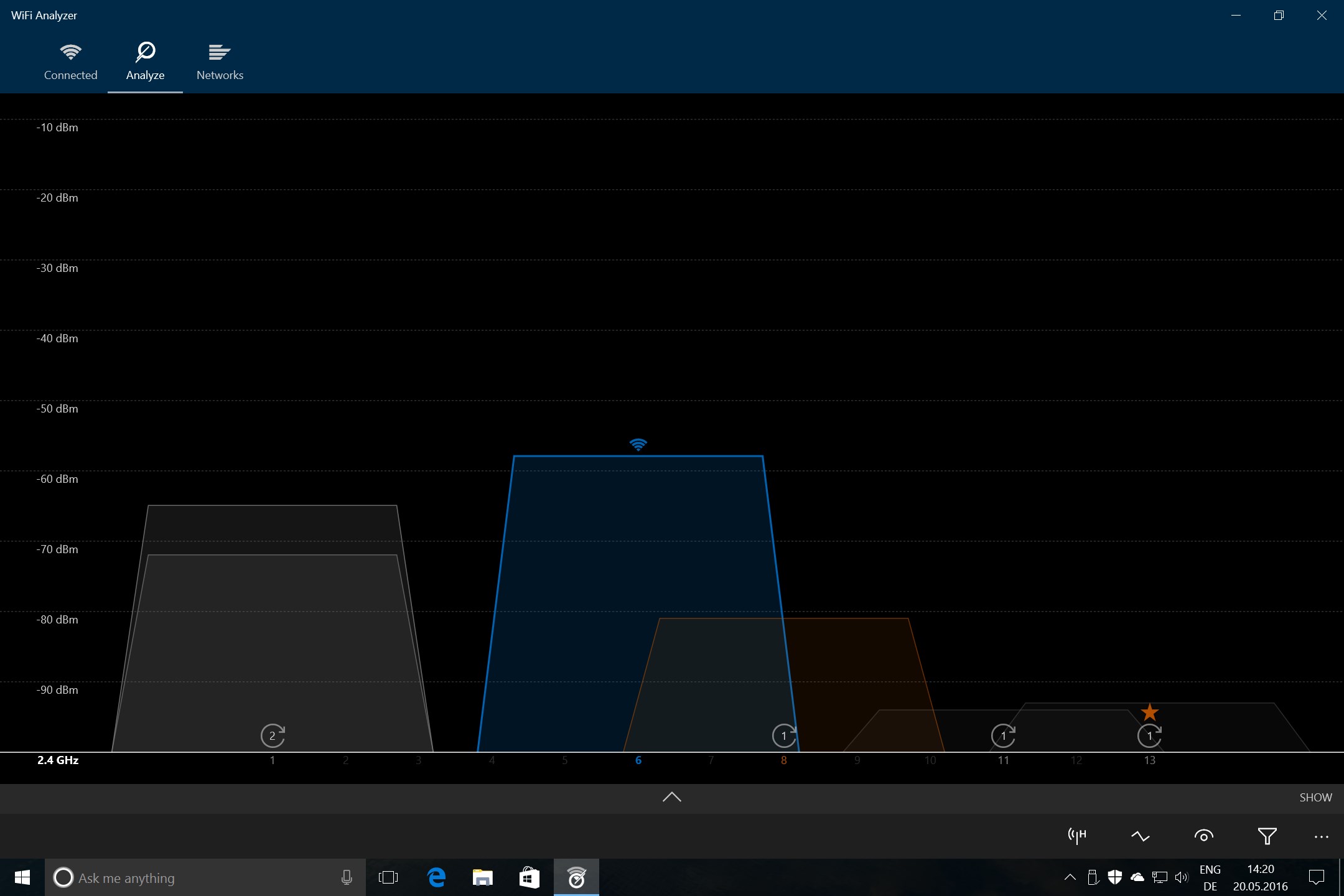
Imagine trying to find a faint star in the night sky—WiFi signals can be just as elusive without the right tools. This app shines a light on all available networks around you with color-coded signal strength indicators. The dynamic graph displays your current network's signal as well as neighboring networks, helping you identify dead spots and optimal placement for your router. This feature transforms complex signal data into an intuitive visual map, making network troubleshooting feel akin to playing a quick game of “find the strongest wave.”
Channel Interference and Optimization
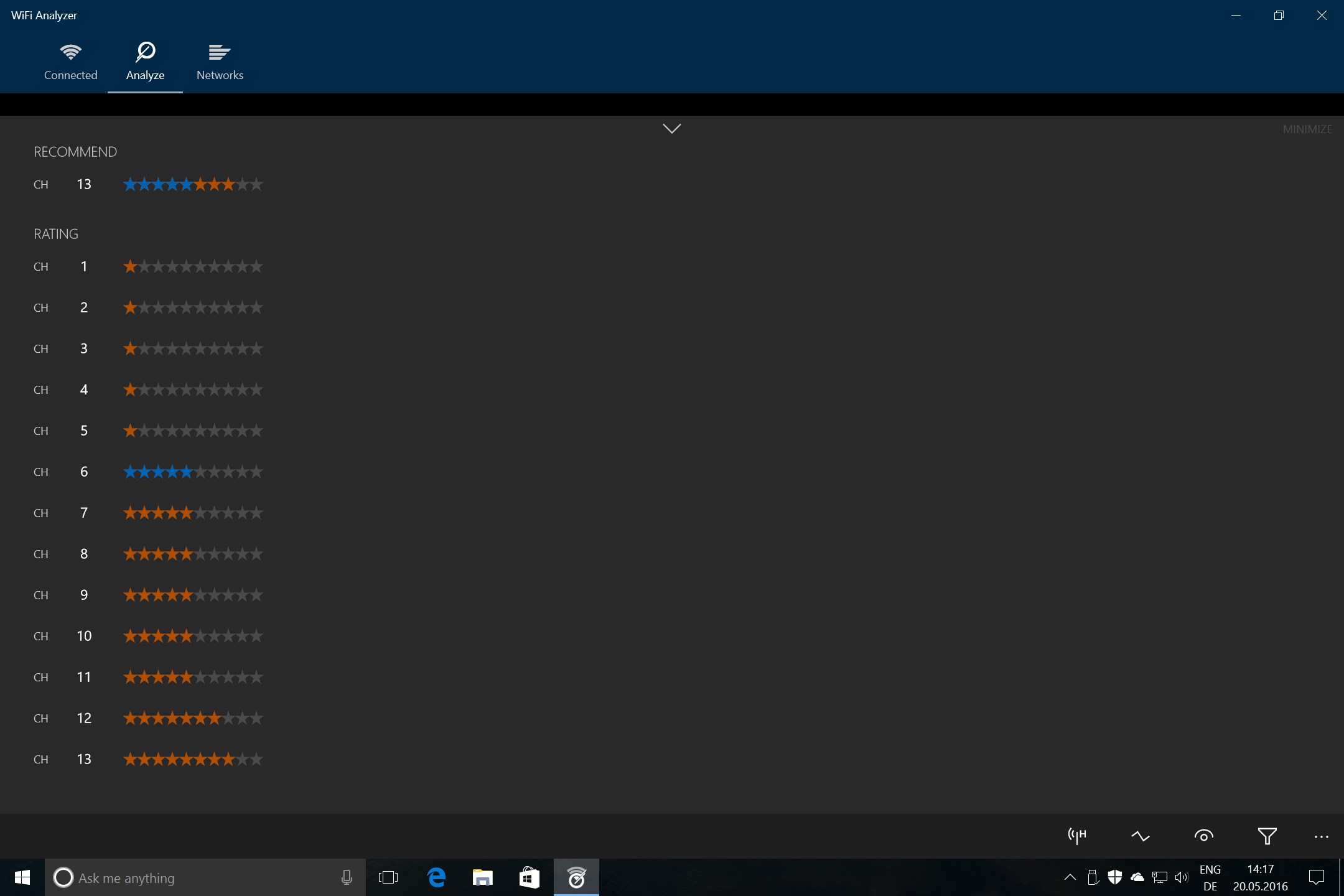
One of the most impressive aspects of WiFi Analyzer is its detailed channel analysis. It scans all nearby networks, revealing which channels are congested and which are underutilized. Think of this as your network's traffic report—directing you to switch your WiFi to the quieter channels for less interference and faster speeds. This feature is especially helpful in densely populated areas where overlapping WiFi signals can slow down your internet significantly.
Historical Data & Signal Monitoring
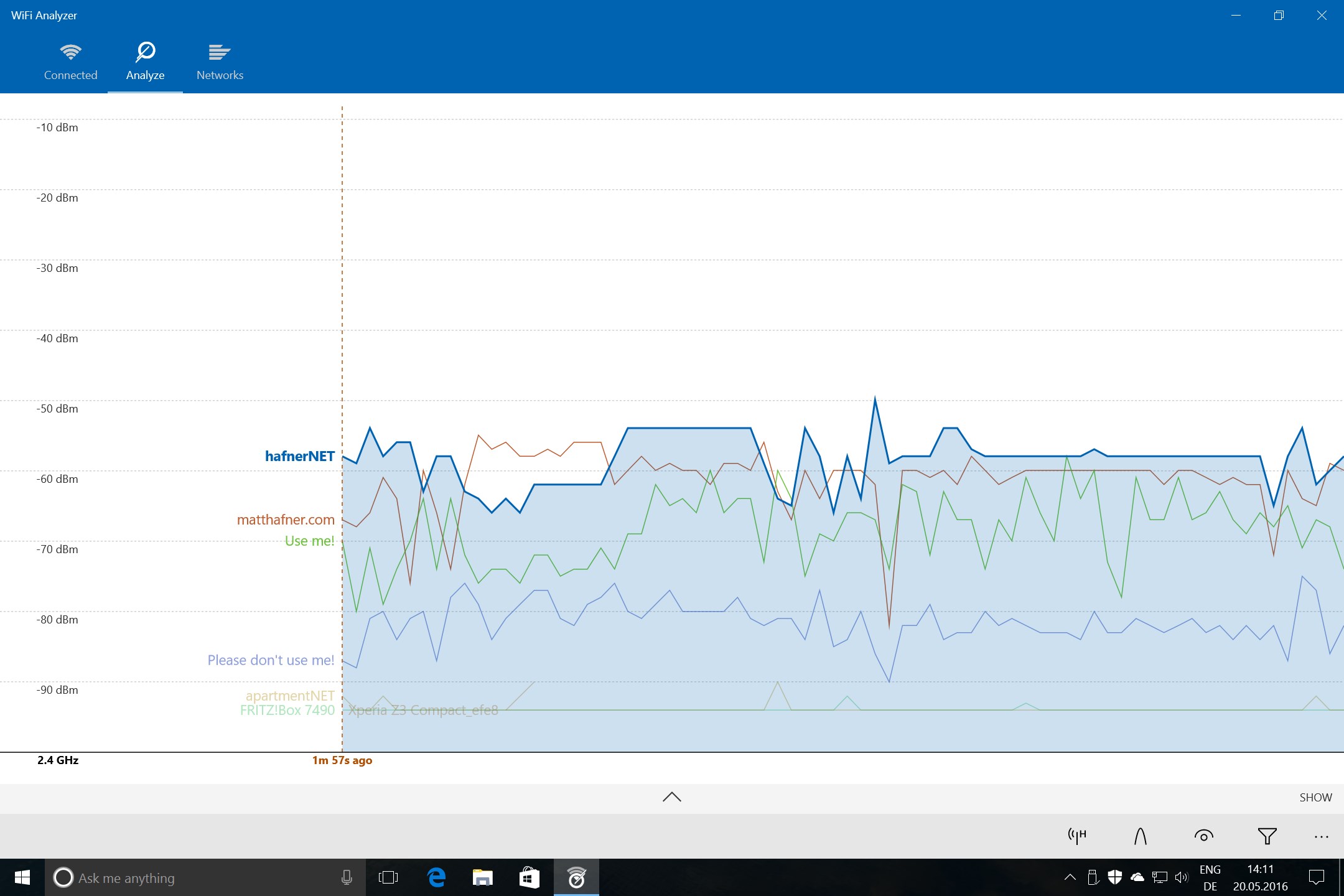
Another unique offering is the ability to monitor signal stability over time. If your WiFi randomly drops or slows, this app logs performance metrics, giving you a timeline view of signal fluctuations. This historical data helps diagnose intermittent issues that are hard to catch in real-time, making it invaluable for troubleshooting stubborn connectivity quirks.
User Experience: Intuitive, Smooth, and Friendly
The app's user interface is clean and straightforward. Designed with clarity in mind, it presents complex networking data in a way that's easy to grasp—even for non-tech-savvy users. Navigating between the signal graphs, channel analysis, and historical logs feels seamless, thanks to its smooth operation and responsive design.
Learning curve? Minimal. The toggles and visuals speak for themselves, and the app doesn't bombard you with jargon. Its straightforward setup and display mean that even first-time users can start diagnosing their WiFi issues within minutes.
Performance-wise, WiFi Analyzer runs smoothly on typical Windows configurations, providing real-time updates without lag or crashes. This stability ensures that users can rely on it during crucial troubleshooting moments or regular network checks.
What Sets It Apart: Unique Advantages in a Crowded Utility Space
Compared to other networking tools that often target professionals or require steep learning curves, WiFi Analyzer for Windows strikes a perfect balance—that of expert insight delivered in a friendly, accessible package. Its most remarkable feature is its detailed and user-friendly channel analysis, which empowers everyday users to optimize their WiFi arrangements confidently. The visual signal maps combined with interference detection make it feel like a personal WiFi coach guiding you to the best connection environment.
Unlike typical utility apps that are either too technical or too simplistic, this app's focus on clear visuals and actionable data makes it stand out—turning what could be a confusing maze of signals into a straightforward map for better WiFi planning.
Final Verdict: A Practical Tool Worth Adding to Your Digital Toolbox
I'd recommend WiFi Analyzer for Windows to anyone looking to troubleshoot or optimize their WiFi setup without needing advanced networking knowledge. Its easy-to-use interface, combined with particularly strong channel analysis, makes it a valuable companion for home users and small business owners alike.
For those who experience frequent WiFi frustrations or want to understand their network environment better, this app offers a practical, no-nonsense solution. It's not just another utility—it's akin to having a knowledgeable friend who knows all the best spots in your digital neighborhood.
Overall, WiFi Analyzer for Windows earns a solid recommendation—use it as your first step toward a faster, more reliable WiFi experience, and enjoy clearer signals like never before.
Pros
- Intuitive User Interface
- Real-time WiFi Monitoring
- Detailed Spectrum Analysis
- Multi-network Scanning
- Helpful Troubleshooting Tools
Cons
- Limited Compatibility
- Requires Constant Internet Access for Updates
- Battery Consumption
- Tutorials Are Basic
- Limited Customization Options











