

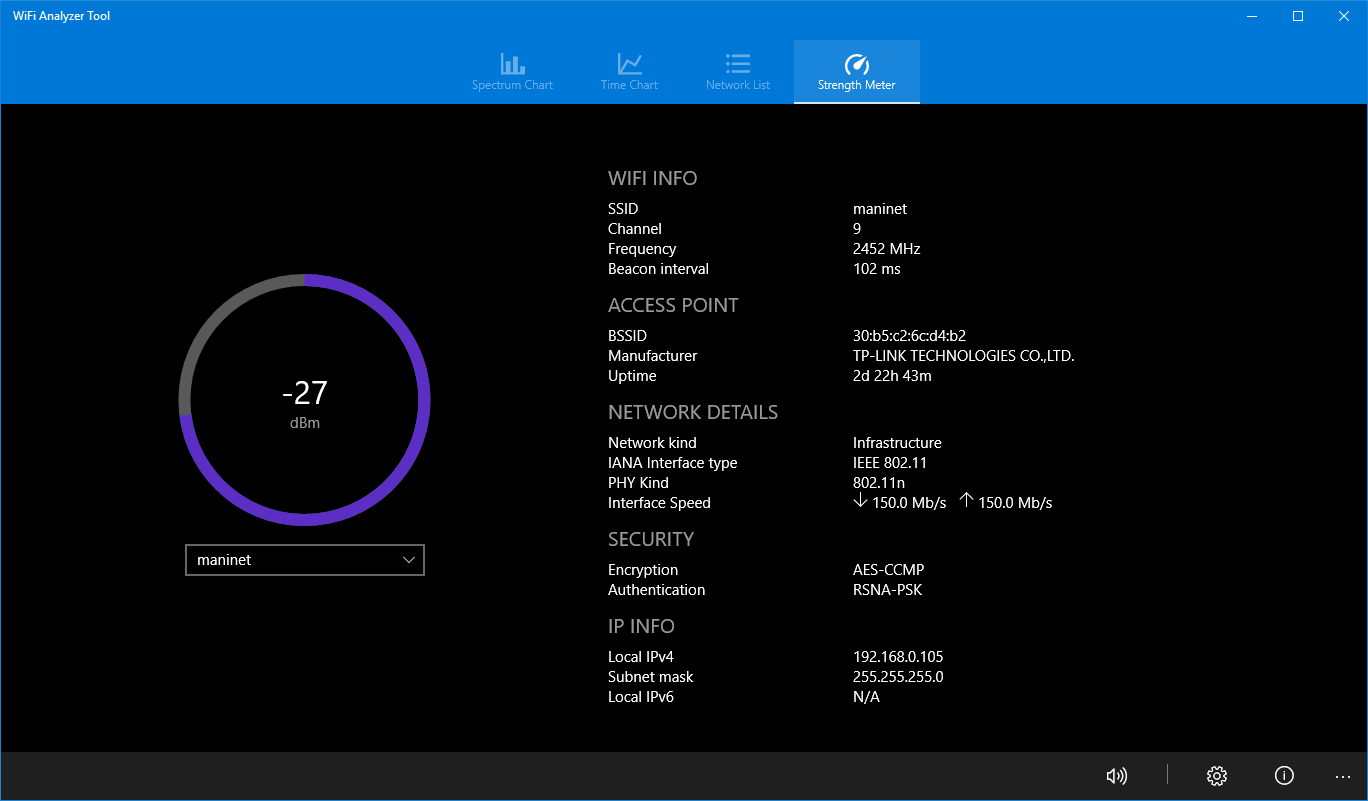
- Name WiFi Analyzer Tool
- Category Utilities & tools
- Available on PC, Surface Hub, HoloLens
- OS Windows 10 version 17134.0 or higher
- languages English (United States)
Introducing WiFi Analyzer Tool for Windows: Your Digital Signal Detective
If you've ever felt like your WiFi is playing hide-and-seek or just not performing as smoothly as it should, this app might just be your new best friend. Designed to help diagnose and optimize your wireless network, WiFi Analyzer Tool for Windows offers an accessible yet powerful suite of features that transform your experience from frustrating to fabulous. Borka Tibor, the talented developer behind this utility, has crafted an intuitive tool that caters to both novices and tech enthusiasts alike.
Core Features That Shine Bright
Real-Time WiFi Spectrum Visualization
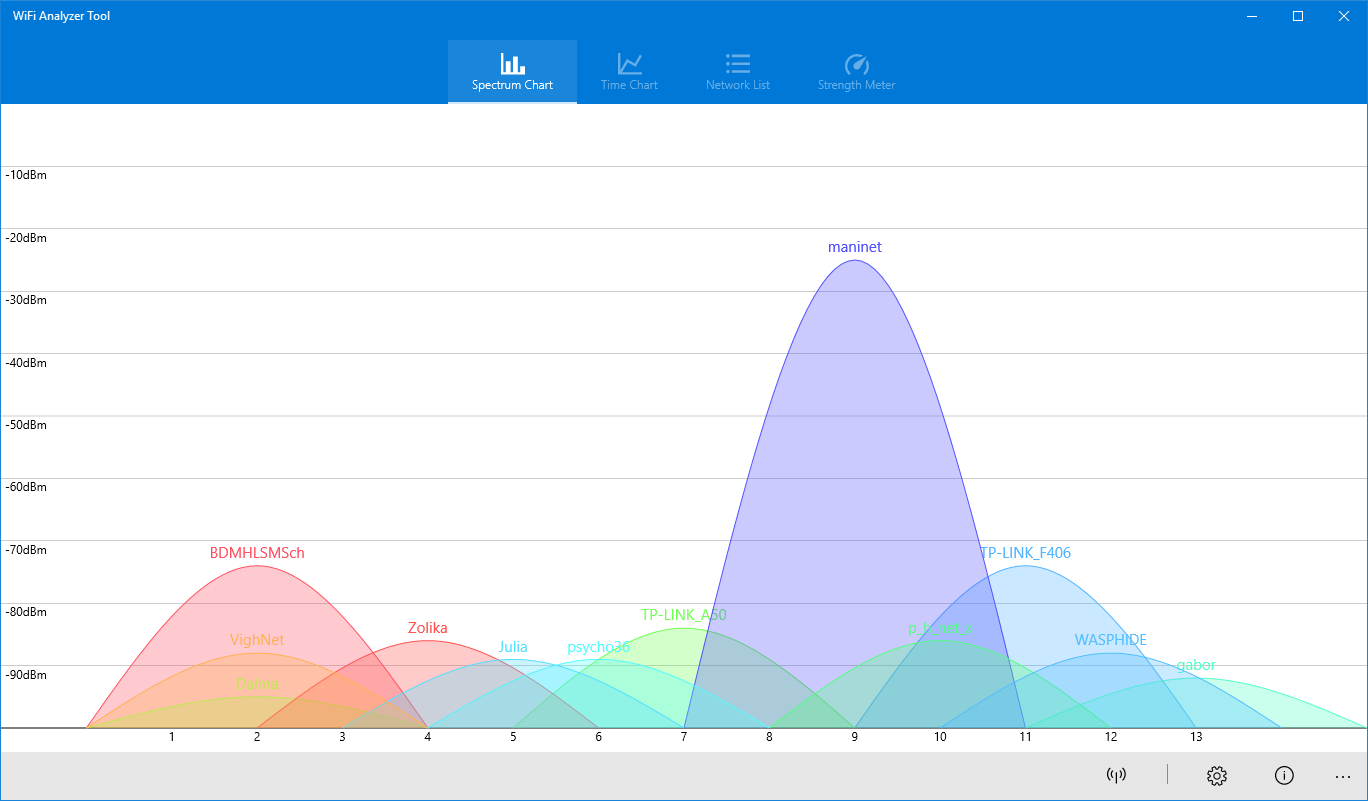
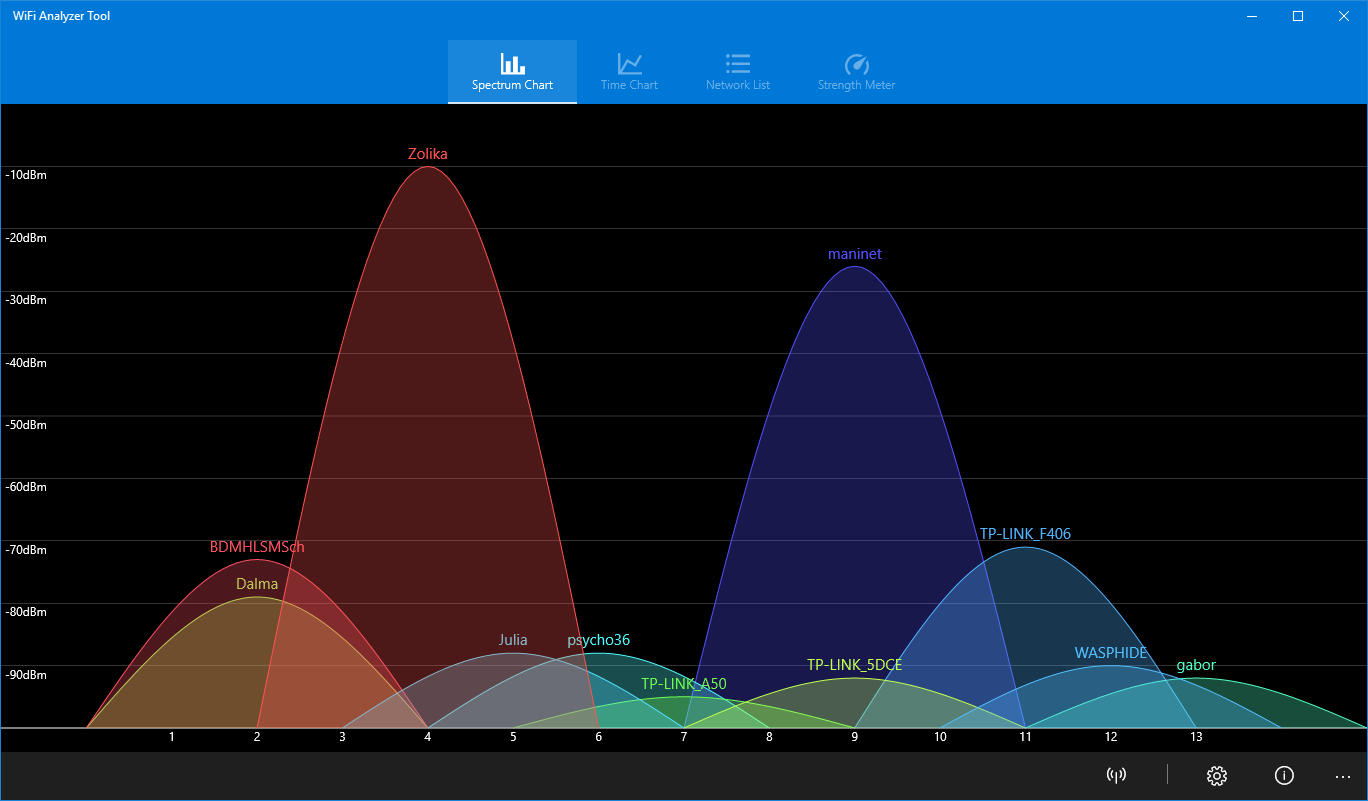
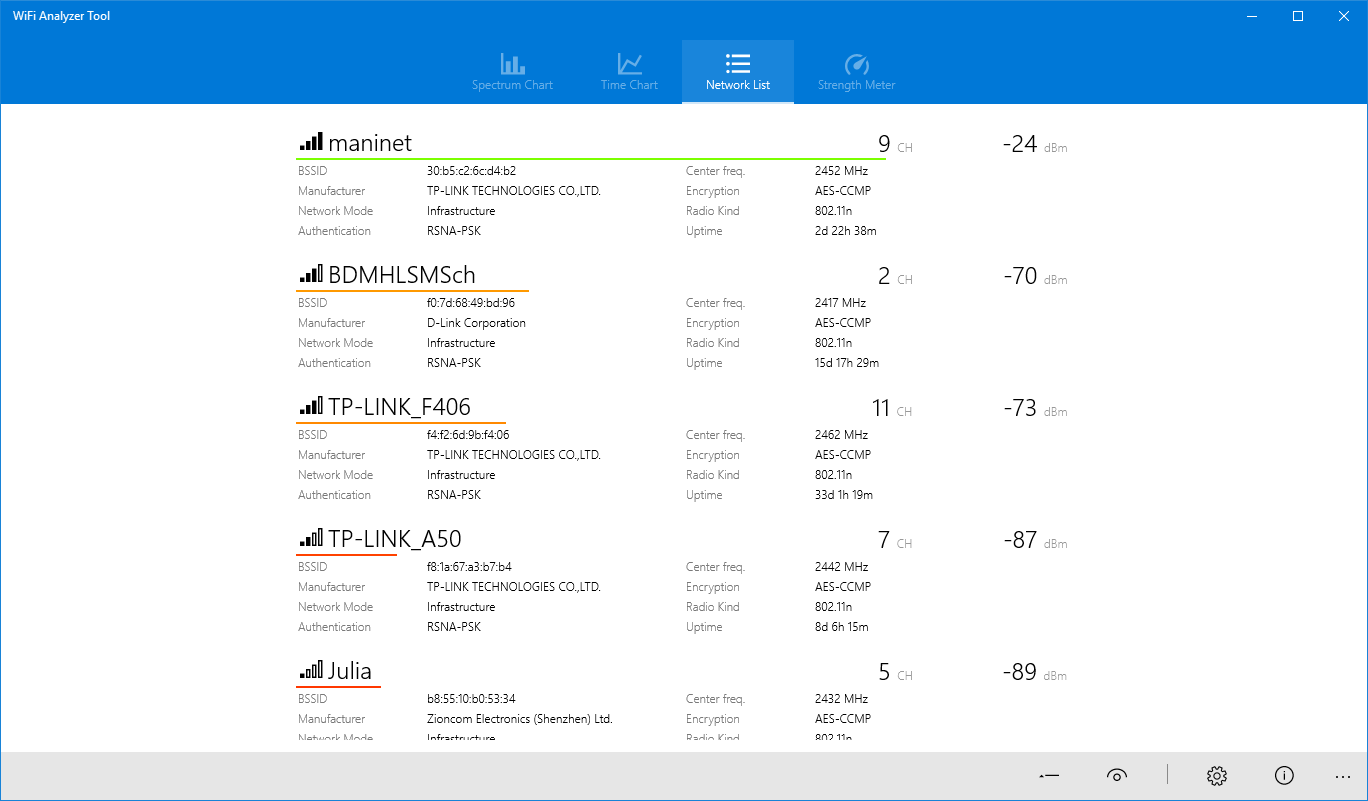
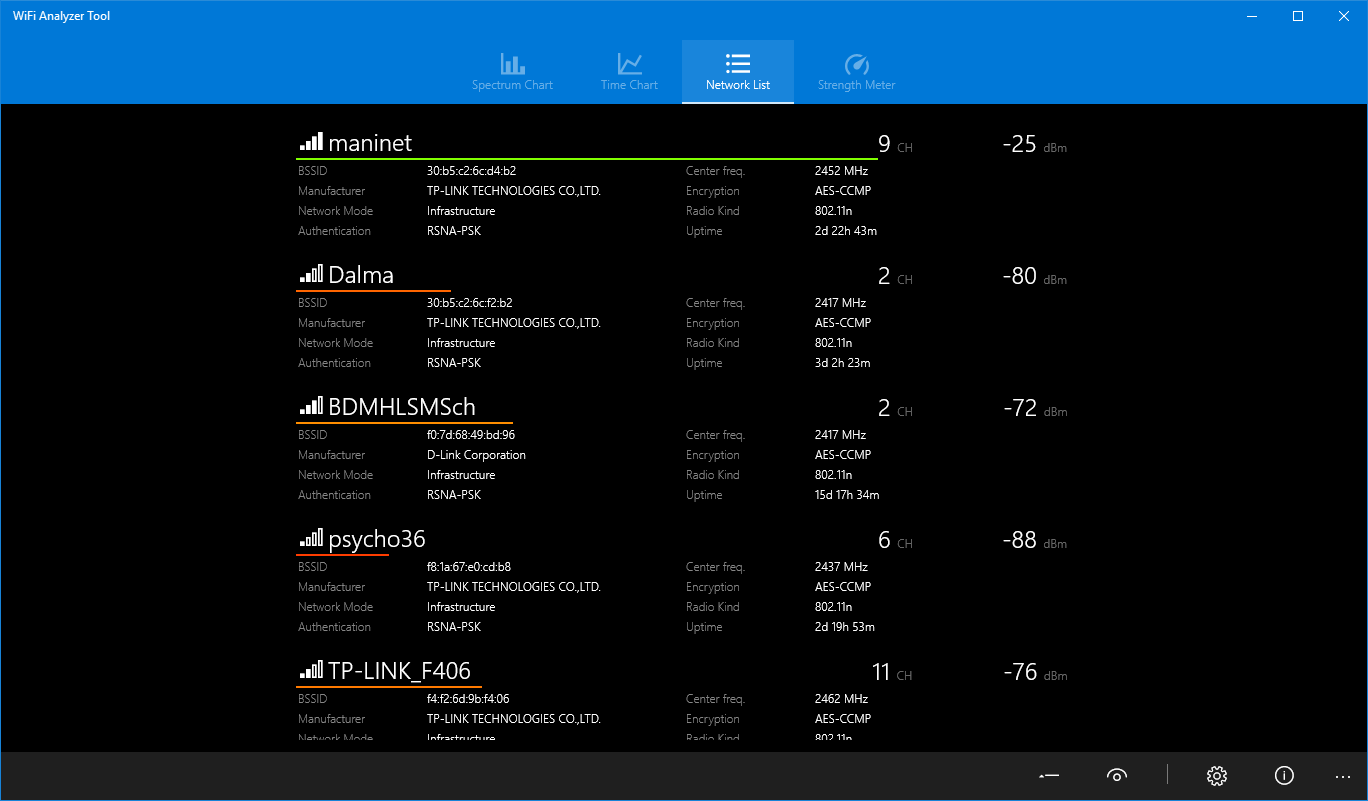
One of the standout features of this app is its ability to display real-time spectrum analysis of your WiFi environment. Visualize the signal strength, interference, and channel usage across your surroundings with colorful, easy-to-interpret graphs. Think of it as a weather radar for your network, allowing you to see the storm clouds—interference from neighboring networks—that might be disrupting your connection. This visualization empowers users to identify less congested channels and make smarter decisions to optimize their WiFi performance.
Channel Optimization and Signal Strength Monitoring
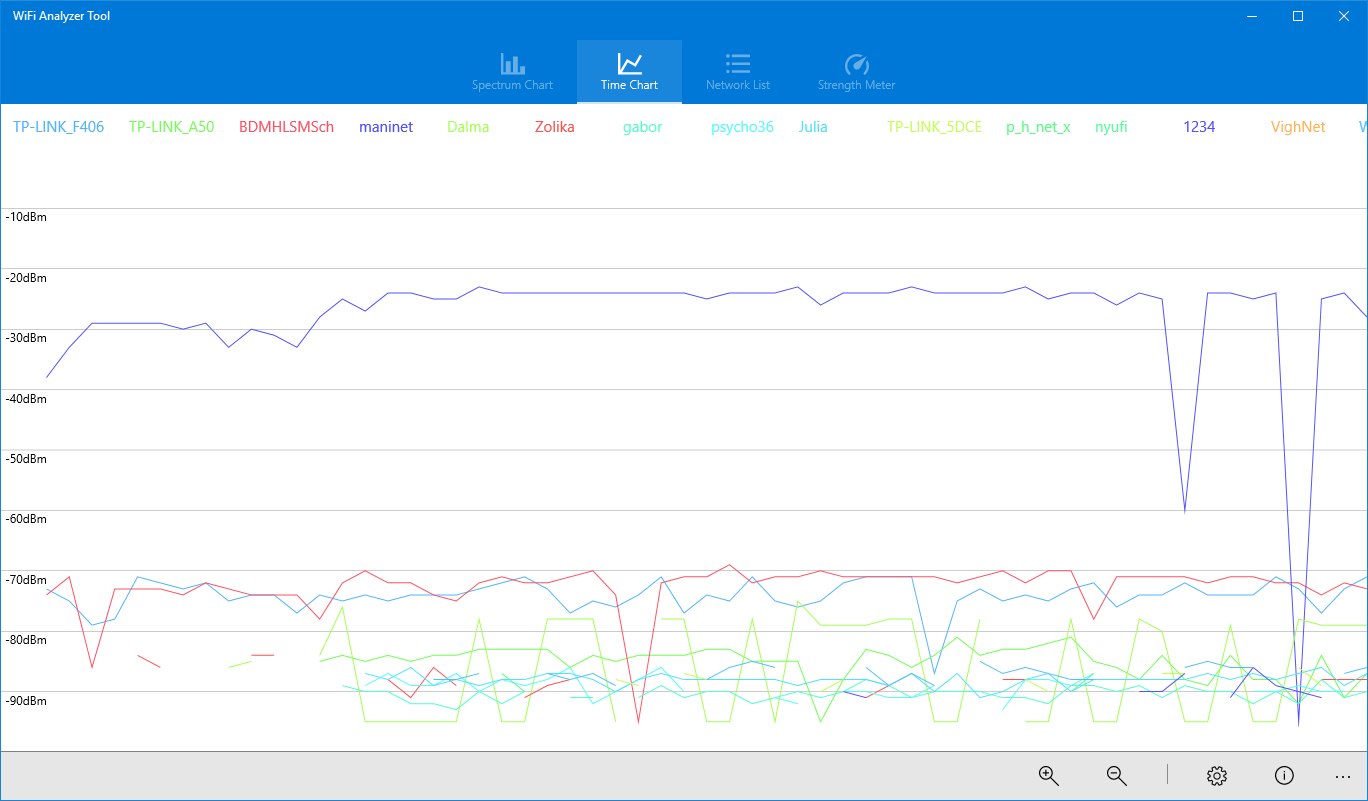
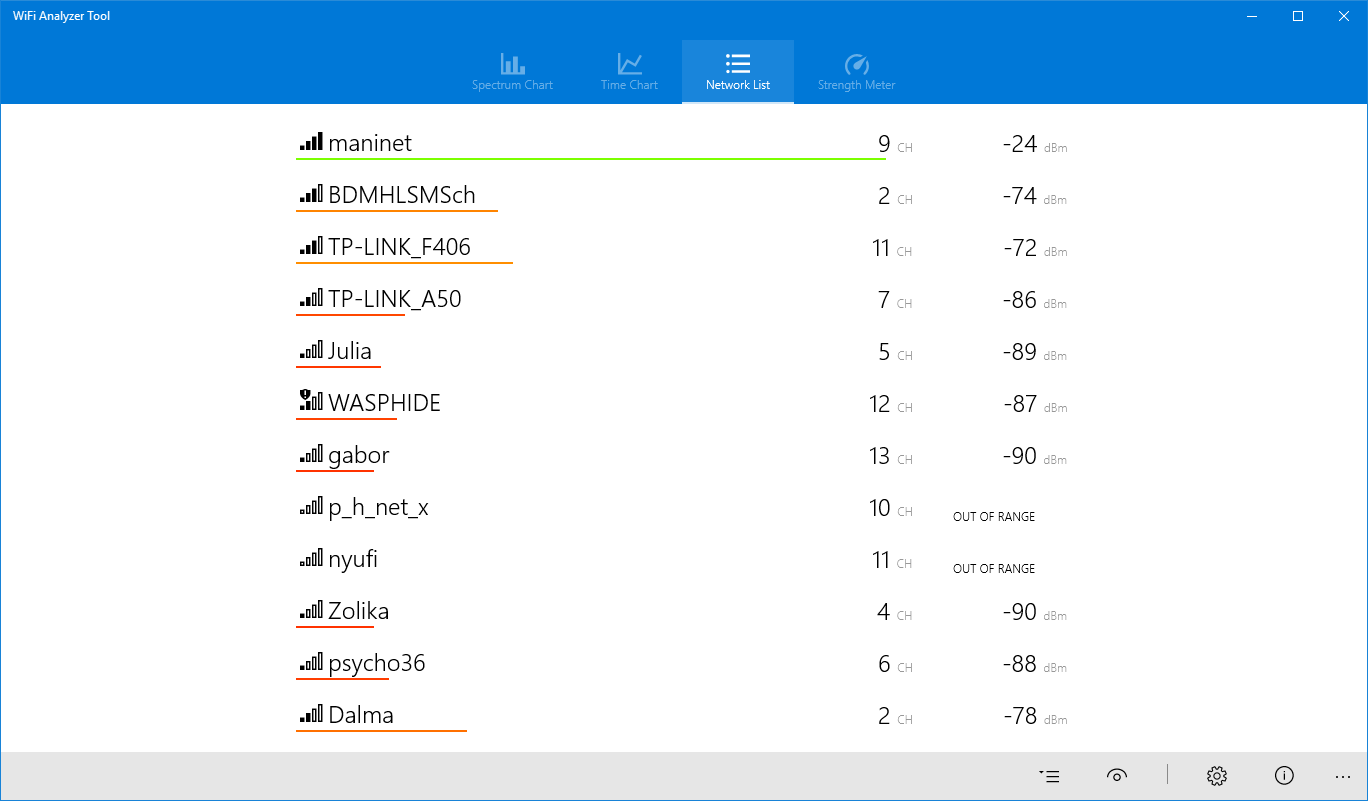
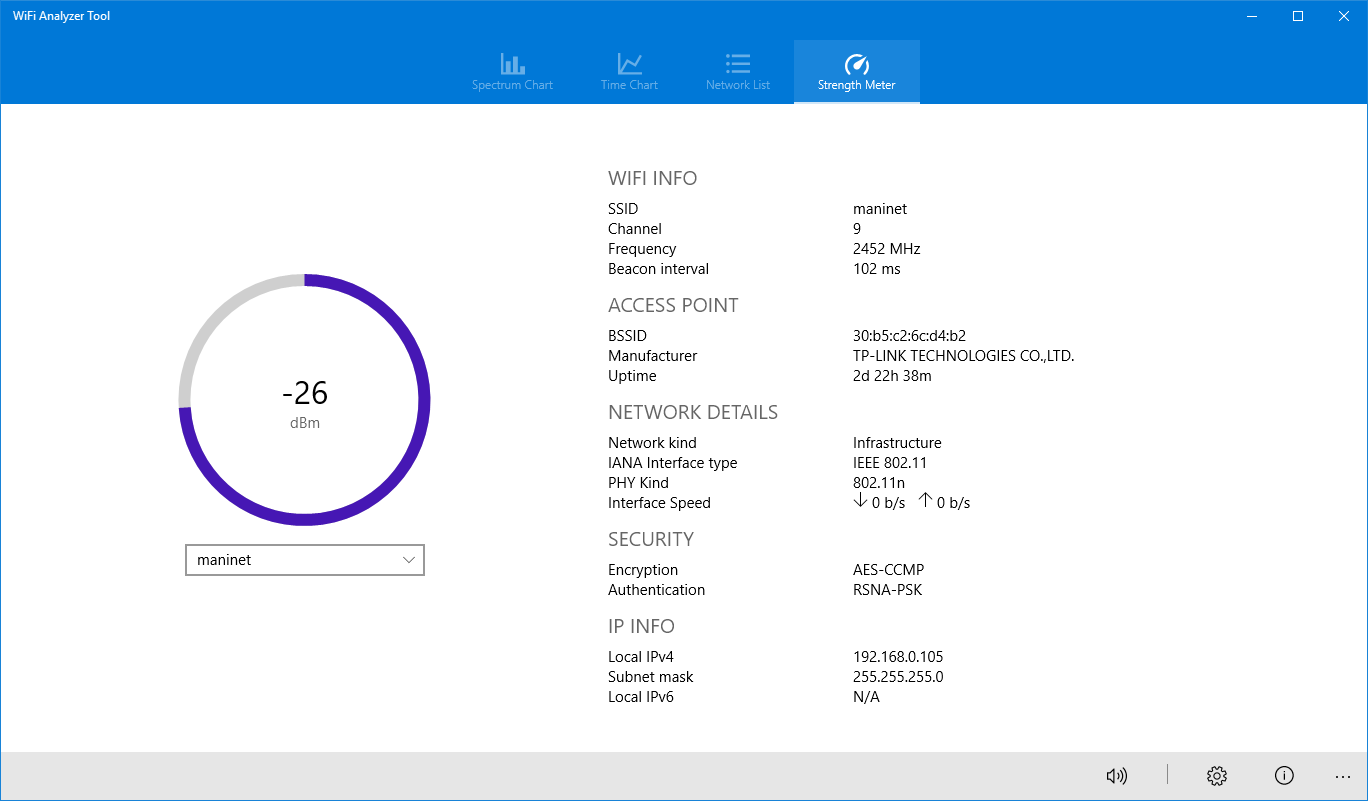
Another compelling feature is its channel analysis tool. It scans nearby WiFi networks and recommends the best channels for your router. It's akin to choosing the clearest radio station—eliminating static and improving clarity. Additionally, continuous signal strength monitoring helps you diagnose connection issues over time, making it easier to pinpoint when and where your WiFi falters. This proactive approach turns network troubleshooting from a guessing game into a strategic plan.
User-Friendly Interface with Intuitive Navigation
Despite the app's advanced capabilities, it boasts a clean and straightforward interface that won't leave you scratching your head. The layout is logically organized, with visualizations and controls that are accessible even for those new to network tools. The smooth operation and minimal learning curve mean you can start assessing your WiFi setup almost immediately—whether you're a casual user or a seasoned techie.
Experience and Differentiation: How It Stands Out
Compared to other utilities in the same realm, WiFi Analyzer Tool for Windows distinguishes itself through its combination of real-time spectrum analysis and user-centered design. Unlike some tools that bombard users with technical jargon or cluttered interfaces, this app provides clear, actionable insights. Its color-coded spectrum maps are particularly noteworthy—they make complex data visually appealing and easy to understand, even for users with limited technical background.
Moreover, the app's channel optimization feature offers a tangible benefit: it can potentially increase your network speed and stability without any hardware changes. For home users dealing with multiple devices or crowded neighborhoods, this targeted approach to interference mitigation can be a game-changer.
Final Thoughts and Recommendations
All in all, WiFi Analyzer Tool for Windows is a well-crafted utility that balances power and simplicity. It's especially useful if you're aiming to maximize your WiFi performance through a deeper understanding of your network environment. While it might not replace more comprehensive professional tools for enterprise-level diagnostics, it offers a solid and insightful starting point for everyday users.
I would recommend this app to anyone experiencing WiFi issues or simply wanting to optimize their home network. Its core features are thoughtfully designed, and the user experience is smooth and engaging—a rare combo in network utilities. So, whether you're troubleshooting your home setup or just curious about what's lurking in your WiFi neighborhood, this tool proves to be a reliable ally in your digital life.
Pros
- Intuitive user interface
- Real-time WiFi analysis
- Detailed channel graph
- Supports multiple WiFi standards
- Export feature
Cons
- Limited device compatibility
- Basic analytics only
- Slow refresh rate in crowded environments
- Limited customization options
- Basic alert system











