- Name Wi-Fi Calling
- Category Business
- Available on PC, Mobile, Surface Hub, HoloLens
- OS Windows 10 version 17763.0 or higher
- Keyboard Integrated Keyboard
- Mouse Integrated Mouse
- languages English (United States)
Effortless Connectivity: An Overview of Wi-Fi Calling for Windows
In the increasingly connected world, seamless communication is essential — especially when traditional networks falter. Wi-Fi Calling for Windows by Integrated Web Solutions positions itself as a reliable bridge to keep you connected through your Wi-Fi network, offering a straightforward solution for voice calls directly on your Windows device. With user-centric design and core features tailored for convenience, this app aims to enhance how we communicate in both personal and professional spheres.
Developer and Core Features
Developed by Integrated Web Solutions, a team known for streamlined communication tools, Wi-Fi Calling for Windows combines simplicity with functionality. The app's main highlights include:
- Seamless Wi-Fi Voice Calls: Make and receive calls over Wi-Fi, bypassing cellular limitations or poor reception.
- Easy Setup and Compatibility: Compatible across various Windows versions, with minimal configuration required.
- Integrated Contact Syncing: Syncs contacts effortlessly, providing quick dialing options without switching apps.
- Secure End-to-End Encryption: Ensures your conversations stay private, a vital feature in today's privacy-conscious era.
The primary users for this application include remote workers, travelers in areas with spotty cell coverage, and anyone seeking a cost-effective, reliable voice communication method over Wi-Fi.
Engaging Your Senses: The User Experience
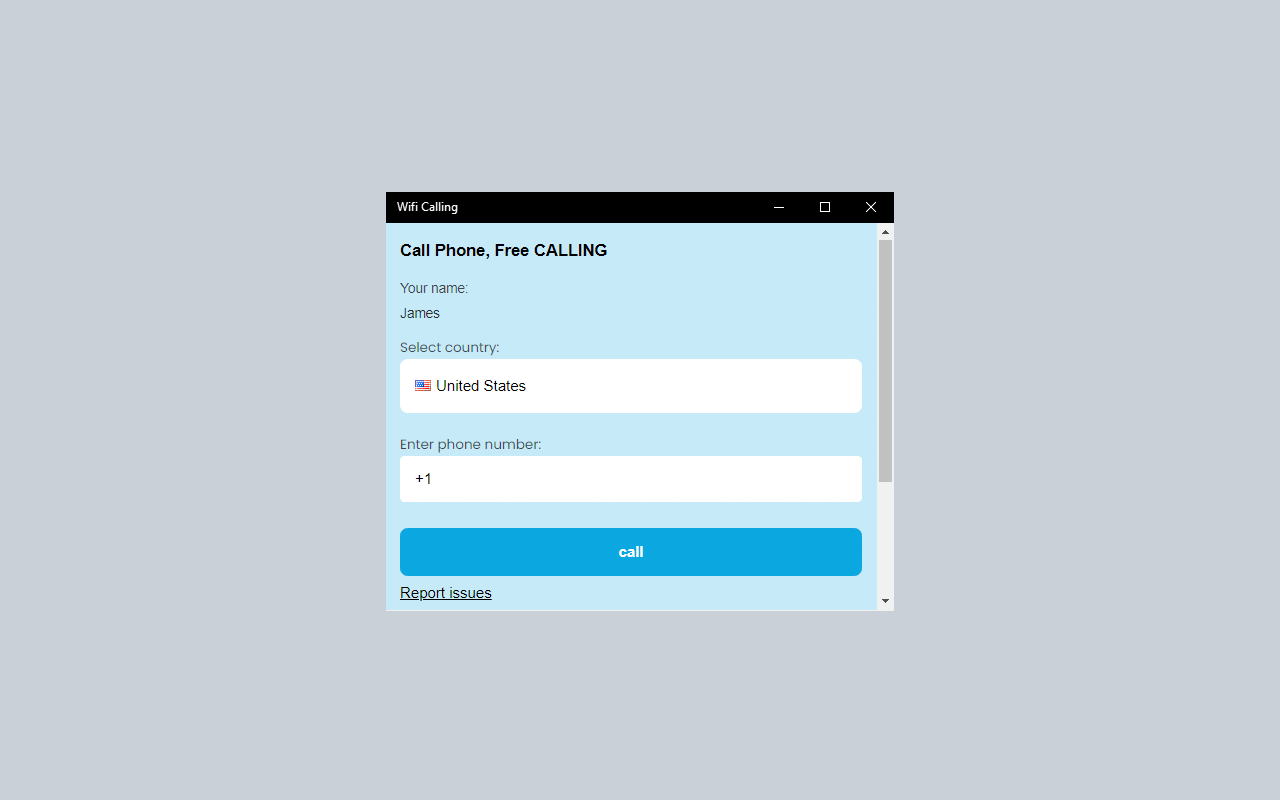
Imagine opening a communication app that feels less like navigating a maze and more like chatting with a familiar friend. That's how Wi-Fi Calling for Windows presents itself—intuitive, efficient, and surprisingly inviting. The interface employs clean lines and straightforward icons, making it easy even for first-time users to get started without wading through complicated menus.
Operation runs smoothly, with voice quality typically clear and lag-free — akin to speaking in person rather than over a glitchy connection. The learning curve is gentle; basic functions are accessible within minutes, yet the app offers advanced settings for power users eager to customize their experience.
What Sets It Apart: Differentiation from Competing Apps
Unlike many business communication apps that focus heavily on collaboration or task management, Wi-Fi Calling for Windows excels through its dedicated approach to voice communication, particularly its strength in clarity and ease of use. Its standout feature is the direct integration with Windows' native infrastructure, enabling users to leverage familiar interfaces without needing to juggle multiple apps or platforms.
Furthermore, the app's ability to facilitate collaborative work via integrated call management makes it more than just a calling tool. You can manage group calls, share contacts within teams quickly, and switch effortlessly between calls and other tasks—roughly like managing a mini conference directly from your desktop. This particular facet makes it especially useful in remote work scenarios where quick, reliable voice communication can prevent misunderstandings and boost productivity.
Final Thoughts and Recommendations
All in all, Wi-Fi Calling for Windows presents itself as a well-crafted, user-friendly application that bridges gaps where cellular networks may not reach comfortably. Its most compelling strengths lie in its clear voice quality and seamless integration with the Windows environment, making it a strong choice for those looking to enhance their online communication toolkit.
We recommend this app to remote workers, digital nomads, and even professionals needing a dependable method to stay connected during travel. It's particularly valuable if your work depends on consistent voice communication without the hassle of toggling between different platforms. While it may not replace comprehensive unified communication suites for complex collaboration, its focused design for Wi-Fi calls makes it a smart addition for anyone seeking straightforward, reliable voice connectivity on Windows.
Pros
- Seamless Wi-Fi Calling Integration
- Easy Setup Process
- High Call Quality
- Battery Efficient
- Compatibility with Multiple Devices
Cons
- Limited Availability in Some Regions
- Requires Stable Wi-Fi Connection
- Initial Setup Can Be Confusing for Some Users
- Limited Advanced Features
- Potential Compatibility Issues with Older Devices