- Name Quick Gantt Chart
- Category Business
- Developer DefinedBytes
- Available on PC, Mobile, Surface Hub, HoloLens
- OS Windows 10 version 17763.0 or higher
- languages English (United States)
Quick Gantt Chart for Windows: A Sleek Solution for Visual Project Planning
If you're seeking a straightforward yet powerful tool to craft clear project timelines, Quick Gantt Chart for Windows might just be your new best friend. Designed with simplicity and efficiency in mind, this application aims to streamline your scheduling process without bogging you down with unnecessary complexities.
Meet the Minds Behind the Tool
Developed and published by DefinedBytes, a team dedicated to creating intuitive productivity applications, Quick Gantt Chart for Windows reflects their commitment to delivering user-centric solutions that enhance workflow management. Their focus on clean design and functional accuracy shows in the application's polished experience.
Key Features That Stand Out
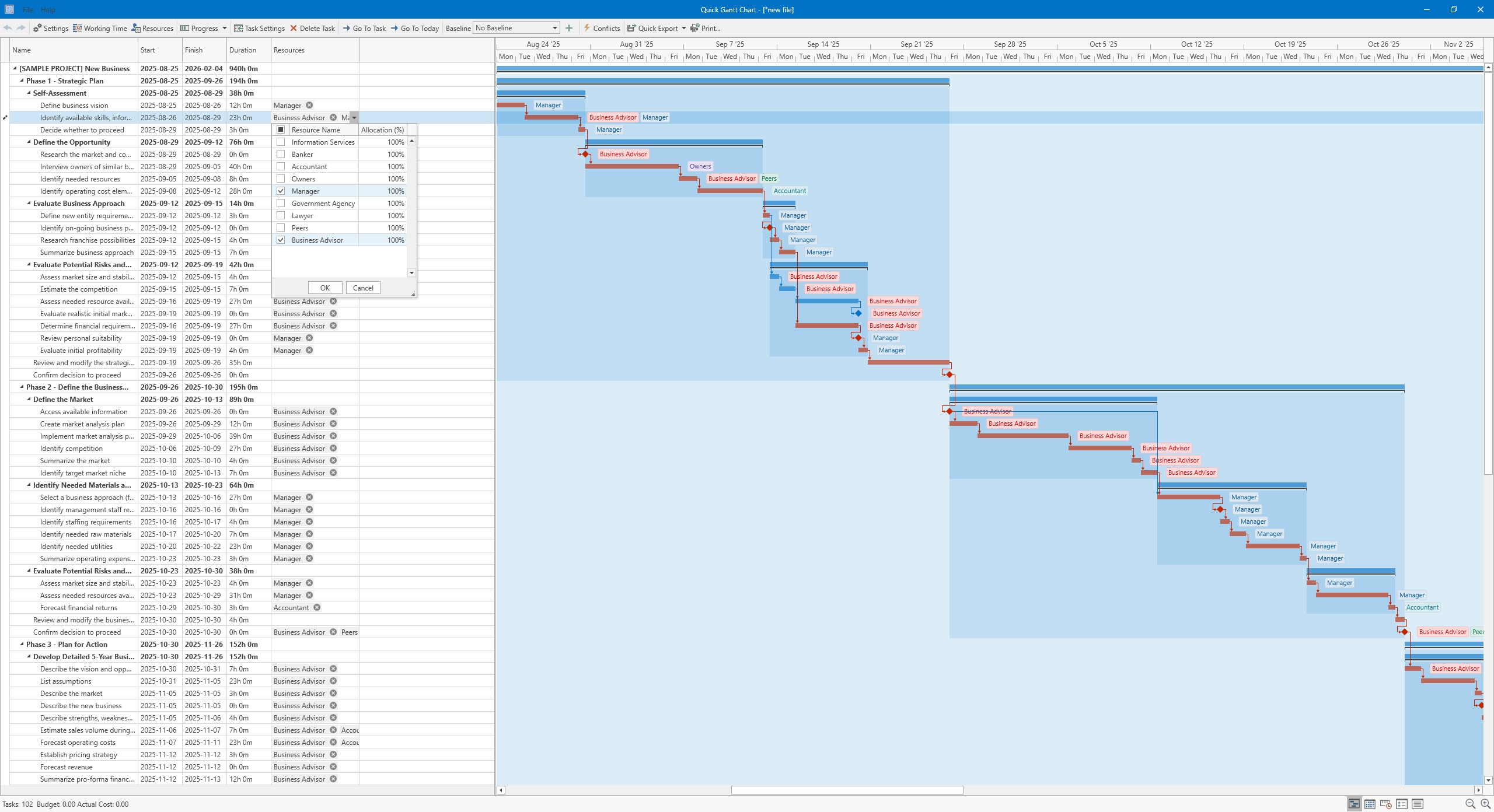
- User-Friendly Gantt Chart Creation: Drag-and-drop functionalities make timeline adjustments a breeze, even for beginners.
- Collaborative Sharing: Easily export charts or share project timelines, facilitating teamwork and communication.
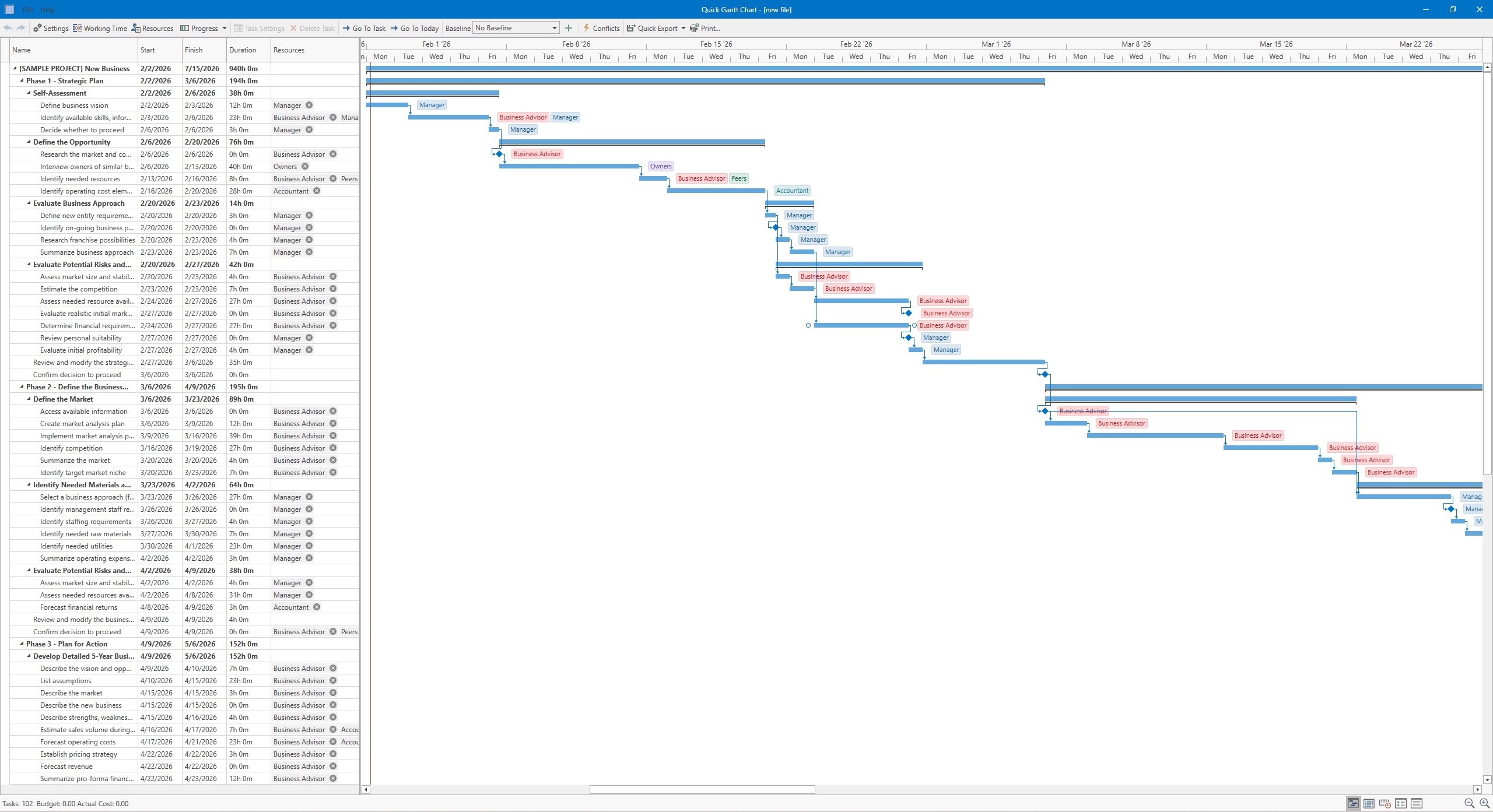
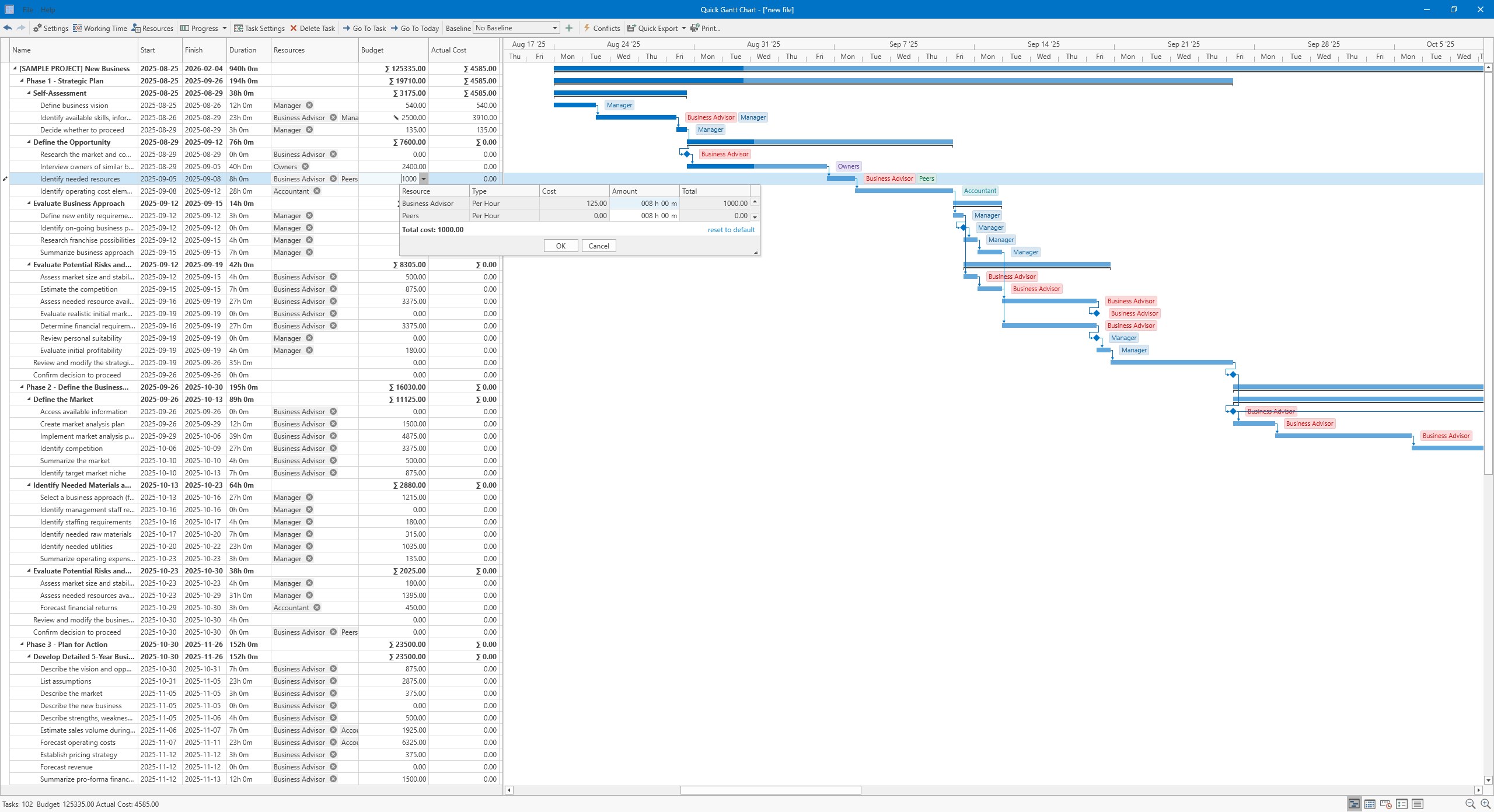
- Task Management and Dependencies: Define task durations, set dependencies, and visualize critical paths effortlessly.
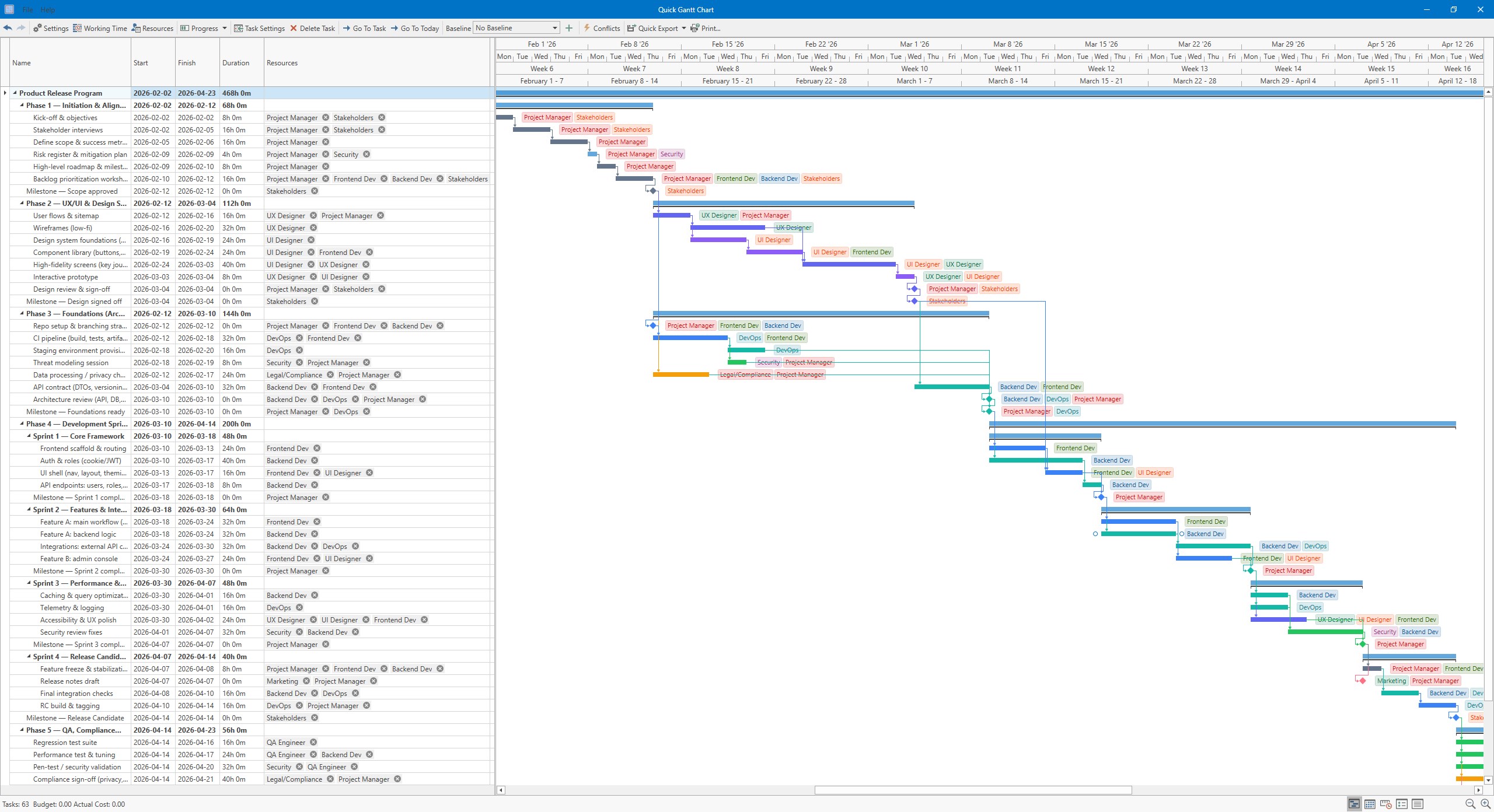
- Customizable Visuals: Choose color schemes and labels to tailor your project view according to your preferences or branding.
An Engaging Dive into Its Capabilities
Imagine you're an organizer gearing up for a big product launch. The chaotic flurry of tasks, deadlines, and team responsibilities can seem overwhelming, but with Quick Gantt Chart, it's like having a bird's-eye view of the entire project landscape. Its intuitive interface transforms what could be a muddled spreadsheet into a vibrant roadmap—think of it as turning a tangled ball of yarn into a neatly stitched pattern — clear, colorful, and manageable.
Streamlined Core Functionalities
The app's star feature is its straightforward Gantt chart creation process. Users can add, move, and adjust tasks with simple drag-and-drop actions, making it accessible for those less familiar with complex project management tools. Crucially, the application supports task dependencies, allowing users to illustrate workflows where one task's start hinges on another's completion. This visualization helps prevent bottlenecks before they occur, much like a well-placed traffic signal keeps a busy intersection flowing.
Another highlight is the collaborative sharing capability. Export your charts as images or PDFs, or even share them directly through integrated options. This makes team discussions more visual and focused, akin to turning abstract plans into detailed maps everyone can follow. The customization options — choosing colors, labels, and layouts — ensure your visuals can match your branding or personal style, turning a plain chart into a professional presentation.
Experience and Usability Perspective
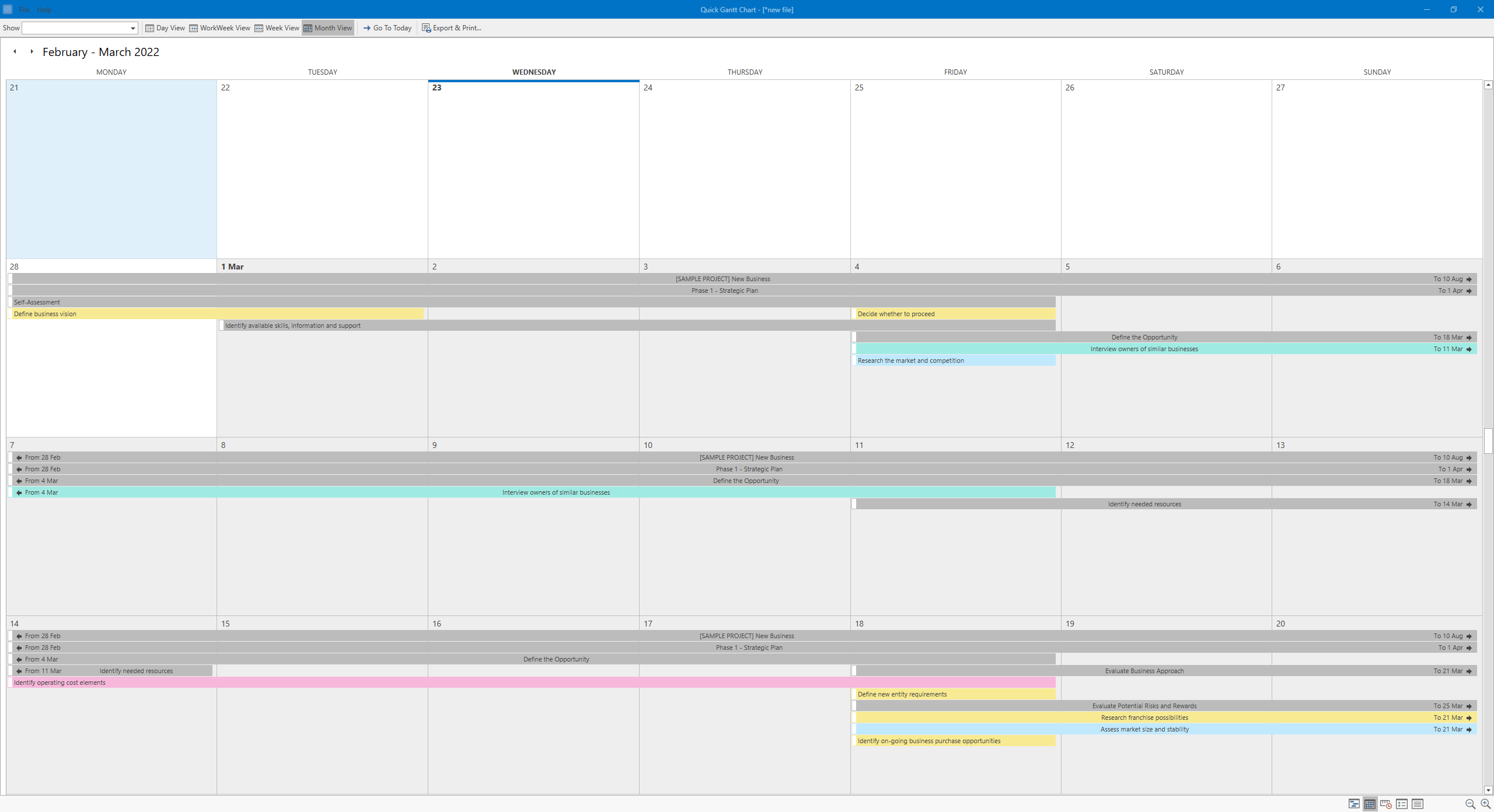
From a user experience standpoint, Quick Gantt Chart for Windows offers a clean, clutter-free interface that invites exploration. The learning curve is gentle; even novices can pick up the basics within minutes. Navigating through different project views feels smooth and responsive, akin to gliding over a well-paved path rather than trudging through rough terrain. This fluidity encourages users to experiment with different layouts and task arrangements, which can greatly improve planning efficiency.
What Sets It Apart from Similar Apps?
Compared to more feature-heavy project management apps, this tool's notably unique aspect is its laser focus on the Gantt chart itself with collaborative features baked right in. Unlike many competitors that lean heavily on task management or team collaboration modules, Quick Gantt Chart for Windows offers an especially seamless experience for visual timeline creation and sharing. Its simplified approach means fewer distractions, making it a perfect fit for teams or individuals who primarily need clear, visual project planning without getting lost in extraneous features.
Final Thoughts: Is It Worth a Spot in Your Toolbox?
Overall, Quick Gantt Chart for Windows earns a solid recommendation for users seeking a dedicated, easy-to-use Gantt chart solution. It's especially suitable for small to medium-sized projects where clarity and collaboration are key. While it might lack some advanced project management features found in larger suites, its niche focus is its strength — providing a sharp, fast, and visually engaging way to outline project timelines. If you value simplicity coupled with effective visuals, give this app a try; it might just become your go-to planning companion.
Pros
- Intuitive drag-and-drop interface
- Real-time collaboration features
- Seamless integration with Microsoft 365
- Customizable task dependencies and milestones
- Export options for PDF and image formats
Cons
- Limited offline functionality
- Few advanced resource management tools
- Basic customization options
- Occasional lag with large projects
- Limited tutorial content for new users