

- Name Webcam Settings Tool.
- Category Utilities & tools
- Available on PC
- OS Windows 10 version 17763.0 or higher
- languages English (United States)
A Clearer View: Introducing Webcam Settings Tool for Windows
If you've ever felt frustrated by limited webcam controls or struggled to fine-tune your camera's picture quality, the Webcam Settings Tool by Lambert Studio might just be your new best friend. This straightforward utility acts as a bridge between you and your webcam, offering an easy way to tweak settings that aren't readily accessible through default software. Whether you're a professional content creator, remote worker, or casual streamer, this tool aims to give you more control over your webcam's display—no complex configurations required.
Main Features That Stand Out
Intuitive Control Panel
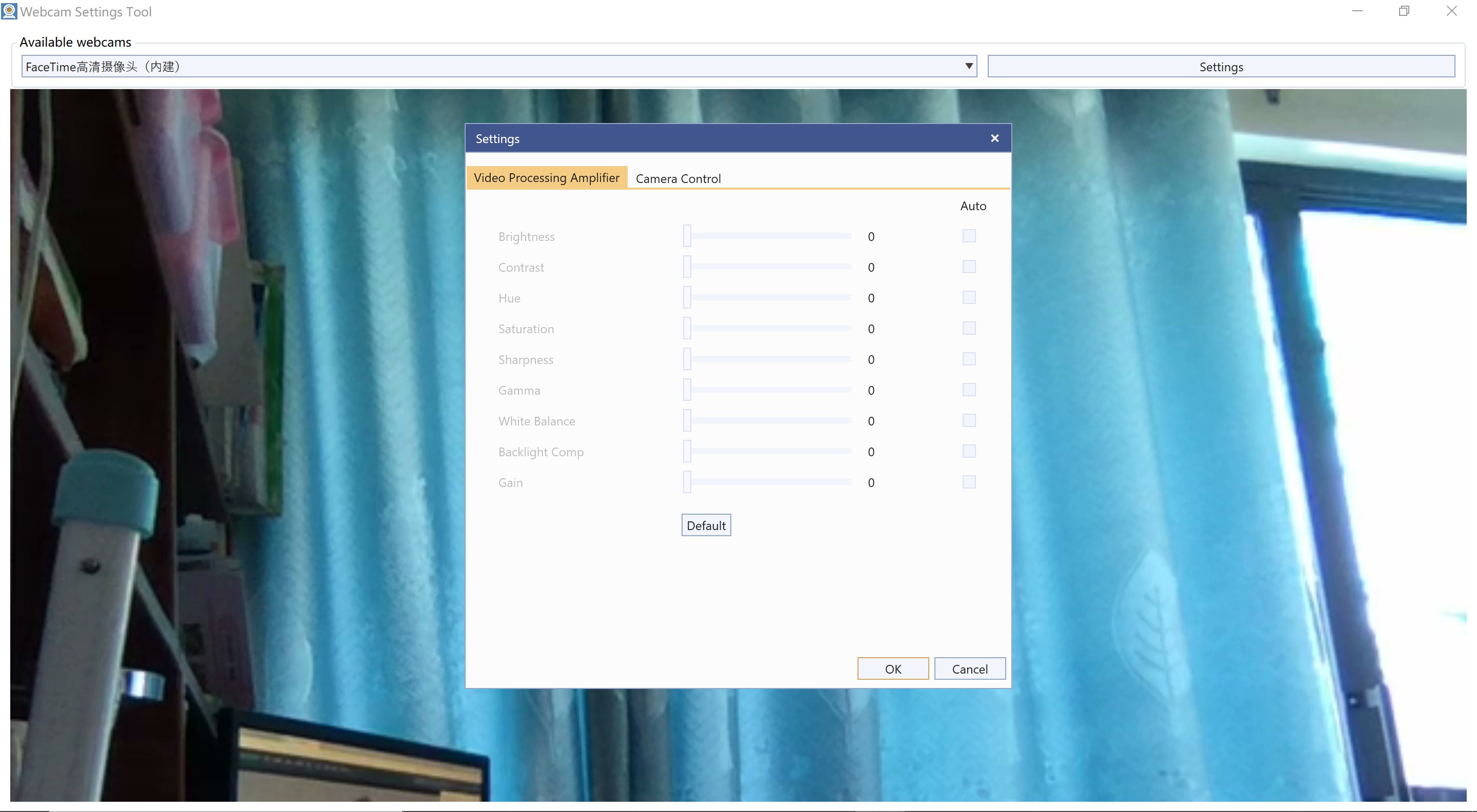
The application's interface is designed with simplicity in mind, providing users with a clean layout that makes adjusting settings like brightness, contrast, and focus feel as natural as turning a dial. This user-friendly approach helps beginners quickly grasp webcam tuning without wading through layers of complicated menus.
Real-Time Preview & Adjustment
One of the highlights is its real-time preview feature. As you tweak parameters, you'll instantly see the effects on your webcam feed. Imagine adjusting the lighting while watching your image illuminate or dim in real time—this immediate feedback loop makes personalization both effective and satisfying.
Comprehensive Camera Control
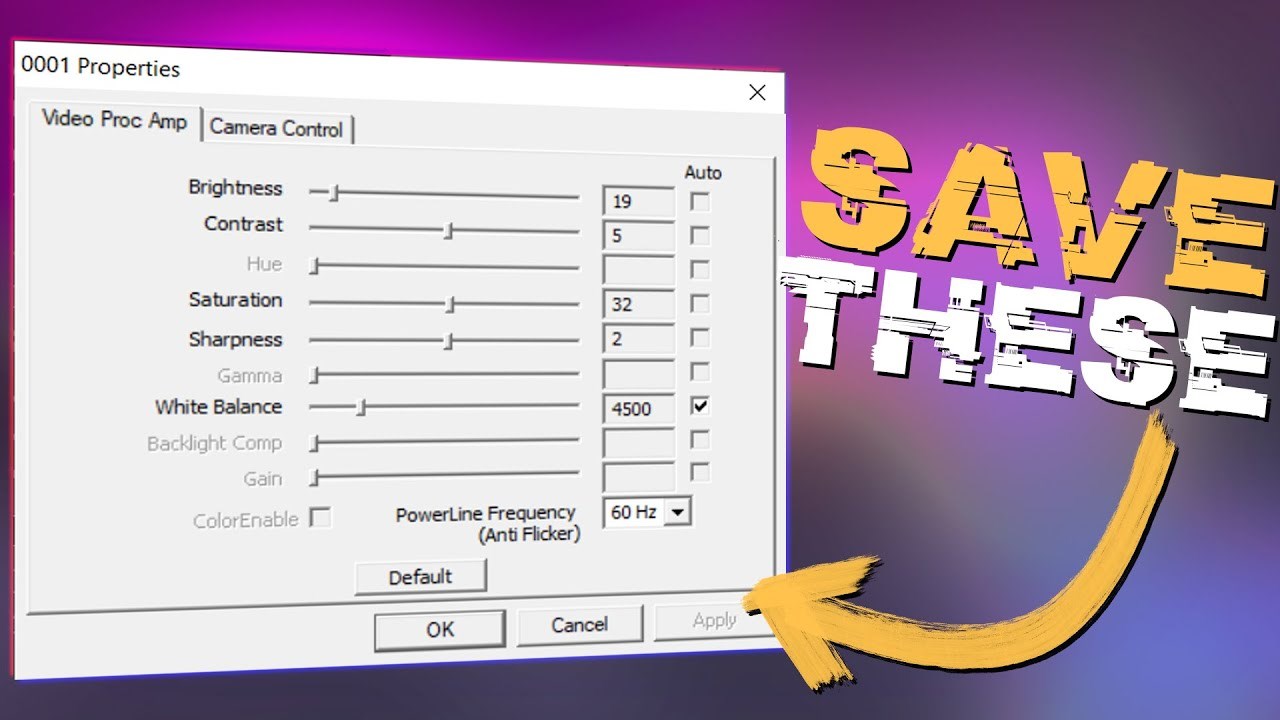
Beyond basic settings, the tool offers advanced options such as exposure, white balance, gamma, and even hardware-specific controls when supported by your webcam. This level of detail is particularly advantageous for professionals seeking to optimize their image quality or troubleshoot issues seamlessly.
Design, Usability, and User Experience
The application's interface embodies a practical yet minimalistic design, akin to a well-organized toolkit—everything you need is within arm's reach. Navigating through the settings feels smooth, with minimal lag or delays, making the adjustment process feel natural rather than frustrating. For those new to webcam tweaking, Lambert Studio has done a good job reducing the learning curve—most controls are self-explanatory, and tooltips help clarify any uncertainties.
Compared to similar utilities, Webcam Settings Tool offers a more streamlined experience without sacrificing depth of control. Its focus on real-time feedback and its clean layout set it apart from more cluttered or overly technical options, making it perfect for users who want quick, reliable adjustments without digging into complex configurations.
Unique Assets: What Makes It Truly Stand Out
Unlike many generic webcam utilities, this app emphasizes not only control but also simplicity. Its real-time preview feature, combined with precise sliders and straightforward controls, creates an effortless tuning process. If you're aiming to improve your live streams, video calls, or recordings, the ability to instantly see how changes affect your image offers a clear advantage. Additionally, Lambert Studio has optimized the tool for broad camera compatibility, making it a flexible choice for various device brands and models.
Final Thoughts and Recommendations
All in all, Webcam Settings Tool for Windows is a well-crafted utility that fills a gap in webcam control for everyday users. Its user-friendly interface, real-time adjustments, and comprehensive controls make it highly recommended for those who want more from their webcam experience without diving into complex software. I'd suggest giving this app a try if you're looking to enhance your video quality easily or troubleshoot your camera settings efficiently. It's an excellent addition to any videographer's toolbox, especially for users seeking a balance between depth and simplicity.
Pros
- Intuitive interface
- Wide device compatibility
- Real-time settings preview
- Advanced customization options
- Lightweight and fast
Cons
- Limited support for newer webcam models
- Lacks cloud integration features
- Occasional stability issues on older Windows versions
- Limited documentation and help resources
- No automatic update feature











