- Name Web Video Caster.
- Category Business
- Available on PC, Mobile, Surface Hub, HoloLens
- OS Windows 10 version 17763.0 or higher
- Keyboard Integrated Keyboard
- Mouse Integrated Mouse
- languages English (United States)
Introducing Web Video Caster for Windows: A Desktop Solution for Streaming and Mirroring
Web Video Caster for Windows is designed to seamlessly bridge your computer with various smart devices, enabling effortless streaming and mirroring of web videos, local media, and more. Whether you're looking to enjoy your favorite content on a bigger screen or share media with friends, this app aims to be your go-to desktop companion for media casting.
Meet the Developer: Screen Mirroring Apps
Produced by Screen Mirroring Apps, a team dedicated to enhancing screen sharing experiences, this application consolidates various streaming functionalities into an easy-to-use Windows interface.
Key Features That Shine
- Universal Device Compatibility: Supports casting to a broad range of devices including smart TVs, Chromecast, Roku, and DLNA-enabled devices, making it versatile for different configurations.
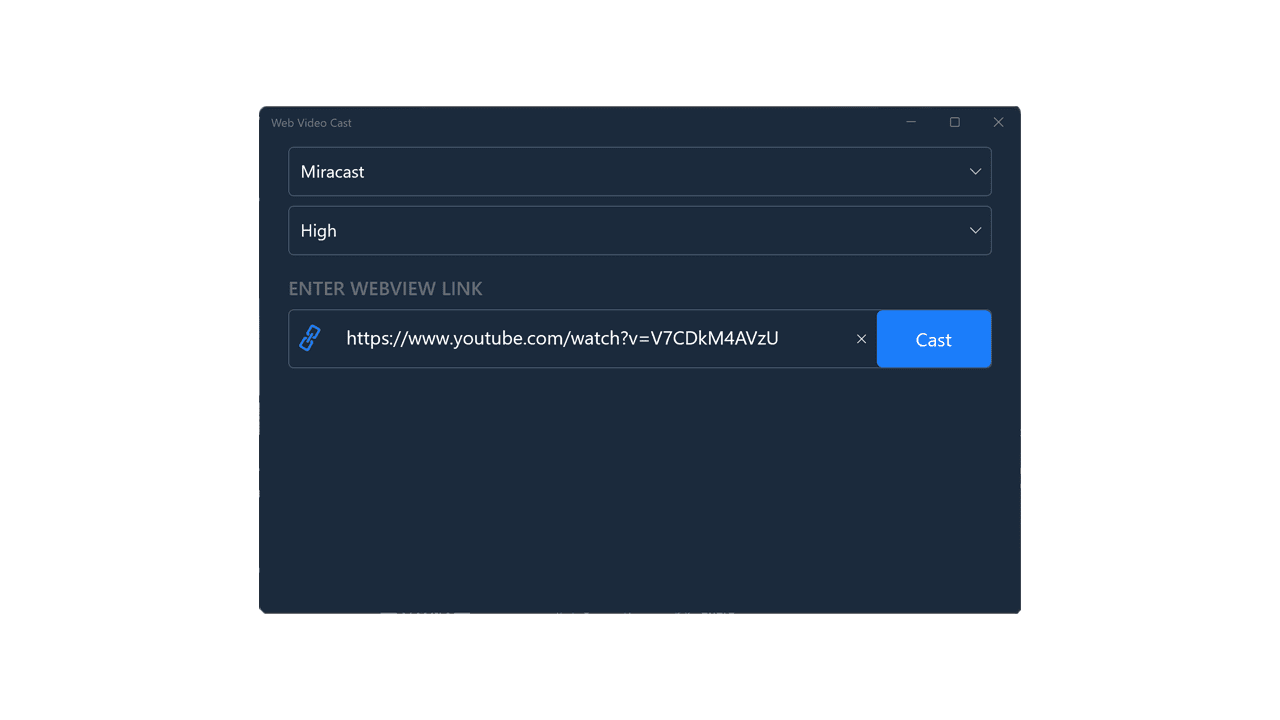
- Web Video Casting: Allows users to cast videos directly from web browsers or local storage seamlessly, eliminating the need for complicated setup processes.
- Stream Multiple Media Types: Supports not just videos but also images and music, providing a comprehensive media casting solution.
- Easy Setup & Control: Features a user-friendly interface with straightforward controls, perfect even for beginners.
The Experience: Beyond the Basic Streaming
As a tech enthusiast always on the hunt for robust yet easy-to-navigate streaming tools, Web Video Caster for Windows is refreshingly straightforward. From the moment you launch the app, you're greeted with an uncluttered interface that feels more like a friendly guide than an intimidating software dashboard. Whether you're streaming a high-definition movie or sharing a presentation, the app makes the process feel as smooth as sliding a playlist into your car's stereo. The gesture-based controls and intuitive navigation reduce the learning curve significantly, allowing new users to get up and running within minutes.
Design & User Experience
The app's clean interface combines modern minimalism with practical design — think of it as the digital equivalent of a well-organized toolbox. The process to connect your device is straightforward: select your target device from a list, then choose the media content to cast. Transmissions are stable and lag-free, thanks to well-optimized streaming protocols. Users praise the app's reliability, especially during longer streaming sessions, making it suitable for both casual users and business presentations.
Distinctive Features: Collaboration & Task Management
What sets Web Video Caster apart from typical casting tools is its capacity to support collaborative work features. Unlike some competitors that focus solely on one-to-one streaming, this app allows multiple users to connect and share media—think of it like a digital campfire where everyone adds their favorite stories. This collaborative aspect proves invaluable during family gatherings or team meetings where collective media sharing enhances engagement. Additionally, its task management capabilities enable users to organize media playlists or streaming sessions, fostering a more structured viewing or sharing experience. Such features position it uniquely for both entertainment and professional settings.
Verdict & Recommendations
Overall, Web Video Caster for Windows presents itself as a reliable, user-friendly media casting tool with particular emphasis on collaborative sharing and device versatility. For casual users wanting to savor web videos on a larger screen or small teams coordinating presentations, this app is a solid choice. Its particularly noteworthy ability to facilitate multiple users and manage media tasks makes it stand out in its category. I recommend giving it a try if you seek a straightforward yet powerful casting software that bridges the gap between casual entertainment and collaborative work.
Pros
- User-friendly interface
- Broad device compatibility
- Supports multiple video formats
- In-app web browsing capability
- Ability to cast local and online videos
Cons
- Occasional lag during casting
- Limited free features
- Compatibility issues with certain smart TVs
- Requires stable Wi-Fi connection
- Navigation can be slightly complex for new users