

- Name Victrix Control Hub
- Category Utilities & tools
- Developer Victrix
- Available on Xbox console, PC, Mobile, Surface Hub, HoloLens
- OS Windows 10 version 15063.0 or higher
- languages Dutch, English, English (United States), French, French (Canada), German, Italian, Japanese, Korean, Korean , Polish, Polish , Portuguese, Portuguese (Portugal), Spanish, Spanish (Mexico), Spanish (Spain)
Victrix Control Hub for Windows: A Precision Tool for Gaming Enthusiasts
Designed by Victrix, the Control Hub for Windows is a versatile application that acts as a central command center for managing and customizing your gaming controllers, offering a seamless experience tailored for serious gamers and tech-savvy users alike.
About the Developer and Core Highlights
Produced by Victrix—a well-established name renowned for its high-quality gaming peripherals—this app aims to elevate the way players interact with their controllers. Key features include intuitive controller customization, detailed profile management, and real-time device diagnostics. It's especially targeted at gamers seeking fine-tuned control and professional-grade configuration tools.
Adding Structure to Your Gaming Arsenal
Comprehensive Controller Customization
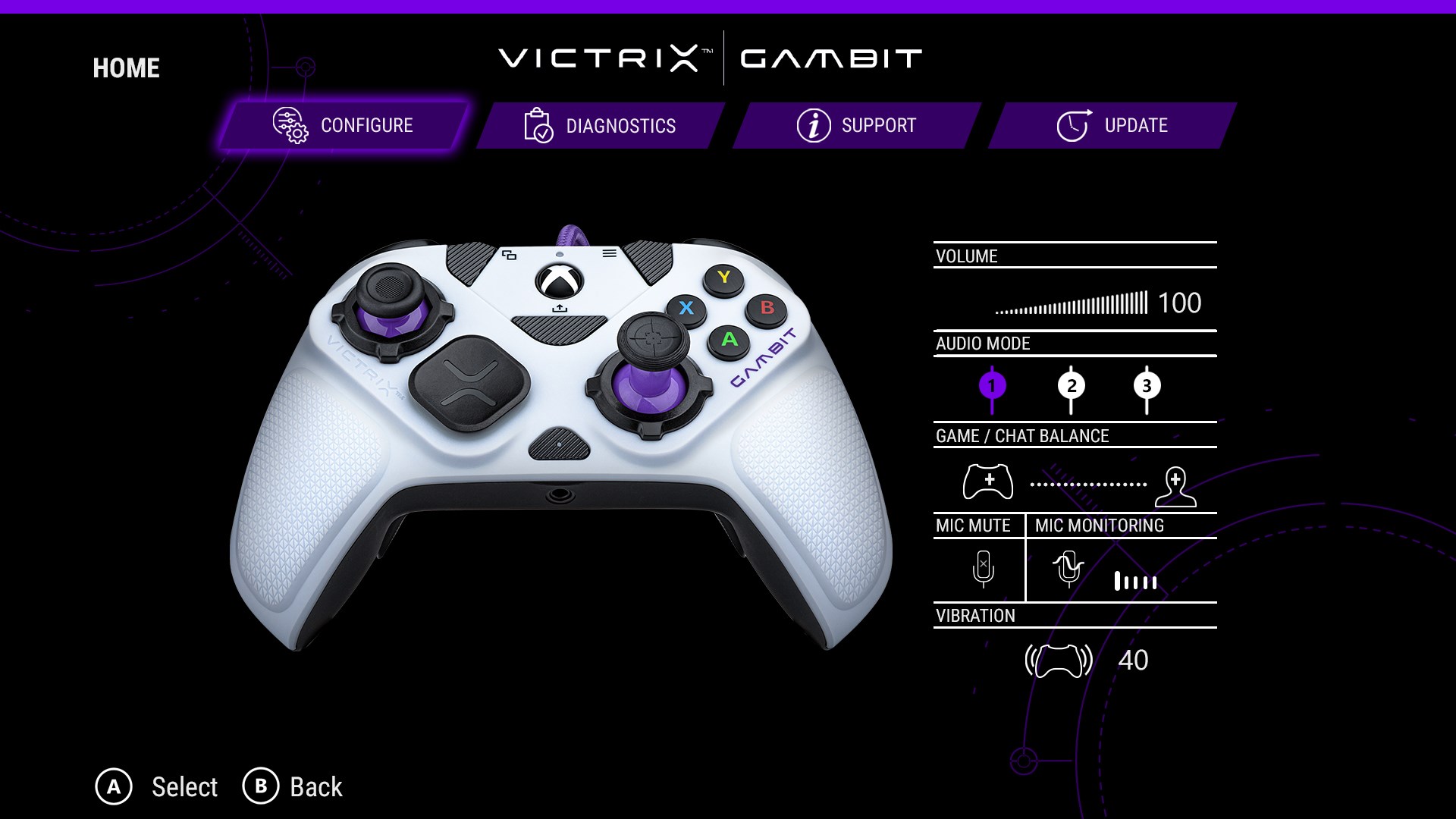
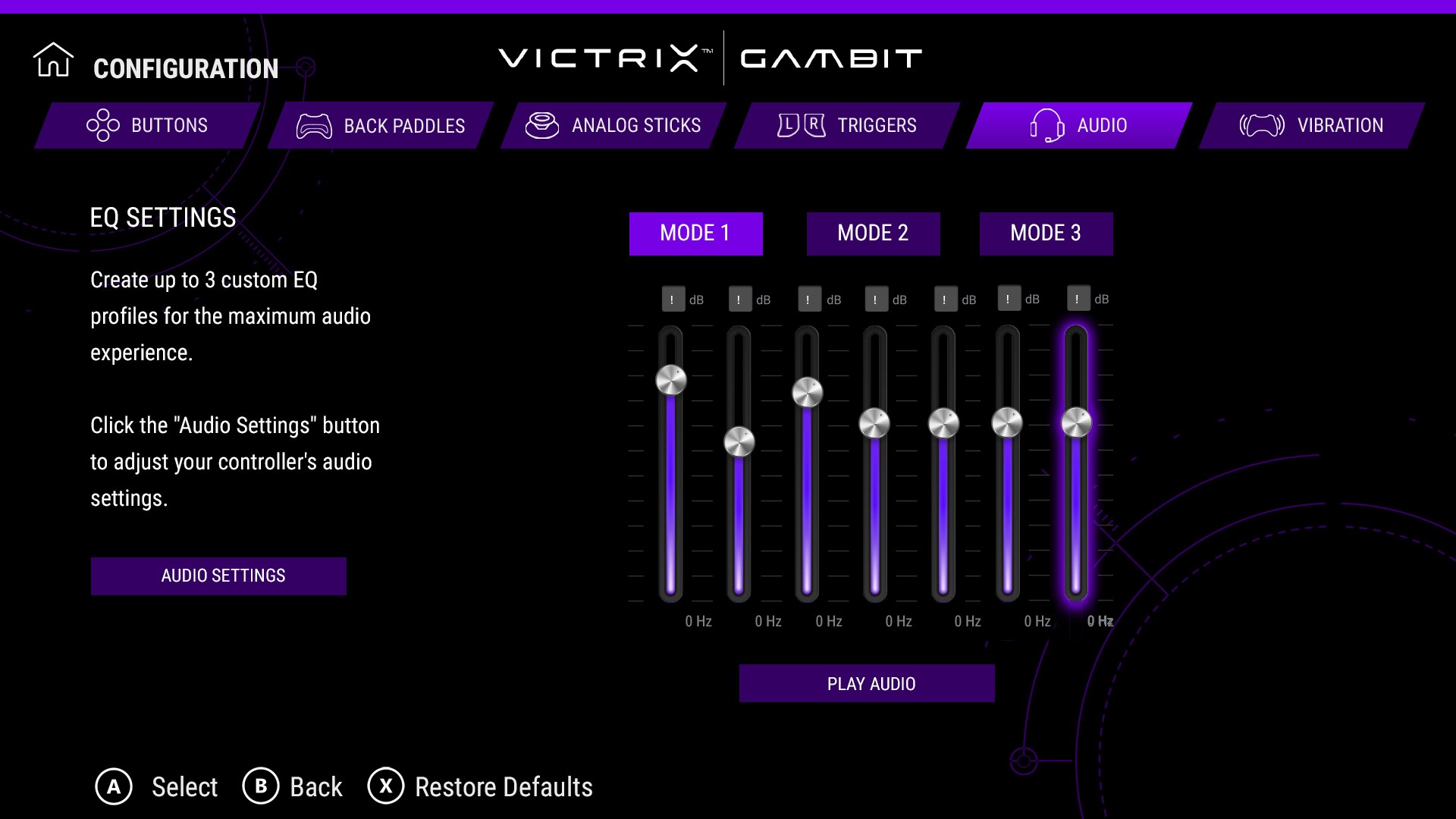
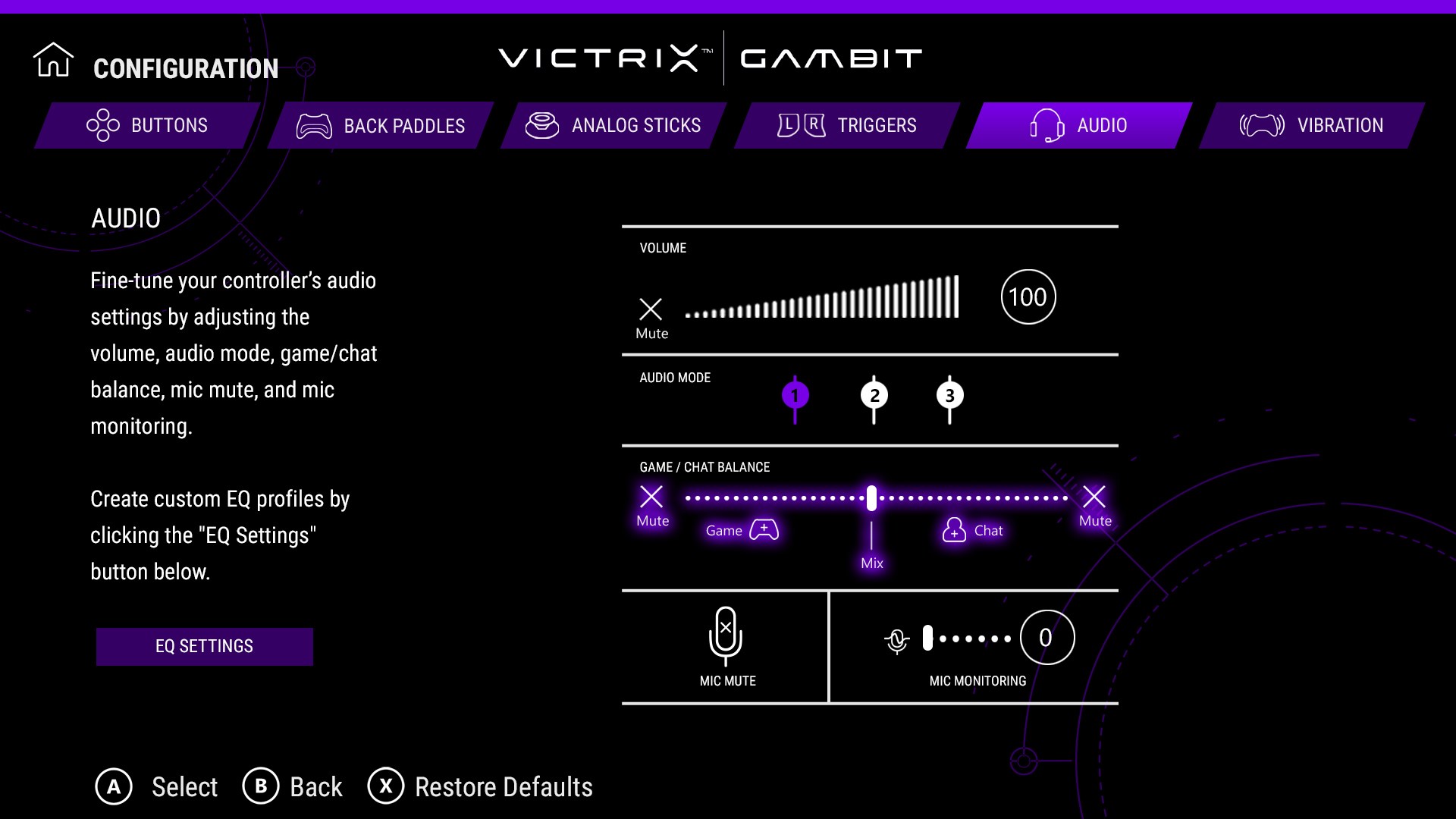
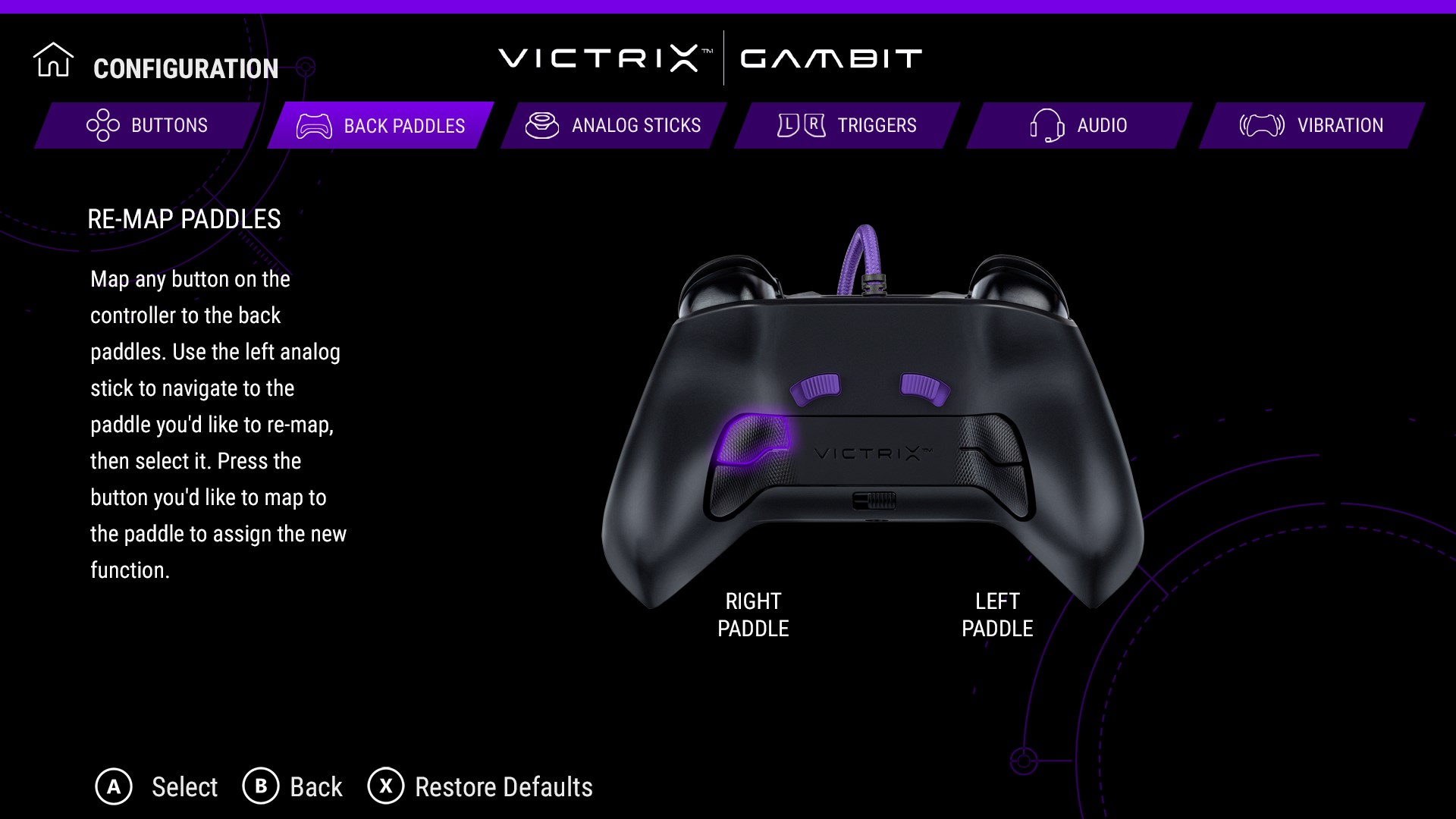
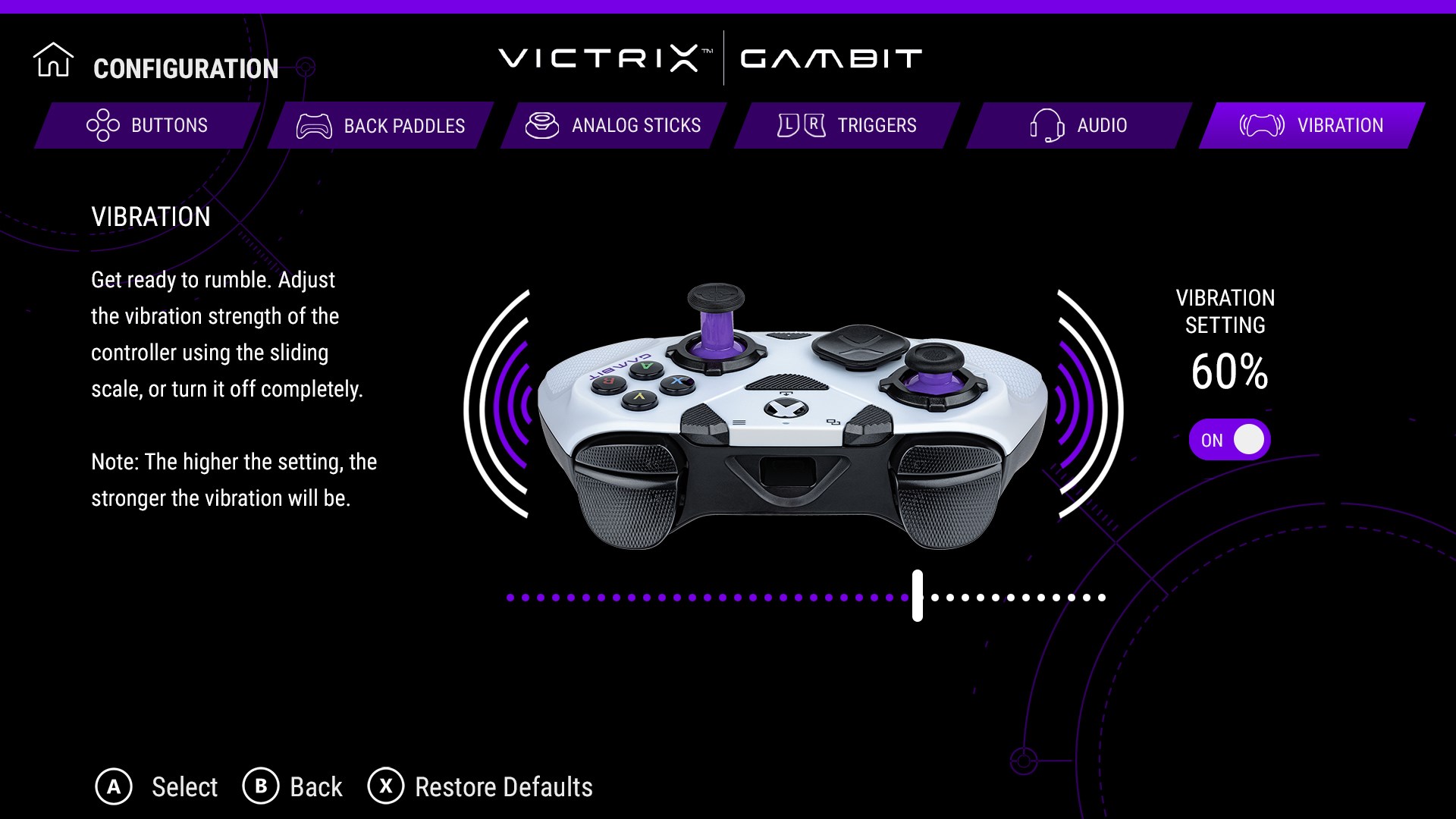
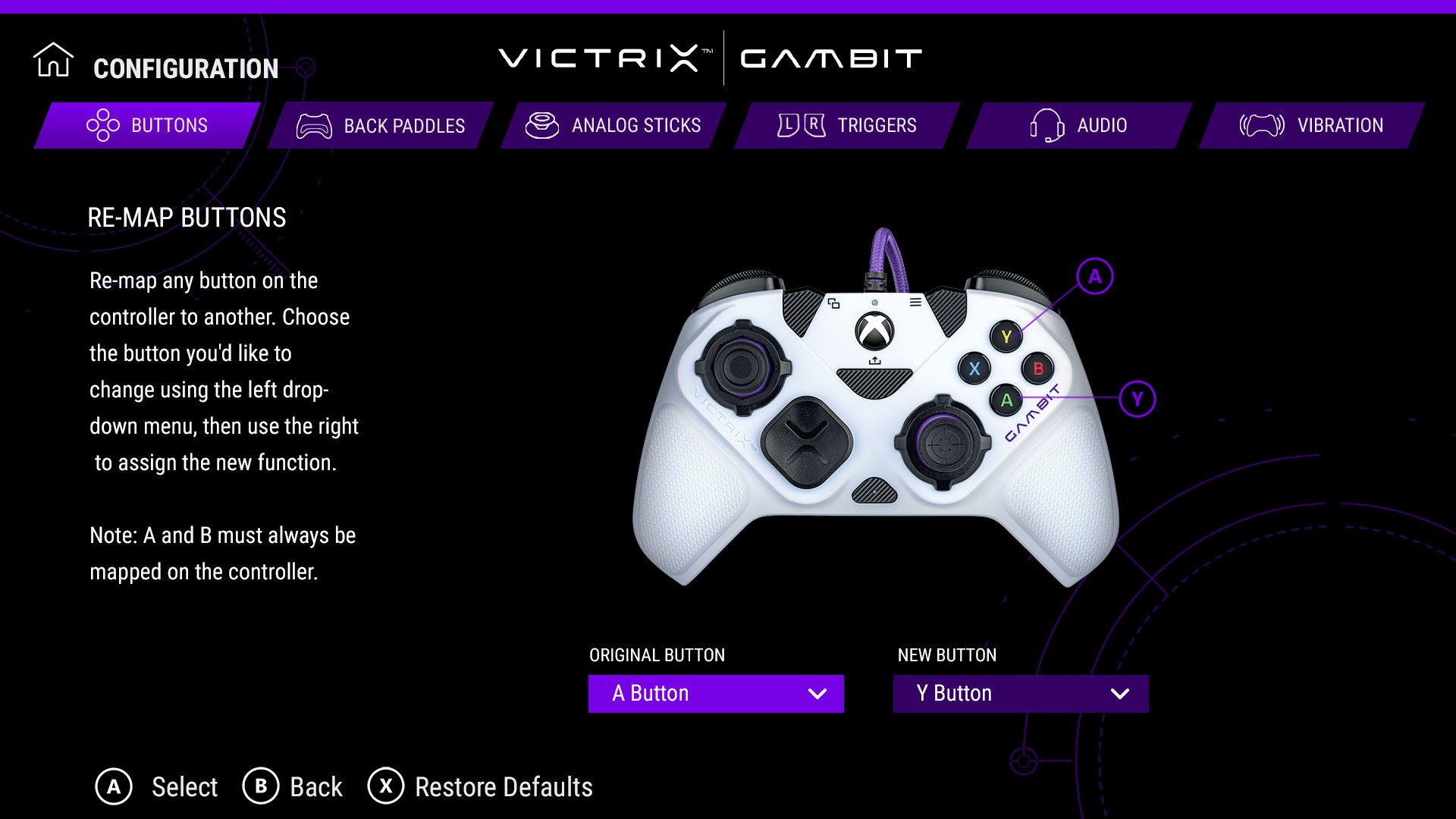
The Control Hub shines brightest with its robust customization options. Users can rearrange button mappings, modify sensitivity settings, and toggle features such as vibration and triggers—all within an easy-to-navigate interface. Imagine fine-tuning your controller perfectly for each game, so your inputs translate precisely into action, much like adjusting the strings on a musical instrument for the perfect pitch.
Profiles and Device Management
Another highlight is the effortless profile management system. Whether you switch between titles like FPS shooters and racing simulators, or share settings across devices, the app manages multiple profiles smoothly. Think of it as creating tailored playlists for every mood—your gaming setup is just as personalized, ready to load with a click.
Device Diagnostics and Firmware Updates
Real-time device diagnostics assure users that their controllers are functioning optimally. The app can identify connection issues and update firmware on the fly, ensuring your hardware stays current. This proactive maintenance is like having a smart mechanic who keeps your tools in prime condition without queuing at a repair shop.
User Experience and Unique Edge
The interface design of Victrix Control Hub is sleek yet straightforward, resembling the dashboard of a high-end audio system—intuitive controls mean beginners can find their way quickly, while seasoned gamers appreciate the granularity offered. The responsiveness of the application is noteworthy, with almost zero lag when adjusting settings or switching profiles, providing a fluid customization experience.
Compared to similar utilities, what sets this app apart is its tight integration with Victrix controllers, offering features that generic tools lack—such as automatic profile recognition and firmware management directly through the app. This specialized focus ensures that users benefit from optimized performance and reliability, making it a compelling choice for enthusiasts dedicated to high-precision gaming setups.
Final Verdict and Recommendations
Overall, Victrix Control Hub for Windows is a thoughtfully crafted tool that marries professional-grade customization with user-friendly design. It's ideal for gamers who demand exactitude and are willing to invest a bit of time fine-tuning their equipment. I recommend it wholeheartedly to Victrix controller owners and serious gaming aficionados who want to unlock the full potential of their hardware. For casual users or those with different brands, the benefits might be limited, but for dedicated users, this app is like having a personal device technician in your corner.
Pros
- Intuitive Dashboard
- Comprehensive Device Management
- Real-Time Performance Monitoring
- Custom Profile Creation
- Regular Software Updates
Cons
- Limited Device Compatibility
- Occasional Connectivity Issues
- Steep Learning Curve for Advanced Features
- Some Features Require Rebooting Devices
- Minor UI Glitches in Latest Version











